1
Procedures
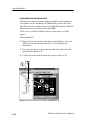
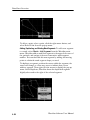
Gate and drag/drop from Waveform Tabular Sheet
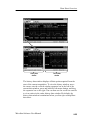
1. Open a waveform tabular sheet with YT waveform data in it.
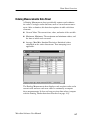
2. Unlike gates in a YT data sheet, there are no cursors to turn on in
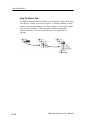
a waveform tabular sheet; each waveform table has a column that
contains the Start and Stop gates and a trigger point indicator.
3. To gate data, click and drag each gate until they span the data
you want to transfer, and then drag the data to a waveform
measurement data sheet.
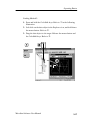
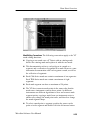
Measure StripChart Plots using Cursors
1. Select New in the File menu, and select StripChart from the New
Sheet dialog to open a StripChart data sheet.
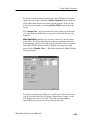
2. With the StripChart sheet selected, select Properties from the
View menu.
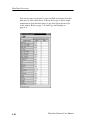
3. Select the Cursors tab in the Properties dialog, and select a cursor
type from the pulldown list. Click OK to apply the new settings
and close the dialog.
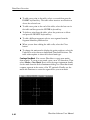
4. Use the mouse to set the cursor positions in the StripChart data
sheet.
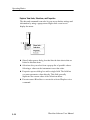
Set Up Instrument (Data Source)
1. Make sure the GPIB or RS-232 connection from the PC to the
instrument is established.
2. With a GPIB or RS-232 connection between the PC and the
instrument established, instrument resources, including most
control settings, automatically appear in the Explorer view.
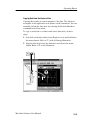
3. In the Explorer view, click on the Setup branch under the
instrument to be adjusted to expand the instrument setup
properties under it.
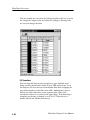
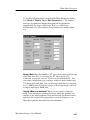
4. Click the control to be adjusted, and then right click to pop up its
shortcut menu.
5- 8
WaveStar Software User Manual