1
8.3 Videos can be displayed, downloaded and deleted on com
5. CONNECTING TO TV FOR PLAYBACK
5.1 Connect LidCam and TV with AV cable
5.2 Switch on LidCam.
5.3 Press POWER button to switch to
playback mode
5.4 Under playback mode, press REC
button to display video. Press REC button
again to stop video
Note: Only the last clip recorded can
be viewed on your TV. A computer is
necessary to view all clips recorded
6. ADJUSTING DATE/TIME
6.1 Connect TV with AV cable after
switching on.
6.2 Long press of POWER button to enter
date/time adjusting menu.
6.3 Press record button to put in
stand-by (solid green) or make sure it is
in stand-by mode.
6.4 Press the playback button to adjust.
6.5 Press POWER button to
choose date/time.
Rhino Outdoors Lid Cam
6.6 Long press of POWER to quit.
6.7 Long press of power button to reset
and start over
SPECIFICATIONS
Specifications
Sensor
7. DIRECT COMPUTER CONNECTION
7.1 Connect using supplied USB cable.
Red light will come on to indicate the unit
is charging
7.2 Press POWER button to turn on the
Lid Cam and use as a card reader
7.3 Prompt will pop up on screen to view
pictures or download videos, select it
7.4 Select DCIM folder
7.5 Select 100_coach to display
video clips recorded
Rhino Outdoors Lid Cam
SYSTEM REQUIREMENTS
The following requirements
•
•
•
•
•
Microsoft Windows 2000,XP or Vista
Intel® Pentium4 2.8GHz or higher
512MB or higher
Normal, USB1.1 or higher
Min.64MB graphic memory
Rhino Outdoors Lid Cam
CMOS 5.0 Megapixel sensor
Video resolution
HD(1280*720)
Focus range
1m ~
Digital zoom
Normal, 4× and 8× Digital Zoom
White balance
Auto
Video
HD
Internal memory
32MB
External memory
Card slot (Max. 32GB microSDHC)
File format
AVI
Computer connect
USB 2.0
TV outlet
NTSC
Battery
Built-in Li-ion battery
DISCLAIMER:
Rhino Outdoors, LLC reserves the right to make changes
State of indicator
to the LidCam features, functionality and physical design
Working state Indicator state
at it’s sole discretion. As a result, such changes may not
Stand-by
Green
lightofon
be reflected in this
version
the manual.
Recording
Red flashing light
microSD,
microSDHC
mark and logo
Red light
on
areGreen
trademarks
of SD-3C LLC.
Full charging
light on
Other brand names mentioned herein are
Low battery forRed
light flashing
identifications
purposes only and may
be trademarks of their respected holders.
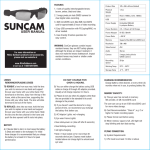
Location of controls
Charging
1. POWER button
Power on/off and function switch.
2. LED flash light button
Control LED.
3. Reset button
Restart machine when it crashes.
4. LED lamp
Flash light.
5. Lens
Capture video.
6. Control indicator
Indicate working state.
7. Microphone
Capture sound.
WWW.RHINOUTDOOR
8. Zoom button
Turn the button to zoom in.
864-814-1080
9. Recording button
Record and display video.
10. AV jack
Connect with TV.
11. Card slot
Put expansion card in.
12. USB connect
Connect with computer.
System Requirements
1. POWER
Power on/off and function switch.
Symptom
Possible
causesbutton
2. LED
flash light
button card
Control
Solid Green Light, camera will not record
Camera
is locked
because
isLED.
full
Reset
button
it crashes.
Videos are not displayed, but audio can be heard You do3. not
have
the correctRestart
mediamachine
playerwhen
installed
4. LED lamp
The Power Turns Off Automatically
Recorded video not saved.
Far away images are out of focus
Memory card functions are not operable
Blurrybutton
image
1. POWER
Power on/off and function switch.
2. LED flash light button
Control LED.
4. LED lamp
Flash light.
None
of the
3. Reset
button
buttons
work.
Restart
machine when it crashes.
Flash light.
Power5.save
Lens mode
Capture video.
The battery
pack
is exhausted.
6. Control
indicator
Indicate working state.
The power
turns off before saving.
7. Microphone
Capture sound.
8. Zoom
button focus range.
Turn the button to zoom in.
Objects
are beyond
Recording
and
video.
Videos9.not
in AVIbutton
format areRecord
stored
indisplay
the card.
10.is
AVnot
jacksteadily held.Connect with TV.
LidCam
SD card slot
Put expansion card in.
Lens is11.dirty.
12. USBhappens
connect when Connect
with computer.
Short circuit
connected
to other facilities.
The following requirements must be satisfied.
Solutions
Microsoft Windows 2000,XP or Vista
Delete
videos
off card
Intel®
Pentium4
2.8GHz or higher
512MBVLC
or higher
Download
player, free from our website:
Normal,
USB1.1
higher
rhinoutdoors.com &orset
as default
Turn on again.
WWW.RHINOUTDOORS.COM
Charge the battery.
864-814-1080
Charge battery when low power is indicated.
Record in focus range.
Format the memory card. Do backup before formatting.
Hold steady when recording.
Clean the lens.
Press reset button to turn on again.