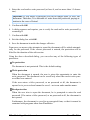
1
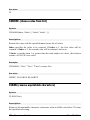
There are array functions that return just a single value rather than an entire
array – for example, the MDETERM function (that returns the determinant of
an array). In that case the procedure described above is not necessary, and the
formula can be entered just like any other formula.
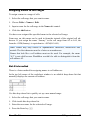
To edit an existing array formula: Select all cells covered by the resulting array,
edit the formula, and press (Ctrl)(ª)(¢). If you press just the Enter key instead, PlanMaker issues a warning and asks you if you want to overwrite the
array by a single value.
Hint: To select all cells covered by an array formula, click any of the involved
cells and press (Ctrl)(7).
Entering array constants in formulas
If desired, arrays can be entered as constants instead of cell references. For this
purpose, surround the array by braces { }, and separate columns by commas and
rows by semicolons.
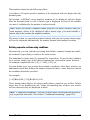
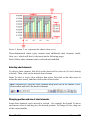
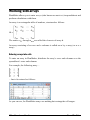
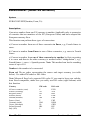
For example, the following array ...
... can be entered as follows:
={1,2,3; 3,-1,1; 2,2,4}
Notes:
The notation described above is suitable for fixed values only; formulas and cell
references are not allowed.
You can also enter vectors in the notation described above. For a horizontal
vector enter, e.g., {1,2,3}; for a vertical vector enter {1;2;3}.
Working with database functions
PlanMaker provides database functions that allow you to query and evaluate a cell
range that is structured like a database.
426 Formulas and functions
Manual PlanMaker