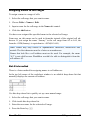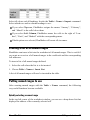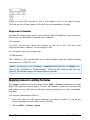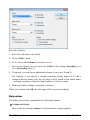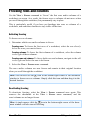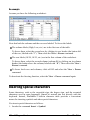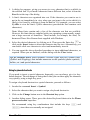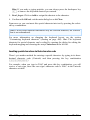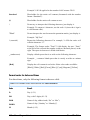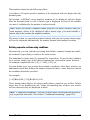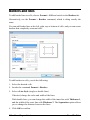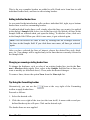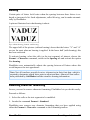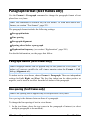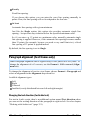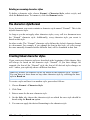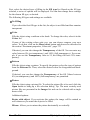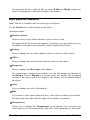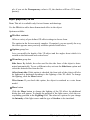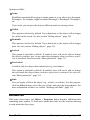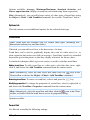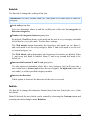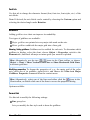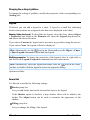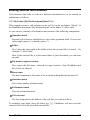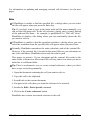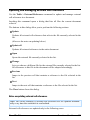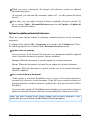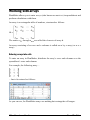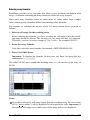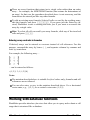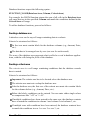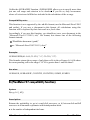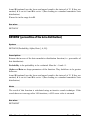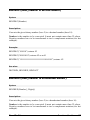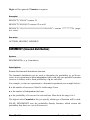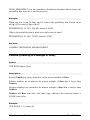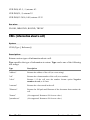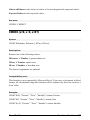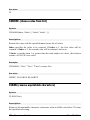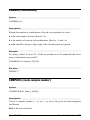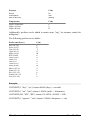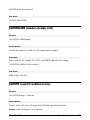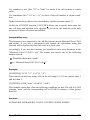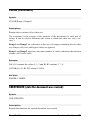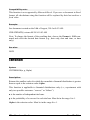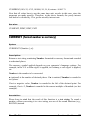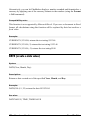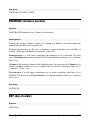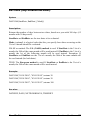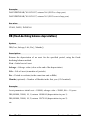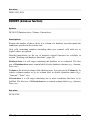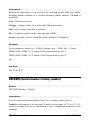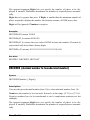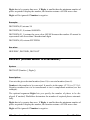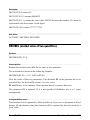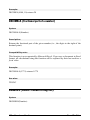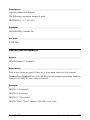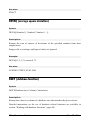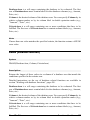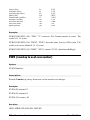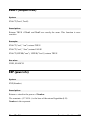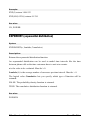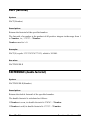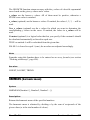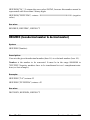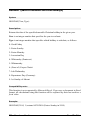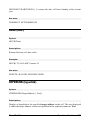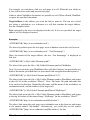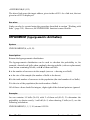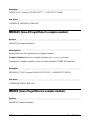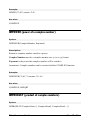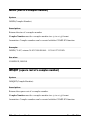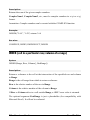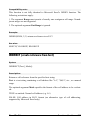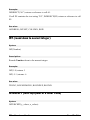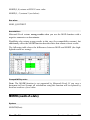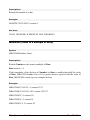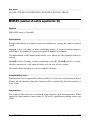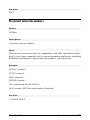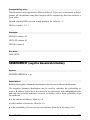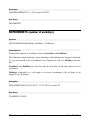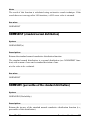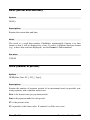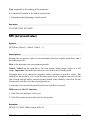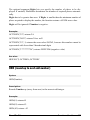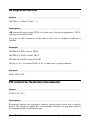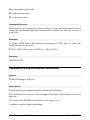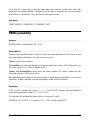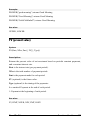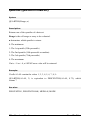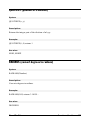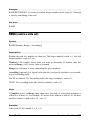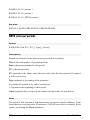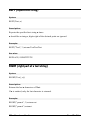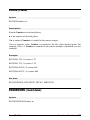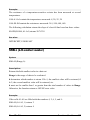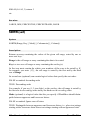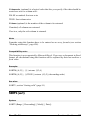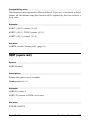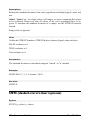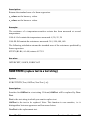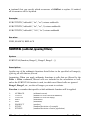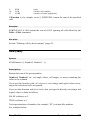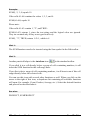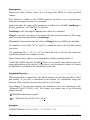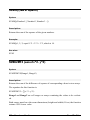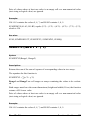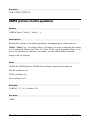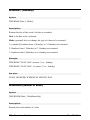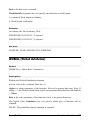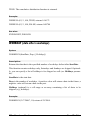
1
Manual PlanMaker © 1987-2014 SoftMaker Software GmbH Content Welcome! 21 Technical support .............................................................................................. 22 About this manual ............................................................................................. 23 System requirements ......................................................................................... 23 Installation and program startup 25 Installing under Windows ................................................................................. 25 Installing under Linux....................................................................................... 26 Installing on an Android device ........................................................................ 26 Purchased in Google Play Store .................................................................. 26 Purchased on our website www.softmaker.com .......................................... 27 Screen elements 29 Title bar............................................................................................................. 29 Menu bar ........................................................................................................... 30 Standard toolbar ................................................................................................ 31 Formatting toolbar ............................................................................................ 31 Edit toolbar ....................................................................................................... 32 Document window ............................................................................................ 32 Status bar .......................................................................................................... 33 PlanMaker basics 35 The structure of a spreadsheet .......................................................................... 35 Moving around in a worksheet ......................................................................... 37 Entering data ..................................................................................................... 37 Deleting data ..................................................................................................... 37 Undoing changes .............................................................................................. 38 Starting a new document................................................................................... 38 Opening a document ......................................................................................... 39 Printing a document .......................................................................................... 41 Saving a document............................................................................................ 41 Exiting PlanMaker ............................................................................................ 42 The PlanMaker Tour 43 Five minutes of theory … ................................................................................. 43 Manual PlanMaker Content iii First steps with PlanMaker ............................................................................... 44 Entering values and formulas ........................................................................... 45 Going three-dimensional .................................................................................. 49 Changing the layout of worksheets ................................................................... 50 Charts................................................................................................................ 52 Outlook ............................................................................................................. 53 Editing worksheets 55 Entering data in cells ........................................................................................ 58 Undoing changes .............................................................................................. 61 Repeating commands ........................................................................................ 61 Selecting cells and cell contents ....................................................................... 62 Selecting in the Windows/Linux version .................................................... 62 Selecting in the Android version ................................................................. 64 Deleting cells and cell contents ........................................................................ 65 Deleting the contents of cells ...................................................................... 66 Deleting whole cells .................................................................................... 67 Deleting empty rows ................................................................................... 68 Deleting duplicate rows .............................................................................. 68 Inserting new cells ............................................................................................ 69 Moving and copying cells ................................................................................. 70 Pasting cells selectively .................................................................................... 72 Filling cells automatically................................................................................. 76 Tips and tricks for automatic filling ............................................................ 80 Working with multiple worksheets ................................................................... 82 Creating new worksheets ............................................................................ 82 Working with the worksheet register........................................................... 83 Managing worksheets ................................................................................. 84 Calculating in three dimensions .................................................................. 85 Naming cell ranges ........................................................................................... 86 Assigning names to cell ranges ................................................................... 87 Deleting and renaming names ..................................................................... 88 Defining names automatically from the selection ....................................... 88 Creating a list of all named ranges .............................................................. 89 Putting named ranges to use........................................................................ 89 Applying names in existing formulas.......................................................... 90 Sorting cells ...................................................................................................... 91 Transposing cells .............................................................................................. 94 Distributing text into multiple columns ............................................................ 94 Filtering cells by their contents......................................................................... 95 Special filter ................................................................................................ 96 AutoFilter .................................................................................................... 98 Analyzing tables ............................................................................................... 99 iv Content Manual PlanMaker Displaying formulas instead of results ...................................................... 100 Syntax highlighting ................................................................................... 100 Watch window for cell contents ................................................................ 102 Formula auditing ....................................................................................... 103 Updating tables ............................................................................................... 108 Inserting comments......................................................................................... 109 Goal-seeking ................................................................................................... 110 Scenarios......................................................................................................... 111 Creating scenarios ..................................................................................... 112 Viewing scenarios ..................................................................................... 113 Managing scenarios................................................................................... 114 Merging scenarios ..................................................................................... 115 Creating a scenario summary .................................................................... 115 Consolidating data .......................................................................................... 116 Consolidating data by position .................................................................. 117 Consolidating data by labels ..................................................................... 120 Modifying and updating consolidations .................................................... 122 Freezing rows and columns ............................................................................ 123 Inserting special characters ............................................................................. 124 Formatting worksheets 127 Cell size .......................................................................................................... 129 Changing cell sizes using the mouse ......................................................... 129 Changing cell sizes using menu commands .............................................. 129 Hiding rows or columns ............................................................................ 130 Number format ............................................................................................... 131 List of all number formats available ......................................................... 133 Working with user-defined number formats.............................................. 137 Structure of a user-defined format............................................................. 138 Borders and lines ............................................................................................ 144 Shading ........................................................................................................... 146 Alignment ....................................................................................................... 147 Protection ........................................................................................................ 150 Character format ............................................................................................. 150 Typeface and font size............................................................................... 151 Text styles ................................................................................................. 152 Text color .................................................................................................. 153 Superscript and subscript .......................................................................... 153 Letter spacing and character pitch............................................................. 154 Kerning ..................................................................................................... 155 Removing character formatting................................................................. 155 Paragraph format (text frames only) ............................................................... 156 Paragraph indents (text frames only) ........................................................ 156 Manual PlanMaker Content v Line spacing (text frames only)................................................................. 156 Paragraph alignment (text frames only) .................................................... 158 Spacing above/below a paragraph (text frames only) ............................... 159 Character styles............................................................................................... 159 Creating character styles ........................................................................... 160 Applying character styles .......................................................................... 160 Modifying character styles ........................................................................ 161 The character style Normal ....................................................................... 162 Creating linked character styles ................................................................ 162 Cell styles ....................................................................................................... 163 Creating cell styles .................................................................................... 164 Applying cell styles ................................................................................... 165 Modifying cell styles ................................................................................. 165 The cell style Normal ................................................................................ 166 Creating linked cell styles ......................................................................... 166 Document templates ....................................................................................... 166 Creating document templates .................................................................... 167 Using document templates ........................................................................ 167 Modifying document templates................................................................. 168 The document template Normal.pmv ........................................................ 168 AutoFormat..................................................................................................... 168 Conditional formatting.................................................................................... 169 Creating a new conditional formatting rule............................................... 170 Types of conditional formatting rules ....................................................... 171 Managing conditional formatting rules ..................................................... 174 Removing conditional formatting ............................................................. 177 Input validation ............................................................................................... 178 Transfer formatting ......................................................................................... 184 Page setup ....................................................................................................... 184 Page format ............................................................................................... 185 Additional page setup options ................................................................... 186 Headers and footers................................................................................... 189 Page breaks ............................................................................................... 192 Search & replace 195 Search ............................................................................................................. 195 Replace ........................................................................................................... 196 Search again & replace again ......................................................................... 197 Search and replace options ............................................................................. 197 Jumping to specific cell addresses .................................................................. 199 Jumping to specific contents of a table ........................................................... 200 vi Content Manual PlanMaker Objects (pictures, drawings, etc.) 203 Objects – basic procedures ............................................................................. 203 Inserting objects ........................................................................................ 204 Selecting objects ....................................................................................... 204 Object mode .............................................................................................. 204 Changing position and size of objects ....................................................... 207 Rotating and flipping objects .................................................................... 207 Aligning and distributing objects .............................................................. 208 Duplicating objects ................................................................................... 209 Changing the properties of objects ............................................................ 209 Objects – advanced procedures....................................................................... 219 Hiding objects ........................................................................................... 219 Changing the order of objects ................................................................... 219 Grouping objects ....................................................................................... 220 Charts.............................................................................................................. 221 Text frames ..................................................................................................... 221 Inserting text frames.................................................................................. 221 Changing the properties of text frames ..................................................... 222 Pictures ........................................................................................................... 224 Inserting pictures ....................................................................................... 224 Scanning pictures ...................................................................................... 225 Inserting pictures from the gallery (Android) ........................................... 225 Changing the properties of picture frames ................................................ 226 Using the Picture toolbar........................................................................... 228 OLE objects .................................................................................................... 229 Inserting OLE objects ............................................................................... 230 Editing OLE objects .................................................................................. 231 Editing links to OLE objects ..................................................................... 232 Changing the properties of OLE objects ................................................... 233 Using the SoftMaker Equation Editor ....................................................... 234 Drawings......................................................................................................... 236 Inserting drawings ..................................................................................... 236 Adding text to AutoShapes........................................................................ 239 Changing the properties of drawings ........................................................ 240 Charts 245 Inserting charts ............................................................................................... 245 Editing charts .................................................................................................. 246 Changing the chart type ............................................................................ 247 Changing the arrangement of data series .................................................. 252 Working with chart elements..................................................................... 252 Changing common chart properties .......................................................... 271 Manual PlanMaker Content vii Updating charts ............................................................................................... 276 Moving charts to another worksheet ............................................................... 276 Saving charts as images .................................................................................. 277 Forms 279 Working with forms objects ............................................................................ 280 Inserting forms objects .............................................................................. 281 Editing forms objects ................................................................................ 282 Operating and evaluating forms objects .................................................... 282 Forms objects and Excel macros and scripts ............................................. 283 Forms objects in detail .................................................................................... 283 Checkboxes ............................................................................................... 283 Radio buttons ............................................................................................ 285 Dropdowns ................................................................................................ 287 Listboxes ................................................................................................... 288 Pushbuttons ............................................................................................... 290 Spinners .................................................................................................... 290 Scrollbars .................................................................................................. 292 Labels and groupboxes.............................................................................. 293 Language tools 295 Setting up the language................................................................................... 295 Spell checking................................................................................................. 296 Manual spell checking .............................................................................. 296 Spell checking as you type ........................................................................ 298 Editing user dictionaries............................................................................ 298 Hyphenation ................................................................................................... 299 Hyphenation in text frames ....................................................................... 299 Hyphenation in table cells ......................................................................... 300 SmartText........................................................................................................ 301 Creating SmartText entries ........................................................................ 302 Inserting SmartText entries ....................................................................... 303 Editing SmartText entries .......................................................................... 304 Managing documents 305 Quick paths ..................................................................................................... 305 Defining quick paths ................................................................................. 306 Using quick paths ...................................................................................... 306 Editing and deleting quick paths ............................................................... 307 Document summary ........................................................................................ 307 The file manager ............................................................................................. 308 The file manager’s buttons ........................................................................ 308 viii Content Manual PlanMaker Searching with the file manager ................................................................ 309 Outliner 313 Grouping cells................................................................................................. 315 Showing/hiding grouped cells ........................................................................ 316 Outliner options .............................................................................................. 317 Internet functions 319 Working with links ......................................................................................... 319 Saving HTML documents ............................................................................... 321 Outputting documents 323 Print preview .................................................................................................. 323 Printing ........................................................................................................... 325 Exporting to a PDF file ................................................................................... 328 E-mailing ........................................................................................................ 332 Protecting cells and documents 335 Sheet protection .............................................................................................. 335 Step 1: Setting up protection settings for cells .......................................... 336 Step 2: Activating sheet protection............................................................ 336 Deactivating sheet protection .................................................................... 337 Workbook protection ...................................................................................... 338 Activating workbook protection ............................................................... 338 Deactivating workbook protection ............................................................ 338 Document protection ...................................................................................... 339 Enabling document protection .................................................................. 339 Disabling document protection ................................................................. 341 Working with other file formats 343 Saving and opening files in other file formats ................................................ 343 Working with text files ................................................................................... 345 Working with Excel files ................................................................................ 347 Opening and saving Excel files ................................................................. 347 Differences between PlanMaker and Excel............................................... 349 Working with Arabic text 351 Activating extended support for Arabic text ................................................... 351 Changing the text direction in table cells ........................................................ 352 Manual PlanMaker Content ix Changing the text direction in text frames ...................................................... 352 Changing the direction of worksheets ............................................................ 353 Scripts (BasicMaker) 355 Document windows 357 Creating document windows .......................................................................... 357 Activating document windows ....................................................................... 357 Closing document windows ............................................................................ 358 Maximizing document windows ..................................................................... 358 Minimizing document windows ..................................................................... 358 Arranging document windows ........................................................................ 359 Using document tabs ...................................................................................... 359 Moving data between document windows ...................................................... 361 Customizing PlanMaker 363 Preferences ..................................................................................................... 364 Preferences, View tab ................................................................................ 364 Preferences, General tab ........................................................................... 365 Preferences, Edit tab ................................................................................. 366 Preferences, Appearance tab ..................................................................... 369 Preferences, Language tab ........................................................................ 372 Preferences, Files tab ................................................................................ 373 Preferences, System tab ............................................................................ 375 Preferences, Fonts tab ............................................................................... 378 Document properties....................................................................................... 379 Document properties, Summary tab .......................................................... 379 Document properties, Colors tab............................................................... 379 Document properties, Internet tab ............................................................. 382 Document properties, Statistics tab ........................................................... 383 Document properties, Options tab............................................................. 383 Document properties, Calculate tab .......................................................... 386 Document properties, Protection tab ......................................................... 388 Document properties, Fonts tab ................................................................ 389 Worksheet properties ...................................................................................... 389 Customizing the document display ................................................................. 390 Zoom level ................................................................................................ 391 Full screen view ........................................................................................ 391 Customizing toolbars ...................................................................................... 392 Displaying and hiding toolbars ................................................................. 393 Positioning toolbars on the screen............................................................. 394 Managing toolbars .................................................................................... 395 x Content Manual PlanMaker Customizing toolbar icons ........................................................................ 396 Creating user-defined toolbar icons .......................................................... 398 Using the toolbar menu ............................................................................. 399 Customizing keyboard shortcuts..................................................................... 400 Activating a keyboard mapping ................................................................ 401 Creating a new keyboard mapping ............................................................ 402 Renaming or deleting a keyboard mapping............................................... 403 Editing the shortcuts in a keyboard mapping ............................................ 403 Resetting the shortcuts in a keyboard mapping ......................................... 406 Customizing AutoFill lists .............................................................................. 406 Creating a new AutoFill list ...................................................................... 407 Editing AutoFill lists ................................................................................. 407 Deleting AutoFill lists ............................................................................... 407 Importing AutoFill list from cells ............................................................. 407 Installing additional dictionaries ..................................................................... 408 Installing additional SoftMaker dictionaries (Windows) .......................... 409 Installing additional SoftMaker dictionaries (Android) ............................ 409 Installing additional SoftMaker dictionaries (Linux) ................................ 410 Installing Hunspell dictionaries................................................................. 410 Choosing a different dictionary for a language ......................................... 411 Formulas and functions 413 Formula basics ................................................................................................ 414 Arithmetic operators in formulas .............................................................. 414 Entering formulas ........................................................................................... 415 Relative vs. absolute cell references ............................................................... 417 External cell references................................................................................... 418 Entering external cell references ............................................................... 419 Updating and managing external cell references ...................................... 421 Error values .................................................................................................... 423 Working with arrays ....................................................................................... 424 Working with database functions .................................................................... 426 Functions from A to Z ..................................................................................... 429 ABS (absolute value) ................................................................................ 429 ACOS (arccosine) ..................................................................................... 429 ACOSH (inverse hyperbolic cosine) ......................................................... 430 ACOT (arccotangent) ................................................................................ 431 ACOTH (inverse arccotangent) ................................................................ 431 ADDRESS (cell address as text) ............................................................... 432 AND (logical AND function) .................................................................... 433 AREAS (number of areas) ........................................................................ 434 ASIN (arcsine) .......................................................................................... 434 ASINH (inverse hyperbolic sine) .............................................................. 435 Manual PlanMaker Content xi ATAN (arctangent) .................................................................................... 436 ATAN2 (arctangent 2) ............................................................................... 436 ATANH (inverse hyperbolic tangent)........................................................ 437 AVEDEV (average deviation) ................................................................... 437 AVERAGE (arithmetic mean) ................................................................... 438 AVERAGEA (arithmetic mean) ................................................................ 439 AVERAGEIF (average if condition is true) .............................................. 440 AVERAGEIFS (average if conditions are true) ........................................ 441 B (PlanMaker 97 compatibility function) ................................................. 442 BESSELI (modified Bessel function In(x)) .............................................. 443 BESSELJ (Bessel function Jn(x)) ............................................................. 444 BESSELK (modified Bessel function Kn(x)) ........................................... 444 BESSELY (Bessel function Yn(x)) ........................................................... 445 BETADIST (beta distribution) .................................................................. 445 BETAINV (percentiles of the beta distribution)........................................ 446 BIN2DEC (binary number to decimal number) ........................................ 447 BIN2HEX (binary number to hexadecimal number) ................................ 447 BIN2OCT (binary number to octal number) ............................................. 448 BINOMDIST (binomial distribution) ....................................................... 449 CEILING (round up to a multiple of base) ............................................... 450 CELL (information about a cell) ............................................................... 451 CHAR (character from ANSI code) .......................................................... 453 CHIDIST (chi-square distribution) ........................................................... 453 CHIINV (percentiles of the chi-square distribution) ................................. 454 CHITEST (chi-square test for independence) ........................................... 454 CHOICE (x>0, x=0, x<0?)........................................................................ 455 CHOOSE (choose value from list) ............................................................ 456 CLEAN (remove unprintable characters) ................................................. 456 CODE (ANSI code of a character)............................................................ 457 COLUMN (column number of a reference) .............................................. 457 COLUMNS (number of columns in a range) ............................................ 458 COMBIN (combinations) ......................................................................... 459 COMPLEX (create complex number)....................................................... 459 CONCATENATE (concatenate text strings) ............................................. 460 CONFIDENCE (confidence interval) ....................................................... 461 CONVERT (unit conversion) .................................................................... 462 CORREL (correlation coefficient) ............................................................ 465 COS (cosine) ............................................................................................. 465 COSH (hyperbolic cosine) ........................................................................ 466 COT (cotangent) ....................................................................................... 466 COTH (hyperbolic cotangent)................................................................... 467 COUNT (number of cells filled with numbers) ........................................ 468 COUNTA (number of cells filled) ............................................................. 468 COUNTBLANK (number of empty cells) ................................................ 469 xii Content Manual PlanMaker COUNTIF (count if condition is true)....................................................... 469 COUNTIFS (count if conditions are true)................................................. 470 COUNTP (PlanMaker 97 compatibility function) .................................... 472 COVAR (Covariance) ............................................................................... 473 CREATEDATE (date the document was created) ..................................... 473 CRITBINOM ............................................................................................ 474 CUMIPMT (cumulative interest) .............................................................. 475 CUMPRINC (cumulative principal) ......................................................... 476 CURRENCY (format number as currency) .............................................. 477 DATE (create a date value) ....................................................................... 478 DATEDIF (date difference)....................................................................... 479 DATEVALUE (convert text into date value) ............................................ 480 DAVERAGE (database function).............................................................. 481 DAY (day of a date) .................................................................................. 481 DAYS (days between two dates) ............................................................... 482 DAYS360 (days between two dates) ......................................................... 483 DAYSPERMONTH (days per month) ...................................................... 484 DAYSPERYEAR (days per year) ............................................................. 484 DB (fixed-declining balance depreciation) ............................................... 485 DCOUNT (database function) .................................................................. 486 DCOUNTA (database function) ................................................................ 487 DDB (double-declining balance depreciation) .......................................... 487 DEC2BIN (decimal number to binary number) ........................................ 488 DEC2HEX (decimal number to hexadecimal number) ............................. 489 DEC2OCT (decimal number to octal number) ......................................... 490 DECIBEL (decibel value of two quantities) ............................................. 491 DECIMALS (fractional part of a number) ................................................ 492 DEGREES (convert radians to degrees) ................................................... 492 DELTA (test for equality) .......................................................................... 493 DEVSQ (average square deviation) .......................................................... 494 DGET (database function) ........................................................................ 494 DMAX (database function) ....................................................................... 495 DMIN (database function) ........................................................................ 496 DOLLARDE (dollar price, decimal) ......................................................... 496 DOLLARFR (dollar price, fraction) ......................................................... 497 DPRODUCT (database function).............................................................. 498 DSTDEV (database function) ................................................................... 498 DSTDEVP (database function) ................................................................. 499 DSUM (database function) ....................................................................... 500 DVAR (database function) ........................................................................ 501 DVARP (database function) ...................................................................... 501 EDATE (date before/after n months) ........................................................ 502 EFFECT (effective interest rate) ............................................................... 503 EOMONTH (end of month in n months) .................................................. 504 Manual PlanMaker Content xiii ERF (Gaussian error function) .................................................................. 504 ERFC (complement of Gaussian error function) ...................................... 505 ERROR.TYPE (error type) ....................................................................... 505 EUROCONVERT (convert EU currencies) .............................................. 507 EVEN (round up to next even number) .................................................... 508 EXACT (compare texts) ........................................................................... 509 EXP (power of e) ...................................................................................... 509 EXPONDIST (exponential distribution) ................................................... 510 FACT (factorial) ........................................................................................ 511 FACTDOUBLE (double factorial) ............................................................ 511 FALSE (logical value FALSE) .................................................................. 512 FDIST (F distribution) .............................................................................. 512 FILENAME (file name of the document) ................................................. 513 FIND (search for text) ............................................................................... 514 FINV (percentiles of the F distribution) .................................................... 515 FISHER (Fisher transformation) ............................................................... 515 FISHERINV (inverse of the Fisher transformation) ................................. 516 FIXED (format number as text with fixed decimals) ................................ 516 FLOOR (round down to a multiple of base) ............................................. 517 FORECAST (forecast using linear regression) ......................................... 518 FREQUENCY (frequency) ....................................................................... 519 FTEST (F-test) .......................................................................................... 520 FV (future value) ....................................................................................... 521 FVSCHEDULE (future value) .................................................................. 521 GAMMADIST (gamma distribution) ....................................................... 522 GAMMAINV (percentiles of the gamma distribution) ............................. 523 GAMMALN (logarithm of the gamma function) ..................................... 523 GAUSS (PlanMaker 97 compatibility function) ....................................... 524 GCD (greatest common divisor) ............................................................... 524 GEOMEAN (geometric mean) ................................................................. 525 GESTEP (greater or equal to threshold value?) ........................................ 526 GROWTH (values of an exponential regression) ..................................... 526 HARMEAN (harmonic mean) .................................................................. 527 HEX2BIN (hexadecimal number to binary number) ................................ 528 HEX2DEC (hexadecimal number to decimal number) ............................. 529 HEX2OCT (hexadecimal number to octal number) .................................. 530 HLOOKUP (look up row-wise) ................................................................ 531 HOLIDAY (dates of movable Christian holidays) .................................... 532 HOUR (hour) ............................................................................................ 533 HYPERLINK (hyperlink) ......................................................................... 533 HYPGEOMDIST (hypergeometric distribution) ...................................... 535 IF (if-then-else condition) ......................................................................... 536 IFERROR (return a text string on errors).................................................. 536 IMABS (absolute value of a complex number)......................................... 537 xiv Content Manual PlanMaker IMAGINARY (imaginary coefficient of a complex number) ................... 538 IMARGUMENT (angle of a complex number) ........................................ 538 IMCONJUGATE (conjugate complex number) ........................................ 539 IMCOS (cosine of a complex number) ..................................................... 539 IMDIV (division of complex numbers)..................................................... 540 IMEXP (exponential of a complex number) ............................................. 541 IMLN (natural logarithm of a complex number) ...................................... 541 IMLOG10 (base-10 logarithm of a complex number) .............................. 542 IMLOG2 (base-2 logarithm of a complex number) .................................. 542 IMNEG (negative value of a complex number) ........................................ 543 IMPOWER (power of a complex number) ............................................... 544 IMPRODUCT (product of complex numbers) .......................................... 544 IMREAL (real coefficient of a complex number) ..................................... 545 IMSIN (sine of a complex number) .......................................................... 546 IMSQRT (square root of a complex number) ........................................... 546 IMSUB (difference of complex numbers)................................................. 547 IMSUM (sum of complex numbers) ......................................................... 547 INDEX (cell in a particular row/column of a range) ................................. 548 INDIRECT (create reference from text) ................................................... 549 INT (round down to nearest integer) ......................................................... 550 INTERCEPT (intercept point of a linear trend) ........................................ 550 INTERSECTION (intersection of two ranges) ......................................... 551 IPMT (interest payment) ........................................................................... 552 IRR (internal rate of return) ...................................................................... 553 ISBLANK (is empty?) .............................................................................. 554 ISERR (is an error value except #N/A?) ................................................... 555 ISERROR (is an error value?)................................................................... 555 ISEVEN (is an even number?) .................................................................. 556 ISFORMULA (is a formula?) ................................................................... 556 ISLOGICAL (is a logical value?) ............................................................. 557 ISNA (is not available?) ............................................................................ 558 ISNONTEXT (is no text?) ........................................................................ 558 ISNUMBER (is numeric?) ........................................................................ 559 ISNUMBERP (PlanMaker 97 compatibility function) ............................. 560 ISODD (is an odd number?) ..................................................................... 561 ISOWEEK (number of week, ISO standard) ............................................ 561 ISPMT (interest payment) ......................................................................... 563 ISREF (is a valid reference?) .................................................................... 563 ISTEXT (is text?) ...................................................................................... 564 KURT (kurtosis) ........................................................................................ 564 LARGE (k-th largest number)................................................................... 566 LASTPRINTED (date last printed) ........................................................... 566 LASTSAVED (date last saved) ................................................................. 567 LCM (least common multiple) .................................................................. 568 Manual PlanMaker Content xv LEFT (left part of a text string) ................................................................. 568 LEN (length) ............................................................................................. 569 LINEST (statistics of a linear regression) ................................................. 570 LN (natural logarithm) .............................................................................. 572 LOG (logarithm) ....................................................................................... 572 LOG10 (base-10 logarithm) ...................................................................... 573 LOGEST (statistics of an exponential regression) .................................... 574 LOGINV (percentiles of the gamma distribution) .................................... 576 LOGNORMDIST (lognormal distribution) .............................................. 576 LOOKUP (search cell range) .................................................................... 577 LOWER (convert text to lower case) ........................................................ 580 MATCH (relative position in a range)....................................................... 580 MAX (maximum) ..................................................................................... 581 MAXA (maximum) ................................................................................... 582 MDETERM (matrix determinant)............................................................. 583 MEDIAN .................................................................................................. 584 MID (part of a text string) ......................................................................... 584 MILLISECONDS (milliseconds).............................................................. 585 MIN (minimum)........................................................................................ 586 MINA (minimum) ..................................................................................... 586 MINUTE (minute) .................................................................................... 587 MINVERSE (inverse matrix) .................................................................... 588 MIRR (modified internal rate of return) ................................................... 589 MMULT (product of matrices).................................................................. 589 MOD (remainder of a division, Excel method) ......................................... 590 MODE (most frequently occurring value) ................................................ 591 MODP (remainder of a division, PlanMaker method) .............................. 592 MONTH (month of a date) ....................................................................... 593 MROUND (round to a multiple of base) .................................................. 594 MSOLVE (solution of matrix equation Ax=B) ......................................... 595 MULTINOMIAL (multinomial coefficient).............................................. 596 N (convert value into number) .................................................................. 597 NA (error value #N/A) .............................................................................. 598 NEG (negative value)................................................................................ 598 NEGBINOMDIST (negative binomial distribution) ................................. 599 NETWORKDAYS (number of workdays)................................................ 600 NOMINAL (nominal interest rate)............................................................ 601 NORMDIST (normal distribution)............................................................ 601 NORMINV (percentiles of the normal distribution) ................................. 602 NORMSDIST (standard normal distribution) ........................................... 603 NORMSINV (percentiles of the standard distribution)............................. 603 NOT (logical NOT function)..................................................................... 604 NOW (current date and time) .................................................................... 605 NPER (number of periods) ....................................................................... 605 xvi Content Manual PlanMaker NPV (net present value) ............................................................................ 606 OCT2BIN (octal number to binary number) ............................................. 607 OCT2DEC (octal number to decimal number) ......................................... 608 OCT2HEX (octal number to hexadecimal number).................................. 608 ODD (round up to next odd number) ........................................................ 609 OFFSET (shifted reference) ...................................................................... 610 OR (logical OR function) .......................................................................... 611 PCF (interest for fixed-interest investments) ............................................ 611 PEARSON (Pearson correlation coefficient) ............................................ 612 PERCENTILE (percentiles of a data set) .................................................. 613 PERCENTRANK (percent rank in a data set) .......................................... 614 PERIOD (duration of fixed-interest investments) ..................................... 615 PERMUT (permutations) .......................................................................... 616 PHI (PlanMaker 97 compatibility function).............................................. 616 PI (pi) ........................................................................................................ 617 PMT (payment) ......................................................................................... 617 POISSON (Poisson distribution)............................................................... 618 POWER (power) ....................................................................................... 619 PPMT (payment on the principal) ............................................................. 620 PROB (probability) ................................................................................... 621 PRODUCT (product) ................................................................................ 622 PROPER (convert text to upper/lower case) ............................................. 622 PV (present value) ..................................................................................... 623 QUARTILE (quartiles of a data set) ......................................................... 624 QUOTIENT (quotient of a division) ......................................................... 625 RADIANS (convert degrees to radians).................................................... 625 RAND (random value) .............................................................................. 626 RANDBETWEEN (random value) ........................................................... 626 RANK (rank in a data set)......................................................................... 627 RATE (rate per period) .............................................................................. 628 REPLACE (replace text in a text string) ................................................... 629 REPT (repeat text string) .......................................................................... 630 RIGHT (right part of a text string) ............................................................ 630 ROMAN (Roman numeral)....................................................................... 631 ROOTN (n-th root) ................................................................................... 632 ROUND (round) ....................................................................................... 633 ROUNDDOWN (round down) ................................................................. 633 ROUNDUP (round up) ............................................................................. 634 ROW (row number of a reference) ........................................................... 635 ROWS (number of rows in a range).......................................................... 636 RSQ (square of Pearson) ........................................................................... 636 SEARCH (search for text) ........................................................................ 637 SECOND (second) .................................................................................... 638 SERIESSUM (sum of a power series) ...................................................... 638 Manual PlanMaker Content xvii SHEETNAME (name of a worksheet) ...................................................... 639 SHEETNUMBER (index of a worksheet) ................................................ 640 SIGN (sign of a number) ........................................................................... 641 SIN (sine) .................................................................................................. 641 SINH (hyperbolic sine) ............................................................................. 642 SKEW (skewness of a distribution) .......................................................... 642 SLN (straight-line depreciation) ............................................................... 643 SLOPE (slope of a linear trend) ................................................................ 644 SMALL (k-th smallest number) ................................................................ 645 SORTM (sort) ........................................................................................... 646 SORTV (sort) ............................................................................................ 647 SQRT (square root) ................................................................................... 649 SQRTPI (square root of x*Pi) ................................................................... 650 STANDARDIZE (standardized value)...................................................... 650 STDEV (standard deviation of a sample).................................................. 651 STDEVA (standard deviation of a sample) ............................................... 652 STDEVP (standard deviation of entire population) .................................. 653 STDEVPA (standard deviation of entire population) ................................ 653 STEYX (standard error of a linear regression) ......................................... 654 SUBSTITUTE (replace text in a text string) ............................................. 655 SUBTOTAL (subtotal, ignoring filters) .................................................... 656 SUM (Sum) ............................................................................................... 657 SUMIF (sum if condition is true) .............................................................. 659 SUMIFS (sum if conditions are true) ........................................................ 659 SUMPRODUCT (sum of products) .......................................................... 661 SUMSQ (sum of squares) ......................................................................... 662 SUMX2MY2 (sum of x^2 - y^2) .............................................................. 662 SUMX2PY2 (sum of x^2 + y^2) .............................................................. 663 SUMXMY2 (sum of (x - y)^2) ................................................................. 664 SYD (sum-of-years’ digits depreciation) .................................................. 665 T (convert value into text string) ............................................................... 665 TAN (tangent) ........................................................................................... 666 TANH (hyperbolic tangent) ...................................................................... 667 TDIST (t-distribution) ............................................................................... 667 TEXT (convert number into text string).................................................... 668 TIME (create time).................................................................................... 669 TIMEDIFF (time difference) .................................................................... 669 TIMEVALUE (convert text into time) ...................................................... 670 TINV (percentiles of the t-distribution) .................................................... 671 TODAY (current date)............................................................................... 672 TRANSPOSE (transposed matrix) ............................................................ 672 TREND (values of a linear regression) ..................................................... 673 TRIM (remove spaces from text) .............................................................. 674 TRIMMEAN (mean ignoring marginal values) ........................................ 675 xviii Content Manual PlanMaker TRUE (logical value TRUE) ..................................................................... 676 TRUNC (truncate a number) ..................................................................... 676 TTEST (t-test) ........................................................................................... 677 TYPE (type of a value) ............................................................................. 678 UPPER (convert text to upper case).......................................................... 679 USERFIELD (user field) .......................................................................... 679 VALUE (convert text into a number) ........................................................ 681 VAR (variance of a sample) ...................................................................... 682 VARA (variance of a sample).................................................................... 682 VARP (variance of entire population) ....................................................... 683 VARPA (variance of entire population) ..................................................... 684 VLOOKUP (look up column-wise) .......................................................... 685 WEEKDAY (weekday) ............................................................................. 686 WEEKNUM (number of week) ................................................................ 686 WEIBULL (Weibull distribution) ............................................................. 687 WORKDAY (date after x workdays) ........................................................ 688 XIRR (internal rate of return) ................................................................... 689 XNPV (net present value) ......................................................................... 690 XOR (logical XOR function) .................................................................... 690 YEAR (year of a date) .............................................................................. 691 ZTEST (z-test) .......................................................................................... 692 Keyboard shortcuts 693 Keyboard shortcuts for editing spreadsheets .................................................. 693 Keyboard shortcuts for menu commands ....................................................... 694 Index Manual PlanMaker 697 Content xix Welcome! Welcome to PlanMaker, the powerful and easy-to-use spreadsheet application. We have made every effort in the development of PlanMaker to ensure its functions provide the maximum benefits while minimizing user time and effort. Some of PlanMaker’s features Available for Windows, Linux, and Android More than 330 built-in arithmetic functions Integrated charting module that lets you present numbers vividly in charts Makes creating attractive worksheets easy through numerous formatting options. Long, boring columns of numbers can be turned into attractive tables with the AutoFormat command. With cell styles and character styles, you apply frequently needed formatting with a key press. The full range of PlanMaker functions is available through a well-designed, ergonomic user interface that includes user-configurable toolbars and keyboard mappings, as well as context menus for commonly used commands (accessible with the right mouse button). ...and much more! PlanMaker is in continuing development, and we welcome comments and suggestions from our users. If, in the course of your work, you encounter a need for a feature that isn’t present, or you have other suggestions, write to us – we want PlanMaker to measure up to the users’ wishes! Features of the Android versions For Android devices, two different versions of PlanMaker are available: PlanMaker HD for Android This version contains practically all features of the Windows version. It is available only for tablets. Manual PlanMaker Welcome! 21 PlanMaker Mobile for Android This version contains only parts of the features of the Windows version. It is available for tablets as well as smart phones. All instructions in this manual refer to the HD version. (The Mobile version comes with its own user manual.) Technical support If you have any questions, our technical support team will be glad to assist you. You can reach us as follows: Website: www.softmaker.com Our website provides program updates, free downloads, and much more. Visit us at: www.softmaker.com Support forums: www.softmaker.com/forum Feel free to communicate with our technical support team, as well as other users, by visiting our support forums at: www.softmaker.com/forum E-mail Please send your support related e-mails to: [email protected] Fax or snail mail You can send us questions by mail or fax at the following address: SoftMaker Software GmbH Kronacher Str. 7 90427 Nuremberg Germany Fax: +49-911-303796 22 Welcome! Manual PlanMaker About this manual PlanMaker has been developed with an understanding that there is a broad range of user experience. While it has many functions and customization options for the advanced user, it is designed to be an extremely useful tool for the novice as well. The chapters of this manual are organized as follows: Chapter “Installation and program startup” (page 25): Describes how to install and start PlanMaker. Chapter “Screen elements” (page 29): Describes the individual components of PlanMaker’s application window. Chapter “PlanMaker basics” (page 35): Acquaints you with PlanMaker’s basic functions and explains basic spreadsheet terminology. Chapter “The PlanMaker Tour” (page 43): Introduces you to the operation of PlanMaker with some practical examples. Chapters “Editing worksheets” (page 55) and following are the reference part of the manual. These chapters are organized by subject, like a reference book, and describe all the functions of the program in detail. System requirements In order to run this software, the following hardware and software is required: Windows version Windows 8, Windows 7, Windows Vista, or Windows XP (with at least Service Pack 2) Linux version Any x86 Linux (32 or 64 bit) X Window system with a window manager of your choice Manual PlanMaker Welcome! 23 Android-Version Android 4.0 or better Display size: at least 7 inch ARM compatible CPU 24 Welcome! Manual PlanMaker Installation and program startup This chapter covers information on installing and starting PlanMaker. It is divided into the following sections: Installing under Windows Installing under Linux Installing on an Android device Please go directly to the section that covers your operating system. Installing under Windows Download If you obtained PlanMaker by download from our website, you will find installation instructions included in the e-mail that you received after purchasing the software. CD-ROM If you obtained PlanMaker on CD-ROM, please launch the installation program provided in the root folder of the CD. Then, follow the installation program’s instructions to install the software. Starting To start the installed programs, use the Start menu at the lower left corner of the screen. For example, to start PlanMaker, click successively on Start > Programs > SoftMaker Office > PlanMaker. Note: When you start PlanMaker for the first time, you will be asked to enter your name and address. This information is not for the purpose of registering the program, but allows you to insert your name, mailing address, etc., in documents through the USERFIELD function. You can always change this information later (see section “Preferences, General tab”, page 365). Manual PlanMaker Installation and program startup 25 Installing under Linux You will find information about installing PlanMaker in the e-mail that you received after purchasing the software. Starting In most Linux distributions, the installer automatically creates shortcut icons for all SoftMaker Office applications in the menu or on the desktop. To start any of the applications, (double) click on the corresponding icon. Alternatively, the following shell scripts are available for launching the programs: textmaker12 launches TextMaker planmaker12 launches PlanMaker presentations12 launches SoftMaker Presentations To start an application, execute the corresponding script (e.g. in a shell). Note: When you start PlanMaker for the first time, you will be asked to enter your name and address. This information is not for the purpose of registering the program, but allows you to insert your name, mailing address, etc., in documents through the USERFIELD function. You can always change this information later (see section “Preferences, General tab”, page 365). Installing on an Android device The installation procedure on Android devices depends on whether you have purchased the software in the Google Play Store or directly from our website www.softmaker.com. See the next pages for details. Purchased in Google Play Store If you have purchased the software using the Google Play Store on your Android device, there is nothing you have to do: The app will be downloaded and installed automatically – right after you bought it. 26 Installation and program startup Manual PlanMaker Purchased on our website www.softmaker.com If you have purchased SoftMaker Office directly on our website www.softmaker.com, proceed as follows to install the software: 1. Immediately after your purchase, you will receive an e-mail containing down- load links for each of the individual components of SoftMaker Office. Click on each of these links to download the respective installation archives (APK files). 2. If you are downloading these files on your Android device, the installation might start automatically as soon as the download is finished – this depends on the device. If the installation does not start automatically, you can always start it manually: Launch any file manager of your choice and open the Download folder on your SD card in it. There, tap once on each of the downloaded files. If, on the other hand, you have performed the download on a different device (for example, a PC), first copy the downloaded APK files to your Android device, and then tap on each of the files in a file manager. This will start the installation process of the respective application. Note: In case the installation aborts with an error message saying that apps from “unknown sources” cannot be installed, see below: Allowing the installation of apps from “unknown sources” Most Android devices are configured to allow installation of applications only from the Google Play Store. If you have purchased SoftMaker Office directly from our website, you need to change this setting before you can install the software. Proceed as follows: 1. Open the Settings of your Android device. 2. Tap on Security. 3. Activate the option Unknown Sources. After that, you will be able to install SoftMaker Office as described above. Hint: When the installation is complete, you should consider turning this option off again (for security reasons). Manual PlanMaker Installation and program startup 27 Screen elements On the following pages, the individual components of PlanMaker’s user interface are described in detail. PlanMaker’s application window (Windows version) Note: Most of the illustrations in this manual were prepared with the Windows version of PlanMaker. On other operating systems, some of the controls have a slightly different appearance, but their modes of operation are identical. Title bar At the top of the application window, you will find the title bar. The title bar indicates the name of the application and the name of the current document. Manual PlanMaker Screen elements 29 If this document contains changes that have not been saved yet, a little asterisk is displayed behind its name. Menu bar The menu bar is found directly under the title bar. It contains all of PlanMaker’s commands in the form of clearly arranged menus. Click on a menu item to open a menu and invoke a command. Context menu In addition, a menu called context menu is also available. This menu contains different commands depending on the current situation. For example, when you select some text and open the context menu, it will offer commands for cutting, copying, or formatting that text. To open the context menu, you usually first select something in your document and then click on that selection with the right mouse button. Android: In the Android version, you can also open the context menu with your finger: Just tap on the screen and hold your finger there for about a second. 30 Screen elements Manual PlanMaker Standard toolbar The Standard toolbar is shown underneath the menu bar. It contains icons for the most commonly used commands. Toolbars, such as the Standard toolbar, allow fast access to a program’s functions. Each icon represents a specific command. If you click on it, the corresponding command is invoked. Tip: If you point the mouse cursor at an icon (without clicking) and hold it there, a text box called a “tooltip” is shown. The tooltip describes the icon’s function. There are additional toolbars in PlanMaker that you can turn on and off as you choose. To do this, either invoke the menu command View > Toolbars or click with the right mouse button on one of the displayed toolbars. A menu appears, from which you can select toolbars that you would like displayed. Customizing toolbars: You can change the default toolbars at will and create your own toolbars. For more information, see the section “Customizing toolbars”, page 392. Formatting toolbar The Formatting toolbar, which appears beneath the Standard toolbar, allows you to format text by choosing the desired font and style, such as bold, italics, underline, etc. To choose, for example, a different font, click on the little arrow to the right of the font name to open a list, and then select a font. Other icons in the Formatting toolbar are switches that you can turn on and off by clicking, for example, the B for bold. Manual PlanMaker Screen elements 31 Edit toolbar Below the Standard and the Formatting toolbar is the Edit toolbar. The Edit toolbar contains the following control elements: Cell address The address of the currently active cell is displayed at the very left. Symbols and input field for editing cell contents To the right of the cell address are four icons and an input field. Click into the input field to edit the content of the current cell. Or, to edit the cell directly, simply click in the cell and begin typing. For detailed information on entering and editing cells, see section “Entering data in cells”, page 58. The Edit toolbar icons have the following functions: Icon Function Invokes the Insert > Function command Inserts the SUM function Accepts the user input in the input field (identical to pressing the Enter key (¢)) Cancels the user input in the input field (identical to pressing (Esc)) For more information on entering formulas, see section “Entering formulas”, page 415. Document window The document window, used for editing documents, occupies the largest part of the screen. 32 Screen elements Manual PlanMaker Every document that you create or open is displayed in its own document window. This feature provides you with the capability to edit several documents at the same time and move data back and forth between them. A document window consists of the following components: Document The document itself takes up the largest area of the document window. This is the work area where you enter data, carry out calculations, etc. Detailed information on editing the document and entering data can be found throughout this manual; in particular, in the chapter “Editing worksheets”, page 55. Worksheet register Below the document is the worksheet register. A PlanMaker document can consist of multiple worksheets, which are layered like a stack of paper sheets, one on top of another. With the worksheet register, you can switch between the individual worksheets in a document (by clicking on its tab), create new sheets, and manage the existing ones. For details, see the section “Working with multiple worksheets”, page 82). In the illustration above, the document consists of three worksheets, with “Sheet1” as the active worksheet. Status bar The Status bar is found at the bottom of the program window. Hint: When you move the mouse pointer over a toolbar icon or menu command, a short explanation of its function is displayed in the status bar. Apart from that, the following information is displayed in the status bar (from left to right): Manual PlanMaker Screen elements 33 Example Explanation On the very left, information is displayed about the toolbar icon or menu entry that the mouse is currently pointing at. Sheet1 The name of the current worksheet is displayed here. Sum=6 If just a single cell is selected, its content is shown here. If multiple cells are selected, the sum of their cell contents is indicated. (You can change the type of calculation displayed here with the Calculation in status bar option in the Tools > Options dialog). This icon lights up if the worksheet contains circular references. This usually indicates an erroneously written formula – for example, a formula in cell A1 that refers to cell A1 itself. If you click this icon, PlanMaker selects the cell with the circular reference. If you click again, it jumps to the next such cell (if more of them exist). Ins Shows whether Insert Mode (Ins) or Overstrike Mode (Ovr) is active. Ins: Insert mode is active – newly entered text will be inserted into existing text. Ovr: Overwrite mode is active – newly entered text will be written over existing text. The default setting is Insert Mode. You switch between these modes by pressing the (Ins) key. AUTO Indicates the current input mode: AUTO: Normal input mode – numbers are automatically recognized as numbers, and formulas as formulas. This is the standard setting. TEXT: Text input mode – everything you enter is interpreted as text, including formulas and numbers. To switch between these two modes, either click on the text “AUTO” in the status bar or press the key combination (Ctrl)(Shiftª)(F4). Note: If you switch to TEXT input mode, a single quotation mark (') is automatically prepended to all numbers and formulas that you enter, converting them into text – which can not be used for calculations anymore. (In order to turn text into numbers or formulas again, switch back to AUTO mode and simply remove the leading quotation mark.) 34 Screen elements Manual PlanMaker PlanMaker basics This chapter gives you a brief description of basic PlanMaker spreadsheet functions and terminology. Topics covered in this chapter: The structure of a spreadsheet Moving around in a worksheet Entering data and Deleting data Undoing changes Starting a new document Opening a document, Printing a document and Saving a document Exiting PlanMaker The structure of a spreadsheet First, let’s have a look at how spreadsheets are organized. Manual PlanMaker PlanMaker basics 35 Spreadsheets are divided into lines and columns. Each spreadsheet can contain up to 1 million rows and 16384 columns, labeled as follows: The rows are numbered. The columns are labeled with alphabetic characters: A to Z, then AA to AZ, then BA to BZ, etc. The matrix of rows and columns results in a cell grid. Each of the cells has its individual coordinates: B5, for example, describes the cell in the fifth line of column B (the second column). A3 would be the cell in the third row of column A (the first column), etc. These coordinates are referred to as the cell address. The cell address is very important because calculations often refer to other cells: If, for example, you want to put twice the value of cell A1 in cell A2, you would enter in cell A2: =A1*2. Twice the value of A1 is now displayed in A2. If you change the value in A1, the resulting calculation of cell A2 is automatically updated. 36 PlanMaker basics Manual PlanMaker Moving around in a worksheet If you enter data in PlanMaker, it is always inserted into the active cell. A thin gray frame, known as the cell frame, indicates the active cell. You can move the cell frame to another cell as follows: Mouse: Click on the desired cell. Keyboard: Use the arrow keys of the keyboard to move the cell frame. A list of available keystroke commands can be found in section “Keyboard shortcuts for editing spreadsheets”, page 693. Entering data In order to enter data into a cell, move to the desired cell using the arrow keys or the mouse, and begin typing. To complete your input, press the Enter key (¢). To undo an input error, press the content. (Esc) key. PlanMaker restores the previous cell Alternatively, use the following buttons of the Edit toolbar: To accept the input, click the button (identical to pressing (¢)). To cancel the input, click the button (identical to pressing (Esc)). To edit the content of an already populated cell, double-click it, or navigate to the cell and press the (F2) key. For detailed information on this topic, see section “Entering data in cells”, page 58. Deleting data There are several ways to delete data from a document: Manual PlanMaker PlanMaker basics 37 Deleting the content of a cell In order to delete the content of a cell, navigate to the cell and press the key – or choose the Edit > Delete menu command. (Del) Deleting only parts of the cell content In order to delete only a part of the contents of a cell, double-click it. Alternatively, navigate to the cell and press the (F2) key. This allows you to edit the cell content and, for example, delete parts of it. Deleting the contents of multiple cells To delete multiple cells at once, select them before you press the (Del) key or choose the Edit > Delete command. For information on how to select cells, see section “Selecting cells and cell contents”, page 62. More detailed information on this topic can be found in the section “Deleting cells and cell contents”, page 65. Undoing changes The Edit > Undo command reverses changes made to a document, one by one, in reverse order. The Undo command can be used repeatedly, as desired. Reversing the undo command There is also an opposite to the Undo command, the command Edit > Redo. It restores the action last undone and can also be used repeatedly. For detailed information on this topic, see section “Undoing changes”, page 61. Starting a new document To begin a new document, invoke the menu command File > New or press the key combination (Ctrl)(N). In the resulting dialog box, select a document template for the new document. To create a document without any additional formatting, select the standard document template, NORMAL.PMV. Press Enter (¢) or click OK to create the new document. 38 PlanMaker basics Manual PlanMaker New window: If the New window checkbox in this dialog is turned on, the new document will appear in a new document window. Otherwise, the document already in the active window will be closed and the new document will be opened in its stead. For detailed information on using document templates, see section “Document templates”, page 166. Opening a document To open an existing document, use the File > Open command, or press the keyboard shortcut for this command: (Ctrl)(O). A dialog box appears that can look, for example, as follows: Manual PlanMaker PlanMaker basics 39 The most recently accessed folder will display with all existing documents listed (based on the listed file types). To choose the file to be opened, type its name in manually or simply select a file from the list. Then click the Open button. New window: In order to open the document in a new window, check the New window checkbox. Otherwise, the current document will be closed and the new file will be opened in the same window. Opening other file formats In addition to opening files created in PlanMaker’s default file format, you can also open files created within other software, such as Microsoft Excel. To open a file from another application, choose the format of the file you want to open from the Files of type list. This will display all matches to that software’s file extensions in the dialog. You will find more information about this in chapter “Working with other file formats”, page 343. Previewing a document When the Preview option is activated, a little box displaying a preview of the currently selected document is displayed alongside the dialog. Using Quick Paths With the Quick Path button, you can create quick paths in order to quickly move to a specified folder when opening or saving files. This allows you to create a list of your most frequently used folders, permitting much faster navigation. You will find more information about this in section “Quick paths”, page 305. Using the File Manager The File Manager button opens the integrated file manager. This shows a list of your documents, and allows you to open, print, view, or delete them, as well as perform searches. You will find more information about this in section “The file manager”, page 308. 40 PlanMaker basics Manual PlanMaker Using the list of recently opened files Tip: At the bottom of the File menu you will find a list of recently opened files. Simply click on one of these files to open it again. Printing a document To print the active document, choose the File > Print command or use the keyboard shortcut for this command: (Ctrl)(P). A dialog box appears, in which you can specify which parts of the document will be printed. For more information on outputting documents (printing, e-mailing, etc.), see the chapter “Outputting documents”, page 323. Saving a document To save a document, choose File > Save, or use the (Ctrl)(S) keystroke. If the document has not been saved before, PlanMaker will request a document name before saving. Saving under a different name or in a different place To save a document under a new name or location on your computer, use the command File > Save as. This saves your document too, but you can first give it another name or select another folder in which to save it. Saving in a different file format With File > Save as you can also save a document in another file format. To do so, simply choose the desired format from the Save as type list before clicking the Save button. See also chapter “Working with other file formats”, page 343. Manual PlanMaker PlanMaker basics 41 Saving all open documents If you have several document windows open at the same time, you can use the command File > Save all to save all documents open in all the windows. PlanMaker checks which of the documents have been altered since the last save and saves only those that have been changed. Exiting PlanMaker To exit PlanMaker, use the File > Exit command. If any of the open documents have been altered since they were last saved, PlanMaker automatically asks whether you would like to save them first. 42 PlanMaker basics Manual PlanMaker The PlanMaker Tour Welcome to the PlanMaker Tour! On the next few pages, we will introduce you to some of PlanMaker’s most important functions using some practical examples. Users unfamiliar with spreadsheets should read this chapter thoroughly. More advanced users are encouraged to browse through this section as needed. Note: Most of the illustrations in this manual were prepared with the Windows version of PlanMaker. On other operating systems, some of the controls have a slightly different appearance, but their modes of operation are identical. Five minutes of theory … If, for example, you plan a computer purchase, you need to compare various systems, based on their hardware components: you will need a PC, a monitor, and a printer. One vendor may offer a competitively priced computer; another one might offer an inexpensive monitor, etc. Which is the best option? To determine this, you have to add up the prices. So, you grab your pocket calculator, type in the numbers one by one, jot down the result – and become frustrated: With every new offer, the game begins anew, even though the method of calculation never changes, only the values do. Such calculations can be carried out much easier with the help of a spreadsheet application. The first technique you will learn when using PlanMaker, is to make use of “variables.” Variables help you to generate abstract formulas, without the use of actual number (or dollar) values. For instance: computer + monitor + printer = total price Abstracted: a+b+c=d Without spreadsheets, such a formula has only practical benefit if you use a programmable calculator – you can enter the formula once, and then execute it many Manual PlanMaker The PlanMaker Tour 43 times. The calculator asks for the values one by one, and then shows the total value. This is not much of an improvement over repeated individual calculations... First steps with PlanMaker With these preliminary thoughts in mind, let’s look at how such problems can be solved with PlanMaker. When you start PlanMaker, the following screen will appear (Windows version): Most of the application window is taken up by your new worksheet. On the top, it is bordered by a row of alphabetic characters, on the left by a column of numbers. Let’s have a closer look at the worksheet. The basic structure of a worksheet As you already know from chapter “PlanMaker basics”, a worksheet is divided into rows and columns. This is also visible through the gray lines that are displayed in the worksheet. 44 The PlanMaker Tour Manual PlanMaker A dark gray frame that we call the cell frame surrounds the cell in the upper left corner. The cell frame indicates which cell is currently active. When entering data, it is always placed in the active cell. Press the (¼) and (Æ) keys to move the cell frame from one cell to another. Take a look at the Edit toolbar above the worksheet: at the very left, PlanMaker displays the address of the currently active cell. The address always consists of one or two alphabetic characters and a number: A1 means column 1, row 1. A5 means column 1, row 5. D5 means column 4, row 5, etc. The fact that every cell has a unique address is the key to all functions of a spreadsheet. Remember the variables a, b, c we talked about before? In PlanMaker, the cells are used as variables. Therefore, you can enter calculations in a cell that refer to other cells in your worksheet – and, for example, calculate the sum of several cells in another cell. Entering values and formulas Enough theory for now! Let’s create our first calculation. First we type in the price for the personal computer; under that, the price for the monitor; and under that, the price for the printer. Suppose the prices are $799, $425, and $199, respectively. Use the arrow keys to go to cell B2, and enter the value 799. The value appears both in the chosen cell and in the Edit toolbar above the table. Note: Do not make the mistake of typing the letter “O” or “o” instead of the numerical digit “0”. Computers make a clear distinction between letters and numbers. PlanMaker would accept the input but interpret it as text. When attempting to calculate with it, PlanMaker will generate an error message. Press the Enter key (¢) now to finish your input. The cell frame moves down one row to cell B3. Type the value 425 here, and in the row below that type the value 199. Manual PlanMaker The PlanMaker Tour 45 Hint: If you entered a wrong value and have already pressed (¢), you can still correct your mistake. Move the cell frame to the cell with the error, and enter the correct value. As soon as you press (¢), the old content is overwritten by the new input. You can also edit the content of already filled-out cells by pressing the (F2) key. Entering formulas Let’s enter our first formula. In order to calculate the total cost of our computer equipment, we have to add up the unit prices. This is simple to do: Go to cell B5 and type an = (equal sign). The equal sign shows PlanMaker that you would like to begin entering a formula. Now enter the formula. For this purpose, you use the cell addresses as “variables”. Type in: =B2+B3+B4 Note: Cell addresses are not case-sensitive, i.e., you can enter them in either upper or lower case. When you press (¢), you will see the result of your first formula: Let’s see what happens if you change the numbers in the cells. Replace 425 by 300, or some other value. As soon as you press (¢), the result of the calculation is updated immediately. Regardless of what cells B2, B3 and B4 contain, PlanMaker will always sum them up. If you get a quote for a computer system in which only the price for only one component has changed, you only need to update that one value, and the new total price will be displayed in cell B5. 46 The PlanMaker Tour Manual PlanMaker The SUM function The example above is one method of adding up several numbers. But while this method is adequate for a few numbers, it is clearly too cumbersome for adding 50 numbers - that would be one long formula! However, there are better ways to achieve this: the arithmetic functions of PlanMaker. Let’s find out more about them! First, make cell B5 the current cell; it contains the formula you entered previously. Next, delete the old formula by pressing the (Del) key, or by simply overwriting the existing cell content. Now enter the following formula: =SUM(B2:B4) After you press through B4. (¢), you can see the result in the cell: the sum of the cells B2 PlanMaker has over 330 built-in arithmetic functions, and one of them is SUM. The SUM function calculates the sum of the values that your formula references. The expression in parentheses after the function name tells PlanMaker where to start and stop totaling. You have directed PlanMaker to start adding in cell B2 and stop in cell B4. Between cell B2 and cell B4 sits one cell, B3, and it is included in the summing as well. You could easily have specified a larger range, such as B2:B123. The notation StartingCell:EndingCell can also be used when both row and column changes. If, for example, you enter B2 as the starting cell and C4 as the ending cell, these two coordinates form the corners of a rectangle. The formula =SUM(B2:C4) would sum all numbers contained within this rectangle. Working with the sum icon Actually, there is an even easier way to insert the SUM function: Delete the contents of cell B5 again. Now click the sum icon in PlanMaker’s Edit toolbar. Move the mouse pointer to cell B2, and select cells B2, B3, and B4 by pressing and holding the left mouse button while you move the mouse pointer down to cell B4. Manual PlanMaker The PlanMaker Tour 47 If you look at the Edit toolbar while you do this, the input area will display your new formula. PlanMaker builds the formula on the fly, while you are dragging the mouse pointer down. As soon as your formula is complete, release the mouse button and accept the formula in the Edit toolbar by pressing (¢). As you have seen, there are several ways to enter formulas in PlanMaker. All these methods have their advantages and disadvantages. As you become better acquainted with PlanMaker, you will automatically pick the best method for each specific situation. Working with the Insert > Function dialog You now know the basics of working with a spreadsheet. To get an impression of the large number of functions PlanMaker supports, choose the Insert > Function command. A dialog box will appear that displays all the functions PlanMaker supports. 48 The PlanMaker Tour Manual PlanMaker Let’s try another function. Suppose we want to calculate the average value of our three numbers in the table. Close the dialog box to return to the worksheet, and delete the contents of cell B5 again. Choose the Insert > Function command. Select the category All functions in the left list. Now scroll through the list on the right, down to the “Average” function. Double-click the Average function. PlanMaker now places the Average function into the input field of the dialog box: Average() In order to complete the formula, enter the cell range B2:B4 between the parentheses. Alternatively, you can select the cell range right in the worksheet: left-click on cell B2, then drag down the mouse to cell B4 (as you did in a previous example). If the dialog box covers the cells you want to select, simply drag the dialog box out of the way. The completed formula should look like this: =Average(B2:B4) If you click the Insert button now, this formula is placed into cell B5 and calculated immediately. You have now learned about two of the more than 330 arithmetic functions of PlanMaker. A comprehensive list of all functions can be found in section “Functions from A to Z”, page 429. Going three-dimensional PlanMaker documents are not limited to single worksheets. If required, you can stack several worksheets on top of each other – just like a stack of papers. PlanMaker documents are therefore also called workbooks. Each workbook can contain up to 256 worksheets. The main advantage of this is that calculations in one worksheet can also refer to cells in other worksheets of a workbook, in essence, letting you create “threedimensional” calculations. Manual PlanMaker The PlanMaker Tour 49 As an example, if you maintain the financial records of three branches of a company on three worksheets, you can create a fourth worksheet that sums the financial results of the three branches, giving you an integrated view of the company finances. To add a new worksheet to a workbook, use the Table > Worksheet > Insert command. To switch between the individual sheets, use the worksheet tabs on the worksheet register. Simply click on the desired worksheet tab to switch the currently active worksheet. For detailed information on this topic, see section “Working with multiple worksheets”, page 82. Changing the layout of worksheets Let’s return to our first sample worksheet and improve the visual layout. PlanMaker has many formatting functions that let you fine-tune how the worksheets look. Adding a headline What is missing from our worksheet is a headline. Let’s enter one and increase the font size to make it stand out. Click on cell B1 to make it the active cell. Then, for example, type the following text: My first worksheet(¢) Changing character formatting Next, let’s choose a different font for the heading – and make it a lot bigger. For this purpose, first move the cell frame back to the cell B1 again. Open the font list in the Formatting toolbar by clicking the small triangle to the right of the font name. 50 The PlanMaker Tour Manual PlanMaker PlanMaker now displays a list of all fonts installed on your computer. Select the Tahoma font (or any other font you like). Then open the list with the font sizes (at the right of the font list). Select a font size of 24 point. The remaining elements of the Formatting toolbar allow you to change the color of text, and to apply various formatting attributes: B turns on bold printing, I switches to italics, U underlines the text, etc. Changing number formatting When it comes to formatting numbers, PlanMaker not only allows you to change the character format of numbers (font face, font size, etc.), but you can also modify their number format. Let’s try this out: To display the values in the cells B2 through B5 with a currency symbol, proceed as follows: First, select the cells of interest. To do so, click on the cell B2 and then – with the mouse button still held down – move the mouse pointer to the cell B5. Android: Please note that in the Android version, selecting cells is done in a quite different way. For details, see the section “Selecting cells and cell contents” (page 62). When you have selected the cells to be changed, invoke the Format > Cell command. A dialog with numerous options opens. We are only interested in the tab named Number format: On this tab, simply choose the entry Currency from the list and confirm with OK. Manual PlanMaker The PlanMaker Tour 51 Result: A currency symbol is now displayed with values in the selected cells. Also, the values are displayed with two digits after the decimal point. There are many more number format options at your disposal, for example, you can make values display as percentages, change their number of decimal places, etc. Important: Applying a different number format to a value only changes its display – not the value itself. You have now met a tiny part of PlanMaker’s options for improving the visual display of worksheets – many more are to be discovered. For more information on this, see the chapter “Formatting worksheets” (beginning on page 127). Charts Before we end this tour, let’s have a quick look at charts. In spreadsheets consisting of nothing but long columns of numbers, it is often hard to interpret their meaning. PlanMaker provides easy ways to turn raw numbers into charts that get the point across. To insert a chart in a worksheet, select the values you want to base your chart on and choose Object > New Chart Frame. A dialog box will open where you specify the type (pie chart, column chart, etc.) and the graphical options (colors, headline, legend, etc.) of the chart. When done, the chart is inserted into the worksheet. 52 The PlanMaker Tour Manual PlanMaker For more information on charts, see chapter “Charts”, page 245. Outlook The introductory part of the manual ends here. You now know everything about the basic functions of PlanMaker. Next comes the reference section of the manual, which contains detailed instructions on working with PlanMaker’s functions. Jump to any chapter you want or just read on. Enjoy! Manual PlanMaker The PlanMaker Tour 53 Editing worksheets This chapter begins the reference section of the manual. This part of the manual contains detailed descriptions of all features of PlanMaker, and is arranged by topic. In this first chapter you will find out how to enter data and how to edit worksheets. The following topics are covered in this chapter: Entering data in cells In the first section of this chapter, you will learn everything you need to know about entering text, numbers, dates, calculations, etc. in cells. Undoing changes If you make an error, you can reverse it with the help of the Edit > Undo command. The Edit > Redo command is the counterpart to this, and reverses the Undo command. Repeating commands The Edit > Repeat command repeats the last command that you have used with exactly the same settings. Selecting cells and cell contents This section describes how to select cells using e.g. mouse or keyboard. Deleting cells and cell contents You can use the command Edit > Delete to delete just the contents of cells, or Table > Delete cells to remove cells completely. Inserting new cells The Table > Insert cells command inserts new cells in your worksheet and pushes the existing cells down. Moving and copying cells Cells can be moved or copied by selecting them and either using the commands in the Edit menu or dragging them using the mouse. Formulas that reference cells are automatically updated when you move or copy cells. Manual PlanMaker Editing worksheets 55 Pasting cells selectively The Edit > Paste special command lets you insert the content of the clipboard. You can specify exactly what to be pasted; for example, just the values or just the formatting. Filling cells automatically The Edit > Fill command allows you to fill ranges of cells with identical values or a series of values. Working with multiple worksheets You can create multiple worksheets in a single document and stack them like a pile of paper. Formulas in one worksheet can reference cells in other worksheets, enabling you to do “three-dimensional” calculations. Naming cell ranges With the Table > Names command, you can assign a name to a range of cells and use this name in formulas; for example, =SUM(Sales) instead of =SUM(A1:A5). Sorting cells The Table > Sort sorts ranges of cells according to one or more criteria. Transposing cells The Table > Transpose command exchanges the row and column orientation of a selected cell range. Distributing text into multiple columns The Table > Text to Columns command allows you to distribute text entered in one table cell into multiple columns. Filtering cells by their contents The Table > Filter command filters ranges of cells so that only cells that meet certain criteria are displayed. Analyzing tables This section covers tools that can be helpful for analyzing tables and detecting errors, including a command for displaying formulas instead of results, syntax highlighting, a watch window for cell contents, and several commands for auditing the formulas in a table. 56 Editing worksheets Manual PlanMaker Updating tables The calculations in a table are kept up-to-date automatically. Whenever you change the content of a cell, PlanMaker recalculates the entire workbook. If required, you can turn this behavior off and use the Tools > Recalculate command to update the table manually. Inserting comments With the Insert > Comment command, you can attach comments to a cell. If you move the mouse over such a cell, the comment will be displayed. Goal-seeking With the Tools > Goal Seek command, you can “reverse” the order of a calculation (using an approximation method). The Goal Seeker is able to determine what value a certain portion of a calculation must meet to extract a pre-defined result from the calculation. Scenarios The Tools > Scenarios command allows you to create and display “scenarios”. Scenarios can be used to observe how the calculations in a worksheet change when the values in specific cells are altered. This enables you to perform all kinds of “what-if” analyses. Consolidating data The Table > Data Consolidation command allows you to evaluate data from multiple cell ranges, for example, in order to calculate their total sums. Freezing rows and columns With the View > Freeze command, you can freeze the top rows and/or columns of a worksheet on the screen. This will cause them to stay in place when you scroll the worksheet – ideal for row or column headings. Inserting special characters The Insert > Symbol command can be used to enter special characters that are not readily available from the keyboard. See the following pages for detailed information. Manual PlanMaker Editing worksheets 57 Entering data in cells In order to enter data into a cell, navigate to the desired cell with the arrow keys or mouse, and begin typing. Press the Enter key (¢) to complete the input. If you made an error during input, press the (Esc) key instead of discards what you just typed and restores the original cell content. (¢). PlanMaker Alternatively, use the following buttons of the Edit toolbar: To accept the input, click the button (identical to pressing (¢)). To cancel the input, click the button (identical to pressing (Esc)). To modify the contents of a cell, navigate to the cell and press the function key (F2), or simply double-click on the cell. Notes on entering numbers Always enter numbers using the decimal separator specified in the regional settings of your computer (either decimal point or decimal comma). Numbers can also be entered in scientific (exponential) notation. 2E03, for example, corresponds to 2 * 10^3, which equals 2000. 2E-03 corresponds to 2 * 10^-3, which equals 0.002. Numbers can also be entered as fractions; for example, 2 1/2 corresponds to 2.5. Numbers can also be entered as percentages; for example, 70% corresponds to 0.7. Note: You can change the format of numbers using the Format > Cell command. See section “Number format”, page 131. Notes on entering dates Dates can be entered in various formats; for example, 09/25/14 or 9/25/2014 etc. You can enter dates between January 1st, 1900 and December 31st, 2500. 58 Editing worksheets Manual PlanMaker If you enter the year with only the last two digits, it is interpreted as follows: 00 to 29 -> 2000 to 2029 30 to 99 -> 1930 to 1999 Examples: 1/1/29 is treated as 1/1/2029. 1/1/30 is treated as 1/1/1930. Times can also be entered in various formats; for example, 09:30:00 PM, 21:30, etc. You can combine a date and a time in a single cell by typing the date, a space, and the time. For example, when you type in 9/25/14 6:00, PlanMaker knows that you mean the 25th of September 2014 at 6:00 am. Note: Spreadsheets store dates and times internally as numbers (so that calculations can be carried out with them). The number 0 represents 1/1/1900, the number 1 stands for 1/2/1900, etc. The time is stored in the fractional part of the number. However, you don’t have to worry about this. Simply enter dates and times in your preferred way. PlanMaker automatically converts your input into a number but will display it formatted in date/time format. To learn more about changing the format of dates and times, see section “Number format”, page 131. Notes on entering logical values (Boolean values) To enter a logical value in a cell, type in either TRUE or FALSE. Notes on entering formulas Formulas must always begin with an equal sign; e.g., =2+5. The Insert > Function command lets you easily compose formulas by picking PlanMaker’s arithmetic functions from a list. Of course you can also input formulas manually. Detailed information on creating formulas is available in the chapter “Formulas and functions”, page 413. Manual PlanMaker Editing worksheets 59 For descriptions of all arithmetic functions, see section “Functions from A to Z”, page 429. Notes on entering text To input text in a cell, simply type it in. In some rare cases, you may want to “force” PlanMaker to consider a number as text. This can be achieved by putting a single quotation mark in front of the number. For example, when you enter '42 (including the single quotation mark), PlanMaker will treat this as text, not as a number. Hint: When you have entered several text entries in a column (one on top of each other), you can open a selection list of these entries by pressing the key combination (Alt)(ª)(¼) in a cell directly above or below the entries. A list of all text entries directly above and below this cell will open. You can now select one of these entries and press the Enter key (¢) to paste it into the cell. This can save you a lot of time when you have to enter a large number of identical text entries. Note: This feature works only with text entries – not with numbers, dates, or formulas. Another hint: In addition, while you type text in a cell, PlanMaker automatically makes suggestions from the existing text entries found in the cells above and below this cell. Example: You have entered the values “New York”, “Rio”, and “Tokyo” in a column. If you now go to the cell below these entries and type the letter “N”, the program will automatically suggest “New York”. If you type the letter “T”, “Tokyo” is suggested, etc. To accept the suggestion, press the Enter key (¢). To reject it, simply continue typing or press the (Del) key. Note: In case you do not want PlanMaker to make suggestions while you are typing, you can always turn this feature off. Choose Tools > Options, switch to the Edit tab and deactivate the Autocomplete Cells option. 60 Editing worksheets Manual PlanMaker Undoing changes With the command Edit > Undo you can cancel recently completed modifications to a document. For example, if you format text in another font, you need only invoke Edit > Undo and the new formatting will be removed. This works not only with formatting, but also with practically all kinds of changes – so you can also, for example, undo the entry or deletion of text. The Undo command can be applied repeatedly as needed. For example, invoke it five times to cancel the last five changes. By the way, you can also invoke this frequently needed command with the key combination (Ctrl)(Z). Redoing undone actions There is also an opposite to the Undo command, the command Edit > Redo. It restores the effect of your most recently canceled action. So you can undo the cancellation of a change. This command can also be invoked repeatedly. For example, if you invoke the Undo command five times, the last five changes are canceled. If you then invoke the command Redo five times, you get back the original text. There is also a keyboard shortcut for this command: the key combination (Ctrl)(Y). Repeating commands The Edit > Repeat command (keyboard shortcut: (Ctrl)(Shiftª)(Y)) repeats the last command that you have used with exactly the same settings. This is very useful especially when formatting a document. For example, when you have just changed the font of a cell using the Format > Character command, you can navigate to other cells and choose Edit > Repeat. This will apply the font change to the other cells as well – as if you had invoked the Format > Character command once again, with the same settings. There are many other commands that can be repeated as well. Manual PlanMaker Editing worksheets 61 Selecting cells and cell contents Some PlanMaker commands allow you to first select the range of cells to which you want the command to apply. For example, when you select some cells and then invoke the Edit > Delete command, all of these cells will be deleted. You can even select non-contiguous cell ranges (using the Ctrl key) Depending on whether you are using PlanMaker under Windows/Linux or on an Android device, the way you proceed when selecting something is a bit different. For that reason, this section is split into two parts: Selecting in the Windows/Linux version Selecting in the Android version Selecting in the Windows/Linux version In the Windows and the Linux version of PlanMaker, you can select cells and cell contents as follows: Using the mouse for selection To select something with your mouse, proceed as follows: 62 Editing worksheets Manual PlanMaker Selecting cell ranges You can select arbitrary cell ranges by pressing and holding the left mouse button while you drag the mouse pointer over the cells to be selected. Selecting whole rows and columns An entire column can be selected by clicking on its column header. Column headers are buttons displayed above the table, labeled A, B, C, and so on. There are also row headers for each row. They are located at the left of the table and labeled 1, 2, 3, etc. If you click on a row header, the entire row is selected. If you left-click and drag the mouse over several column or row headers, you can conveniently select multiple columns or rows at the same time. Selecting the entire worksheet The command button in the top left of the worksheet window (above the “1” and left of the “A”) will select the entire worksheet, as will the Edit > Select All command. Selecting a single cell To select a single cell, click on that cell, drag the mouse pointer to a neighboring cell, and drag it back again (while keeping the left mouse button pressed). Selecting non-contiguous cell ranges You can also select non-contiguous (not connected) ranges of cells. For this purpose, hold down the (Ctrl) key and use the mouse to select a range of cells as described above. Selecting just a part of a cell content To select just a part of a cell content, proceed as follows: First, double-click on the cell (in order to edit it). Then, drag the mouse cursor over the characters that you want to select (while keeping the left mouse button pressed). Canceling a selection To cancel any selection, just click on an arbitrary cell. Using the keyboard for selection With the keyboard, ranges of cells can be selected as follows: Manual PlanMaker Editing worksheets 63 Selecting cell ranges To select a range of connected cells, navigate to the cell to start with, hold down the Shift key (ª), and select the cells by navigating with the arrow keys. For example, if you navigate to cell B5, hold down the Shift key, and press (¼) five times, the cells B5 to B10 will be selected. You can find a list of all key combinations suitable for navigating in a table in section “Keyboard shortcuts for editing spreadsheets”, page 693. Selecting a single cell To select a single cell, navigate to that cell, hold down the Shift key, use any arrow key to select a neighboring cell, and then go back to the original cell. (For example, press (ª)(Æ) and (ª)(æ)). Selecting non-contiguous cell ranges Non-contiguous cell ranges can only be selected with the mouse (see above). Selecting just a part of a cell content To select just a part of a cell content, proceed as follows: Navigate to the cell of interest and press the (F2) key (in order to edit the cell). Then, use the arrow keys together with the Shift key (ª) to select text in the usual manner. Canceling a selection Press any navigation key to cancel an existing selection. Selecting in the Android version In the Android version, the procedure for selecting text is a bit different. You can use either your finger or a mouse. Proceed as follows: Selecting cell ranges On Android devices, select cell ranges follows: Tap on the starting cell once. (You should not see a blinking text cursor in the cell now.) Wait a little moment, then tap on the same cell once more, and drag your finger to the cell where you want the selection to end. 64 Editing worksheets Manual PlanMaker Selecting just a part of a cell content To select just a part of a cell content, proceed as follows: Double-tap on the cell in order to edit it. (The text cursor should start blinking in the cell.) Inside the cell, double-tap on the word that you want to start your selection with. The word has now been selected. Large “handles” appear before and after it: These two handles represent start and end of the selection. They allow you to extend the selection easily: Simply drag these handles to the desired positions. Deleting cells and cell contents There are two methods for deleting data in a worksheet: Deleting the contents of cells If you use the Edit > Delete command, only the contents of the selected cells are removed. Deleting whole cells If you use the Table > Delete cells command, the selected cells will be removed completely and the other cells move up to take their space. In addition, PlanMaker offers two commands especially for deleting empty rows and duplicate rows: Deleting empty rows To delete all empty rows in a certain range of rows, select the rows of interest and invoke the command Table > Remove > Empty Rows. Deleting duplicate rows To delete all duplicate rows in a certain range of rows, select the rows of interest and invoke the command Table > Remove > Duplicate Rows. Manual PlanMaker Editing worksheets 65 See the following pages for detailed information. Deleting the contents of cells To delete the contents of cells, proceed as follows: 1. Select the cells of interest. (For information on how to select cells, see section “Selecting cells and cell contents”, page 62.) 2. Invoke the Edit > Delete command – or simply press (Del), the keyboard shortcut for this command. This will remove only the contents of the cells, not the cells themselves. Selective deletion If you use the Edit > Delete Special command instead of Edit > Delete, you can determine exactly what will be deleted. PlanMaker will show a sub-menu with the following options: All Delete everything – cell contents as well as formatting, comments, conditional formatting and input validation. Formatting Remove only the formatting (number format, character format, background shading, borders, etc.). Contents Delete only the contents, keep everything else (formatting, comments, etc.). Comments Remove only comments that have been added to the selected cells, leaving both content and formatting intact (see section “Inserting comments”, page 109). Conditional Formatting Remove only the conditional formatting (see section “Conditional formatting”, page 169). 66 Editing worksheets Manual PlanMaker Input Validation Remove only the input validation (see section “Input validation”, page 178). Deleting whole cells The Table > Delete cells command not only deletes the content of the selected cells but also removes them from the worksheet completely. A dialog box will appear in which you can determine how the other cells will move after the deletion. Options available: Move cells up The selected cells are removed, and the cells below move up. Move cells to the left The selected cells are removed, and the cells to the right of them move to the left. Remove complete rows The entire row(s) including the selected cells are removed, and the rows below move up. Remove complete columns The entire column(s) including the selected cells are removed, and the columns right of them move to the left. Manual PlanMaker Editing worksheets 67 Deleting empty rows To delete all empty rows in a certain range of rows, select the rows of interest and invoke the command Table > Remove > Empty Rows. PlanMaker scans this range for rows that are completely empty, (i.e. where none of its cells is filled with a value) and deletes all matching rows. Note Normally, you use this command with a range of entire rows selected. However, you can also select a cell range that doesn’t consist of entire rows. In that case, PlanMaker will first ask you if you want it to delete matching rows entirely: If your answer is Yes, the entire row will be deleted for all matching rows. If your answer is No, only cells inside the selection will be deleted. The cells left and right of the selection are not affected. Deleting duplicate rows To delete all duplicate rows in a certain range of rows, select the rows of interest and invoke the command Table > Remove > Duplicate Rows. PlanMaker scans this range for rows that are completely identical, (i.e. where the contents of all cells in one row are identical to another row) and deletes these duplicate rows. Note Normally, you use this command with a range of entire rows selected. However, you can also select a cell range that doesn’t consist of entire rows. In that case, PlanMaker will first ask you if you want it to delete matching rows entirely: If your answer is Yes, the entire row will be deleted for all matching rows. If your answer is No, only cells inside the selection will be deleted. The cells left and right of the selection are not affected. 68 Editing worksheets Manual PlanMaker Inserting new cells The Table > Insert Cells command inserts new cells, rows or columns in a worksheet. A dialog window appears where you can choose in which way the cells should be inserted. Options available: Move cells down PlanMaker will insert as many cells as were selected before executing this command. If nothing was selected before, just one cell will be inserted. The cells below the insertion are moved down. Move cells to the right Same as above, but the cells to the right of the insertion are moved to the right. Insert complete rows PlanMaker will insert as many complete rows as were selected before executing this command. If nothing was selected before, just one row will be inserted. The rows below the insertion are moved down. Insert complete columns PlanMaker will insert as many complete columns as were selected before executing this command. If nothing was selected before, just one column will be inserted. The columns to the right of the insertion are moved to the right. Manual PlanMaker Editing worksheets 69 Moving and copying cells All operating systems supported by PlanMaker have a built-in clipboard. Using the clipboard allows the user to select worksheet content, and put it on the clipboard, either by copying it from the worksheet or by cutting it from the worksheet. Once in the clipboard, it can be pasted elsewhere in the worksheet. In this way, cells (and also objects) can be deleted, duplicated or moved. You will find all the necessary commands in the Edit menu: Command Explanation Cut The Edit > Cut command removes the selection and places it on the clipboard. The keyboard shortcut for this command is (Ctrl)(X). Copy The Edit > Copy command copies the selection to the clipboard. Keyboard shortcut: (Ctrl)(C). Paste The Edit > Paste command inserts the contents of the clipboard to the active cell. You can paste the content of the clipboard repeatedly. Keyboard shortcut: (Ctrl)(V). These commands can also be used with objects (pictures, charts, etc.) Pasting into a selected cell range If you select a range of cells before pasting with Edit > Paste, the pasted cells are fit into the selection: If the selected cell range is smaller than the cell range to be pasted, all pasted cells which do not fit are ignored. If the selection is larger than the cell range to be pasted, the cells are repeated until the selected area is completely filled. Moving and copying using the mouse (“Drag and Drop”) To move/copy cells using the mouse: Select the cells, drag them to a different place, and drop them there. This technique, called “Drag and Drop”, provides a particularly quick method for moving and copying. Proceed as follows: 1. Select the cells that you want to drag to another location. 70 Editing worksheets Manual PlanMaker 2. Point at the selection with your mouse. 3. Press and hold the left mouse button. 4. Drag the mouse, with the left mouse button still held down, to the desired location. 5. When you release the mouse button, the cells will be moved to the target location. If you hold the (Ctrl) key down while releasing the mouse button, the cells will instead be copied to the new location. If you hold the (Alt) key down while releasing the mouse button, a dialog appears where you can choose if you want the cells to be copied or moved. When you choose “Copy”, you can also specify if just the cell contents should be copied or also their formattings. Moving and copying formulas containing relative coordinates If you copy cells that contain formulas, the cell addresses in the formulas are automatically updated to the new location. For example: Suppose you have a formula in cell A7 that adds up the values from the four cells above: =SUM(A3:A6) If you copy this formula to cell B7, PlanMaker will automatically update the formula so that it will work again with the four cells above the new position. Cell B7 will therefore contain the following formula: =SUM(B3:B6) If you do not want this to happen, use absolute cell addressing instead of the usual relative cell addressing (see section “Relative vs. absolute cell references”, page 417). Manual PlanMaker Editing worksheets 71 Pasting cells selectively In addition to common clipboard operations like Cut, Copy, and Paste, PlanMaker offers the Edit > Paste Special command which gives you more control over how the clipboard content is pasted into your document. In detail: When you place information in the clipboard using Edit > Cut or Edit > Copy, this information is saved there in several formats. For example, if you cut or copy text, the text is saved both in formatted form and in unformatted form. Normally, you don’t need to be concerned about this, because PlanMaker automatically selects the most appropriate format when it inserts the content of the clipboard in response to an Edit > Paste command. However, if you need to, you can select the format in which the content is to be inserted yourself. You use the Edit > Paste Special command to do this. When you invoke this command, a dialog box appears and presents you with a list of all the formats in which the information currently residing in the clipboard is saved. When you select a format from the Paste as list and then confirm with OK, the content of the clipboard is inserted in the selected format. If you have copied cells to the clipboard, the dialog offers some additional options, as follows: 72 Editing worksheets Manual PlanMaker Options available: Paste content These options allow you to control how the content of the cells in the clipboard should be inserted when they are pasted. Options available: Paste cell contents If this option is checked, the content of the copied cells is pasted. If it is not checked, just their formatting is pasted. Convert formulas to values If this option is checked, PlanMaker will paste the results of formulas in the copied cells – rather than the formulas themselves. For example, if the clip- Manual PlanMaker Editing worksheets 73 board contains a cell with the calculation “=A1*2”, PlanMaker will calculate its current value and paste the result as a fixed number. Ignore comments If this option is checked, comments attached to the cells in the clipboard will not be pasted. Paste formatting These options allow you to control if the formatting of the copied cells should be retained when they are pasted. Options available: All The cells in the clipboard retain their entire formatting when they are pasted. (Choosing this option activates all the other options listed below.) Number format The cells retain their number format when they are pasted. Cell format The cells retain their cell format when they are pasted. Input validation The cells retain their input validation settings when they are pasted. Conditional formatting The cells retain their conditional formatting settings when they are pasted. Borders, Shading The cells retain their borders/shading when they are pasted. Column width, Row height The cells retain their column width/row height when they are pasted. Options This section contains the following additional options: 74 Editing worksheets Manual PlanMaker Transpose If this option is checked, the row and column order of the cells will be exchanged when they are pasted. Rows become columns, and columns become rows. Skip empty cells If this option is checked, empty cells amongst the cells in the clipboard will be skipped when they are pasted. Accordingly, if you paste an empty cell over an existing cell, the existing cell will keep its current content and formatting. Operation This option can be useful when you paste cells over existing cells. It allows you to combine the existing values with the values to be pasted by performing basic arithmetic operations. Options available: None: Do not combine the existing values with the values in the clipboard. Just overwrite the existing values. This is the default setting. Add to destination: Add the values in the clipboard to the existing values. Subtract from destination: Subtract the values in the clipboard from the existing values. Multiply with destination: Multiply the existing values by the values in the clipboard. Divide the destination: Divide the existing values by the values in the clipboard. Example: Copy a cell that contains the value 2 to the clipboard. Go to a cell that contains the value 8 and invoke the Insert > Paste special command. If you choose the option Add to destination, the cell will contain the value 10 now (8+2=10). “Create references” button This button ignores any settings made in this dialog, since it has a special function, as follows: When you have copied cells to the clipboard, invoke Edit > Paste Special and click on this button, cell references to these cells are inserted rather than their content. Manual PlanMaker Editing worksheets 75 For example, when you copy the cell B15 to the clipboard, using this button will insert the cell reference =B15. Hint: This even works when cells have been copied to the clipboard from within a different document. In this case, PlanMaker will insert an external cell reference (see section “External cell references”, page 418 for details). Filling cells automatically You can use PlanMaker’s Fill function to quickly copy the content of a cell to other cells or create an increasing or decreasing number series across cells. There are two ways to use this function: Filling with the mouse To fill cells automatically using the mouse: 1. Enter the initial value in a cell. 2. Click on that cell (to make it the currently selected cell). 3. With the mouse, point at the small rectangle in the bottom-right corner of the cell frame (it is marked in the following illustration): 4. Drag this rectangle, while holding the mouse button down, to cover the desired range of cells. Release the mouse button when the target position has been reached. All cells in the selection you created have now been automatically filled. What the cells are filled with depends on the content of the initial cell: If the initial cell contains text, PlanMaker fills all cells with this text. If the initial cell contains a number (e.g., 42), PlanMaker fills successive cells with incrementing values (in this case, 43, 44, 45, etc.). If you do not want PlanMaker to fill the cells with a series of numbers but, instead, duplicate the value 42 in all cells, press and hold the (Ctrl) key while you are dragging with the mouse. 76 Editing worksheets Manual PlanMaker To control the fill function precisely, press and hold the (Alt) key while dragging. A dialog box (described below) will appear, providing full control over how the cells are filled. Filling with the keyboard To fill cells automatically using the keyboard: 1. Enter the initial value in a cell. 2. Select this cell and all cells you want to be filled. 3. Choose Edit > Fill. 4. Select a fill direction from the sub-menu (left, right, up or down). 5. In the resulting dialog box, you can precisely define the way the cells will be filled (see below). 6. When you’re done, click OK to confirm. The dialog box appearing during this procedure looks as follows: It contains the following options: Source Activate the Contents option if you want the cells to be filled with values. Activate the Format option if you also want the formatting of the source cells to be continued in the new cells. By default, both options are checked. Manual PlanMaker Editing worksheets 77 Action This option is equivalent to pressing the (Ctrl) key during filling with the mouse. It lets you determine whether to copy values or to increment them from cell to cell: If the initial cell contains the number 42 and you select Copy, all cells will be filled with the value 42. If you choose Increment, successive cells will be filled with a series of numbers (in this case, 43, 44, 45, etc.). The numerical increment can be specified using the other options in this dialog: Series type Lets you specify how the series of values is continued: Auto Arithmetic series with automatic increment. Here, each new value will be increased by an increment that is determined by PlanMaker automatically. For example, if you continue two cells containing the values 10 and 20, the new cells will be filled with 30, 40, 50, etc. (see also tips and tricks in the next section). Arithmetic Arithmetic series. Here, each new value will be increased by the value entered in the Increment input box. For example, if the initial cell contains the value 1 and you specify an increment of 2, the new cells will be filled with 3, 5, 7, 9, 11, etc. Geometric Geometrical series. Here, each new value will be multiplied by the value entered in the Increment input box. For example, if the initial cell contains the value 1 and you specify an increment of 2, the new cells will be filled with 2, 4, 8, 16, 32, etc. Date Date series. Here, each new value will be increased by the specified increment in the chosen date unit (see below). Note: This type of series only works correctly if the initial cell contains a date. 78 Editing worksheets Manual PlanMaker For example, if the initial cell contains the date 1/1/2014, the increment is set to 1, and the Date unit is set to “Months”, the new cells will be filled with 2/1/2014, 3/1/2014, 4/1/2014, etc. Date unit Lets you determine the unit of the increment: This option is only available if the Series type is set to “Date”. Days Increment by days Workdays Increment by days, excluding Saturdays and Sundays. For example, if the initial value is a Friday, with the increment set to 1, the next value will be the following Monday. Months Increment by months Years Increment by years Increment Lets you specify the amount by which each value will increase from cell to cell. For examples, see above. Positive or negative increment values can be used. This option is not available if the Series type is set to “Auto”. Increment each cell separately When you activate this option, the specified increment will be applied to each of the selected cells individually. If not, the sequence of values in the source cells will be continued as a whole. Manual PlanMaker Editing worksheets 79 Example: Let’s assume you have selected three cells containing the values 1, 2, and 3, and try to fill the cells below them. If this option is turned off, the sequence from the source cells is simply continued, and the cells are filled as follows: 4, 5, 6, 7, 8, 9, 10, 11, 12, etc. If you turn it on, the cells are filled as follows: 2, 3, 4, then 3, 4, 5, then 4, 5, 6, etc. Tips and tricks for automatic filling As described on the last pages, PlanMaker provides many options for filling cells automatically. This section offers some tips and tricks to help you effectively use this very useful feature. Hint: The quickest way to fill a range of cells is to drag the small rectangle in the bottom-right corner of a cell with the mouse in the appropriate direction. PlanMaker then sets the series type to “Auto”, which means that it will automatically figure which values to use to fill the cells. Filling with text To fill cells with text, simply enter the desired text in the first cell. Then, drag the small rectangle in the bottom-right corner of the cell over the cells you want to fill. Filling with numbers If you use the mouse to fill cells with numbers, PlanMaker will automatically determine the increment. For example, if you drag the small rectangle from a cell with the value 42, the other cells will be filled with the values 43, 44, 45, etc. If the initial cell value is 10, and the next cell value is 20, and you select both cells and drag the small rectangle down, PlanMaker automatically recognizes how to continue this series and fills the other cells with 30, 40, 50, etc. 80 Editing worksheets Manual PlanMaker Filling with formulas If you use the mouse to fill cells with formulas, PlanMaker automatically attempts to update the formulas in the new cells with incremented cell addresses. For example, the formula =A1*2 in the initial cell will be updated to =A2*2, =A3*2, etc., in the other cells. Filling with dates Filling with dates is identical to filling with numbers: Enter the starting date in the initial cell and drag the small rectangle over the desired cells. PlanMaker will add one day in every new cell. If desired, use the Edit > Fill command to define whether to increment by days, months, or years. Filling with structures As you have already learned, it is possible to select multiple initial cells before starting the filling operation. If the initial cells contain both text and numbers, PlanMaker will attempt to find a pattern in these values. For example, if you enter the values 1, 2, text, PlanMaker will continue the series with 3, 4, text; 5, 6, text; 7, 8, text; etc. If the initial cells contain just text, PlanMaker will simply repeat the text. For example, the series Red, Green, Blue will be repeated as Red, Green, Blue, Red, Green, Blue, etc. Create your own lists for automatic filling The Tools > Edit Lists command allows you to create your own lists for the Fill command. For example, if you create a list with the content “Red”, “Green”, and “Blue”, and later start a fill operation from a cell that contains the text “Red”, PlanMaker will continue the series and fill with Green, Blue, Red, Green, Blue, etc. For additional information on creating such lists, see section “Customizing AutoFill lists”, page 406. Manual PlanMaker Editing worksheets 81 Working with multiple worksheets PlanMaker documents are not limited to single worksheets. As needed, you can stack several worksheets on top of each other – just like a stack of papers. PlanMaker documents are therefore also called workbooks. Each workbook can contain up to 256 worksheets. The main advantage of this is that calculations in one worksheet can also refer to cells in other worksheets of a workbook, in essence, letting you create “threedimensional” calculations (see section “Calculating in three dimensions”, page 85). In this section, you will learn everything you need to know about working with multiple worksheets in a document. The following topics are covered: Creating new worksheets To create a new worksheet, use the Table > Worksheet > Insert command. Working with the worksheet register The worksheet register displayed at the bottom of the document window allows you to switch between your worksheets with a single mouse click. You can also use it to create, move and manage worksheets. Managing worksheets To manage the worksheets in a document, use the context menu of the worksheet register or the sub-menu of the Table > Worksheet command. Both contain commands for renaming, copying, moving sheets, etc. Calculating in three dimensions In the last section, you will learn how to create calculations that refer to cells in other worksheets. See the following pages for detailed information on these topics. Creating new worksheets To create a new worksheet, use the Table > Worksheet command. Select Insert from the sub-menu and provide a name for the new worksheet. Click OK and the new worksheet is created. 82 Editing worksheets Manual PlanMaker Working with the worksheet register The worksheet register at the bottom of the document window displays tabs for each worksheet in the document. The active worksheet is highlighted. With the worksheet register, the following actions can be performed: Switching between worksheets To switch to a different worksheet, click on its tab in the worksheet register. Note: If there are more worksheet tabs than can be displayed at the same time, you can scroll through the list with the arrows displayed left of the register. Changing the order of worksheets The worksheet register can also be used to move worksheets, allowing you to change their order. Simply click the desired worksheet tab and drag it to the desired location within the other worksheet tabs. Editing multiple worksheets at the same time You can select multiple worksheets in the worksheet register and edit them simultaneously. To select multiple worksheets, press and hold the (Ctrl) key while you click on their tabs in the register. When multiple worksheets are selected, changes made to one of the worksheets affect all of the other selected worksheets in exactly the same way. Examples: When you change the formatting of cells, your changes are also applied to the same cells on the other selected worksheets. When you edit or delete the content of a cell, the same cell on the other selected worksheets will be changed the same way. Changes made with commands Table > Row and Table > Column also affect all selected worksheets. Managing worksheets When you click on one of the tabs in the worksheet register with the right mouse button, a context menu will appear, showing commands for creating and managing worksheets. See the next section for details. Manual PlanMaker Editing worksheets 83 Creating a new worksheet The tab labeled with an asterisk (*) at the very right serves as a “shortcut” for creating new worksheets: When you click on it, a new worksheet is generated instantaneously. Managing worksheets To manage worksheets, choose the Table > Worksheet command. A sub-menu will appear. Tip: This menu can also be invoked by clicking on the desired tab in the worksheet register with the right mouse button. The menu contains the following commands: The Insert command creates a new worksheet. The Copy command creates a copy of a worksheet. A sub-menu will appear where you can choose the position of the copy (within the other worksheets). If you want to place the copy in a different (currently opened) document or in a new document, choose the To another document option. The Move command moves a worksheet to a different location. Like with the Copy command, a dialog where you can choose the position will appear. The Delete command removes a worksheet along with its contents. The Rename command lets you change the name of a worksheet. The Show command makes hidden worksheets (see Hide command) visible again. A sub-menu will appear, listing all hidden worksheets. Click on the desired worksheet to make it reappear. The Show all command makes all hidden worksheets visible at once. The Hide command hides a worksheet. Hidden worksheets are invisible. They cannot be displayed or edited, and they do not even appear in the worksheet register. However, they are still used as a source for calculations. The commands Select All Sheets and Deselect Sheets (available in the context menu only) select or unselect all worksheet tabs in the worksheet register. 84 Editing worksheets Manual PlanMaker The Page Setup command in the context menu is identical to the File > Page Setup command in the main menu. It allows you to change page layout options like paper format, page margins, etc. for a worksheet. See section “Page setup”, page 184. The Copy Page Setup command in the context menu enables you to transfer the entire page setup (i.e. all settings made with the File > Page Setup command) from one worksheet to another. It opens a sub-menu with the following entries: To All Sheets: Copies the page setup from the current worksheet to all other sheets. From...: Copies the page setup from any other worksheet to the current worksheet. The Properties command in the context menu is identical to the Table > Properties command in the main menu. It allows you to alter common properties of a worksheet. See section “Worksheet properties”, page 389. Hint: As described in the section “Working with the worksheet register”, you can select multiple worksheets in the worksheet register before you invoke one of these commands. The command will then be applied to all selected sheets at once. Note: If workbook protection is activated for the current document, users cannot make any changes to the worksheet register, and the Table > Worksheet command is disabled. For additional information, see section “Workbook protection”, page 338. Calculating in three dimensions In a multi-worksheet document, you can create calculations in one worksheet that refer to cells in other worksheets, allowing you to perform “three-dimensional” calculations. To enter such calculations, prepend the name of the desired worksheet to the cell address, and separate it with an exclamation point. For example, “Sheet1!B2” refers to cell B2 on worksheet “Sheet1”. An example Assume you want to create a profit/loss statement. For this purpose, you have created three worksheets named “Sales”, “Costs”, and “Profit”. Manual PlanMaker Editing worksheets 85 Now you want the value in cell D2 of the “Costs” worksheet to be deducted from the value in cell A8 of the “Sales” worksheet and to appear in cell C9 of the “Profit” worksheet. To do this, switch to the “Profit” worksheet, navigate to the cell C9 and enter the following formula: =Sales!A8 - Costs!D2 After hitting the Enter key result of your calculation. (¢), cell C9 on the worksheet “Profit” will contain the Naming cell ranges Use the Table > Names command to assign names to cell ranges. For example, if your worksheet has four columns with the sales figures for spring, summer, fall and winter, name these ranges accordingly. After that, a calculation like the following is possible: =SUM(Spring) When you choose the Table > Names command, a sub-menu opens. It contains all commands needed to work with named cell ranges. Note: The Table > Names command will not be available if at least one worksheet in your workbook has worksheet protection turned on (see also section “Sheet protection”, page 335). Detailed information on working with named ranges is provided on the next pages. The following topics are covered: Assigning names to cell ranges Deleting and renaming names Defining names automatically from the selection Creating a list of all named ranges Putting named ranges to use Applying names in existing formulas 86 Editing worksheets Manual PlanMaker Assigning names to cell ranges To assign a name to a range of cells: 1. Select the cell range that you want to name. 2. Choose Table > Names > Edit. 3. Input a name for the cell range in the Name edit control. 4. Click the Add button. You have now assigned the specified name to the selected cell range. From now on, this name can be used in formulas instead of the original cell addresses. If you assign the name “January” to the cell range from A2 to A10, the formula =SUM(January) is equivalent to =SUM(A2:A10). Note: Names may only consist of alphanumeric characters, underscores and periods. The first character must be a letter or an underscore. Names that look like a cell address must not be used. For example, the name “A2” is not valid because PlanMaker wouldn’t be able to distinguish it from the cell address A2. Hint: A faster method There is a faster method for assigning names to cell addresses: In the top left corner of the worksheet window is an editable drop-down list that normally displays the current cell address. Use this drop-down list to quickly set up a new named range: 1. Select the cell range that you want to name. 2. Click inside this drop-down list. 3. Enter the new name for the selected cell range. 4. Press the Enter key (¢). Manual PlanMaker Editing worksheets 87 You have now assigned the specified name to the selected cell range. Deleting and renaming names To delete or rename the name of a named cell range: 1. Choose Table > Names > Edit. 2. In the list of names, select the desired name. 3. To delete the name, click the Delete button. To rename it, click the Rename button. The name has now been deleted/renamed. Note: When you delete a name, all formulas that use this name will now return a #NAME? error value instead of a result. For example, if a cell range was named “January”, all references to this named range, such as =SUM(January), will display a #NAME? error value. Defining names automatically from the selection If you select cells that contain values as well as row or column headings, you can let PlanMaker generate named ranges automatically from these cells. PlanMaker then picks up the names from the headings. To define names automatically: 1. Select the desired cell range. It must contain both the values and the headings that will be used to create the named ranges. 2. Choose Table > Names > Import. 3. In the displayed dialog box, you can select which row and/or column contains the headings that will be used for naming the ranges (see example below). When you’re done, click OK to confirm. The names will now be created from the selected headings. An example To generate names automatically from the following table: 88 Editing worksheets Manual PlanMaker Select all values and all headings. Invoke the Table > Names > Import command. Select which row and/or column headings to use: If you select Top row, PlanMaker assigns the names “January”, “February”, and “March” to the cells below them. If you select Left Column, PlanMaker names the cells to the right of “London”, “Paris”, and “Madrid” with the corresponding name. If both options are selected, PlanMaker will create all six names. Creating a list of all named ranges PlanMaker can insert a list into the worksheet of all named ranges. This is useful if you want an overview of all named ranges in the workbook and the corresponding cell addresses. To insert a list of all named ranges defined: 1. Select the cell where the list is to be inserted. 2. Choose Table > Names > Insert List. A list of all named ranges will now be inserted in the table. Putting named ranges to use After creating named ranges with the Table > Names command, the following very useful functions become available: Quickly selecting a named range In the top-left corner of the worksheet window, you can see a drop-down list that displays the address of the currently selected cell. Manual PlanMaker Editing worksheets 89 When you open this drop-down list, it will display a list of all named ranges. Clicking on one of these names will select the corresponding cell range. Using names in formulas In formulas, range names can be used instead of the cell addresses they represent. This saves time and makes formulas more coherent. For example: You have entered sales figures for January in cells A2 to A10. You have also assigned the name “January” to this range of cells. To sum up the sales, you simply type: =SUM(January) This method is also considerably more understandable than the default naming convention of =SUM(A2:A10). Hint: The dialog box for the Insert > Function command has a Category list. One of the categories is “Named ranges”. Click on this category and you can quickly pick named ranges and insert them in formulas. Applying names in existing formulas The Apply command in the sub-menu of the Table > Names command is a useful helper for applying named ranges: It scans all formulas within the selected cells and replaces every cell reference that has a name assigned to it by the corresponding name. You use this command as follows: 1. Select the range of cells whose formulas you want to update. If you do not select anything, the entire table will be affected. 2. Choose Table > Names > Apply. 90 Editing worksheets Manual PlanMaker 3. In the Names list, select all names you want to apply to the selected cells. Alternatively, click Select all to select all names. When you’re done, click OK to confirm. PlanMaker now updates all cell references within the selection. Any cell reference that has a name assigned to it will be replaced by the corresponding name. An example: The name “January” is assigned to cells A2 to A10. One of the cells in the worksheet contains the formula =SUM(A2:A10). Using the Table > Names > Apply command, this formula will be automatically updated to read as =SUM(January). The “Also apply to relative references” option In the dialog discussed above, you will find an option named Also apply to relative references. This option should remain checked in most cases. Some background information: In PlanMaker, names always refer to cell ranges with absolute addressing (like $A$1:$A$10). But in most calculations, users will be using relative addressing (like A1:A10). If this option is checked, PlanMaker will convert relative cell references as well. If it is not checked, PlanMaker will only convert absolute cell references. For example: Assume the range from A1 to A10 (more precisely: $A$1:$A$10) was named “January”. If you apply the Apply function to the formula =SUM($A$1:$A$10), this formula will always be converted to =SUM(January). But if you apply it to the formula =SUM(A1:A10), the formula will be converted only if the option Also apply to relative references is turned on. For more information on absolute and relative cell addresses, see section “Relative vs. absolute cell references”, page 417. Sorting cells The Table > Sort allows you to sort a cell range. Manual PlanMaker Editing worksheets 91 Proceed as follows: 1. Select the cell range to be sorted. 2. Choose Table > Sort. 3. At 1:, choose the Column you wish to sort on. 4. Next to the column, you can choose the Order of the sorting: Ascending (A to Z) or Descending (Z to A). 5. If required, you can choose additional columns to sort on at 2: and 3:. For example, if you choose a column containing family names at 1: and a column with first names at 2:, the cell range will be sorted by the family name – and then, in groups of identical family names, by the first name. 6. Make any further settings as required, see below. When you confirm with OK, the cell range will be sorted accordingly. Dialog options The dialog box for this command has the following options: Column and Order Here, select the desired column(s) to determine the sorting sequence. 92 Editing worksheets Manual PlanMaker You also specify the sorting direction for each column: Ascending goes from A to Z, and Descending goes from Z to A. By default, up to 3 columns can be specified. If needed, you can even add additional columns – up to 64 columns. Proceed as follows: Adding a column: Click the Plus icon to add an additional column at the respective position. Appending a column: Click the Append button (below the list) to append a column at the bottom. Removing a column: Click the Minus icon to remove the respective column. Sort row by row or Sort column by column Determines whether PlanMaker sorts by row or by column. First row contains headings If the first row or column of the selected cells contains a heading, enable this option. PlanMaker omits it from the sorting. Example: You have selected a list of postal addresses that you want to sort by row. The first line of your selection contains headings such as “Name”, “Street”, “City”, etc. The actual addresses are in the rows below. If you turn on this option, the first row is not sorted along with the addresses, but stays on top. Case sensitive If you check this option, sort terms that begin with lowercase letters will be placed above terms beginning with uppercase letters. Otherwise, all sort terms that begin with the same letter will be grouped together, regardless of the cases of the first letters. Example: Off: Apples, bananas, Cherries. On: bananas, Apples, Cherries. Sort including borders/shading If this option is checked, cells moved by the sorting operation take their assigned border lines and shading with them. If not, the selected cell range keeps its original layout as far as borders and shading is regarded. Manual PlanMaker Editing worksheets 93 Transposing cells The Table > Transpose command exchanges the row and column order of the selected cells. Rows become columns, and columns become rows. Select the desired cells before you use this command. Important! Please note that transposing does not adapt any formulas or range names to the changes made to cell addresses by transposing, neither inside nor outside the transposed range! Distributing text into multiple columns The Table > Text to Columns command allows you to distribute text entered in one table cell into multiple columns. For example, if a cell contains a sentence, this command will move each single word into its own column. You apply this command as follows: 1. Navigate to the cell containing the text to be distributed. (If you want to distribute the text in multiple cells at once, select those cells.) 2. Invoke the Table > Text to Columns menu command. 3. A dialog box with several options is displayed (see below). Normally, PlanMaker determines appropriate settings for this dialog automatically, so you don’t have to care about it. 4. Click OK to confirm. The text in the cell is distributed into multiple cells in the adjacent columns. Dialog options Hint: The best settings for this dialog are determined from the given cell content automatically. Normally, no manual changes are required. The dialog window for this command has the following options: 94 Editing worksheets Manual PlanMaker Target range If desired, you can enter a different target range here. If you do so, the distributed text will not be placed at its original position, but at the specified target position. It is sufficient to enter just the address of the cell in the top left corner of the target position. Separator If required, you can specify which character PlanMaker should consider as a text separator here. For example, if the cell contains the sentence “This is a test”, PlanMaker automatically chooses blanks as separators, which will move each word of the sentence into one column. Text marker If the text in the cell contains text marker characters, use this option to specify which character has been used (e.g. quotation marks). (Background info: The text export feature of some programs surrounds each data field with such a character, in order to make it easy to determine where a data field begins and ends.) Filtering cells by their contents You can select a range of cells and filter this data based on a filtering condition. PlanMaker will hide all rows that do not match the condition. There are three commands for filtering data available in the sub-menu of the Table > Filter command: If you select the Special filter command, the resulting dialog box lets you formulate one or more filter conditions. After clicking OK, the filter activates and hides all rows that do not match the chosen filter conditions. The Show All command makes all hidden rows visible again, rendering the Special Filter inactive. The AutoFilter command does not offer as many options as the Special Filter, but can be used more quickly: Select this command, and a special drop-down menu will appear above every column in the selected cell range. These dropdown lists let you easily choose between different pre-created filter conditions. Manual PlanMaker Editing worksheets 95 Detailed information on these three commands is provided on the following pages. Special filter Use the Table > Filter > Special Filter command to filter data in a range of cells according to one or more selected conditions. PlanMaker will hide all rows that do not match the filter conditions. Proceed as follows: 1. Select the desired range of cells. 2. Select the Table > Filter menu command. Choose the Special Filter command from the resulting sub-menu. 3. A dialog box is displayed in which you can define one or more filter conditions (see below). When you’re done, click OK to confirm. All rows that do match the filter conditions will now be hidden. Setting up filter conditions To select one or more filter conditions in the dialog box of the Special Filter menu command: In the 1st condition group box, select the column to apply to the filter condition. In the middle drop-down list, select the arithmetic operator. On the right, enter the value to compare against. Some examples: The condition “Column D equals Los Angeles” only shows entries where column D contains the text “Los Angeles”. The condition “Column E greater than 100000” only shows entries where column E contains a value greater than 100000. If one condition is not sufficient for formulating your filters, you can set up to three filter conditions in the Special Filters dialog by filling out the group boxes 2nd condition and 3rd condition as well. Using “wildcard characters”: In conditions, the characters * and ? can be used as “wildcards”: * represents any number of arbitrary characters, and ? represents a 96 Editing worksheets Manual PlanMaker single arbitrary character. For example, “M*er” would call out “Mister”, “Miller”, “Mary’s mother”, etc., whereas “?ouse” would call out “mouse”, “house”, “rouse”, etc. Dialog options The dialog box for the Special Filter command offers the following options: Range contains headings If the first row and/or column of the selected cell range contains headings, turn on this option. PlanMaker will ignore this line or column while filtering. Additionally, it will display these headers in the Special Filter dialog instead of just “Column A”, “Column B”, etc. Case sensitive If this option is checked, PlanMaker will distinguish between uppercase and lowercase letters in conditions. For a condition such as “COLUMN A equals Smith”, the condition will match only if the cell contains the text “Smith”. “SMITH” and “smith” will not be included in the filtering results. Mode Determines whether rows or columns will be filtered. Selecting Filter row by row, all rows will be filtered out that do not satisfy the filter condition. Selecting Filter column by column, all columns will be filtered out that do not satisfy the filter condition. Results Determines whether the filter will be applied to the actual data or a copy of it: Selecting Filter at current position, the original data will be filtered. Rows/columns that do not satisfy the filter condition will be hidden. If you choose Copy to position instead, PlanMaker creates a copy of the original cells at the indicated cell address. This copy contains only the filtered data. In the latter case, enter the cell address of the destination cell in the input field. You can either specify a single cell address (which will be the starting point of the output range) or a cell range where the copy of the data shall be placed. Manual PlanMaker Editing worksheets 97 Caution: If the copy of the data is larger than the cell range entered, cells will be cut off. Making filtered cells visible again To make all cells hidden by a filter visible again, use the Table > Filter > Show All command. AutoFilter A simplified alternative to the Special Filter command is the AutoFilter feature, available via the Table > Filter > AutoFilter command. To apply an AutoFilter: 1. Select the desired range of cells. Important: The first row of the range should contain headings for the data below. 2. Select the Table > Filter menu command. In the resulting sub-menu, select the AutoFilter command. The AutoFilter function is now enabled. Note the downward arrows in the first row of every column of the selected range. Clicking on one of these arrows will open a drop-down menu listing the contents of the current column. If you choose one of the list entries, PlanMaker activates the selected filtering. For example, if the content “Smith” is selected from the list, only rows that have the text “Smith” in the current column will stay visible; the rest of the rows will be hidden. Effectively a filter condition “Name equals Smith” has been created using the AutoFilter function. Additionally, the drop-down menu contains entries for the following conditions: All: Display all lines (do not filter anymore). Custom: Open a dialog where the user can define more specific filter conditions (similar to the Special Filter command). Top 10: Display only the rows with the 10 highest or lowest values. Only empty: Display only rows where this column is empty. Non-empty: Display only rows where this column is not empty. 98 Editing worksheets Manual PlanMaker Making filtered cells visible again To deactivate the AutoFilter function, choose Table > Filter > AutoFilter once again. Note: When you deactivate the AutoFilter function, all rows hidden by the filter will still remain invisible. To make them reappear, use the Table > Filter > Show All command. Analyzing tables PlanMaker provides several tools that can be very useful for analyzing tables and detecting errors, including the following: Displaying formulas instead of results If the View > Show Formulas command is activated, cells containing a calculation will display the formula rather than the result. Syntax highlighting If the View > Syntax Highlighting command is activated, cells will be colorized according to their content. Watch window for cell contents The View > Watch Window command displays a watch window for cell contents. It allows you to observe the current values in the specified cells. Formula auditing The Tools > Formula Auditing command provides tools for displaying the relationships between cells graphically. For example, if the current cell contains a formula that refers to other cells, you can let PlanMaker display arrows pointing to these cells. Apart from that, you can use this command to find errors in your table easily or to mark all invalid data with red circles. For detailed information, see the following pages. Manual PlanMaker Editing worksheets 99 Displaying formulas instead of results If the View > Show Formulas command is activated, cells containing a calculation will display the formula rather than the result. Invoke again to deactivate. Syntax highlighting If Syntax highlighting is activated, cells will be colorized according to their content. For example, cells containing an error are displayed in red; cells containing a formula are displayed in green, etc. This is useful for visualizing which cells contain formulas, fixed values, etc., and where errors occur. Activating and deactivating syntax highlighting Choose View > Syntax Highlighting to activate. Choose again to deactivate. What the foreground color indicates When syntax highlighting is activated, cell contents are displayed in the following foreground colors: Cell content Foreground color Error value Red Formula Green Fixed positive number Dark blue Fixed negative number Light blue Fixed logical value Brown Fixed text string Black 100 Editing worksheets Manual PlanMaker What the background color indicates Cells containing an error are displayed in red foreground color and shaded in one of the following background colors: Background color Error type White Formula returns an error value. The calculation in this cell returns an error value (caused, for example, by a division by zero). Hint: If you click the cell, an error message is displayed in the status bar. Correct the formula accordingly. For more information on error values, see section “Error values”, page 423. Cyan Syntax error in formula. The calculation in this cell has a syntax error (caused, for example, by a missing parenthesis or missing arguments). Hint: If you click the cell, an error message is displayed in the status bar. Correct the formula accordingly. If you don’t correct the formula, it will be replaced by the text string #NULL! when the document is saved! Light gray Function not exportable. The calculation in this cell uses an arithmetic function that cannot be saved in the currently chosen file format. Hint: Replace the function by a function that is compatible with the chosen file format. For more information, see the corresponding function description in this manual. Magenta Function possibly imported erroneously. The calculation in this cell uses a PlanMaker 97 arithmetic function whose syntax or function might be incompatible with recent versions of PlanMaker. This error only occurs when importing documents created with PlanMaker 97 (an older version of PlanMaker). Hint: See corresponding function description in this manual. Yellow Function unknown. The calculation in this cell uses an arithmetic function unknown to PlanMaker. This error might occur when importing documents created with other applications (e.g. Microsoft Excel). Hint: Replace the function with a corresponding PlanMaker function. For a list of all PlanMaker functions, see section “Functions from A to Z”, page 429, or this manual’s index. Manual PlanMaker Editing worksheets 101 Watch window for cell contents PlanMaker has an option to display a watch window for cell contents. It allows you to observe the current values in the specified cells. Activating and deactivating the watch window Choose View > Watch Window to activate the watch window. Choose again to deactivate. Adding cells to the watch window To keep track of the value in a cell, add it to the watch window as follows: 1. In the watch window, click on the Add cell button. 2. Enter the address of the desired cell and confirm with OK. Hint: You can also enter an entire cell range here. For example, if you enter A1:A3, the cells A1, A2, and A3 will be added. The content of the specified cells is now displayed in the watch window. Whenever the table is recalculated, the watch window will be updated as well. Removing cells from the watch window To remove a cell from the watch window, select it in the watch window and click on the Remove cell button. 102 Editing worksheets Manual PlanMaker To remove all cells at once, use the Remove all button. Formula auditing The Tools > Formula Auditing command provides tools for displaying the relationships between cells graphically. For example, if the current cell contains a formula that refers to other cells, you can let PlanMaker display arrows pointing to these cells. Apart from that, you can use this command to find errors in your table easily or to mark all invalid data with red circles. When you invoke this menu command, a submenu with several commands opens. Broken down by subjects, the following functions are available in this menu: Displaying the relationships between cells Amongst others, the Tools > Formula Auditing command provides commands that display the relationships between cells graphically. For example, PlanMaker can display arrows to all cells that the calculation in the current cell refers to. Thus, if a cell contains the formula =A1*A2, arrows to the cells A1 and A2 will appear. Selecting the cells related to a cell There are also commands that allow you to select all cells the calculation in the current cell refers to. Or, vice versa, all cells that depend on the current cell. Detecting errors in calculations Furthermore, you can jump to the previous or next cell that contains an error value, and display arrows to the sources of the error. Detecting invalid data in cells Finally, you can find cells whose content violates the input validation settings for the cell. For detailed information on these topics, see the following pages. Tip: Using the Formula Auditing toolbar The easiest way to access the functions provided by this command is to use the Formula Auditing toolbar. Manual PlanMaker Editing worksheets 103 You can enable or disable this toolbar anytime by choosing the command Tools > Formula Auditing > Show Formula Audition Toolbar. The icons in this toolbar represent the following functions (from left to right): Trace predecessors Remove traces to predecessors Trace successors Remove traces to successors Remove all traces Trace to error Mark invalid data Remove invalid data marks Go to previous error Go to next error Go to previous invalid cell Go to next invalid cell Detailed information about the individual function of each icon is given on the following pages. Displaying the relationships between cells Amongst others, the Tools > Formula Auditing command provides commands that can be used to display the relationships between cells graphically. To do this, navigate to the cell of interest and invoke one the following commands from the submenu of this command: 104 Editing worksheets Manual PlanMaker Trace predecessors This command displays an arrow to each cell that the calculation in the current cell refers to. Example: If the current cell contains the formula =A1*A2, this command will display arrows pointing to the cells A1 and A2. Remove traces to predecessors Removes the arrows added with the above command for the current cell. Trace successors Displays an arrow to each cell that refers to the current cell. Example: If a cell contains the formula =B5*2, this command will display an arrow pointing to this cell when you invoke it in cell B5. Remove traces to successors Removes the arrows added with the above command for the current cell. Remove all traces Removes all arrows added with the commands Trace predecessors or Trace successors for the entire workbook. Notes and tips If desired, you can invoke the commands Trace predecessors or Trace successors multiple times in a cell. Another level of relationships will be displayed every time you do that. The tracer arrows displayed by the above commands are clickable. When you click such an arrow, PlanMaker jumps to the cell at the other end of the arrow. If the current cell is referring to a cell located on a different worksheet, just a small arrow will be displayed in the top left corner of the cell. Again, you can click this arrow to jump to the related cell. All tracer arrows pointing to a cell will be removed when you edit, move, or delete the cell. Tracer arrows also appear in the printout. However, the arrows are not stored in the document. Thus, when you save a document, close it, and open it again, all arrows are removed. Manual PlanMaker Editing worksheets 105 Selecting the cells related to a cell The Tools > Formula Auditing command also provides commands that can be used to select the cells related to the current cell. To do this, navigate to the cell of interest and invoke one the following commands from the submenu of this command: Select predecessors This command selects all cells that the calculation in the current cell refers to. Example: If the current cell contains the formula =A1*A2, this command will select the cells A1 and A2. Select successors Selects all cells that refer to the current cell. Example: If any cell contains e.g. the formula =B5*2, this cell will be selected when you invoke the command in cell B5. Detecting errors in calculations The Tools > Formula Auditing command also provides commands that can be used to find and analyze cells that return an error value. Note: A cell returns an error value when the calculation it performs gives an illegal result. For example, if a cell tries to perform a division by zero, the error value #DIV/0 will be displayed in the cell. (For more information on error values, see the section “Error values”, page 423.) To find and analyze such errors, use the following commands in the submenu of the Tools > Formula Auditing command: Trace to error If the current cell contains an error value, this command will display arrows to the cells that cause the error (if applicable). Example: If a cell returns a #DIV/0 error value and you invoke the above command in this cell, arrows to the cells that perform the division by zero will appear. Go to previous error Jumps to the previous cell that contains an error value. 106 Editing worksheets Manual PlanMaker Go to next error Jumps to the next cell that contains an error value. Detecting invalid data in cells The Tools > Formula Auditing command also provides commands that can be used to find cells that contain invalid data. Note: A cell contains invalid data if the Format > Input Validation command has been used to specify which values should be allowed in the cell, and the current cell content violates any of these rules. To find such errors, use the following commands in the submenu of the Tools > Formula Auditing command: Mark invalid data This command paints a red circle around each cell (on the current worksheet) that contains an invalid value. Remove invalid data marks Removes all circles added with the above command (from the current worksheet). Go to previous invalid cell Jumps to the previous cell that contains an invalid value. Go to next invalid cell Jumps to the next cell that contains an invalid value. Notes The marks for invalid data also appear in the printout. However, the marks are not stored in the document. Thus, when you save a document, close it, and open it again, all circles are removed. Manual PlanMaker Editing worksheets 107 Updating tables The calculations in a document are kept up-to-date automatically. Whenever you change the content of a cell, PlanMaker recalculates the entire workbook. So usually you don’t have to care about this. Deactivating automatic updating As needed, you can turn the automatic updating of calculations off. This can be useful when, for example, you want to edit a complex workbook on a slow device. For this purpose, change the setting of the Recalculation option in the document properties accordingly. See section “Document properties, Calculate tab” (page 386) for details. When automatic updating is disabled, the calculations in the table have to be updated manually. You can use the following key strokes or menu commands for this: To update the calculations on all worksheets, hit the command Tools > Recalculate from the menu. (F9) key or choose the To update the calculations only on the current worksheet, hit the key combination. (Shiftª)(F9) Note: The latter can return outdated results in case the current worksheet contains calculations that refer to cells on other worksheets. Updating external cell references Please note that external cell references are not updated every time a workbook is updated. (External cell references are cell references that refer to cells located in a different workbook – for example ='C:\My Folder\[My Workbook.pmd]Sheet1'!A1.) By default, such cell references are updated automatically only when you open the document that contains them. Apart from that, you can update them manually anytime. For detailed information on working with external references, see the section “External cell references”, beginning on page 418. 108 Editing worksheets Manual PlanMaker Inserting comments Using the Insert > Comment menu command, you can attach a comment to the current cell, for example, “Don’t forget to update this value!”. Adding comments to cells To add a comment, select the cell to which you want the comment to be attached and choose Insert > Comment. A yellow box will appear allowing you to type in the applicable comment. When done typing, click outside the yellow box or press the (Esc) key. Comments are stored in the document and will be saved with the worksheet data. Viewing comments Cells with an attached comment have a yellow triangle in their top-right corner. When you point with the mouse to such a cell, the comment will be displayed. To make it disappear, move the mouse outside the cell. Editing comments To modify a comment, go to the cell that contains the comment, choose Insert > Comment, and apply your changes. Hint: Alternatively, double-click the yellow triangle in the cell or press the keyboard shortcut (ª)(F2) to edit a comment. Deleting comments To remove a comment from a cell, go to the cell use the Edit > Delete Special menu command. Choosing the Comments option from the sub-menu will remove the comments from the selected cells. Manual PlanMaker Editing worksheets 109 Goal-seeking The Tools > Goal Seek menu command can help you determine what value a certain portion of a calculation must meet to extract a pre-defined result from the calculation. Note: This is done by mathematical approximation, and as with all approximation methods, the result cannot be guaranteed completely accurate. Before executing this command, navigate to the cell that contains the calculation. Upon executing the Tools > Goal Seek command, a dialog box will open with the following options: In Formula cell, enter the address of the cell that contains the formula. (Generally this is pre-filled by PlanMaker.) In Target value, enter the desired result of the calculation. In Variable cell, enter the cell address of the cell in which PlanMaker will test different values until the formula cell returns the desired result. In Accuracy, you can specify how close the result must match the desired target value. PlanMaker will attempt to approximate values until the difference to the target value is smaller than Accuracy. If PlanMaker is unable to find a sufficiently close result after some seconds, it will determine that the value cannot be calculated through approximation and will abort the search. 110 Editing worksheets Manual PlanMaker An example In the worksheet shown below, the SUM function has been used in cell A5 to add the numbers 1, 2, and 3 in the cells A2, A3, and A4. The result in cell A5 is 6. The intent is to determine to which value cell A3 must be changed so that the result of the addition is 7. For this purpose, move the cell frame to the cell with the calculation whose result is to be modified; in this case, cell A5 with the SUM formula. Then, choose Tools > Goal Seek. Notice in the screenshot how to fill in the values in the dialog box. When you click OK, PlanMaker starts the approximation process and displays the result 3 in a dialog box. This means that the content of cell A3 must be changed from 2 to 3 so that the calculation has the result 7. If you click the Use button, the found result will be copied into cell A3. Scenarios The Tools > Scenarios command allows you to create and display “scenarios”. Manual PlanMaker Editing worksheets 111 Scenarios can be used to observe how the calculations in a worksheet change when the values in specific cells are altered. This enables you to perform all kinds of “what-if” analyses. Example: What effect on the total costs of a loan will it have when the duration is varied between 24, 36, and 96 months? In this section you will learn everything you need to know about scenarios. The following topics are covered: Creating scenarios Viewing scenarios Managing scenarios Merging scenarios Creating a scenario summary Read the following pages for detailed information. Creating scenarios To create scenarios, first create a worksheet with the calculations that you want to analyze. Then, proceed as follows: 1. Invoke the command Tools > Scenarios. 2. Click the Add button. 3. Under Scenario name, enter a name that describes the purpose of the scenario. 4. Under Changing cells, enter the address of the cell whose content is to be altered in the scenario. You can also specify multiple cells by separating their addresses with semicolons – for example: A2;A4;A10. Cell ranges (like B5:B10) are allowed as well. 5. Click the Next button to continue. 6. Another dialog appears. There, enter the value that is to be inserted into the “changing cell” in this scenario. If multiple changing cells are defined in the scenario, the dialog displays a list of these cells. Click on each list entry and enter the desired value for it. 112 Editing worksheets Manual PlanMaker 7. Click the Finish button to finalize this scenario. 8. Repeat the steps 2. through 7. for all further scenarios that you want to add. 9. When done, close the dialog with the Close button. The scenarios have now been created. To learn how to display them, please read the next section. Dialog options In the dialog for adding scenarios, the following additional options are available: Comment Allows you to enter a comment for the scenario. Prevent changes When this option is enabled, the scenario can no longer be modified or deleted when you activate worksheet protection. Hide When this option is enabled, the scenario is no longer displayed in the list of scenarios when you activate worksheet protection. Hint: For general information on working with worksheet protection, see section “Sheet protection” (page 335). Viewing scenarios When you have created scenarios, as described in the previous section, you can view them as follows: 1. Invoke the command Tools > Scenarios. 2. Select the desired scenario in the list. 3. Click on the Show button. Hint: Alternatively, simply double-click the scenario to display. The chosen scenario will now be displayed. Manual PlanMaker Editing worksheets 113 By switching between the different scenarios that you have created, you can watch how the changes to the cells specified in the scenario affect the calculations referring to those cells. Note: When you display a scenario, the values in the given “changing cells” are physically replaced by the values specified in the scenario. The old cell contents will be lost. Managing scenarios The Tools > Scenarios command can also be used to manage the scenarios defined in the current worksheet. For that purpose, the following buttons are available in the dialog for this command: Add Adds a new scenario. For details, see section “Creating scenarios” (page 112). Delete Deletes the scenario selected in the list. Edit Opens a dialog where you can edit the selected scenario. When you click on Next, another dialog appears where you can edit the values for the changing cells. Merge Merges scenarios that have been defined on other worksheets (or workbooks) into the current worksheet. For details, see the section “Merging scenarios” (page 115). Summary Creates a scenario summary for all scenarios, where you can directly compare the values in the changing cells as well as any “result cells” you define. For details, see the section “Creating a scenario summary” (page 115). 114 Editing worksheets Manual PlanMaker Merging scenarios The Tools > Scenarios command can also be used to merge scenarios that have been defined on other worksheets (or workbooks) into the current worksheet. Note: When using this function, make sure that all workbooks whose scenarios are to be merged have exactly the same layout and use the same changing cells in their scenarios. To merge scenarios, proceed as follows: 1. Open the workbooks that contain the scenarios to be merged. 2. Switch to the workbook and worksheet into which you want to merge the scenarios. 3. Invoke the command Tools > Scenarios. 4. Click the Merge button. 5. Select the workbook and worksheet that contains the scenario(s) to be merged. 6. Click OK to confirm. 7. Repeat the steps 4. through 6. for all further scenarios that you want to merge. The selected scenarios are now available in the current worksheet. Creating a scenario summary The Tools > Scenarios command can also be used to create a scenario summary for all scenarios defined in the current worksheet. A scenario summary is a table listing all scenarios well arranged side by side. For each scenario, the “changing cells” are displayed alongside with any “result cells” that you specify (containing the calculations to be observed). Scenario summaries allow you to compare the changing values and the results of scenarios at a glance. To create a scenario summary, proceed as follows. 1. Create the desired scenarios (as described in the section “Creating scenarios”). 2. Invoke the command Tools > Scenarios. Manual PlanMaker Editing worksheets 115 3. Click the Summary button. 4. Enter the address of the desired “result cell”. That is the cell that contains the calculation that you want to observe in your scenarios. You can also specify multiple cells by separating their addresses with semicolons – for example: A2;A4;A10. Cell ranges (like B5:B10) are allowed as well. 5. Click OK to confirm. PlanMaker will now create a new worksheet and generate the scenario summary on it. Note: Scenario summaries are not updated automatically when cell contents or scenario settings are changed. To update a scenario summary manually, delete the worksheet containing the summary and create the summary once again. Consolidating data The Table > Data Consolidation command allows you to evaluate data from multiple cell ranges, for example, in order to calculate their total sums. To do so, first you specify one or more “source ranges” for the consolidation. This can be any cell ranges containing the data to evaluate. They can be located in just one worksheets altogether, or be spread over multiple worksheets or even multiple files. For the evaluation, several statistical functions are available to choose from: sum, minimum, average, etc. The results of the consolidation are inserted – as fixed values – into the “target range” (which can be any cell range). Note: The results will not be updated when you modify the values in any of the source ranges. This command’s main purpose is to evaluate the current state of data, not regarding any changes made to them later (useful e.g. for monthly reports). In this section, you will learn everything you need to know about working with consolidations. The following topics are covered: Consolidating data by position In the simplest case, data is consolidated by its position, as follows: You have entered the data into e.g. three source ranges. They should be identical in size and structure. In all three of them, each piece of data should have the same (relative) position. 116 Editing worksheets Manual PlanMaker When you let PlanMaker consolidate these cell ranges, it begins with calculating the sum of the first cell (top left) in the first range, second range, and third range. Then, the same is done with all other cells in each of the cell ranges. Consolidating data by labels Alternatively, this command can consolidate data by its labels, as follows: You have entered the data into one or more source ranges. All of them have one thing in common: a label has been added to each value, for example in the cell left of the value. When you start a consolidation with such source ranges and activate the option Labels in left column, PlanMaker calculates the sum of all values that have the same label on their left. It doesn’t matter in which order and how often each label appears within the source ranges. The size of the source ranges is irrelevant as well. PlanMaker solely uses the labels to determine which values to sum up. Modifying and updating consolidations Whenever you perform a consolidation with the Table > Data Consolidation command, PlanMaker remembers each setting that you made in the corresponding dialog (separately for each worksheet). This allows you to invoke this command again anytime, change some settings if required, and run the consolidation again. For detailed information on these topics, see the pages that follow. Consolidating data by position As mentioned in the introduction of the section “Consolidating data” (page 116), the Table > Data Consolidation command allows you to consolidate data from one or more cell ranges, for example, in order to calculate their total sums. In the simplest case, data is consolidated by its position, as follows: You have entered the data into e.g. three “source ranges”. They should be identical in size and structure. In all three of them, each piece of data should have the same (relative) position. When you let PlanMaker consolidate these cell ranges, it begins with calculating the sum of the first cell (top left) in the first range, second range, and third range. Then, the same is done with all other cells in each of the cell ranges. Manual PlanMaker Editing worksheets 117 Performing a consolidation by position To consolidate data by position, proceed as follows: 1. Enter the data to evaluate into one or more cell ranges of exactly the same size and structure. (The order of the individual pieces of data must be identical in each range.) The cell ranges can be located in just one worksheets altogether, or be spread over multiple worksheets or even multiple files. 2. Invoke the Table > Data Consolidation command. 3. Click into the edit field below Source ranges. There, enter the address of the first cell range containing the data to evaluate. (See also notes below.) Hint: Alternatively, with the dialog still open, simply click into the table and select the cell range with your mouse. 4. Click on the Add button. 5. To add additional source ranges, repeat the steps 3. through 4. 6. At Target range, enter the address of the cell range where you want the results of the consolidation to be inserted. Hint: It is sufficient to specify just the address of the cell in the top left corner of the target range. PlanMaker will then determine its size automatically. Hint: You can simply click on the desired cell in the table to transfer its address into the dialog. 7. At Function, choose the arithmetic function to be used for the consolidation. 8. The options Labels in ... must be turned off for this kind of consolidation. (For more information, see section “Consolidating data by labels”, page 120.) 9. Click on Apply to start the consolidation. The data from the source ranges is now consolidated using the chosen arithmetic function. The result is inserted in the target range. Note: The result of a consolidation is inserted into the table as fixed numbers. These numbers will not be updated when you modify the values in any of the source ranges. 118 Editing worksheets Manual PlanMaker Accordingly, this command’s main purpose is to evaluate the current state of data, not regarding any changes made to them later (useful e.g. for monthly reports). See also section “Modifying and updating consolidations”, page 122. Notes on specifying the source ranges In the Table > Data Consolidation dialog, the Source ranges control can be used to add a source range in the following ways: Source range from the current worksheet To add a cell range that is located in the current worksheet to the source ranges, simply enter its address or name. Example: D2:G5 Hint: Alternatively, with the dialog still open, you can click into the table and select the cell range with your mouse. Source range from a different worksheet To add a cell range that is located in a different worksheet, enter its address preceded with the other worksheet’s name and an exclamation mark. Example: Table3!D2:G5 Hint: You can also select the cell range directly in the table with your mouse. Make sure that you have clicked on the desired worksheet in the worksheet register first. Source range from a different document To add a cell range that is located in a different document, enter its address the same way that external references are entered (see section “External cell references”, page 418). Example: 'C:\My Folder\[My Workbook.pmd]Table3'!D2:G5 Hint: You don’t have to enter the first part of the address (folder and file name) by hand. When you click on the Browse button in the dialog, a file dialog appears, allowing you to choose the desired file. Don’t forget to click on the Add button every time you have completed entering the address of a source range. Manual PlanMaker Editing worksheets 119 Consolidating data by labels As mentioned in the introduction of the section “Consolidating data” (page 116), the Table > Data Consolidation command allows you to consolidate data from one or more cell ranges, for example, in order to calculate their total sums. Apart from consolidating data by position (see previous section), data can also be consolidated by its labels, as follows: You have entered the data into one or more “source ranges”. All of them have one thing in common: a label has been added to each value, for example into the cell left of the value. When you start a consolidation with such source ranges and activate the option Labels in left column, PlanMaker calculates the sum of all values that have the same label on their left. It doesn’t matter in which order and how often each label appears within the source ranges. The size of the source ranges is irrelevant as well. PlanMaker solely uses the labels to determine which values to sum up. Performing a consolidation by labels To consolidate data by its labels, proceed as follows: 1. Enter the data into one or more cell ranges. Size and structure of these cell ranges don’t matter. However, each of the values to be consolidated should have a label – either in the column left of them, or in the row on top of them. The cell ranges can be located in just one worksheets altogether, or be spread over multiple worksheets or even multiple files. 2. Invoke the Table > Data Consolidation command. 3. Click into the edit field below Source ranges. There, enter the address of the first cell range containing the data to evaluate. (See also notes at the end of the previous section.) Hint: Alternatively, with the dialog still open, simply click into the table and select the cell range with your mouse. Important: Each source range must contain both the values itself and their labels. The labels must be placed in the leftmost column or in the top row. 4. Click on the Add button. 120 Editing worksheets Manual PlanMaker 5. To add additional source ranges, repeat the steps 3. through 4. 6. At Target range, enter the address of the cell range where you want the results of the consolidation to be inserted. Hint: It is sufficient to specify just the address of the cell in the top left corner of the target range. PlanMaker will then determine its size automatically. Hint: You can simply click on the desired cell in the table to transfer its address into the dialog. 7. At Function, choose the arithmetic function to be used for the consolidation. 8. Under Options, specify the position of the labels in the source ranges: Labels in left column: The labels are stored in the leftmost column of each source range. (In that case, the corresponding values must be stored directly at the right of the labels.) Labels in top row: The labels are stored in the top row of each source range. (In that case, the corresponding values must be stored directly below the labels.) You can also check both options, in case you want to evaluate source ranges that have labels in their leftmost column and in their top row. When you activate the Sort labels option, the results of the consolidation in the target range will be sorted according to the labels. 9. Click on Apply to start the consolidation. The data from the source ranges is now consolidated using the chosen arithmetic function. The result is inserted in the target range. Note: The result of a consolidation is inserted into the table as fixed numbers. These numbers will not be updated when you modify the values in any of the source ranges. Accordingly, this command’s main purpose is to evaluate the current state of data, not regarding any changes made to them later (useful e.g. for monthly reports). See also section “Modifying and updating consolidations”, page 122. Manual PlanMaker Editing worksheets 121 Modifying and updating consolidations Whenever you perform a consolidation with the Table > Data Consolidation command, PlanMaker remembers each setting that you made in the corresponding dialog (separately for each worksheet). This allows you to invoke this command again anytime, change some settings if required, and run the consolidation again. Hint: The settings are even stored in the document, so that PlanMaker remembers them the next time you open the document. (There’s only one little limitation: In xls files, the Target range is not stored, since this is not supported. However, it works with xlsx files, pmd files, and pmdx files.) Modifying the settings of a consolidation and executing it again To change the settings of a consolidation and then insert its updated results again, proceed as follows: 1. Invoke the Table > Data Consolidation command. 2. Modify the settings of the consolidation at will. You can even add new source ranges or remove existing ones. 3. Click on Apply to confirm your changes and update the results. The consolidation in the current worksheet is now performed again, and its updated results are inserted into the target range. Existing data will be overwritten. Updating the results of a consolidation If you just want to update the results of a consolidation (without changing any settings), proceed as follows: 1. Invoke the Table > Data Consolidation command. 2. Click on Apply to confirm your changes and update the results. The consolidation in the current worksheet is now performed again, with the same settings as before. 122 Editing worksheets Manual PlanMaker Freezing rows and columns Use the View > Freeze command to “freeze” the first rows and/or columns of a worksheet on screen. As a result, the frozen rows or columns do not move when you scroll through the worksheet, but permanently stay in place. This is particularly useful if you have put headings into rows or columns of a worksheet, and want these headers to stay visible all the time. Activating freezing To freeze rows or columns: 1. Determine which rows and/or columns to freeze: Freezing rows: To freeze the first rows of a worksheet, select the row directly below the rows you want to freeze. Freezing columns: To freeze the first columns of a worksheet, select the column to the right of these columns. Freezing rows and columns: To freeze both rows and columns, navigate to the cell to the right and below the area to be frozen. 2. Select the View > Freeze menu command. The rows and/or columns are now frozen and remain in their original location when you scroll through the worksheet. Hint: You can also use the icon in the bottom-right corner of the document window to freeze rows or columns. Simply click this icon and then drag it to the desired location. Deactivating freezing To deactivate freezing, select the View > Freeze command once again. This removes the checkmark at the View > Freeze menu command, and the rows/columns are no longer frozen. Hint: A single mouse click the icon in the bottom-right corner of the document window will also turn off freezing. Manual PlanMaker Editing worksheets 123 An example Assume you have the following worksheet: Note that both the columns and the rows are labeled. To freeze the labels: The column labels (High, Low, etc.) are in the first row of the table. To freeze them, select the second row by clicking its row header (the button left of the row, labeled with “2”). Then select the View > Freeze command. The row labels (10/24, 10/25, etc.) are in the first column of the worksheet. To freeze them, select the second column (column B) by clicking on its column header (the button above the column, labeled with “B”). Then select the View > Freeze command. To freeze both rows and columns, click cell B2 and select the View > Freeze command. To deactivate the freezing function, select the View > Freeze command again. Inserting special characters Some characters, such as the copyright sign, the degree sign, and the accented characters used in some languages, cannot be entered into text directly with the keyboard. Instead, PlanMaker’s built-in character table provides a convenient means for inserting symbols and other special characters. You insert special characters as follows: 1. Invoke the command Insert > Symbol. 124 Editing worksheets Manual PlanMaker 2. A dialog box appears, giving you access to every character that is available in the selected font. If you need a character from a different font, select it from the Font list at the top of the dialog. 3. A font’s characters are organized into sets. If the character you want to use is not in the set immediately in view when you can jump to the set in which it is likely to be found by selecting it from the Set list. For example, you can select Cyrillic to view the font’s Cyrillic characters (provided the font contains such characters). Note: Many fonts contain only a few of the character sets that are available. However, the fonts that are supplied with your operating system usually constitute a huge reservoir of characters. These include, for example, the Arial, Tahoma and Times New Roman fonts supplied with Windows. 4. Select the desired character by clicking on it. Then press the Enter key (¢) or click on the Insert button to insert the character into the text. Alternatively, you can double click on a character to select and immediately insert it. 5. You can repeat the above described procedure to insert additional characters, as required. When you are finished, exit the dialog with the Close button. Tip for Windows users: Most Windows versions come with two symbol fonts (Symbol and Wingdings) that include numerous useful symbols (phone symbols, bullets, etc.) and special characters. Using keyboard shortcuts If you need to insert a special character frequently, you can always give it a keyboard shortcut. The advantage of doing that is that you can then apply the character very quickly, using a single key press. To assign a keyboard shortcut to a special character, proceed as follows: 1. Invoke the command Insert > Symbol. 2. Select the character that you want to assign a keyboard shortcut to. 3. Click on the Change button next to the Shortcut key option. 4. Another dialog opens. There, press the desired keyboard shortcut in the Please press accelerator input box. We recommend using key combinations that include the keys (Shiftª), since these are normally not assigned. Manual PlanMaker (Ctrl) and Editing worksheets 125 Hint: If you make a typing mistake, you can always press the backspace key (æ__) to remove the keyboard shortcut you entered. 5. Don’t forget: Click on Add to assign this shortcut to the character. 6. Confirm with OK and exit the main dialog box with Close. From now on, you can insert this special character into text by pressing the selected key combination. Note: The keyboard shortcut remembers only the selected character; the selected font is not remembered. For more information on changing the keyboard layout, see the section “Customizing keyboard shortcuts” (starting on page 400). Hint: The keyboard shortcuts for special character can be edited by opening the dialog for editing the keyboard mapping and choosing the entry Characters in the left list. Inserting special characters via their character code There’s yet another method for entering a special character: by typing in its hexadecimal character code (Unicode) and then pressing the key combination (Ctrl)(Alt)(Shiftª)(X). For example, when you type in 20AC and press this key combination, you will receive a euro sign, since the euro sign’s character code is 20AC in the Unicode character set table. 126 Editing worksheets Manual PlanMaker Formatting worksheets You can apply a variety of fonts, colors, shades, borders, and other format options to improve the appearance and readability of worksheets. This chapter covers the format options available in PlanMaker, as follows: Cell size To change the size of cells, either use the commands in the sub-menu Table > Row (or Table > Column), or simply drag the row header (or column header) using the mouse. Number format PlanMaker can display numbers in many different number formats: as plain numbers, rounded to 2 decimal places, as a percentage, with a currency symbol, as a date or time, in a user-defined format, etc. Use the Format > Cell command to select the appropriate number format. Borders and lines The Format > Borders command lets you add borders and lines to cells. Shading The Format > Shading command lets you apply a variety of colors, shades, and patterns to the background of cells. Alignment The Format > Cell command lets you change the cell format, including the alignment (left-aligned, centered, right-aligned, etc.) of the cell contents. Protection Format > Cell can also be used to protect cells against changes (see also section “Sheet protection”, page 335). Character format The Format > Character command lets you modify the character format of cells (font, font size, font style, font color, etc.). Manual PlanMaker Formatting worksheets 127 Paragraph format (text frames only) The Format > Paragraph command is available only in text frames. It lets you modify the paragraph format (spacing, indents, etc.) of the included text. Character styles You can create character styles that store your favorite character formats. Character styles can be applied to cells at the push of a button. Cell styles Additionally, you can create cell styles that store your favorite character formats (font etc.) and cell formats (number format, borders, shading, alignment, and protection settings). Document templates PlanMaker even lets you create your own document templates. Document templates can include your own character styles, your own cell styles, and any kind of content. AutoFormat The Format > AutoFormat command allows you to format a range of cells by applying pre-defined format schemes. Conditional formatting When you add conditional formattings to cells, these cells will automatically change their appearance when a certain condition is met. Example: “If the cell content is greater than 1000, display it in red color.” Input validation When you add input validation to cells, only the specified types of values (e.g. only numbers) within the specified limits (e.g. only values between 10 and 20) will be considered valid in these cells. Transfer formatting Using the Format > Transfer formatting command, you can transfer the formatting of one cell to other cells. Page setup The page setup command allows the user to set print options. It includes settings such as paper size and orientation, margins, headers and footers, and other options. Use File > Page Setup to change these settings. 128 Formatting worksheets Manual PlanMaker See the following pages for detailed information. Cell size On the next pages you will learn how to change the size of cells. Note: If a cell displays hashes (e.g., ########) instead of the cell content, the column is too narrow to display the cell content. If this happens, simply widen the corresponding column. Changing cell sizes using the mouse Across the top of the table are buttons labeled A, B, C, etc. To the left of the table are buttons labeled 1, 2, 3, etc. These so-called column headers and row headers allow you to change the column width or row height using the mouse: To change the width of a column, move the mouse pointer to the right border of the corresponding column header. The mouse pointer will change to a double arrow. Press and hold the left mouse button and move the mouse to change the column width. To change the height of a row, use the row headers in the same manner. Changing cell sizes using menu commands Another way to change the size of rows/columns is by using the menu commands Table > Column and Table > Row. If you choose one of these menu commands, a sub-menu with the following commands will appear: Width (or Height) Lets you enter a numerical value for the column width (or row height, respectively). Manual PlanMaker Formatting worksheets 129 Optimum Width (or Optimum Height) The Table > Column > Optimum Width command sets the width of a column automatically, corresponding to the space required by the cell contents. The command can be used in different ways: When you select an entire column and invoke this command, the width of the column will be adapted to the cell that needs the most space. Hint: The same can be achieved much faster: by simply double-clicking on the column header. When you select some cells within a column and invoke this command, only these cells will be used for the calculation of the optimum width. When you select nothing and invoke this command, the column width will be adapted to the content of the current cell. The height of rows can be changed the same way, using the command Table > Row > Optimum Height. Hiding rows or columns You can hide rows/columns, so they become invisible. Note: If sheet protection is activated for a worksheet, users will not be able to unhide hidden row/columns in the worksheet. See also section “Sheet protection”, page 335. To hide rows/columns: Using the row header to hide rows The quickest way to hide rows is using row headers. (Row headers are the buttons labeled with the row number, located left of the worksheet.) For example, to hide row 14: 1. With the mouse, point to the lower border of the row header labeled “14”. 2. Press and hold the mouse button, and drag the border upwards until the row disappears. 130 Formatting worksheets Manual PlanMaker Row 14 is now hidden. Instead of a row header, a small triangle is displayed: To make row 14 visible again, click this triangle. Using the Table > Row command to hide rows Alternatively, rows can be hidden with the Table > Row command: 1. Select the row(s) you want to hide. 2. Choose Table > Row > Hide. The selected rows will be hidden. To make them reappear: 1. Select any cell range that includes the hidden rows. 2. Choose Table > Row > Show. Hiding columns Hiding and unhiding columns works just the same way, except that you use the column headers or the commands Table > Column > Hide and Table > Column > Show, accordingly. Number format To change the number format of cells, choose Format > Cell (keyboard shortcut: (Ctrl)(1)), and switch to the Number Format tab. The number format determines how numbers are represented in these cells. For example, if you enter 12.3456 in a cell and then apply one of the Currency number formats to it, it will be displayed with the chosen currency symbol and rounded to two decimal places (for example, as $12.35). Manual PlanMaker Formatting worksheets 131 Note: When you apply a number format that has a fixed number of decimal places, the number will only be displayed as a rounded value, but still keeps all of its decimal places. To actually round numbers, use arithmetic functions like the ROUND function. To change the number format of cells: 1. Select the cells whose number format you want to change. To format just a single cell, navigate to it (without selecting). 2. Choose Format > Cell. 3. Switch to the Number format tab. 4. Specify the desired number format (as described below). 5. Click OK to confirm. Options available in the dialog box: Category Here you can select the desired type of number format. See section “List of all number formats available” below. 132 Formatting worksheets Manual PlanMaker Format Some number formats also have several subtypes to choose from. Select the desired subtype in this list. Decimal places Some formats allow you to specify the number of decimal places to be displayed. Note: Numbers will only be displayed rounded, but they actually keep all of their decimal places. Thousands separator Some formats allow you to specify if numbers should be displayed with thousands separators (e.g., 5,000,000) or without (e.g., 5000000). Negative numbers in red Some formats allow you to specify if negative numbers should be displayed in red color. Suppress minus sign Some formats allow you to specify if the minus sign of negative numbers should be suppressed. Don’t show zero Some formats allow you to specify if the content of cells containing the number zero should be suppressed. When you confirm with OK, the numbers in the selected cells will be displayed in the chosen formatting. List of all number formats available As described in the previous section, you can use the Format > Cell command to choose the number format of a cell, allowing you to specify exactly how numbers entered in this cell should look like. The following number formats are available: Manual PlanMaker Formatting worksheets 133 Default Displays the number just the way it was entered. More precisely: The number is displayed right-aligned. Apart from that, no further reformatting takes places. Right of the decimal point, all decimal places that have been entered are shown (with a maximum of five decimal places). Example: 42 Number Same as the Default number format, except that you can specify several formatting options (see previous section). For example, you can set the number of decimal places to be displayed. Example: 42.00 Note: When you apply a number format that has a fixed number of decimal places, the number will only be displayed as a rounded value, but still keeps all of its decimal places. To actually round numbers, use arithmetic functions like the ROUND function. Currency Displays the number with a currency symbol and two decimal places. To specify the desired currency symbol, select it in the Currency list box. Example: $42.00 Hint: This number format can also be applied by clicking the PlanMaker’s Formatting toolbar. icon in Accounting Same as Currency (see above), except that numbers are displayed in accounting format (with minus signs and currency symbols aligned). Example: -$ 42.00 134 Formatting worksheets Manual PlanMaker Date/Time Displays the number as date and/or time. Depending on your system regional settings, various different date and time formats to choose from are offered in the Format list box. Percentage Displays the number as a percentage. Apart from adding a percent sign (%) to the number, the number will also be displayed multiplied by 100. For example, 0.5 will be displayed as 50%. Example: 42% Hint: This number format can also be applied by clicking the PlanMaker’s Formatting toolbar. icon in Scientific Displays the number in scientific notation. Examples: 5E+03 (equals 5 * 103, which is 5000) 4.2E-01 (equals 4.2 * 10-1, which is 0.42) Fraction Displays the number as a fraction. There are several different formats available. Note: The number will be displayed as a rounded value, if necessary. For example, if you choose the format As Halves, and enter the number 2.3, it will be displayed as 2 1/2. Examples: 2 1/2 5 9/10 Manual PlanMaker Formatting worksheets 135 Boolean Displays the number as a Boolean value (logical value). If the number is zero, FALSE will be displayed. If it is any other value, TRUE will be displayed. Examples: TRUE FALSE Text This number format presents a special case: It forces PlanMaker to treat a number as text, not as a number. The number will be left-aligned and displayed exactly the way it was entered. As opposed to any other number format, numbers will not be reformatted on input by any means. Leading zeros will not be removed; dates will not be reformatted automatically, etc. This can be useful, for example, when entering numbers with leading zeros (e.g. serial numbers). Normally, when you enter a number like “00043682” into a cell, PlanMaker will automatically remove the three leading zeros. If you apply the Text number format to the cell, the leading zeros will persist. Warning: For compatibility reasons, this number format has been implemented exactly the same way as in Microsoft Excel. Therefore, it will lead to the same unexpected results in calculations: When you apply this format e.g. to the cells A1 and A2, the result of the calculation A1+A2 will be the sum of these two cells. However, the calculation SUM (A1:A2) will return zero. The reason is that, for most arithmetic functions, text always has the “value” zero! Custom Displays the number in a user-defined format. For details, see the next section. 136 Formatting worksheets Manual PlanMaker Working with user-defined number formats Whenever required, you can also define and apply your own number formats with the Format > Cell command. Defining and applying a new number format To create a new user-defined number format, proceed as follows: 1. Select the table cells that you want to apply the new number format to. 2. Invoke the Format > Cell command, and switch to the Number Format tab. 3. In the Category list, choose Custom. 4. Click into the edit control below Format. 5. Enter a text string that specifies the desired number format. For a list of available format codes, see the section “Structure of a user-defined format” below. 6. Click on OK. The number format is created (and also applied to the currently selected cells). Hint: If you want to create a new number format that is similar to one of the builtin number formats, the following tip can save you a lot of work: After opening the dialog, first click on the desired built-in number format in the Categories list. This will transfer the corresponding format codes into the edit control for the format codes (step 5.). All you have to do is make your desired changes, and you’re done. Applying a user-defined number format Once created, a user-defined number format can be applied to as many other cells as you like. Proceed as follows: 1. Select the desired table cells. 2. Invoke the Format > Cell command, and switch to the Number Format tab. 3. In the Category list, choose Custom. 4. In the Format list, all user-defined number formats for the current document are displayed. Choose the desired format. Manual PlanMaker Formatting worksheets 137 5. Click on OK. The number format will now be applied to the selected cells. Deleting a user-defined number format If there’s a number format that you don’t want to keep anymore, you can delete it anytime. Proceed as follows: 1. Invoke the Format > Cell command, and switch to the Number Format tab. 2. In the Category list, choose Custom. 3. In the Format list, choose the format to be deleted. 4. Click on the Delete button. 5. Close the dialog (preferably using the Cancel button, since clicking OK would apply the currently selected format to the current cell). Note: The Delete button is available only for user-defined number formats. You cannot delete any of the built-in number formats. Structure of a user-defined format When you create a new number format (as described in the previous section), you have to enter a text string containing format codes. These codes specify how numbers are displayed. An example: #.00 These codes will cause numbers to be displayed as follows: All digits left of the decimal point, then a decimal point, then exactly two digits right of the decimal point. In detail, the following format codes are available: Format codes for numbers and text For formatting numbers and text, the following format codes can be used: 138 Formatting worksheets Manual PlanMaker Code Result # Display a single digit of the number – or nothing (in case there is no digit at this position). Example: #.## applied to the number 1.2 returns 1.2. 0 Display a single digit of the number – or a zero (in case there is no digit at this position). Example: #.00 applied to the number 1.2 returns 1.20. ? Display a single digit of the number – or a blank (in case there is no digit at this position). Example: #.?? applied to the number 1.2 returns 1.2 (with a blank behind the 2). Important: If any of the above codes is placed to the left of the decimal point, all digits left of the decimal point will be displayed. Example: 0.00 applied to the number 123.456 will not return 3.46, but 123.46. . (period) Display a decimal separator at this position. Note: If your system utilizes a decimal separator other than a period (e.g. a comma), use the corresponding character instead of a period. , (comma) Display the number with thousands separators. This code can be placed at an arbitrary position in the format string. Example: ,0.00 applied to the number 5000000 returns 5,000,000.00. Note: If your system utilizes a thousands separator other than a comma, use the corresponding character instead of a comma. % Display a percent sign at this position, and multiply the number by 100. Example: 0% applied to the number 0.5 returns 50%. E+ or e+ Display the number in scientific notation. Example: 0E+00 applied to the number 50000 returns 5E+04. Note: Engineering notation (using only exponents that can be divided by 3) is also available. For example, #00E+00 applied to the number 50000 does not return 5E+04 but 50E+03. E- or e- Same as E+, except that the exponent’s sign is only displayed if it is negative. Example 1: 0E-00 applied to the number 5000 returns 5E03. Manual PlanMaker Formatting worksheets 139 Example 2: 0E-00 applied to the number 0.005 returns 5E-03. Standard Placeholder for the entire cell content (formatted with the number format “Standard”). @ Placeholder for the entire cell content as text. \ Do not try to interpret the following character, just display it. Example: To output a # character, use the code \# (since the # sign is a valid format code). "Text" Do not interpret the text between the quotation marks, just display it. Example: "MyText" * (asterisk) Repeat the following character. For example, *x fills the entire cell with the character “x”. Example: The format codes "Total:"* 0.00 display the text “Total:” at the left of the cell and the number (with two decimal places) at the right. The space in-between is filled with blanks. _ (underscore) Display a blank space that is as wide as the following character. Example: _- returns a blank space that is exactly as wide as a minus sign. [Red] Display the cell content in red color. Other color codes available: [Black] [White] [Red] [Green] [Blue] [Cyan] [Magenta] [Yellow] Format codes for dates and times For dates/times, only the following format codes are valid: Note: The format codes listed below are case-sensitive! Code Result D Day (1-31) DD Day, with 2 digits (01-31) DDD Name of day, abbreviated (“Su” to “Mo”) DDDD Name of day (“Sunday” to “Monday”) M Month (1-12) 140 Formatting worksheets Manual PlanMaker MM Month, with 2 digits (01-12) MMM Name of month, abbreviated (“Jan” to “Dec”) MMMM Name of month (“January” to “December”) MMMMM Name of month, first letter only (“J” for January to “D” for December) YY Year, with 2 digits (e.g., 14) YYYY Year, with 4 digits (e.g., 2014) Q Quarter (1-4) QQ The word “quarter” in the language set in the system’s regional settings h Hour (0-23) hh Hour, with 2 digits (00-23) m Minute (0-59) mm Minute, with 2 digits (00-59) s Second (0-59) ss Second, with 2 digits (00-59) 0 Tenths of a second (e.g., hh:mm:ss.0) 00 Hundredths of a second (e.g., hh:mm:ss.00) 000 Thousandths of a second (e.g., hh:mm:ss.000) AM/PM Display times in 12-hour format (with AM or PM). Has to be placed at the end of the format codes! Example: h:mm:ss AM/PM am/pm Same as AM/PM, but with am or pm (lower case) a/p Same as AM/PM, but with a or p [h] Number of hours in “endless” time format* [m] Number of minutes in “endless” time format* [mm] Same as [m], but with 2 digits* [s] Number of seconds in “endless” time format* [ss] Same as [s], but with 2 digits* Manual PlanMaker Formatting worksheets 141 [$-n] Optional: Allows you to specify the regional code of the language to be used for day and month names. If no regional code is given, PlanMaker uses the system’s default language. Example: [$-409] represents English (US). * The “endless” time format distinguishes itself from other time formats by its feature of not setting the time back to 0:00 after 24 hours. This is useful for calculations with times. For example, when you add 20:00 and 5:00, the result would normally be 1:00. But if you format this calculation as [h]:mm, the result will be 25:00. The endless time format also supports negative time values. For example, 7:00 - 10:00 does not result in 21:00, but in -3:00. The same applies to minutes and seconds, which are also not reset after 60 minutes/seconds. You can even use the endless time format to convert times to minutes or seconds. For example, when you format 02:00:00 as [mm]:ss, 120:00 will be displayed. When you format it as [s], 7200 (the number of seconds) will be displayed. Defining separate sections for positive numbers, negative numbers, zero, and text You can split the text string that defines a number format into up to four sections (separated by semicolons). This allows you to define different formats for positive numbers, negative numbers, the number zero, and text – as follows: Positive; Negative; Zero; Text The number of sections that you include has the following effect: Number of sections Effect Just 1 section: The format codes apply to all values. 2 sections: The codes in the 1st section apply to positive values. The codes in the 2nd section apply to negative values. 3 sections: The codes in the 1st section apply to positive values. The codes in the 2nd section apply to negative values. The codes in the 3rd section apply to the number zero. 4 sections: The codes in the 1st section apply to positive values. The codes in the 2nd section apply to negative values. The codes in the 3rd section apply to the number zero. The codes in the 4th section apply to text. Example (with two sections): 0.00; -0.00[Red] 142 Formatting worksheets Manual PlanMaker This number format has the following effect: 1st section: 0.00 causes positive numbers to be displayed with two digits after the decimal point. 2nd section: -0.00[Red] causes negative numbers to be displayed with two digits after the decimal point as well. A minus sign is displayed in front of the number (see note!). Additionally, the number is colored in red. Note: When you define a number format with two (or more) sections, and you want negative values to be displayed with a minus sign, you must include a minus sign in the section for negative numbers. The reason is that, as opposed to number formats with just one section, minus signs will not be displayed automatically for number formats with multiple sections. Defining separate sections using conditions Alternatively, you can split the text string that defines a number format into multiple sections by specifying a condition for each section. The individual sections must by separated by semicolons. To specify the condition for a section, simply type in the desired comparison, enclosed in square brackets – for example comparisons like [>0], [<=100], [=42], etc. You can define up to two sections that contain a condition. After these sections, an additional section that defines the number format for those values that don’t match the condition should be specified. An example: [<=0][Blue]0.00; [>30][Red]0.00; 0.00 These format codes display all values smaller than or equal to zero in blue. Values larger that 30 are displayed in red. Values not matching any of these two criteria are not colorized; they are displayed in black. Hint: “Conditional formatting” provides a much more convenient and powerful way to perform such tasks. See section “Conditional formatting” (page 169). Manual PlanMaker Formatting worksheets 143 Borders and lines To add border lines to cells, choose Format > Cell and switch to the Borders tab. Alternatively, use the Format > Borders command, which is doing exactly the same. You can add border lines at the left, right, top or bottom of cells, and you can create borders that completely surround cells. To add borders to cells, you do the following: 1. Select the desired cells. 2. Invoke the command Format > Borders. 3. Select a Line Style (single or double lines). If desired, change the color and width of the lines. With double lines, you can change the width of the inner line with Thickness 1, and the width of the outer line with Thickness 2. The Separation option allows you to change the distance between the lines. 4. Click OK to confirm. 144 Formatting worksheets Manual PlanMaker This is the way complete borders are added to cells. Read on to learn how to add individual border lines, and how to edit existing borders. Adding individual border lines As was noted in the introduction, cells can have individual left, right, top or bottom border lines as well as surrounding borders. To add individual border lines a cell, simply select the lines you want to be applied in the dialog’s Sample field before you set the line style. By default, all lines in the Sample field are selected when you open the dialog. To deselect a line, click on it in the Sample field. When you click it once more, it gets selected again. Hint: You can deselect all lines at once by clicking into the rectangle between the lines in the Sample field. If you click there once more, all lines get selected again. After you have selected the lines of interest, choose the desired line style, thickness, etc. Your change will be applied only to the lines that are currently selected in the Sample field. Changing or removing existing border lines To change the thickness, style or color of an existing border line, invoke the Format > Borders dialog again. First, select in the Sample field the line or lines you want to modify (as described above). Then, make the desired changes. To remove lines, choose the option None from the Line style list. Tip: Using the Formatting toolbar Alternatively, you can use the toolbar to apply border lines. icon at the very right of the Formatting Proceed as follows: 1. Select the desired cells. 2. Click the arrow right of the icon (not the icon itself). A menu with several pre- defined border styles will open. Click on the desired style. The border lines are now applied. Manual PlanMaker Formatting worksheets 145 Tip: If you want to apply the same border style to other cell ranges thereafter, simply select them and click the icon itself (not the arrow). PlanMaker will apply the last chosen border style once more. Shading To apply a shade or fill pattern to cells, choose Format > Cell and switch to the Shading tab. Alternatively, use the Format > Shading command, which does exactly the same. To change a single cell, navigate to it without selecting. To change multiple cells, select them before executing this command. Applying a shade To apply a color shade, click one of the pre-defined shades in the Shades list, or enter a custom shade value from 0 (no shade) to 100 (solid color). 146 Formatting worksheets Manual PlanMaker To change the color of the shade, select the desired color in the Foreground drop-down list. (For information on adding new colors to color lists, see section “Document properties, Colors tab”, page 379). Applying a fill pattern To apply a fill pattern, click one of the pre-defined patterns in the Pattern list. To change the colors of the pattern, select the desired colors in the Foreground and Background drop-down list. (For information on adding new colors to color lists, see section “Document properties, Colors tab”, page 379). Removing shades or pattern To remove any shade or pattern applied, select None in the Type list. Tip: Using the Formatting toolbar Alternatively, you can use the toolbar to apply color shades. icon at the very right of the Formatting Proceed as follows: 1. Select the desired cells. 2. Click the arrow right of the icon (not the icon itself). A menu with pre-defined colors will open. Click on the desired color. The shade is now applied. Tip: If you want to apply the same shading color to other cell ranges thereafter, simply select them and click the icon itself (not the arrow). PlanMaker will apply the last chosen color once more. Alignment To change the alignment of cells, choose Format > Cell and switch to the Alignment tab. To change a single cell, navigate to it without selecting. To change multiple cells, select them before executing this command. Manual PlanMaker Formatting worksheets 147 Options available: Horizontal alignment Determines the horizontal alignment of the cell content within the cell boundaries: Default: Text left-aligned, numbers right-aligned, and logical values and error values centered Left: Left-aligned Right: Right-aligned Centered: Centered Justified: Fully justified (evenly distributed between left and right cell border). This affects only cells that contain multiple lines of content and have the Wrap text option (see below) activated. Center across columns: Content of one cell centered across multiple columns. Select the cell with the content and an arbitrary number of cells right of it beforehand (these cells have to be empty!). 148 Formatting worksheets Manual PlanMaker Vertical alignment Determines the vertical alignment of the cell content within the cell boundaries: Bottom: Aligned to the bottom Centered: Aligned to the center Top: Aligned to the top Justified: Vertically justified (evenly distributed between top and bottom cell border). Only affects cells that contain multiple lines of content and have the Wrap text option (see below) activated. Rotate by... Rotates the cell content by the specified angle. Text direction For text in Arabic script, you can change the text direction of the cell to right-toleft here. Tipp: If you choose the default setting Context sensitive, PlanMaker determines the correct writing direction automatically. See also chapter “Working with Arabic text” (page 351). Inner margins Lets you modify the inner margins of cells. Wrap text If this option is checked, the cell content will automatically be wrapped to multiple lines, if it does not fit into a single line. Hint: To wrap parts of the cell content to the next line manually, press (Ctrl)(¢). By default, this option is switched off, so that text that does not fit is continued right of the cell. Manual PlanMaker Formatting worksheets 149 Vertical text If this option is checked, the cell content will be displayed vertically (top to bottom instead of left to right). Join cells Lets you join a cell with neighboring cells. Joined cells are treated as if they were a single cell. To join cells, select them and activate this option. Note: When cells are joined, except for the upper left corner cell of the selected range, cell content is automatically deleted. To disconnect joined cells, select them and turn this option off. Protection The Protection tab in the Format > Cell dialog can be used to prevent cells from being changed, to hide the cell content or formula, or to disable printing. For more information, see section “Sheet protection”, page 335. Character format Use Format > Character (keyboard shortcut: (Ctrl)(2)) to change the character format of text. The character format includes settings like font, font size, font style (bold, italic, etc.), font color, etc. Before invoking this command, you can select the text that you want to change, as follows: To change the character format of a single table cell, simply navigate to it – without selecting. To change multiple cells, select them before executing this command. If you press (F2) and select just parts of the cell content, only the selected characters will be changed. 150 Formatting worksheets Manual PlanMaker The options in the Format > Character dialog are distributed over several “index cards”. You can switch between them by clicking on one of the tabs along the top of the dialog. The following format options are available: Font tab Typeface and font size, text style (bold, italic, etc.), text color Spacing tab Superscript and subscript, letter spacing and character pitch, kerning Hyperlink tab For inserting and editing hyperlinks (e.g., to web pages). You will find information about this topic in section “Working with links”, page 319. See the following pages for detailed information. Typeface and font size To change the typeface and/or font size of text, do the following: Manual PlanMaker Formatting worksheets 151 1. Select the cells or the text segment to be modified. 2. Invoke the command Format > Character. 3. Switch to the Font tab. Now you can set the desired typeface and font size: To change the typeface, open the Typeface dropdown list box by clicking on the small arrow to its right and select the desired typeface. The most useful font sizes are presented in the Size dropdown list box. You can select one of these sizes or enter a different size manually. Type sizes can be given with a precision of a tenth of a point – thus a size such as 12.7 is allowed. Using the Formatting toolbar You can also change the typeface and font size with the Formatting toolbar. This is done by selecting the text you want to format, opening the dropdown list box containing typefaces, or the one containing type sizes, and selecting the desired format from the list with a mouse click. Text styles Text styles are formattings like bold, italic, underline, etc. To apply font styles: 1. Select the cells or the text segment to be modified. 2. Invoke the command Format > Character. 3. Switch to the Font tab. 4. Check a text style, or any combination of text styles, from the dialog. Using the Formatting toolbar The most commonly used text styles can also be applied using the Formatting toolbar. 152 Formatting worksheets Manual PlanMaker Click on the icon for the text style you want to apply or remove: The B stands for bold, the I for italic, and the U for single underline. Tip: There are also keyboard shortcuts for the application of these text styles: (Ctrl)(B) for bold, (Ctrl)(I) for italic, and (Ctrl)(U) for underline. Text color You can specify the color for both text itself and for its background. To do this: 1. Select the cells or the text segment to be modified. 2. Invoke the command Format > Character. 3. Switch to the Font tab. You can now select the desired color for the text from the Text color list box. Tip: The text color can also be changed using the color list in the Formatting toolbar. Click on this list, which is situated to the right of the size list, and select the desired color. You can also specify the background color of text using the Background color list box. By default, text has a transparent background. If you select a color for the background, the text will appear against this color – similar to being marked with a highlighter. Note: Changing the background color of cell contents does not shade the complete cell but only the content. To shade whole cells, use the Format > Shading command. If none of the existing colors suits you, you can always compose your own colors. To do this, click on “Define color...”, the last item in the color list (see section “Document properties, Colors tab”, page 379. Superscript and subscript To activate superscript (e.g., r2 ) or subscript (e.g., H20) for characters: Manual PlanMaker Formatting worksheets 153 1. Select the cells or the text segment to be modified. If you press (F2) and select just parts of the cell content, only the selected characters are changed. 2. Invoke the command Format > Character. 3. Switch to the Spacing tab. 4. Check the Superscript or the Subscript checkbox. If you wish, you can specify the amount of offset above or below the baseline by entering a percentage in the Position edit box. In addition, you can specify the size reduction to be applied to the superscripted or subscripted text by entering a percentage in the Size edit box. For example, if you want a subscript to be the same size as adjoining normal text, you can specify 100 percent. Tip: Keyboard shortcuts are available for super- and subscripts as follows: (Ctrl)(Shiftª)(Num+) (the plus key located on the numeric pad) for superscript, (Ctrl)(Shiftª)(Num-) for subscript and (Ctrl)(Shiftª)(Num*) to remove a super- or subscript. Letter spacing and character pitch To change the spacing or the pitch of text: 1. Select the cells or the text segment to be modified. 2. Invoke the command Format > Character. 3. Switch to the Spacing tab. 4. Enter the desired values at Spacing between characters or Character pitch. Spacing is the horizontal distance between characters. If you make the value smaller than 100%, the characters appear closer together than normal, and if you make the value larger than 100%, the characters appear farther apart. If you change the character pitch, the width of the characters themselves, rather than the spacing between them, is affected. Note: For some printers, changing the pitch of characters formatted in one of the printer’s internal fonts is ignored in the printout. 154 Formatting worksheets Manual PlanMaker Kerning Certain pairs of letters look better when the spacing between these letters is reduced or increased a bit. Such adjustments, called Kerning, can be made automatically by PlanMaker. A picture illustrates best what kerning is about: Top: without kerning, bottom: with kerning The upper half of the picture (without kerning) shows that the letters “V” and “A” are too far apart when no kerning is applied. In the lower half (with kerning), this has been corrected. To activate kerning, select the cells (or the text segment) of interest, choose the Format > Character command, switch to the Spacing tab and activate the option Use kerning. PlanMaker now automatically adjusts the spacing between all letters where this would improve the text appearance. Note: Not all typefaces provide kerning information in their font data, which is required to determine which letter pairs to adjust and how. Almost all font collections published by SoftMaker include extensive kerning information. Removing character formatting In case you need to remove character formatting, PlanMaker lets you do this easily. Proceed as follows: 1. Select the cells or the text segment to be modified. 2. Invoke the command Format > Standard. PlanMaker now removes any character formatting that you have applied using either the Format > Character command or the Formatting toolbar. Manual PlanMaker Formatting worksheets 155 Paragraph format (text frames only) Use the Format > Paragraph command to change the paragraph format of text placed in a text frame. Note: This command is available only in text frames. To learn more about text frames, see section “Text frames”, page 221. The paragraph format includes the following settings: Paragraph indents Line spacing Paragraph alignment Spacing above/below a paragraph Hyphenation frequency (see section “Hyphenation”, page 299) For detailed information, see the pages that follow. Paragraph indents (text frames only) Note: Paragraph indents can be applied only to text placed in a text frame. To indent cell contents, modify the cell’s inner margins using the Format > Cell dialog (Alignment tab). To indent text in a text frame, choose Format > Paragraph. There are independent settings for Left, Right, and First. The first line indent can be either positive or negative, and is used as an offset from the left indent of the paragraph. Line spacing (text frames only) Note: Line spacing can be applied only to text placed in a text frame. Line spacing is the distance between lines of a paragraph. To change the line spacing of text in a text frame: 1. In the text frame, place the text cursor in the paragraph of interest (or select multiple paragraphs to be modified). 156 Formatting worksheets Manual PlanMaker 2. Invoke the Format > Paragraph command. You will find the options for line spacing in the Line spacing group box: 3. First, select the method you want to use to specify the line spacing (see below) from the dropdown list box. 4. Then enter the spacing in the edit box to its right. When you confirm with OK, the line spacing will be changed according to your settings. Methods of specifying the line spacing You can specify the line spacing in different ways. The Line spacing dropdown list allows you to choose from the following methods: Single Automatic single line spacing. Determines the optimum line spacing automatically: If you increase the font size in the paragraph, the line spacing will be increased accordingly. If you decrease the font size, the line spacing is reduced accordingly. Multiple Multiple of automatic single line spacing. Just like the Single option, this option determines the optimum line spacing automatically. However, whenever required, you can increase or decrease the line spacing easily: Simply enter the desired number of lines into the edit box right of this option. Some examples: When you enter “1.5” in the Lines edit box, the automatically determined spacing is multiplied by 1.5 (giving you automatic one and a half line spacing). When you enter “2”, the automatically determined spacing is multiplied by 2 (giving you automatic double line spacing). Entering “1” corresponds to choosing the option Single (giving you automatic single line spacing). Manual PlanMaker Formatting worksheets 157 Exactly Fixed line spacing. If you choose this option, you can enter the exact line spacing manually in points. Here, the line spacing will not be adapted to the font size. At least Automatic line spacing with a given minimum. Just like the Single option, this option also provides automatic single line spacing – but prevents any reduction below the specified minimum value. So, if you enter e.g. 12 points as a minimum value, normally automatic single line spacing is applied. However, if the automatic line spacing becomes smaller than 12 points (for example, because you used a very small font size), a fixed line spacing of 12 points is applied instead. By default, the line spacing is set to Single. Paragraph alignment (text frames only) Note: Paragraph alignment can be applied only to text placed in a text frame. To change the alignment of cell contents, use the Format > Cell command (Alignment tab). To change the alignment of text in a text frame, choose Format > Paragraph and select an alignment in the Alignment drop-down list. Available alignment types: Left Right Centered Justified (evenly distributed between left and right margin) Changing the text direction (for Arabic text) For text in Arabic script, there’s an additional option named Text direction where you can set the writing direction of the paragraph to right-to-left. See also chapter “Working with Arabic text” (page 351). 158 Formatting worksheets Manual PlanMaker Spacing above/below a paragraph (text frames only) Note: Paragraph spacing can be modified only for text placed in a text frame. To change the spacing between cells, simply change their row height. In text frames, you can add extra spacing above and/or below paragraphs. For this purpose, select the desired paragraphs in the text frame, choose Format > Paragraph, and enter the desired values for the following options: Option Function Before Here you can set the amount of spacing to be added between the end of the previous paragraph and the beginning of the current paragraph. After Here you can set the amount of spacing that PlanMaker should reserve between the end of the current paragraph and the beginning of the next paragraph. Note: These values do not affect the amount of space between lines within a paragraph (see section “Line spacing” above). Character styles Use Format > Character Style to select from a list of defined character styles, or to create and modify character styles. Character styles are a collection of character attributes (font, size, type style, etc.) that you can name, save, and later apply to cells. For example, you can create one character style for cells containing values (using 10 point Times New Roman), and another style for headings (using 14-point Arial bold). When you choose a character style, all the attributes stored in that style are applied to the selected cells at once. Annotation: PlanMaker also supports cell styles (see section “Cell styles”, page 163). The difference between these two features is that character styles store the character format only, whereas cell styles store both cell format (number format, alignment, etc.) and character format. Note: Character styles can be applied to single characters within a cell; cell styles can only be applied to entire cells. Manual PlanMaker Formatting worksheets 159 See the next pages for detailed information. Creating character styles To create a new character style: 1. Invoke Format > Character Style. 2. Click on the New button. 3. Enter a name for the new character style and click OK. 4. A dialog box similar to the Format > Character dialog (see section “Character format”, page 150) pops up. Here, you can specify the desired character format for this style. 5. Click OK. 6. Click Close. The new character style is now defined and ready to use. To learn how to apply character styles, see the next section. Assigning a keyboard shortcut to a character style If you use a character style frequently, it might be useful to assign a keyboard shortcut to it, allowing you to apply it with a single keystroke. For this purpose, choose Format > Character Style, select a style, click Edit, and switch to the Style tab. Place the cursor in the Shortcut key input box and press the desired key combination. Note: If you enter a key combination that is already in use, its current assignment will be displayed below the Shortcut key box. To prevent overwriting the keyboard shortcut for another style or menu command, press the Backspace key (æ__) and assign a different key combination. Applying keyboard shortcuts utilizing shortcuts are usually available. (Ctrl) and (ª) is suggested, as these Applying character styles To apply a character style: 160 Formatting worksheets Manual PlanMaker 1. Select the desired cells. (Or, press (F2) and select partial cell content, if apply- ing to selected characters.) 2. Choose Format > Character Style. 3. Click one of the character styles listed. 4. Click the Apply button. The character format of the selected cells/characters will change to the character format defined in the character style. Tip: Character styles can also be applied by selecting them from the font list in the Formatting toolbar. Even faster: If you have assigned a keyboard shortcut to a character style, the style can be applied by pressing the corresponding key combination. To remove a style, apply the “Normal” character style. Keep in mind that text to which a character style has been applied can always be given additional formatting with Format > Character. Modifying character styles Note: When you change the formats stored in a character style, all cells using this style are changed accordingly. To modify a character style: 1. Choose Format > Character Style. 2. Select the style you want to modify. 3. Click Edit. 4. A dialog box similar to the Format > Character dialog (see section “Character format”, page 150) pops up. Modify the character format as desired. 5. Click OK. 6. Click Close. Manual PlanMaker Formatting worksheets 161 Deleting or renaming character styles To delete a character style, choose Format > Character Style, select a style, and click the Delete button. To rename it, click the Rename button. The character style Normal Every document you create contains a character style named “Normal”. This is the default character style. As long as you do not apply other character styles, every cell in a document uses the “Normal” character style. Additionally, every character style you create is based on this style. In other words: The “Normal” character style defines the default character format in a document. For example, if you change the font in this style, all cells (except the ones manually formatted with a different font) will be formatted in that font. Creating linked character styles If you create new character styles as described at the beginning of this chapter, they will always be based on the character style “Normal”. If you later change, for example, the font of the “Normal” style, the font of all derived styles changes as well – unless you explicitly chose a different font there. Note: By default, all character styles are based on the character style “Normal”. You can however base them on any other character style by selecting the base style in Based on. To create a style and base it on another style, proceed as follows: 1. Choose Format > Character Style. 2. Click New. 3. Enter a name for the new character style. 4. On the Style tab, choose the character style on which the new style should be based using the Based on option. 5. You can now apply the desired formatting to the character style. 162 Formatting worksheets Manual PlanMaker Scaled font size If you base a style on another, you can optionally define a relative font size. You can, for example, set the font size of style X to be always 80% of the font size of style Y. To do this, proceed as follows: 1. Choose Format > Character Style. 2. Select one of the styles and click on Edit. 3. Switch to the Style tab. 4. Enable the option Scale. 5. Enter the desired scaling factor as a percent value – for example, 80. 6. Confirm with OK. The font size of such a style will now always be 80% of the font size of the style it is based on. Cell styles Use Format > Cell Style to select from a list of defined cell styles, or to create and modify cell styles. Cell styles are a combination of cell attributes (number format, alignment, borders, shades, etc. as well as character format) that you can name, save, and later apply to cells. If you frequently format cells in a certain font and a specific currency number format, simply store these formats in a cell style, and apply it to as many cells as desired. When you choose a cell style, all the attributes stored in that style are applied to the selected cells at once. Annotation: PlanMaker also supports character styles (see section “Character styles”, page 159). The difference between these two features is that character styles store the character format only, whereas cell styles store both cell format and character format. Note: Character styles can be applied to single characters within a cell; cell styles can only be applied to entire cells. Manual PlanMaker Formatting worksheets 163 See the next pages for detailed information. Creating cell styles To create a new cell style: 1. Choose Format > Cell Style. 2. Click the New button. 3. Enter a name for the new cell style and click OK. 4. The cell style has now been created. To modify: Click the Character button to change the character format. A dialog box similar to the Format > Character dialog pops up (see section “Character format”, page 150). Make the desired modifications and click OK. Click the Cell button to change the cell format. A dialog box similar to the Format > Cell dialog pops up (see section “Number format”, page 131). Make the desired modifications and click OK. 5. Click Close. The new cell style is now defined and ready to use. To learn how to apply cell styles, see the next section. Assigning a keyboard shortcut to a cell style If you use a cell style frequently, it might be useful to assign a keyboard shortcut to it, allowing you to apply it with a single keystroke. To assign a keyboard shortcut to a style, open the Format > Cell Style dialog and select the style of interest. Then, click into the Shortcut input box and press the desired key combination. Note: If you enter a key combination that is already in use, its current assignment will be displayed below the Shortcut key box. To prevent overwriting the keyboard shortcut for another style or menu command, press the Backspace key (æ__) and assign a different key combination. Applying keyboard shortcuts utilizing shortcuts are usually available. 164 Formatting worksheets (Ctrl) and (ª) is suggested, as these Manual PlanMaker Applying cell styles To apply a cell style: 1. Select the desired cells. 2. Choose Format > Cell Style. 3. Click one of the styles listed. 4. Click the Apply button. The cell format and character format of the selected cells/characters will be changed to the format defined in the cell style. Hint: Cell styles can also be applied by selecting them from the drop-down list displayed at the left of the Formatting toolbar. And: If you have assigned a keyboard shortcut to a character style, the style can be applied by pressing the corresponding key combination. Modifying cell styles Note: When you change the formattings stored in a cell style, all cells using the style are changed accordingly. To modify a cell style: 1. Choose Format > Cell Style. 2. Select the style to be modified. 3. Click Edit. 4. To modify the cell format, click the Cell button. To modify the character format, click the Character button. 5. Click Close. Deleting or renaming cell styles To delete a cell style, choose Format > Cell Style, select a style, and click the Delete button. To rename it, click the Rename button. Manual PlanMaker Formatting worksheets 165 The cell style Normal Every document you create contains a cell style named “Normal”. This is the default cell style. As long as you do not apply other cell styles, every cell in a document uses the “Normal” cell style. Additionally, every cell style you create is based on this style. In other words: The “Normal” cell style defines the default cell format in a document. For example, if you change the number format in this style, all cells (except the ones manually formatted with a different number format) will be formatted in that number format. Creating linked cell styles If you create new cell styles as described at the beginning of this chapter, they will always be based on the cell style “Normal”. If you later change, for example, the number format of the “Normal” style, the number format of all derived styles changes as well – unless you explicitly chose a different number format there. Note: By default, all cell styles are based on the cell style “Normal”. You can however base them on any other cell style by selecting the base style in Based on. To create a style and base it on another style, proceed as follows: 1. Choose Format > Cell style. 2. Click New. 3. Enter a name for the new cell style. 4. Under Based on, choose the cell style on which the new style should be based. 5. You can now apply the desired formatting to the cell style. Document templates Character styles and cell styles (see previous sections) are stored in the document they were created in. To reuse styles in other documents, store them in a document template. 166 Formatting worksheets Manual PlanMaker When you use the File > New command to create a new document, PlanMaker requires that you choose the document template the new file will be based on. Choosing a document template that contains user-defined character and cell styles will make these styles available in the new document. Note: Document templates can not only contain your favorite character and cell styles, but also text, values, calculations, etc. This enables you to create a set of templates for invoices, annual reports, balance sheets, or other frequently used documents. Creating document templates To create a new document template: 1. Start a new document or open the document to base the document template on. 2. Create the desired character and cell styles (and text, values, calculations, etc.) to be stored within the template. 3. Choose File > Save as. 4. In the Save as Type list, select PlanMaker template. 5. PlanMaker automatically switches to the document template folder. 6. Enter a filename for the template. 7. Click OK to confirm. The new template will now be stored. Using document templates To use a user-created document template, start a new document. PlanMaker will display a dialog to let you select the document template: 1. Choose File > New. 2. Click one of the document templates listed. 3. Click OK to confirm. PlanMaker will create a new document based on the selected template. It will contain all character and cell styles stored in the document template, as well as all the text, values, calculations, etc., stored in the template. Manual PlanMaker Formatting worksheets 167 Modifying document templates To modify a document template, proceed as you would modify a normal document: Open it, make your changes, and save it: 1. Choose File > Open. 2. In the Files of type list, select PlanMaker template. 3. Select the template to modify. Click OK. 4. Modify the content and/or the styles of the template as desired. 5. Choose File > Save to save the template. The document template Normal.pmv The document template named NORMAL.PMV is the default template for new documents. When using the File > New command, this template is selected by default. Please keep this in mind when modifying this template. By default, NORMAL.PMV is completely empty. All it contains is the standard character style “Normal” and standard cell style “Normal”. Therefore, this template is an ideal basis for creating new documents or document templates from the scratch. Hint: To use a different document template as your default template, choose File > New, select a template, and click the Set default button. From now on, this template will be selected by default when creating a new document using the File > New command. AutoFormat The Format > AutoFormat command lets you apply a predefined scheme of formattings to an entire cell range. 168 Formatting worksheets Manual PlanMaker For this purpose, select the desired cell range and choose Format > AutoFormat. A dialog displaying a list of predefined AutoFormats pops up. Select the desired format and click OK. The cell range will be reformatted accordingly. Note: The options in the Apply group box of the dialog let you choose which formatting options to apply. For example, if you deselect all options except Borders, only the border lines will be applied; all other formatting options will remain unchanged. Conditional formatting The command Format > Conditional Formatting allows you to add conditional formatting to cells. Conditional formatting will only be applied when a certain condition is met. This way you can achieve that, for example, a cell is displayed in red color whenever its content is greater than 1000. Detailed information is provided on the next pages. Topics covered: Creating a new conditional formatting rule To add conditional formatting to cells, you select those cells and create a socalled formatting rule for them. Example: “If the cell content is greater than 1000, display it in red color.” You can create as many formatting rules for a cell (or cell range) as you like. For example, you can add a second rule that formats the cell in boldface if it contains a value below zero etc. etc. Manual PlanMaker Formatting worksheets 169 Types of conditional formatting rules The next section details the different types of formatting rules available. Managing conditional formatting rules The Manage Rules command gives you access to a dialog where you can manage all conditional formatting in a document. For example, you can edit conditional formatting rules, delete rules, etc. Removing conditional formatting The last section covers the removal of conditional formatting. Creating a new conditional formatting rule To add conditional formatting to cells, you select those cells and create a so-called formatting rule for them. Formatting rules always consist of two parts: a condition ... and the formatting to be applied when this condition is met Example: “If the cell content is greater than 1000, display it in red color.” To define (and apply) a formatting rule like this, proceed as follows: 1. Click on the desired cell (or select a range of cells). 2. Choose the command Format > Conditional Formatting > New Rule. 3. At Type, choose what kind of condition you want to use. In our example, you would select Format only cells that contain. (For detailed information on each type of condition, see the section “Types of conditional formatting rules” below). 4. Next, specify the desired condition. In our example, this would be the condition “cell value is larger than 1000”. Accordingly, select the options Cell value and Greater than. In the edit control at the right, type in the value 1000. 5. In the last step, click on the Format button and specify the formatting options to be applied whenever the condition is met. 170 Formatting worksheets Manual PlanMaker In our example, switch to the Font tab in the dialog that pops up. There, set the Text color to red color and click on OK. 6. Click OK to confirm and create the new rule. 7. Close the dialog by clicking on Close. The new formatting rule is now created – and at the same time applied to the selected cells. This has the following effect: If the cell content is smaller than or equal to 1000, the cell will be displayed in its original format. If the cell content is greater than 1000, the cell will be displayed in the conditional format, that is, in red color. Hint: You can create as many formatting rules for a cell (or cell range) as you like. For example, you can add a second rule that formats the cell in boldface if it contains a value below zero etc. etc. Types of conditional formatting rules In the dialog for creating new conditional formatting rules (see previous section), you can choose between the following types of rules: Format all cells based on their values This type of conditional formatting rule actually does not utilize a condition at all. It rather reformats all of the selected cells – based on the values they contain. For example, if you choose a 2-color scale from red to green, the lowest value will be highlighted in red color, and the highest value in green color. The colors for the values in-between will be calculated automatically. The result is a color gradient like e.g. the following: Manual PlanMaker Formatting worksheets 171 There are several sub-types available for this type of formatting rule. They can be selected using the Format Style control, which contains the following entries: 2-color scale As described in the example above. 3-color scale Same as the 2-color scale, with an additional option to specify the color of the medium value. Data bars Displays a bar in the background of each cell, representing the relative size of the value – similar to a bar chart: Icons sets Displays an icon in each cell, indicating the size of the respective value – for example a red signal light for the lower third of the values, a yellow one for the medium third, and a green light for the upper third: Format only cells that contain ... This type of rule reformats only those cells within the current selection that meet the specified condition. 172 Formatting worksheets Manual PlanMaker Proceed as follows: First, specify the desired condition, using the controls and input boxes in the dialog. Then, click on the Format button and specify the formatting options to be applied for all cells that meet the condition. An example can be found in the previous section – where we created a formatting rule that paints the cell content in red color if it is larger than 1000. Format only upper and lower values This type of rule reformats only those cells that contain the highest or lowest values within the current selection. First, specify which values to reformat – for example, the top 3 values or the top 10% of the values. Then, click on the Format button and specify the formatting options to be applied for the corresponding cells. Format values above or below average This type of rule reformats only those cells that contain values above or below the average of the current selection. First, specify which values to reformat – for example, all values above the average. Then, click on the Format button and specify the formatting options to be applied for the corresponding cells. Format unique or double values This type of rule reformats all unique values (or double values) within the currently selected cells. First, specify which values to reformat: all unique values (values that occur just once) or all duplicate values (values that occur twice or more often) Then, click on the Format button and specify the formatting options to be applied for the corresponding cells. Manual PlanMaker Formatting worksheets 173 Use a formula to determine which cells to format This type of rule reformats only those cells within the selection where the specified formula returns TRUE. First, enter the desired formula in the dialog. Note that only formulas that return a logical value (i.e. TRUE or FALSE) are allowed. See also notes below. Then, click on the Format button and specify the formatting options to be applied for all cells where this formula returns TRUE. Some notes: Creating suitable formulas You can enter any kind of formula – as long as it returns a logical value (i.e. TRUE or FALSE). Examples: If you enter the formula “SUM($A$1:$C$3) > 42”, the conditional format will be applied if the sum of the cells A1:C3 is greater than 42. If you enter the formula “ISEVEN(ROW())”, the conditional format will be applied if the current cell is located in a row with an even row number. Using absolute and relative cell addresses You can use absolute cell addresses as well as relative cell addresses in such formulas: Absolute cell addresses like $A$1 always refer to the cell A1. Relative cell addresses like A1 refer to the cell in the upper left corner of the selection, as follows: If you have not selected a cell range, A1 refers to the current cell. If you have selected a cell range, A1 refers to the cell in the upper left corner of that range, A2 to the cell below it, etc. Managing conditional formatting rules The Format > Conditional Formatting > Manage Rules command gives you access to a dialog where you can manage all conditional formatting in a document. For example, you can edit conditional formatting rules, delete rules, etc. 174 Formatting worksheets Manual PlanMaker Note: By default, this dialog displays the formatting rules for the entire worksheet – even if you had selected cells beforehand. If you want only the rules for the selected cells to be displayed, simply change the Source option to Selected cells. You use this command as follows: 1. In case you want to edit the formatting rules for a particular cell range only, select the corresponding cells first. 2. Choose the command Format > Conditional Formatting > Manage Rules. 3. A dialog pops up. By default, it displays all rules created in the entire work- sheet. If you want to see only the rules for the selected cells, set the Source option to Selected cells. 4. Edit the formatting rules to your liking. See below for details. 5. Close the dialog using the Close button. Operating the dialog The dialog window for this command has the following controls: Source Here you can choose which formatting rules the dialog should display: Only selected cells: Show only rules that affect the currently selected cells Current worksheet: Show all rules for the current worksheet Sheet <name>: Show all rules for a different worksheet (if available) Rules list The Rules list displays all rules for the current selection or the entire worksheet (depending on what you have chosen at the Source option). Hint: Rules that affect the currently selected cells are displayed in boldface. The checkboxes in the Stop column are something you normally don’t have to care about. They are needed only for compatibility reasons with older documents. (Background info: In older versions of PlanMaker and Excel, conditional formatting for a cell that had multiple formatting rules was “stopped” as soon as and any of these rules applied. All further rules for this cell were then ig- Manual PlanMaker Formatting worksheets 175 nored. With current versions of PlanMaker and Excel, this is no longer the case: Here, all rules defined for a cell are respected.) Arrow buttons next to the Rules list The arrow buttons next to the Rules list allow you to modify the ranking order of the formatting rules in the list. Note: These buttons are not available when Source is set to Selected cells. To change the ranking of a rule, select it in the list and then click on the up button (=increase ranking) or down button (=decrease ranking). This may be necessary when competing rules have been defined for a cell range – for example, one rule that wants to color the cell green, another one red. The higher a rule is placed in the list, the higher its ranking is. Note: Please note the list does not reflect the order in which the rules are processed – on the contrary: The list is processed from bottom to top, so that the rules with the highest ranking are applied last. Applies to Here you can change the target range for a rule. To do so, select the rule in the Rules list and enter the desired cell range here. New button Creates a new conditional formatting rule for the cells currently selected in the worksheet, just like the Format > Conditional Formatting > New Rule command. For details on the dialog appearing when you invoke this button, see the section “Creating a new conditional formatting rule”. Edit button Lets you edit the conditional formatting rule currently selected in the Rules list. Note: Changes on a rule will affect all cells it was defined for (no matter which cells currently are selected in the worksheet). For details on the dialog appearing when you invoke this button, see the section “Creating a new conditional formatting rule”. 176 Formatting worksheets Manual PlanMaker Delete button Deletes the rule currently selected in the Rules list. Note: This will remove the rule from all cells it was defined for (no matter which cells currently are selected in the worksheet). For more information on the topic “Removing conditional formatting”, see the next section. Go to button Closes the dialog and jumps to the target area for the rule currently selected in the Rules list. Removing conditional formatting Conditional formatting can be removed in two different ways: A) Deleting formatting rules When you delete a conditional formatting rule, it will be removed from all cells it was defined for – no matter if you have currently selected cells in the worksheet or not. Proceed as follows: 1. Choose the command Format > Conditional Formatting > Manage Rules. 2. Select the rule to be deleted in the Rules list. 3. Click on the Delete button. This will delete the rule – and accordingly remove it from all cells it was defined for. B) Removing all conditional formatting from a cell range There’s another method for removing conditional formatting, which removes all conditional formatting from a particular cell range. Proceed as follows: 1. Select the cells of interest. Manual PlanMaker Formatting worksheets 177 2. Invoke the command Format > Conditional Formatting > Delete Rules in Selected Cells. (Alternatively you can achieve exactly the same by invoking the command Edit > Delete Special > Conditional Formatting.) This will “free” the selected cells from any conditional formatting rules applied to them. Formatting rules that become superfluous because of that will be deleted automatically. Input validation When you apply input validation to a cell, you can achieve the following: Ensure that only certain types of values (for example, numbers) within certain bounds (for example, between 10 and 20) are considered valid in this cell. Display an informational text whenever the user goes to this cell (for example, “Please enter only numbers between 10 and 20.”). Display an error, warning, or alert message window when the user tries to input values that do not pass validation. This is useful when you are creating tables that will be filled out by other people and you want to prevent invalid values from being entered. For instance, if you would like to limit the input of a certain cell to numeric values between 10 and 20, you would proceed as follows: 1. Navigate to the desired cell. Alternatively, you can select multiple cells to change their settings altogether. 2. Invoke the Format > Input Validation command. 3. On the Settings tab, you can specify which types of values are permitted as well as their bounds. For our example, you would choose the following: Allow: “Decimal Numbers” With Values: “between” 178 Formatting worksheets Manual PlanMaker Minimum: 10 Maximum: 20 4. On the Input message tab, you can enter informational text that is displayed whenever the user goes to the cell. For our example, enter here, “Please enter only numbers between 10 and 20.” Of course, you can also leave the input message blank. 5. On the Error message tab, you can enter text that is displayed in a message box when the user attempts to input invalid data into the cell. The icons in the Type area allow you to choose the type of error window that is shown. (See explanation below.) Important: The type of the error window also determines whether the user is actually allowed to enter invalid values. PlanMaker strictly rejects invalid data only when the type Error message (first icon) is selected! Furthermore, you can enter the actual text of the message. If nothing is entered, a standard message is given. For our example, set the type to Error message by clicking the first icon and enter the desired message (e.g., the title “Invalid entry” and the text “Only numbers between 10 and 20 are allowed here.”) 6. Click OK to confirm. Now, only values between 10 and 20 will be permitted in the selected cells. Should the user input something else, an error message is displayed. Note: Notice that input validation is only active when the user enters values by typing them in. Should the user paste invalid values into the cell through a copy and paste operation (for example, with Edit > Paste), input validation will not intervene! If you would like to turn input validation off, select the desired cells and choose Edit > Delete Special > Input Validation from the menu. Alternatively, you could also invoke Format > Input Validation and select “All values” under Allow. The dialog box of the Format > Input Validation command contains the following options: Manual PlanMaker Formatting worksheets 179 Settings tab Allow: With these options you can specify which types of values are allowed: Option Explanation All values Allow all types of values (effectively deactivate the input validation) Integer Numbers Allow only integer numbers Decimal Numbers Allow only decimal numbers List entries Allow only values from a predefined list of permissible values. When you use this option, enter a comma-separated list of the allowed values in the Source field – for example, dog,cat,mouse or 1,2,3,4,5,6. Alternatively, you can enter an equal sign followed by a range of cells which contains a list of permissible values. For example, if the cells C1 through C3 hold the values “dog”, “cat” and “mouse” and you enter =C1:C3 in Source, only those three values will be allowed. Additional settings are displayed when the Options button is clicked. Date Allow only date values Time Allow only time values Text length Allow only entries whose length falls within the bounds specified here. User defined Allow only entries which satisfy the formula given in the Formula field. (For more information on this, see the end of this section.) With Values Here you can further narrow the bounds for allowable values. For instance, if you choose the Between option, you can specify minimum and maximum values, which the input value must lie between. 180 Formatting worksheets Manual PlanMaker Minimum, Maximum etc. Here you can specify the bounds of the entries. If you enter 10 as the Minimum and 20 as the Maximum, only values within 10 and 20 are accepted. You may also use calculations here. If you enter C1 as the Minimum, the contents of the cell must be greater than or equal to the cell contents of cell C1. Should you enter SUM(D2:D8), the contents of the cell must be greater than or equal to the sum of cells D2 through D8. Use dropdown Only available when List entries is selected under Allow. When this option is selected, an arrow appears on the right edge of the cell when the user goes to it. When clicked, a dropdown list appears, which contains all available values for that cell, and from which the user can choose. Ignore empty cells If this option is checked, input validation is ignored for empty cells. If the user deletes the contents of a cell, the cell does not run any input validation until the user enters another value. Input message tab On this tab, you can enter informational text that pertains to the cell being filled out – for example, “Please enter only numbers between 10 and 20.” This information is displayed when the user goes to the cell. This tab has the following options: Show input message when cell is selected Determines whether the input message should be shown or not. Title Here you can specify the title of the message. Message Here you can enter the text of the message. Manual PlanMaker Formatting worksheets 181 Error message tab On this tab, you can specify the error, warning, or information message, which appears when the user input does not pass validation. You are presented with the following options: Show error message after invalid data is entered Determines whether the message should be shown or not. Note: Normally, you should leave this option checked, since input validation is of little use if the user isn’t immediately notified of an invalid entry. Type Here you can specify the type of the message. Simply click the desired symbol. Important: The type of the error window also determines whether the user is actually allowed to enter invalid values. PlanMaker strictly rejects invalid data only when the type Error message (first icon) is selected! Types available: Error Message (first icon): PlanMaker displays an error message. The user is forced to enter a valid value; invalid values will not be accepted. Warning Message (second icon): PlanMaker displays a warning message. The user can decide whether they proceed with the invalid entry anyway. Information Message (third icon): PlanMaker only displays an information message. The user must only acknowledge this message and the invalid data is accepted (as long as the user does not click Cancel). Title Here you can specify a title for the message. If you enter nothing here, a standard text is used as the title. Message Here you can enter the text of the message. If you enter nothing here, a standard text is used as the message. 182 Formatting worksheets Manual PlanMaker Tip: If you would like to have the specified minimum and maximum values displayed in the message, simply use the placeholders %min and %max. Example: “Error – Only values between %min and %max are allowed here.” Examples Some examples of use: Allow only values within the specified range On the Settings tab choose first the desired type of value. If only dates are to be allowed, set the option Allow to “Date”. If only numbers are to be allowed, set the option to “Decimal numbers”, etc. After that, you can set the bounds using the with values options. For instance, if only values greater than one should be allowed, choose the “greater than” option and enter 1 as the Minimum. Allow only values with a certain length If you would like to prevent the user from entering values with lengths greater than 40, choose the following options: Allow: “Text length” With values: “smaller or equal” Maximum: 40. Note: Characters such as numerals, periods, commas, symbols, etc. count here just as much as characters such as letters. Using your own formula for input validation Advanced users can also choose “User defined” under Allow, and then give a formula for use in the input validation. To do this, use a formula that returns a logical value (i.e., TRUE or FALSE). If the result of the formula is TRUE, the input is treated as valid; if not, it is treated as invalid. An Example: If you use the formula SUM($A$1:$C$3) > 42, the inputted data is only treated as valid if the sum of A1:C3 is greater than 42. Note: Notice that not only absolute cell references, as above, can be used, but also relative cell references: Manual PlanMaker Formatting worksheets 183 Absolute cell references, like $A$1, always refer to the cell A1. Relative cell references, like A1, on the other hand, refer to the cell in the upper left corner of the selected cells. If you use input validation on only one cell, A1 refers to this cell. If, beforehand, you had marked a range of cells, A1 refers to the cell in the upper left corner, A2 to the cell underneath, etc. Transfer formatting To transfer the character format and cell format from one cell to other cells, use the Format > Transfer Formatting command as follows: 1. Click the cell whose format you want to transfer to other cells. 2. Invoke the command Format > Transfer Formatting. The mouse pointer will change to a little brush: 3. Drag the mouse pointer over the desired cells while pressing and holding the left mouse button. 4. If you want to apply the format to additional cells, repeat step 3 as often as required. 5. When finished, invoke Format > Transfer Formatting again or simply press the (Esc) key. The character format (font, font style, etc.) and cell format (number format, alignment, etc.) will be applied to the selected cells. Transferring the format of entire cell ranges To transfer the format of an entire cell range, select the desired cells and proceed as described above. Page setup The page setup dialog allows you to set print options for the worksheet. This includes settings for paper size and orientation, margins, headers and footers, etc. 184 Formatting worksheets Manual PlanMaker Covered in this section: Page format Use File > Page Setup to change paper size, orientation, and margins. Additional page setup options The Options tab in the File > Page Setup dialog provides extended page setup options for controlling page numbers, print order, etc. Headers and footers The Headers and footers tab in the File > Page Setup dialog lets you add headers and footers to your worksheet. Headers are printed above the worksheet; footers are printed below. Page breaks PlanMaker automatically inserts page breaks as needed. If desired, you can insert “hard” page breaks to override them, using the Insert > Page break command. See the following pages for detailed information. Page format Choose File > Page Setup and switch to the Page format tab to modify the page format (paper size, orientation, margins) of the current worksheet. Note: You can set up a different page format for each worksheet in a document. For example, within one document, the page orientation can be set to portrait in one worksheet, and landscape in another. Options available: Orientation Click Portrait for a top-to-bottom page orientation (long edge vertical); click Landscape for a side-to-side page orientation (long edge horizontal). Manual PlanMaker Formatting worksheets 185 Paper size Lets you select a paper size. Letter size (8.5 by 11 inches) is the default. To use a custom paper size, enter the appropriate values in the Width and Height boxes. Margins Lets you enter values for the page margins. Distance to edge Lets you modify the distance between headers/footers and the top/bottom edge of the page. Note: Headers/footers are printed inside the top/bottom margins. If they do not appear on the printout, check if a) the Distance to edge is too large, or b) the top/bottom margin is too small. Paper bins Available under Windows only: If your printer has multiple paper trays, you can select here which one(s) the printer should use. Additional page setup options Choose File > Page Setup and switch to the Options tab to modify extended page setup options for the current worksheet. Options available: Page number Allows you to modify the starting number for page numbers: Auto: Pages are numbered starting with 1. Value: Pages are numbered starting with the specified value. 186 Formatting worksheets Manual PlanMaker Hint: To add page numbers to a worksheet, insert a Page Number field into the header or footer (see next section). Print range Lets you specify the cell range in the current worksheet to be printed. By default, this option is set to [All], indicating that the entire worksheet will be printed. If you enter a cell range (for example, A1:D20) or the name of a named cell range, only this range will be printed. Print ranges can be defined individually for each worksheet of a file. Important: When you save a document, this setting will be stored in the document permanently. If you open and print this document in the future, only the specified print range will be printed. To have the entire worksheet printed again, set this option back to [All]. Hint: Alternatively, you can define a print range by selecting the desired cell range in the worksheet and invoking the File > Print Range > Define Print Range command. To remove the print range, use the File > Print Range > Remove Print Range command. Print order Lets you specify in which order worksheets larger than a page will be printed: Left to right Print from left to right, then from top to bottom. Top to bottom Print from top to bottom, then from left to right. Repeated rows/Repeated columns Lets you set up rows/columns to be repeated on each page. Use the following notation: FirstRow:LastRow (or FirstColumn:LastColumn, respectively) Manual PlanMaker Formatting worksheets 187 For example, if you have created a table containing a large list of data, with a heading placed in the first row, enter 1:1 in the Repeated rows box to have this row repeated on every page of the printout. Print Check any of these options to include the following table components in the printout: Row and column headers (Row headers are located left of the table, labeled 1, 2, 3, etc. Column headers are located above the table, labeled A, B, C, etc.) Grid (gridlines between the cells) Comments (comments applied to cells with the Insert > Comment command) Additionally, you can use the Colors option to specify if the printout should be rendered in color: Original colors: The printout is rendered in its original colors. Grayscale: Colored text is rendered in black/white, colored objects (pictures, charts, etc.) are converted to shades of gray. Outlines only: Colored text is rendered in black/white, colored objects are reduced to their outline in black/white. Centering options If Center horizontally is checked, the worksheet’s content will be horizontally centered on the page when printed. If Center vertically is checked, the worksheet’s content will be vertically centered on the page when printed. Scaling options The options in this section allow you to scale the printout up or down. Choose the Scaling option if you want to enter the desired scaling factor in percent. Only values between 20 and 200 (percent) are valid. For example, if you set the scaling factor to 50%, the printout will be scaled down to half its original size. If you set it to 200%, the printout will be doubled in size. 188 Formatting worksheets Manual PlanMaker If you choose the Fit to pages option on the other hand, you can specify how many pages the printout should have altogether. PlanMaker will then determine the suitable scaling factor automatically. Headers and footers If desired, you can add headers and/or footers to a worksheet. Headers/footers are repeated on the top/bottom of each printed page of a worksheet. They are useful for containing fields such as page number, file name, print date, etc. Note: Each worksheet of a document can have its own headers/footers. To modify, for example, the header of the current worksheet: 1. Choose File > Page Setup and switch to the Headers and Footers tab. Or, use the Insert > Header and Footer command, which is doing exactly the same. 2. To apply one of the pre-defined headers, choose it from the drop-down list box in the upper half of the dialog. Manual PlanMaker Formatting worksheets 189 To modify the header individually, click the Edit button (see also section “Editing headers and footers” below). To change the format of the header, click the Format button (see also section “Formatting headers and footers” below). 3. Click OK to confirm. The header is changed accordingly. Editing footers can be performed in the same manner as headers (using the controls in the lower half of the dialog). Note: Headers/footers are not displayed in the worksheet on the screen – they appear in the printout only. To preview how the headers/footers will appear when printed, use the File > Print Preview command. Editing headers and footers When you click on the Edit button in the dialog described above, you can modify the worksheet’s headers and footers as desired. Some notes: Headers/footers can contain up to three sections The edit controls for entering headers/footers are split into three parts. This is due to the fact that headers/footers can consist of up to three sections: a left section (left-aligned), a middle section (centered), and a right section (rightaligned). 190 Formatting worksheets Manual PlanMaker This allows you to display, for example, the date on the left, the filename in the middle, and the page number in the right section of the header/footer. Of course, you can alternatively fill out only one of the three sections, in case you want to have e.g. only the filename displayed on the left. Using fields for page numbers, file name, etc. To insert fields into headers/footers, click the Fields button in the above dialog. Fields are placeholders for information such as current date, document name, page number, etc. PlanMaker will automatically update them – i.e., when a document is printed, the Print Date field will reflect the current date. Fields available: Field name Result Document Name File name of the document (e.g. “My Table.pmd”) Document Name and Path File name of the document (e.g. “C:\Tables\My Table.pmd”) Worksheet Name Name of the current worksheet Page Number Page number Number of Pages Total number of pages Print Date Current date (date of printing) Print Time Current time (time of printing) Date of Last Change Date the document was last changed (and saved) Creation Date Date the document was created To insert one of these fields, click the Fields button, then click a field. Changing the character format To change the character format (typeface, font size, etc.) of text in the header/footer, use the controls located at the top of the dialog. Important: Please note that you have to select the text that you want to format beforehand. Manual PlanMaker Formatting worksheets 191 Formatting headers and footers Apart from changing the character format of headers/footers (see above) you can also apply border lines and shades or change the alignment and margins. For this purpose, click on the Format button in the main dialog of the Insert > Header and Footer command. A dialog window containing the following tabs will appear: Shading tab Lets you add a colored shade or a pattern to the headers/footers. The controls in this dialog are identical to those described in section “Shading” (page 146). Borders tab Lets you add a border or single border lines to the headers/footers. The controls in this dialog are identical to those described in section “Borders and lines” (page 144). Alignment tab Lets you modify the inner margins and the vertical alignment of the headers/footers. Hint: To change the distance between headers/footers and the top/bottom edge of the page, invoke the File > Page Setup command and switch to the Page Format tab. Disabling headers/footers temporarily If you want to print a document without its headers or footers, invoke the Insert > Header and Footer command and deactivate the Print option in the dialog. The headers or footers will then no longer appear in printouts. If you want the headers/footers to be printed again, simply reactivate the Print option. Page breaks Based on the selected paper size and margins, PlanMaker automatically inserts page breaks in a document. When printing, a new page will be started at each page break. If you take a closer look at a worksheet, you will notice that some of the 192 Formatting worksheets Manual PlanMaker gridlines between cells are darker. These lines indicate where PlanMaker has inserted automatic page breaks. To manually control where PlanMaker starts a new page, insert “hard” page breaks. Hard page breaks override PlanMaker’s automatic page breaks. To insert a hard page break, choose the Insert > Page Break command. A submenu with the following commands will open: Insert before Row inserts a horizontal page break above the current row. Delete before Row deletes such a page break. Navigate to a cell located directly below the page break before selecting this command. Insert before Column inserts a vertical page break left of the current column. Delete before Column deletes such a page break. Navigate to a cell located directly to the right of the page break before selecting this command. Manual PlanMaker Formatting worksheets 193 Search & replace This chapter covers information on searching (and replacing) in tables: Search and Replace Use PlanMaker’s search commands to search for a specific term – and, as needed, replace it with another value. Jumping to specific cell addresses Use the Go to … command to jump to a specific cell, cell range, or named cell range. Jumping to specific contents of a table Use the three buttons in the lower right corner of the document window to jump to a specific content of a table (for example, to the next cell with an error value or a comment) See the following pages for detailed information. Search Use the Edit > Search command (keyboard shortcut: specific term in a document. (Ctrl)(F)) to search for a Proceed as follows: 1. If you want to limit the search to a specific cell range, select the cell range first. If nothing is selected, the entire worksheet will be searched. 2. Invoke the Edit > Search command. 3. Under Search for, enter the search term. 4. As necessary, check the options for the search (see section “Search and replace options”, page 197). 5. Click on the Search button to begin the search. PlanMaker scans the document for the search term and highlights the first cell that contains it. Manual PlanMaker Search & replace 195 To continue, choose one of the following options: A) Click the Search again button to find the next occurrence. B) Click the Close button to end the search. Replace Use the Edit > Replace command (keyboard shortcut: replace values in a document. (Ctrl)(H)) to find and Proceed as follows: 1. If you want to limit the search to a specific cell range, select the cell range first. If nothing is selected, the entire worksheet will be searched. 2. Invoke the Edit > Replace command. 3. Under Search for, enter the search term. 4. Under Replace with, enter the term that is to replace the search term. 5. As necessary, check the options for the search (see section “Search and replace options”, page 197). 6. Click on the Search button to start the search. PlanMaker scans the document for the search term and highlights the first cell that contains it. To continue, choose one of the following options: A) Click the Replace button to replace the selected occurrence of the search term and continue the search. B) Click the Search again button to jump to the next occurrence of the search term – without replacing the selected occurrence. C) Click the Replace All button to replace all occurrences of the search term. D) Click the Close button to end the search. 196 Search & replace Manual PlanMaker Search again & replace again Choose Edit > Search again or Edit > Replace again or press the repeat the last Search or Replace command. (F3) key to PlanMaker searches for the next occurrence of the last search request. Search and replace options When you click on the Enlarge button in the Edit > Search or Edit > Replace dialog, the dialog expands to offer additional options. When you click on Reduce the dialog contracts and the additional options are hidden. Thus you can specify the appearance of the dialog according to your preference for having the most options at your disposal or for having as much of the text as possible visible while you are searching. The expanded search/replace dialog offers the following additional options: “Search in” group box Here, you can specify how to scan the document: Search in Use this dropdown list to choose which parts of the table to scan: cells, comments, or object frames (text frames and drawings containing text). Formulas Scan formulas as if they were just text strings. For example, when you search for “sum”, all cells using the SUM function will be found. Results Scan the results of formulas. For example, when you search for “4”, cells containing the calculation =2+2 will also be found. (Only available for the search command, not for the replace command.) Manual PlanMaker Search & replace 197 Values Scan all fixed values (e.g., numbers and text strings typed in manually). Whole document If this option is checked, all worksheets in the document will be scanned. If it is not checked, only the current worksheet will be scanned (or, respectively, all worksheets that are currently selected in the worksheet register.) Search by column If this option is checked, the table will be scanned column by column. If it is not checked, the table is scanned row by row. “Options” group box Here, you can specify the following options: Case-sensitive By default, the search command is not case-sensitive. If you enter “Miller” in the Search for box, it will locate “MILLER”, “miller”, or any other upper/lower case combination of the term. If you check the Case sensitive option, only “Miller” will be found. Whole cell match By default, the search command finds all cells that contain the search text at any position. If you enter “win” in the Search for box, PlanMaker will also find cells containing “windows” or “sales, winter 1995”. If you check the Whole cell match option, only cells that contain the term “win” – and nothing else – will be found. “Special” button The Special button allows you to use the following wildcard characters in your search terms: Single arbitrary character (^?) Represents a single arbitrary character. For example, when you search for “fo^?d”, PlanMaker finds occurrences of “fold”, “fond”, “food”, etc. 198 Search & replace Manual PlanMaker Multiple arbitrary characters (^*) Represents any number of arbitrary characters. For example, when you search for “f*r”, PlanMaker finds occurrences of “fair”, “flyer”, “freighter”, etc. Caret (^^) Searches for the character “^” (caret). To insert a wildcard character into the search term, click on the Special button and select the desired entry with a mouse click. You can repeat and combine wildcards at will within the same search term. Of course, you can also use them together with normal text. “Search all” button You can click the Search all button to receive a list of all occurrences of the search term. When you click one of its entries, PlanMaker jumps to the corresponding occurrence in the document. Note: This button is only available when the Search in option is set to Cells. Jumping to specific cell addresses Use the Edit > Go to command to jump to a specific cell, cell range, or named cell range. To do this, invoke the Edit > Go to command and type in the desired cell address. You can enter the address of a single cell (like D5), a cell range (like D2:D4), or the name of a named cell range (see Table > Names command). Click OK to jump to the specified cell(s). Hint: The control displaying the current cell address at the very left of the Edit toolbar works exactly like the edit box in the Edit > Go to dialog. Manual PlanMaker Search & replace 199 To use this control to jump to a specific cell address, click inside this control, enter the cell address, and press the Enter key (¢). You can enter a single cell address, a cell range, or the name of a named range. Hint: Clicking on the small arrow right of the control opens a drop-down list of all named ranges. Jumping to specific contents of a table The three buttons in the lower right corner of the document window enable you to jump to specific contents of a table (for example, to the next cell containing an error value or a comment). You use these buttons as follows: Click on the button with the red dot to bring up a small menu. Then select the type of target you want to jump to from the menu (see below). Click on the button with the up arrow to jump to the target prior to the current position. For example, if “Error Value” was selected as the target type, clicking on this button will result in a jump to the previous cell with an error value. Click on the button with the down arrow to jump to the target following the current position – to the next cell with an error value, for example. Target types available: Target Type Explanation Formula Jump to cells that contain a formula Array Formula Jump to cells that contain an array formula Constant Jump to cells that contain a fixed value 200 Search & replace Manual PlanMaker Error Value Jump to cells that contain an error value (see section “Error values” on page 423) Faulty Cell Jump to cells that have been imported incorrectly – for example, cells using an Excel arithmetic function that PlanMaker doesn’t support. Comment Jump to cells that contain a comment Conditional Format Jump to cells that use conditional formatting Input Validation Jump to cells that use input validation Search all worksheets If this option is checked, PlanMaker searches all worksheets instead of just the current one. Manual PlanMaker Search & replace 201 Objects (pictures, drawings, etc.) The Object menu contains commands for inserting and manipulating objects such as charts, pictures, text frames, and drawings. This chapter covers information on working with objects in PlanMaker: Objects – basic procedures Discusses basic procedures for working with objects (e.g., inserting, selecting, and modifying objects). Objects – advanced procedures Discusses advanced procedures (e.g., hiding and grouping objects). Following these sections, the different object types are introduced in detail: Charts (see chapter “Charts”, page 245) Text frames (page 221) Pictures (page 224) OLE objects (page 229) Drawings (page 236) Objects – basic procedures This section discusses basic procedures for working with objects: Inserting objects Selecting objects Object mode Changing position and size of objects Rotating and flipping objects Aligning and distributing objects Duplicating objects Changing the properties of objects More advanced procedures will follow later on, in section “Objects – advanced procedures” (page 219). Manual PlanMaker Objects (pictures, drawings, etc.) 203 Inserting objects For example, to insert a picture into the current worksheet: 1. Choose Object > New Picture Frame. 2. A dialog box appears, allowing you to select the picture to be inserted. Choose a picture file and confirm with OK. 3. The picture is inserted. If necessary, you can change its position by dragging it with your mouse. To adjust its size, drag one of the handles on its corners. The process for inserting other types of objects is similar. For more information on the different types of objects, see sections “Charts”, “Text frames”, etc. (starting at page 221). Selecting objects If you want to modify an object, you must select it first. For most types of objects this can be achieved by clicking the object with the mouse. A selection frame will be displayed around the object, once it is selected. Hint: Text frames can not be selected by clicking them. To select a text frame, click the surrounding border. Alternatively, switch to Object mode (see next section). In Object mode, text frames can be selected by clicking them. Note: When an object is selected, table cells cannot be edited. To edit cells, click on any cell. Object mode Working with objects is a lot easier when you enable Object mode. By default, PlanMaker runs in Edit mode. In this mode, table cells can be edited, formatted, etc. When you switch to Object mode, table cells are no longer editable. Rather, various useful functions for object editing become available. For instance, in Object mode, you can select all types of objects with a simple mouse click. 204 Objects (pictures, drawings, etc.) Manual PlanMaker Important: While in Object mode, only commands related to inserting and modifying objects are available. Cells can no longer be modified, and menu commands not related to objects are grayed out. Android: A hint for Android users: When you want to scroll through the document in Object mode, swipe over the screen with two fingers – not just one. Toggling between Edit mode and Object mode To toggle between Edit mode and Object mode, use one of the following procedures: Choose the View > Object Mode menu command to switch to Object mode. Choose again to return to Edit mode. Click the icon in the Formatting toolbar to switch to Object mode. Click again to return to Edit mode. Right-click on any cell to open the context menu. Choose the Object mode command to switch to Object mode. Choose the Exit Object mode command to return to Edit mode. For the fastest method: Point to any cell and double-click using the right mouse button to switch between Object and Edit mode. The Object toolbar When in Object mode, the Formatting toolbar is automatically replaced by the Object toolbar. The Object toolbar This toolbar provides icons for working with objects. From left to right: Toggle between Object and Edit mode Insert chart frame Insert text frame Insert picture frame Insert OLE object frame (available only under Windows) Insert OLE object frame with the SoftMaker Equation Editor* (available only under Windows) Insert line Manual PlanMaker Objects (pictures, drawings, etc.) 205 Scribble (freehand drawing) Insert curve Insert arrow Insert straight connector Insert elbow connector Insert curved connector Insert rectangle Insert rounded rectangle Insert ellipse Insert AutoShape Insert TextArt object Group selected objects Modify object properties Drop-down list of all objects in the document (see below) * Not all versions of PlanMaker have this feature. Hint: Move the mouse pointer over any of these icons, and a short explanation of its function is displayed. Object list: At the right of the Object toolbar, a drop-down list containing all objects existing in the current document is displayed. Open this list and click on the name of an object; the corresponding object will be selected. Selecting objects in object mode In Object mode, all types of objects can be selected with a single mouse click. Note: This is especially useful for objects with a transparent filling (e.g. text frames). In Edit mode, such objects can only be selected by clicking on their borders. In Object mode, they can be selected by simply clicking anywhere inside the object. To select multiple objects, draw a frame around these objects with the mouse – or press and hold the (Shift) key and click each object you want to select. Jumping from object to object In Object mode, you can jump from object to object by using the following keys: Key Result (Tab) Select next object 206 Objects (pictures, drawings, etc.) Manual PlanMaker (ª)(Tab) Select previous object For example, use of the (Tab) key will select the next object. Changing position and size of objects To change the position or size of an object, proceed as follows: Changing the position of objects To change the position of an object, select it and either move it using the arrow keys on the keyboard or drag it to another position using the mouse. Note: By default, objects are anchored to the cell beneath their upper left corner. You can move objects at will, but when an object is dropped in its new position, it will again automatically be anchored to the cell beneath its upper left corner. As a result, an object will move down if additional rows are inserted above it, and move up, if rows above are deleted. If you do not want the object to behave like this, choose Object > Properties, switch to the Format tab and change the Position option. For example, if you choose Independent of cell position and size, the object will no longer move down when you insert new rows above. For more information on this option, see section “Object properties, Format tab”, page 209. Changing the size of objects To change the size of an object, select it and a) drag the blue lines surrounding it, or b) drag the corner handles. Rotating and flipping objects Note: Only drawings and pictures can be rotated and flipped. When you select an object that can be rotated, an additional green handle will appear on the selection frame surrounding it. To rotate the object, drag this handle with the mouse. Manual PlanMaker Objects (pictures, drawings, etc.) 207 Alternatively, you can set the angle of rotation manually. For this purpose, select the object, invoke the Object > Properties command, switch to the Format tab and enter the desired angle under the Rotation option. You can also rotate and flip objects by using the commands in the Object > Rotate or Flip menu. Aligning and distributing objects To align or distribute objects, select them and invoke the command Object > Align or Distribute. A sub-menu appears, from which you can select the desired alignment or distribution: Align left Align center Align right Align top Align middle Align bottom Distribute horizontally Distribute vertically The last two commands work only when at least three objects are selected. These commands are used to distribute the selected objects evenly within the area they occupy, so that the spacings between them are equal. 208 Objects (pictures, drawings, etc.) Manual PlanMaker Duplicating objects To obtain a copy of an object, you would normally copy it to the clipboard and paste it from there. Alternatively, use the Edit > Duplicate command to create a copy of an object. Hint: You can also duplicate objects with your mouse: Press and hold the key, and drag a new object out of the object that you want to duplicate. (Ctrl) Changing the properties of objects An object’s properties include its size, fill style, line style, etc. The Object > Properties command provides one place to access all properties for editing or viewing. To modify the properties of an object, first select the object with a mouse click (text frames can be selected by clicking on the object’s border only). Then invoke the Object > Properties command to bring up the associated dialog. Tip: For most types of objects, double clicking on the object (or its border) provides a quick alternative way to invoke this command. The dialog contains several tabs. On the next pages, you will find detailed information on each tab and the options it contains. Object properties, Format tab Use the Format tab to modify the size/positioning of objects, rotate objects, or flip objects. Options available: Size and Scaling group boxes Used to alter the size of the object. Either enter the Width and Height of the object, or use the Horz. scaling and Vert. scaling boxes to enter the scaling factor as percentages. If the Keep aspect ratio option is checked, modifying the object’s height adjusts its width automatically, keeping the object proportional (and vice versa when modifying the object’s width). Manual PlanMaker Objects (pictures, drawings, etc.) 209 For OLE objects, an additional option named Keep scaling is available. When enabled, any changes made to the object’s size inside its source application are automatically adopted by the object in your PlanMaker document. When it is disabled, the object in PlanMaker won’t change its size. (Note: Not all OLE servers support this feature.) Position group box Here you can choose to what extent the object’s position and size is dependant on the cells it covers. Options available: Depends on cell position and size: The object behaves like its upper left corner was anchored to the cell beneath. For example, when you insert additional rows above this cell, the object moves down accordingly. Furthermore, the object’s size depends on the height and width of the cells it covers. For example, if you increase the width of some of these cells, the object grows accordingly. Depends only on cell position: The object behaves like its upper left corner was anchored to the cell beneath as well, but it does not change its size, when you modify the size of the cells it covers. Independent of cell position and size: The object always keeps its original position and size, independent of the cells it covers. Rotation group box Available only for drawings and pictures. Here you can rotate the object. To do this, enter the angle about which the object is to be rotated (positive values correspond to clockwise rotation). Flip group box Available only for drawings and pictures. Here you can flip the object vertically or horizontally. Object properties, Filling tab Note: This tab is available only for certain types of objects. When applied to pictures, the filling will be visible only in pictures that contain transparent areas. Use the Filling tab to modify the filling of objects as follows: 210 Objects (pictures, drawings, etc.) Manual PlanMaker First, select the desired type of filling in the Fill type list. Based on the fill type selected, a series of options will be displayed. You can then change those settings for the chosen fill type, as desired. The following fill types and settings are available: No Filling If you select the first fill type in the list, the object is not filled and thus remains transparent. Color Fills the object using a uniform color shade. To change the color, select it in the Colors list. If none of the existing colors suits you, you can always compose your own colors. To do this, click on the More colors button and proceed as described in the section “Document properties, Colors tab”, page 379. If desired, you can also change the Transparency of the fill. You can enter any value between 0% (no transparency) and 100% (full transparency). For example, if you set the Transparency value to 25, the filling will have 25% transparency. Pattern Fills the object using a pattern. To specify the pattern, select the type of pattern from the Patterns list. Then, select the desired colors for foreground and background. If desired, you can also change the Transparency of the fill. Values between 0% (no transparency) and 100% (full transparency) are permitted. Picture Fills the object using a picture file. To select the picture file to be used, click the Open button to bring up a file selection dialog. Tip: The most recently used picture files are presented in the Images list and can be selected with a single mouse click. Additional options: Rotate with object: If you activate this option, the image will be rotated as well whenever you rotate the object to be filled. Mirror: Allows you to mirror the picture horizontally or vertically. Manual PlanMaker Objects (pictures, drawings, etc.) 211 Transparency: If desired, you can also change the transparency of the fill. Values between 0% (no transparency) and 100% (full transparency) are permitted. Tile as texture: If this option is enabled, multiple copies of the picture are arranged like tiles to fill the object. The options in the Tile options section then allow you to change the size and position of the tiles: X scale and Y scale change the size (in percent), while X offset and Y offset change the position. The Alignment option can be used to determine to which edge of the object the tiles should be aligned. If the Tile as texture option is not enabled, only Offsets (relative to the edges of the object) can be set for the image. Save: You can use this button to export the currently selected picture, that is, to save a copy of it on your hard disk. Linear Gradient, Rectangular Gradient etc. The lowermost five fill types in the list allow you to fill the object using a gradient. First, open the Fill type list and select the desired type of gradient. Then, select one of the subtypes in the Variants list. In the Options section, the following additional settings can be made: X offset and Y offset can be used to move the center of the gradient. Angle rotates the gradient. Hint: You can also modify these settings by moving or rotating the cross-hair displayed in the Sample field using the mouse. If you check the Double gradient option, for example, a black-white gradient will become a black-white-black gradient. In the Colors section, the colors can be adjusted as follows: If you want to change the gradient colors, click one of the triangles below the bar representing the gradient. Then, select a color from the Color list. Use the triangle on the left to change the start color and the triangle on the right to change the end color. If desired, you can also change the Transparency of the selected color. Values between 0% (no transparency) and 100% (full transparency) are permitted. 212 Objects (pictures, drawings, etc.) Manual PlanMaker Additional colors can be added to the gradient by double-clicking on the desired position in the bar and selecting a color. To remove a color, doubleclick the triangle representing that color. Object properties, Lines tab Note: This tab is available only for certain types of objects. Use the Lines tab to modify the lines that encompass the object or its border lines. When applied to drawings, these settings affect the lines used to paint the object itself. When applied to other types of objects, the border lines surrounding the object are affected. Options available: Line variants Offers some pre-defined line styles to choose from. The entries in the list are merely samples. If required, you can specify the appearance of the lines more precisely with the options listed below. Color Lets you change the color of the lines. Dashed Lets you determine if solid or dashed lines will be used. Thickness Lets you change the width of the lines (in points). Transparency If desired, you can also change the Transparency of the lines. You can enter any value between 0% (no transparency) and 100% (full transparency). For example, if you set the Transparency value to 25, the lines will have 25% transparency. Begin and End Available only for lines, curves and connectors. If you select one of the symbols displayed here, it will be painted at the starting point or end point of the line. For example, if you select an arrow symbol for Manual PlanMaker Objects (pictures, drawings, etc.) 213 the end point, the line will look like an arrow. Width and Height settings are used for changing the width and/or height of the symbol. Object properties, Shadow tab Note: This tab is available only for certain types of objects. Use the Shadow tab to add a shadow to the object. Options available: Shadow variants Offers a variety of pre-defined shadow styles to choose from. The entries in the list are merely samples. If required, you can specify the way the shadow will appear more precisely with the options listed below. Scaling Lets you change the size of the shadow (relative to the size of the object). Offset Lets you change the position of the shadow (relative to the object). Perspective Lets you change the Skew angle of the shadow. For certain types of perspective shadows, you can also change the distance of the Horizon. Note: If Horizon is a positive value, the shadow will be painted in front of the object, and if it is negative, the shadow will be painted behind the object. Color Lets you change the color of the shadow. Blur If you enter a value greater than zero here, a blur effect is added to the shadow. The larger the value, the softer the edges of the shadow are painted. Transparency Allows you to change the Transparency of the shadow. You can enter any value between 0% (no transparency) and 100% (full transparency). For exam- 214 Objects (pictures, drawings, etc.) Manual PlanMaker ple, if you set the Transparency value to 25, the shadow will have 25% transparency. Object properties, 3D tab Note: This tab is available only for text frames and drawings. Use the 3D tab to add a three dimensional effect to the object. Options available: 3D effect variants Offers a variety of pre-defined 3D effect settings to choose from. The entries in the list are merely samples. If required, you can specify the way the effect appears more precisely with the options listed below. Options group box Lets you modify the depth of the 3D object and the angles about which it is rotated on the horizontal and vertical axes. 3D surface group box Side faces: By default, the color used for the side faces of the object is determined automatically. To use a different color, activate the Side faces option and select the desired color from the list. Affect front side: If this option is checked, the front side of the object will also be lightened or darkened according to the lighting of the 3D effect. To change the lighting, click the More button. Wire frame: If you check this option, the object is rendered as a wire frame model. More button Click the More button to change the lighting of the 3D effect. An additional dialog box will appear. To change the position of the light source, click the corresponding position in the Lighting field. The other two options let you change the Intensity of the light source and the type of Surface to be simulated. Manual PlanMaker Objects (pictures, drawings, etc.) 215 Object properties, Effects tab Note: This tab is available only for certain types of objects. On the Effects tab, you can add various effects to the object. The following effects and settings are available: Reflection When you check the Use reflection effect option, the object is rendered as if it was standing on a reflecting surface. Options: Visible part of object: Specifies how many percent of the object will be visible in the reflection. Starting transparency: The reflection is smoothly faded out towards its bottom. This value specifies how transparent the reflection will be at its top (in percent). Y offset: Moves the reflection upwards or downwards. Soft edges When you check the Use soft edges effect option, the borders of the object will be rendered with a blur effect. Options: Width: Specifies the width of the blur effect. Glow When you check the Use glow effect option, the borders of the object will be surrounded by a glow effect. Options: Width: Specifies the width of the glow effect. Color: Specifies the color of the glow effect. Object properties, Properties tab The Properties tab can be used to modify common object settings. 216 Objects (pictures, drawings, etc.) Manual PlanMaker Options available: Name PlanMaker automatically assigns a unique name to every object in a document. Rectangles, for example, might be named Rectangle1, Rectangle2, Rectangle3, etc. If you wish, you can give the object a different name by entering it here. Visible This option is checked by default. If you deactivate it, the object will no longer be visible on the screen. See also section “Hiding objects”, page 219. Printable This option is checked by default. If you deactivate it, the object will no longer print. See also section “Hiding objects”, page 219. Locked This option is checked by default. If enabled, users will not be able to change the object’s position, size, or any other object property when worksheet protection is activated. See also section “Sheet protection”, page 335. Text locked Available only for objects that contain text (e.g. text frames). This option is checked by default. If enabled, users will not be able to change the text inside the object when worksheet protection is activated. See also section “Sheet protection”, page 335. Link Lets you apply a link to the object (e.g., a link to a website). For this purpose, click the Select button, select the type of link, and enter the target address. For more information on links, see section “Working with links”, page 319. Additional tabs With some object types, the Object > Properties dialog displays additional tabs containing more options. To learn more about these tabs, see the sections referring to each particular object type. Manual PlanMaker Objects (pictures, drawings, etc.) 217 Changing the default settings for objects You can change the default settings for objects (drawings, images, etc.) anytime. For example, if you don’t like the default setting for the line width of drawings, simply set it to a different value. You can also alter other default settings – e.g. the default filling for drawings as well as the settings for shadows and 3D effects. Note: Changes to the default settings solely affect objects that you will insert later on. Existing objects remain untouched. To modify the default settings for objects, use the Default button in the Object > Properties dialog. For example, to change the default line width for drawings, proceed as follows: 1. Insert a new drawing (or click on an existing drawing). 2. Invoke the Object > Properties command. 3. Adjust the settings to your liking. For example, to change the default setting for the line width, switch to the Lines tab and simply choose the desired value in the Thickness field. 4. Now comes the distinctive step: Instead of clicking on OK, click on the De- fault button. 5. Another dialog pops up, allowing you to control exactly which settings to adopt as new default settings. Normally, there is no need to change anything in this dialog. 6. When you confirm with OK, the settings you just specified in the properties dialog will from now on be used as the default settings for new drawings. 7. To exit the dialog, click on OK once more. When you insert a new drawing now, it will be painted in the given line width. Note: The default settings for objects are stored inside the document, allowing you to specify different settings for each individual document. 218 Objects (pictures, drawings, etc.) Manual PlanMaker Objects – advanced procedures This section present some less commonly needed functions for working with objects. The following topics are covered: Hiding objects Changing the order of objects Grouping objects Hiding objects PlanMaker provides an option to hide objects. Hidden objects will not appear on screen and/or print. To hide an object, select it, then choose Object > Properties, switch to the Properties tab, and use the following options: If you deactivate the Visible option, the object will not be displayed on screen. If you deactivate the Printable option, the object will not print. Hint: If you have made an object invisible accidentally, choose File > Properties, switch to the Options tab, and activate the Show hidden objects option. This will make all invisible objects reappear, allowing you to select them and reactivate their Visible option (as described above). Changing the order of objects When two or more objects overlap, you can change the display order of these objects (which of the objects to display in the foreground, which in the background, etc.). This can be accomplished as follows: 1. Select the desired object. 2. Open the Object > Order menu option to choose one of the following com- mands: Bring to Front: Brings the object in front of all other objects. Send to Back: Sends the object behind all other objects. Manual PlanMaker Objects (pictures, drawings, etc.) 219 Bring Forward One Level: Brings the object forward by one level. Send Backward One Level: Sends the object back by one level. Grouping objects When you group objects, they will behave like a single object, allowing you to modify them altogether. For example, when you select an object that is part of a group of objects, the whole group will be selected. When you move this object, the whole group will move. To group objects: 1. Select the objects you want to group. Hint: To select multiple objects, either click on individual objects while holding down the Shift key (ª), or switch to Object mode and drag a frame around multiple objects. 2. Click the icon in the Object toolbar or choose Object > Group. Ungrouping grouped objects To ungroup objects that have been grouped: 1. Select the group by clicking on one of the grouped objects. 2. Choose Object > Ungroup. This closes the common section about working with objects. In the next sections, all available types of objects will be described in detail: Charts (see chapter “Charts”, page 245) Text frames (page 221) Pictures (page 224) OLE objects (page 229) Drawings (page 236) 220 Objects (pictures, drawings, etc.) Manual PlanMaker Charts In spreadsheets consisting of nothing but long columns of numbers, it is often hard to interpret their meaning. PlanMaker provides easy ways to turn raw numbers into charts that get the point across. Charts are discussed in a separate chapter, so if you want to learn more about charts, see chapter “Charts”, starting at page 245. Text frames Use text frames to insert text boxes into a document. Within text frames, you can enter, edit, and format text as desired. In this section, you will find detailed information on working with text frames. The following topics are covered: Inserting text frames Changing the properties of text frames See the next pages for details. Inserting text frames To insert a text frame: 1. Choose Object > New Text Frame or click the icon in the Object toolbar (available only in Object mode). 2. The text frame is inserted. If necessary, you can change its position by dragging it with your mouse. To adjust its size, drag one of the handles on its corners. To edit text in a text frame, click inside the text frame. To edit table cells again, click on any cell. Manual PlanMaker Objects (pictures, drawings, etc.) 221 Note: If the text frame is too small to hold the entered text, PlanMaker will display a red bar at its bottom. To fix this, enlarge the text frame, reduce the amount of text, or choose a smaller font size. Changing the properties of text frames To modify the properties of a text frame, first select the frame by clicking on the border that surrounds it. Then invoke the Object > Properties command to bring up the associated dialog. Hint: This command can also be invoked by double-clicking on the border of the text frame. The following settings can be made in this dialog: Format, Filling, Lines, etc. tabs The tabs listed below are present for almost all object types. They allow you to modify the following settings: Format: For changing the size and positioning of the object. See section “Object properties, Format tab”, page 209. Filling: For changing the filling of the object. See section “Object properties, Filling tab”, page 210. Lines: For adding border lines. See section “Object properties, Lines tab”, page 213. Shadow: For adding a shadow. See section “Object properties, Shadow tab”, page 214. 3D: For adding a 3D effect. See section “Object properties, 3D tab”, page 215. Effects: For adding various types of effects. See section “Object properties, Effects tab”, page 216. Properties: For modifying common object settings. See section “Object proper- ties, Properties tab”, page 216. For text frames, there are additional tabs with further options: 222 Objects (pictures, drawings, etc.) Manual PlanMaker Inner text tab Use this tab to change settings affecting the text in the text frame. Options available: Inner margins group box Lets you modify the margins between text frame and inner text. If you check the Automatic option, PlanMaker will calculate suitable settings automatically. Overlapping objects group box These settings determine what happens when the text frame overlaps another object. With the default setting Ignore object, PlanMaker does nothing. Thus, in the region of overlap, the contents of both frames are rendered on top of one another. If, on the other hand, you check the Wrap text option, PlanMaker automatically reformats the text in this frame so that it flows around the area of overlap. Rotate by... group box Lets you rotate the inner text in 90 degrees increments. Vertical alignment group box Lets you change the vertical alignment of the inner text as follows: Option Result Top Align inner text at the top of the frame Centered Vertically center text between top and bottom of the frame Bottom Align inner text at the bottom of the frame Justified Vertically justify text (so that it is evenly distributed between top and bottom of the frame) AutoShapes tab A text frame is actually an AutoShape that has been filled with text. AutoShapes are drawings with a pre-defined shape (for example, rectangles, ellipses, arrows, banners, callouts, etc.). Manual PlanMaker Objects (pictures, drawings, etc.) 223 By default, the AutoShape used for text frames is a simple rectangle. To use a different shape, select it on the AutoShapes tab. To learn more about AutoShapes, see section “Drawings”, page 236. Pictures In this section, you will find detailed information on working with pictures. The following topics are covered: Inserting pictures Scanning pictures Inserting pictures from the gallery (Android) Changing the properties of picture frames See the next pages for details. Inserting pictures To insert a picture into the current worksheet: 1. Choose Object > New Picture Frame or click the icon in the Object toolbar (available only in Object mode). 2. A dialog box appears, allowing you to select the picture that you want to be displayed in the frame. Choose a picture file and confirm with OK. 3. The picture is inserted. If necessary, you can change its position by dragging it with your mouse. To adjust its size, drag one of the handles on its corners. Dialog options Options available in the Object > New Picture Frame dialog: 224 Objects (pictures, drawings, etc.) Manual PlanMaker Save within document Check this option if you want the picture file to be saved within the document. If you do not check this option, just a link is preserved to it, and you will need to make sure the picture file is available the next time you open the document. Note: Saving pictures with the document can significantly increase the size of the document. Copy to document’s folder If this option is checked, PlanMaker will create a copy of the picture file (in the folder where the document is stored) and use this copy instead of the original file. This option is not available if the document has not yet been saved. Scanning pictures Note: This feature is available only in the Windows version. If you have a TWAIN-compatible scanner connected to your computer, pictures can be scanned directly into PlanMaker. To scan a picture, complete the following steps: 1. Power up the scanner and insert the document to scan. 2. Choose File > Acquire. PlanMaker will now start the image acquisition. When it is finished, the scanned image will appear as a new picture frame in your document. Selecting another source If multiple TWAIN-compatible devices are connected to your computer, File > Select Source lets you select from which of these you want to acquire images when using the File > Acquire command. Inserting pictures from the gallery (Android) Note: This feature is available only in the Android version. Manual PlanMaker Objects (pictures, drawings, etc.) 225 With the Android version you can also insert pictures using the Gallery application on your device. Proceed as follows: 1. Invoke the Object > New Picture Frame from Gallery command. 2. Your Android device opens its Gallery app. Choose the image to insert by tapping on it. The picture is now inserted. Changing the properties of picture frames To modify the properties of a picture frame, first select it with a mouse click. Then invoke the Object > Properties command to bring up the associated dialog. Hint: This command can also be invoked by double-clicking on the picture. The following settings can be made in this dialog: Format, Filling, Lines, etc. tabs The tabs listed below are present for almost all object types. They allow you to modify the following settings: Format: For changing the size and positioning of the object. See section “Object properties, Format tab”, page 209. Filling: For changing the filling of the object. Only visible in pictures that have transparent areas. See section “Object properties, Filling tab”, page 210. Lines: For adding border lines. See section “Object properties, Lines tab”, page 213. Shadow: For adding a shadow. See section “Object properties, Shadow tab”, page 214. Effects: For adding various types of effects. See section “Object properties, Effects tab”, page 216. Properties: For modifying common object settings. See section “Object proper- ties, Properties tab”, page 216. For pictures, there is an additional tab with further options: 226 Objects (pictures, drawings, etc.) Manual PlanMaker Picture tab On the Picture tab, you can change settings that are specific to pictures. Tip: Some of these setting can also be modified using the Picture toolbar that appears automatically when you select a picture. See section “Using the Picture toolbar” (section 228). Options available on this tab: Variants In this list, a number of pre-defined variations of the picture are presented – for example different color modes (grayscaled, black & white, etc.) as well as colorized variants of the image. To choose one of these variants, simply click on it, and the options in the dialog will be adjusted accordingly. Settings group box Here you can change brightness, contrast, saturation and gamma (color balance, with an effect on brightness). More button This button opens a dialog with the following additional options: When you activate the Mix with color option and choose a color below, the picture will be colorized accordingly. The options in the Cropping group box can be used to crop the picture. This is useful when you need only a segment of the picture. For example, if you want to cut off the upper forth of the picture, enter “25” (percent) at Top. Transparency group box Lets you modify the transparency settings of the image. Options available: Detect automatically: Reads the transparency settings stored in the picture file and displays the image accordingly. Note: Only files in GIF or PNG format can contain transparency settings. No transparency: Ignores the transparency settings stored in the picture file. Even pictures containing transparent areas will not be displayed transparently. Color: Lets you choose the color to be displayed transparently. For example, if you select white, all white areas of the picture will become transparent. Manual PlanMaker Objects (pictures, drawings, etc.) 227 File button To use a different picture file, click this button and choose a new file. Export button Available only for pictures that are saved in the document. You can use this button to export the picture, that is, to save a copy of it on your hard disk. If you check the Create link to file option in the Export dialog, PlanMaker first copies the picture from the document to a file and then removes the picture from the document, replacing it with a reference to the new file. Thus, the picture is no longer saved in the document. Using the Picture toolbar Some of the properties of pictures can also be changed using the Picture toolbar. The Picture toolbar This toolbar appears automatically when you select a picture in the document. From left to right, its icons represent the following functions: Invoke the Object > Properties command Use the original colors of the image Reduce the colors to shades of gray Reduce the colors to black and white Increase brightness Decrease brightness Increase contrast Decrease contrast Increase gamma Decrease gamma Rotate 90 degrees clockwise Rotate 90 degrees counter-clockwise Revert all changes made with this toolbar 228 Objects (pictures, drawings, etc.) Manual PlanMaker Enter/exit Crop mode. In this mode, additional handles are displayed on the borders of the picture. Drag these handles around to crop the picture. Note: These settings can also be changed using the dialog of the Object > Properties command. See section “Changing the properties of picture frames” (page 226). OLE objects Note: The use of OLE objects is possible only with the Windows version of PlanMaker. With PlanMaker for Windows, you can embed objects created with other applications (drawings, pictures, etc.) in your document. An example: From PlanMaker, you can use Object > New OLE Object Frame to start Windows’ Paint program and then draw something. When you exit Paint, the drawing appears in the PlanMaker document. It is now embedded in the document. Advantage: To edit the drawing in the PlanMaker document all you have to do is double click on it – Paint is then restarted automatically. When you have finished editing and closed Paint, your changes are imported by PlanMaker. For this to work, the application invoked from PlanMaker must support OLE. OLE stands for “Object Linking and Embedding”. The object that is imported from the other application into PlanMaker is called an OLE object. In this section, you will learn everything you need to know about OLE objects. It covers the following topics: Inserting OLE objects Editing OLE objects Editing links to OLE objects Changing the properties of OLE objects Using the SoftMaker Equation Editor See the next pages for details. Manual PlanMaker Objects (pictures, drawings, etc.) 229 Inserting OLE objects Note: The use of OLE objects is possible only with the Windows version of PlanMaker. The Object > New OLE Object Frame command allows you to embed an OLE object into the document. The command opens a dialog box containing a list of all applications that are able to create OLE objects. The entries displayed in the list depend on the OLE-capable programs installed on your system. Selecting “Paintbrush Picture”, for example, will open Windows’ Paint program (called Paintbrush in older versions of Windows). There you can create a picture. Simply exit Paint, and the picture will be embedded into your document. It is displayed in the spreadsheet, and you can edit the picture whenever you wish. To do so, simply double click on the picture. Step by step, the procedure for embedding an OLE object is as follows: 1. Choose Object > New OLE Object Frame. 2. A dialog box appears. From the Object Type list displayed in this window, select the type of OLE object that PlanMaker should embed. 3. When you confirm with OK, PlanMaker starts the application that is appropri- ate to the type of object selected. 4. Create the object in the application. 5. Exit the application. 6. At this point, it is possible that the application will ask you if you want to insert the object into the PlanMaker document. Confirm with “Yes”. 7. The OLE object is inserted. If necessary, you can change its position by dragging it with your mouse. To adjust its size, drag one of the handles on its corners. The OLE object created in the other application is now embedded in the PlanMaker document. 230 Objects (pictures, drawings, etc.) Manual PlanMaker Acquiring an OLE object from a file If you don’t want to create a new OLE object, but want to embed as an OLE object a document that already exists in the form of a file created previously in another application, you still invoke Object > New OLE Object Frame command, but in this case, instead of choosing the option Create New in the dialog, you select the Create from File option. With this selection, the look of the dialog changes: Instead of the Object Type list, a File entry field is displayed. Here, enter the full file name of the document file, or click on the Browse button to bring up a dialog box that will enable you to search your hard disk for the file. When you have specified a file and confirmed with OK, the file is inserted as an OLE object. When the OLE object is being inserted, Windows checks the file name extension to see if it is associated with a program that can be started. If the file name extension is not registered, the embedded file is merely represented by a symbol. On the other hand, if Windows can relate the file name extension to an OLE-capable program, the content of the embedded file is displayed. Creating a link to the original file The dialog box described above provides an additional option that allows you to specify whether the object to be inserted from the file should be embedded in or linked to the document. If you leave the Link option unchecked, PlanMaker inserts a copy of the file into the document as an OLE object and saves this copy in the document – thus, the object is embedded in the usual way. On the other hand, if you check the Link option, PlanMaker inserts the OLE object in the form of a link to the original file. In this case, if you should ever modify the original file with another application and then reopen the PlanMaker document that contains the link to this file, the OLE object will appear modified accordingly – thus, the OLE object remains linked to the original file. Editing OLE objects OLE objects can be modified as follows: Tip: To edit an OLE object, simply double click on it. The object will be opened immediately in its native application, where it can be edited. Manual PlanMaker Objects (pictures, drawings, etc.) 231 Alternatively, you can use the menu to edit an OLE object. Proceed as follows: 1. Click on the OLE object to select it. 2. Open the Edit menu. At the bottom of the menu, you will find an item that refers to the object by name (for example, Bitmap object). Selecting this menu item opens a sub-menu containing all the OLE commands that are available for this object. There is an Edit command for editing the object. Invoke this command. 3. The application associated with the OLE object now starts. Make the desired changes there. To return to PlanMaker, simply exit the object’s source application. When exiting some applications, you will be asked if you want to update the object in the PlanMaker document. Answer “Yes” – otherwise your changes will be discarded. Editing links to OLE objects If you acquire an OLE object from a file with the Link option checked, you can edit the resulting link to the source file with the Edit > Link command. When you invoke this command, a dialog box appears and displays a list of all the existing links in the current document. When you select a link from the list, the name and type of the source file to which the link refers are displayed in the lower part of the dialog box. The dialog’s buttons allow you to perform the following functions: Button Function Update now Updates the OLE object. Use this button if the source file has been modified by another program and the changes are not visible in the PlanMaker document. Open source Starts the application associated with the OLE object, allowing you to edit the object in the application. Tip: Double clicking on the object has the same effect. Change source Lets you select a different file as the source of the OLE object. Cancel link Cuts the link to the source file. As a result, the object is embedded permanently in the PlanMaker document. Changes to the source file no longer have any effect on the document. However, the object can still be edited by double clicking on it. 232 Objects (pictures, drawings, etc.) Manual PlanMaker Changing the properties of OLE objects To modify the properties of an OLE object frame, first select it with a mouse click. Then invoke the Object > Properties command to bring up the associated dialog. The following settings can be made in this dialog: Format, Filling, Lines, etc. tabs The tabs listed below are present for almost all object types. They allow you to modify the following settings: Format: For changing the size and positioning of the object. See section “Object properties, Format tab”, page 209. Filling: For changing the filling of the object. Not supported by all OLE applica- tions. See section “Object properties, Filling tab”, page 210. Lines: For adding border lines. See section “Object properties, Lines tab”, page 213. Shadow: For adding a shadow. See section “Object properties, Shadow tab”, page 214. Effects: For adding various types of effects. See section “Object properties, Effects tab”, page 216. Properties: For modifying common object settings. See section “Object proper- ties, Properties tab”, page 216. For OLE objects, there is an additional tab with further options: Picture tab On the Picture tab, you can change settings that affect the graphical representation of the OLE object. Note: Depending on the application associated with the OLE object, some of the options may be not supported. Options available: Manual PlanMaker Objects (pictures, drawings, etc.) 233 Variants In this list, a number of pre-defined variations of the object are presented – for example different color modes (grayscaled, black & white, etc.) as well as colorized variants of the object. To choose one of these variants, simply click on it, and the options in the dialog will be adjusted accordingly. Settings group box Here you can change brightness, contrast, saturation and gamma (color balance, with an effect on brightness). More button This button opens a dialog with the following additional options: When you activate the Mix with color option and choose a color below, the object will be colorized accordingly. The options in the Cropping group box can be used to crop the object. This is useful when you need only a segment of the object. For example, if you want to cut off the upper forth of the object, enter “25” (percent) at Top. Export button You can use this button to export a copy of the graphical representation of the object, that is, to save an image of the object on your hard disk. Using the SoftMaker Equation Editor Note: The SoftMaker Equation Editor is available only for Windows and is not included in all versions of PlanMaker. The SoftMaker Equation Editor allows you to display mathematical formulas in graphical form. PlanMaker communicates with the Equation Editor via OLE, as described in the previous sections. Thus, to add a graphical representation of a formula to your document, you insert an OLE object, and choose the Equation Editor as the source application. To do this, proceed as follows: 1. Invoke the Object > New OLE Object Frame command. 234 Objects (pictures, drawings, etc.) Manual PlanMaker 2. Select the SoftMaker Equation Editor entry from the Object Type list. 3. Confirm with OK to start the Equation Editor. 4. Create the desired formula. 5. When you have finished building the formula, simply exit the Equation Editor. The formula is immediately embedded in the PlanMaker document as an OLE object. You can edit objects created with the Equation Editor by double clicking on them. Following a double click, the Equation Editor is restarted and the formula object is opened in it. After you make the desired changes, simply close the Equation Editor again. Moreover, you can change the properties of an Equation Editor object by selecting the object with a (single!) mouse click and then invoking the Object > Properties command. Information from the creators of the Equation Editor The SoftMaker Equation Editor is a special version of the MathType program from Design Science. If you make frequent use of formulas in your documents, you might find that MathType itself is even better suited to your needs than the SoftMaker Equation Editor. While just as easy to use as the Equation Editor, MathType has a number of additional functions that can help you be more productive and create more complex formulas. MathType is available in English, French, German, and other languages. You can obtain information about the purchase of MathType from your software distributor or directly from Design Science. Design Science, Inc. 140 Pine Avenue, 4th Floor Long Beach, CA 90802 USA Phone (USA): Fax (USA): +1 (562) 432-2920 (for international customers) +1 (800) 827-0685 (for customers within the USA and Canada) +1 (562) 432-2857 E-mail (English): Internet: [email protected] www.dessci.com Manual PlanMaker Objects (pictures, drawings, etc.) 235 Drawings PlanMaker provides tools to create drawings in your documents. The following types of drawings are available: Lines Scribbles (freehand curves) Curves Arrows Connectors (to connect objects, e.g., in flowcharts) Rectangles and ellipses AutoShapes (pre-defined shapes) TextArt objects In this section, you will find detailed information on working with drawings. The following topics are covered: Inserting drawings Adding text to AutoShapes Changing the properties of drawings See the next pages for details. Inserting drawings To insert a drawing, for example, a rectangle, proceed as follows: 1. Invoke the Object > New Drawing command. A sub-menu opens. From the sub-menu, select a drawing tool – in this case the Rectangle tool. If you have activated Object mode, you have the alternative of clicking on the corresponding icon in the Object toolbar. 2. With some of the drawing tools, additional action is required (see below). However, this is not the case with rectangles. 3. The drawing is inserted. If necessary, you can change its position by dragging it with your mouse. To adjust its size, drag one of the handles on its corners. The following types of drawings are available: 236 Objects (pictures, drawings, etc.) Manual PlanMaker Lines Use the Line tool to draw straight lines. For this purpose, press and hold the left mouse button and draw the line. Hint: If you hold down Shift key angles of 45 degrees. (ª) while you draw, the line will be restricted to Scribbles Use the Scribble tool to draw freehand curves. For this purpose, move the mouse to the starting point, press and hold the left mouse button, and start drawing as if using a pencil. To draw a straight line, release the mouse button and click on the desired position. If you end your drawing at its starting point, it will automatically become a closed curve. To obtain an open curve, double-click the desired end position. Curves Use the Curve tool to draw Bezier curves. For this purpose, first, click the starting point, then click as many other positions as desired. The curve will automatically follow your clicks. If you end your drawing at its starting point, it will automatically become a closed curve. To obtain an open curve, double-click the desired end position. Arrows The Arrow tool allows you to draw arrows. To use this tool, simply press down the mouse button and draw a line in the document. Tip: When you hold down the Shift key (Shiftª) while drawing, the direction of the line is variable only in increments of 45 degrees. Annotation: Arrows are simply lines (see above) with the End option in the object properties (Lines tab) set to an arrowhead. Manual PlanMaker Objects (pictures, drawings, etc.) 237 Connectors Use one of the Connectors tools connectors, or curved connectors. to draw straight connectors, elbow For this purpose, select one of these tools and move the mouse from one object to the next, with the left mouse button held down. Hint: When you select a connector tool and point to an object, blue handles will appear, indicating where connectors can be attached. Rectangles, rounded rectangles, and ellipses Use one of the tools ses. to insert rectangles, rounded rectangles, or ellip- Every time you click on one of these tools, the corresponding drawing object is inserted in a standard size. You can change its position by dragging it with your mouse. To change its size, drag one of the handles on its corners. In the case of rounded rectangles, you can additionally change the rounding of the corners. To do this, select the rectangle. A yellow handle will then appear at one of its corners. By dragging this handle you can change the rounding accordingly. AutoShapes Use the AutoShape tool to insert AutoShapes. AutoShapes are drawings with a pre-defined shape (e.g., rectangles, ellipses, arrows, banners, callouts, etc.). As soon as you choose the desired AutoShape, it is inserted in a standard size. If necessary, you can change its position by dragging it with your mouse. To adjust its size, drag one of the handles on its corners. 238 Objects (pictures, drawings, etc.) Manual PlanMaker Note: With some types of AutoShapes, yellow handles appear on the object when it is selected. If you drag on one of these handles, a parameter controlling the shape of the object is changed. For example, stars have handles that let you change the size of their tines. Hint: You can even add text to AutoShapes. It will be displayed inside the shape – just like in a text frame. To learn more about this feature, see section “Adding text to AutoShapes”, page 239. TextArt objects Use the TextArt tool create text effects. to insert TextArt objects. TextArt objects are used to When you activate this tool a dialog appears. Enter your text in the dialog’s Text field and then click on Variants to choose one of the ready-made effects to be applied to the text. Confirm with OK to leave the dialog. Adding text to AutoShapes You can add text to an AutoShape if you wish. The text is then displayed inside the AutoShape – exactly as it would be in a text frame. To add text to an AutoShape, complete the following steps: 1. Select the desired AutoShape. 2. Right-click on it to open its context menu. 3. Choose the Add Text command. You can now type text inside the AutoShape. Hint: There’s a faster way to add text to an AutoShape: First select the AutoShape with a mouse click, then simply start typing. If you want to change the formatting of the text, use the commands Format > Character and Format > Paragraph as usual. To finish editing the text, click outside the AutoShape. To continue editing the text later, click inside the AutoShape or choose the Edit Text command from the context menu. Manual PlanMaker Objects (pictures, drawings, etc.) 239 Note: If the AutoShape object is too small to hold the entered text, PlanMaker will display a red bar at its bottom. To fix this, enlarge the object, reduce the amount of text, or choose a smaller font size. Hint: Text frames are basically AutoShapes (rectangles, in this case) with text added. To learn more about text frames, see chapter “Text frames”, page 221). Changing the properties of drawings To modify the properties of a drawing, first select it with a mouse click. Then invoke the Object > Properties command to bring up the associated dialog. Hint: This command can also be invoked by double-clicking on the drawing. The following settings can be made in this dialog: Format, Filling, Lines, etc. tabs The tabs listed below are present for almost all object types. They allow you to modify the following settings: Format: For changing the size and positioning of the object. See section “Object properties, Format tab”, page 209. Filling: For changing the filling of the object. See section “Object properties, Filling tab”, page 210. Lines: For modifying the lines used to draw the object. See section “Object properties, Lines tab”, page 213. Shadow: For adding a shadow. See section “Object properties, Shadow tab”, page 214. 3D: For adding a 3D effect. See section “Object properties, 3D tab”, page 215. Effects: For adding various types of effects. See section “Object properties, Effects tab”, page 216. Properties: For modifying common object settings. See section “Object proper- ties, Properties tab”, page 216. For certain types of drawings additional tabs will appear on the dialog, giving you access to more options (as described on the following pages). 240 Objects (pictures, drawings, etc.) Manual PlanMaker AutoShapes tab (available only for AutoShapes) Note: This tab appears only for AutoShapes. The AutoShapes tab allows you to change the shape of an AutoShape. For example, you can turn a rectangle into a speech balloon or any other shape you like. To change the shape, simply click on the desired AutoShape in the list. Inner text tab (available only for AutoShapes with text added) Note: This tab appears only for text frames and AutoShapes containing text (see the section “Adding text to AutoShapes”, page 239). Use the Inner Text tab to change settings affecting the text inside the AutoShape. Options available: Inner margins group box Lets you modify the margins between AutoShape and inner text. If you check the Automatic option, PlanMaker will calculate suitable settings automatically. Overlapping objects group box These settings determine what happens when the object overlaps another object. With the default setting Ignore object PlanMaker does nothing. Thus, in the region of overlap, the contents of both objects are rendered on top of one another. If, on the other hand, you check the Wrap text option, PlanMaker automatically reformats the text in this object so that it flows around the area of overlap. Rotate by ... group box Lets you rotate the inner text in 90 degrees increments. Vertical alignment group box Lets you change the vertical alignment of the inner text as follows: Option Result Top Align inner text at the top of the object Centered Vertically center text between top and bottom of the object Manual PlanMaker Objects (pictures, drawings, etc.) 241 Bottom Align inner text at the bottom of the object Justified Vertically justify text (so that it is evenly distributed between top and bottom of the object) Text tab (available only for TextArt objects) Note: This tab appears only for TextArt objects. Use the Text tab to select the desired TextArt effect and to edit or format the text to be displayed. Options available: Text Here you can edit the text to be displayed. Variants Here you can choose which TextArt effect to apply. Font group box Here you can change the font and apply the text styles Bold and Italic. If you check the Same height option, all letters (including lower case letters) will be stretched to a uniform height. Spacing group box The Character option affects the spacing between characters. Values below 100% produce spacings that are closer together than normal, values above 100% produce spacings that are wider apart. The Line option affects the spacing between lines. This setting is effective only for text that consists of multiple lines. Alignment group box Here you can change the alignment of the text. This setting is effective only for text that consists of multiple lines. Placement group box If you check the Vertical text option, the letters will be rotated by 90 degrees. 242 Objects (pictures, drawings, etc.) Manual PlanMaker Deformation tab (available only for TextArt objects) Note: This tab appears only for TextArt objects. Use the Deformation tab to change the type of shaping effect to be applied to the characters. To do this, click the desired type of deformation. Manual PlanMaker Objects (pictures, drawings, etc.) 243 Charts In spreadsheets containing nothing but long columns of numbers, it is often hard to interpret their meaning. PlanMaker offers easy ways to turn raw numbers into charts that get the point across. In this chapter, you will learn everything you need to know about charts. Topics covered: Inserting charts The first section describes how to insert a chart: Select the cells containing the data to be displayed, choose Object > New Chart Frame, select a chart type. Editing charts This section contains information on editing charts, for example, changing chart type, arrangement of the data series, working with chart elements (data series, axes, legends, etc.), editing chart properties, and so on. Updating charts By default, charts are automatically updated when you change the content of any of the cells they are based on. If desired, this feature can be turned off, requiring that charts be updated manually. Moving charts to another worksheet The command Object > Chart > Change Chart Location allows you to move a chart to a different worksheet – or even create a dedicated chart worksheet for it. A chart worksheet contains no table cells but solely the chart in its full size. Saving charts as images The command Object > Chart > Save as Image allows you to save an image of a chart in a picture file. Inserting charts To insert a chart into the current worksheet: 1. Select the cells containing the values to be displayed in a chart. Manual PlanMaker Charts 245 Hint: If the selection contains row and/or column headings, these headings can be used to automatically label the axes and the legend. 2. Choose Object > New Chart Frame or click the icon in the Object toolbar (available only in Object mode). 3. In the resulting dialog box, click the desired Chart type and Subtype to specify how the chart will look. (For more information about chart types, see section “Changing the chart type”, page 247.) 4. Click OK to confirm. 5. The chart is inserted. If necessary, you can change its position by dragging it with your mouse. To adjust its size, drag one of the handles on its corners. Editing charts On the next pages you will learn how to edit charts. The following topics are covered: Changing the chart type (page 247) Changing the arrangement of data series (page 252) Working with chart elements (page 252) Changing common chart properties (page 271) Note: Basic procedures for editing objects are discussed in the chapter “Objects (pictures, drawings, etc.)” (beginning on page 203). Tip: Using the Chart toolbar When you select a chart, a toolbar named Chart toolbar will automatically appear. The Chart toolbar This toolbar provides icons helpful for working with charts. From left to right: Change chart type 246 Charts Manual PlanMaker Change chart subtype Drop-down list of all chart elements (open it and click an element to select it for editing) Edit properties of the current chart element Edit common chart properties Data series are in columns Data series are in rows Add trend line Legend on/off Vertical gridlines on/off Horizontal gridlines on/off Hint: Move the mouse pointer over any of these icons, and a short explanation of its function is displayed. For detailed information on each icon, read the following pages. Changing the chart type The chart type determines how data will be displayed in a chart – for example, as columns, as bars, as lines, etc. To change the type of a chart: 1. Select the chart by clicking it. 2. Choose Object > Properties. 3. Switch to the Chart Type tab. 4. Choose the desired chart type and chart subtype. Hint: Alternatively, use the first two icons in the Chart toolbar to change the type of a chart: The first icon represents the chart type; the second icon represents the subtype (if available). Chart types available: Column chart Column charts display values as columns. The higher the value, the taller the corresponding column. Column charts are often used to compare values. Manual PlanMaker Charts 247 Bar chart Bar charts are horizontally oriented versions of column charts. The data is displayed as horizontal bars instead of vertical columns. Line chart Line charts display values as points and/or connecting lines. Area chart Area charts are identical to line charts, except that the area below the lines is filled with color. XY Scatter chart XY Scatter charts display values as points and/or lines. Unlike line charts, the data area must contain both the x and the y coordinate of the data points. Bubble chart Bubble charts display values as filled circles (“bubbles”). Bubble charts are usually based on data series containing three values: x coordinate, y coordinate, and bubble size. Radar chart Radar charts display values along spokes that radiate from the center point. 248 Charts Manual PlanMaker Surface chart Surface charts display values as a three-dimensional shape. Areas plotted in the same color indicate similar values. The values to be displayed should have the following structure: (Z values determine the height.) Pie chart Pie charts display values as pie slices. Pie charts are often used to conceptualize how values contribute to a whole. Hint: You can highlight values by selecting them with the mouse and dragging them out of the pie. Doughnut chart Doughnut charts display values as ring segments. They are similar to pie charts, except that they are able to display multiple data series (= rings). Cylinder, Cone, and Pyramid chart Cylinder, cone, and pyramid charts are identical to column and bar charts, except that they display values as cylinders, cones, or pyramids. Manual PlanMaker Charts 249 Stock chart Stock charts (a.k.a. high-low charts) are often used for illustrating the development of stock prices. They are able to display e.g. the highest, the lowest, and the closing price at the same time. The following subtypes are available: Stock chart (High, Low, Close) Displays the following values: Highest price, lowest price, closing price Requires 3 data series in the quoted order. An example for the structure of the data (with the date added in column A): Stock chart (Open, High, Low, Close) Displays the following values: Opening price, highest price, lowest price, closing price Requires 4 data series in the quoted order. Stock chart (Volume, High, Low, Close) Displays the following values: Volume traded, highest price, lowest price, closing price Requires 4 data series in the quoted order. The volume traded is displayed as an additional column (which has its own value axis). 250 Charts Manual PlanMaker Stock chart (Volume, Open, High, Low, Close) Displays the following values: Volume traded, opening price, highest price, lowest price, closing price Requires 5 data series in the quoted order. The volume traded is displayed as an additional column (which has its own value axis). Box plot chart Box plots (or box and whisker plots) can be used for data analysis in statistics. Detailed explanations on the application of box plots would go beyond the scope of this manual. You can find elaborate information on this in the Internet search engine of your choice. There are two subtypes: Horizontal and Vertical. Depending on the number of data series passed to the chart, a different type of box plot will be rendered, as follows: (Note: The values listed below are just examples; you can display any types of values in a box plot.) 3 point box plot Displays, for example, the following values: Lower quartile (lower border of the box) Median (position of the bar inside the box) Upper quartile (upper border of the box) Requires exactly 3 data series in the quoted order. 5 point box plot Displays, for example, the following values: Lower whisker (line below the box) Lower quartile (lower border of the box) Median (position of the bar inside the box) Upper quartile (upper border of the box) Upper whisker (line above the box) Requires exactly 5 data series in the quoted order. Manual PlanMaker Charts 251 7 point box plot Displays, for example, the following values: Minimum (as a single marker) Lower whisker (line below the box) Lower quartile (lower border of the box) Median (position of the bar inside the box) Upper quartile (upper border of the box) Upper whisker (line above the box) Maximum (as a single marker) Requires exactly 7 data series in the quoted order. Changing the arrangement of data series The two icons in the Chart toolbar determine how the selected data will be arranged in the chart: by columns or by rows. By columns By default, the first icon is selected, meaning that the data is evaluated column by column: The values in the first column will be the first data series, the values in the second column will be the second data series, etc. By rows If you click the second icon, the data will be evaluated row by row: The values in the first row will be the first data series, the values in the second row will be the second data series, etc. Alternatively, this setting can be switched by choosing Object > Chart > Data in Columns or Data in Rows, respectively. Working with chart elements Charts consist of various components (data series, axes, legends, etc.), referred to as chart elements. The picture below illustrates all chart elements: 252 Charts Manual PlanMaker Series 1, Series 2, etc. represent the chart’s data series. Three-dimensional charts types contain some additional chart elements (walls, floor, etc.), which will also be discussed on the following pages. Each of these chart elements can be selected and modified. Selecting chart elements To select a chart element, first click on the chart itself to select it (if it isn’t already selected). Then, click on the desired chart element. Note: To select a single value within a data series, first click on the data series to select the entire series, and then click on the desired value. Hint: Alternatively, open the chart elements drop-down list in the middle of the Chart toolbar and select the desired element. Changing position and size of chart elements Some chart elements can be moved or resized – for example, the legend. To move an element, select it and drag it to the desired position. To change its size, drag one of the corner handles. Manual PlanMaker Charts 253 Modifying chart elements properties As described in the section “Changing common chart properties” later on, charts have common properties that you can modify whenever needed. Apart from those common properties, you can also change the properties of single chart elements. For example, to change the properties of the legend displayed in a chart, proceed as follows: 1. Select the legend by clicking on it. 2. Right-click on the legend to open its context menu. Android: In the Android version, you can also open the context menu with your finger: Just tap on the screen and hold your finger there for about a second. 3. In the context menu, choose the Legend: Properties command (not the Chart: Properties command). This command will open a dialog containing legend-specific properties. Hint: Clicking the icon in the Chart toolbar or double-clicking a chart element will also access the element’s properties dialog. A different dialog appears for each type of chart element. The following sections provide detailed information on each individual chart element, including their properties, as follows. Chart area (page 255) Plot area (page 256) Walls (three-dimensional charts only) (page 256) Floor (three-dimensional charts only) (page 257) Corners (three-dimensional charts only) (page 258) Data series and data points (page 258) Trend lines (page 262) Category axis (x axis) (page 264) Value axis (y axis) (page 266) Series axis (z axis) (page 267) Gridlines (page 269) 254 Charts Manual PlanMaker Legend (page 270) Chart area The chart area is the complete area covered by the chart frame. Modifying properties: To change the properties of the chart area, select it, right-click it, and choose the Chart area: Properties command from the context menu. Hint: Alternatively, select the chart area and either click the toolbar, or double-click the chart area. icon in the Chart Options available: Format tab Use this tab to modify the following settings: Border group box Lets you add border lines in the selected line style to the chart. If the Shadow option is checked, a drop shadow effect will be added to the border. The Adjust button can be used to customize the appearance of the shadow. Filling group box Lets you change the filling of the chart area. To use complex fill types (gradients, bitmaps, etc.), select the Effects option and click the Customize button. For more information on fill types, see section “Object properties, Filling tab”, page 210. Font tab Use this tab to change the default character format (font, font size, font styles, etc.) of the chart. Important: Changing the font settings for the chart area will also change the font settings for all other chart elements. Manual PlanMaker Charts 255 Plot area The plot area of a chart is the area where data series, axes, and gridlines are painted. Modifying properties: To change the properties of the plot area, select it, right-click it, and choose the Plot area: Properties command from the context menu. Hint: Alternatively, select the plot area and either click the icon in the Chart toolbar, or double-click the plot area to access its properties dialog. Options available: Format tab Use this tab to modify the following settings: Border group box Lets you add border lines in the selected line style to the plot area. Filling group box Lets you change the filling of the plot area. To use complex fill types (gradients, bitmaps, etc.), select the Effects option and click the Customize button. For more information on fill types, see section “Object properties, Filling tab”, page 210. Walls (three-dimensional charts only) Walls exist in three-dimensional charts only. Modifying properties: To change the properties of the walls, select one of the walls, right-click it, and choose the Walls: Properties command from the context menu. Hint: Alternatively, select a wall and either click the icon in the Chart toolbar, or double-click a wall to access its properties dialog. Options available: 256 Charts Manual PlanMaker Format tab Use this tab to modify the following settings: Border group box Lets you modify the line style used to draw the walls. Filling group box Lets you change the filling of the walls. To use complex fill types (gradients, bitmaps, etc.), select the Effects option and click the Customize button. For more information on fill types, see section “Object properties, Filling tab”, page 210. 3D View tab Use this tab to modify the 3D settings for the entire chart. For more information, see section “Chart properties, 3D View tab”, page 275. Floor (three-dimensional charts only) Floors exist in three-dimensional charts only. Modifying properties: To change the properties of the floor, select it, right-click it, and choose the Floor: Properties command from the context menu. Hint: Alternatively, select the floor and either click the icon in the Chart toolbar, or double-click the floor to access its properties dialog. Options available: Format tab Use this tab to modify the following settings: Border group box Lets you modify the line style used to draw the floor. Filling group box Lets you change the filling of the floor. Manual PlanMaker Charts 257 To use complex fill types (gradients, bitmaps, etc.), select the Effects option and click the Customize button. For more information on fill types, see section “Object properties, Filling tab”, page 210. 3D View tab Use this tab to modify the 3D settings for the entire chart. For more information, see section “Chart properties, 3D View tab”, page 275. Corners (three-dimensional charts only) Corners exist in three-dimensional charts only. Modifying properties: To change the properties of the corners, select one of them, right-click it, and choose the Corners: Properties command from the context menu. Hint: Alternatively, select a corner and either click the icon in the Chart toolbar, or double-click a corner to access its properties dialog. Options available: 3D View tab Use this tab to modify the 3D settings for the entire chart. For more information, see section “Chart properties, 3D View tab”, page 275. Data series and data points Data series are the most important chart elements. They represent the data to be displayed in a chart. For example, in a column chart, the height of each column stands for the size of the corresponding value. A data series is the graphical representation of one row (or column) of the cells the chart is based on. Every data series consists of multiple data points, i.e., the graphical representation of one cell. Modifying properties: To change the properties of data series or single data points: 258 Charts Manual PlanMaker When you click on any of the data points of a data series, the entire data series will be selected. To edit its properties, right-click it to display its context menu and choose the Series: Properties command. When you click the same data point once again, only this single data point will be selected. To edit its properties, right-click it and choose the Point: Properties command. Options available (for both data series and data points): Format tab Use this tab to modify the following settings: Border group box (or Line group box) Lets you modify the line style used to draw the graph. Filling group box Lets you change the filling used to draw the graph. To use complex fill types (gradients, bitmaps, etc.), select the Effects option and click the Customize button. For more information on fill types, see section “Object properties, Filling tab”, page 210. Marker group box (available only for certain chart types) Some chart types (e.g. certain types of line charts) draw markers for each data point. Here, you can modify the appearance of such markers. For this purpose, choose the Custom option and select the desired style, size, color, etc. 3D Format tab Note: The options on this tab are available only for certain chart types. Use this tab to add a light effect or bevels to the data points to be displayed. Material Lets you specify what type of material will be simulated to display the data points. Light Lets you specify what type of light to simulate. Manual PlanMaker Charts 259 Angle Lets you change the angle of the light source. Hint: The above effects usually look better when you additionally add bevels to the data points (see the next option). Bevel group box Lets you add a bevel effect to graphical representation of the data points. For example, in a bar chart, you can use these options to round the edges of the bars. The larger the value, the rounder the edges will be displayed. Data labels tab Use this tab to add labels to the selected data points. This is useful, for example, if you want to have the exact values displayed for each data point. Display group box Lets you specify what type of label will be displayed. By default, Don’t show is selected (meaning that no label will be displayed). If, for example, you choose Show value, the value in the cell represented by the data point will be displayed. Display legend key in label If this option is checked, the legend key is displayed in each label. The legend key is a small square shaded in the color used to paint the data point. Placement group box Lets you modify the placement of the labels (relative to the corresponding data points). Note: Labels can be modified like any other kind of chart element. For example, to change their properties, select one of them, right-click it, and choose the Data label: Properties command from the context menu. Error bar Y tab Note: This tab is available only for certain chart types (including column, bar, and line charts). 260 Charts Manual PlanMaker Use this tab to add error bars to the data points of the selected data series. Error bars display the possible/tolerable error of the values in the form of lines ending with short dashes at their ends. A chart using both “Plus” and “Minus” error bars To add error bars, select the desired type of error bar in the Display group box: Plus only displays a positive error bar, Minus only displays a negative error bar, Plus and minus displays both error bars. The Show as group box lets you modify the appearance of the error bars: with or without end dashes. The Value group box lets you determine the length of error bars: If you choose Fixed, the error bars will have a fixed length; if you choose Percent, the length will be determined by the specified percentage of each value, and so on. Error bar X tab Note: This tab is available only for certain chart types (including column, bar, and line charts). This tab is identical to the Error bar Y tab (see above), except that it displays error bars for the x values instead of the y values. Helper Lines tab Note: This tab is available only for certain chart types (including twodimensional column, bar, and line charts). Use this tab to add “helper lines” representing statistical information to the selected data series. For example, if you choose the Average option, a dashed line indicating the average of the selected data series will be displayed in the chart. Manual PlanMaker Charts 261 Options available: Average, Minimum/Maximum, Standard deviation, and Linear approximation (displays a trend line calculated using linear regression). Hint: Alternatively, you can add a large variety of other types of trend lines using the Object > Chart > Add Trendline command. See section “Trend lines” below. Options tab This tab contains several additional options for the selected chart type. Trend lines Note: Trend lines are available only for certain chart types (including twodimensional column, bar, and line charts). If desired, you can add trend lines to the data series of a chart. Trend lines can be used to graphically display the trend of a data series (i.e., to what extent the data series rises/falls on average). Trend lines can also be extended beyond the given data points, so that they display a forecast for future values. A statistical technique called regression analysis is used to calculate trend lines. Adding trend lines: To add a trend line to a data series, select the data series, right- click it, and choose the Add Trendline command from the context menu. Hint: Alternatively, select the data series and either click the icon in the Chart toolbar or choose the Object > Chart > Add Trendline command. Removing trend lines: To remove a trend line, select it and press the (Del) key. Modifying properties: To change the properties of a trend line, select it, right-click it, and choose the Trendline: Properties command from the context menu. Hint: Alternatively, select the trend line and either click the icon in the Chart toolbar, or double-click the trend line to access its properties dialog. Options available: Format tab Use this tab to modify the following settings: 262 Charts Manual PlanMaker Line group box Lets you modify the line style used to draw the trend line. Trendline tab Type group box Lets you determine the type of trend line (linear trend, exponential trend, etc.). The available types of trend lines are based on the following formulas: Linear: y = ax + b Polynomial: y = b + c1x + c2x2 + c3x3 + ... + c6x6 Exponential: y = cebx (e = Euler’s number) Logarithmic: y = c ln(x) + b Potential: y = cxb Moving average: f(xi) = (xi + xi-1 + xi-2 + ... + xi-n+1) / n Based on series Lets you choose the data series for which the trend line is displayed. Forecast group box Lets you extend the trend line beyond the given data points. Example: If 3 data points are given (e.g., the sales figures of the 1st, 2nd, and 3rd year) and you enter 1 in the Forward box, the trend line will be extended by one unit (= data point), so that it displays a forecast for the sales in the 4th year. Crossing point To force the trend line to intersect the y axis at a specific y coordinate, check this option and enter the desired y coordinate. Available for certain types of trend lines only. Show formula in chart If this option is checked, the formula used to calculate the trend line will be displayed in the chart. Manual PlanMaker Charts 263 Show correlation in chart If this option is checked, the correlation coefficient R2 of the data series will be displayed in the chart. Name group box Lets you modify the name of the trend line (displayed in the legend). Select the Custom option and enter the desired name. Category axis (x axis) The x axis of a chart is also called category axis. Showing/hiding axes: To show/hide axes, select the chart, choose Object > Proper- ties, and switch to the Elements tab. Check the axes to be displayed. For example, if you check the X axis option, the x axis (category axis) will be displayed. Modifying properties: To change the properties of the category axis, select it, right- click it, and choose the Category Axis: Properties command from the context menu. Hint: Alternatively, select the axis and either click the icon in the Chart toolbar, or double-click the axis to access its properties dialog. Options available: Format tab Use this tab to modify the following settings: Line group box Lets you modify the line style used to draw the axis. Major ticks and Minor ticks group boxes Lets you modify the placement of the tick marks displayed on the axis. Tick labels group box Lets you modify the placement of the tick labels displayed at the tick marks. 264 Charts Manual PlanMaker Scale tab Use this tab to change the scaling of the axis. Annotation: The first, second, third, etc., data point of all data series is called a category. Axis ends group box Lets you determine where to end the visible part of the axis: In categories or Between categories. Number of categories between group box By default, PlanMaker draws a tick mark on the axis at every category and adds a tick label to every tick mark. To alter these settings: The Tick marks option determines the frequency tick marks are set. Enter 1, and a tick mark is set for every category. Enter 2, and a tick mark is set for every second category, etc. The Tick labels option determines the frequency tick marks are labeled. Enter 1, and every tick mark is labeled. Enter 2, and every second tick mark is labeled, etc. Intersection between X and Y axis group box Use this option to determine where the x axis (category axis) will cross the y axis (value axis): At low end (where the axis begins), At high end (where the axis ends), or at the specified category number. Invert axis direction If this option is checked, the direction of the axis is reversed. Font tab Use this tab to change the character format (font, font size, font styles, etc.) of the axis labels. Note: If desired, the axis labels can be rotated by choosing the Custom option and selecting the desired angle under Rotation. Manual PlanMaker Charts 265 Value axis (y axis) The y axis of a chart is also called value axis. Showing/hiding axes: To show/hide axes, select the chart, choose Object > Proper- ties, and switch to the Elements tab. Check the axes to be displayed. For example, if you check the Y axis option, the y axis (value axis) will be displayed. Modifying properties: To change the properties of the value axis, select it, right-click it, and choose the Value Axis: Properties command from the context menu. Hint: Alternatively, select the axis and either click the icon in the Chart toolbar, or double-click the axis to access its properties dialog. Options available: Format tab Use this tab to modify the following settings: Line group box Lets you modify the line style used to draw the axis. Major ticks and Minor ticks group boxes Lets you modify the placement of the tick marks displayed on the axis. Tick labels group box Lets you modify the placement of the tick labels displayed at the tick marks. Scale tab Use this tab to change the scaling of the axis. Lowest value and Highest value group boxes These options determine where the axis will begin and end. Auto chooses a suitable value automatically. To use a different value, select Custom and enter the desired value. 266 Charts Manual PlanMaker Intersection between X and Y axis group box Use this option to determine where the x axis (category axis) will cross the y axis (value axis): Auto chooses a suitable value automatically, Maximum value places the x axis at the end of the y axis, and Custom uses a user-defined value. Major step value group box Lets you modify the interval between major tick marks on the axis. Minor step value group box Lets you modify the interval between minor tick marks on the axis. Invert axis direction If this option is checked, the direction of the axis is reversed. Logarithmic scale If this option is checked, the axis will use a logarithmic scale (e.g., 10, 100, 1000, etc.) rather than a linear scale. Font tab Use this tab to change the character format (font, font size, font styles, etc.) of the axis labels. Note: If desired, the axis labels can be rotated by choosing the Custom option and selecting the desired angle under Rotation. Series axis (z axis) The z axis of a chart is also called series axis. It is only available for certain threedimensional charts. Showing/hiding axes: To show/hide axes, select the chart, choose Object > Proper- ties, and switch to the Elements tab. Check the axes to be displayed. For example, if you check the Z axis option, the z axis (series axis) will be displayed. Modifying properties: To change the properties of the series axis, select it, right-click it, and choose the Series Axis: Properties command from the context menu. Manual PlanMaker Charts 267 Hint: Alternatively, select the axis and either click the icon in the Chart toolbar, or double-click the axis to access its properties dialog. Options available: Format tab Use this tab to modify the following settings: Line group box Lets you modify the line style used to draw the axis. Major ticks and Minor ticks group boxes Lets you modify the placement of the tick marks displayed on the axis. Tick labels group box Lets you modify the placement of the tick labels displayed at the tick marks. Scale tab Use this tab to change the scaling of the axis. Number of series between group box By default, PlanMaker draws a tick mark on the axis at every data series and adds a tick label to every tick mark. To alter these settings: The Tick marks option determines the frequency at which tick marks are set. Enter 1, and a tick mark is set for every data series. Enter 2, and a tick mark is set for every second data series, etc. The Tick labels option determines the frequency at which tick marks are labeled. Enter 1, and every tick mark is labeled. Enter 2, and every second tick mark is labeled, etc. Invert axis direction If this option is checked, the direction of the axis is reversed. 268 Charts Manual PlanMaker Font tab Use this tab to change the character format (font, font size, font styles, etc.) of the axis labels. Note: If desired, the axis labels can be rotated by choosing the Custom option and selecting the desired angle under Rotation. Gridlines Adding gridlines to a chart can improve its readability. Two types of gridlines are available: Major gridlines are painted at every major tick mark on the axis. Minor gridlines subdivide the major grid into a finer grid. Showing/hiding gridlines: Gridlines can be enabled for each axis. To determine which gridlines to display, select the chart, choose Object > Properties, switch to the Elements tab, and check all major or minor grids you want to be plotted. Hint: Alternatively, use the two icons in the Chart toolbar, or choose Object > Chart > Show Vertical Grid Lines or Show Horizontal Grid Lines to activate grid lines. Modifying properties: To change the properties of, e.g., the major grid of the value axis, select one of its gridlines, right-click it, and choose the Value Axis Major Gridlines: Properties command from the context menu. Hint: Alternatively, select one of the lines and either click the icon in the Chart toolbar, or double-click one of the lines to access the properties dialog. Options available: Format tab Use this tab to modify the following settings: Line group box Lets you modify the line style used to draw the gridlines. Manual PlanMaker Charts 269 Changing the scaling of gridlines To change the scaling of gridlines, modify the properties of the corresponding axis (Scaling tab). Legend If desired, you can add a legend to a chart. A legend is a small box indicating which colors/patterns are assigned to the data series displayed in the chart. Showing/hiding the legend: To show/hide the legend, select the chart, choose Object > Properties, and switch to the Elements tab. Open the Legend drop-down list, and choose the desired location. If you choose Custom, the legend can be moved to any position (using the mouse). If you choose None, the legend will not be displayed. Hint: Alternatively, use the icon in the Chart toolbar or the Object > Chart > Show Legend command to show/hide the legend. Modifying properties: To change the properties of the legend, select it, right-click it, and choose the Legend: Properties command from the context menu. Hint: Alternatively, select the legend and either click the icon in the Chart toolbar, or double-click the legend to access its properties dialog. Options available: Format tab Use this tab to modify the following settings: Border group box Lets you add border lines in the selected line style to the legend. If the Shadow option is checked, a drop shadow effect will be added to the border. The Adjust button can be used to customize the appearance of the shadow. Filling group box Lets you change the filling of the legend. 270 Charts Manual PlanMaker To use complex fill types (gradients, bitmaps, etc.), select the Effects option and click the Customize button. For more information on fill types, see section “Object properties, Filling tab”, page 210. Font tab Use this tab to change the character format (font, font size, font styles, etc.) of the legend entries. Legend tab Use this tab to change the placement of the legend. If you choose Custom, the legend can be moved to any position (using the mouse). If you choose None, the legend will not be displayed. Changing common chart properties The previous sections discussed how to change the properties of specific chart elements. The following section details the common chart properties. This includes layout options, the chart type, settings related to the data series, etc. To modify the common properties of a chart, select the chart and choose the Object > Properties command. Hint: Clicking the Properties dialog. icon in the Chart toolbar will also access the Object The options available in this dialog are covered on the pages that follow. Chart properties, Format tab Use the Format tab to change size and positioning of the chart. For details, see section “Object properties, Format tab”, page 209. Chart properties, Properties tab Use the Properties tab to modify common object settings. For details, see section “Object properties, Properties tab”, page 216. Manual PlanMaker Charts 271 Chart properties, Chart Type tab Use the Chart Type tab to change the chart type. For details on chart types, see section “Changing the chart type”, page 247. Chart properties, Data Source tab Use the Data Source tab to modify settings related to the chart’s data source area (i.e., the cells containing the data the chart is based on). Options available: Data source area Lets you specify the cell range containing the data the chart is based on. By default, the cells selected when the chart was created are used. Data series are in group box Lets you specify how the data source area will be arranged in the chart: by columns or by rows. See also section “Changing the arrangement of data series”, page 252. Data source area contains group box Lets you specify what kind of data the data source area consists of. Hint: If the first row of the data source area contains headings for the data listed below, check the Names option. PlanMaker will automatically label the data series with the corresponding headings. Include hidden cells When the data source area contains cells that have been hidden, PlanMaker usually does not display them in the chart. Check this option if you want hidden cells to be displayed as well. Chart properties, Series tab Data series are the most important chart elements. They represent the data to be displayed in a chart. For example, in a column chart, the height of each column stands for the size of the corresponding value. The Series tab allows you to modify settings related to the data series of a chart. 272 Charts Manual PlanMaker Before making any changes, make sure you have selected the desired data series in the Series list. Options available: Series The Series list contains a list of all data series defined in the current chart. The arrow buttons change the order of data series. The Add and Delete buttons add/delete a series. Data sources group box Allows you to specify which cells’ contents are used to build up the selected data series. The fields in this section are filled in automatically (using the cells selected when the chart was created), and there is usually no need to change them. Fields in this section: Name: Lets you modify the name of the data series. Either enter the cell containing the name or type in a text string directly, or, leave this box empty, and PlanMaker will automatically assign a name (Series 1, Series 2, etc.). Y values: Lets you choose a different cell range for the y values of the data series. Annotation: With most chart types, the y values represent the data to be displayed in the chart. For example, in a column chart, the y values determine the height of the columns. X values: Lets you choose a different cell range for the x values of the data series. Annotation: With most chart types, the x values are irrelevant and therefore set to “Auto” (= automatic). All they do is providing labels for the category axis (x axis). Exception: E.g. in XY scatter charts and bubble charts, the x and y values determine the coordinates of the data points. Bubble size: Lets you choose a different cell range for the bubble sizes of the data points (only available in bubble charts). If omitted, all bubbles will have the same size. Manual PlanMaker Charts 273 Display this series as group box Allows you to modify the way the selected data series is displayed in the chart. For example, in a column chart, you can change the appearance of one or more data series to lines instead of columns. Use secondary axis for this series If you check this option, the selected data series will be displayed using a secondary value axis (y axis). Secondary axes can have a different scale than primary axes. Annotation: Using a secondary axis is helpful if one or more data series require a completely different scale on the axis because they contain values many times larger or smaller than the other data series. Chart properties, Elements tab Use the Elements tab to show/hide certain chart elements or to add captions to them. Options available: Chart title Lets you enter a title for the chart. The title will be displayed above the chart. Primary Axes group box Allows you to configure the primary axes: The checkbox in front of the axis determines if it will be displayed in the chart. The text box to the right lets you enter a caption for the axis. The options Major grid and Minor grid determine if a grid will be displayed in the background of the chart. For more details on gridlines, see section “Gridlines”, page 269. Secondary Axes group box Allows you to configure the secondary axes (only available for charts that contain a secondary axis). 274 Charts Manual PlanMaker Legend Allows you to change the position of the legend. A legend is a small box indicating which colors/patterns are assigned to the data series displayed in the chart. For more details, see section “Legend”, page 270. Chart properties, 3D View tab Note: This tab is only available for three-dimensional chart types. Use the 3D View tab to modify the 3D effect settings for the chart. Options available: Rotation angle and Elevation angle Lets you modify the viewing position. Rotation angle rotates the chart around the vertical axis; Elevation angle changes the height of the viewing position. Perspective To display the chart with perspective distortion, check this option and choose the amount of distortion (0 to 100 percent). Height and Depth Lets you modify the height and depth of the chart (as a percentage of its original size). Chart properties, Radar tab Note: This tab is only available for Radar charts. Use the Radar tab to modify settings specific to Radar charts. Options available: Starting angle Rotates the chart by the specified angle. Orientation Specifies if the data points are arranged clockwise or counterclockwise. Manual PlanMaker Charts 275 Round chart If this option is checked, circle segments are drawn between the axes instead of lines. Polar coordinates If this option is checked, polar coordinates are used instead of Cartesian coordinates. Only available if Round chart is checked. If Angle between axes is set to x, an axis is plotted every x degrees. If Angle between axis descriptions is set to x, an axis label is plotted every x degrees. Limit plot area to radar If this option is checked, only the area inside the radar will be filled. If it is not checked, the rectangle surrounding the radar will be filled as well. Updating charts By default, charts are automatically updated when the content of one of the cells it is based on changes. If desired, this feature can be disabled, requiring charts to be updated manually. Deactivating automatic update To deactivate the automatic update of charts, choose File > Properties, switch to the Calculate tab, and uncheck the Update automatically option in the Charts group box. As a result, charts will only be updated when the Tools > Update Charts command (keyboard shortcut: (F8)) is invoked. Moving charts to another worksheet When you create a new chart, it will always be inserted into the current worksheet. Of course you can change its position whenever needed: 276 Charts Manual PlanMaker To move a chart to another place within the current worksheet, just select it with a mouse click and drag to the desired location. In case you want to move a chart to a different worksheet, proceed as follows: 1. Select the chart of interest. 2. Invoke the command Object > Chart > Change Chart Location. 3. Choose the desired option (see below) and click on OK. The chart is moved accordingly. Options available: As new sheet When you choose this option, the chart will be transferred to its own chart sheet. PlanMaker removes the chart from the current sheet, creates a new chart sheet for it, and places the chart there. A “chart sheet” is a special type of worksheet: It doesn’t contain any table cells, but solely the chart in its full size. Note: On such sheets, only commands related to editing charts are available. As object in ... When you choose this option, the chart is placed as an object in the specified worksheet, as usual. Saving charts as images Whenever needed, you can save an image of a chart as a picture file. This makes it easier, for example, to share the chart with others or to insert it into a web page or any other document. Proceed as follows: 1. Select the chart of interest. 2. Invoke the command Object > Chart > Save as Image. 3. In the Save as type list, choose the desired image format. (PNG format is recommended.) Manual PlanMaker Charts 277 Tip: The PNG format is always a good choice here, since it offers a fairly good and at the same time lossless compression. 4. Enter a filename for the image file and confirm with OK. 5. Another dialog appears where you can select an image resolution or enter your own values for width and height. Confirm with OK. PlanMaker creates the specified picture file and stores an image of the chart in it. 278 Charts Manual PlanMaker Forms You can paste Forms objects into your tables and, in this way, create forms. The following types of forms objects are available: Checkboxes for checking Radio buttons for selection among multiple alternatives Dropdowns for selection from an expanding list Listboxes for selection from a list Pushbuttons for clicking Manual PlanMaker Forms 279 Spinners for increasing/decreasing values by mouse click Scrollbars for increasing/decreasing values by mouse click Labels for static descriptions Groupboxes for visually grouping related items Forms objects always have a Result cell. This is the cell, which holds the value that the forms object returns. Each forms object can be assigned to a different result cell. If, for instance, you insert a listbox with several entries in it, 1 is displayed in the result cell when the first entry is clicked, 2 when the second entry is clicked, etc. In this chapter, you will find detailed information on forms. It contains the following sections: Working with forms objects The first section covers general information on working with forms objects. You will learn how to insert, edit, operate, and evaluate forms objects. Forms objects in detail The second section contains detailed information on each individual type of forms object. Working with forms objects In the following sections, you will find general information regarding the use and application of forms objects: Inserting forms objects Editing forms objects Operating and evaluating forms objects Forms objects and Excel macros and scripts Then, in the section “Forms objects in detail”, we will cover the individual types of forms objects in detail. 280 Forms Manual PlanMaker Inserting forms objects Inserting forms objects is not much different from inserting other kinds of objects (for more information about that, see the chapter “Objects (pictures, drawings, etc.)”, page 203). To insert a forms object, proceed as follows: 1. Select the Object > New Forms Object menu command. 2. A sub-menu opens; choose the desired type of forms object from it. 3. The forms object is inserted. If necessary, you can change its position by dragging it with your mouse. To adjust its size, drag one of the handles on its corners. You will find detailed information about each individual type of forms object in the section “Forms objects in detail”, page 283. Using the Forms toolbar You can also use the Forms toolbar to insert forms objects. To activate or deactivate this toolbar, invoke the View > Toolbars command and click on the checkbox in front of Forms. The icons in this toolbar represent the following functions (from left to right): Insert text frame Insert checkbox Insert radio button Insert dropdown Insert listbox Insert button Insert spinner Insert scrollbar Insert label Insert groupbox Toggle cell protection (see the section “Sheet protection”, page 335) Toggle sheet protection (see the section “Sheet protection”, page 335) Manual PlanMaker Forms 281 Hint: Move the mouse pointer over any of these icons, and a short explanation of its function is displayed. Editing forms objects Editing forms objects is not very different from editing other types of objects. (See the chapter “Objects (pictures, drawings, etc.)”, page 203). There is, however, one important difference: Important: Forms objects cannot be selected with a left-click by the mouse. To select a forms object, click on it with the right mouse button. Alternatively, you can switch to Object mode through View > Object Mode, where you can select forms objects with a left click. When you have selected a forms object, you can edit it just as any other type of object; for example, move it with the mouse, change its dimensions, modify its properties with Object > Properties, etc. Information about the properties of the individual types of forms objects can be found in the section “Forms objects in detail”, page 283. Operating and evaluating forms objects Using forms objects is very much like using control elements in dialog windows. For instance, checkboxes can by checked or unchecked with a mouse click, a listbox entry can be selected by clicking on it, etc. Evaluation of forms objects Forms objects are evaluated through the result cell of the object. This is the cell to which the result of the forms object is returned. The location of the result cell can be determined individually for each forms object. To do this, select the forms object and invoke the Object > Properties command. In the dialog, switch to the Forms object tab and enter the desired cell address in the Result cell field. 282 Forms Manual PlanMaker For example: You have given a list the result cell D4. If you click the first entry in the list, 1 will be displayed in D4. If you click the fifth entry, 5 will be displayed, etc. The relationship between a forms object and its result cell is also two-way: If you enter 3 into the result cell, the third entry in the list is selected. Forms objects and Excel macros and scripts Microsoft Excel files can contain macros and VBA scripts that can be used by forms objects. In PlanMaker, this isn’t possible, however: Important: If you open an Excel file that has macros or scripts, you won’t be able to run them; however, they do remain in the file. So, if you open and edit such an Excel file in PlanMaker and then save it, the macros and scripts will not be lost. Forms objects in detail In this section we describe in detail the individual types of forms objects. The following objects are covered: Checkboxes Radio buttons Dropdowns Listboxes Pushbuttons Spinners Scrollbars Labels and groupboxes Checkboxes To insert a checkbox, use the Object > New Forms Object > Checkbox command. Checkboxes can be used for yes/no questions in forms. A checked checkbox stands for Yes, an unchecked one stands for No. Manual PlanMaker Forms 283 Operating checkboxes Click the box to check it. If you click it again, it will become unchecked. Changing the properties of checkboxes To modify the properties of a checkbox, first select it (for example, by rightclicking on it). Then invoke the Object > Properties command. A dialog window with the following options will appear: Format tab On this tab, you can modify the size and positioning of the object. See the section “Object properties, Format tab”, page 209. Properties tab On this tab, you can modify common object settings. See the section “Object properties, Properties tab”, page 216. Forms Object tab On this tab, you can make settings that are specific to checkboxes: Text Here you can enter the text that is displayed to the right of the box. Value Here you can specify the initial state of the checkbox, whether it should appear checked or unchecked in the document. Result cell Here you specify to which cell the result of the forms object should be returned. One of the following values will appear in this cell: TRUE, when the checkbox is checked. FALSE, when the checkbox is unchecked. 284 Forms Manual PlanMaker The error value #N/A, when the state of the checkbox is ambiguous. Appearance group box Here you can specify the font styles (font face, size, color, etc.) for the text. 3D effect If you check this option, the checkbox is drawn with a 3D effect. Radio buttons To insert a radio button, use the Object > New Forms Object > Radio button command. Radio buttons can be used in forms to select a single option from multiple options. Using groupboxes to combine radio buttons Important: Radio buttons must always be used in groups of at least two. To indicate that a group of radio buttons belongs together, enclose them in a groupbox. First, insert the radio buttons that belong together into the document (one under the other, for example), then wrap a group box around them with Object > New Forms Object > Groupbox. Operating radio buttons Click one of the radio buttons to select it. Only one radio button within a group can be selected at a time. Manual PlanMaker Forms 285 Changing the properties of radio buttons To modify the properties of a radio button, first select it (for example, by rightclicking on it). Then invoke the Object > Properties command. A dialog window with the following options will appear: Format tab On this tab, you can modify the size and positioning of the object. See the section “Object properties, Format tab”, page 209. Properties tab On this tab, you can modify common object settings. See the section “Object properties, Properties tab”, page 216. Forms Object tab On this tab, you can make settings that are specific to radio buttons: Text Here you can enter the text that is displayed to the right of the radio button. Value Here you can specify the initial state of the radio button, whether it should appear selected or unselected in the document. Result cell Here you specify to which cell the result of the forms object should be returned. As mentioned previously, radio buttons must always be used in groups of at least two. The result cell displays which among the radio buttons is selected. When the first is selected, 1 is displayed, when the second is selected, 2 is displayed, etc. Appearance group box Here you can specify the font styles (font face, size, color, etc.) for the text. 286 Forms Manual PlanMaker 3D effect If you check this option, the radio button is drawn with a 3D effect. Dropdowns To insert an expandable dropdown list, use the Object > New Forms Object > Dropdown command. Dropdown lists figure prominently in many dialog windows. When you expand a dropdown, a list of available options is shown. Naturally, this is ideal for forms, as it saves typing and eliminates the possibility of typos. Operating dropdowns Click the arrow at the right of the list to open the dropdown. Then you can select an entry by clicking on it. Changing the properties of dropdowns To modify the properties of a dropdown, first select it (for example, by rightclicking on it). Then invoke the Object > Properties command. A dialog window with the following options will appear: Format tab On this tab, you can modify the size and positioning of the object. See the section “Object properties, Format tab”, page 209. Properties tab On this tab, you can modify common object settings. See the section “Object properties, Properties tab”, page 216. Forms Object tab On this tab, you can make settings that are specific to dropdown lists: Manual PlanMaker Forms 287 Lines (max.) Here you can specify the maximum number of lines to be displayed when the list is opened. List area Here you specify the cell range that contains the items to be displayed in the dropdown list. If, for example, you fill the cells F5 through F7 with the values “dog”, “cat” and “mouse” and enter F5:F7 in the list area, those three values will appear in the list. Result cell Here you specify to which cell the result of the forms object should be returned. The result cell displays which entry in the list is selected. When the first entry is selected, 1 appears. When the second entry is selected, 2 appears, etc. Appearance group box Here you can specify the font styles (font face, size, color, etc.) for the text. 3D effect If you check this option, the list is drawn with a 3D effect. Listboxes To insert a listbox, use the Object > New Forms Object > Listbox command. Listboxes figure prominently in many dialog windows. They display several entries which the user can choose by clicking on them. Naturally, this is ideal for forms, as it saves typing and eliminates the possibility of typos. Changing the properties of listboxes To modify the properties of a listbox, first select it (for example, by right-clicking on it). Then invoke the Object > Properties command. A dialog window with the following options will appear: 288 Forms Manual PlanMaker Format tab On this tab, you can modify the size and positioning of the object. See the section “Object properties, Format tab”, page 209. Properties tab On this tab, you can modify common object settings. See the section “Object properties, Properties tab”, page 216. Forms Object tab On this tab, you can make settings that are specific to listboxes: Selection Type You should always use the Single option here. The other options Multi and Extended allow multiple items to be selected in the list box, but return nothing to the result cell. They are only there for compatibility with Excel. List area Here you specify the cell range that contains the items to be displayed in the listbox. If, for example, you fill the cells F5 through F7 with the values “dog”, “cat” and “mouse” and enter F5:F7 in the list area, those three values will appear in the list. Result cell Here you specify to which cell the result of the forms object should be returned. The result cell displays which entry in the list is selected. When the first entry is selected, 1 appears. When the second entry is selected, 2 appears, etc Appearance group box Here you can specify the font styles (font face, size, color, etc.) for the text. 3D effect If you check this option, the list is drawn with a 3D effect. Manual PlanMaker Forms 289 Pushbuttons To insert a pushbutton, use the Object > New Forms Object > Pushbutton command. Note: In PlanMaker, pushbuttons cannot be used to execute macros or VBA scripts; they are merely present for compatibility with Excel. Changing the properties of pushbuttons To modify the properties of a pushbutton, first select it (for example, by rightclicking on it). Then invoke the Object > Properties command. A dialog window with the following options will appear: Format tab On this tab, you can modify the size and positioning of the object. See the section “Object properties, Format tab”, page 209. Properties tab On this tab, you can modify common object settings. See the section “Object properties, Properties tab”, page 216. Forms Object tab On this tab, you can make settings that are specific to pushbuttons: Text Here you can specify the text that should appear on the button. Appearance group box Here you can specify the font styles (font face, size, color, etc.) for the text. Spinners To insert a spinner, use the Object > New Forms Object > Spinner command. 290 Forms Manual PlanMaker Spinners allow you to increment or decrement a value by mouse click. Clicking the upward pointing arrow increments the value, clicking on the downward pointing arrow decrements it. Changing the properties of spinners To modify the properties of a spinner, first select it (for example, by right-clicking on it). Then invoke the Object > Properties command. A dialog window with the following options will appear: Format tab On this tab, you can modify the size and positioning of the object. See the section “Object properties, Format tab”, page 209. Properties tab On this tab, you can modify common object settings. See the section “Object properties, Properties tab”, page 216. Forms Object tab On this tab, you can make settings that are specific to spinners: Parameters group box Here you can specify the following parameters: Current value: The current value (corresponding to the value in the result cell). Minimum value: The lowest value allowed. Maximum value: The highest value allowed. Incremental change: The value that will be added/subtracted to the current value when one of the two arrows is clicked. Result cell Here you specify to which cell the result of the forms object should be returned. Manual PlanMaker Forms 291 3D effect If you check this option, the spinners are drawn with a 3D effect. Scrollbars To insert a scrollbar, use the Object > New Forms Object > Scrollbar command. With scrollbars, values can be incremented or decremented by mouse click. Clicking the upward pointing arrow increments the value by the specified incremental value, while clicking the downward pointing arrow decrements it. Furthermore, you can make larger changes by moving the slider on the scrollbar with the mouse. Changing the properties of scrollbars To modify the properties of a scrollbar, first select it (for example, by rightclicking on it). Then invoke the Object > Properties command. A dialog window with the following options will appear: Format tab On this tab, you can modify the size and positioning of the object. See the section “Object properties, Format tab”, page 209. Properties tab On this tab, you can modify common object settings. See the section “Object properties, Properties tab”, page 216. Forms Object tab On this tab, you can make settings that are specific to scrollbars: Parameters group box Here you can specify the following parameters: 292 Forms Manual PlanMaker Current value: The current value (corresponding to the value in the result cell). Minimum value: The lowest value allowed. Maximum value: The highest value allowed. Incremental change: The value that will be added/subtracted to the current value when you click on one of the two arrows in the scrollbar. Page change: The value that will be added/subtracted when you click somewhere between the scrollbar’s slider and one of the arrow buttons. Result cell Here you specify to which cell the result of the forms object should be returned. 3D effect If you check this option, the scrollbar is drawn with a 3D effect. Labels and groupboxes Aside from the aforementioned forms objects there are two more types of forms objects that cannot be filled out, but are instead intended for labeling and grouping: Labels In a label you can enter any text that you want to be displayed in a form. Groupboxes Groupboxes are rectangles that have a text label in their upper left corner. They can be used to visually group forms elements together. To insert a label or a groupbox, use the command Object > New Forms Object > Label or, respectively, the command Object > New Forms Object > Groupbox. The corresponding forms object is inserted in a standard size. If necessary, you can change its position by dragging it with your mouse. To adjust its size, drag one of the handles on its corners. Changing the properties of labels and groupboxes To modify the properties of a label or a groupbox, first select it (for example, by right-clicking on it). Then invoke the Object > Properties command. Manual PlanMaker Forms 293 A dialog window with the following options will appear: Format tab On this tab, you can modify the size and positioning of the object. See the section “Object properties, Format tab”, page 209. Properties tab On this tab, you can modify common object settings. See the section “Object properties, Properties tab”, page 216. Forms Object tab On this tab, you can make settings that are specific to labels/groupboxes: Text group box Here you specify the text to be displayed. Appearance group box Here you can specify the font styles (font face, size, color, etc.) for the text. 3D effect If you check this option, the object is drawn with a 3D effect. 294 Forms Manual PlanMaker Language tools PlanMaker comes with an integrated spell checker, allowing you to check the spelling of text. Additionally, multi-line text can be hyphenated automatically. This chapter provides information on working with this tool, as follows: Setting up the language The language for spell checker and hyphenator can be set with the command Tools > Options (Language tab). Spell checking The spell checker examines the text in your document for spelling mistakes. When it finds mistakes, it suggests corrections. Hyphenation The hyphenator automatically hyphenates long words at the ends of lines. By default, it is active only in text frames, but you can also activate hyphenation for multi-line text in table cells. SmartText With PlanMaker’s SmartText feature, you can have your “favorite” typing errors corrected automatically and create short-cuts for frequently needed phrases, such as “sd” for “sales department.” See the following pages for detailed information. Setting up the language If you have installed several languages, you can change the language for the spell checker, hyphenator and thesaurus, as needed. To do this, proceed as follows: 1. Invoke the Tools > Options command. 2. Switch to the Language tab. 3. Select the desired language from the Language list. Manual PlanMaker Language tools 295 Spell checking The spell checker examines the text in your document for spelling mistakes. When it finds mistakes, it suggests corrections. This section describes the different spell checking tools in detail. It covers the following topics: Manual spell checking The manual spell checker lets you check and correct the spelling of the entire text in a worksheet, word by word. Spell checking as you type The on-the-fly spell checker checks each word you type immediately. When a typing mistake is detected, a dialog box that lets you correct the word pops up. Editing user dictionaries When you teach the spell checker new words, they are added to your user dictionary. You can edit this dictionary at any time in order to delete incorrect entries. See the following pages for detailed information. Hint: In case you want to check the spelling of text written in a language that is currently not installed, read the section “Installing additional dictionaries” (page 408). Manual spell checking Note: Cells containing calculations are automatically skipped by the spell checker. You activate the manual spell checker with the Tools > Check Spelling command. This checks the current worksheet word for word for spelling errors. When you invoke this command, a dialog is displayed to let you choose which parts of the worksheet to check: If the Check worksheet option is activated, all table cells on the current worksheets will be checked. 296 Language tools Manual PlanMaker If the Check all frames option is activated, additionally all text frames and drawings containing text will be checked. Make your choice and then start the spell check with OK. PlanMaker now goes through the text word for word. If an unrecognized word is found, the spell checker stops and displays the word in a dialog box. In the list under Change to, PlanMaker presents suggestions for the correct spelling of the word (if any are found). By means of the buttons, you can specify what is to be done with the unknown word: Button Explanation Change Lets you correct the word. Before you use this button, type the correct spelling in the Change to input field or select one of the suggested words from the list. Change all Works like the Change button, but changes all further instances of the word (from here to the end of the document). Ignore Ignores the supposed spelling error and continues with the spelling check. Ignore All Ignores all further instances of this word. Note: Use Ignore or Ignore All only for words that are correctly written but are not to be added to the dictionary. When you exit PlanMaker, it forgets the list of ignored words. Manual PlanMaker Language tools 297 Add Advises PlanMaker to add the word to the user dictionary and in this way to enlarge its vocabulary. Note: Use this option for correctly spelled words that PlanMaker does not yet know. PlanMaker remembers these words permanently. If you want to exit the spell checker before it reaches the end of the document, click on Close. Spell checking as you type If the Check spelling as you type option is activated, spelling is checked as the text is typed, and the spell check dialog box will open automatically when an unknown word is typed. Note: When you enter a calculation into a cell, its spelling will not be checked. To activate the on-the-fly spell checker, choose Tools > Options, switch to the Language tab, and activate the Check spelling as you type option. Now, every time you type a word, PlanMaker quickly looks up that word in its dictionaries. As long as you type words that the spell checker knows, nothing visible happens. But if you type an unknown word, the spell checker displays a dialog box. This dialog box is like the one for manual spell checker that was presented in the preceding section. You can read there about how to use this dialog. You will notice that there is also a SmartText button in the dialog box. This is for creating a SmartText entry from the word. You will learn more about this feature in section “SmartText”, page 319. Editing user dictionaries Occasionally, a mistake is made and the spell checker is taught a word that is not spelled correctly. The command Tools > Edit User Dictionaries was devised for such a situation. With it, you can remove from PlanMaker’s vocabulary words that you have previously taught it. To do this, invoke Tools > Edit User Dictionaries, select the word to be deleted and click on Delete. The word is now removed from the user dictionary; thus, the 298 Language tools Manual PlanMaker spell checker will now view this word as incorrectly spelled, as it did before the word was added. With this function you can delete only those words that you yourself have supplied to PlanMaker. Words in the dictionaries that come with the program cannot be removed. Note: Every language has its own user dictionary. You can select the user dictionary to be edited from the Language dropdown list. Hyphenation The hyphenator automatically hyphenates long words at the ends of lines. Hyphenation is performed completely automatically and takes effect as you type. However, the hyphenator is available only in the following cases: Hyphenation in text frames In text frames, the hyphenator is active by default. Hyphenation in table cells In table cells, the hyphenator is not active by default, but it can be activated by the user (for cells that contain multiple lines of text). For detailed information, see the pages that follow. Important: For the hyphenator to function properly, make sure that you have selected the correct language in the program preferences (typically, your native language). To set the language, invoke Tools > Options, switch to the Language tab, and choose a language from the Language list. Hyphenation in text frames Whenever you enter text in a text frame, PlanMaker will automatically hyphenate it. This is performed fully automatically in the background, as you type. All you have to do is to make sure that the correct language is set in PlanMaker’s preferences (see section “Setting up the language”, page 295). Manual PlanMaker Language tools 299 Setting the hyphenation frequency If desired, you can specify how often the hyphenator should break words – or you can turn the hyphenator off. You can do this separately for each individual paragraph as follows: Select the paragraph(s) of interest, invoke the command Format > Paragraph, and select an option in the Hyphenation dropdown list. The following options are available: Option Result None No hyphenation is performed. Always Hyphenation is attempted in successive lines without limit. This is the default setting. Every 2 lines Hyphenation is attempted only in every second line. Every 3 lines Hyphenation is attempted only in every third line. Thus, with None you turn hyphenation off completely for the selected paragraph. With Always, on the other hand, you allow hyphenation to be performed whenever possible on any line of the paragraph. In some cases, it is not always a good idea to hyphenate at every point possible, and this is where the other two options come in handy. For example, text that is in narrow columns could lead to a broken word at the end of almost every line and, consequently, to a reduction of the document’s legibility. Therefore, instead, you may want to use the Every 2 Lines or Every 3 Lines option to direct PlanMaker to attempt hyphenation only in every second or third line. Hyphenation in table cells In table cells, the hyphenator is not active by default, but it can be activated by the user. When you do so, hyphenation will also be performed in table cells – but only in cells that contain multiple lines of text. Accordingly, in order to get text in table cells hyphenated, two steps are required: Step 1: Activating hyphenation in cells By default, hyphenation in cells is turned off. To activate it, proceed as follows: 300 Language tools Manual PlanMaker 1. Invoke the File > Properties command. 2. Switch to the Options tab. 3. Activate the Hyphenation option. From now on, automatic hyphenation will also be performed in table cells. Note: This option is a document option, so you can turn it on or off for each document individually. Step 2: Activating the Wrap Text option for cells Hyphenations will be performed only in table cells that have the Wrap Text option turned on. When you activate this option, the cell content will automatically be wrapped to multiple lines if it doesn’t fit into a single line. To turn the Wrap Text option on, proceed as follows: 1. Select the cells of interest. 2. Invoke the Format > Cell command. 3. Switch to the Alignment tab. 4. Activate the Wrap Text option. Text entered in these cells will from now on be wrapped to multiple lines automatically, and automatic hyphenation will be performed where necessary. SmartText PlanMaker’s SmartText feature can save you a lot of work: you can define SmartText entries for frequently needed phrases and then call them out in your text quickly and easily. For example, you can define a SmartText entry named “sd” containing “sales department”. Now you can call out this SmartText entry at any time. Simply type “sd” and then press the space bar, the Enter key (¢), or a punctuation character key. Immediately, “sd” is replaced with “sales department”. In this way, you can use PlanMaker to put together a personal “computer shorthand” and save significant typing time. Manual PlanMaker Language tools 301 In this section, you will learn details about PlanMaker’s SmartText feature, including the following: Creating SmartText entries SmartText entries can be created either with the Insert > SmartText command or the on-the-fly spell checker. You give the SmartText entry a name (e.g., “sd”) and then enter the desired content (e.g., “sales department”). Inserting SmartText entries To call up a SmartText entry, simply type its name and then press the space bar, the Enter key (¢), or a punctuation character. The name will be immediately replaced by the content of the SmartText entry. Alternatively, SmartText entries can be inserted manually using the command Insert > SmartText. Editing SmartText entries You can create new SmartText entries with the command Insert > SmartText, and you can also edit, rename, and delete existing entries. Detailed information is provided on the following pages. Creating SmartText entries To create a new SmartText entry, choose one of the following methods: A) Using the Insert > SmartText dialog To create, for example, a SmartText entry with the name “sd” containing “sales department”, proceed as follows: 1. Invoke the command Insert > SmartText. 2. Click on the New button to create a new SmartText entry. 3. Give the SmartText entry a name (“sd” in our example). Later, the SmartText entry can be called up by using the specified name. 4. Confirm with OK, which takes you back to the main dialog. 5. Type the text of the SmartText entry in the large input field (“sales department” in our example). 302 Language tools Manual PlanMaker 6. Click on Save to save your new SmartText entry. 7. Exit the dialog by clicking on the Close button. The SmartText entry has now been created. In the next section (“Inserting SmartText entries”), you will learn how to use your new SmartText entry. B) Using the “Check spelling as you type” option Alternatively, SmartText entries can be created using the on-the-fly spell checker (activated by the Check spelling as you type option). Note: This procedure is faster only if you have the Check spelling as you type option turned on permanently. Otherwise, the previous procedure is more efficient. To create a SmartText entry named “sd” containing the text “sales department”: 1. Make sure the Check spelling as you type option in the Tools > Options dialog (Language tab) is activated. 2. Type “sd” and press the space bar. 3. The on-the-fly spell checker displays a dialog indicating that the word “sd” is unknown. 4. Click the SmartText button. 5. Type “sales department”. 6. Confirm with OK. The result is the same: the SmartText entry “sd” has now been created. To learn more about the on-the-fly spell checker, see the section “Spell checking as you type”, page 298. Inserting SmartText entries Once you define a SmartText entry, you can use it anytime as you compose your documents. Type the name of the SmartText entry (e.g., “sd” in our example) in the text, and then press either the space bar, the Enter key (¢), or a punctuation character. PlanMaker immediately replaces “sd” with the content of the SmartText entry, in our example, “sales department”. Manual PlanMaker Language tools 303 Note: If this does not work, the Expand SmartText entries option might be disabled. If so, invoke the command Tools > Options, switch to the Language tab, and turn on this option. Alternatively, you can use a dialog to insert SmartText entries in the text by invoking the command Insert > SmartText, choosing the desired entry, and then clicking the Insert button. Editing SmartText entries You can edit SmartText entries that you have previously defined with the command Insert > SmartText as follows: Creating a new SmartText entry To create a new SmartText entry, click the New button (see section “Creating SmartText entries”, page 302). Deleting a SmartText entry To delete an entry, select it from the SmartText entries list and then click on the Delete button. Renaming a SmartText entry If you want to change the name of an entry, select it from the list and click on the Rename button. A dialog box appears, and you can enter the new name there. Editing a SmartText entry To edit an entry, select it from the list and then click in the large input field. Now you can modify the content of the SmartText entry. When you have made the desired changes, click on the Save button. Inserting a SmartText entry To insert a SmartText entry into the text, select it from the list and click on the Insert button (see also the section “Inserting SmartText entries”, page 303). To exit the dialog, click the Close button. If the active SmartText entry has been changed and not yet saved, PlanMaker will ask automatically if it should save the changes. 304 Language tools Manual PlanMaker Managing documents PlanMaker provides the following functions for efficiently managing and accessing documents: Quick paths You can set up quick paths to change immediately to folders that are frequently used to save or retrieve files. Document summary Every document can have a document summary that you can display and edit using the Summary tab in the File > Properties dialog. You can specify the document’s title, subject and author, enter keywords for the file manager’s search function, and compose a brief description of the document’s contents. The file manager The integrated file manager provides a convenient way to access your documents. It allows you to see at a glance the names and summaries of your documents, and to examine, open, print or delete them with the press of a key. With the search function, you can look for documents not only by filename, but also by subject, title, author, etc. You will find detailed information for each of these functions on the following pages. Quick paths PlanMaker gives you the capability to define up to twenty quick paths and use them to change to specific folders where you open or save files frequently. A quick path is a symbolic statement like “Taxes” that stands for a specific folder on the hard disk (for example, the folder C:\ACOUNTING\TAXES). When you want to open a file in this folder, all you need to do is click on the Quick path button in the File > Open dialog and select its quick path. The dialog changes immediately to the C:\ACOUNTING\TAXES folder. Quick paths are available not only in the File > Open dialog, but also in all other dialog boxes that have to do with opening or saving files. Manual PlanMaker Managing documents 305 See the next pages for details. Defining quick paths To define a new quick path, complete the following steps: 1. Open any type of file dialog, for example, the File > Open dialog. 2. Click the Quick path button. 3. A menu opens below the button. Select the Create new quick path command from it. 4. At Name of quick path enter a meaningful name for the quick path – for example, “Taxes”. 5. At Path enter the desired folder – for example, c:\Accounting\Taxes. 6. Confirm with OK. From now on, PlanMaker will change to the folder C:\ACOUNTING\TAXES when the quick path “Taxes” is invoked. Quick paths with search patterns: Quick paths can also include search patterns for file names. For example, you can define a quick path as c:\Accounting\Taxes\2014*.*, which tells PlanMaker to change to the folder C:\ACOUNTING\TAXES and display only those files whose names begin with “2014”. Keyboard shortcut: The & sign can be used in a quick path name to give the name a keyboard shortcut. For example, if you enter “&Taxes” as the name, the quick path of this name can be invoked by pressing the (T) key whenever the list of quick paths is opened. Using quick paths Quick paths are available in all file dialogs – for example the dialogs for the File > Open and the Object > New Picture commands. To invoke a quick path, do the following: 1. Click on the Quick path button in a file dialog. 2. A menu of all the previously defined quick paths opens. Select the desired quick path. 306 Managing documents Manual PlanMaker PlanMaker now changes to the folder specified for the quick path. Editing and deleting quick paths To modify or delete an existing quick path, do the following: 1. Click on the Quick path button in a file dialog. 2. A menu opens. Select the Change quick paths command from it. 3. A dialog box appears. Select the desired quick path from the list box. 4. Click on Change to edit the name or path, or on Delete to remove the quick path. Document summary You can use the command File > Properties not only to make document specific settings, but also to enter summary information about the document. The summary contains additional information (subject, author, keywords, etc.) about a document. To view or edit it, invoke the command File > Properties and switch to the Summary tab. Enter your modifications, and confirm with OK. Tip: Using the file manager (see the next section), you can search for documents based on the contents of their summaries. For example, you can have the file manager find all documents from a specific author. Automatic prompt for summary information when saving: At your option, you can have PlanMaker prompt you to fill in the document summary whenever you save a newly created document. To enable this function, invoke the command Tools > Options, switch to the Files tab, and enable the Prompt for summary information when saving option. Now, each time you save a new document for the first time, the dialog box for the entry of summary information will appear. Manual PlanMaker Managing documents 307 The file manager The file manager displays a list of documents from one or more folders and lets you open, print, delete or view any document with a click of the mouse. To start the file manager, use the command File > File Manager, or you can use the keyboard shortcut (F12). Using your mouse, you can resize the File Manager window or move it to a different position anytime. The widths of the columns can be changed by dragging the lines that separate the column headers. By clicking on one of the column headers, you can sort the files according to the contents of the column under that header. You can use the Search button to change to another folder. Apart from that, this button also provides access to search functions that work with document summary information, so that you can search for specific titles, subjects, authors, keywords, etc. You can select a file and then invoke a function to be performed on the file by clicking on one of the buttons. The functions associated with these buttons are described in the next section. The file manager’s buttons The buttons in the file manager have the following functions: Open When you click on this button, PlanMaker opens the selected file. Tip: You can also open a file by double clicking on its filename. Close Use this button to exit the file manager. Search You can click on this button to search for specific files or simply to select a new folder for display in the file manager. For more information on this topic, see the next section (entitled “Searching with the file manager”). 308 Managing documents Manual PlanMaker Output Use this button to print or e-mail the selected file. When you click on the button, a menu opens with the following functions (depending on the operating system): E-mail: send document via e-mail Print: print the document Rename Click on this button if you want to change the name of the selected file. Delete If you click on this button, the selected file will be deleted (after confirmation). Preview Click on this button to preview the selected file. A preview window appears. To open the document displayed in the preview window, click Open. To close the preview, click Cancel. Searching with the file manager With the help of the file manager’s Search button, you can have PlanMaker look for specific files or simply choose the folder to be displayed in the file manager. You can search for files that meet criteria of the following types: filename, folder, file type, as well as the items in the document summary (title, subject, author, keywords, and description). Manual PlanMaker Managing documents 309 Moreover, you can combine several search criteria. For example, if you only specify a particular folder in the search dialog, PlanMaker will display all the documents in this folder. But if you also enter a search term in the Title field, PlanMaker will find only those documents that are both in the selected folder and contain the given search term in the Title field of their summaries. The search dialog has the following functions: File name Allows you to search for a specific file or a filename pattern. With the default setting, the search function will find all documents of the chosen file type in the chosen folder. If you specify a unique filename like MYREPORT.PMD, only files with exactly this name will be found. If you specify a filename pattern like MY*.PMD, all documents whose filenames begin with “My” will be found. File type From this list, you can choose the type of the files to be targeted in the search. For example, if you want to search for files in Excel Format, select this format from the File type list. Title, Subject, Author, etc. By making entries in these fields, you can target your search to the contents of the summaries that are included in your documents (see the section “Document summary”). If you fill in several fields, the file manager will search for documents that meet all of your specified conditions. For example, if you enter “tax” in the Keywords field and “Smith” in the Author field, only documents whose summaries contain corresponding entries for both fields will be found. You will get different search results depending on the precision with which you specify the search terms. For example, if you typed “tax” as the search term in the Keywords field, your search would also turn up documents whose keywords contain “tax increase” and “my income tax”, etc. – that is, all the documents in which “tax” was contained anywhere in the keywords. Case is of no significance in search terms. If the search term is entered as “tax”, the search will also find documents whose keywords contain “Tax”. 310 Managing documents Manual PlanMaker Folders Here you can select the folder in which the file manager is to carry out the search. Include subfolders If this option is enabled, the file manager searches not only the selected folder, but also all folders below the selected folder. “New list” button Starts a new search using the current settings. “Add to list” button Also starts a new search; however, any previous search results remain in the list rather than being cleared from the list. Manual PlanMaker Managing documents 311 Outliner The Outliner allows you to create an outline for a worksheet. In outlined worksheets, you can easily decide whether just the summarized data should be displayed, or the detail data should appear as well. The process of creating an outline is about grouping consecutive cell rows that contain related detail data. For example, if a table contains sales figures for the last few years, with the monthly sales listed below each year, group each list of monthly figures. After that, you can hide/unhide (or, collapse/expand) the monthly sales for each year with a single mouse click. Outlines can contain various outline levels, allowing you to nest the data to be displayed as desired. Using the Outline pane In worksheets containing an outline, a pane named Outline pane is displayed to the left of the document window. Manual PlanMaker Outliner 313 Use the Outline pane to hide/unhide grouped cells: Click the Plus and Minus signs to hide/unhide groups of cells. Click the buttons on top of the Outline pane to determine which outline levels to display. For example, if you click the “2” button, all cells with an outline level between 1 and 2 will be displayed. Note: Worksheets can be outlined by row, or by column. In a column outline, columns are grouped instead of rows, and the Outline pane is displayed above the table instead of to the left of the table. Using the Outline toolbar In addition to the Outline pane, a toolbar called the Outline toolbar is displayed in every document that contains an outline. 314 Outliner Manual PlanMaker This toolbar provides icons for creating and modifying the outline of the document. From left to right: Show/hide Outline pane (only available in documents containing an outline) Group the selected cells Ungroup the selected cells Clear outline of the selected cells Show details (equivalent to clicking on the Plus icon in the Outline pane) Hide details (equivalent to clicking on the Minus icon in the Outline pane) For more information on working with outlines, read the following pages. Grouping cells To create an outline, group the rows (or columns) containing detail data. After that, you can hide/unhide such groups with a single click. To group cells: 1. Select the rows (or columns) to be grouped. 2. Choose Table > Outliner > Group. Alternatively, click the icon in the Outline toolbar. The cells are now grouped. Note: Ungrouped cells have an outline level of 1. When you group cells, their outline level is set to 2. You can even group a subset of cells within a group of cells, thereby increasing the outline level to 3, etc. Outlines can contain up to 8 outline levels. Ungrouping grouped cells To ungroup grouped cells: Manual PlanMaker Outliner 315 1. Select the rows (or columns) to be ungrouped. 2. Choose Table > Outliner > Ungroup. Alternatively, click the icon in the Outline toolbar. The cells are now ungrouped. To be precise, their outline level is reduced by 1. This means, that if you ungroup cells with an outline level of 3, they will not be completely ungrouped, but their outline level will be reduced to 2. Completely removing the outline of grouped cells To completely remove the outline of cells: 1. Select the rows (or columns) whose outline you want to remove. Note: If you do not select any cells, the outline of the entire worksheet will be removed. 2. Choose Table > Outliner > Clear Outline. Alternatively, click the icon in the Outline toolbar. The outline is removed; all cells now have outline level 1. Showing/hiding grouped cells After creating an outline for a worksheet (as described in the previous section), you can hide/unhide detail data (i.e., grouped cells) as desired. To hide/unhide grouped cells, use the Outline pane displayed to the left of (or above) the worksheet. If the Outline pane is not displayed, verify that the Table > Outliner > Automatically Show Outline Pane command is activated. To hide/unhide grouped cells: If a bar with a minus sign click the minus sign. is displayed, the cells are grouped. To hide them, A plus sign indicates grouped cells that are currently hidden. To unhide them, click the plus sign. The buttons on top of the Outline pane allow you to determine which outline levels to display. For example, if you click the “2” button, all cells with an outline level between 1 and 2 will be displayed. 316 Outliner Manual PlanMaker Note: When you hide cells, the cells are not only hidden on the screen, but also ignored by charts evaluating these cells. Outliner options The Table > Outliner > Options command allows you to modify options related to the outline of the current worksheet: Title below group rows Check this option if the cell groups have a title (a row containing, for example, a heading or summary) below the data rather than above the data. This option only affects the placement of the minus sign displayed in the Outline pane. If enabled, the minus sign will be displayed below the cells; if disabled, it will be displayed above the cells. Title right of the group columns Similar to above, except this option only affects worksheets with a column outline. If enabled, the minus sign will be displayed to the right of the cells; if disabled, it will be displayed to the left of the cells. Automatically show Outline pane If this option is enabled, the Outline pane will be displayed automatically if the worksheet contains grouped cells. If disabled, the Outline pane will not be displayed. Hint: This option can also be toggled using the Table > Outliner > Automatically Show Outline Pane command. Protect outline If this option is enabled, the outline will be protected if sheet protection is activated for the worksheet (see also section “Sheet protection”, page 335). The current state of the outline will then be frozen. Users will not be able to group/ungroup cells or hide/unhide grouped cells. Manual PlanMaker Outliner 317 Internet functions PlanMaker provides the following Internet functions: Working with links You can create hyperlinks in PlanMaker documents (e.g., to an Internet address or to another PlanMaker document). Saving HTML documents You can save documents in HTML format using the File > Save as command. See the following pages for detailed information. Working with links You can put hyperlinks in your PlanMaker documents and then follow them by clicking with the mouse. For example, you can place a link to a web page in a document. When the user clicks on it, the web browser starts automatically and presents the page. Creating a link To create a link, proceed as follows: 1. Select the text that is to be made into a link. 2. Invoke the command Format > Link. 3. Enter the target of the link in the URL or file name box; that is, enter the path and name of the internet resource or file to which the selected text is to refer. Links to web pages must be entered as “http://” followed by the address of the page – for example, “http://www.softmaker.com/index.htm”. 4. Below, in the Bookmark field, you can specify, if desired, a position in the target document to be opened (see below). However, this field is normally left empty. 5. Confirm with OK. Manual PlanMaker Internet functions 319 The link is now created. You recognize this by a change in the color of the text, which indicates the presence of a link. Hint: Alternatively, hyperlinks can also be added using the HYPERLINK function (which is much more flexible). Jumping to specific bookmarks or cell references Using hyperlinks, you can not only specify the target URL or file name, but also specify a bookmark (for HTML documents) or cell reference (for PlanMaker documents) for the link to jump to. For example: If you set URL or file name to “Sales.pmd” and under Jump target enter “D42”, the link will open the file SALES.PMD and jump to cell D42. Using placeholders in links Hint: In hyperlinks, you can use an asterisk (*) as a placeholder for the cell content. For example: In an empty cell, choose Format > Link and enter http://* in the URL or file name box. After that, if you enter, say, www.softmaker.com in that cell, the link will point to the internet address http://www.softmaker.com. Following links To follow a link, position the text cursor at any character within the link text. Then invoke the command Edit > Go to link. PlanMaker responds by opening the linked document. Tip: You can also follow links by clicking on the link text with the mouse. Editing or removing a link To edit an existing hyperlink, first select the link text. Then invoke the command Format > Link. A dialog box like the one described above then appears. Here you can edit the target of the link. To remove a link, proceed as follows: 320 Internet functions Manual PlanMaker Removing a link by deleting the link text When you delete text that has been formatted as a link, the link is removed with the text. Removing only the link If you want to remove only the link and leave the text in place, select the text and invoke Format > Remove Link. Saving HTML documents To save the current document in HTML format, proceed as follows: 1. Invoke the command File > Save as. 2. Choose the HTML format from the Save as Type list. 3. Enter the filename under which the file is to be saved and confirm with OK. The document is now saved in HTML format. All formatting not supported in HTML format is automatically removed. Tip: After saving the document, open it with your web browser to check its appearance. Manual PlanMaker Internet functions 321 Outputting documents In this chapter, you will find detailed information about outputting documents (printing, e-mailing, etc.). The following topics are covered: Print preview The first section covers the use of the File > Print Preview command which displays a preview of the printed document on the screen. Printing The next section introduces the File > Print command which actually prints a document. Exporting to a PDF file Using the File > Export as PDF command, you can export a document to a PDF file. Such files can be viewed on virtually any computer, provided that it has a PDF viewer installed. E-mailing When you would like to send a document by e-mail, you can use the command File > Send. Detailed explanations are presented in the following pages. Print preview The print preview displays a preview of the printed document on the screen. Using this feature can help you avoid wasting paper on test prints. To open the print preview, choose the File > Print Preview command. To close it, click on the Close button or press the (Esc) key. Manual PlanMaker Outputting documents 323 Using the print preview toolbar The print preview window provides a toolbar with the following controls (from left to right): Use these controls to jump from page to page. The first/last button jumps to the first/last page. The buttons labeled with a left/right arrow jump to the previous/next page. The edit field in the middle lets you jump to a specific page. Type in the desired page number and press the Enter key (¢). The next three buttons have the following functions: The left button invokes the File > Page Setup command to modify the page format (paper size, orientation, margins, headers and footers, etc.). See also section “Page format”, page 185. The middle button invokes the File > Print command which prints the document. See also section “Printing”, page 325. The right button invokes the File > Export as PDF file command which generates a PDF file from the document. See also section “Exporting to a PDF file”, page 328. These controls can be used to change the zoom level. Either type in a zoom level in the Zoom box and press the Enter key (¢), or click the arrows to gradually decrease/increase the zoom level. The three buttons at the right let you switch to a predefined zoom level: Actual document size (zoom level 100%) Fit page in window Fit margins in window To close the print preview window, click the Close button. 324 Outputting documents Manual PlanMaker Printing To print the current document, choose File > Print or use the keyboard shortcut for this command: (Ctrl)(P). A dialog box appears, allowing you to make the following settings: Printer Lets you choose the desired printer. The Setup button opens a window with options to set up and configure the connected printer(s). Linux users can also specify the command to be used for printing here. Manual PlanMaker Outputting documents 325 Print range Lets you choose which parts of the document to print: Whole document Print the entire document (all worksheets). Only selected cells Print only those cells that are currently selected on the current worksheet. Current worksheet Print only the current worksheet. Only selected worksheets Print only those worksheets that are currently selected in the worksheet register. Only the following worksheets Print only the selected worksheets. To specify which sheets to print, check the desired worksheets in the list displayed below this option. Pages Lets you choose which pages to print: All Print all pages. Pages: Print only the specified pages. Enter the desired page number(s) in the input box. For example: 12 Prints page 12 only 12-15 Prints pages 12 to 15 12- Print page 12 and all pages following -12 Print pages 1 through 12 You can enter as many page ranges as you like provided you separate them with commas, for example: 2-5, 12 Prints pages 2 through 5 and page 12 326 Outputting documents Manual PlanMaker In addition, you can specify with the Pages to print option, whether all pages or only the odd or even numbered pages in the given range are to be printed. Furthermore, the Pages per sheet option allows you to print more than just one page on each sheet of paper. For example, when you select Four Pages, each sheet of the printout will contain four pages (scaled down accordingly). Options This part of the dialog contains additional printing options: Copies Here you can specify the number of copies of the document to be printed. Collate copies When you print multiple copies of a document, this option determines if the printout will be sorted after page numbers. If you check this option and print multiple copies of a document with e.g. three pages, the pages will be output in the following order: 1-2-3, 1-2-3, 1-2-3, ... If it is not checked, the order will be: 1-1-1..., 2-2-2..., 3-3-3... Note: Not all printers support this feature. Print to file Redirects the print output to a file instead of a physical printer. Drop pictures Skips over all pictures and drawings when printing (useful for fast test printing). Reverse order Prints the pages from last to first. To start printing, click OK. Hint: Before actually printing a document, you can preview the printout using the File > Print Preview command. Manual PlanMaker Outputting documents 327 Exporting to a PDF file You can export documents to a PDF file. PDF files can be viewed on virtually any computer, provided that it has a PDF viewer installed (for example, the “Adobe Reader”). Text formatting and objects (pictures, drawings, etc.) are retained exactly as in the original file. To export a document to a PDF file, proceed as follows: 1. Choose the File > Export as PDF command. 2. A dialog window appears where you can change the settings described below. After that, confirm with OK. 3. Another dialog window appears where you can specify the filename and loca- tion of the PDF file to create. After that, confirm with OK. The PDF file will then be created. To view it, open the PDF file in a PDF viewer of your choice. Hint: If your device does not have a PDF viewer installed, you can find suitable programs in the Internet by performing a search for “PDF viewer” in your web browser. The dialog mentioned above provides the following options: General tab On this tab, you can specify which parts of the document to export, and change several other settings. The options available are mostly identical to the ones provided in the File > Print dialog, which is described in the section “Printing” (page 325). Apart from that, the following additional options are available: Create a bookmark for each worksheet If this option is checked, PlanMaker will store a bookmark in the PDF file for each worksheet that your document contains. Your PDF viewer will then display these bookmarks in a pane left of the document. You can utilize this pane as an interactive table of contents: just click on a bookmark to jump to the corresponding worksheet. 328 Outputting documents Manual PlanMaker Hint: If your PDF viewer does not display a bookmark pane, search for a command to display bookmarks and activate it. Create tagged PDF If this option is checked, information about the logical structure of the document will be included in the PDF file. This information is required in order to produce barrier-free PDF files that, for example, can also be used with screen readers or PDF viewers that are able to read the text in a PDF out loud. Preferences tab This tab contains options for modifying the output quality, including the following: AutoShape options Sets the quality (resolution) in which AutoShapes and all other types of drawings are exported. The higher the setting, the larger the resulting file will be. Image options Lets you choose if images should be stored using a lossless compression method or the (lossy) JPEG compression method. If you choose the latter option, the JPEG quality option becomes available and lets you modify the quality level of the compression. Hint: Lossless compression provides perfect image quality. However, if your document contains a large number of images (especially photographs), the resulting file can become rather large. If this is the case, you may want to switch to JPEG compression, which provides a much higher compression rate for photographic images. The option Use alpha channel for transparencies determines whether an “alpha channel” should be used when rendering transparencies in images or drawings. Usually, these look best when this option is enabled. However, some PDF viewers are unable to render alpha channels flawlessly, so we included an option to deactivate this feature. Other options Include PlanMaker document: Stores a copy of your PlanMaker document inside the PDF file. This enables users to open the resulting PDF file directly in PlanMaker. The program will then extract the original PlanMaker document from the PDF file and display it. Manual PlanMaker Outputting documents 329 Open file in PDF viewer after exporting: Launches your PDF viewer and displays the PDF file after it has been exported (provided that you have a PDF viewer installed on your computer). Use relative paths for file links: Automatically converts any hyperlink to a file into a relative path (instead of an absolute path). For example, when you have inserted a link to the file c:\Documents\Lists\test.txt and export the PDF document to the folder c:\Documents, the file path for this link will be changed to “Lists\text.txt”. Font options The Font embedding options let you choose if the fonts used in the document should be included in the PDF file. If font embedding is enabled, the resulting PDF file can be viewed in its original fonts on any computer – even if this computer does not have the fonts installed. If it is disabled, text will be rendered using some replacement fonts selected automatically by the system. If the Embed only used characters option is enabled, only those characters of a font will be embedded that actually occur in the document. Advantage: The resulting PDF file is smaller in size. View tab This tab contains advanced options for the display of the PDF file in a PDF viewer, including the following: Navigation pane Use this option to specify what to display in the navigation pane of the PDF viewer. (The navigation pane is a panel displayed left of the PDF document.) Options available: Default: Use the PDF viewer’s default setting. Empty: Do not display anything in the navigation pane. Bookmarks: Display the document’s bookmarks in the navigation pane. Page thumbnails: Display miniatures of the document’s pages in the navigation pane. 330 Outputting documents Manual PlanMaker Zoom Use this option to set the default zoom level of the PDF file, as follows: Default: Use the PDF viewer’s default setting. Full page: Select the zoom level at which the entire page fits in the window. Fit width: Select the zoom level at which the page width fits in the window. Fit height: Select the zoom level at which the page height fits in the window. Custom: Set the zoom level to a custom value (in percent). Page layout Use this option to specify the page layout to display, as follows: Default: Use the PDF viewer’s default setting. Single pages: Display as single pages. Two pages - odd pages left: Display as two facing pages (odd pages on the left). Two pages - odd pages right: Display as two facing pages (odd pages on the right). Additional options This section provides the following additional options: Display document title: Display the document’s title in the title bar of the PDF viewer (instead of its file name). Hint: You can change the title of a document on the Summary tab of the File > Properties dialog. Center viewer on screen: Automatically center the program window of the PDF viewer on the screen when the PDF file is opened. Full-screen mode: Automatically switch the PDF viewer to full-screen mode when the PDF file is opened. Hide menu bar: Hide the menu bar of the PDF viewer. Hide toolbars: Hide all toolbars of the PDF viewer. Hide navigation pane controls: Hide all controls of the navigation pane. Manual PlanMaker Outputting documents 331 Security tab This tab provides options that allow you to encrypt the resulting PDF file and to set up passwords that protect the file against opening or changing it. Encryption type Here you can select if the PDF file should be encrypted. You can choose between 40 bit encryption (low level of security) and 128 bit encryption (high level of security). Note: The other options on this tab are not available until you have chosen an encryption method. Password to open the document If you enter a password here, the PDF viewer will ask for this password when users try to open the PDF file. If they don’t enter the correct password, the viewer will refuse to display the file. If you leave this field empty, any user can open the file without having to enter a password. Password to set permissions Additionally, you can restrict the access rights for the PDF file. To do this, first enter a password required to change the access rights. Then, use the options in the Permission section of the dialog to specify which permissions should be granted. Background information: In some PDF viewers, a command for changing the access rights is available. If users try to invoke this command, they will be asked for the password you have entered here. Permissions Here you can specify which types of actions should be permitted. Only available when you have specified a password to set permissions (see above). E-mailing Provided an appropriate e-mail program is installed on your computer, you can send documents by e-mail directly from PlanMaker. 332 Outputting documents Manual PlanMaker To do this, proceed as follows: 1. Create or open the document that is to be e-mailed. 2. Invoke the File > Send command. 3. Select the format in which the document is to be sent. If you choose the PlanMaker document format, the recipient receives an e-mail with the PlanMaker document as an attachment. In order to read the attachment, the recipient needs to have either PlanMaker itself, or else SoftMaker’s free PlanMaker Viewer, which can be downloaded from www.officeviewers.com. Your default e-mail application is invoked and a blank e-mail message is generated, with the document as an attachment. You can specify the recipients and type in a subject and message, if desired, and then send the e-mail. Manual PlanMaker Outputting documents 333 Protecting cells and documents PlanMaker provides options for protecting documents or specific document contents. For example, cells can be protected from unintentional changes, or entire documents can be password-protected. The following options are available: Sheet protection Use sheet protection to protect individual cells against changes, and/or to hide their content on screen or in printouts. Workbook protection Use workbook protection to prevent users from adding, deleting, or hiding/unhiding worksheets. Document protection Use document protection to password-protect the current document against reading and/or writing. Note: If read protection is enabled, PlanMaker will additionally encrypt the document. See the following pages for detailed information. Sheet protection Use sheet protection to protect individual cells against changes, and/or to hide their content on screen or in printouts. Protecting cells requires two steps: Step 1: Setting up protection settings for cells Step 2: Activating sheet protection See the following pages for detailed information. Manual PlanMaker Protecting cells and documents 335 Step 1: Setting up protection settings for cells To protect cells, first determine which cells to protect by changing the cells’ protection settings: 1. Select the cells whose protection settings you want to modify. 2. Choose Format > Cell. 3. Switch to the Protection tab. 4. Choose the desired protection settings (see below). 5. Click OK to confirm. Protection settings available: Protect cell Protect cell against changes, if sheet protection is activated. Use this option to prevent users from changing the content or the format of the cell. Important: By default, this option is enabled for all cells in the worksheet. To allow users to alter specific cells when sheet protection is activated, select those cells, and disable the Protect cell option. Hide formula Do not display the formula used to calculate the cell content, but only show the result, if sheet protection is activated. Hide cell Hide the cell content on screen, if sheet protection is activated. Do not print cell Hide the cell content in printouts, if sheet protection is activated. Step 2: Activating sheet protection After having specified the protection settings for cells (see above), activate sheet protection to enable settings. 336 Protecting cells and documents Manual PlanMaker Note: Activating sheet protection affects the current worksheet only. To activate sheet protection: 1. Choose Tools > Sheet Protection. 2. If desired, enter a password required to deactivate sheet protection. Leave blank if you do not want to assign a password. 3. Click OK to confirm. Sheet protection is now activated. After that, only cells not flagged with the Protect cell option can be modified. Note: These cells are displayed with a green triangle in their lower right corner. Hint: If sheet protection is active, you can use the editable cell to the next. (Tab) key to jump from one In addition, if sheet protection is activated, the following restrictions apply: Most menu commands for editing the worksheet are unavailable. Size, position and all other properties of objects cannot be changed anymore (except for objects where you have deactivated the Locked property) Text in text frames cannot be changed anymore (except for objects where you have deactivated the Text locked property) New objects can no longer be inserted into the worksheet. Deactivating sheet protection To deactivate sheet protection, choose Tools > Disable Sheet Protection. Once deactivated, all cells will be editable and displayable again, no matter what protection settings they have. Hint: The current state of sheet protection is saved within the document. If a password has been assigned, users will be required to enter the password to disable sheet protection. Manual PlanMaker Protecting cells and documents 337 Workbook protection If you activate workbook protection, PlanMaker disables the Table > Worksheet command and the context menu of the worksheet register. As a result: Users can’t add worksheets. Users can’t copy, delete, or rename worksheets. Users can’t hide/unhide worksheets. See the following pages for detailed information. Activating workbook protection To activate workbook protection: 1. Choose Tools > Workbook Protection. 2. If desired, enter a password required to deactivate workbook protection. Leave blank if you do not want to assign a password. 3. Click OK to confirm. Workbook protection is now activated. Users are no longer able to add, delete, rename, or hide/unhide worksheets. In addition, most of the options in the File > Properties dialog become unavailable. Deactivating workbook protection To deactivate workbook protection, choose Tools > Disable Workbook Protection. Users will be allowed to add, delete, rename, and hide/unhide worksheets. Hint: The current state of workbook protection is saved within the document. If a password has been assigned, users will be required to enter the password to disable workbook protection. 338 Protecting cells and documents Manual PlanMaker Document protection You can protect your documents from being read or saved by unauthorized persons by applying document protection – or, to be more precise, read and/or write protection – to them. For example, you can require the entry of a password to open or save a protected document. To protect the current document, invoke the command File > Properties, switch to the Protection tab and select the kind of protection you want. Then enter whatever password you like for reading and/or writing. The following types of protection are available: No protection Write protection (the document can be opened, but saving is only possible if the correct password is given) Read protection (the document can be opened only if the correct password is given) Protection depending on password (a combination of read and write protection) Detailed information about enabling and disabling document protection is given on the following pages. Enabling document protection You can protect your documents from being read or saved by unauthorized persons by applying document protection – or, to be more precise, read and/or write protection – to them. For example, you can require the entry of a password to open or save a protected document. When a document is read protected it is also encrypted, so that it cannot be examined with the use of programs other than PlanMaker. To protect a document, do the following: 1. Invoke the command File > Properties. 2. Switch to the Protection tab. 3. Select the kind of document protection desired (see below). Manual PlanMaker Protecting cells and documents 339 4. Enter the read and/or write password (at least 4, and no more than 15 charac- ters). Important: If you forget a password you can no longer open, or save, the document. Therefore, it is advisable to write down the password, paying attention to the cases of letters! 5. Confirm with OK. 6. A dialog appears and requires you to verify the read and/or write password by reentering it. 7. Confirm with OK. 8. Exit the dialog box with OK. 9. Save the document to make the changes effective. From now on anyone who attempts to open this document will be asked automatically for the password. If the correct password is entered, the protection will be lifted for the duration of the edit session. Using the above described dialog, you can select any of the following types of protection: No protection The document is not protected. This is the default setting. Write protection When the document is opened, the user is given the opportunity to enter the write password. The document can be saved only when the correct write password has been entered. If the user enters a false password, or no password at all, the document is opened write protected and cannot be saved – not even under another name. Read protection When the user tries to open the document, he is prompted to enter the read password. If he enters a false password, or no password at all, the document is not opened. Furthermore, the document is saved in an encrypted form, so that it cannot be examined with programs other than PlanMaker. 340 Protecting cells and documents Manual PlanMaker Protection depending on password Here, two dialogs prompting for a password appear successively when the document is opened. The fist one asks for the read password, the second one asks for the write password. If the user enters the read password, he is permitted to open the document but not to save it. If he also enters the write password, he has full access. Thus, he can both read and save the document. If he enters a false password, or nothing at all, access to the document is denied. Disabling document protection When you succeed in opening a read or write protected document by entering the correct password, protection is disabled – but only temporarily. When you close the document, protection is again “armed” and the query for the password reappears the next time someone makes an attempt to open the document. To disable the protection on a document permanently, do the following: 1. Open the document. 2. Invoke the command File > Properties. 3. Switch to the Protection tab. 4. Select the No protection option. 5. Confirm with OK. 6. Save the document, so that the changes will take effect. Document protection is now permanently disabled. The next time someone opens the document, no password query will interfere. All users can now open and save it. Manual PlanMaker Protecting cells and documents 341 Working with other file formats Normally, PlanMaker saves a document in its native file format, namely, the “PlanMaker document” format. PlanMaker documents can be recognized easily by the filename extension .PMD (PlanMaker document). When you save a document, PlanMaker automatically appends this extension to the name you give it. For example, if you save a document under the name “Taxes”, its complete filename will be TAXES.PMD. You can save a file in various other file formats as well, which is useful, for example, when you want to do additional work on a document using another program. And you can also open documents in PlanMaker that have been created with other applications. In this chapter you will learn how to work with other file formats. It covers the following topics: Saving and opening files in other file formats The first section describes how to save or open a document in a different file format. You simply invoke the File > Save as command (or, the File > Open command respectively) and choose the file format in the Save as type list. Working with text files When you open or save plain text files, a dialog box providing additional options appears. This section contains information on these options. Working with Excel files The last section provides information on working with Microsoft Excel files. See the following pages for detailed information. Saving and opening files in other file formats This section provides information on saving and opening documents in a different file format. Manual PlanMaker Working with other file formats 343 Saving a document in a different file format To save the active document in a different file format, invoke the command File > Save as and open the dropdown list Save as Type. Choose the desired format, enter a new filename if desired, and confirm by clicking on OK. Opening a document stored in a different file format To open a document stored in a different file format, invoke the command File > Open, open the Files of type list, and select the format of the file to be opened. Then select the file and confirm with OK. Supported file formats The list of available file types in Open and Save dialogs offers (among others) the following file formats: PlanMaker document The native file format and default for PlanMaker documents. This is the format in which you will typically save your documents. PlanMaker template Template for PlanMaker documents (see also section “Document templates”, page 166) Microsoft Excel document You can also open and save documents in Microsoft Excel file format. Supports .xls files (Excel 5.0 through 2003) as well as .xlsx files (Excel 2007 or later). For detailed information on this format, see section “Working with Excel files”, page 347. Microsoft Excel template Template for Microsoft Excel documents. TextMaker document (export only) For exporting PlanMaker files to SoftMaker’s word processor TextMaker. 344 Working with other file formats Manual PlanMaker dBase dBase database file format, either with DOS, Windows or Unicode character set. An additional dialog, where you can choose the character set, will appear before the file is opened. Note: Most dBase databases are stored in dBase/DOS file format rather than dBase/Windows file format – even if they were created with a Windows application. Text file Plain text file format, for example, with the cell values separated by tabs or commas. For detailed information, see the section “Working with text files” below. Working with text files As described in the previous section, you can also open and save plain text files (for example, CSV files) with PlanMaker: To open a text file, invoke File > Open, select the desired text file, and click on OK. To save a document as a text file, invoke File > Save as, open the Files of type list, and choose the entry Text file. Then, enter a file name and confirm with OK. In both cases, a dialog where you can specify the format of the text file appears. The dialog provides the following options: Options available when saving text files When you save a document as a text file, the following settings can be made in the dialog: Character set Here you can specify which character set to use when the text file is saved. Note: PlanMaker automatically suggests a suitable character set. Usually, there is no need to change this setting. Manual PlanMaker Working with other file formats 345 Data format Here you can specify in which way the cell contents should be stored in the text file. The following two options are available: Separators between fields: If you choose this option, the cell contents will be separated by a certain character (for example, a semicolon or a tab). Example: Peter;Miller;24;Main Street Elizabeth;Jones-Nightingdale;1733;University Drive Fixed field widths: If you choose this option, the cell contents will be distributed over columns with a fixed width. Gaps will be filled with spaces. Example: Peter Elizabeth Miller Jones-Nightingdale 24 1733 Main Street University Drive Separator Here you can choose which character should be used to separate the individual cell contents from each other (e.g., semicolons or tabs). Note: The character used as a separator should not occur within cell contents. Otherwise, PlanMaker would split such cells into two entries. Text marker If desired, PlanMaker can surround the content of all cells that contain text with a certain character (e.g. quotation marks). If you want this, choose the desired character here. Encoding of newlines Here you can specify the control characters that are added at the end of lines (in order to indicate the beginning of a new line). Note: PlanMaker suggests suitable control characters automatically. Usually, there is no need to change this setting. Available options: CR+LF: This is the recommended setting for Windows. LF: This is the recommended setting for Linux and Unix. 346 Working with other file formats Manual PlanMaker CR: This control character was used on older Apple Mac systems (prior to Mac OS X). Options available when opening text files When you open a text file, the same options are available as for saving. Use them to specify the format of the text file you want to open. There’s one additional option when opening files: Number of header lines If the first few lines of your text file contain headings (or, lines with some explanatory text, etc.), enter the number of these lines here. This will instruct PlanMaker not to split these lines into columns. They will be left unchanged and stored into just one cell per line. The default value is 0 (i.e., no header lines). Working with Excel files The following pages provide information on working with Microsoft Excel files in PlanMaker. Opening and saving Excel files As described in the section “Saving and opening files in other file formats”, PlanMaker is able to open and save documents saved in Microsoft Excel format. However, some arithmetic functions are either incompatible, or not supported by PlanMaker or Excel. This section provides help resolving these issues: Warning message issued when opening an Excel file When you open an Excel file containing arithmetic functions that are not compatible with PlanMaker, the following warning message is displayed: Manual PlanMaker Working with other file formats 347 To resolve, proceed as follows: 1. Choose the View > Syntax Highlighting command to activate syntax high- lighting. 2. All cells containing formulas where the conversion failed will be highlighted with a colored background. These cells must be revised individually. Compare their content with the content of the corresponding cells in the Excel document, and replace incompatible arithmetic functions with PlanMaker functions. For detailed descriptions of all arithmetic functions supported by PlanMaker, see section “Functions from A to Z”, page 429. 3. When all cells are revised, deactivate syntax highlighting. Save the document (in PlanMaker format) to finalize changes. Warning message issued when saving a document in Excel format When you save a PlanMaker document in Excel format, if the document contains formulas that are not Excel-compatible, the following warning message is displayed: To resolve, proceed as follows: 1. Choose the View > Syntax Highlighting command to activate syntax high- lighting. 348 Working with other file formats Manual PlanMaker 2. All cells containing formulas that are not Excel-compatible will be highlighted with a colored background. These cells must be revised individually. Replace all Excel incompatible arithmetic functions with Excel functions. For help, see function description of the affected function in this manual. 3. When all cells are revised, deactivate syntax highlighting. Save the document in Excel format again. If no further warning messages are displayed, all incompatibilities have been eliminated. Differences between PlanMaker and Excel This section provides a list of the most significant differences between PlanMaker and Excel: General PlanMaker is not able to execute macros and VBA scripts stored in Excel documents. When an Excel file is opened that contains macros or scripts, they will be ignored. However, PlanMaker will not remove them – if the file is saved in Excel format, the macros and scripts will remain functional. Arithmetic functions Some of PlanMaker’s arithmetic functions are not supported by Excel (and vice versa). If you open or save a document in Excel format, a warning message will be displayed if the file contains incompatible arithmetic functions. For more information, see section “Opening and saving Excel files”, page 347. Arithmetic operators In Excel, the intersection operator is the space bar. In PlanMaker, a backslash (\) has to be used. However, PlanMaker automatically converts this operator when you open/save an Excel file. In Excel, the order of precedence is incorrect for the exponentiation operator (^) and the negation operator (-), whereas PlanMaker uses the correct order. For example, in Excel, -1^2 returns 1 (wrong), whereas PlanMaker returns -1 (correct, since ^ has precedence over -). Manual PlanMaker Working with other file formats 349 However, when you open/save an Excel file, PlanMaker automatically resolves this compatibility issue by replacing the ^ operator by the POWER function (which returns the same result in both PlanMaker and Excel). 350 Working with other file formats Manual PlanMaker Working with Arabic text In this chapter, you will learn everything you need to know about editing text in Arabic script in your documents. The following topics are covered: Activating extended support for Arabic text Changing the text direction in table cells Changing the text direction in text frames Changing the direction of worksheets See the next pages for details. Important: The features described in this chapter are only available when you have activated the Extended support for Arabic text option in the program settings (see next section). Activating extended support for Arabic text PlanMaker includes an “Extended Support for Arabic Text” option that provides some additional features for editing text in Arabic script. To activate this option, proceed as follows: 1. Invoke the Tools > Options command. 2. Switch to the General tab. 3. Activate the Extended support for Arabic text option. Important: The features described in this chapter are only available when this option is activated. Manual PlanMaker Working with Arabic text 351 Changing the text direction in table cells When the Extended support for Arabic text option is enabled, you can change the text direction in any given table cell whenever needed. To do so, proceed as follows: 1. Invoke the Format > Cell command. 2. Switch to the Alignment tab. 3. Under Text direction, choose the desired option: context sensitive, left-to-right, or right-to-left. Tipp: With the default setting Context sensitive, PlanMaker automatically chooses the appropriate text direction: When you enter text in Arabic into a cell, the text direction is set to right-to-left, otherwise, it is set to left-to-right. Changing the text direction in text frames In text frames, when the Extended support for Arabic text option is enabled, you can change the text direction of a paragraph whenever needed. To do so, proceed as follows: 1. Place the text cursor in the desired paragraph within the text frame. 2. Invoke the Format > Paragraph command. 3. Switch to the Paragraph tab. 4. Under Text direction, activate the option Right to left to change the text direction to right-to-left. To set the text direction to left-to-right, deactivate the option. Tipp: Using the keyboard A much quicker way to change the text direction of a paragraph in a text frame is provided with the following keyboard shortcuts: When you press (Ctrl) and the left Shift key direction changes to left-to-right. 352 Working with Arabic text (ª) simultaneously, the text Manual PlanMaker When you press (Ctrl) and the right Shift key direction changes to right-to-left. (ª) simultaneously, the text Note: On some systems (e.g. Ubuntu Linux), these keyboard shortcuts are reserved for other functions. In this case, you can alternatively use the keyboard shortcuts (Ctrl)(Shiftª)(A) (for left-to-right) and (Ctrl)(Shiftª)(D) (for right-to-left). Changing the direction of worksheets When the Extended support for Arabic text option is enabled, you can change the direction of a worksheet whenever needed. To do so, proceed as follows: 1. Invoke the Table > Properties command in the desired worksheet. 2. Under Text direction, activate the option Right to left to change the direction to right-to-left. To set the direction to left-to-right, deactivate the option. The direction of the worksheet changes accordingly. Thus, when you change the direction of a worksheet to right-to-left, the column on the very right becomes the first column (instead of the column at the very left). In other words, the horizontal direction of the table is reversed – as follows: Left: Table direction set to left-to-right Right: Table direction set to right-to-left Note: Of course you can still change the writing direction of each table cell individually (as described in the section “Changing the text direction in table cells” above). Manual PlanMaker Working with Arabic text 353 Scripts (BasicMaker) Note: BasicMaker is not included in some versions of SoftMaker Office. Available only under Windows. BasicMaker is a tool that allows you to compose and execute scripts written in the programming language SoftMaker Basic. SoftMaker Basic is modeled after the industry standard Visual Basic for Applications (VBA) from Microsoft. Scripts can be used to automate tasks in the word processor TextMaker and the spreadsheet application PlanMaker. Invoking BasicMaker To start BasicMaker, or to execute a BasicMaker script, use one of the following procedures: Starting BasicMaker from the Start menu You can start BasicMaker by clicking on Start > Programs > SoftMaker Office > Utilities > BasicMaker in the Start menu. Starting BasicMaker from within TextMaker/PlanMaker Alternatively, you can start BasicMaker from within TextMaker or PlanMaker. From the main menu in TextMaker/PlanMaker, choose the command Tools > Edit Script. Running a script directly from within TextMaker/PlanMaker To execute a script, invoke the command Tools > Run Script in TextMaker/PlanMaker. A file dialog appears. Choose a script, confirm with OK, and the script will be executed immediately. For more information on BasicMaker and details on “programming” TextMaker and PlanMaker, see the BasicMaker online documentation (which is available in BasicMaker’s Help menu). Manual PlanMaker Scripts (BasicMaker) 355 Document windows Every document you create or open is displayed in its own document window, allowing you to work on multiple documents simultaneously, and copy data between them as needed. This chapter contains information on working with document windows. Creating document windows Use the File > New command to create an empty document window. To open a file in a document window, choose the File > Open command. PlanMaker lets you open as many documents as will fit in memory. If you do not want the document that you are opening to replace the current document, you can open the document in its own window. To open a document in a new window, select the New Window option in the Open or New dialog box. Activating document windows When you enter text or invoke menu commands, only the active document window is affected. To change the active document window: Mouse: Click on any part of the document window to activate. Keyboard: From the Window menu, choose the name of the document window to activate. Android: In the Android version, you can switch between document windows by tapping on the document name displayed in the top right corner. This will open a list of all document windows currently open. Manual PlanMaker Document windows 357 Closing document windows To close a document window, choose File > Close. The active document window, together with its content, is now closed. If the document has changed since it was last saved, a message box appears first, questioning whether you want to save the document. Hint: To close all currently open document windows at once, choose Window > Close all. Maximizing document windows Android: This feature is not available under Android, since the Android version supports maximized document windows only. Document windows can be maximized so they cover the entire workspace. To maximize a document window: Mouse: Click the icon in the title bar of the document window to maximize. To restore the original size of a maximized window, click the icon. Keyboard: Open the system menu of the document window by pressing (Alt)(-) (minus key), and choose the Maximize command. To restore the original size of a maximized window, choose the Restore command. Minimizing document windows Android: This feature is not available under Android, since the Android version supports maximized document windows only. Document windows can be minimized as an icon displayed at the bottom of the program window. To minimize a document window: 358 Document windows Manual PlanMaker Mouse: Click the icon in the title bar of the document window to minimize. To restore a minimized window, double-click its icon or choose from the Window menu. Keyboard: Open the system menu of the document window by pressing (Alt)(-) (minus key), and choose the Minimize command. To restore a minimized window, choose from the Window menu. Arranging document windows Android: This feature is not available under Android, since the Android version supports maximized document windows only. Use the following commands to arrange all open document windows: With the command Window > Cascade you tell PlanMaker to stack the windows one behind another as in a file cabinet. The active window is placed at the top of the stack. With Window > Tile Vertically the windows are arranged one below another. With Window > Tile Horizontally they are arranged one beside another. To change the position or size of a document window: Mouse: Drag the title bar of the window to move. To change its size, drag any of its borders. Keyboard: Open the system menu of the document window by pressing (Alt)(-) (minus key), and choose the Move or Size command. Use the arrow keys to move/size the window. Note: Changing position/size is not possible with maximized windows. Using document tabs When you open two or more documents, a bar with document tabs appears below the toolbars. One tab is displayed for each open document window: Manual PlanMaker Document windows 359 The document tabs bar With document tabs, the following actions can be performed: Switching between document windows When you click on a tab with the left mouse button, the corresponding document becomes the active document. This allows you to switch between your open document windows quickly. Alternatively you can use the keyboard: (Ctrl)(F6) switches to the next document window and (Ctrl)(Shiftª)(F6) to the previous one. Closing document windows When you click on a tab with the middle mouse button, the corresponding document is closed. Alternatively, you can close a document by left-clicking on the x icon displayed on the right of the tab. When you click on a tab with the right mouse button, a small menu containing commands for closing the current document or all other documents appears. Showing/hiding the document tabs bar The Window > Document Tabs command lets you choose if the document tabs bar should be displayed. When you invoke this command, a menu with the following choices opens: Off Disables the document tabs bar. For two or more documents Automatically displays the document tabs bar when you have two or more documents opened. Always visible Always displays the document tabs bar (even if just one document is opened). 360 Document windows Manual PlanMaker Further settings related to document tabs can be made in the dialog of the Tools > Options command (General tab). See the section “Preferences, General tab” (page 365) for details. Moving data between document windows You can move text, cells, objects, etc. across window boundaries. Thus, you can move or copy table cells from one window to another. The commands needed to do this were fully explained in section “Selecting cells and cell contents” starting on page 62 and in the sections following it. You will recall the essentials: If, for example, you select some cells in one window, you can copy them to the clipboard with Edit > Copy or (Ctrl)(C), change to another window and insert the cells there with Edit > Paste or (Ctrl)(V). Manual PlanMaker Document windows 361 Customizing PlanMaker PlanMaker gives you control over numerous program settings, allowing you to adapt the program to your personal working style. This chapter covers all the details. It is divided into the following sections: Preferences To modify PlanMaker’s global preferences, use the Tools > Options command. These settings apply to the program as a whole, and thus to all documents. Document properties To modify the properties of a document, use the File > Properties command. These settings affect the current document only. Worksheet properties To modify the properties of a worksheet, use the Table > Properties command. These settings affect the current worksheet only. Customizing the document display This section describes how to adjust the way a document is displayed on the screen. Most of the necessary commands are found in the View menu. Customizing toolbars To customize the program’s toolbars (Standard toolbar, Formatting toolbar, etc.), use the View > Toolbars command. Customizing keyboard shortcuts To customize keyboard shortcuts for menu commands, use the Tools > Customize > Keyboard Mappings command. Customizing AutoFill lists To customize the lists used to automatically fill cells with the Edit > Fill command, use the Tools > Edit Lists command. Installing additional dictionaries When you install SoftMaker Office, dictionaries for some languages are already installed by default. In case you want to install additional dictionaries, follow the instructions given in this section. Manual PlanMaker Customizing PlanMaker 363 See the following pages for detailed information. Preferences To modify PlanMaker’s global preferences, use the Tools > Options command. These settings apply to all documents. The dialog box associated with this command contains several tabs, each of which presents options relating to a different topic area. If you click on the Files tab, for example, you will be able to make settings that control the opening and saving of files. On the next pages, you will find detailed information on each of the individual options available. Preferences, View tab The View tab in the Tools > Options dialog box contains settings related to the display of tables: Markers Here you change the appearance of the little triangles that are displayed in cells that contain a comment and cells that are protected. Color of comment markers Changes the color of the little triangle that is displayed inside cells that contain a comment. Color of protection markers Changes the color of the little triangle that is displayed inside cells that are not protected (when sheet protection is enabled). Size Changes the size of these markers. 364 Customizing PlanMaker Manual PlanMaker Paint grid behind cells When you activate this option, the gray gridlines displayed between the table cells are no longer painted in front of the cells but behind the cells. (As a result, the gridlines will no longer be visible for cell ranges that have a colored background.) Preferences, General tab The General tab in the Tools > Options dialog box contains common program settings: Maximum number of undo steps Here you can specify the number of actions that can be reversed with the Edit > Undo command. You can increase this number up to a maximum of 999 undo operations. Note: On devices with little main memory, it is not recommended to increase this value. Buttons “User (Home)” and “User (Business)” Click one of these buttons to open another dialog where you can enter your personal information such as name, address, phone number, etc. To insert this information in documents, use the USERFIELD function. Extended support for Arabic text When you activate this option, additional features for editing text in Arabic script will become available. See the chapter “Working with Arabic text” (page 351) for details. Document tabs When you open two or more documents, a bar with document tabs will appear below the toolbars. One tab is displayed for each open document window. Manual PlanMaker Customizing PlanMaker 365 You can use document tabs to switch between the currently opened documents with a single mouse-click. (See section “Using document tabs”, page 359 for details.) The following settings can be made: Use the dropdown list below Document tabs to choose if the document tabs bar should be displayed. Available options: Off: Disables the document tabs bar. For two or more documents: Automatically displays the document tabs bar when you have two or more documents opened. Always visible: Always displays the document tabs bar (even if just one document is opened). Show document icon: If enabled, an icon indicating the file type of the corresponding document is displayed on the left of each tab. Show close button on inactive tabs: If enabled, an x button is displayed on the right of each tab. You can click this button to close the corresponding window. If you deactivate this option, the x button is displayed in the tab for the current window only. Show warning when loading OLE objects Android and Linux only: When this option is enabled, the program displays a warning that OLE objects cannot be displayed when you open a document containing such objects. (OLE objects can be displayed only under Windows.) Preferences, Edit tab The Edit tab in the Tools > Options dialog box contains settings related to editing cells: Move selection after input Determines where to move the selection after the user has entered data in a cell and pressed the Enter key (¢). For example, if you choose “Down”, the selection will move down to the cell below the current cell. 366 Customizing PlanMaker Manual PlanMaker In-cell editing If this option is checked, cells can be edited directly in the worksheet. If it is unchecked, cells can only be edited using the Edit toolbar (displayed above the spreadsheet). Automatic percent input Determines, how PlanMaker reacts when you type numbers into a cell that contains a percent value or that is formatted with the “Percent” number format. If enabled, a percent sign is automatically added to your input. Autocomplete cells When you enter text in a cell with this option enabled, PlanMaker automatically makes suggestions from the existing text entries found in the cells above and below this cell. Example: You have entered the values “New York”, “Rio” and “Tokyo” into a column. If you type the letter “N” in the cell below these entries now, the program automatically suggests “New York”. If you type the letter “T”, “Tokyo” is suggested, etc. To accept the suggestion, press the Enter key typing or press the (Del) key. (¢). To reject it, simply continue If you do not want PlanMaker to make such suggestions while you are typing, you can always turn this option off. Left arrow key never exists cell editing Use this option to specify what should happen when you navigate to a cell, type in a value and press the left arrow key (æ): On: The text cursor is moved to the left (within your input). Off: The cell frame is moved to the left. In other words, your input is accepted, and the cell left of the current cell is made the active cell. Manual PlanMaker Customizing PlanMaker 367 Warning if a formula contains errors If you enter a formula that contains an error (e.g., missing a closing parenthesis), PlanMaker issues an error message when you press Enter. If you do not want an error message to be displayed, uncheck this option. Note: Independent from this option, erroneous formulas are generally replaced by the text #NULL! when you save the document. Formula tooltips If this option is enabled, whenever you enter an arithmetic function in a cell, a tooltip providing information about the required function parameters appears below the cell. Apply character formatting to entire words Enabling this option has the following effect: When the text cursor is inside a word and you change the character formatting (i.e. choose a different font or activate boldface), the entire word will be affected. This allows you to format single words more quickly (without having to select them first). Number separators Here you can change which characters to use as decimal separator and as thousands separator for numbers. If you choose System default, PlanMaker determines the decimal separator and thousands separator from your current system settings automatically. (This is the default setting.) If you switch to Custom, PlanMaker lets you to specify a custom decimal separator and thousands separator. Warning: If you specify custom settings that are incorrect, calculations may return invalid or wrong results! Calculation in status bar When you select multiple cells, their sum is automatically displayed in the status bar. To have a different calculation displayed there, select the desired type of calculation. 368 Customizing PlanMaker Manual PlanMaker Preferences, Appearance tab The Appearance tab in the Tools > Options dialog allows you to customize the appearance of the program’s user interface. Dialog style Sets the general style of PlanMaker’s dialog boxes and toolbars. This does not change the way you use the software, only the way it appears. Dialog language Lets you select the language to be used in menus and dialog boxes. The selections available here depend on what alternative user interface languages were installed along with the program. Show fonts in font list When this option is enabled, PlanMaker renders the names of fonts that appear in lists (such as the font list in the Formatting toolbar) using their corresponding fonts. This lets you see at a glance how each font looks like. Show tooltips Lets you specify whether or not tooltips should be displayed. Tooltips are little text boxes that are displayed next to the mouse pointer when you position the pointer over certain screen elements, for example a button on a toolbar. Beep on errors When this option is enabled, a sound plays when PlanMaker displays an error or warning message. Use large icons When this option is enabled, larger icons are displayed in toolbars and menus. Note: Changes to this setting become effective only after the program is restarted. Manual PlanMaker Customizing PlanMaker 369 Use system file dialogs Windows only: This option controls the type of dialogs that appear when commands to open and save files are issued. The options are: Disabled: PlanMaker uses its own file dialogs. Enabled: PlanMaker uses the file dialogs provided by the operating system. The former are easier to use; the latter offer more options. Live preview Enable/disables a live preview for the dropdown lists in the Formatting toolbar. When this option is enabled, you can e.g. select some text, open the font dropdown in the Formatting toolbar and hover over the fonts with your mouse. While you do that, the selected text is updated “live” to give you an impression how it would look like in the corresponding font. To actually apply the font, simply click on it. To discard the change, click anywhere outside the list or press the (Esc) key. Smooth edges of screen fonts When this option is enabled, PlanMaker uses a technology called “anti-aliasing” to smooth the edges of fonts and improve their appearance on the screen. The options available vary according to the operating system. Workspace color This option allows you to change the background color of document windows. User interface size Android only: This option enables you to change the size of the application’s user interface. For example, if you have a device with a very large display, you may want to try setting this option to “Small” instead of “Normal”. This will reduce the size of all user interface elements, freeing some space for the display of your documents. 370 Customizing PlanMaker Manual PlanMaker Note: On some devices, the user interface might be too small or too large after changing this setting. This depends on the device’s resolution. Measurement Android and Linux only: Here you can specify the units of measure PlanMaker should use by default: Metric (centimeter) or U.S. (inch). (Under Windows, this option is not necessary, since the program automatically uses the setting chosen in the “Regional and Language” options of Windows’ Control Panel.) Tip: You can always override this setting and enter a value into a dialog field in another unit of measure by typing one of the following unit abbreviations after the value: Unit Explanation cm centimeter in inch – 1 in equals 2.54 cm. pt point – 72 pt equals 1 in. pi Pica (for characters) For example if you typed “5.08 cm” for the left margin, PlanMaker would set the margin to 5.08 cm (= 2 in). Window Manager dialogs Linux only: When this option is disabled, PlanMaker for Linux draws its own dialogs. This is somewhat faster than using the window manager to draw them. However, in this case dialogs cannot extend beyond the boundaries of the program window. When this option is enabled, the window manager draws the dialogs. Window Manager positioning Linux only: When this option is disabled, PlanMaker for Linux positions dialogs itself – and always centers them in the program window. Manual PlanMaker Customizing PlanMaker 371 When this option is enabled, PlanMaker leaves it to the window manager to position dialogs wherever it will. Preferences, Language tab The Language tab in the Tools > Options dialog contains settings that are related to the program’s language tools (spell checker, hyphenator, etc.). Language Here you can select the language to be used for spell checking and hyphenation. To choose your setting, open the dropdown list and select the desired language from the available options. Spell-checking In this section you can configure the spell-checker. Settings available: Check spelling as you type If you activate this option, PlanMaker will check the spelling of text as you type. As soon as you make a mistake, a dialog box will appear to facilitate a correction. See section “Spell checking as you type” (page 298). Note: When this option is turned off, you can still check the spelling in a document using the manual spell-checker. To launch it, use the Tools > Check Spelling command. See section “Manual spell checking” (page 296). Beep on errors: When this option is enabled, PlanMaker issues a warning tone when it encounters an unknown word while checking spelling as you type. Hunspell dictionaries Windows and Linux only: As an alternative to its own dictionaries, SoftMaker Office for Windows/Linux also supports the use of Hunspell dictionaries. These dictionaries are available as free downloads. Most of them were created by private users or non-profit organizations. The Hunspell dictionaries button allows you to a) install Hunspell dictionaries that you have downloaded and b) specify which languages should use a Hunspell dictionary. For details, see section “Installing additional dictionaries” (page 408). 372 Customizing PlanMaker Manual PlanMaker Expand SmartText entries As described in the section “SmartText” (beginning on page 301), you can create SmartText entries (e.g. “sd” for “sales department”) with PlanMaker. When this option is enabled, your SmartText entries can be expanded right in the text. All you have to do is type the abbreviation for the SmartText entry (e.g., “sd”) and then press the space bar, Enter key or a punctuation key in order to signal PlanMaker to replace the abbreviation with the content of the SmartText entry. If this option is disabled, SmartText entries can be called out only with the Insert > SmartText command. Preferences, Files tab The Files tab in the Tools > Options dialog contains settings related to opening and saving files: Template folder Here you can specify the folder in which the templates for PlanMaker documents are stored. The dialog that appears when you invoke File > New presents templates for your selection that are found in this folder. Note: Normally, this setting should not be changed. Change it only in the event that you have actually moved the template folder to another place. Default file format Here you can select the file format that PlanMaker will use by default to save newly created documents. The available choices include PlanMaker’s own file format and the Microsoft Excel file format in several versions. Important: The Excel format is not able to accommodate features specific to PlanMaker. If you save a PlanMaker document in Excel format, certain formatting options and other features could be lost. Accordingly, it is recommended to use the default setting “PlanMaker”. Manual PlanMaker Customizing PlanMaker 373 Saving group box Here you can make settings that affect the way documents are saved: Create backup files If this option is enabled, whenever you save a document, PlanMaker will first create a backup copy of the last saved version in a file with the name extension .BAK. So, if you save the document REPORT.PMD, the existing REPORT.PMD file is first renamed REPORT.BAK, and then the edited document is saved under the name REPORT.PMD. If you don’t want this behavior, disable the option. Tip: Normally, you should not disable this option. Otherwise, if you should inadvertently save a document after making changes that you didn’t mean to make, you would have no recourse to a backup copy of the original. If the option had not been disabled, you could restore the original simply by copying the .BAK file to the .PMD file. Prompt for summary information when saving When you enable this option, a dialog box will appear automatically the first time you save a new document to enable you to enter some additional information about it (for more information, see the section “Document summary”, page 307). Autosave documents every ... minutes When you enable this option, PlanMaker automatically makes a backup copy of every open document in a temporary folder on a periodic basis. You can enter a period of 1 to 100 minutes. When you exit PlanMaker in the normal manner, these copies are automatically deleted. However, if PlanMaker is abruptly shut down by a power failure, for example, while you are working on open documents, these copies become available when the program is restarted. PlanMaker recognizes that there has been a failure and offers to open the backup copies of all the documents that had been modified but not saved just prior to the failure. You can then check each of the restored documents to determine if any of the most recently made changes have actually been lost, and then save them with File > Save. 374 Customizing PlanMaker Manual PlanMaker Opening group box Here you can make settings that affect the way documents are opened: Recently used files PlanMaker displays a list of the files most recently opened in it in the File menu. If you select an item on the list, the corresponding file will be opened immediately. Using the Recently used files option you can specify the number of files to be displayed in the list. Preferences, System tab The System tab in the Tools > Options dialog contains the following system settings: Compress pictures in memory If this option is enabled, pictures inserted into documents will be stored compressed in memory. Advantage: Documents containing many pictures consume significantly less main memory. Disadvantage: The compression of course consumes some CPU time. As a general rule, you should leave this option enabled. Note: Changes to this setting become effective only after PlanMaker is restarted. Limit internal picture cache PlanMaker uses an internal picture cache to speed up the display of images in a document. If this option is enabled, the size of this cache is restricted to a maximum of 20% of your PC’s main memory. As a general rule, you should leave this option enabled. If you frequently work with documents containing many high-resolution pictures, you may consider deactivating this option. Pictures will then usually be displayed faster throughout the document; however, it can occur that PlanMaker consumes a large amount of main memory. Manual PlanMaker Customizing PlanMaker 375 Smooth edges of pictures When this option is enabled, PlanMaker uses anti-aliasing to smooth edges and lines in images. Advantage: The display quality of scaled images is improved. Disadvantage: This of course consumes some CPU time. Check for updates Windows only: Here you can specify how often the software should check if software updates are available. Software updates provide bug fixes and feature improvements. Note: Checking for updates is possible only when your device has Internet access. If you want to disable the automatic update check, choose the Never option from the list. In that case you have to check for updates manually (by clicking the Check Now button.) Associate file types Windows only: This button can be used to associate certain file types (for example, Microsoft Excel documents) with PlanMaker. As a result, such files can be opened with a double click on the file in Windows Explorer. PlanMaker will automatically start (if it is not already running) and open the file. When you click on the Associate file types button, a dialog appears. It indicates which files types currently are associated with PlanMaker. To activate or deactivate any of these associations, click on the checkbox in front of it. Show/hide keyboard automatically Android only: When checked, the on-screen keyboard will pop up automatically whenever you are given an opportunity to enter text (for example, when you double-tap on a cell, or when you tap into an input field in a dialog). Change keyboard layout automatically Android only: When checked, the layout of the on-screen keyboard will automatically adapt to the current situation. For example, in a dialog, when you tap into an input field that accepts only numbers, the keyboard will automatically be switched into numeric mode. 376 Customizing PlanMaker Manual PlanMaker Additionally, when you enter data into table cells, PlanMaker will lock the current input mode of the keyboard when this option is enabled. If it is disabled, the keyboard will be reset to its standard mode (alpha-numeric) with every cell you enter. Use SHM extensions Linux only: When this option is enabled, PlanMaker uses shared memory caching to speed up the responsiveness of the display. Note: Depending on the particular system, in certain cases the amount of shared memory available might not be sufficient for PlanMaker. In such cases, PlanMaker automatically disables this option. Use XIM Linux only: When this option is enabled, PlanMaker supports the composition of accented characters (à, ô, é, etc.) using “XIM”. For example, with a German keyboard, you can insert the character “ô” by first pressing the (^) key and then pressing the (O) key. If you disable this option, composing characters like this is no longer possible. Note: On some systems, disabling this option improves the responsiveness of the display when you are typing text fast. Use XRender Linux only: When this option is enabled, the software utilizes the “XRender” library for rendering text on the screen. This resolves an issue with text being rendered incorrectly (in the document or in dialogs) that occurred on some systems. Insofar, you should normally leave this option turned on. Note: When you deactivate this option, text might be rendered faster – however, you might experience text rendering issues on certain combinations of Linux distributions and graphics drivers. Manual PlanMaker Customizing PlanMaker 377 Mouse wheel Linux only: If your mouse has a mouse wheel, you can set the scrolling increment for a turn of the wheel either by page (one complete page) or by a certain number of lines. External applications Linux only: This button opens a dialog where you can specify which external applications to start on certain actions. For example, when a PDF file is created, the application specified in the PDF Viewer field will be launched to display the result. Note: You don’t have to fill out these fields. For all fields that are left empty, your system’s default application for the corresponding action will be used. Make changes to this dialog only when you want applications different from the default applications to be used. To do so, enter the file name of the corresponding executable (including the entire file path, if necessary). User-defined font paths Android and Linux only: Here you can specify paths to supplementary fonts for PlanMaker. To do this, enter the subdirectory in which the font files reside. If you want to enter multiple directories, separate them with colons. PlanMaker can then use these fonts in addition to the fonts available to it from the operating system. Note: Changes to this setting become effective only after the program is restarted. Preferences, Fonts tab The Fonts tab in the Tools > Options dialog allows you to specify which fonts to display in font lists (e.g. in the dialog of the Format > Character command). The tab presents a list of all fonts installed on your system. To activate or deactivate a font in the list, click on the checkbox in front of its name. Fonts where you have removed the checkmark are no longer displayed in font lists. Background information: The fonts installed on your system by default contain several fonts that you will probably never need – for example, fonts that contain 378 Customizing PlanMaker Manual PlanMaker solely glyphs for foreign languages that you don’t use. If you like, you can hide such fonts as described above. Use font filtering of the operating system (Windows 7 and later) Users of Windows 7 and later will additionally find an option named Use font filtering of the operating system on this tab. When activated, your system will automatically hide all fonts that contain solely glyphs for foreign languages in font lists. Document properties With the File > Properties command you can make settings that apply only to the current document and are saved with it. These settings are called document properties. The settable document properties are grouped by topic and each group is presented on one of several tabs. For example, if you click on the Summary tab, you can enter summary information about the document. On the next pages, you will find detailed information on each of the individual document properties available. Document properties, Summary tab The Summary tab in the File > Properties dialog allows you to enter summary information about the current document. The summary information can include descriptive entries about the document (subject, author, keywords, etc.) that the file manager can use in searches. For more information, see section “Document summary”, page 307. Document properties, Colors tab The Colors tab in the File > Properties dialog allows you to add and edit custom colors for the current document. Manual PlanMaker Customizing PlanMaker 379 When you open a color list – for example, the color list in the Formatting toolbar – you see only a small subset of the more than 16 million colors that are available. This subset is called the color palette of the document. You can modify this color palette at any time. You can add new colors and modify colors you have added. However, the first 24 colors in the palette are default colors than cannot be changed. Important: Changes in the color palette are saved in the document. Thus, you can compose a different color palette for every document. Adding a color To add a color to the palette of the current document, do the following: 1. Invoke the command File > Properties and switch to the Colors tab. Tip: Alternatively, you can gain access to this dialog from any other dialog box that contains a color list. To do this, select the Define color... entry in the color list (the last entry). 2. Set the desired color (see the section “Working with the color controls” below). 3. Click on the New button. 4. Give the new color whatever name you like and confirm with OK. 5. Exit the dialog with OK. PlanMaker now adds the new color to the document’s color palette. From now on, it will be available in all dialog boxes that permit color selection. Changing a color Note: You can change only those colors that you have added. The first 24 colors in the palette are default colors that cannot be changed. To change a color, do the following: 1. Invoke the command File > Properties and switch to the Colors tab. Or: Select the Define color... entry in any color list. 2. Select the color to be changed from the Color palette list. 380 Customizing PlanMaker Manual PlanMaker 3. Make the desired changes (see the section “Working with the color controls” below). 4. Click on Change. The color is now changed for the current document. Deleting or renaming a color You can delete or rename user-defined colors at any time. To do this, invoke the colors dialog, select a color from the Color palette list, and click the Delete or Rename button. Working with the color controls The controls in the colors dialog allow you to set colors in a number of different ways. All these ways lead to the same results – just choose the method that suits you the best: Using the color field and luminance slider Setting colors is easiest when you use the large color field and the luminance slider to its right. The color field presents all the available hues in all available saturations, while the luminance slider next to it provides a means of varying the luminance. To set a color, first click on the desired color in the large color field. Then click on the desired luminance in the luminance slider. Using the hue, saturation and luminance controls Alternatively you can set colors with the controls labeled Hue, Sat (saturation) and Lum (luminance). Values between 0 and 240 are allowed for each. Using the Red, Green and Blue controls Colors can also be specified by their red, green and blue components. The controls labeled Red, Green and Blue are provided for this purpose. Here, values between 0 and 255 are allowed. Manual PlanMaker Customizing PlanMaker 381 Document properties, Internet tab The Internet tab in the File > Properties dialog allows you to change the colors and background of the current document and set other HTML related options. Do not save colors in HTML file If you enable this option, the color settings you make on this tab will apply only within PlanMaker. They will not be preserved when you save the document as an HTML file. So, if you open the HTML file in a web browser, the document will appear in the browser’s default colors – not in the colors set here. Show blink style as Text that is formatted with the HTML attribute “blink” is not displayed in PlanMaker as blinking but is indicated with the color selected here. By default this color is yellow. Background color Here you can change the document’s background color. With the default setting “Auto” the background color is not changed. Accordingly, when you save the document in HTML format and open it in a browser, the document is displayed with the browser’s default background color. Background image You can specify a picture to be used for the background of the document by entering the filename of the desired image here. The background is created by tiling the image. You must specify the full path and filename of the image. You can either enter this information manually or click on the Browse button to locate the image file on your hard disk. Note: Background images are not displayed in PlanMaker; they only appear when the file is saved in HTML format and opened in a web browser. Unvisited link Here you can select the color to be used to represent unvisited links. The default color is blue. Visited link Here you can select the color for visited links. The default is dark magenta. 382 Customizing PlanMaker Manual PlanMaker Current link Here you can select the color for the currently selected link. The default is red. Additional colors: If none of the existing colors suits you, you can always compose your own colors. To do this, click on “Define color...”, the last item in the color list (see section “Document properties, Colors tab”, page 379). Document properties, Statistics tab The Statistics tab in the File > Properties dialog box displays statistical information about the current document: The Cells section displays how many cells are filled with text, numbers, formulas, etc. The General section displays the number of worksheets and the number of pages. The Objects section displays the number of objects (charts, pictures, etc.) in the current documents. The Actions section displays when the document has been created, saved, and printed. Document properties, Options tab The Options tab in the File > Properties dialog box contains common settings for the current document: “Text frames” group box Tab width Determines the tab width for text entered in text frames. “Cell contents” group box Syntax highlighting If this option is checked, cells will be colorized according to their content. Manual PlanMaker Customizing PlanMaker 383 Equivalent to the View > Syntax Highlighting command (see section “Syntax highlighting”, page 100). Show formulas If this option is checked, cells containing a calculation will display the formula instead of the result. Equivalent to the View > Show Formulas command (see section “Displaying formulas instead of results”, page 100). Protection indicator If this option is checked, a green triangle will be displayed in all unprotected cells when sheet protection is activated. See also section “Sheet protection”, page 335. Hyphenation If this option is checked, cells where the option Wrap text is activated (using the Format > Cell command) will be hyphenated. See also section “Hyphenation”, page 299. “Comments” group box Show indicators If this option is checked, a yellow triangle is displayed in cells that contain a comment. See also section “Inserting comments”, page 109. Always show comments Normally, comments are displayed only when you point with your mouse to a cell that contains a comment. If you check this option, all comments in the current document will be displayed permanently. “Decimal point after input” group box Move by ... decimals If this option is checked, numbers entered in cells will be shifted by the specified number of decimal places. This is helpful if, for example, many numbers with two decimal places have to be entered. If this option is set to 2 and the number 42 is entered, it will be con- 384 Customizing PlanMaker Manual PlanMaker verted to 0.42. If 234 is entered, it will be converted to 2.34. The decimal points do not have to be entered manually. “Window” group box Vertical scrollbar If this option is checked, a vertical scrollbar is displayed in the document window. Horizontal scrollbar If this option is checked, a horizontal scrollbar is displayed in the document window. Sheet tabs If this option is checked, the worksheet register with tabs for each worksheet is displayed below the document. These tabs can be used for switching between worksheets and creating/managing worksheets. “Objects” group box Guidelines for text frames If this option is checked, non-printing border lines are displayed around text frames. These lines make it easier to determine and change the position/size of text frames. Show hidden objects As described in the section “Hiding objects” (page 219), you can make inserted objects invisible on the screen. If you enable this option, any object whose Visible property has been disabled becomes visible on the screen again. Default currency Use this option to change the default currency of the current document. Note: Normally, this option should be set to System default. PlanMaker will then automatically use the system’s default currency. Manual PlanMaker Customizing PlanMaker 385 Setting this option to a different currency has the following consequences: 1. When using the icon in the Formatting toolbar to format a number in currency format, the currency chosen here will be used instead of the system’s default currency. 2. The same applies when using one of the arithmetic functions that PlanMaker automatically formats in currency format. “Compatibility” button This button provides access to settings that affect functions internal to the program, in order to improve compatibility with documents created in older versions of PlanMaker or in Microsoft Excel. These options are set automatically when such a document is opened and normally should not be changed. Document properties, Calculate tab The Calculate tab in the File > Properties dialog box contains document-specific settings related to calculations: “Recalculation” group box Determines if the calculations in the current document should be kept up-to-date automatically: Recalc automatically If this option is enabled, calculations are updated automatically when the content of a cell is changed. This is the default setting. It guarantees that all calculations are up-to-date. Recalc only before ... If this option is enabled, calculations will be updated only when saving or printing the document, or when copying or cutting cells. If all of the above options are deactivated, calculations will no longer be updated. Hint: You can instruct PlanMaker to update all calculations by choosing the Tools > Recalculate command at any time. 386 Customizing PlanMaker Manual PlanMaker “External references” group box These options are related to external cell references (i.e. cell references that refer to cells in a different file). For details, see the section “External cell references”, page 418. Options available: Update data on opening Lets you choose if all external cell references in a document should be updated (once) when the document is opened. Options available: Always: When the document is opened, update its external references. Never: When the document is opened, do not update its external references. Ask user: When the document is opened, ask the user if external references should be updated. Save external data in document If this option is activated, PlanMaker saves a copy of all values returned by external cell references in the document. If the file for an external reference is missing when the external reference is updated, the value last stored will still be displayed. If you turn this option off, PlanMaker instead displays an error value when you update an external reference while the corresponding file cannot be accessed. “Rounding” group box Checking these options increases the accuracy of calculations. Since computers use a different numeral system than humans, some calculations may, in very rare cases, lead to very small rounding errors. This issue is not PlanMaker-specific but affects practically all computer applications. However, PlanMaker has two options that, when activated, almost eliminate such rounding problems: If Round final result is checked, PlanMaker automatically rounds the final result of each calculation to 15 decimal places. If Round intermediate results is checked, PlanMaker also rounds any intermediate result within a calculation to 15 places. Manual PlanMaker Customizing PlanMaker 387 The first option reduces the probability of receiving a rounding error significantly; the second option reduces it even more. However, the disadvantage of checking these options is that the time required to recalculate the document increases. A classical example for such rounding errors: If these options are deactivated, the formula (0.1+0.2-0.3)=0 returns FALSE, though TRUE would be the correct result. If both options are activated, the calculation returns the correct result. “Charts” group box Like calculations, charts are updated automatically when the content of any cell changes. To disable this feature, uncheck the Update automatically option. Hint: You can instruct PlanMaker to update all charts in the current document by choosing the Tools > Update Charts command at any time. “Iterations” group box This option affects only cells containing a circular reference. For example, if cell A1 contains the formula =A1*2, this is called a circular reference, because the calculation in cell A1 refers to cell A1 itself. If the Use iterations option is checked, such calculations are repeated until a) the number of Maximum iterations is exceeded, or b) the difference between the current result and the previous result of the iteration is less than Maximum change. By default, this option is not checked. Note: Unless you actually use circular references in calculations on purpose, this option should not be checked, since it significantly increases the time required to recalculate the document. Document properties, Protection tab The Protection tab in the File > Properties dialog box allows you to apply document protection to the current document. 388 Customizing PlanMaker Manual PlanMaker Opening and/or saving a protected document is possible only following the entry of a correct password. Documents with read protection are also encrypted, so that they cannot be examined with programs other than PlanMaker. You will find information about this topic in chapter “Document protection”, page 339. Document properties, Fonts tab The Fonts tab in the File > Properties dialog box displays a list of all fonts used in the current document. The list is divided into fonts that are available on the current device – and fonts that are not available (i.e. not installed). Worksheet properties To modify the worksheet properties, use the Table > Properties command. These settings affect the current worksheet only. Options available: Row headers Determines whether row headers are displayed in the worksheet. Row headers are buttons labeled with the row number, displayed to the left of the worksheet. Column headers Determines whether column headers are displayed in the worksheet. Column headers are buttons labeled with the column number, displayed above the worksheet. Hint: Alternatively, row and column headers can be turned on/off using the View > Row & Column Headers command. Page breaks Determines whether dark gray lines indicating the location of page breaks are displayed in the spreadsheet. Manual PlanMaker Customizing PlanMaker 389 Show zero values A cell contains a zero value when it contains either the number 0 (zero) or a calculation that returns zero. If this option is enabled, the number “0” will be displayed in such cells as usual. If you disable it, nothing will be displayed there. Gridlines Determines whether gridlines are displayed between cells on-screen. Also, you can change the color of these lines as desired. Hint: By default, gridlines do not appear in printouts. To include gridlines in a printout, choose File > Page Setup, switch to the Options tab, and check the Gridlines option. Sheet tab The worksheet register at the bottom of the document window displays tabs for each worksheet in the document. With this option, you can change the color of the tab for the current worksheet. Background When you activate the Alternating shade option, alternating shading is applied to the lines of the table: Odd lines are shaded as specified with the Shading 1 button, even lines are shaded as specified with the Shading 2 button. Sheet direction For tables in Arabic script, you can change the direction of the worksheet to right-to-left here. Doing this will reverse the horizontal direction of the worksheet – so that the cell A1 is no longer in the top left corner but in the top right corner. See also chapter “Working with Arabic text” (page 351). Customizing the document display This section provides information on how to adjust the way the document appears on the screen: 390 Customizing PlanMaker Manual PlanMaker Zoom level The zoom commands allow you to adjust the zoom level of a worksheet. Full screen view In full screen view mode, PlanMaker maximizes its program window and hides all toolbars in order to display as much of the document as possible. To enter this mode, use the View > Full Screen command. See the following pages for detailed information. Zoom level The zoom level can be set individually for each worksheet. Choose View > Actual Size to display the worksheet in its original size. Choose View > Zoom Level to set any other zoom level: Zoom level Explanation Fit to selection Zooms in to the current selection as far as possible Previous zoom Restores the previous zoom level 50%, 75%, etc. Sets the zoom level to the desired level Alternatively, custom values can be entered into the input box (50 to 400 percent). Tip: Using the zoom slider You can also use the zoom slider at the bottom right of the screen to modify the zoom level. To change the zoom level, either drag the slider with your mouse, or click on the minus icon or the plus icon. Full screen view In full screen view mode, PlanMaker maximizes its program window and hides all toolbars in order to display as much of the document content as possible. Manual PlanMaker Customizing PlanMaker 391 To enter this mode, use the View > Full Screen command. To exit it, choose the View > Full Screen command again or press the (Esc) key. Using the toolbar of the full screen view When you activate the full screen view mode, an additional toolbar appears on the screen. The “Fullscreen” toolbar The icons in this toolbar have the following functions (from left to right): Show/hide menu bar Enter/exit “Drag sheet” mode If this mode is activated, you can scroll your document using the mouse. Simply click into the document and drag the mouse pointer into the desired direction (with the mouse button still held down). Note: Selecting cells, text or objects is not possible in this mode. To exit the “Drag sheet” mode, click this button once again. A click on the Close button leaves full screen mode. Customizing toolbars PlanMaker provides toolbars for quick access to the program’s functions. Each icon on a toolbar represents a particular command. When you click on an icon, the corresponding command is executed. A toolbar (here: the Standard toolbar) This section describes how you can adapt these useful aids to your personal working style. Using the View > Toolbars command, you can take the following actions to configure the toolbars: 392 Customizing PlanMaker Manual PlanMaker Displaying and hiding toolbars Positioning toolbars on the screen Managing toolbars (creating, deleting, renaming, or resetting toolbars) Customizing toolbar icons (adding, removing or repositioning icons) Creating user-defined toolbar icons (for starting other programs) These topics are treated in detail on the following pages in the order listed. Displaying and hiding toolbars You can enable or disable individual toolbars at any time – for example, when you want to gain more room on the screen for text editing. To select the toolbars you would like to display, proceed as follows: 1. Invoke the View > Toolbars command. 2. Click on the check box in front of a toolbar’s name to enable or disable it. 3. Exit the dialog box with Close. The toolbars you have checked or unchecked are now enabled or disabled. Tip: There is a faster way to do this: When you click with the right mouse button on any toolbar, a list of all available toolbars is displayed. To enable or disable a toolbar, simply click on the corresponding list entry. Visible in mode ... Some toolbars are visible only in particular working modes of PlanMaker. The Formatting toolbar, for example, is visible only in normal editing mode. When you switch to Object mode, which is only for editing objects, it disappears, since it has no function in this mode. The Visible in mode option controls this behavior. With it, you can specify when a toolbar will be visible, for example: Option Meaning All modes The selected toolbar is always visible (provided that it is not disabled). Manual PlanMaker Customizing PlanMaker 393 Edit mode The toolbar is visible only in normal Edit mode, and not in Object mode (see also section “Object mode”, page 204). Example: the Formatting toolbar Object mode The toolbar is visible only in Object mode and not in normal Edit mode (see also section “Object mode”, page 204). Example: the Object toolbar Chart The toolbar appears only when a chart is selected. Example: the Chart toolbar Outline The toolbar appears only if the current worksheet contains an outline (also see section “Outliner”, page 313). Example: the Outline toolbar Picture The toolbar appears only when a picture is selected. Example: the Picture toolbar To change the setting for one of the toolbars, invoke View > Toolbars, select the toolbar, and then choose the desired option in Visible in mode. Note: Normally, it does not make sense to change this setting for the default toolbars (Standard toolbar, Formatting toolbar, etc.). These options are primarily meant for user-defined toolbars. Positioning toolbars on the screen You can position toolbars anywhere on the screen, as follows: Changing the position with the View > Toolbars command The position of a toolbar can be modified using the View > Toolbars command. Proceed as follows: 1. Invoke the View > Toolbars command. 2. Select the toolbar you want to move by clicking on it. 3. Select the desired position for the toolbar in the Position list. Note: If you choose the Floating option, the toolbar icons are displayed in a window that can be moved or sized just like an application window. 394 Customizing PlanMaker Manual PlanMaker Changing the position with the mouse Some toolbars can also be repositioned with the mouse. Proceed as follows: 1. Position the mouse pointer over an empty area of the toolbar. 2. Press the left mouse button and hold it down. 3. While holding the mouse button down, drag the toolbar to the desired position. 4. Release the mouse button to place the toolbar at the new position. Note: By default, most toolbars are locked against moving them with the mouse, in order to protect them from being moved accidentally. To remove the lock, invoke View > Toolbars, select the toolbar of interest, and disable the Locked option. Hint: A positioning aid is active while you are dragging a toolbar, so that when you drag the toolbar near one of the edges of the program window, it jumps automatically to that edge. If you leave the toolbar at the top edge of the window, for example, the result is the same as if you selected the Top position in the View > Toolbars dialog box. Managing toolbars You can create new toolbars, delete, and rename existing toolbars, edit toolbar icons, etc. To perform these tasks, use the buttons in the dialog box for the View > Toolbars command. Creating new toolbars PlanMaker allows you to create your own toolbars whenever you wish. For example, if you frequently need to use commands in the Window menu that are not present in the Standard toolbar, it might be worthwhile for you to set up your own toolbar for them. You create a new toolbar as follows: 1. Click the New button (in the dialog box of the View > Toolbars command). 2. A dialog box appears and prompts you to enter a name for the new toolbar – “My toolbar” for example. Enter a name and confirm with OK. Manual PlanMaker Customizing PlanMaker 395 3. The new toolbar is set up. Close the dialog box or click on the Customize button to add icons to the toolbar. You can read more about this in the section entitled “Customizing toolbar icons”, page 396. Customizing the icons in a toolbar You can edit the icons on toolbars with the Customize button. Information about this is provided in the following section. Deleting and renaming toolbars To delete or rename a toolbar in the View > Toolbars dialog box, select it and click Delete or Rename. Note: You can delete and rename only toolbars that you have created yourself. The default toolbars (Standard toolbar, Formatting toolbar, etc.) cannot be removed. Resetting toolbars You can undo any changes you have made to one of the default toolbars by selecting it in the View > Toolbars dialog box and clicking Reset. Now the toolbar contains the standard icons, as it did before you changed it. In addition, the default settings for Visible in mode and Position are restored. Note: This command is applicable only to the default toolbars (Standard toolbar, Formatting toolbar, etc.), and not to user-created toolbars. Resetting all toolbars To reset all toolbars at once, click on the Reset All button. Note: This command only resets the default toolbars. User-created toolbars will not be touched. Customizing toolbar icons You can edit the icons on a toolbar as you wish. Specifically, you can add, remove, and reposition the icons, and you can also insert and remove separator lines. 396 Customizing PlanMaker Manual PlanMaker This can be accomplished as follows: 1. Make sure that the toolbar to be edited is enabled. If it is not, invoke View > Toolbars and enable it. 2. Invoke the command Tools > Customize > Toolbars. Alternatively, you can invoke this command by clicking the Customize button in the View > Toolbars dialog box. 3. Use one of the procedures described below to add, remove, or reposition an icon. 4. Exit the dialog by clicking on Close. Tip: The Tools > Customize > Toolbars command can also be invoked from the context menu for toolbars or by double clicking on an empty area in any of the toolbars. When you invoke this command, a dialog box appears and presents a list of all the icons that are available for addition to a toolbar. The icons for the individual commands are organized under several categories to make them easier to find. If you select a category in the Group list, all the available icons in that category will be displayed in the Command list. Editing the icons in a toolbar can be accomplished as follows: Adding an icon Simply drag the icon with the mouse from the dialog box directly to the desired position on the toolbar. Manual PlanMaker Customizing PlanMaker 397 Deleting an icon Drag the icon off the toolbar (into the document, for example) to delete it. Moving an icon Drag the icon to the desired position in the toolbar with your mouse. You can also drag an icon from one toolbar to another. Tipp: You can move toolbar icons even when this dialog is closed. Simply press and hold the (Alt) key and drag the icon to its new position with your mouse. Inserting a separator line or space If you drag an icon a small distance to the right, a separator line or space (depending on the operating system) will be inserted to the left of the icon. Removing a separator line or space If you drag the icon that is to the immediate right of the separator line or space a little to the left, the separator or space will be removed. Resetting a toolbar: If you should happen to make a mistake while editing one of the default toolbars, you can always reset the toolbar. To do this, invoke the View > Toolbars command, select the toolbar to be reset with a mouse click and click the Reset button. All the changes you have made to the toolbar will be undone, and it will again contain the default icons. Creating user-defined toolbar icons You can also create user-defined icons and add them to a toolbar. Such icons can be used to start other programs of your choosing. To set up a user-defined icon, for example, an icon for starting the Windows Notepad, proceed as follows: 1. Invoke the command Tools > Customize > Toolbars. 2. Select the User category from the Group list. 3. Select one of the icons from the Command list. The first three icons are al- ready assigned to the Windows Calculator, the Windows Character Map, and the Windows Control Panel to serve as examples. Select the fourth icon for this exercise. 4. Click the Edit button. A dialog box appears. 398 Customizing PlanMaker Manual PlanMaker 5. Enter a short description of the program to be started in the Description field. In this example, you could enter “Windows Notepad”. 6. Enter the complete path and filename for the program to be started in the Command line field, for example, C:\WINDOWS\NOTEPAD.EXE. 7. Optional: If the program’s own icon is not the one you want to use to represent the program in the toolbar, you can enter the path and name for an icon file that you want to use in the Icon file field. Note, however, that the icons used in toolbars are somewhat smaller than the usual Windows icons. 8. Confirm with OK. 9. The user-defined icon is now set up. If you want to add it to one of the toolbars, drag it with the mouse into the desired toolbar. As soon as you exit the dialog box with Close, you can try your newly created icon. In the example above, clicking on the newly defined icon should start Windows Notepad. If it does not work, this is because the program path or filename is incorrect. In that case, edit the icon as described above to correct the error. Using the toolbar menu Some toolbars end with a double arrow », as shown in the following picture: When you click on this double arrow, the toolbar menu will open. This menu gives you quick access to all the toolbar related commands mentioned in the previous sections. In detail, the toolbar menu includes the following commands: Add/remove buttons This command opens a list of all icons available for a toolbar. When you click on one of its entries, the corresponding icon will instantaneously be activated or deactivated in the toolbar. (Note: This command is meant for quickly turning icons on or off. If you want to perform further customizations to the icons displayed in a toolbar, follow the instructions given in the section “Customizing toolbar icons”, page 396.) Manual PlanMaker Customizing PlanMaker 399 Position Use this command to change the position of a toolbar. Available options: top, bottom, left, right, or floating (in a little window that can be moved and resized with the mouse). Toolbars Invokes the View > Toolbars command that allows you to activate or deactivate, configure, and manage toolbars. See section “Customizing toolbars” (page 392). Customize Invokes the Tools > Customize > Toolbars command that allows you to edit the icons on a toolbar (add, remove, move icons). See section “Customizing toolbar icons” (page 396). Reset this toolbar Resets the toolbar. All customizations made to the toolbar’s icons and settings will be reverted. Customizing keyboard shortcuts As you know, PlanMaker’s most frequently used commands can be invoked with “keyboard shortcuts”. For example, you can execute the File > Save command very quickly by pressing the key combination (Ctrl)(S). With the Tools > Customize > Keyboard Mappings command, these keyboard shortcuts can be customized, as desired. You can assign new shortcuts to commands and change or delete existing shortcuts. 400 Customizing PlanMaker Manual PlanMaker Moreover, you can work with complete keyboard mappings. The keyboard shortcuts for all the commands are stored in a keyboard mapping. When you switch between two keyboard mappings, all the shortcuts change accordingly. To customize PlanMaker’s keyboard shortcuts, use the following buttons in the Tools > Customize > Keyboard mappings dialog box: Apply button: Activate the selected keyboard mapping New button: Create a new keyboard mapping Note: If you simply want to add or change a few keyboard shortcuts, it is not necessary to set up your own keyboard mapping. Simply click on the Edit button and modify the standard keyboard mapping itself. Edit button: Edit the keyboard shortcuts in a keyboard mapping Delete button: Delete a keyboard mapping Rename button: Rename a keyboard mapping Reset button: Reset the shortcuts in a keyboard mapping to the default (possible only for the predefined Standard and Classic mappings). Detailed information is provided on the following pages. Activating a keyboard mapping You can select which keyboard mapping to activate with the Tools > Customize > Keyboard mappings command. Manual PlanMaker Customizing PlanMaker 401 To do this, proceed as follows: 1. Invoke the command Tools > Customize > Keyboard mappings. 2. Select the desired keyboard mapping. 3. Click on Apply to activate it. Now the shortcuts defined in this keyboard mapping become available. As stated in the introduction, all the shortcuts for all the commands are stored in a keyboard mapping. Accordingly, when you switch between two keyboard mappings, all the shortcuts change. By default, the following two keyboard mappings are pre-defined: Standard The standard mapping contains all the keyboard shortcuts described in this manual (e.g. (Ctrl)(S) for the Save command) Classic A largely WordStar-compatible keyboard mapping (for users who have worked previously with WordStar or other programs with a WordStar compatible keyboard mapping). Tip: You will find a table for the Standard keyboard mapping in the chapter entitled “Keyboard shortcuts”, page 693. If necessary, you can modify either of these two standard mappings and also create your own keyboard mappings, a topic which is covered in the following sections. Creating a new keyboard mapping The Tools > Customize > Keyboard mappings command allows you to build complete keyboard mappings. Thus, you can set up different keyboard mappings to be used for different purposes, and switch between them as needed. Note: When all you want to do is add or change a few keyboard shortcuts, it is not necessary to set up your own keyboard mapping. Simply click on the Edit button and modify the standard keyboard mapping itself. To create a new keyboard mapping, complete the following steps: 1. Invoke the command Tools > Customize > Keyboard mappings. 402 Customizing PlanMaker Manual PlanMaker 2. Choose the existing keyboard mapping that you want to use as a basis for the new one. Note: The new keyboard mapping will automatically be assigned all the keyboard shortcuts contained in the mapping you choose here. 3. Click the New button. 4. A dialog box appears and prompts you to enter a name for the new keyboard mapping. Enter, for example “My keyboard mapping” and then confirm with OK. The new keyboard mapping is now set up. Next a dialog appears to allow you to modify the shortcuts contained in it. You will find information about this in the section entitled “Editing the shortcuts in a keyboard mapping”, page 403. Renaming or deleting a keyboard mapping User-created keyboard mappings can be renamed or deleted at any time. These tasks are carried out as follows: 1. Invoke the Tools > Customize > Keyboard mappings command. 2. Select the keyboard mapping you want to delete or rename with a mouse click. 3. Click on Rename to give it a new name. Or: Click on Delete to delete it. You can rename or delete only keyboard mappings that you have created yourself. The predefined Standard and Classic mappings cannot be renamed or removed. Editing the shortcuts in a keyboard mapping The Tools > Customize > Keyboard mappings command is not only for managing keyboard mappings. The most important function of this command is the modification of the shortcuts contained in a mapping. The Edit button handles this function. Manual PlanMaker Customizing PlanMaker 403 Assigning a shortcut for a command When you find that you are using one of the menu commands frequently, you can assign a shortcut for it, so that in the future you will be able to execute it quickly with a simple keystroke combination. As an example, we will assign the shortcut mand. Proceed as follows: (Ctrl)(F12) to the Table > Sort com- 1. Invoke the Tools > Customize > Keyboard mappings command. 2. If necessary, select the desired keyboard mapping (if you want to modify a keyboard mapping other than the one that is currently activated). 3. Click on the Edit button. 4. Select a command category from the Group list. Then, from the Command list, select the command whose shortcut you want to modify. In our example, you would select “Table” in the Group list and “Sort” from the Command list. 5. Click in the Please press accelerator field and then press the desired shortcut. In the example, you would press (Ctrl)(F12). Hint: If you make a typing mistake, you can always press the backspace key (æ__) to remove the keyboard shortcut you entered. 6. Don’t forget: Click on Add to assign this shortcut to the command. 7. Confirm with OK and exit the main dialog box with Close. From now on, you can execute the Table > Sort command with the key combination (Ctrl)(F12). Available keyboard shortcuts Notice that some of the keystroke combinations that are possible on your keyboard are not allowed as shortcuts. As a rule, you should use alphabetic keys, numeric keys or function keys for shortcuts. You can combine them with (Ctrl), (Alt) and/or the Shift key (Shiftª). You can easily check to see if the key combination you want to use is allowed. Click in the Please press accelerator field, and then try to enter your key combination. If it does not appear in the field, it is not allowed. 404 Customizing PlanMaker Manual PlanMaker Some examples of valid keyboard shortcuts include: (Ctrl)(A) (Alt)(A) (However, key combinations including the Alt key are not recommended, since they are usually occupied by the main menu entries). (Ctrl)(Alt)(A) (Ctrl)(Shiftª)(A) (Ctrl)(Alt)(Shiftª)(A) (Ctrl)(F1) etc. Note: Alphabetic keys by themselves are not allowed. Thus, you cannot use or (Shiftª)(A) as a shortcut. (A) Shortcut already assigned: If you press a shortcut that is already assigned, the current assignment will be shown just below the entry field. You should press the Backspace key (æ__) to delete your shortcut and try a different shortcut. Otherwise, you will overwrite the existing assignment for the shortcut. Two part shortcuts: You can also use two part shortcuts (in accordance with the WordStar standard), for example, (Ctrl)(K)(X). However, in this case only shortcuts of the form “Ctrl + letter + letter” are allowed. Removing a keyboard shortcut Any time after assigning a shortcut to a command, you can undo your actions and remove the assignment. To do this, proceed as follows: 1. Invoke, as described above, the Edit Keyboard Mapping dialog. 2. Select the command category from the Group list and then select the desired command from the Command list. 3. All the shortcuts currently assigned to this command appear in the Current shortcut keys field. Select the shortcut you want to remove and click on the Remove button. 4. Confirm with OK, and exit the main dialog box with Close. Manual PlanMaker Customizing PlanMaker 405 The shortcut is now removed, and the command cannot be invoked with this shortcut anymore. Resetting the shortcuts in a keyboard mapping If you click on the Reset button in the dialog box of the Tools > Customize > Keyboard mappings command, all the shortcuts of the selected keyboard mapping will be reset to their default settings. Note: During this process, all modifications that you have made to the shortcuts in this keyboard mapping are lost. This function is applicable only to the pre-defined keyboard mappings, Standard and Classic. Customizing AutoFill lists As described in section “Filling cells automatically” (page 76), the Edit > Fill command can be used to fill a cell range with a repeating list of values. The Tools > Edit Lists command allows you to create customized lists for the Fill command. For example, if you create a list with the content “Red”, “Green”, and “Blue” and later start a fill operation from a cell that contains the text “Red”, PlanMaker will continue the series and fill with Green, Blue, Red, Green, Blue, etc. To create or change an AutoFill list, choose Tools > Edit Lists and use one of buttons available in the dialog: New button: Create a new list Edit button: Edit list Delete button: Delete list Import button: Generate a new list from the currently selected cells See the following pages for detailed information. 406 Customizing PlanMaker Manual PlanMaker Creating a new AutoFill list To create a new AutoFill list for the Edit > Fill command: 1. Choose Tools > Edit Lists. 2. Click the New button. 3. Another dialog appears. Use it to enter the desired list entries. Press the Enter key (¢) after each entry to start a new line. 4. Click OK to confirm. Editing AutoFill lists To edit a user-defined AutoFill list created with the Edit > Fill command: 1. Choose Tools > Edit Lists. 2. Select the desired list. 3. Click the Edit button. 4. Use the resulting dialog to edit the list entries. 5. Click OK to confirm. Deleting AutoFill lists To delete a user-defined AutoFill list created with the Edit > Fill command: 1. Choose Tools > Edit Lists. 2. Select the desired list. 3. Click the Delete button. Importing AutoFill list from cells If a PlanMaker document contains a cell range whose contents you want to save as an AutoFill list: 1. Select the desired cells. Manual PlanMaker Customizing PlanMaker 407 2. Choose Tools > Edit Lists. 3. Click the Import button. PlanMaker reads the contents of the selected cells and creates a new AutoFill list from them. Each cell becomes a list entry. Installing additional dictionaries You can install additional dictionaries for the spell-checker whenever needed. Just follow the instructions given in the following sections: Installing additional SoftMaker dictionaries (Windows) Windows only: In the Windows version of SoftMaker Office, you can install additional SoftMaker dictionaries using the main setup program. Installing additional SoftMaker dictionaries (Android) Android only: The Android version allows you to download and install dictionaries directly from our web servers, free of charge. Installing additional SoftMaker dictionaries (Linux) Linux only: In the Linux version, all available SoftMaker dictionaries are installed already – so there is no need to install additional dictionaries later. Installing Hunspell dictionaries Windows and Linux only: Apart from SoftMaker dictionaries, the Windows/Linux version additionally supports the use of Hunspell dictionaries, which can be downloaded at www.softmaker.com. Choosing a different dictionary for a language Windows and Linux only: In case you have installed more than one dictionary for a certain language (e.g. a SoftMaker dictionary and a Hunspell dictionary), you can switch between these dictionaries anytime. For detailed information, see the pages that follow. 408 Customizing PlanMaker Manual PlanMaker Installing additional SoftMaker dictionaries (Windows) Note: This section applies to the Windows version only. SoftMaker Office is shipped with elaborate dictionaries for numerous languages. To install any of these dictionaries after the main installation, proceed as follows: 1. Launch the setup program (that you have used to install SoftMaker Office) once again. If you obtained SoftMaker Office on CD-ROM, you will find the setup program in the root folder of the CD. If you obtained SoftMaker Office by download, simply launch the setup program that you have downloaded. In case you have deleted it meanwhile, download the setup program one more time. For instructions on how to do this, see the e-mail that you received from us after purchasing the software. 2. After several dialog windows that you can simply confirm you will get to a dialog with the following options: Change, Repair, and Remove. Click on Change. 3. Another dialog appears, listing all individual components of SoftMaker Office. In this list, open the category Proofing Tools by clicking on the plus sign (+) displayed in front of it. 4. You are now presented a list of all languages available. When you click on the icon displayed in front of a language, options for installing the corresponding language will be displayed. For each language that you want to install, choose the option Will be installed on local hard drive. 5. When you have made your selections, click on the Next button until the instal- lation procedure begins. The selected dictionaries will now be installed. Installing additional SoftMaker dictionaries (Android) Note: This section applies to the Android version only. The Android version allows you to download and install dictionaries from our web servers whenever you need them, free of charge. Proceed as follows: Manual PlanMaker Customizing PlanMaker 409 1. Launch any of the apps (TextMaker, PlanMaker, or Presentations) on your An- droid device. 2. Invoke the Tools > Options command and switch to the Language tab. 3. Tap on the Get more dictionaries button. 4. A dialog with a list of all available languages opens. To download and install a language, tap on the corresponding download button displayed at its right. When the download has finished, the dictionary is installed and from now on available in any SoftMaker Office application. Installing additional SoftMaker dictionaries (Linux) When you have installed the Linux version, all available SoftMaker dictionaries are installed already – so there is no need to install additional dictionaries later. Installing Hunspell dictionaries Note: This feature is available only in the Windows and the Linux version. Apart from SoftMaker dictionaries, the Windows/Linux version additionally supports the use of Hunspell dictionaries. These dictionaries are available as free downloads. Most of them were created by private users or non-profit organizations. Hunspell dictionaries are available for very many languages. In case you don’t find a SoftMaker dictionary for a certain language, it might be worth checking if a Hunspell dictionary is available for that language. For a list of all Hunspell dictionaries supported by SoftMaker Office, visit the “Download” area of our website www.softmaker.com. You can also download the dictionaries there, free of charge. To download and install a Hunspell dictionary, proceed as follows: 1. With your web browser, navigate to: www.softmaker.com 2. In the “Download” area, navigate to the free Hunspell dictionaries. 3. You are now presented a list of all Hunspell dictionaries that SoftMaker Office supports. Download the dictionary of interest and store it on your hard disk. 410 Customizing PlanMaker Manual PlanMaker 4. Launch any SoftMaker Office application (TextMaker, PlanMaker, or Presenta- tions). 5. Invoke the Tools > Options command and switch to the Language tab. 6. Click on the Hunspell dictionaries button. 7. A dialog showing a list of all languages/dictionaries installed appears. Click on the Add Hunspell dictionary button. 8. A file dialog is displayed. Use it to browse to the folder where you have stored the downloaded dictionary. 9. Select the dictionary file from the files list and click on Open. The dictionary will be installed and is from now on available in any SoftMaker Office application. Choosing a different dictionary for a language Note: This feature is available only in the Windows and the Linux version. In case you have installed more than one dictionary for a certain language (e.g. a SoftMaker dictionary and a Hunspell dictionary), you can switch between these dictionaries anytime. Proceed as follows: 1. Invoke the Tools > Options command and switch to the Language tab. 2. Click on the Hunspell dictionaries button. 3. A dialog showing a list of all languages/dictionaries installed appears. First, select the language of interest in that list. 4. Then, select the dictionary to use for the chosen language in the Dictionary dropdown list. The list can have the following entries: SoftMaker: The SoftMaker dictionary shipped with SoftMaker Office. (This is the default setting.) Hunspell: A Hunspell dictionary (free dictionary, see previous section) 5. Confirm with OK. From now on, the spell-checker will use the selected dictionary for the specified language. Manual PlanMaker Customizing PlanMaker 411 Formulas and functions This chapter provides instructions on working with formulas, including comprehensive descriptions of PlanMaker’s arithmetic functions: Formula basics The first section provides basic information on formulas. Entering formulas This section provides information on entering formulas in cells. Relative vs. absolute cell references This section explains the difference between relative cell references (like =A1) and absolute cell references (like =$A$1) in formulas. External cell references The next section is about external cell references in formulas (i.e. cell references that refer to cells in a different file). Error values If a formula results in an error, an error value is displayed instead of the result. This section provides information on error values. Working with arrays This section provides instructions on working with arrays and array formulas. Working with database functions This section provides information on database functions such as DCount, DSum, etc. Functions from A to Z This section contains comprehensive descriptions of PlanMaker’s arithmetic functions. Hint: A short introduction to working with formulas is also provided in chapter “The PlanMaker Tour”, page 43. Manual PlanMaker Formulas and functions 413 Formula basics Formulas can be composed of the following components: Fixed values (e.g., numbers or text) Cell references (e.g., A1 or D2:D3) Arrays (see section “Working with arrays”, page 424) Arithmetic operators (e.g., + or -, see section “Arithmetic operators in formulas” below) Arithmetic functions (e.g., SUM) For example, a formula can look as follows: = 67 + (A3 * Sum(B1:C5)) Arithmetic operators in formulas Formulas can contain any of the operators listed below. Please note that operators follow a strict order of precedence, which defines the evaluation order of expressions containing operators: Operators with higher precedence are evaluated before operators with lower precedence. Parentheses can be used to override the order of precedence and force parts of a formula to be evaluated before other parts. For example, 1+2*2 returns 5, since multiplication has precedence over addition. If the formula (1+2)*2 is used instead, the result will be 6, since the parentheses override the order of precedence. Operators available, listed in order of precedence: 1st \ Intersection 2nd % Percentage 3rd ^ Exponentiation* 4th + Positive sign (not addition!) – Negative sign (negation)* (not subtraction!) * Multiplication / Division + Addition 5th 6th 414 Formulas and functions Manual PlanMaker – Subtraction 7th & Concatenation (For example, "Plan" & "Maker" returns “PlanMaker”) 8th = Is equal <> Is not equal < Is less > Is greater <= Is less or equal >= Is greater or equal * Note: In Excel, the order of precedence is incorrect for the exponentiation operator (^) and the negation operator (-), whereas PlanMaker uses the correct order. For example, in Excel, -1^2 returns 1 (wrong), whereas PlanMaker returns -1 (correct, since ^ has precedence over -). Entering formulas Hint: A short introduction to entering formulas is also provided in the chapter “The PlanMaker Tour”, page 43. To enter a formula in a cell, use one of the following procedures: Entering formulas manually Important: Formulas have to begin with an equal sign (=). For example, to calculate 2+2, enter =2+2. To enter formulas manually, type them in starting with an equal sign. Then, press the Enter key (¢) to confirm, or the (Esc) key to abort. Alternatively, use the following buttons of the Edit toolbar: To accept the input, click the button (identical to pressing (¢)). To cancel the input, click the button (identical to pressing (Esc)). Manual PlanMaker Formulas and functions 415 To edit a formula later, navigate to the cell containing the formula and press the (F2) key. Alternatively, double-click the cell. Using the mouse to enter formulas When entering a formula, you can use the mouse to select a single cell or a cell range, and have its address pasted into the formula. For example, to enter the formula =SUM(B2:D4), proceed as follows: 1. Enter =SUM( 2. With the mouse, select cells B2 to D4 by dragging a rectangle from B2 to D4 with the left mouse button pressed. 3. When you release the mouse button, the cell address is automatically pasted into the formula. The formula now displays: =SUM(B2:D4 4. Enter the closing parenthesis ) and press the Enter key (¢) to complete the formula. The cell will now contain the formula =SUM(B2:D4). Using the Insert > Function command To utilize arithmetic functions in formulas, either just type in the function name manually or use the lists provided in the Insert > Function dialog box. 416 Formulas and functions Manual PlanMaker Components of the Insert > Function dialog box: Formula input box Lets you edit the formula. Category Determines which type of functions to display in the Function list box. Function Displays all functions of the selected category. To copy a function to the Formula input box, double click it. Operator group box Contains buttons for common arithmetic operators. To copy an operator to the Formula input box, click the corresponding button. Insert button To finish editing the formula in the Formula input box, click Insert. The dialog will close, and the formula will be inserted in the current cell. Close button To close the dialog without inserting the formula, click Close. Relative vs. absolute cell references Cell references in calculations can be entered either as relative cell references (like =A1) or as absolute cell references (like =$A$1). This section explains the difference between relative and absolute cell addressing: Relative cell references When you enter a reference to another cell into a formula, normally relative cell addressing is used. You see that when you enter the formula =B1+B2 in cell B3, and copy or move B3 to C3 afterwards. The formula will automatically adapt and change to =C1+C2. Manual PlanMaker Formulas and functions 417 Absolute cell references If you do not want formulas to automatically adapt when they are copied or moved, use absolute cell addressing instead of relative cell addressing. To make a relative cell reference absolute, type a dollar sign ($) in front of the column number and row number. For example, if you enter =$B$1+$B$2 in cell B3, and move B3 to C3 afterwards, the formula will not adapt. It will still add the cells B1 and B2. Note: If desired, you can also make just one component of a cell reference absolute by typing a dollar sign only in front of the column number (e.g., $B1) or the row number (e.g., B$1). Tip: Using the F4 key to change cell addressing When you enter a cell reference in a formula, you can use the the type of addressing. (F4) key to switch For example, after having typed =A4, =$A4 will be displayed, when you press (F4), =A$4 will be displayed, when you press (F4) once again, =$A$4 will be displayed, when you press (F4) once again. If you press (F4) once again, the old entry =A4 will be displayed again. External cell references In calculations, you can use cell references that refer to cells located in a different PlanMaker or Excel document. Such references are called external cell references. In this section, you will learn everything you need to know about this. The following topics are covered: Entering external cell references Updating and managing external cell references See the next pages for details. 418 Formulas and functions Manual PlanMaker Entering external cell references Cell references that refer to cells in a different document have to be entered in calculations as follows: ='C:\My Folder\[My Workbook.pmd]Sheet1'!A1 This example returns a cell reference to the cell A1 in the worksheet “Sheet1” in the PlanMaker document “My Workbook.pmd” in the folder “C:\My Folder”. As you can see, external cell references must consist of the following components: Quotation mark External cell references should always start with a quotation mark. You can use either single quotes (') or double quotes ("). Folder Next, enter the entire path to the folder where the external file is located – for example: C:\My Folder\ Hint: If the external file is in the same folder as your document, you can omit the path. File name in square brackets Next comes the file name, enclosed in square brackets. Only PlanMaker and Excel files are allowed. Sheet name The next component is the name of the worksheet that holds the desired cell. Quotation mark Next comes another quotation mark. Exclamation mark Then an exclamation mark. Cell reference The last component is the address of the cell that you want to refer to. To complete your input, press the Enter key (¢). PlanMaker will now read the content of the cell in the specified external file. Manual PlanMaker Formulas and functions 419 For information on updating and managing external cell references, see the next pages. Notes If PlanMaker is unable to find the specified file, a dialog where you can select the file will appear when you press the Enter key. Tip: If you don’t want to type in the entire path and file name manually, you can use the following trick: In the cell reference, simply enter [x.pmd] instead of the path and file name – for example: [x.pmd]Sheet1!A1. This will “force” PlanMaker to display a file dialog where you can comfortably choose the file you want to refer to. If PlanMaker is unable to find the specified worksheet, a dialog where you can select the worksheet from the specified file will appear when you press Enter. Normally, PlanMaker remembers the entire (absolute) path of the external file. However, if the external file is located in the same folder as your document (or one of its subfolders), PlanMaker stores only the relative path. This means in practice: If your document and the external file reside in the same folder, references to this external file will stay intact even when you move both files to a different folder. Tip: There’s an alternative way to create external references, where you don’t have to type in anything manually: 1. Open the document containing the cell you want to refer to. 2. Copy this cell to the clipboard. 3. Switch back to the current document. 4. Navigate to the cell where you want the reference to be inserted. 5. Invoke the Edit > Paste Special command. 6. Click on the Create references button. PlanMaker now creates an external reference to this cell. 420 Formulas and functions Manual PlanMaker Updating and managing external cell references Use the Table > External References command to update and manage external cell references in a document. Invoking this command opens a dialog that lists all files the current document refers to. The buttons in this dialog allow you to perform the following actions: Update Updates all external cell references that refer to the file currently selected in the list. (Also see the notes on updating below.) Update all Updates all external references in the entire document. Open Opens the external file currently selected in the list. Change Lets you choose a different file for the external file currently selected in the list. All references to this file in the document will be adopted accordingly. Previous Jumps to the previous cell that contains a reference to the file selected in the list. Next Jumps to the next cell that contains a reference to the file selected in the list. The Close button closes the dialog. Notes on updating external cell references Note: The values returned by external cell references are not updated automatically every time the worksheet is recalculated. External cell references are updated only in the following cases: Manual PlanMaker Formulas and functions 421 When you open a document, all external cell references inside are updated automatically (once). (If required, you can turn this automatic update off – see the options described below.) After that, you can update external references manually whenever needed. To do so, choose Table > External References and use the Update or Update all buttons as described above. Options for updating external cell references There are some options related to updating external references in the document properties. To change them, choose File > Properties and switch to the Calculate tab. There, the following options are available in the External references section: Update data on opening Lets you choose if all external cell references in a document should be updated (once) when the document is opened. Options available: Always: When the document is opened, update its external references. Never: When the document is opened, do not update its external references. Ask user: When the document is opened, ask the user if its external references should be updated. Save external data in document If this option is activated, PlanMaker saves a copy of all values returned by external cell references in the document. If the file for an external reference is missing when the external reference is updated, the value last stored will still be displayed. If you turn this option off, PlanMaker instead displays an error value when you update an external reference while the corresponding file cannot be accessed. Note: The above options aren’t global settings but document properties. This means that you can set them up individually for each document. 422 Formulas and functions Manual PlanMaker Error values If a formula results in an error, an error value is displayed instead of the result. For example, if a cell contains the formula =1/A1 and a zero is entered in cell A1, the error value #DIV/0! will be displayed in the cell, because numbers cannot be divided by zero. The following error values exist: Error value Explanation #REF! Invalid cell reference. Displayed when a formula contains a cell reference that is invalid or nonexistent. #DIV/0! Division by zero. Displayed when a formula contains a division by zero (which is undefined for any number). #NULL! Invalid formula. Displayed when a formula contains syntax errors (for example, a missing parenthesis or missing arguments). #NAME? Invalid name. Displayed when a formula refers to a table name or named range that is nonexistent. #N/A Not available. Displayed when a cell contains a) a #N/A error value, or b) a formula referring to a cell containing a #N/A error value. See “NA (error value #N/A)”, page 598 for details. #VALUE! Invalid value. Displayed when a function is used with an inappropriate parameter type (for example, if a number is passed to a function that is expecting a text string). #NUM! Invalid number. Displayed when a function is used with a number that is out of range (for example, too large, or negative instead of positive) Hint: To test if a cell returns an error value, use the functions ISERROR and ISERR. Tip: Additionally, you can use the Tools > Formula Auditing command to find and analyze cells that contain an error value. See the section “Analyzing tables” (page 99) for details. Manual PlanMaker Formulas and functions 423 Working with arrays PlanMaker allows you to enter arrays (also known as matrices) in spreadsheets and perform calculations with them. An array is a rectangular table of numbers, structured as follows: The entries a11 through amn are called the elements of array A. An array consisting of m rows and n columns is called an m by n array (or m x n array). Entering arrays into cells To enter an array in PlanMaker, distribute the array’s rows and columns over the spreadsheet’s rows and columns. For example, the following array ... ... has to be entered as follows: As you can see, for PlanMaker arrays are nothing but rectangular cell ranges. 424 Formulas and functions Manual PlanMaker Entering array formulas PlanMaker provides array functions that allow you to perform calculations with arrays. A formula containing an array function is called an array formula. Since most array formulas return an entire array of values rather than a single value, entering array formulas differs from entering other formulas. For example, to calculate the inverse of the 3x3 array shown above, proceed as follows: 1. Select a cell range for the resulting array Before entering the formula, you have to select the cell range where the resulting array should be placed. The inverse of a 3x3 array also has 3x3 elements. Therefore, you have to select a range of 3 by 3 cells – for example E10:G12. 2. Enter the array formula After that, enter the array formula, for example =MINVERSE(E6:G8). 3. Press Ctrl+Shift+Enter Important: To finalize the formula, do not press just Enter, but press the key combination (Ctrl)(ª)(¢). The cells E10:G12 now contain the resulting array, i.e., the inverse of the array in E6:G8: Notes: If you have selected a cell range larger than the resulting array, the error value #N/A (“not available”) will be displayed in the superfluous cells. Important: If the selected cell range is too small, parts of the array will not be displayed. Manual PlanMaker Formulas and functions 425 There are array functions that return just a single value rather than an entire array – for example, the MDETERM function (that returns the determinant of an array). In that case the procedure described above is not necessary, and the formula can be entered just like any other formula. To edit an existing array formula: Select all cells covered by the resulting array, edit the formula, and press (Ctrl)(ª)(¢). If you press just the Enter key instead, PlanMaker issues a warning and asks you if you want to overwrite the array by a single value. Hint: To select all cells covered by an array formula, click any of the involved cells and press (Ctrl)(7). Entering array constants in formulas If desired, arrays can be entered as constants instead of cell references. For this purpose, surround the array by braces { }, and separate columns by commas and rows by semicolons. For example, the following array ... ... can be entered as follows: ={1,2,3; 3,-1,1; 2,2,4} Notes: The notation described above is suitable for fixed values only; formulas and cell references are not allowed. You can also enter vectors in the notation described above. For a horizontal vector enter, e.g., {1,2,3}; for a vertical vector enter {1;2;3}. Working with database functions PlanMaker provides database functions that allow you to query and evaluate a cell range that is structured like a database. 426 Formulas and functions Manual PlanMaker Database functions expect the following syntax: FUNCTION_NAME(DatabaseArea, Column, CriteriaArea) For example, the DSUM function returns the sum of all cells in the DatabaseArea cell range that are in the specified Column and match the conditions defined in the CriteriaArea cell range. To utilize database functions, proceed as follows: Creating a database area A database area can be any cell range containing data to evaluate. It has to be structured as follows: Its first row must contain labels for the database columns (e.g., Amount, Price, etc.). The data has to be arranged row by row (one row for each record). The rows of the database area represent what is called a record in database applications, with the cells being the fields of the database. Creating a criteria area The criteria area is a cell range containing conditions that the database records have to match. It has to be structured as follows: Important: The criteria area has to be located above the database area. The criteria area must not overlap the database area. Like the database area, the first row of the criteria area must also contain labels for the columns below (e.g., Amount, Price, etc.). Below the labels, conditions can be entered. You can enter either single values or comparisons like ">42" or "<=10". If multiple conditions have been entered in the same row, the database contents have to match the conditions in column 1 and column 2 and column 3, etc. If multiple rows with conditions have been entered, the database contents have to match the conditions in row 1 or row 2 or row 3, etc. Manual PlanMaker Formulas and functions 427 Utilizing database functions After having filled out database area and criteria area, you are ready to apply database functions. Some examples, assuming that the following spreadsheet has been created: In this spreadsheet, for example, the following calculations can be performed: DCOUNT(A11:C16, , A2:A3) returns 2. This formula counts the number of records matching the condition Color = blue. DCOUNT(A11:C16, , A6:B7) returns 3. This formula counts the number of records matching the condition (Amount > 25 and Amount < 75). DCOUNT(A11:C16, , A6:C8) returns 4. This formula counts the number of records matching the condition (Amount > 25 and Amount < 75) or (Color = red). DSUM(A11:C16, "Amount", A2:A3) returns 150. This formula calculates the sum of the values in the “Amount” column for all records matching the condition Color = blue. DSUM(A11:C16, 1, A2:A3) returns 150. Same as above, except that the column was specified by its relative number instead of its label. 428 Formulas and functions Manual PlanMaker Functions from A to Z This section provides an alphabetical list of PlanMaker’s arithmetic functions, including comprehensive descriptions of each function. ABS (absolute value) Syntax: ABS(Number) Description: Returns the absolute value of a number, i.e., removes its sign. Example: ABS(42) returns 42 ABS(0) returns 0 ABS(-42) returns 42 See also: SIGN, NEG ACOS (arccosine) Syntax: ACOS(Number) Description: Returns the arccosine of Number, i.e., the angle whose cosine is Number. Manual PlanMaker Formulas and functions 429 Number must be in the range -1 to 1. Example: ACOS(1) returns 0 ACOS(COS(0.1234)) returns 0.1234 See also: COS ACOSH (inverse hyperbolic cosine) Syntax: ACOSH(Number) Description: Returns the inverse hyperbolic cosine of Number, i.e., the value whose hyperbolic cosine is Number. Example: ACOSH(1.1) returns 0.44357 ACOSH(COSH(0.1234)) returns 0.1234 See also: COSH 430 Formulas and functions Manual PlanMaker ACOT (arccotangent) Syntax: ACOT(Number) Description: Returns the arccotangent of Number, i.e., the angle whose cotangent is Number. Compatibility note: This function is not supported by Microsoft Excel. If you save a document in Excel format, all calculations using this function will be replaced by their last result as a fixed value. Example: ACOT(1) returns 0.7854 (45°) ACOT(COT(0.1234)) returns 0.1234 See also: COT ACOTH (inverse arccotangent) Syntax: ACOTH(Number) Description: Returns the inverse arccotangent of Number, i.e., the value whose hyperbolic tangent is Number. Manual PlanMaker Formulas and functions 431 Compatibility note: This function is not supported by Microsoft Excel. If you save a document in Excel format, all calculations using this function will be replaced by their last result as a fixed value. Example: ACOTH(2) returns 0.54931 ACOTH(COTH(0.1234)) returns 0.1234 See also: COTH ADDRESS (cell address as text) Syntax: ADDRESS(Row, Column [, Abs] [, Mode] [, SheetName]) Description: Returns a text string containing the address of the cell in the specified Row and Column. Row is the row number of the cell. Column is the column number of the cell. The optional argument Abs specifies the type of reference to be returned: 1 or omitted: Absolute row and column 2: Absolute row, relative column 3: Relative row, absolute column 4: Relative row and column The optional argument Mode specifies the format of the cell address returned: 432 Formulas and functions Manual PlanMaker TRUE or omitted: Normal cell address (e.g. A1) FALSE: Cell address in R1C1 format (an alternative type of cell addressing, supported by Microsoft Excel only) The optional argument SheetName lets you specify a worksheet name. If specified, it will be prepended to the resulting cell reference. In other words: If it is not specified, only the cell address will be returned. If it is specified, SheetName!Address will be returned (see last example). Example: ADDRESS(1, 5) returns $E$1 ADDRESS(1, 5, 4) returns E1 ADDRESS(1, 5, 4, , "MySheet1") returns MySheet1!E1 See also: INDIRECT, OFFSET, COLUMN, ROW AND (logical AND function) Syntax: AND(Value1 [, Value2, Value3 ...]) Description: Returns the logical value TRUE if all of the given arguments are TRUE, otherwise returns FALSE. Example: AND(TRUE, TRUE) returns TRUE AND(TRUE, FALSE) returns FALSE Manual PlanMaker Formulas and functions 433 AND(FALSE, FALSE) returns FALSE AND(A1>0, A1<1) returns TRUE, if A1 is greater than zero and less than one. See also: OR, XOR, NOT AREAS (number of areas) Syntax: AREAS(Reference) Description: Returns the number of contiguous cell ranges the specified cell reference consists of. Example: AREAS(A1:B2) returns 1 AREAS((A1:B2, E5:G7)) returns 2 See also: INDEX, COLUMNS, ROWS ASIN (arcsine) Syntax: ASIN(Number) 434 Formulas and functions Manual PlanMaker Description: Returns the arcsine of Number, i.e., the angle whose sine is Number. Number must be in the range -1 to 1. Example: ASIN(1) returns 1.5708... (90°) ASIN(SIN(0.1234)) returns 0.1234 See also: SIN ASINH (inverse hyperbolic sine) Syntax: ASINH(Number) Description: Returns the inverse hyperbolic sine of Number, i.e., the value whose hyperbolic sine is Number. Example: ASINH(1.1) returns 0.9503 ASINH(SINH(0.1234)) returns 0.1234 See also: SINH Manual PlanMaker Formulas and functions 435 ATAN (arctangent) Syntax: ATAN(Number) Description: Returns the arctangent of Number, i.e., the angle whose tangent is Number. Example: ATAN(1) returns 0.7854 (45°) ATAN(TAN(0.1234)) returns 0.1234 See also: ATAN2, TAN ATAN2 (arctangent 2) Syntax: ATAN2(x, y) Description: Returns the arctangent of the given coordinates, i.e., the angle between the x axis and a line from the origin (0, 0) to a point with the coordinates (x, y). Example: ATAN2(1, 1) returns 0.7854 (45°) 436 Formulas and functions Manual PlanMaker See also: ATAN, TAN ATANH (inverse hyperbolic tangent) Syntax: ATANH(Number) Description: Returns the inverse hyperbolic tangent of Number, i.e., the value whose hyperbolic tangent is Number. Number must be > -1 and < 1. Example: ATANH(0.5) returns 0.54931 ATANH(TANH(0.1234)) returns 0.1234 See also: TANH AVEDEV (average deviation) Syntax: AVEDEV(Number1 [, Number2, Number3 ...]) Description: Returns the average deviation of the given numbers from their mean. Manual PlanMaker Formulas and functions 437 Number1, Number2, etc., are the numbers to be evaluated. Empty cells, text, and logical values are ignored. Example: AVEDEV(2, 2, 2, 2) returns 0 AVEDEV(2, 2, 2, 3) returns 0.375 See also: DEVSQ, STDEV, VAR AVERAGE (arithmetic mean) Syntax: AVERAGE(Number1 [, Number2, Number3 ...]) Description: Returns the arithmetic mean of the given numbers (i.e., their sum divided by their number). Number1, Number2, etc., are the numbers to be evaluated. Empty cells, text, and logical values are ignored. Example: AVERAGE(1, 2, 6) equals (1+2+6) / 3, which is 3. See also: AVERAGEA, GEOMEAN, HARMEAN 438 Formulas and functions Manual PlanMaker AVERAGEA (arithmetic mean) Syntax: AVERAGEA(Value1 [, Value2, Value3 ...]) Description: Returns the arithmetic mean of the given values (i.e., their sum divided by their number), including logical values and text. Value1, Value2, etc., are the values to be evaluated. Empty cells are ignored. Note: Unlike the AVERAGE function, AVERAGEA also evaluates logical values and text: FALSE evaluates as 0. TRUE evaluates as 1. Text evaluates as 0. Example: AVERAGEA(1, 2, 6) equals (1+2+6) / 3, which is 3. If the cells A1:A4 contain the values 0, 1, 4, and TRUE: AVERAGEA(A1:A4) equals (0+1+4+1) / 4, which is 1.5. See also: AVERAGE Manual PlanMaker Formulas and functions 439 AVERAGEIF (average if condition is true) Syntax: AVERAGEIF(Range, Criterion [, AverageRange]) Description: Returns the arithmetic mean of those values in a cell range that fulfill the specified criterion. Range is the cell range to be evaluated. Criterion is the criterion that the values in Range have to fulfill to be included. Use numbers or text (like "42" or "bolts") to obtain the average of all cells that contain that value. Use conditions (like ">10" or "<=5") to obtain the average of all cells that match the specified condition (see examples below). Note: Criteria always have to be surrounded by double quotation marks ("). AverageRange (optional) lets you specify the cell range containing the values to be used for calculating the average. If omitted, the values in Range will be used. Compatibility note: This function is not supported by the .xls file format (used in Microsoft Excel 2003 and earlier). If you save a document in this format, all calculations using this function will be replaced by their last result as a fixed value. Accordingly, if you use this function, you should not save your document in the “Microsoft Excel 97-2003 (.xls)” file format, but choose one of the following formats instead: “PlanMaker document (.pmd)” or: “Microsoft Excel 2007-2013 (.xlsx)” Example: If the cells A1:A5 contain 1, 2, 3, 2, 1: 440 Formulas and functions Manual PlanMaker AVERAGEIF(A1:A5, "2") returns 2 AVERAGEIF(A1:A5, ">=2") returns (2+3+2)/3, which gives 2.33333 See also: AVERAGE, AVERAGEIFS, COUNTIF, COUNTIFS, SUMIF, SUMIFS AVERAGEIFS (average if conditions are true) Syntax: AVERAGEIFS(AverageRange, Range1, Criterion1 [, Range2, Criterion2 ...]) Description: Returns the arithmetic mean of those values in a cell range that fulfill all of the specified criteria. This function is similar to the AVERAGEIF function, but allows you to specify more than just one range/criterion to be searched. Apart from that, the order of the parameters is different: In AVERAGEIF, AverageRange is the last parameter – in AVERAGEIFS, it is the first. AverageRange is the cell range containing the values to be used for calculating the average. Range1 is the first cell range to be checked for the specified criterion. This range must have the same dimensions as AverageRange. Criterion1 is the criterion that the values in Range1 have to fulfill to be included. Use numbers or text (like "42" or "bolts") to obtain the average of all cells that contain that value. Use conditions (like ">10" or "<=5") to obtain the average of all cells that match the specified condition (see examples below). Note: Criteria always have to be surrounded by double quotation marks ("). Manual PlanMaker Formulas and functions 441 Unlike the AVERAGEIF function, AVERAGEIFS allows you to specify more than just one cell range and criterion to be checked. If you do so, only occurrences where all criteria are fulfilled are included in the calculation of the average. Compatibility note: This function is not supported by the .xls file format (used in Microsoft Excel 2003 and earlier). If you save a document in this format, all calculations using this function will be replaced by their last result as a fixed value. Accordingly, if you use this function, you should not save your document in the “Microsoft Excel 97-2003 (.xls)” file format, but choose one of the following formats instead: “PlanMaker document (.pmd)” or: “Microsoft Excel 2007-2013 (.xlsx)” Example: AVERAGEIFS(A1:A10, C1:C10, ">1", C1:C10, "<2") This formula returns the average of only those cells in the cell range A1:A10 where the corresponding cell in the range C1:C10 is greater than 1 and less than 2. See also: AVERAGE, AVERAGEIF, COUNTIF, COUNTIFS, SUMIF, SUMIFS B (PlanMaker 97 compatibility function) Syntax: B(n, p, k1 [, k2]) Description: Returns the probability to get a) exactly k1 successes, or b) between k1 and k2 successes in a binomial experiment with n independent trials. n is the number of independent trial runs. 442 Formulas and functions Manual PlanMaker p is the probability of a success for each trial run. Must be > 0 and < 1. k1 is the lower limit for the number of successes. k2 (optional) is the upper limit for the number of successes. Note: This function was retained only for compatibility with PlanMaker 97. Use of the following Excel-compatible function is recommended instead: B(n, p, k1) equals BINOMDIST(k1, n, p, FALSE) B(n, p, k1, k2) equals BINOMDIST(k2, n, p, TRUE) - BINOMDIST(k1-1, n, p, TRUE) Compatibility note: This function is not supported by Microsoft Excel. If you save a document in Excel format, all calculations using this function will be replaced by their last result as a fixed value. See also: BINOMDIST BESSELI (modified Bessel function In(x)) Syntax: BESSELI(x, n) Description: Returns the modified Bessel function In(x). x is the value to be evaluated. n is the order of the Bessel function. Must be > 0. Manual PlanMaker Formulas and functions 443 See also: BESSELJ, BESSELK, BESSELY BESSELJ (Bessel function Jn(x)) Syntax: BESSELJ(x, n) Description: Returns the Bessel function Jn(x). x is the value to be evaluated. n is the order of the Bessel function. Must be > 0. See also: BESSELI, BESSELK, BESSELY BESSELK (modified Bessel function Kn(x)) Syntax: BESSELK(x, n) Description: Returns the modified Bessel function Kn(x). x is the value to be evaluated. n is the order of the Bessel function. Must be > 0. 444 Formulas and functions Manual PlanMaker See also: BESSELI, BESSELJ, BESSELY BESSELY (Bessel function Yn(x)) Syntax: BESSELY(x, n) Description: Returns the Bessel function Yn(x) (also known as the Weber function or the Neumann function). x is the value to be evaluated. n is the order of the Bessel function. Must be > 0. See also: BESSELI, BESSELJ, BESSELK BETADIST (beta distribution) Syntax: BETADIST(X, Alpha, Beta [, A, B]) Description: Returns the beta cumulative distribution function. X is the value to be evaluated. Must be in the range A to B. Alpha and Beta are shape parameters of the function. They both have to be > 0. Manual PlanMaker Formulas and functions 445 A and B (optional) are the lower and upper bound to the interval of X. If they are omitted, A is set to 0 and B is set to 1 (thus leading to a standard cumulative beta distribution). X must be in the range A to B. See also: BETAINV BETAINV (percentiles of the beta distribution) Syntax: BETAINV(Probability, Alpha, Beta [, A, B]) Description: Returns the inverse of the beta cumulative distribution function (i.e., percentiles of this distribution). Probability is the probability to be evaluated. Must be > 0 and 1. Alpha and Beta are shape parameters of the function. They both have to be greater than zero. A and B (optional) are the lower and upper bound to the interval of X. If they are omitted, A is set to 0 and B is set to 1 (thus leading to a standard cumulative beta distribution). Note: The result of this function is calculated using an iterative search technique. If the search does not converge after 100 iterations, a #N/A error value is returned. See also: BETADIST 446 Formulas and functions Manual PlanMaker BIN2DEC (binary number to decimal number) Syntax: BIN2DEC(Number) Description: Converts the given binary number (base 2) to a decimal number (base 10). Number is the number to be converted. It must not contain more than 32 places. Negative numbers have to be transformed to two’s complement notation (see last example). Example: BIN2DEC("101010") returns 42 BIN2DEC("00101010") returns 42 as well BIN2DEC("11111111111111111111111111010110") returns -42 See also: DEC2BIN, BIN2HEX, BIN2OCT BIN2HEX (binary number to hexadecimal number) Syntax: BIN2HEX(Number [, Digits]) Description: Converts the given binary number (base 2) to a hexadecimal number (base 16). Number is the number to be converted. It must not contain more than 32 places. Negative numbers have to be transformed to two’s complement notation (see last example). Manual PlanMaker Formulas and functions 447 The optional argument Digits lets you specify the number of places to be displayed. If omitted, PlanMaker determines the number of required places automatically. Digits has to be greater than zero. If Digits is smaller than the minimum number of places required to display the number, the function returns a #NUM error value. Digits will be ignored if Number is negative. Example: BIN2HEX("101010") returns 2A BIN2HEX("00101010") returns 2A as well BIN2HEX("11111111111111111111111111010110") returns FFFFFFD6 (negative value) See also: HEX2BIN, BIN2DEC, BIN2OCT BIN2OCT (binary number to octal number) Syntax: BIN2OCT(Number [, Digits]) Description: Converts the given binary number (base 2) to an octal number (base 8). Number is the number to be converted. It must not contain more than 32 places. Negative numbers have to be transformed to two’s complement notation (see last example). The optional argument Digits lets you specify the number of places to be displayed. If omitted, PlanMaker determines the number of required places automatically. Digits has to be greater than zero. If Digits is smaller than the minimum number of places required to display the number, the function returns a #NUM error value. 448 Formulas and functions Manual PlanMaker Digits will be ignored if Number is negative. Example: BIN2OCT("101010") returns 52 BIN2OCT("00101010") returns 52 as well BIN2OCT("11111111111111111111111111010110") returns 37777777726 (negative value) See also: OCT2BIN, BIN2DEC, BIN2HEX BINOMDIST (binomial distribution) Syntax: BINOMDIST(k, n, p, Cumulative) Description: Returns the binomial distribution function. The binomial distribution can be used to determine the probability to get k successes in an experiment with n independent trials with only two possible outcomes (success or failure) with a fixed probability of p for each trial. For example, a coin toss experiment is a binomial experiment (see example below). k is the number of successes. Must be in the range 0 to n. n is the number of independent trial runs. p is the probability of a success for each trial run. Must be in the range 0 to 1. The logical value Cumulative lets you specify which type of function will be used: FALSE: BINOMDIST uses the probability density function, which returns the probability that there are exactly k successes. Manual PlanMaker Formulas and functions 449 TRUE: BINOMDIST uses the cumulative distribution function, which returns the probability that there are at most k successes. Example: When you toss a coin 10 times (n=10), what is the probability that it lands on its tail (p=50%) exactly 4 times (k=4)? BINOMDIST(4, 10, 50%, FALSE) returns 0.20508. What is the probability that it lands on its tail at most 4 times? BINOMDIST(4, 10, 50%, TRUE) returns 0.37695. See also: COMBIN, CRITBINOM, NEGBINOMDIST CEILING (round up to a multiple of base) Syntax: CEILING(Number, Base) Description: Rounds Number up (away from zero) to the nearest multiple of Base. Positive numbers are rounded to the nearest multiple of Base that is larger than Number. Negative numbers are rounded to the nearest multiple of Base that is smaller than Number. Number and Base must have the same sign, otherwise the function returns a #NUM! error value. Example: CEILING(42.5, 1) returns 43 450 Formulas and functions Manual PlanMaker CEILING(-42.5, -1) returns -43 CEILING(21, 5) returns 25 CEILING(12.3456, 0.01) returns 12.35 See also: FLOOR, MROUND, ROUND, TRUNC CELL (information about a cell) Syntax: CELL(Type [, Reference]) Description: Returns various types of information about a cell. Type specifies the type of information to return. Type can be one of the following text strings: Type Description "address" Returns the address of the cell (as a text string). "col" Returns the column number of the cell (as a number). "color" Returns 1 if the cell uses the number format option Negative numbers in red, or 0 if not. "contents" Returns the value stored in the cell. "filename" Returns the full path and filename of the document that contains the cell. "format" (Not supported. Returns a #N/A error value.) "parentheses" (Not supported. Returns a #N/A error value.) Manual PlanMaker Formulas and functions 451 "prefix" Returns one of the following text strings: ' if the cell contains left-aligned text " if the cell contains right-aligned text ^ if the cell contains centered text \ if the cell contains fill-aligned text "" if the cell contains anything else "protect" Returns 1 if the cell is protected, or 0 if not. "row" Returns the row number of the cell. "type" Returns one of the following text strings: b (for blank) if the cell is empty l (for label) if the cell contains text v (for value) if the cell contains anything else "width" (Not supported. Returns a #N/A error value.) Reference (optional) is the address of the cell to be evaluated. If Reference is a range of cells, only the top left cell will be evaluated. If Reference is omitted, the current cell will be evaluated. (Excel behaves differently, see the note below.) Compatibility note: This function is not fully identical to Microsoft Excel’s CELL function. The following restrictions apply: 1. Some types of information are not supported by PlanMaker (see the table above). 2. When the parameter Reference is omitted, PlanMaker evaluates the current cell, whereas Excel evaluates the cell that was last changed. Example: =CELL("row", B5) returns the row number of the cell B5, i.e. 5. See also: FILENAME, COLUMN, ROW 452 Formulas and functions Manual PlanMaker CHAR (character from ANSI code) Syntax: CHAR(Number) Description: Returns a single character with the specified ANSI code. Number must be at least 10. Example: CHAR(65) returns A CHAR(32) returns a blank CHAR(CODE("X") returns X See also: CODE CHIDIST (chi-square distribution) Syntax: CHIDIST(X, DegreesFreedom) Description: Returns the one-tailed probability of the chi-square distribution. X is the value to be evaluated. Must be 0. DegreesFreedom is the number of degrees of freedom. Must be 1 and < 10^10. Manual PlanMaker Formulas and functions 453 See also: CHIINV, CHITEST CHIINV (percentiles of the chi-square distribution) Syntax: CHIINV(Probability, DegreesFreedom) Description: Returns the inverse of the chi-square distribution function (i.e., percentiles of this distribution). Probability is the one-tailed probability to be evaluated. Must be in the range 0 to 1. DegreesFreedom is the number of degrees of freedom. Must be 1 and < 10^10. Note: The result of this function is calculated using an iterative search technique. If the search does not converge after 100 iterations, a #N/A error value is returned. See also: CHITEST, CHIDIST CHITEST (chi-square test for independence) Syntax: CHITEST(ObservedValues, ExpectedValues) Description: Returns the chi-square test for independence. 454 Formulas and functions Manual PlanMaker ObservedValues are the observed values to be tested against the expected values. ExpectedValues are the expected values. See also: CHIINV, CHIDIST CHOICE (x>0, x=0, x<0?) Syntax: CHOICE(Number, IfGreater [, IfZero, IfLess]) Description: Returns one of the following values: IfGreater, if Number is greater than zero. IfZero, if Number equals zero. IfLess, if Number is less than zero. The last two arguments are optional. Compatibility note: This function is not supported by Microsoft Excel. If you save a document in Excel format, all calculations using this function will be replaced by their last result as a fixed value. Example: CHOICE(42, "Greater", "Zero", "Smaller") returns Greater CHOICE(0, "Greater", "Zero", "Smaller") returns Zero CHOICE(-42, "Greater", "Zero", "Smaller") returns Smaller Manual PlanMaker Formulas and functions 455 See also: IF CHOOSE (choose value from list) Syntax: CHOOSE(Index, Value1 [, Value2, Value3 ...]) Description: Returns the value with the specified index from a list of values. Index specifies the value to be returned. If Index is 1, the first value will be returned, if Index is 2, the second value will be returned, and so on. If Index is smaller than 1 or greater than the total number of values, the function returns a #VALUE! error value. Example: CHOOSE(2, "One", "Two", "Three") returns Two See also: INDEX, VLOOKUP, HLOOKUP CLEAN (remove unprintable characters) Syntax: CLEAN(Text) Description: Removes all unprintable characters (characters with an ANSI code below 32) from the specified text string. 456 Formulas and functions Manual PlanMaker CODE (ANSI code of a character) Syntax: CODE(Text) Description: Returns the ANSI code of the first character in the specified text string. Example: CODE("A") returns 65 CODE("Arthur") returns 65 as well CODE(CHAR(123)) returns 123 CODE("") returns 0 See also: CHAR COLUMN (column number of a reference) Syntax: COLUMN([Reference]) Description: Returns the column number(s) of a cell reference: If Reference is a single cell, the column number of this cell is returned. If Reference is a range of cells, their column numbers are returned as a horizontal array. Note: In this case, the formula has to be entered as an array formula (see section “Working with arrays”, page 424). Manual PlanMaker Formulas and functions 457 If Reference is omitted, the column number of the cell that invokes this function is returned. Example: COLUMN(D2) returns 4 COLUMN(D2:F4) returns {4,5,6} COLUMN() returns 3 when you use this calculation in cell C5 See also: ROW, COLUMNS COLUMNS (number of columns in a range) Syntax: COLUMNS(Range) Description: Returns the number of columns in the specified cell range. Example: COLUMNS(A1:D5) returns 4 See also: ROWS, COLUMN 458 Formulas and functions Manual PlanMaker COMBIN (combinations) Syntax: COMBIN(n, k) Description: Returns the number of combinations of size k in a population of size n. n is the total number of items. Must be > k. k is the number of items in each combination. Must be > 0 and < n. n and k should be integers, digits right of the decimal point are ignored. Example: In a lottery called “6 out of 49”, 6 balls are picked out of 49 numbered balls. How many combinations are possible? COMBIN(49, 6) returns 13983816 See also: PERMUT COMPLEX (create complex number) Syntax: COMPLEX(Real, Imag [, Suffix]) Description: Creates a complex number x + yi or x + yj out of the given real and imaginary coefficients. Real is the real coefficient. Manual PlanMaker Formulas and functions 459 Imag is the imaginary coefficient. Suffix (optional) is the suffix used for the imaginary component: i or omitted: A complex number of the form x + yi is returned. j: A complex number of the form x + yj is returned. Hint: To enter complex numbers in cells, you can either make use of the COMPLEX function or simply type them in. For example, the complex number 2+4i can be entered either as =COMPLEX(2, 4) or simply as 2+4i. The same applies for formulas – except for the fact that complex numbers have to be surrounded by double quotation marks ("). For example, instead of typing =IMPOWER(COMPLEX(2, 4)), you could also type =IMPOWER("2+4i"). Example: COMPLEX(2, 4) returns 2+4i COMPLEX(2, 4, "i") returns 2+4i as well COMPLEX(2, 4, "j") returns 2+4j See also: IMAGINARY, IMREAL CONCATENATE (concatenate text strings) Syntax: CONCATENATE(Text1 [, Text2, Text3 ...]) Description: Combines two or more text strings into one text string. 460 Formulas and functions Manual PlanMaker Annotation: The & operator does exactly the same: CONCATENATE("Text1", "Text2") is equivalent to "Text1" & "Text2". Example: CONCATENATE("Good ", "Morning") returns Good Morning CONCATENATE(2, " slices", " of ", "bread") returns 2 slices of bread CONFIDENCE (confidence interval) Syntax: CONFIDENCE(Alpha, Sigma, n) Description: Returns a value that allows you to determine the 1-alpha confidence interval for the population mean of a distribution. The 1-alpha confidence interval is a range of values around the sample mean x covering the interval from (x - CONFIDENCE) to (x + CONFIDENCE). The probability that this interval contains the population mean is 1-Alpha. Alpha is the significance level to compute the confidence level. Must be in the range 0 to 1. For example, if Alpha is 5%, the probability that the population mean is outside the confidence interval is 5%. The probability that it is inside is 1-Alpha, i.e., 95%. Therefore, 1-alpha is also called the “confidence level”. Sigma is the population standard deviation. Must be > 0. n is the size of the sample. Must be > 0. Example: CONFIDENCE(0.05, 1.6, 65) returns 0.38897 Manual PlanMaker Formulas and functions 461 CONVERT (unit conversion) Syntax: CONVERT(Number, From, To) Description: Converts a number between different measurement systems. Number is the number to be converted. From is the unit of Number (see table below). To is the target unit (see table below). Both units have to be in the same category. For example, you can convert meters to miles, but of course not to minutes. A #N/A error value is displayed if a) From and To are not from the same category, or b) invalid unit codes. Note: Unit codes are case-sensitive! The following unit codes are available: Mass Code Gram Slug Pound (avoirdupois) u (atom mass) Ounce (avoirdupois) g sg lbm u ozm Distance Code Meter Statute mile Nautical mile Inch Foot Yard Ångström Pica Light year* Parsec (parallax second)* m mi Nmi in ft yd ang Pica ly parsec * These units are not supported by Microsoft Excel. 462 Formulas and functions Manual PlanMaker Time Code Second Minute Hour Day Year** Fortnight* sec mn hr day yr ftn * This unit is not supported by Microsoft Excel. ** Based on a year with 365.25 days Liquid measure Code Liter Teaspoon Tablespoon Fluid Ounce Cup Pint (U.S.) Pint (U.K.) Quart Gallon l (lower case “L”) tsp tbs oz cup pt uk_pt qt gal Force Code Newton Dyne Pound-force N dyn lbf Power Code Watt HP (Horsepower) W HP Magnetism Code Tesla Gauss T ga Energy Code Joule Erg Thermodynamic calorie IT calorie Electron volt Horsepower-hour Watt-hour Foot-pound force BTU (British Thermal Unit) J e c cal eV HPh Wh flb BTU Manual PlanMaker Formulas and functions 463 Pressure Code Pascal Atmosphere mm of Mercury Pa atm mmHg Temperature Code Degree Fahrenheit Degree Celsius Degree Kelvin F C K Additionally, prefixes can be added to metric units, "mg", for instance, stands for milligrams. The following prefixes are available: Prefix (and factor) Code Exa (10^18) Peta (10^15) Tera (10^12) Giga (10^9) Mega (10^6) Kilo (1000) Hecto (100) Deka (10) Deci (0.1) Centi (0.01) Milli (0.001) Micro (10^-6) Nano (10^-9) Pico (10^-12) Femto (10^-15) Atto (10^-18) E P T G M k h e d c m u n p f a Example: CONVERT(1, "day", "sec") returns 86400 (days -> seconds) CONVERT(1, "mi", "km") returns 1.60934 (miles -> kilometers) CONVERT(100, "kW", "HP") returns 134.10201 (100 kW -> HP) CONVERT(1, "aparsec", "cm") returns 3.08568 (Attoparsec -> cm) 464 Formulas and functions Manual PlanMaker CORREL (correlation coefficient) Syntax: CORREL(Range1, Range2) Description: Returns the correlation coefficient of two data sets. The correlation coefficient is a measure of the relationship between two data sets. Range1 and Range2 are references to the two cell ranges containing the two data sets. Empty cells and logical values are ignored. Range1 and Range2 must have the same number of values, otherwise the function returns a #N/A error value. Example: If A1:A3 contains the values 2, 5, 3 and B1:B3 contains 2, 7, 4: CORREL(A1:A3, B1:B3) returns 0.99718 See also: FISHER, COVAR COS (cosine) Syntax: COS(Number) Description: Returns the cosine of Number. Manual PlanMaker Formulas and functions 465 Example: COS(PI()) returns -1 COS(RADIANS(180)) returns -1 See also: ACOS COSH (hyperbolic cosine) Syntax: COSH(Number) Description: Returns the hyperbolic cosine of Number. Example: COSH(0.1) returns 1.005 See also: ACOSH COT (cotangent) Syntax: COT(Number) Description: Returns the cotangent of Number. 466 Formulas and functions Manual PlanMaker Compatibility note: This function is not supported by Microsoft Excel. If you save a document in Excel format, all calculations using this function will be replaced by their last result as a fixed value. Example: COT(PI()/4) returns 1 COT(RADIANS(45)) returns 1 See also: ACOT COTH (hyperbolic cotangent) Syntax: COTH(Number) Description: Returns the hyperbolic cotangent of Number. Compatibility note: This function is not supported by Microsoft Excel. If you save a document in Excel format, all calculations using this function will be replaced by their last result as a fixed value. Example: COTH(0.45) returns 2.37024 See also: ACOTH Manual PlanMaker Formulas and functions 467 COUNT (number of cells filled with numbers) Syntax: COUNT(Range1 [, Range2, Range3 ...]) Description: Counts the number of cells containing numbers. This functions counts only cells with numbers (including dates) and text representing a number. To count cells with any content, use the COUNTA function instead. Example: If the cells A1:A3 contain 42, "Test", and TRUE and cell A4 is empty: COUNT(A1:A4) returns 1 See also: COUNTA, ISNUMBER COUNTA (number of cells filled) Syntax: COUNTA(Range1 [, Range2, Range3 ...]) Description: Counts the number of cells containing any kind of value (i.e., cells that are not empty). Example: If the cells A1:A3 contain 42, "Test", and TRUE and cell A4 is empty: 468 Formulas and functions Manual PlanMaker COUNTA(A1:A4) returns 3 See also: COUNT, ISBLANK COUNTBLANK (number of empty cells) Syntax: COUNTBLANK(Range) Description: Counts the number of cells in a cell range that are empty. Example: If the cells A1:A3 contain 42, "Test", and TRUE and cell A4 is empty: COUNTBLANK(A1:A4) returns 1 See also: ISBLANK, COUNT COUNTIF (count if condition is true) Syntax: COUNTIF(Range, Criterion) Description: Counts those cells in a cell range that fulfill the specified criterion. Range is the cell range to be evaluated. Manual PlanMaker Formulas and functions 469 Criterion is the criterion that the values in Range have to fulfill to be included. Use numbers or text (like "42" or "bolts") to count all cells that contain that value. Hint: To count all non-empty cells, use "*" as criterion. For example COUNTIF(D2:D4, "*") counts all cells in the specified area that are not empty. Use conditions (like ">10" or "<=5") to count all cells that match the specified condition (see examples below). Note: Criteria always have to be surrounded by double quotation marks ("). Example: If the cells A1:A5 contain 1, 2, 3, 2, 1: COUNTIF(A1:A5, "2") returns 2 COUNTIF(A1:A5, ">=2") returns 3 See also: AVERAGEIF, AVERAGEIFS, COUNT, COUNTIFS, SUMIF, SUMIFS COUNTIFS (count if conditions are true) Syntax: COUNTIFS(Range1, Criterion1 [, Range2, Criterion2 ...]) Description: Applies criteria to the cells in the specified cell ranges and counts how often all of these criteria are fulfilled. This function is similar to the COUNTIF function, but allows you to specify more than just one range/criterion to be searched. Range1 is the first cell range to be checked for a criterion. Please note that all of the cell ranges specified must have the same dimensions. Criterion1 is the criterion that the values in Range1 have to fulfill. 470 Formulas and functions Manual PlanMaker Use numbers or text (like "42" or "bolts") to check if the cell contains a certain value. Use conditions (like ">10" or "<=5") to check if the cell matches a certain condition. Note: Criteria always have to be surrounded by double quotation marks ("). Unlike the COUNTIF function, COUNTIFS allows you to specify more than just one cell range and criterion to be checked. If you do so, the function counts only occurrences where all criteria are fulfilled. Compatibility note: This function is not supported by the .xls file format (used in Microsoft Excel 2003 and earlier). If you save a document in this format, all calculations using this function will be replaced by their last result as a fixed value. Accordingly, if you use this function, you should not save your document in the “Microsoft Excel 97-2003 (.xls)” file format, but choose one of the following formats instead: “PlanMaker document (.pmd)” or: “Microsoft Excel 2007-2013 (.xlsx)” Example: COUNTIFS(C1:C10, ">1", C1:C10, "<2") This formula counts how many cells in the cell range C1:C10 are greater than 1 and less than 2. COUNTIFS(A1:D4, "tuna", G10:K14, ">500") This formula counts how often the following conditions are met: The cell in A1:D4 contains “tuna” and the corresponding cell in G10:K14 contains a value greater than 500. See also: AVERAGEIF, AVERAGEIFS, COUNT, COUNTIF, SUMIF, SUMIFS Manual PlanMaker Formulas and functions 471 COUNTP (PlanMaker 97 compatibility function) Syntax: COUNTP(Range1 [, Range2, Range3 ...]) Description: Counts the number of cells containing numbers or logical values. Note: This function was retained only for compatibility with PlanMaker 97. Using the Excel-compatible functions COUNT or COUNTA is recommended instead. The difference between these three functions is: COUNTA counts all cells that are not empty. COUNT counts only cells that contain numbers. COUNTP counts only cells that contain numbers or logical values. Compatibility note: This function is not supported by Microsoft Excel. If you save a document in Excel format, all calculations using this function will be replaced by their last result as a fixed value. Example: If the cells A1:A3 contain 42, "Test", and TRUE and cell A4 is empty: COUNTA(A1:A4) returns 3 COUNT(A1:A4) returns 1 COUNTP(A1:A4) returns 2 See also: COUNT, COUNTA 472 Formulas and functions Manual PlanMaker COVAR (Covariance) Syntax: COVAR(Range1, Range2) Description: Returns the covariance of two data sets. The covariance is the average of the products of the deviations for each pair of values. It can be used to determine the extent to which two data sets vary (“covary”). Range1 and Range2 are references to the two cell ranges containing the two data sets. Empty cells, text, and logical values are ignored. Range1 and Range2 must have the same number of values, otherwise the function returns a #N/A error value. Example: If A1:A3 contains the values 2, 5, 3 and B1:B3 contains 2, 7, 4: COVAR(A1:A3, B1:B3) returns 2.55556 See also: FISHER, CORREL CREATEDATE (date the document was created) Syntax: CREATEDATE() Description: Returns the date/time the current document was created. Manual PlanMaker Formulas and functions 473 Compatibility note: This function is not supported by Microsoft Excel. If you save a document in Excel format, all calculations using this function will be replaced by their last result as a fixed value. Example: In a document created on the 24th of August, 2014 at 9:03 AM: CREATEDATE() returns 08/24/14 9:03 AM Note: To change the format of the resulting date, choose the Format > Cell command and select the desired date format (e.g., date only, date and time, or time only). See also: NOW CRITBINOM Syntax: CRITBINOM(n, p, Alpha) Description: Returns the smallest value for which the cumulative binomial distribution is greater than or equal to the criterion value Alpha. This function is applicable to binomial distributions only (i.e., experiments with only two possible outcomes: “success” or “failure”). n is the number of independent trial runs. p is the probability of a success for each trial run. Must be in the range 0 to 1. Alpha is the criterion value. Must be in the range 0 to 1. 474 Formulas and functions Manual PlanMaker Example: CRITBINOM(100, 7%, 1%) returns 2 See also: BINOMDIST CUMIPMT (cumulative interest) Syntax: CUMIPMT(Rate, NPer, PV, P1, P2, Type) Description: Returns the cumulative interest payments between period P1 and period P2. This function is applicable to loans with periodic constant payments, and a constant interest rate. Rate is the interest rate (per payment period). NPer is the total number of payment periods. PV is the present value (the loan amount). P1 and P2 define the time interval to be evaluated. P1 is the first period, and P2 is the last. Type is the timing of the payments: 0 or omitted: Payment at the end of each period. 1: Payment at the beginning of each period. Example: Loan terms: $100,000 at 10% per year, to be repaid over 72 months with monthly payments at the end of each month. How much interest has to be paid in the periods (= months) 24 through 36? CUMIPMT(10%/12, 6*12, 100000, 24, 36, 0) returns -7219.88. Manual PlanMaker Formulas and functions 475 Note that all values have to use the same time unit, months in this case, since the payments are made monthly. Therefore, in the above formula, the yearly interest rate had to be divided by 12 to get the monthly interest rate. See also: CUMPRINC, PPMT, IPMT, PMT CUMPRINC (cumulative principal) Syntax: CUMPRINC(Rate, NPer, PV, P1, P2, Type) Description: Returns the cumulative principal payments between period P1 and period P2. This function is applicable to loans with periodic constant payments, and a constant interest rate. Rate is the interest rate (per payment period). NPer is the total number of payment periods. PV is the present value (the loan amount). P1 and P2 define the time interval to be evaluated. P1 is the first period, and P2 is the last. Type is the timing of the payments: 0 or omitted: Payment at the end of each period. 1: Payment at the beginning of each period. Example: Loan terms: $100,000 at 10% per year, to be repaid over 72 months with monthly payments at the end of each month. How much principal has to be paid in the periods (= months) 24 through 36? 476 Formulas and functions Manual PlanMaker CUMPRINC(10%/12, 6*12, 100000, 24, 36, 0) returns -16863.71. Note that all values have to use the same time unit, months in this case, since the payments are made monthly. Therefore, in the above formula, the yearly interest rate had to be divided by 12 to get the monthly interest rate. See also: CUMIPMT, PPMT, IPMT, PMT CURRENCY (format number as currency) Syntax: CURRENCY(Number [, n]) Description: Returns a text string containing Number formatted in currency format and rounded to n decimal places. The currency symbol applied depends on your computer’s language settings. For example, in the U.S. a dollar sign $ is applied, in Germany, a euro sign € is applied, etc. Number is the number to be converted. n (optional) is the number of decimal places. If n is omitted, Number is rounded to two places. If n is a negative value, Number is rounded to the left of the decimal point. For example, if n is -2, Number is rounded to the nearest multiple of hundred (see last example). Annotation: Please keep in mind that the result of this function is a text string. To round a number without converting it to a text string, use one of the round functions (e.g., ROUND) instead. Manual PlanMaker Formulas and functions 477 Alternatively, you can let PlanMaker display a number rounded and formatted as a currency by applying one of the currency formats to the number (using the Format > Cell command). Compatibility note: This function is not supported by Microsoft Excel. If you save a document in Excel format, all calculations using this function will be replaced by their last result as a fixed value. Example: CURRENCY(123.456) returns the text string $123.46 CURRENCY(123.456, 2) returns the text string $123.46 CURRENCY(123.456, -2) returns the text string $100 DATE (create a date value) Syntax: DATE(Year, Month, Day) Description: Returns a date created out of the specified Year, Month, and Day. Example: DATE(2014, 9, 25) returns the date 09/25/2014 See also: DATEVALUE, TIME, TIMEVALUE 478 Formulas and functions Manual PlanMaker DATEDIF (date difference) Syntax: DATEDIF(StartDate, EndDate, Mode) Description: Returns the number of days, months, or years between two dates. StartDate and EndDate are the two dates to be evaluated. StartDate must be less (i.e., earlier) than EndDate. Mode lets you specify the kind of value to be returned: "y" Number of years between StartDate and EndDate "m" Number of months between StartDate and EndDate "d" Number of days between StartDate and EndDate "ym" Number of months, excluding years (as if StartDate and EndDate were in the same year) "yd" Number of days, excluding years (as if StartDate and EndDate were in the same year) "md" Number of months, excluding month and years (as if StartDate and EndDate were in the same month and year) Note: This function is an undocumented Excel function. It still exists in Microsoft Excel, but has been removed from Excel’s help file and therefore seems to be no longer officially supported. Example: To calculate the age of a person, enter the date of birth in cell A1 (e.g. 4/3/1970). In A2, enter the current date (e.g. 6/8/2012). Then, use any of the following calculations: Age in years: DATEDIF(A1, A2, "y") returns 42 (years) Manual PlanMaker Formulas and functions 479 Age in months: DATEDIF(A1, A2, "m") returns 506 (months) Age in days: DATEDIF(A1, A2, "d") returns 15407 (days) Age in years, months and days: DATEDIF(A1, A2, "y") returns 42 (years) DATEDIF(A1, A2, "ym") returns 2 (months) DATEDIF(A1, A2, "md") returns 5 (days) (Accordingly, the person’s age is 42 years, 2 months, and 5 days.) See also: NOW, NETWORKDAYS, DAYS DATEVALUE (convert text into date value) Syntax: DATEVALUE(Text) Description: Converts a text string representing a date to a serial date value. Note: This function was retained only for compatibility with older spreadsheet applications. It is no longer commonly used, as current spreadsheet applications (including PlanMaker) automatically convert text representing a date to a serial date value, where necessary. Example: DATEVALUE("09/25/2013") returns 41542. 480 Formulas and functions Manual PlanMaker See also: TIMEVALUE, DATE, TIME DAVERAGE (database function) Syntax: DAVERAGE(DatabaseArea, Column, CriteriaArea) Description: Returns the average of those values in a column of a database area that match the conditions specified in the criteria area. Detailed instructions on the use of database related functions are available in section “Working with database functions”, page 426. DatabaseArea is a cell range containing the database to be evaluated. The first row of DatabaseArea must contain labels for the database columns (e.g., Amount, Price, etc.). Column is the desired column of the database area. You can specify Column by its relative column number or by its column label in double quotation marks (e.g., "Amount", "Price", etc.). CriteriaArea is a cell range containing one or more conditions that have to be fulfilled. The first row of CriteriaArea has to contain column labels (e.g., Amount, Price, etc.). See also: AVERAGE DAY (day of a date) Syntax: DAY(Date) Manual PlanMaker Formulas and functions 481 Description: Returns the day of a date. Example: DAY("09/25/2014") returns 25 See also: YEAR, ISOWEEK, WEEKNUM, MONTH, WEEKDAY DAYS (days between two dates) Syntax: DAYS(Date1, Date2) Description: Returns the number of days between two dates. Compatibility note: This function is not supported by Microsoft Excel. If you save a document in Excel format, all calculations using this function will be replaced by their last result as a fixed value. Example: DAYS("01/01/2014", "01/14/2014") returns 13 DAYS("01/14/2014", "01/01/2014") returns -13 See also: DATEDIF, NETWORKDAYS, DAYS360, TIMEDIFF 482 Formulas and functions Manual PlanMaker DAYS360 (days between two dates) Syntax: DAYS360(StartDate, EndDate [, Mode]) Description: Returns the number of days between two dates, based on a year with 360 days (12 months with 30 days each). StartDate and EndDate are the two dates to be evaluated. Mode (optional) is a logical value that lets you specify how dates occurring on the 31st of a month should be evaluated: FALSE or omitted: The U.S. (NASD) method is used: If StartDate is the 31st of a month, the 30th of the same month will be used instead. If EndDate is the 31st of a month, the 1st of the following month will be used instead. Exception: If StartDate and EndDate are the 31st of a month, the 30th of the same month will be used instead (for both dates). TRUE: The European method is used: If StartDate or EndDate is the 31st of a month, the 30th of the same month will be used instead. Example: DAYS360("01/01/2014", "02/01/2014") returns 30 DAYS360("02/01/2014", "03/01/2014") returns 30 DAYS360("01/01/2012", "01/01/2013") returns 360 See also: DATEDIF, DAYS, NETWORKDAYS, TIMEDIFF Manual PlanMaker Formulas and functions 483 DAYSPERMONTH (days per month) Syntax: DAYSPERMONTH(Date) Description: Returns the number of days in the specified month. Compatibility note: This function is not supported by Microsoft Excel. If you save a document in Excel format, all calculations using this function will be replaced by their last result as a fixed value. Example: DAYSPERMONTH("09/25/2014") returns 30 DAYSPERMONTH("10/25/2014") returns 31 DAYSPERYEAR (days per year) Syntax: DAYSPERYEAR(Date) Description: Returns the number of days in the specified year. Compatibility note: This function is not supported by Microsoft Excel. If you save a document in Excel format, all calculations using this function will be replaced by their last result as a fixed value. 484 Formulas and functions Manual PlanMaker Example: DAYSPERYEAR("01/01/2012") returns 366 (2012 is a leap year) DAYSPERYEAR("01/01/2013") returns 365 (2013 is not a leap year) See also: YEAR, DAYS, DAYS360 DB (fixed-declining balance depreciation) Syntax: DB(Cost, Salvage, Life, Per [, Months]) Description: Returns the depreciation of an asset for the specified period, using the fixeddeclining balance method. Cost = Initial cost of asset Salvage = Salvage value (value at the end of the depreciation) Life = Life of asset (in number of periods) Per = Period to evaluate (in the same time unit as Life) Months (optional) = Number of Months in the first year (12 if omitted) Example: Asset parameters: initial cost = 100000, salvage value = 20000, life = 10 years DB(100000, 20000, 10, 1) returns 14900.00 (depreciation in year 1) DB(100000, 20000, 10, 2) returns 12679.90 (depreciation in year 2) etc. Manual PlanMaker Formulas and functions 485 See also: DDB, SYD, SLN DCOUNT (database function) Syntax: DCOUNT(DatabaseArea, Column, CriteriaArea) Description: Returns the number of those values in a column of a database area that match the conditions specified in the criteria area. Only cells containing numbers (including dates) are counted, cells with text or logical values are ignored. Detailed instructions on the use of database related functions are available in section “Working with database functions”, page 426. DatabaseArea is a cell range containing the database to be evaluated. The first row of DatabaseArea must contain labels for the database columns (e.g., Amount, Price, etc.). Column is the desired column of the database area. You can specify Column by its relative column number or by its column label in double quotation marks (e.g., "Amount", "Price", etc.). CriteriaArea is a cell range containing one or more conditions that have to be fulfilled. The first row of CriteriaArea has to contain column labels (e.g., Amount, Price, etc.). See also: DCOUNTA 486 Formulas and functions Manual PlanMaker DCOUNTA (database function) Syntax: DCOUNTA(DatabaseArea, Column, CriteriaArea) Description: Returns the number of those values in a column of a database area that match the conditions specified in the criteria area. Unlike the DCOUNT function, DCOUNTA not only counts cells containing numbers but also counts cells with text or logical values. Detailed instructions on the use of database-related functions are available in section “Working with database functions”, page 426. DatabaseArea is a cell range containing the database to be evaluated. The first row of DatabaseArea must contain labels for the database columns (e.g., Amount, Price, etc.). Column is the desired column of the database area. You can specify Column by its relative column number or by its column label in double quotation marks (e.g., "Amount", "Price", etc.). CriteriaArea is a cell range containing one or more conditions that have to be fulfilled. The first row of CriteriaArea has to contain column labels (e.g., Amount, Price, etc.). See also: DCOUNT DDB (double-declining balance depreciation) Syntax: DDB(Cost, Salvage, Life, Per [, Factor]) Manual PlanMaker Formulas and functions 487 Description: Returns the depreciation of an asset for the specified period, using the doubledeclining balance method (or a variable-declining balance method, if Factor is specified). Cost = Initial cost of asset Salvage = Salvage value (value at the end of the depreciation) Life = Life of asset (in number of periods) Per = Period to evaluate (in the same time unit as Life) Factor (optional) = Rate at which the balance declines (2 if omitted) Example: Asset parameters: initial cost = 100000, salvage value = 20000, life = 10 years DDB(100000, 20000, 10, 1) returns 20000 (depreciation in year 1) DDB(100000, 20000, 10, 2) returns 16000 (depreciation in year 2) etc. See also: DB, SYD, SLN DEC2BIN (decimal number to binary number) Syntax: DEC2BIN(Number [, Digits]) Description: Converts the given decimal number (base 10) to a binary number (base 2). Number is the number to be converted. It must be in the range -(2^31) to (2^31)-1. Negative numbers have to be transformed to two’s complement notation (see last example). 488 Formulas and functions Manual PlanMaker The optional argument Digits lets you specify the number of places to be displayed. If omitted, PlanMaker determines the number of required places automatically. Digits has to be greater than zero. If Digits is smaller than the minimum number of places required to display the number, the function returns a #NUM error value. Digits will be ignored if Number is negative. Example: DEC2BIN(42) returns 101010 DEC2BIN(42, 8) returns 00101010 DEC2BIN(42, 4) returns the error value #NUM! because the number 42 cannot be represented with fewer than 6 binary digits DEC2BIN(-42) returns 11111111111111111111111111010110 See also: BIN2DEC, DEC2HEX, DEC2OCT DEC2HEX (decimal number to hexadecimal number) Syntax: DEC2HEX(Number [, Digits]) Description: Converts the given decimal number (base 10) to a hexadecimal number (base 16). Number is the number to be converted. It must be in the range -(2^31) to (2^31)-1. Negative numbers have to be transformed to two’s complement notation (see last example). The optional argument Digits lets you specify the number of places to be displayed. If omitted, PlanMaker determines the number of required places automatically. Manual PlanMaker Formulas and functions 489 Digits has to be greater than zero. If Digits is smaller than the minimum number of places required to display the number, the function returns a #NUM error value. Digits will be ignored if Number is negative. Example: DEC2HEX(42) returns 2A DEC2HEX(42, 8) returns 0000002A DEC2HEX(42, 1) returns the error value #NUM! because the number 42 cannot be represented with fewer than 2 hexadecimal digits DEC2HEX(-42) returns FFFFFFD6 See also: HEX2DEC, DEC2BIN, DEC2OCT DEC2OCT (decimal number to octal number) Syntax: DEC2OCT(Number [, Digits]) Description: Converts the given decimal number (base 10) to an octal number (base 8). Number is the number to be converted. It must be in the range -(2^31) to (2^31)-1. Negative numbers have to be transformed to two’s complement notation (see last example). The optional argument Digits lets you specify the number of places to be displayed. If omitted, PlanMaker determines the number of required places automatically. Digits has to be greater than zero. If Digits is smaller than the minimum number of places required to display the number, the function returns a #NUM error value. Digits will be ignored if Number is negative. 490 Formulas and functions Manual PlanMaker Example: DEC2OCT(42) returns 52 DEC2OCT(42, 8) returns 00000052 DEC2OCT(42, 1) returns the error value #NUM! because the number 42 cannot be represented with fewer than 2 octal digits DEC2OCT(-42) returns 37777777726 See also: OCT2DEC, DEC2BIN, DEC2HEX DECIBEL (decibel value of two quantities) Syntax: DECIBEL(P2 [, P1]) Description: Returns the decibel value (dB) for the ratio of two quantities. The calculation is based on the following formula: DECIBEL(P2, P1) = 10 * LOG10(P2/P1) Note the order of the two parameters: The dividend P2 of the quotient has to be specified first, the divisor P1 second – not vice versa. P2 and P1 have to be numbers. Their quotient has to be greater than zero. The parameter P1 is optional. If it is not specified, PlanMaker sets it to 1 (one) automatically. Compatibility note: This function is not supported by Microsoft Excel. If you save a document in Excel format, all calculations using this function will be replaced by their last result as a fixed value. Manual PlanMaker Formulas and functions 491 Example: DECIBEL(1000, 10) returns 20 DECIMALS (fractional part of a number) Syntax: DECIMALS(Number) Description: Returns the fractional part of the given number (i.e., the digits to the right of the decimal point). Compatibility note: This function is not supported by Microsoft Excel. If you save a document in Excel format, all calculations using this function will be replaced by their last result as a fixed value. Example: DECIMALS(5.779) returns 0.779 See also: TRUNC DEGREES (convert radians to degrees) Syntax: DEGREES(Number) 492 Formulas and functions Manual PlanMaker Description: Converts radians into degrees. The following conversion formula is used: DEGREES(x) = x * 180 / PI() Example: DEGREES(PI()) returns 180 See also: RADIANS DELTA (test for equality) Syntax: DELTA(Number1, Number2) Description: Tests if two values are equal. If they are, 1 is returned, otherwise 0 is returned. Number1 and Number2 have to be numbers or text strings representing numbers, otherwise a #VALUE! error value is returned. Example: DELTA(1, 2) returns 0 DELTA(2, 2) returns 1 DELTA(2, "2") returns 1 DELTA("Text", "Text") returns a #VALUE! error value Manual PlanMaker Formulas and functions 493 See also: EXACT DEVSQ (average square deviation) Syntax: DEVSQ(Number1 [, Number2, Number3 ...]) Description: Returns the sum of squares of deviations of the specified numbers from their sample mean. Empty cells, text strings, and logical values are ignored. Example: DEVSQ(2, 2, 2, 3) returns 0.75 See also: AVEDEV, STDEV, SUM, VAR DGET (database function) Syntax: DGET(DatabaseArea, Column, CriteriaArea) Description: Returns the value in a column of a database area that matches the given criteria. Detailed instructions on the use of database related functions are available in section “Working with database functions”, page 426. 494 Formulas and functions Manual PlanMaker DatabaseArea is a cell range containing the database to be evaluated. The first row of DatabaseArea must contain labels for the database columns (e.g., Amount, Price, etc.). Column is the desired column of the database area. You can specify Column by its relative column number or by its column label in double quotation marks (e.g., "Amount", "Price", etc.). CriteriaArea is a cell range containing one or more conditions that have to be fulfilled. The first row of CriteriaArea has to contain column labels (e.g., Amount, Price, etc.). Note: If more than one value matches the specified criteria, the function returns a #NUM! error value. DMAX (database function) Syntax: DMAX(DatabaseArea, Column, CriteriaArea) Description: Returns the largest of those values in a column of a database area that match the conditions specified in the criteria area. Detailed instructions on the use of database related functions are available in section “Working with database functions”, page 426. DatabaseArea is a cell range containing the database to be evaluated. The first row of DatabaseArea must contain labels for the database columns (e.g., Amount, Price, etc.). Column is the desired column of the database area. You can specify Column by its relative column number or by its column label in double quotation marks (e.g., "Amount", "Price", etc.). CriteriaArea is a cell range containing one or more conditions that have to be fulfilled. The first row of CriteriaArea has to contain column labels (e.g., Amount, Price, etc.). Manual PlanMaker Formulas and functions 495 See also: MAX, DMIN DMIN (database function) Syntax: DMIN(DatabaseArea, Column, CriteriaArea) Description: Returns the smallest of those values in a column of a database area that match the conditions specified in the criteria area. Detailed instructions on the use of database related functions are available in section “Working with database functions”, page 426. DatabaseArea is a cell range containing the database to be evaluated. The first row of DatabaseArea must contain labels for the database columns (e.g., Amount, Price, etc.). Column is the desired column of the database area. You can specify Column by its relative column number or by its column label in double quotation marks (e.g., "Amount", "Price", etc.). CriteriaArea is a cell range containing one or more conditions that have to be fulfilled. The first row of CriteriaArea has to contain column labels (e.g., Amount, Price, etc.). See also: MIN, DMAX DOLLARDE (dollar price, decimal) Syntax: DOLLARDE(Value, Divisor) 496 Formulas and functions Manual PlanMaker Description: Converts a dollar price, expressed as a fraction, into a decimal dollar price. Value is the number to be converted. Divisor is the denominator of the fraction. It must be greater than or equal to 1. Divisor should be an integer, digits right of the decimal point are ignored. Example: DOLLARDE(27.4, 8) converts the fraction 27 4/8 into the decimal value 27.5. See also: DOLLARFR DOLLARFR (dollar price, fraction) Syntax: DOLLARFR(Value, Divisor) Description: Converts a decimal dollar price into a dollar price expressed as a fraction. Value is the number to be converted. Divisor is the denominator of the fraction. It must be greater than or equal to 1. Divisor should be an integer, digits right of the decimal point are ignored. Example: DOLLARFR(27.5, 8) returns 27.4 (since 27.5 equals the fraction 27 4/8) See also: DOLLARDE Manual PlanMaker Formulas and functions 497 DPRODUCT (database function) Syntax: DPRODUCT(DatabaseArea, Column, CriteriaArea) Description: Returns the product of those values in a column of a database area that match the conditions specified in the criteria area. Detailed instructions on the use of database related functions are available in section “Working with database functions”, page 426. DatabaseArea is a cell range containing the database to be evaluated. The first row of DatabaseArea must contain labels for the database columns (e.g., Amount, Price, etc.). Column is the desired column of the database area. You can specify Column by its relative column number or by its column label in double quotation marks (e.g., "Amount", "Price", etc.). CriteriaArea is a cell range containing one or more conditions that have to be fulfilled. The first row of CriteriaArea has to contain column labels (e.g., Amount, Price, etc.). See also: PRODUCT DSTDEV (database function) Syntax: DSTDEV(DatabaseArea, Column, CriteriaArea) 498 Formulas and functions Manual PlanMaker Description: Estimates the standard deviation of a population based on a sample, using those values in a column of a database area that match the conditions specified in the criteria area. Detailed instructions on the use of database related functions are available in section “Working with database functions”, page 426. DatabaseArea is a cell range containing the database to be evaluated. The first row of DatabaseArea must contain labels for the database columns (e.g., Amount, Price, etc.). Column is the desired column of the database area. You can specify Column by its relative column number or by its column label in double quotation marks (e.g., "Amount", "Price", etc.). CriteriaArea is a cell range containing one or more conditions that have to be fulfilled. The first row of CriteriaArea has to contain column labels (e.g., Amount, Price, etc.). See also: STDEV, DSTDEVP DSTDEVP (database function) Syntax: DSTDEVP(DatabaseArea, Column, CriteriaArea) Description: Calculates the standard deviation of a population based on the entire population, using those values in a column of a database area that match the conditions specified in the criteria area. Detailed instructions on the use of database related functions are available in section “Working with database functions”, page 426. DatabaseArea is a cell range containing the database to be evaluated. The first row of DatabaseArea must contain labels for the database columns (e.g., Amount, Price, etc.). Manual PlanMaker Formulas and functions 499 Column is the desired column of the database area. You can specify Column by its relative column number or by its column label in double quotation marks (e.g., "Amount", "Price", etc.). CriteriaArea is a cell range containing one or more conditions that have to be fulfilled. The first row of CriteriaArea has to contain column labels (e.g., Amount, Price, etc.). See also: STDEVP, DSTDEV DSUM (database function) Syntax: DSUM(DatabaseArea, Column, CriteriaArea) Description: Returns the sum of those values in a column of a database area that match the conditions specified in the criteria area. Detailed instructions on the use of database related functions are available in section “Working with database functions”, page 426. DatabaseArea is a cell range containing the database to be evaluated. The first row of DatabaseArea must contain labels for the database columns (e.g., Amount, Price, etc.). Column is the desired column of the database area. You can specify Column by its relative column number or by its column label in double quotation marks (e.g., "Amount", "Price", etc.). CriteriaArea is a cell range containing one or more conditions that have to be fulfilled. The first row of CriteriaArea has to contain column labels (Amount, Price, etc.). See also: SUM 500 Formulas and functions Manual PlanMaker DVAR (database function) Syntax: DVAR(DatabaseArea, Column, CriteriaArea) Description: Estimates the variance of a population based on a sample, using those values in a column of a database area that match the conditions specified in the criteria area. Detailed instructions on the use of database related functions are available in section “Working with database functions”, page 426. DatabaseArea is a cell range containing the database to be evaluated. The first row of DatabaseArea must contain labels for the database columns (e.g., Amount, Price, etc.). Column is the desired column of the database area. You can specify Column by its relative column number or by its column label in double quotation marks (e.g., "Amount", "Price", etc.). CriteriaArea is a cell range containing one or more conditions that have to be fulfilled. The first row of CriteriaArea has to contain column labels (e.g., Amount, Price, etc.). See also: VAR, DVARP DVARP (database function) Syntax: DVARP(DatabaseArea, Column, CriteriaArea) Manual PlanMaker Formulas and functions 501 Description: Calculates the variance of a population based on the entire population, using those values in a column of a database area that match the conditions specified in the criteria area. Detailed instructions on the use of database related functions are available in section “Working with database functions”, page 426. DatabaseArea is a cell range containing the database to be evaluated. The first row of DatabaseArea must contain labels for the database columns (e.g., Amount, Price, etc.). Column is the desired column of the database area. You can specify Column by its relative column number or by its column label in double quotation marks (e.g., "Amount", "Price", etc.). CriteriaArea is a cell range containing one or more conditions that have to be fulfilled. The first row of CriteriaArea has to contain column labels (Amount, Price, etc.). See also: VARP, DVAR EDATE (date before/after n months) Syntax: EDATE(StartDate, m) Description: Returns the date that is m months before/after StartDate. StartDate is the start date. m is the number of months. If m is positive, a date in the future will be returned. If m is negative, a date in the past will be returned. 502 Formulas and functions Manual PlanMaker Example: EDATE("03/30/2014", 1) returns 04/30/2014 EDATE("03/31/2014", 1) returns 04/30/2014 as well, because April has just 30 days. See also: EOMONTH EFFECT (effective interest rate) Syntax: EFFECT(NomRate, NPerYear) Description: Returns the effective annual interest rate, given the nominal annual interest rate and the number of compounding periods per year. NomRate is the nominal annual interest rate. NPerYear is the number of compounding periods per year. Example: To calculate the effective annual interest rate of an investment with a nominal annual interest rate of 5%, compounded quarterly: EFFECT(5%, 4) returns approx. 5.09% See also: NOMINAL Manual PlanMaker Formulas and functions 503 EOMONTH (end of month in n months) Syntax: EOMONTH(StartDate, m) Description: Returns the last day of the month that is m months before/after StartDate. StartDate is the start date. m is the number of months. If m is positive, a date in the future will be returned. If m is negative, a date in the past will be returned. If m is zero, the last day of the current month will be returned. Example: EOMONTH("09/25/2014", 0) returns 09/30/2014 EOMONTH("09/25/2014", 1) returns 10/31/2014 EOMONTH("09/25/2014", -1) returns 08/31/2014 See also: EDATE ERF (Gaussian error function) Syntax: ERF(LowerLimit [, UpperLimit]) 504 Formulas and functions Manual PlanMaker Description: Return the Gaussian error function. LowerLimit is the lower bound for the integral. UpperLimit (optional) is the upper bound for the integral. If omitted, the integral between zero and LowerLimit will be returned. See also: ERFC ERFC (complement of Gaussian error function) Syntax: ERFC(LowerLimit) Description: Return the complement to the Gaussian error function. LowerLimit is the lower bound of the integral. Must be 0. See also: ERF ERROR.TYPE (error type) Syntax: ERROR.TYPE(Reference) Description: Returns a number representing the type of error value in a cell. Manual PlanMaker Formulas and functions 505 Reference is a reference to a single cell. Possible results of this function: Error value in cell Result No error value #N/A #NULL! 1 #DIV/0! 2 #VALUE! 3 #REF! 4 #NAME? 5 #NUM! 6 #N/A 7 For more details about error values, see section “Error values”, page 423. Example: If A1 contains 1/0 and A2 contains 1/1: ERROR.TYPE(A1) returns 2 (i.e., #DIV/0!) ERROR.TYPE(A2) returns #N/A (i.e., no error) The calculation below returns "Error!" if any kind of error occurs in cell A1, otherwise it returns the contents of A1: IF(ISNA(ERROR.TYPE(A1)), A1, "Error!") See also: IFERROR, ISERR, ISERROR, ISNA, section “Error values” on page 423 506 Formulas and functions Manual PlanMaker EUROCONVERT (convert EU currencies) Syntax: EUROCONVERT(Number, From, To) Description: Converts a number from one EU currency to another. Applicable only to currencies of countries that are members of the EU (European Union) and have adopted the European currency Euro. This function can perform three types of conversions: a) Convert a number from one of these currencies to Euros, e.g., French francs to euros. b) Convert a number from Euros to one of these currencies, e.g. euros to French francs. c) Convert a number from one of these currencies to another by first converting it to euros and then to the other currency (a method called “triangulation”), e.g., French francs -> euros -> Spanish pesetas. Note: This method can lead to rounding errors of up to 0.01. Number is the number to be converted. From and To are codes representing the source and target currency (see table below). Use either PM codes or ISO codes. Note: Microsoft Excel only supports ISO codes. If you want to keep your calculations Excel-compatible, make sure you solely use ISO codes (right column) with this function. Country PM code ISO code All euro countries (euro) Austria (schilling) Belgium (franc) Estonia (kroon) Finland (markka) France (franc) Germany (mark) Greece (drachma) Ireland (pound) Italy (lira) € öS BF kr mk F DM Dr IR£ L EUR ATS BEF EEK FIM FRF DEM GRD IEP ITL Manual PlanMaker Formulas and functions 507 Latvia (lats) Lithuania (litas) Luxembourg (franc) Malta (lira) Netherlands (guilder) Portugal (escudo) Slovakia (koruna) Slovenia (tolar) Spain (peseta) Ls Lt LF Lm fl esc Sk SIT pts LVL LTL LUF MTL NLG PTE SKK SIT ESP Example: EUROCONVERT (100, "DM", "€") converts 100 German marks to euros. The result is 51.13 (euro). EUROCONVERT (100, "DEM", "EUR") does the same, but uses ISO codes. The result is of course identical: 51.13 (euro). EUROCONVERT (100, "DEM", "ATS") returns 703.55 (Austrian schillings). EVEN (round up to next even number) Syntax: EVEN(Number) Description: Rounds Number up (away from zero) to the nearest even integer. Example: EVEN(42) returns 42 EVEN(43) returns 44 EVEN(-43) returns -44 See also: ODD, MROUND, ROUND, ISEVEN 508 Formulas and functions Manual PlanMaker EXACT (compare texts) Syntax: EXACT(Text1, Text2) Description: Returns TRUE if Text1 and Text2 are exactly the same. This function is casesensitive. Example: EXACT("aaa", "aaa") returns TRUE EXACT("aaa", "Aaa") returns FALSE EXACT(UPPER("aaa"), UPPER("Aaa")) returns TRUE See also: FIND, SEARCH EXP (power of e) Syntax: EXP(Number) Description: Returns e raised to the power of Number. The constant e (2.71828...) is the base of the natural logarithm (LN). Number is the exponent. Manual PlanMaker Formulas and functions 509 Example: EXP(5) returns 148.4132 EXP(LN(0.1234)) returns 0.1234 See also: LN, POWER EXPONDIST (exponential distribution) Syntax: EXPONDIST(x, Lambda, Cumulative) Description: Returns the exponential distribution function. An exponential distribution can be used to model time intervals like the time between phone calls or the time customers have to wait at a counter. x is the value to be evaluated. Must be 0. Lambda () is the average number of successes per time interval. Must be > 0. The logical value Cumulative lets you specify which type of function will be returned: FALSE: The probability density function is returned. TRUE: The cumulative distribution function is returned. See also: POISSON 510 Formulas and functions Manual PlanMaker FACT (factorial) Syntax: FACT(Number) Description: Returns the factorial of the specified number. The factorial of a number is the product of all positive integers in the range from 1 to Number, i.e., 1*2*3*...*Number. Number must be 0. Example: FACT(9) equals 1*2*3*4*5*6*7*8*9, which is 362880. See also: FACTDOUBLE FACTDOUBLE (double factorial) Syntax: FACTDOUBLE(Number) Description: Returns the double factorial of the specified number. The double factorial is calculated as follows: If Number is even, its double factorial is 2*4*6*...*Number. If Number is odd, its double factorial is 1*3*5*...*Number. Manual PlanMaker Formulas and functions 511 Number must be 0. Example: FACTDOUBLE(10) equals 2*4*6*8*10, which equals 3840. FACTDOUBLE(11) equals 1*3*5*7*9*11, which equals 10395. See also: FACT FALSE (logical value FALSE) Syntax: FALSE() Description: Returns the logical value FALSE. See also: TRUE FDIST (F distribution) Syntax: FDIST(X, DegreesFreedom1, DegreesFreedom2) Description: Returns the F probability distribution function. 512 Formulas and functions Manual PlanMaker X is the value to be evaluated. Must be 0. DegreesFreedom1 is the numerator degrees of freedom. DegreesFreedom2 is the denominator degrees of freedom. Both degrees of freedom must be 1 and < 10^10. See also: FINV, FTEST FILENAME (file name of the document) Syntax: FILENAME([IncludePath]) Description: Returns the file name of the current document. IncludePath (optional) determines if the path (drive and folder) should be included: FALSE or omitted: don’t include path TRUE: include path Compatibility note: This function is not supported by Microsoft Excel. If you save a document in Excel format, all calculations using this function will be replaced by their last result as a fixed value. Example: If you save a document as Balance.pmd in folder c:\Documents: FILENAME() returns Balance.pmd Manual PlanMaker Formulas and functions 513 FILENAME(TRUE) returns c:\Documents\Balance.pmd See also: USERFIELD, SHEETNAME FIND (search for text) Syntax: FIND(SearchedText, Text [, StartPos]) Description: Returns the position of the text string SearchedText within the text string Text. StartPos (optional) lets you specify the position (= character) at which to start the search. If omitted, the search starts at the first character. The FIND function is case-sensitive. To perform a non case-sensitive search, use the SEARCH function instead. Example: FIND("a", "Banana") returns 2 FIND("A", "Banana") returns the error value #VALUE!, since the text string does not contain an upper case “A”. FIND("a", "Banana", 3) returns 4 See also: SEARCH, REPLACE, SUBSTITUTE 514 Formulas and functions Manual PlanMaker FINV (percentiles of the F distribution) Syntax: FINV(Probability, DegreesFreedom1, DegreesFreedom2) Description: Returns the inverse of the F probability distribution function (i.e., percentiles of this distribution). Probability is the probability to be evaluated. Must be in the range 0 to 1. DegreesFreedom1 is the numerator degrees of freedom. DegreesFreedom2 is the denominator degrees of freedom. Both degrees of freedom must be 1 and < 10^10. Note: The result of this function is calculated using an iterative search technique. If the search does not converge after 100 iterations, a #N/A error value is returned. See also: FTEST, FDIST FISHER (Fisher transformation) Syntax: FISHER(Number) Description: Returns the Fisher transformation. Number must be > -1 and < 1. Manual PlanMaker Formulas and functions 515 See also: FISHERINV, CORREL, COVAR FISHERINV (inverse of the Fisher transformation) Syntax: FISHERINV(Number) Description: Returns the inverse of the Fisher transformation. See also: FISHER FIXED (format number as text with fixed decimals) Syntax: FIXED(Number [, n] [, NoThousandsSep]) Description: Returns a text string containing Number rounded to n decimal places. Number is the number to be converted. n (optional) is the number of decimal places. If n is omitted, Number is rounded to two places. If n is a negative value, Number is rounded to the left of the decimal point. For example, if n is -2, Number is rounded to the nearest multiple of hundred (see last example). NoThousandsSep (optional) is a logical value that lets you specify if the resulting text string should contain thousands separators: 516 Formulas and functions Manual PlanMaker FALSE or omitted: Add thousands separators TRUE: Do not add thousands separators Annotation: Please keep in mind that the result of this function is a text string. To round a number without converting it to a text string, use one of the round functions (e.g., ROUND) instead. Alternatively, you can let PlanMaker display a number rounded by applying one of the number formats to the number (using the Format > Cell command). Example: FIXED(1234.5678, 2) returns the text string 1,234.57 FIXED(1234.5678, 2, TRUE) returns the text string 1234.57 (without thousands separators) FIXED(1234.5678, -2) returns the text string 1,200 See also: ROUND, ROUNDDOWN, ROUNDUP, TRUNC FLOOR (round down to a multiple of base) Syntax: FLOOR(Number, Base) Description: Rounds Number down (towards zero) to the nearest multiple of Base. Positive numbers are rounded to the nearest multiple of Base that is smaller than Number. Negative numbers are rounded to the nearest multiple of Base that is larger than Number. Manual PlanMaker Formulas and functions 517 Number and Base must have the same sign, otherwise the function returns a #NUM! error value. Example: FLOOR(42.5, 1) returns 42 FLOOR(-42.5, -1) returns -42 FLOOR(21, 5) returns 20 FLOOR(12.3456, 0.01) returns 12.34 See also: CEILING, MROUND, ROUND, TRUNC FORECAST (forecast using linear regression) Syntax: FORECAST(x, y_values, x_values) Description: Returns the y coordinate for the given x coordinate on a best-fit line based on the given values. A best-fit line is the result of a linear regression, a statistical technique that adapts a line to a set of data points (for example, the results of a series of measurements). This function can be used, for example, to predict the resistance of a temperaturesensitive resistor at a specific temperature after having measured the resistance at several other temperatures. x is the x value for which a prediction is desired. y_values are the known y values (e.g., the resistance). x_values are the known x values (e.g., the temperature). 518 Formulas and functions Manual PlanMaker Example: The resistance of a temperature-sensitive resistor has been measured at several temperatures. Cells A1:A4 contain the temperatures measured: 8, 20, 25, 28 Cells B1:B4 contain the resistances measured: 261, 508, 608, 680 The following calculation returns an estimate for the resistance at 15 degrees: FORECAST(15, B1:B4, A1:A4) returns 405.21805 (Ohm) See also: INTERCEPT, SLOPE FREQUENCY (frequency) Syntax: FREQUENCY(Values, Bounds) Description: Returns a frequency distribution for the given set of values. Use this function to count how many values are part of the specified intervals. The result of this function is a vertical array (see notes below). Values is a cell range or an array containing the values to be evaluated. Blank cells and text strings are ignored. Bounds is a cell range or an array containing the bounds for the intervals. For example, if Bounds is the array {10; 15; 42}, the function returns an array with the following values: 1. The number of values that are <=10. 2. The number of values that are >10 and <=15. 3. The number of values that are >15 and <=42. 4. The number of values that are >42. Manual PlanMaker Formulas and functions 519 Both Values and Bounds have to be vertical arrays (i.e., must not consist of more than one column). Note: Formulas using this function have to be entered as an array formula (see section “Working with arrays”, page 424). Please note that the array returned by this function contains one element more than the number of values in Bounds. See also: COUNT FTEST (F-test) Syntax: FTEST(Array1, Array2) Description: Returns the result of an F-test, i.e., the one-tailed probability that the variances in the two given data sets are not significantly different. Array1 and Array2 are the two arrays to be evaluated. They both have to consist of at least 2 values. If the variance of Array1 or Array2 is zero, the function returns a #DIV/0! error value. See also: FINV, FDIST 520 Formulas and functions Manual PlanMaker FV (future value) Syntax: FV(Rate, NPer, Pmt [, PV] [, Type]) Description: Returns the future value of an investment based on periodic constant payments, and a constant interest rate. Rate is the interest rate (per payment period). NPer is the total number of payment periods. Pmt is the payment made for each period. PV (optional) is the present value. If omitted, it will be set to zero. Type (optional) is the timing of the payments: 0 or omitted: Payment at the end of each period. 1: Payment at the beginning of each period. See also: FVSCHEDULE, IPMT, NPER, PMT, PV, RATE FVSCHEDULE (future value) Syntax: FVSCHEDULE(PV, Rates) Description: Returns the future value of an initial principal after applying a series of variable compound interest rates. The function expects the following arguments: Manual PlanMaker Formulas and functions 521 PV is the present value (the initial principal). Rates is a cell range or an array containing the different interest rates (in their actual order, namely, rate for the first period, rate for the second period, etc.) Example: To calculate the future value of an investment of $10,000 that pays 5% interest in the first, 5.2% in the second, 5.5% in the third, and 5.9% in the fourth year, you enter the four interest rates (in the correct order) in cells A1 to A4 and then employ the following formula: FVSCHEDULE(10000, A1:A4) returns 12341.09 The different interest rates can also be entered directly using the following form: FVSCHEDULE(10000, {5%, 5.2%, 5.5%, 5.9%}) See also: FV GAMMADIST (gamma distribution) Syntax: GAMMADIST(X, Alpha, Beta, Cumulative) Description: Returns the gamma distribution. X is the value to be evaluated. Must be 0. Alpha and Beta are shape parameters of the function. They both have to be greater than zero. The logical value Cumulative lets you specify which type of function will be returned: FALSE: The probability density function is returned. 522 Formulas and functions Manual PlanMaker TRUE: The cumulative distribution function is returned. See also: GAMMAINV GAMMAINV (percentiles of the gamma distribution) Syntax: GAMMAINV(Probability, Alpha, Beta) Description: Returns the inverse of the gamma cumulative distribution function (i.e., percentiles of this distribution). Probability is the probability to be evaluated. Must be in the range 0 to 1. Alpha and Beta are shape parameters of the function. They both have to be greater than zero. Note: The result of this function is calculated using an iterative search technique. If the search does not converge after 100 iterations, a #N/A error value is returned. See also: GAMMADIST GAMMALN (logarithm of the gamma function) Syntax: GAMMALN(x) Manual PlanMaker Formulas and functions 523 Description: Returns the natural logarithm of the gamma function. x is the value to be evaluated. Must be > 0. See also: FACT GAUSS (PlanMaker 97 compatibility function) Syntax: GAUSS(x) Description: Returns the integral of the PHI function (standard normal cumulative distribution function) minus 0.5. Note: This function was retained only for compatibility with PlanMaker 97. Use of the following Excel-compatible function is recommended instead: GAUSS(x) equals NORMSDIST(x) - 0.5 See also: PHI, NORMDIST, NORMSDIST GCD (greatest common divisor) Syntax: GCD(Number1 [, Number2, Number3 ...]) 524 Formulas and functions Manual PlanMaker Description: Returns the GCD (greatest common divisor) of the specified integers. The GCD is the largest integer that will divide all of the given integers without a remainder. Number1, Number2, etc., are the numbers to be evaluated. All of them should be integers, digits right of the decimal point are ignored. Example: GCD(25, 100, 250) returns 25 GCD(25, 105, 250) returns 5 If cells A1 to A3 contain the values 4, 8, and 6, respectively: GCD(A1:A3) returns 2 See also: LCM GEOMEAN (geometric mean) Syntax: GEOMEAN(Number1 [, Number2, Number3...]) Description: Returns the geometric mean of the specified numbers. The geometric mean is the n-th root of the product of the given values (n is the total number of values). Number1, Number2, etc., are the numbers to be evaluated. All of them have to be greater than zero. Empty cells, text strings, and logical values are ignored. Example: GEOMEAN(1, 2, 6) returns 2.28943 Manual PlanMaker Formulas and functions 525 See also: HARMEAN, AVERAGE GESTEP (greater or equal to threshold value?) Syntax: GESTEP(Number, Step) Description: Returns 1 if Number Step, else returns 0. Example: GESTEP(41, 42) returns 0 GESTEP(42, 42) returns 1 GESTEP(42.1, 42) returns 1 See also: DELTA GROWTH (values of an exponential regression) Syntax: GROWTH(y_values [, x_values] [, New_x_values] [, Constant]) Description: Returns the values of an exponential regression. Exponential regression is a statistical technique that adapts an exponential curve to a set of data points (for example, the results of a series of measurements). 526 Formulas and functions Manual PlanMaker The GROWTH function returns an array with the y values of a best-fit exponential curve based on the given y values and x values. y_values are the known y values. All of them must be positive, otherwise a #NUM! error value is returned. x_values (optional) are the known x values. If omitted, the values 1, 2, 3, ... will be used. New_x_values (optional) are the x values for which you want to determine the corresponding y values on the curve. If omitted, the values in x_values will be used. Constant (optional) is a logical value that lets you specify if the constant b should be calculated automatically or forced to equal one: TRUE or omitted: b will be calculated from the given data. FALSE: b is forced to equal 1 (one), the m values are adjusted accordingly. Note: Formulas using this function have to be entered as an array formula (see section “Working with arrays”, page 424). See also: LINEST, LOGEST, TREND HARMEAN (harmonic mean) Syntax: HARMEAN(Number1 [, Number2, Number3 ...]) Description: Returns the harmonic mean of the specified numbers. The harmonic mean is obtained by dividing n by the sum of reciprocals of the given values (n is the total number of values). Manual PlanMaker Formulas and functions 527 Number1, Number2, etc., are the numbers to be evaluated. All of them must be > 0. Empty cells, text strings, and logical values are ignored. Example: HARMEAN(1, 2, 6) returns 1.8 See also: GEOMEAN, AVERAGE HEX2BIN (hexadecimal number to binary number) Syntax: HEX2BIN(Number [, Digits]) Description: Converts the given hexadecimal number (base 16) to a binary number (base 2). Number is the number to be converted. It must be in the range 80000000 to 7FFFFFFF. Negative numbers have to be transformed to two’s complement notation (see last example). The optional argument Digits lets you specify the number of places to be displayed. If omitted, PlanMaker determines the number of required places automatically. Digits has to be greater than zero. If Digits is smaller than the minimum number of places required to display the number, the function returns a #NUM error value. Digits will be ignored if Number is negative. Example: HEX2BIN("2A") returns 101010 HEX2BIN("2A", 8) returns 00101010 528 Formulas and functions Manual PlanMaker HEX2BIN("2A", 2) returns the error value #NUM!, because this number cannot be represented with fewer than 5 binary digits HEX2BIN("FFFFFFD6") returns 11111111111111111111111111010110 (negative value) See also: BIN2HEX, HEX2DEC, HEX2OCT HEX2DEC (hexadecimal number to decimal number) Syntax: HEX2DEC(Number) Description: Converts the given hexadecimal number (base 16) to a decimal number (base 10). Number is the number to be converted. It must be in the range 80000000 to 7FFFFFFF. Negative numbers have to be transformed to two’s complement notation (see last example). Example: HEX2DEC("2A") returns 42 HEX2DEC("FFFFFFD6") returns -42 See also: DEC2HEX, HEX2BIN, HEX2OCT Manual PlanMaker Formulas and functions 529 HEX2OCT (hexadecimal number to octal number) Syntax: HEX2OCT(Number [, Digits]) Description: Converts the given hexadecimal number (base 16) to an octal number (base 8). Number is the number to be converted. It must be in the range 80000000 to 7FFFFFFF. Negative numbers have to be transformed to two’s complement notation (see last example). The optional argument Digits lets you specify the number of places to be displayed. If omitted, PlanMaker determines the number of required places automatically. Digits has to be greater than zero. If Digits is smaller than the minimum number of places required to display the number, the function returns a #NUM error value. Digits will be ignored if Number is negative. Example: HEX2OCT("2A") returns 52 HEX2OCT("2A", 4) returns 0052 HEX2OCT("2A", 1) returns the error value #NUM!, because this number cannot be represented with fewer than 2 octal digits HEX2OCT("FFFFFFD6") returns 37777777726 (negative value) See also: OCT2HEX, HEX2BIN, HEX2DEC 530 Formulas and functions Manual PlanMaker HLOOKUP (look up row-wise) Syntax: HLOOKUP(Crit, Range, n [, Sorted]) Description: Scans the first row of Range for a value. If found, the function returns the content of the cell located in the same column and n-th row of Range. If no exact match is found, the next smallest value will be taken. If no smaller value exists, a #N/A error value is returned. Note: HLOOKUP can search horizontally only. To search vertically, use VLOOKUP instead. Crit is the value to be searched for (case insensitive). Range is the cell range or array to be evaluated. Its first row should contain the values to be scanned. n is the relative row number in Range from which a value will be returned. If n is less than 1, a #VALUE! error value is returned. If n is greater than the total number of rows in Range, a #REF! error value is returned. Sorted is a logical value determining whether the values in the first row of Range are in sorted order: TRUE or omitted: Values have to be sorted in ascending order. FALSE: Values do not have to be sorted. See also: VLOOKUP, INDEX, MATCH Manual PlanMaker Formulas and functions 531 HOLIDAY (dates of movable Christian holidays) Syntax: HOLIDAY(Year, Type) Description: Returns the date of the specified movable Christian holiday in the given year. Year is an integer number that specifies the year to evaluate. Type is an integer number that specifies which holiday to calculate, as follows: 0: Good Friday 1: Easter Sunday 2: Easter Monday 3: Ascension Day 4: Whitsunday (Pentecost) 5: Whitmonday 6: (Feast of) Corpus Christi 7: Ash Wednesday 8: Repentance Day (Germany) 9: 1st Sunday of Advent Compatibility note: This function is not supported by Microsoft Excel. If you save a document in Excel format, all calculations using this function will be replaced by their last result as a fixed value. Example: HOLIDAY(2014, 1) returns 04/20/2014 (Easter Sunday in 2014) 532 Formulas and functions Manual PlanMaker HOLIDAY(YEAR(TODAY(), 1) returns the date of Easter Sunday in the current year See also: WORKDAY, NETWORKDAYS HOUR (hour) Syntax: HOUR(Time) Description: Returns the hour of a time value. Example: HOUR("12:34:56 AM") returns 12 See also: MINUTE, SECOND, MILLISECONDS HYPERLINK (hyperlink) Syntax: HYPERLINK(TargetAddress [, Text]) Description: Displays a hyperlink to the specified target address in the cell. The text displayed is either the target address or the text specified in the optional parameter Text. Manual PlanMaker Formulas and functions 533 For example, you can place a link to a web page in a cell. When the user clicks on it, the web browser starts and presents the page. Links to other PlanMaker documents are possible as well. When clicked, PlanMaker opens the specified document. TargetAddress is the address you want the link to point to. You can use a fixed text string, a calculation, or a reference to a cell that contains the target address. See the examples below. Text (optional) is the text to be displayed in the cell. If it is not specified, the target address will be displayed instead. Example: =HYPERLINK("http://www.softmaker.com") The above hyperlink opens the web page www.softmaker.com in the web browser. =HYPERLINK("http://www.softmaker.com", "Our Homepage") Ditto, but instead of the target address, the text “Our Homepage” is displayed as link text. =HYPERLINK("c:\My Folder\Filename.pmd") The above link opens the file c:\My Folder\Filename.pmd in PlanMaker. Note: You can not only open PlanMaker files with this function, but practically any kind of document (provided that it is associated with an application that opens it). =HYPERLINK("[c:\My Folder\Filename.pmd]Sheet1!A5") The above link opens the file c:\My Folder\Filename.pmd in PlanMaker and jumps to the cell A5 on the worksheet “Sheet1”. Note: The entire file path and name has to be enclosed in brackets. Behind the file name, add the name of the worksheet, an exclamation mark, and the address of the target cell. =HYPERLINK("[c:\My Folder\Filename.pmd]Sheet1!MyRange") The above link opens the file c:\My Folder\Filename.pmd in PlanMaker and jumps to the top left corner of the named range “MyRange” on the worksheet “Sheet1”. =HYPERLINK("http://www.softmaker.com#MyAnchor") The above link opens the web page www.softmaker.com in the browser and jumps to the anchor named “MyAnchor”. Alternatively, you could also use the syntax =HYPERLINK("[http://www.softmaker.com]MyAnchor") for this. 534 Formulas and functions Manual PlanMaker =HYPERLINK(E1, E2) The above link opens the target address given in the cell E1. As a link text, the text given in cell E2 is displayed. See also: Links can also be created using the procedure described in section “Working with links” (page 319). However, the HYPERLINK function is more flexible. HYPGEOMDIST (hypergeometric distribution) Syntax: HYPGEOMDIST(k, n, K, N) Description: Returns the hypergeometric distribution. The hypergeometric distribution can be used to calculate the probability to, for example, obtain k red balls when randomly drawing n balls (without replacement) from an urn containing N balls, with K of them red balls. k is the number of successes in the sample (success = drawing a red ball). n is the size of the sample (the number of balls to be drawn) K is the total number of successes in the population (the total number of red balls). N is the size of the population (the total number of balls). All of these values should be integers, digits right of the decimal point are ignored. Example: An urn contains 10 balls (N=10) with 2 of them red (K=2). To determine the probability to obtain exactly 1 red ball (k=1) when drawing 5 balls (n=5), use the following calculation: HYPGEOMDIST(1, 5, 2, 10) returns 0.55556 Manual PlanMaker Formulas and functions 535 See also: NEGBINOMDIST IF (if-then-else condition) Syntax: IF(Condition, IfTrue [, IfFalse]) Description: Returns IfTrue, if the specified condition is TRUE, else returns IfFalse (if given). Condition can be any kind of value or expression that returns TRUE or FALSE. IfTrue and IfFalse can be any kind of value or expression (including formulas). Example: IF(A1<5, "Order!", "ok") returns "Order!" if A1<5, otherwise it returns "ok". See also: CHOICE IFERROR (return a text string on errors) Syntax: IFERROR(Value, Error_Text) Description: Normally returns Value. However, if Value contains any type of error value, returns the text string Error_Text instead. 536 Formulas and functions Manual PlanMaker Compatibility note: This function is not supported by the .xls file format (used in Microsoft Excel 2003 and earlier). If you save a document in this format, all calculations using this function will be replaced by their last result as a fixed value. Accordingly, if you use this function, you should not save your document in the “Microsoft Excel 97-2003 (.xls)” file format, but choose one of the following formats instead: “PlanMaker document (.pmd)” or: “Microsoft Excel 2007-2013 (.xlsx)” Example: IFERROR(A1, "Error!") returns the value in cell A1, as long as A1 doesn’t contain an error value. If it does, the text string “Error!” is returned instead. See also: ISERR, ISERROR, ISNA, ERROR.TYPE, section “Error values” (page 423) IMABS (absolute value of a complex number) Syntax: IMABS(ComplexNumber) Description: Returns the absolute value (modulus) of a complex number. ComplexNumber must be a complex number in x+yi or x+yj format. Annotation: Complex numbers can be created with the COMPLEX function. Example: IMABS("2+4i") returns 4.47214 Manual PlanMaker Formulas and functions 537 See also: COMPLEX, IMARGUMENT, IMEXP, IMCONJUGATE IMAGINARY (imaginary coefficient of a complex number) Syntax: IMAGINARY(ComplexNumber) Description: Returns the imaginary coefficient of a complex number. ComplexNumber must be a complex number in x+yi or x+yj format. Annotation: Complex numbers can be created with the COMPLEX function. Example: IMAGINARY("2+4i") returns 4 See also: COMPLEX, IMREAL IMARGUMENT (angle of a complex number) Syntax: IMARGUMENT(ComplexNumber) Description: Returns the angle (in radians) from the real axis to the representation of a complex number in polar coordinates. ComplexNumber must be a complex number in x+yi or x+yj format. 538 Formulas and functions Manual PlanMaker Annotation: Complex numbers can be created with the COMPLEX function. Example: IMARGUMENT("2+4i") returns 1.10715 See also: COMPLEX, IMABS, IMEXP, IMCONJUGATE IMCONJUGATE (conjugate complex number) Syntax: IMCONJUGATE(ComplexNumber) Description: Returns the complex conjugate of a complex number. ComplexNumber must be a complex number in x+yi or x+yj format. Annotation: Complex numbers can be created with the COMPLEX function. Example: IMCONJUGATE("2+4i") returns 2-4i See also: COMPLEX, IMABS, IMARGUMENT, IMEXP IMCOS (cosine of a complex number) Syntax: IMCOS(ComplexNumber) Manual PlanMaker Formulas and functions 539 Description: Returns the cosine of a complex number. ComplexNumber must be a complex number in x+yi or x+yj format. Annotation: Complex numbers can be created with the COMPLEX function. Example: IMCOS("2+4i") returns -11.3642347064011 - 24.8146514856342i See also: COMPLEX, IMSIN IMDIV (division of complex numbers) Syntax: IMDIV(ComplexNumber1, ComplexNumber2) Description: Returns the quotient of two complex numbers, i.e., divides ComplexNumber1 by ComplexNumber2. ComplexNumber1 and ComplexNumber2 must be complex numbers in x+yi or x+yj format. Annotation: Complex numbers can be created with the COMPLEX function. Example: IMDIV("4+12i", "2+4i") returns 2.8+0.4i See also: COMPLEX, IMPRODUCT, IMSUB, IMSUM 540 Formulas and functions Manual PlanMaker IMEXP (exponential of a complex number) Syntax: IMEXP(ComplexNumber) Description: Returns the exponential of a complex number. ComplexNumber must be a complex number in x+yi or x+yj format. Annotation: Complex numbers can be created with the COMPLEX function. Example: IMEXP("2+4i") returns -4.82980938326939 - 5.59205609364098i See also: COMPLEX, IMABS, IMARGUMENT, IMCONJUGATE IMLN (natural logarithm of a complex number) Syntax: IMLN(ComplexNumber) Description: Returns the natural logarithm (base e) of a complex number. ComplexNumber must be a complex number in x+yi or x+yj format. Annotation: Complex numbers can be created with the COMPLEX function. Manual PlanMaker Formulas and functions 541 Example: IMLN("2+4i") returns 1.497866136777 + 1.10714871779409i See also: COMPLEX, IMLOG10, IMLOG2 IMLOG10 (base-10 logarithm of a complex number) Syntax: IMLOG10(ComplexNumber) Description: Returns the base-10 logarithm of a complex number. ComplexNumber must be a complex number in x+yi or x+yj format. Annotation: Complex numbers can be created with the COMPLEX function. Example: IMLOG10("2+4i") returns 0.650514997831991 + 0.480828578784234i See also: COMPLEX, IMLN, IMLOG2 IMLOG2 (base-2 logarithm of a complex number) Syntax: IMLOG2(ComplexNumber) 542 Formulas and functions Manual PlanMaker Description: Returns the base-2 logarithm of a complex number. ComplexNumber must be a complex number in x+yi or x+yj format. Annotation: Complex numbers can be created with the COMPLEX function. Example: IMLOG2("2+4i") returns 2.16096404744368 + 1.59727796468811i See also: COMPLEX, IMLN, IMLOG10 IMNEG (negative value of a complex number) Syntax: IMNEG(ComplexNumber) Description: Returns the negative of a complex number. ComplexNumber must be a complex number in x+yi or x+yj format. Annotation: Complex numbers can be created with the COMPLEX function. Compatibility note: This function is not supported by Microsoft Excel. If you save a document in Excel format, all calculations using this function will be replaced by their last result as a fixed value. Hint: As an alternative to IMNEG(A1) the following calculation can be used: COMPLEX(-IMREAL(A1), -IMAGINARY(A1)) Manual PlanMaker Formulas and functions 543 Example: IMNEG("2+4i") returns -2-4i See also: COMPLEX IMPOWER (power of a complex number) Syntax: IMPOWER(ComplexNumber, Exponent) Description: Returns a complex number raised to a power. ComplexNumber must be a complex number in x+yi or x+yj format. Exponent is the power the complex number will be raised to. Annotation: Complex numbers can be created with the COMPLEX function. Example: IMPOWER("2+4i", 2) returns -12+16i See also: COMPLEX, IMSQRT IMPRODUCT (product of complex numbers) Syntax: IMPRODUCT(ComplexNum1 [, ComplexNum2, ComplexNum3 ...]) 544 Formulas and functions Manual PlanMaker Description: Returns the product of the given complex numbers. ComplexNum1, ComplexNum2, etc., must be complex numbers in x+yi or x+yj format. Annotation: Complex numbers can be created with the COMPLEX function. Example: IMPRODUCT("2+4i", "1+2i") returns -6+8i See also: COMPLEX, IMDIV, IMSUB, IMSUM IMREAL (real coefficient of a complex number) Syntax: IMREAL(ComplexNumber) Description: Returns the real coefficient of a complex number. ComplexNumber must be a complex number in x+yi or x+yj format. Annotation: Complex numbers can be created with the COMPLEX function. Example: IMREAL("2+4i") returns 2 See also: COMPLEX, IMAGINARY Manual PlanMaker Formulas and functions 545 IMSIN (sine of a complex number) Syntax: IMSIN(ComplexNumber) Description: Returns the sine of a complex number. ComplexNumber must be a complex number in x+yi or x+yj format. Annotation: Complex numbers can be created with the COMPLEX function. Example: IMSIN("2+4i") returns 24.8313058489464 - 11.3566127112182i See also: COMPLEX, IMCOS IMSQRT (square root of a complex number) Syntax: IMSQRT(ComplexNumber) Description: Returns the square root of a complex number. ComplexNumber must be a complex number in x+yi or x+yj format. Annotation: Complex numbers can be created with the COMPLEX function. 546 Formulas and functions Manual PlanMaker Example: IMSQRT("2+4i") returns 1.79890743994787 + 1.11178594050284i See also: COMPLEX, IMPOWER IMSUB (difference of complex numbers) Syntax: IMSUB(ComplexNumber1, ComplexNumber2) Description: Returns the difference of two complex numbers, i.e., subtracts ComplexNumber2 from ComplexNumber1. ComplexNumber1 and ComplexNumber2 must be complex numbers in x+yi or x+yj format. Annotation: Complex numbers can be created with the COMPLEX function. Example: IMSUB("2+4i", "1+2i") returns 1+2i See also: COMPLEX, IMDIV, IMPRODUCT, IMSUM IMSUM (sum of complex numbers) Syntax: IMSUM(ComplexNum1 [, ComplexNum2, ComplexNum3 ...]) Manual PlanMaker Formulas and functions 547 Description: Returns the sum of the given complex numbers. ComplexNum1, ComplexNum2, etc., must be complex numbers in x+yi or x+yj format. Annotation: Complex numbers can be created with the COMPLEX function. Example: IMSUM("2+4i", "1+2i") returns 3+6i See also: COMPLEX, IMDIV, IMPRODUCT, IMSUB INDEX (cell in a particular row/column of a range) Syntax: INDEX(Range, Row, Column [, PartRange]) Description: Returns a reference to the cell at the intersection of the specified row and column in Range. Range is the cell range from which to return a reference. Row is the relative number of the row in Range. Column is the relative number of the column in Range. If Row or Column refers to a cell outside Range, a #REF! error value is returned. The optional argument PartRange is just a placeholder (for compatibility with Microsoft Excel). It will not be evaluated. 548 Formulas and functions Manual PlanMaker Compatibility note: This function is not fully identical to Microsoft Excel’s INDEX function. The following restrictions apply: 1. The argument Range must consist of exactly one contiguous cell range. Nonadjacent ranges are not supported. 2. The optional argument PartRange is ignored. Example: INDEX(B2:D4, 2, 2) returns a reference to cell C3 See also: MATCH, VLOOKUP, HLOOKUP INDIRECT (create reference from text) Syntax: INDIRECT(Text [, Mode]) Description: Returns a cell reference from the specified text string. Text is a text string containing a cell address like "A1", "$A$1", etc., or a named range. The optional argument Mode specifies the format of the cell address to be evaluated: TRUE or omitted: Normal cell address (e.g. A1) FALSE: Cell address in R1C1 format (an alternative type of cell addressing, supported by Microsoft Excel only) Manual PlanMaker Formulas and functions 549 Example: INDIRECT("A1") returns a reference to cell A1. If cell D2 contains the text string "E5", INDIRECT(D2) returns a reference to cell E5. See also: ADDRESS, OFFSET, COLUMN, ROW INT (round down to nearest integer) Syntax: INT(Number) Description: Rounds Number down to the nearest integer. Example: INT(5.9) returns 5 INT(-5.1) returns -6 See also: TRUNC, ROUNDDOWN, ROUNDUP, ROUND INTERCEPT (intercept point of a linear trend) Syntax: INTERCEPT(y_values, x_values) 550 Formulas and functions Manual PlanMaker Description: Returns the y coordinate of the point where a best-fit line based on the given values intersects the y axis. A best-fit line is the result of a linear regression, a statistical technique that adapts a line to a set of data points (for example, the results of a series of measurements). This function can be used to predict, for example, the resistance of a temperaturesensitive resistor at 0° after having measured the resistance at several other temperatures. y_values are the known y values (e.g., the resistance). x_values are the known x values (e.g., the temperature). Example: The resistance of a temperature-sensitive resistor has been measured at several temperatures. Cells A1:A4 contain the temperatures measured: 8, 20, 25, 28 Cells B1:B4 contain the resistances measured: 261, 508, 608, 680 The following calculation returns an estimate for the resistance at 0 degrees: INTERCEPT(B1:B4, A1:A4) returns 93.69817 (Ohm) See also: FORECAST, SLOPE Annotation: INTERCEPT(y_values, x_values) equals FORECAST(0, y_values, x_values). INTERSECTION (intersection of two ranges) Syntax: INTERSECTION(Range1, Range2) Manual PlanMaker Formulas and functions 551 Description: Returns a reference to the intersection of Range1 and Range2. Annotation: Alternatively, use the \ operator to obtain the intersection of two ranges. For example, SUM(INTERSECTION(A1:D4, C3:E6)) equals SUM(A1:D4\C3:E6). Compatibility note: When working with intersections, please note that there are the following differences between PlanMaker and Microsoft Excel: 1. The INTERSECTION function is not supported by Excel. However, if you save a document making use of this function in Excel format, all of its occurrences will automatically be replaced by corresponding operators. 2. In Excel, the intersection operator is a blank, not a backslash (\). However, this will not affect any Excel files you open or save with PlanMaker, as PlanMaker automatically “translates” \ operators to Excel-compatible blank operators, and vice versa. Example: INTERSECTION(A1:D4, C3:E6) returns a reference to the range C3:D4 IPMT (interest payment) Syntax: IPMT(Rate, Per, NPer, PV [, FV] [, Type]) Description: Returns the interest due in the specified period of an investment based on periodic constant payments, and a constant interest rate. Rate is the interest rate (per payment period). 552 Formulas and functions Manual PlanMaker Per is the payment period to be evaluated. NPer is the total number of payment periods. PV is the present value. FV (optional) is the future value. If omitted, it will be set to zero. Type (optional) is the timing of the payments: 0 or omitted: Payment at the end of each period. 1: Payment at the beginning of each period. Example: Loan terms: $100,000 at 10% per year, to be repaid over 72 months with monthly payments at the end of each month. How much interest has to be paid in the 32nd period (i.e., the 32nd month)? IPMT(10%/12, 32, 72, 100000) returns -534 Note that all values have to use the same time unit, months in this case, since the payments are made monthly. Therefore, in the above formula, the yearly interest rate had to be divided by 12 to get the monthly interest rate. See also: CUMPRINC, CUMIPMT, FV, ISPMT, NPER, PMT, PV, RATE IRR (internal rate of return) Syntax: IRR(Values [, Guess]) Description: Returns an estimate for the internal rate of return for a series of cash flows. The calculation is based on the cash flows specified in the Values argument. Payments have to be entered as negative values, incomes as positive values. The Manual PlanMaker Formulas and functions 553 cash flows do not have to be even but they must occur in regular intervals (e.g., monthly). Values is a cell range or array containing the cash flows (in their actual order, namely cash flow for the first period, cash flow for the second period, etc.). At least one payment and one income have to be given. Guess (optional) lets you specify an estimate for the result (see note below). Note: The result of this function is calculated using an iterative search technique. If the search does not converge after 20 iterations, a #NUM error value is returned. If this occurs, try altering the Guess parameter. See also: NPV, MIRR, RATE, XIRR ISBLANK (is empty?) Syntax: ISBLANK(Reference) Description: Returns TRUE if the specified cell is empty. Example: If A1 contains any kind of value, C7 is empty: ISBLANK(A1) returns FALSE ISBLANK(C7) returns TRUE See also: ISNA, COUNT, COUNTA 554 Formulas and functions Manual PlanMaker ISERR (is an error value except #N/A?) Syntax: ISERR(Reference) Description: Returns TRUE if the specified cell contains any kind of error value except #N/A. Example: ISERR(A1) returns TRUE if A1 contains an error, e.g., a division by zero. ISERR(A1) returns FALSE if A1 contains the error value #N/A or any kind of value that is not leading to an error value. See also: ISERROR, ISNA, ERROR.TYPE, IFERROR, section “Error values” (page 423) ISERROR (is an error value?) Syntax: ISERROR(Reference) Description: Returns TRUE if the specified cell contains any kind of error value. Example: ISERROR(A1) returns TRUE if A1 contains an error, e.g., a division by zero. Manual PlanMaker Formulas and functions 555 See also: ISERR, ISNA, ERROR.TYPE, IFERROR, section “Error values” (page 423) ISEVEN (is an even number?) Syntax: ISEVEN(Number) Description: Returns TRUE if the specified value is even, FALSE if it is odd. Number should be an integer, digits right of the decimal point are ignored. Example: ISEVEN(2) returns TRUE ISEVEN(2.75) returns TRUE ISEVEN(3) returns FALSE ISEVEN(3.75) returns FALSE See also: ISODD ISFORMULA (is a formula?) Syntax: ISFORMULA(Reference) 556 Formulas and functions Manual PlanMaker Description: Returns TRUE if the specified cell contains a formula. Compatibility note: This function is not supported by Microsoft Excel. If you save a document in Excel format, all calculations using this function will be replaced by their last result as a fixed value. Example: If A1 contains a formula, and C7 contains a fixed number or text string, then: ISFORMULA(A1) returns TRUE ISFORMULA(C7) returns FALSE See also: ISREF ISLOGICAL (is a logical value?) Syntax: ISLOGICAL(Reference) Description: Returns TRUE if the specified cell contains a logical value (i.e., TRUE or FALSE). Example: If A1 contains TRUE, and C7 contains a text string, then: ISLOGICAL(A1) returns TRUE ISLOGICAL(C7) returns FALSE Manual PlanMaker Formulas and functions 557 See also: ISTEXT, ISNUMBER ISNA (is not available?) Syntax: ISNA(Reference) Description: Returns TRUE if the specified cell contains a #N/A error value. Cells contain a #N/A error value if they contain a) the formula =NA(), or b) a calculation resulting in a #N/A error. More details about the usage of #N/A error values can be found in section “NA (error value #N/A)”, page 598. Example: If A1 contains a #N/A error value, then: ISNA(A1) returns TRUE See also: NA(), ERROR.TYPE, IFERROR, ISERR, ISERROR, section “Error values” (page 423) ISNONTEXT (is no text?) Syntax: ISNONTEXT(Value) Description: Returns TRUE if the specified value is not text. 558 Formulas and functions Manual PlanMaker Example: If A1 contains a text string, C7 contains a number, then: ISNONTEXT(A1) returns FALSE ISNONTEXT(C7) returns TRUE See also: ISTEXT, ISLOGICAL, ISNUMBER ISNUMBER (is numeric?) Syntax: ISNUMBER(Value) Description: Returns TRUE if the specified value is a number. Dates are considered as numbers as well, whereas logical values are not. Example: If the cells A1 to A4 contain the values: "Text", 42, 09/25/2014, and TRUE, respectively, then: ISNUMBER(A1) returns FALSE ISNUMBER(A2) returns TRUE ISNUMBER(A3) returns TRUE ISNUMBER(A4) returns FALSE See also: ISNUMBERP, ISLOGICAL, ISTEXT, ISNONTEXT Manual PlanMaker Formulas and functions 559 ISNUMBERP (PlanMaker 97 compatibility function) Syntax: ISNUMBERP(Value) Description: Returns TRUE if the specified value is a number or a logical value. Dates are considered as numbers as well. Note: This function was retained only for compatibility with PlanMaker 97. Using the Excel-compatible function ISNUMBER is recommended instead. The difference between these two functions is that ISNUMBERP treats logical values as numbers, whereas ISNUMBER does not. Compatibility note: This function is not supported by Microsoft Excel. If you save a document in Excel format, all calculations using this function will be replaced by their last result as a fixed value. Example: If the cells A1 to A4 contain the following values: "Text", 42, 09/25/2014, and TRUE, respectively, then: ISNUMBERP(A1) returns FALSE ISNUMBERP(A2) returns TRUE ISNUMBERP(A3) returns TRUE ISNUMBERP(A4) returns TRUE (!) 560 Formulas and functions Manual PlanMaker See also: ISNUMBER ISODD (is an odd number?) Syntax: ISODD(Number) Description: Returns TRUE if the specified number is odd, FALSE if it is even. Number should be an integer, digits right of the decimal point are ignored. Example: ISODD(1) returns TRUE ISODD(1.75) returns TRUE ISODD(2) returns FALSE ISODD(2.75) returns FALSE See also: ISEVEN ISOWEEK (number of week, ISO standard) Syntax: ISOWEEK(Date [, ReturnYear]) Manual PlanMaker Formulas and functions 561 Description: Returns the week number of a date (following ISO 8601 standard). Unlike the Excel compatible WEEKNUM function, ISOWEEK follows the rules defined in the ISO 8601 standard, including: 1. Weeks always begin on Monday (not Sunday). 2. The first week of a year is defined as the week that contains January 4th. Annotation: This may lead to situations where December 29, 30, and 31 are considered part of the first week of the next year (or where January 1, 2, and 3 are considered part of the last week of the previous year). For this reason, ISOWEEK can be invoked with an additional parameter called ReturnYear which leads to the following results: If set to 0 or omitted, the function returns the week number. If set to 1, the function returns the year to which this week belongs to (according to ISO 8601 standard). See examples below. Compatibility note: This function is not supported by Microsoft Excel. If you save a document in Excel format, all calculations using this function will be replaced by their last result as a fixed value. Example: ISOWEEK("01/01/2014") returns 1. ISOWEEK("01/01/2011") returns 52 (since this day was a Saturday). ISOWEEK("01/01/2011", 1) accordingly returns 2010 – not 2011. See also: WEEKNUM, YEAR, MONTH, DAY, WEEKDAY 562 Formulas and functions Manual PlanMaker ISPMT (interest payment) Syntax: ISPMT(Rate, Per, NPer, PV) Description: Returns the interest due in the specified period of an investment. Rate is the interest rate (per payment period). Per is the payment period to be evaluated. NPer is the total number of payment periods. PV is the present value. See also: IPMT, PMT, PPMT ISREF (is a valid reference?) Syntax: ISREF(Reference) Description: Returns TRUE if the specified value is a valid reference. Example: ISREF(A1) returns TRUE ISREF($A$1) returns TRUE ISREF(A1:C7) returns TRUE Manual PlanMaker Formulas and functions 563 ISREF("some text") returns FALSE ISREF(FirstQuarter) returns FALSE, as long as the name ”FirstQuarter” does not exist. As soon as you assign the name ”FirstQuarter” to a range of cells, the calculation will return TRUE. See also: ISFORMULA ISTEXT (is text?) Syntax: ISTEXT(Value) Description: Returns TRUE if the specified value is text. Example: If A1 contains a text string, and C7 contains a number, then: ISTEXT(A1) returns TRUE ISTEXT(C7) returns FALSE See also: ISNONTEXT, ISLOGICAL, ISNUMBER KURT (kurtosis) Syntax: KURT(Number1, Number2, Number3, Number4 [, Number5 ...]) 564 Formulas and functions Manual PlanMaker or KURT(Range1 [, Range2, Range3 ...]) Description: Returns the Kurtosis of a probability distribution. The Kurtosis is a measure of the “peakedness” of a distribution compared to a normal distribution (see NORMDIST function). A normal distribution has a kurtosis of zero. A more peaked distribution has a positive kurtosis, a more flat distribution has a negative kurtosis. Number1, Number2, etc., are the values to be evaluated. Empty cells, text strings, and logical values are ignored. At least four values have to be given, otherwise, the function returns a #DIV/0! error value. Note: This function does not accept value pairs (x value and y value) as arguments, but only the values of the distribution. If the same values appear multiple times, they must be repeated in the argument list accordingly (see example). Example: Measuring the height of several test persons led to the following results: 1 x 1.60m, 2 x 1.65m, 4 x 1.70m, 2 x 1.75m, and 1x1.80m. To calculate the kurtosis of this distribution, the following formula can be used: KURT(1.60, 1.65, 1.65, 1.70, 1.70, 1.70, 1.70, 1.75, 1.75, 1.80) returns 0.08036. See also: SKEW, NORMDIST Manual PlanMaker Formulas and functions 565 LARGE (k-th largest number) Syntax: LARGE(Range, k) Description: Returns the k-th largest value in a data set. Range is the cell range or array to be evaluated. k determines which number to return. If k=1, the largest value will be returned, if k=2, the second largest value will be returned, etc. k must not be smaller than 1 or greater than the total number of values in Range. Otherwise, the function returns a #NUM! error value. Example: If the cells A1:A5 are filled with the numbers 4, 2, 6, 5, and 9: LARGE(A1:A5, 1) returns 9 LARGE(A1:A5, 2) returns 6 LARGE(A1:A5, 3) returns 5 etc. See also: SMALL, MAX, PERCENTILE, PERCENTRANK, RANK LASTPRINTED (date last printed) Syntax: LASTPRINTED() 566 Formulas and functions Manual PlanMaker Description: Returns the date the current document was last printed. Compatibility note: This function is not supported by Microsoft Excel. If you save a document in Excel format, all calculations using this function will be replaced by their last result as a fixed value. See also: LASTSAVED LASTSAVED (date last saved) Syntax: LASTSAVED() Description: Returns the date the current document was last saved. Compatibility note: This function is not supported by Microsoft Excel. If you save a document in Excel format, all calculations using this function will be replaced by their last result as a fixed value. See also: LASTPRINTED Manual PlanMaker Formulas and functions 567 LCM (least common multiple) Syntax: LCM(Number1 [, Number2, Number3 ...]) Description: Returns the LCM (least common multiple) of the specified integers. The LCM is the smallest positive integer that is a multiple of the given integers. Number1, Number2, etc., are the numbers to be evaluated. All of them must be 1. Additionally, all of them should be integers, digits right of the decimal point are ignored. Example: LCM(5, 10, 15) returns 30 If cells A1 to A3 contain the values 4, 8, and 6: LCM(A1:A3) returns 24 See also: GCD LEFT (left part of a text string) Syntax: LEFT(Text [, n]) Description: Returns the first n characters of Text. If n is omitted, only the first character is returned. 568 Formulas and functions Manual PlanMaker Example: LEFT("peanut", 3) returns pea LEFT("peanut") returns p See also: RIGHT, MID, REPLACE LEN (length) Syntax: LEN(Value) Description: Returns the number of characters in a text string. Value is the value to be evaluated, usually a text string. If Value is a number, a date, or a logical value, it will be converted to a text string automatically. Example: LEN("Text") returns 4 LEN(42) returns 2 LEN(-42) returns 3 LEN(42.5) returns 4 LEN(TRUE) returns 4 See also: LEFT, RIGHT, MID Manual PlanMaker Formulas and functions 569 LINEST (statistics of a linear regression) Syntax: LINEST(y_values [, x_values] [, Constant] [, Stats]) Description: Returns statistics of a linear regression. Linear regression is a statistical technique that adapts a line (called “trend line” or “best-fit line”) to a set of data points (for example, the results of a series of measurements). The LINEST function calculates a trend line from the given y values and x values, and then returns an array in the form {m,b}. The coefficient m is the slope of the trend line, the constant b is the y-intercept point (the point where the trend line intersects the y axis). The equation for trend lines is: y = m*x + b If more than one range of x-values is given, the equation is: y = (m1*x1) + (m2*x2) + ... + (mn*xn) + b In this case, LINEST returns an array in the form {mn, mn-1, ..., m2, m1, b}. Additionally, if the optional argument Stats is used, several statistics of the regression (standard error, coefficient of determination, etc.) are appended to the resulting array. y_values are the known y values. x_values (optional) are the known x values. If omitted, the values 1, 2, 3, ... will be used. Constant (optional) is a logical value that lets you specify if the constant b (the yintercept point) should be calculated automatically or forced to equal zero: TRUE or omitted: b will be calculated from the given data. FALSE: b is forced to equal 0 (zero), the m coefficient(s) are adjusted accordingly. 570 Formulas and functions Manual PlanMaker Stats (optional) is a logical value that lets you specify if additional regression statistics should be returned: FALSE or omitted: Do not return additional statistics. TRUE: Return additional regression statistics. In this case, a matrix in the following form will be returned: {mn, mn-1, ..., m2, m1, b; smn, smn-1, ..., sm2, sm1, sb; R2, sey; F, df; ssreg, ssresid} A graphical representation of this array would look like this: The abbreviations used in this illustration represent the following values: Abbreviation Description sm1, sm2, etc. Standard error for the coefficients m1, m2, etc. sb Standard error for constant b R2 Square of the Pearson product moment correlation coefficient sey Standard error for y F F statistic df Degrees of freedom ssreg Regression sum of squares ssresid Residual sum of squares Note: Formulas using this function have to be entered as an array formula (see section “Working with arrays”, page 424). Manual PlanMaker Formulas and functions 571 Example: LINEST({4;5;6}) returns the matrix {1,3}, which indicates that the coefficient m equals 1 and the constant b equals 3. See also: LOGEST, TREND, GROWTH LN (natural logarithm) Syntax: LN(Number) Description: Returns the natural logarithm (base e) of Number. Number must be > 0. Example: LN(0.7) returns -0.3567 LN(EXP(1.234)) returns 1.234 See also: LOG, LOG10, EXP LOG (logarithm) Syntax: LOG(Number [, Base]) 572 Formulas and functions Manual PlanMaker Description: Returns the logarithm of Number to the specified base. Number must be > 0. If Base is omitted, base 10 is used. Example: LOG(100) equals log 10 (100), and returns 2 LOG(10 ^ 0.1234) returns 0.1234 LOG(8, 2) equals log 2 (8), and returns 3 See also: LOG10, LN LOG10 (base-10 logarithm) Syntax: LOG10(Number) Description: Returns the base-10 logarithm of Number. Number must be > 0. Example: LOG10(100) returns 2 LOG10(10 ^ 0.1234) returns 0.1234 See also: LOG, LN Manual PlanMaker Formulas and functions 573 LOGEST (statistics of an exponential regression) Syntax: LOGEST(y_values [, x_values] [, Constant] [, Stats]) Description: Returns statistics of an exponential regression. Exponential regression is a statistical technique that adapts an exponential curve to a set of data points (for example, the results of a series of measurements). The equation for this exponential curve is: y = b*m^x If more than one range of x-values is given, the equation is: y = b * (m1^x1) * (m2^x2) * ... * (mn^xn) The LOGEST function calculates this exponential line from the given y values and x values, and then returns an array in the form {mn, mn-1, ..., m2, m1, b}. y_values are the known y values. x_values (optional) are the known x values. If omitted, the values 1, 2, 3, ... will be used. Constant (optional) is a logical value that lets you specify if the constant b should be calculated automatically or forced to equal one: TRUE or omitted: b will be calculated from the given data. FALSE: b is forced to equal 1 (one), the m values are adjusted accordingly. Statistics (optional) is a logical value that lets you specify if additional regression statistics should be returned: FALSE or omitted: Do not return additional statistics. TRUE: Return additional regression statistics. In this case, a matrix in the following form will be returned: {mn, mn-1, ..., m2, m1, b; smn, smn-1, ..., sm2, sm1, sb; R2, sey; F, df; ssreg, ssresid} 574 Formulas and functions Manual PlanMaker A graphical representation of this array would look like this: The abbreviations used in this illustration represent the following values: Abbreviation Description sm1, sm2, etc. Standard error for the coefficients m1, m2, etc. sb Standard error for constant b R2 Square of the Pearson product moment correlation coefficient sey Standard error for y F F statistic df Degrees of freedom ssreg Regression sum of squares ssresid Residual sum of squares Note: Formulas using this function have to be entered as an array formula (see section “Working with arrays”, page 424). See also: LINEST, TREND, GROWTH Manual PlanMaker Formulas and functions 575 LOGINV (percentiles of the gamma distribution) Syntax: LOGINV(Probability, Mean, StdDev) Description: Returns the inverse of the lognormal cumulative distribution function (i.e., percentiles of this distribution) Probability is the probability to be evaluated. Must be in the range 0 to 1. Mean is the mean of LN(x). StdDev is the standard deviation of LN(x). Must be > 0. See also: LN, LOGNORMDIST LOGNORMDIST (lognormal distribution) Syntax: LOGNORMDIST(x, Mean, StdDev) Description: Returns the lognormal cumulative distribution. x is the value to be evaluated. Must be > 0. Mean is the mean of LN(x). StdDev is the standard deviation of LN(x). Must be > 0. See also: LN, LOGINV, NORMDIST, NORMSDIST 576 Formulas and functions Manual PlanMaker LOOKUP (search cell range) Annotation: The LOOKUP function scans a cell range for the specified value and then returns another cell located at a matching position (e.g., in the same row, but a different column). Important: The data to be searched in has to be sorted in ascending order. Hint: There are two alternatives to this function that can also search unsorted data and are more flexible in general: VLOOKUP and HLOOKUP. The LOOKUP function can be used in two different ways: Usage with two one-dimensional ranges: Scans a vector (i.e., a one-dimensional cell range) for the specified value and returns the corresponding cell in another vector. Usage with one two-dimensional range: Scans the first row (or column) of a range for the specified value and returns the corresponding cell in another column (or row, respectively) of the same range. Usage with two one-dimensional ranges Syntax: LOOKUP(Crit, LookupVector, ResultVector) Description: This variant of LOOKUP scans LookupVector for the specified value. If found, the function returns the content of the cell located in the same row (or column) of the ResultVector. If no exact match is found, the next smallest value will be taken. If no smaller value exists, a #N/A error value is returned. Crit is the value to search for (case insensitive). LookupVector is the cell range or array to search in. It must be a vector, which is a range of either just one row or one column. Manual PlanMaker Formulas and functions 577 Important: The data in LookupVector must be sorted in ascending order, otherwise this function might return wrong results. If the values are not sorted, use VLOOKUP or HLOOKUP instead of LOOKUP. ResultVector is the cell range or array with the values to pick the result from. It also has to be a vector. Additionally, its size and its orientation (horizontal or vertical) must be identical to LookupVector. Example: In the following table ... ... LOOKUP returns the following results: LOOKUP(1, A1:A3, B1:B3) returns Result_1 LOOKUP(2, A1:A3, B1:B3) returns Result_2 LOOKUP(3, A1:A3, B1:B3) returns Result_3 LOOKUP(2.5, A1:A3, B1:B3) returns Result_2 (because it is the next smallest value) LOOKUP(10, A1:A3, B1:B3) returns Result_3 (because it is the next smallest value) LOOKUP(0, A1:A3, B1:B3) returns #N/A See also: VLOOKUP, HLOOKUP, INDEX, MATCH 578 Formulas and functions Manual PlanMaker Usage with one two-dimensional range Syntax: LOOKUP(Crit, Range) Description: This variant of LOOKUP scans the first column (or row) of Range for the specified value. If found, the function returns the content of the cell located at the same position in the last column (or row, respectively) of Range. If no exact match is found, the next smallest value will be taken. If no smaller value exists, a #N/A error value is returned. Crit is the value to search for (case insensitive). Range is the cell range or array to search in. The dimensions of Range determine in which direction it will be scanned: If Range has more columns than rows, the first row is scanned. If Range has more rows than columns, the first column is scanned. Important: The scanned data in the first row (or column) of Range must be sorted in ascending order, otherwise this function might return wrong results. If the values are not sorted, use VLOOKUP or HLOOKUP instead of LOOKUP. Example: In the following table ... ... LOOKUP returns the following results: LOOKUP(1, A1:B3) returns Result_1 Manual PlanMaker Formulas and functions 579 LOOKUP(2, A1:B3) returns Result_2 LOOKUP(3, A1:B3) returns Result_3 LOOKUP(2.5, A1:B3) returns Result_2 (because it is the next smallest value) LOOKUP(10, A1:B3) returns Result_3 (because it is the next smallest value) LOOKUP(0, A1:B3) returns #N/A See also: VLOOKUP, HLOOKUP, INDEX, MATCH LOWER (convert text to lower case) Syntax: LOWER(Text) Description: Converts all characters in a text string to lower case letters. Example: LOWER("PlanMaker") returns planmaker See also: UPPER, PROPER MATCH (relative position in a range) Syntax: MATCH(Crit, Vector [, Mode]) 580 Formulas and functions Manual PlanMaker Description: Returns the relative position of Crit in Vector. For example, if Crit is the third element of Vector, the function returns 3. Crit is the value to be searched for. Crit can be any kind of value or a cell reference. Vector is the cell range or array to be evaluated. Vector must be a vector, which is an array or a cell range of either just one row or one column. Mode specifies the type of search to be performed: 1 or omitted: Find the largest value that is equal to or smaller than Crit. Important: In this mode, the elements in Vector have to be sorted in ascending order. Otherwise, erroneous results might be returned. 0: Find the first value that is equal to Crit. In this mode, the elements in Vector do not have to be in sorted order. -1: Find the smallest value that is equal to or larger than Crit. Important: In this mode, the elements in Vector have to be sorted in descending order. Otherwise, erroneous results might be returned. Annotation: If you use mode 0 and Crit is a text string, wildcard characters can be used in Crit: A question mark (?) stands for any single character, an asterisk (*) stands for any sequence of characters. Example: MATCH("b", {"a";"b";"c";"d"}, 0) returns 2, because "b" is the second element of the given vector. See also: INDEX, VLOOKUP, LOOKUP, HLOOKUP MAX (maximum) Syntax: MAX(Number1 [, Number2, Number3 ...]) Manual PlanMaker Formulas and functions 581 Description: Returns the largest value in the given numbers. Number1, Number2, etc., are the numbers to be evaluated. Empty cells, text strings, and logical values are ignored. Example: MAX(5, 7, 4, 9) returns 9 If the cells A1:A3 contain -1, -2, and TRUE: MAX(A1:A3) returns -1 (the logical value TRUE is ignored) See also: MAXA, MIN, LARGE MAXA (maximum) Syntax: MAXA(Value1 [, Value2, Value3 ...]) Description: Returns the largest value in the given values. Value1, Value2, etc., are the values to be evaluated. Empty cells are ignored. Note: Unlike MAX, MAXA also evaluates logical values and text: FALSE evaluates as 0. TRUE evaluates as 1. Text evaluates as 0. 582 Formulas and functions Manual PlanMaker Example: MAXA(5, 7, 4, 9) returns 9 If the cells A1:A3 contain -1, -2, and TRUE: MAXA(A1:A3) returns 1 (since TRUE evaluates as 1) See also: MAX MDETERM (matrix determinant) Syntax: MDETERM(Array) Description: Returns the determinant of a matrix. Array is a cell range or array containing the matrix to be evaluated. It must contain numeric values only. Its number of rows has to equal its number of columns. Example: MDETERM({9,8,8; 2,4,6; 1,2,1}) returns -40 See also: Section “Working with arrays” (page 424), MINVERSE, MMULT, MSOLVE, TRANSPOSE Manual PlanMaker Formulas and functions 583 MEDIAN Syntax: MEDIAN(Number1 [, Number2, Number3 ...]) Description: Returns the median of the given set of numbers. The median is the number in the middle of a set of numbers – half of the numbers are smaller than the median, half of them are greater. Number1, Number2, etc., are the numbers to be evaluated. Empty cells, text strings, and logical values are ignored. Note: If the total number of values is odd, MEDIAN returns the number in the middle of the set of numbers. If the total number of values is even, MEDIAN returns the average of the two numbers in the middle (see second example). Example: MEDIAN(1, 2, 3, 4, 5) returns 3 MEDIAN(1, 2, 3, 4, 5, 1000) returns 3.5 See also: AVERAGE, MODE, PERCENTILE MID (part of a text string) Syntax: MID(Text, Start, Count) 584 Formulas and functions Manual PlanMaker Description: Returns the section of a text string that starts at character Start and is Count characters long. Example: MID("peanut", 2, 3) returns ean MID("peanut", 2, 5) returns eanut MID("peanut", 2, 100) returns eanut as well MID("peanut", 100, 100) returns an empty text string See also: LEFT, RIGHT, REPLACE, FIND, SEARCH MILLISECONDS (milliseconds) Syntax: MILLISECONDS(Time) Description: Returns the milliseconds of a time value. Compatibility note: This function is not supported by Microsoft Excel. If you save a document in Excel format, all calculations using this function will be replaced by their last result as a fixed value. Example: MILLISECONDS("12:34:56.555") returns 555 Manual PlanMaker Formulas and functions 585 See also: HOUR, MINUTE, SECOND MIN (minimum) Syntax: MIN(Number1 [, Number2, Number3 ...]) Description: Returns the smallest value in the given numbers. Number1, Number2, etc., are the numbers to be evaluated. Empty cells, text strings, and logical values are ignored. Example: MIN(5, 7, 4, 9) returns 4 If the cells A1:A3 contain 5, 2, and TRUE: MIN(A1:A3) returns 2 (the logical value TRUE is ignored) See also: MINA, MAX, SMALL MINA (minimum) Syntax: MINA(Value1 [, Value2, Value3 ...]) Description: Returns the smallest value in the given values. 586 Formulas and functions Manual PlanMaker Value1, Value2, etc., are the values to be evaluated. Empty cells are ignored. Note: Unlike MIN, MINA also evaluates logical values and text: FALSE evaluates as 0. TRUE evaluates as 1. Text evaluates as 0. Example: MINA(5, 7, 4, 9) returns 4 If the cells A1:A3 contain 5, 2, and TRUE: MINA(A1:A3) returns 1 (since TRUE evaluates as 1) See also: MIN MINUTE (minute) Syntax: MINUTE(Time) Description: Returns the minutes of a time value. Example: MINUTE("12:34:56 AM") returns 34 MINUTE("09/25/2014 10:30:56 AM") returns 30 Manual PlanMaker Formulas and functions 587 See also: HOUR, SECOND, MILLISECONDS MINVERSE (inverse matrix) Syntax: MINVERSE(Array) Description: Return the inverse of a matrix. The inverse A-1 of a matrix A is the matrix that A has to be multiplied by to receive the identity matrix 1. Array is a cell range or array containing the matrix to be evaluated. It must contain numeric values only. Its number of rows has to equal its number of columns. Matrices whose determinant is zero cannot be inverted. In this case, the function returns a #NUM! error value. Note: Formulas using this function have to be entered as an array formula (see section “Working with arrays”, page 424). Example: MINVERSE({9,8,8;2,4,6;1,2,1}) returns: {0.2,-0.2,-0.4;-0.1,-0.025,0.95;0,0.25,-0.5} See also: Section “Working with arrays” (page 424), MDETERM, MMULT, MSOLVE, TRANSPOSE 588 Formulas and functions Manual PlanMaker MIRR (modified internal rate of return) Syntax: MIRR(Values, FinanceRate, ReinvestRate) Description: Returns the modified internal rate of return for a series of cash flows. Unlike the IRR function, MIRR considers the finance rate (for investments) and the reinvest rate (for reinvestments). The calculation is based on the cash flows specified in the Values argument. Payments have to be entered as negative values, incomes as positive values. The cash flows do not have to be even but they must occur in regular intervals (e.g., monthly). Values is a cell range or an array containing the cash flows (in their actual order, namely, cash flow for the first period, cash flow for the second period, etc.). At least one payment and one income have to be given. FinanceRate is the interest rate paid for investments. ReinvestRate is the interest rate received for reinvestments. See also: IRR, NPV, RATE, XIRR MMULT (product of matrices) Syntax: MMULT(Array1, Array2) Description: Returns the product of two matrices. Manual PlanMaker Formulas and functions 589 Array1 and Array2 are cell ranges or arrays containing the matrices to be evaluated. They must contain numeric values only. Please note: The number of columns in Array1 must equal the number of rows in Array2, otherwise, multiplication is not possible. Note: Formulas using this function have to be entered as an array formula (see section “Working with arrays”, page 424). Example: MMULT({1,2;3,4}, {5,6;7,8}) returns {19,22;43,50} See also: Section “Working with arrays” (page 424), MDETERM, MINVERSE, MSOLVE, TRANSPOSE MOD (remainder of a division, Excel method) Syntax: MOD(x, y) Description: Returns the remainder of the division of x by y, using the erroneous “Excel method”. Important: This function returns wrong results in some cases (see annotation below)! Example: MOD(5, 3) returns 2 MOD(5, 0) returns a #DIV/0! error value 590 Formulas and functions Manual PlanMaker MOD(5, -3) returns -1 (which is wrong – see below!) See also: MODP, QUOTIENT Annotation: Microsoft Excel returns wrong results when you use the MOD function with a negative numerator or denominator. PlanMaker also returns wrong results in this case (for compatibility reasons), but additionally offers a function named MODP that returns correct results. The following table shows the differences between MOD and MODP (the highlighted results are wrong): Compatibility note: Note: The MODP function is not supported by Microsoft Excel. If you save a document in Excel format, all calculations using this function will be replaced by their last result as a fixed value. MODE (most frequently occurring value) Syntax: MODE(Number1 [, Number2, Number3 ...]) Manual PlanMaker Formulas and functions 591 Description: Returns the mode of a data set. The mode is the value occurring most frequently in a set of numbers. Number1, Number2, etc., are the numbers to be evaluated. If the given numbers contain more than one mode, their smallest mode will be returned. If the given numbers do not contain any value occurring more than once, a #N/A error value will be returned. Example: MODE(1, 2, 4, 4, 4, 2, 1) returns 4 MODE(1, 2, 4, 4, 2, 1) returns 1 (if there are multiple modes, the smallest one is returned) MODE(1, 4, 2) returns #N/A because no value occurs more than once. See also: MEDIAN, NORMDIST MODP (remainder of a division, PlanMaker method) Syntax: MODP(x, y) Description: Returns the remainder of the division of x by y, using the “PlanMaker method” (see annotation below). Example: MODP(5, 3) returns 2 592 Formulas and functions Manual PlanMaker MODP(5, 0) returns a #DIV/0! error value MODP(5, -3) returns 2 (see below) See also: MOD, QUOTIENT Annotation: Microsoft Excel returns wrong results when you use the MOD function with a negative numerator or denominator. PlanMaker also returns wrong results in this case (for compatibility reasons), but additionally offers the MODP function described here that returns correct results. The following table shows the differences between MOD and MODP (the highlighted results are wrong): Compatibility note: Note: The MODP function is not supported by Microsoft Excel. If you save a document in Excel format, all calculations using this function will be replaced by their last result as a fixed value. MONTH (month of a date) Syntax: MONTH(Date) Manual PlanMaker Formulas and functions 593 Description: Returns the month of a date. Example: MONTH("09/25/2014") returns 9 See also: YEAR, ISOWEEK, WEEKNUM, DAY, WEEKDAY MROUND (round to a multiple of base) Syntax: MROUND(Number, Base) Description: Rounds Number to the nearest multiple of Base. Base must be > 0. If the remainder of the division of Number by Base is smaller than half the value of Base, MROUND rounds down. If it is greater than or equal to half the value of Base, MROUND rounds up (see examples below). Example: MROUND(1234.5678, 1) returns 1235 MROUND(1234.5678, 0.01) returns 1234.57 MROUND(22, 5) returns 20 MROUND(23, 5) returns 25 MROUND(22.5, 5) returns 25 594 Formulas and functions Manual PlanMaker See also: FLOOR, CEILING, ROUNDDOWN, ROUNDUP, ROUND, TRUNC MSOLVE (solution of matrix equation Ax=B) Syntax: MSOLVE(ArrayA, VectorB) Description: Returns the solution to a linear system of equations by solving the matrix equation Ax=B. ArrayA is the cell range or array containing matrix A. It must contain numeric values only. Its number of rows has to equal its number of columns. The determinant of this matrix must not be zero, otherwise, the equation cannot be solved. VectorB is the cell range or array containing vector B. VectorB must be a vector, which is an array or a cell range of either just one row or one column. The result of this function is a vector with the solutions. Compatibility note: This function is not supported by Microsoft Excel. If you save a document in Excel format, all calculations using this function will be replaced by their last result as a fixed value. Annotation: The result of this function is calculated using singular value decomposition. When applied to large matrices (more than 10, 20 rows), significant rounding errors can occur. Manual PlanMaker Formulas and functions 595 Note: Formulas using this function have to be entered as an array formula (see section “Working with arrays”, page 424). Example: To solve the following linear system of equations ... 2x + 3y = 4 2x + 2y = 8 ... use the following formula: MSOLVE({2,3;2,2}, {4,8}) The result is the vector {8;-4}, which means that x=8 and y=-4. See also: Section “Working with arrays” (page 424), MDETERM, MINVERSE, MMULT, TRANSPOSE MULTINOMIAL (multinomial coefficient) Syntax: MULTINOMIAL(Number1 [, Number2, Number3 ...]) Description: Returns the multinomial coefficient of a set of numbers. Number1, Number2, etc., are the numbers to be evaluated. All of them have to be 1. Example: MULTINOMIAL(1, 2, 3, 4, 5) returns 37837800 596 Formulas and functions Manual PlanMaker See also: FACT N (convert value into number) Syntax: N(Value) Description: Converts a value to a number. Note: This function was retained only for compatibility with older spreadsheet applications. It is no longer commonly used, as current spreadsheet applications (including PlanMaker) automatically convert values into numbers, where necessary. Example: N("Text") returns 0 N("42") returns 0 N(42) returns 42 N(TRUE) returns 1 If A1 contains the date 09/25/2014: N(A1) returns 41907 (the serial number of that date) See also: T, VALUE, TEXT Manual PlanMaker Formulas and functions 597 NA (error value #N/A) Syntax: NA() Description: Returns the error value #N/A (“not available”). Entering =NA() in a cell indicates that the value in this cell is currently not available. Use this function in a cell that is empty, but definitely has to be filled out later in order to receive correct results in calculations made with this cell. As a result, all calculations referring to this cell will also return a #N/A error value (instead of an incorrect result). If, for example, you calculate the sum of your assets in a balance sheet, but some of the required values are still missing, enter =NA() in these empty cells. As a result, the sum will be a #N/A error value instead of an incomplete value. Annotation: Instead of entering =NA() into a cell you can also type #N/A, which will lead to the same result. See also: ISNA, ISERR, ISERROR, ERROR.TYPE, section “Error values” (page 423) NEG (negative value) Syntax: NEG(Number) Description: Return the negative value of Number. 598 Formulas and functions Manual PlanMaker Compatibility note: This function is not supported by Microsoft Excel. If you save a document in Excel format, all calculations using this function will be replaced by their last result as a fixed value. Instead of using NEG, you can simply multiply the value by -1: NEG(x) equals (-1) * x. Example: NEG(42) returns -42 NEG(-42) returns 42 NEG(0) returns 0 See also: ABS, SIGN NEGBINOMDIST (negative binomial distribution) Syntax: NEGBINOMDIST(k, r, p) Description: Returns the negative binomial distribution (also known as Pascal distribution). The negative binomial distribution can be used to calculate the probability to receive k failures before the r-th success in an experiment with independent trials and only two possible outcomes (success or failure) with a fixed probability of p for each trial. k is the number of failures. Must be 0. r is the number of successes. Must be 0. p is the probability of a success for each trial run. Must be in the range 0 to 1. Manual PlanMaker Formulas and functions 599 Example: NEGBINOMDIST(10, 2, 1/6) returns 0.04935. See also: BINOMDIST NETWORKDAYS (number of workdays) Syntax: NETWORKDAYS(StartDate, EndDate [, Holidays]) Description: Returns the number of workdays between StartDate and EndDate. The function counts workdays only, Saturdays and Sundays are skipped. Optionally, you can specify a list of holidays to be skipped as well (see Holidays parameter). StartDate and EndDate are the first and the last day of the time interval to be evaluated. Holidays (optional) is a cell range or an array containing a list of dates to be skipped (e.g., holidays). Example: NETWORKDAYS("01/01/2010", "01/31/2010") returns 22. See also: WORKDAY, DAYS 600 Formulas and functions Manual PlanMaker NOMINAL (nominal interest rate) Syntax: NOMINAL(EffRate, NPerYear) Description: Returns the nominal annual interest rate, given the effective annual interest rate and the number of compounding periods per year. EffRate is the effective annual interest rate. NPerYear is the number of compounding periods per year. Example: To calculate the nominal annual interest rate of an investment with an effective annual interest rate of 5%, compounded quarterly: NOMINAL(5%, 4) returns approx. 4.91% See also: EFFECT NORMDIST (normal distribution) Syntax: NORMDIST(x, Mean, StdDev, Cumulative) Description: Returns the normal distribution (also known as Gaussian distribution). The normal distribution is one of the most important distributions in statistics, since many distributions follow it. Manual PlanMaker Formulas and functions 601 X is the value to be evaluated. Mean is the arithmetic mean of the distribution. StdDev is the standard deviation of the distribution. Must be > 0. The logical value Cumulative lets you specify which type of function will be returned: FALSE: The probability density function is returned. TRUE: The cumulative distribution function is returned. Density function (“bell curve”) and distribution function See also: NORMINV, NORMSDIST NORMINV (percentiles of the normal distribution) Syntax: NORMINV(Probability, Mean, StdDev) Description: Returns the inverse of the normal cumulative distribution function (i.e., percentiles of this distribution). Probability is the probability to be evaluated. Must be in the range 0 to 1. Mean is the arithmetic mean of the distribution. StdDev is the standard deviation of the distribution. Must be > 0. 602 Formulas and functions Manual PlanMaker Note: The result of this function is calculated using an iterative search technique. If the search does not converge after 100 iterations, a #N/A error value is returned. See also: NORMDIST NORMSDIST (standard normal distribution) Syntax: NORMSDIST(x) Description: Returns the standard normal cumulative distribution function. The standard normal distribution is a normal distribution (see NORMDIST function) with a mean of zero and a standard deviation of one. x is the value to be evaluated. See also: NORMDIST NORMSINV (percentiles of the standard distribution) Syntax: NORMSINV(Probability) Description: Returns the inverse of the standard normal cumulative distribution function (i.e., percentiles of this distribution). Manual PlanMaker Formulas and functions 603 Probability is the probability to be evaluated. Must be in the range 0 to 1. Note: The result of this function is calculated using an iterative search technique. If the search does not converge after 100 iterations, a #N/A error value is returned. See also: NORMINV, NORMSDIST NOT (logical NOT function) Syntax: NOT(Value) Description: Performs a logical negation. Value must be a logical value or a calculation returning a logical value. Example: NOT(TRUE) returns FALSE NOT(FALSE) returns TRUE NOT(A1=0) returns TRUE, if A1 contains a value different from zero. See also: OR, AND, XOR 604 Formulas and functions Manual PlanMaker NOW (current date and time) Syntax: NOW() Description: Returns the current date and time. Note: The result is a serial date number. PlanMaker automatically formats it in time format so that it will be displayed as a time. To select a different date/time format (e.g., to have date and time displayed), use the Format > Cell command. See also: TODAY NPER (number of periods) Syntax: NPER(Rate, Pmt, PV [, FV] [, Type]) Description: Returns the number of payment periods of an investment based on periodic constant payments, and a constant interest rate. Rate is the interest rate (per payment period). Pmt is the payment made for each period. PV is the present value. FV (optional) is the future value. If omitted, it will be set to zero. Manual PlanMaker Formulas and functions 605 Type (optional) is the timing of the payments: 0 or omitted: Payment at the end of each period. 1: Payment at the beginning of each period. See also: FV, IPMT, PMT, PV, RATE NPV (net present value) Syntax: NPV(Rate, Value1 [, Value2, Value3 ...]) Description: Returns the net present value of an investment based on regular cash flows and a fixed discount rate. Rate is the discount rate (per payment period). Value1, Value2 are the cash flows. You can specify either single values or a cell range. Important: All cash flows have to occur at the end of each period. Payments have to be entered as negative values, incomes as positive values. The cash flows do not have to be even but they must occur in regular intervals (at the end of each period) and be entered in their actual order, namely, cash flow for the first period, cash flow for the second period, etc. A zero has to be entered for periods where no cash flow occurred. Differences to the PV function: 1. Cash flows do not have to be even. 2. Cash flows must occur at the end of each period. Example: NPV(6.5%, 4000, 5000) returns 8164.16 606 Formulas and functions Manual PlanMaker See also: PV, XNPV OCT2BIN (octal number to binary number) Syntax: OCT2BIN(Number [, Digits]) Description: Converts the given octal number (base 8) to a binary number (base 2). Number is the number to be converted. It must be in the range 20000000000 to 17777777777. Negative numbers have to be transformed to two’s complement notation (see last example). The optional argument Digits lets you specify the number of places to be displayed. If omitted, PlanMaker determines the number of required places automatically. Digits has to be greater than zero. If Digits is smaller than the minimum number of places required to display the number, the function returns a #NUM error value. Digits will be ignored if Number is negative. Example: OCT2BIN("52") returns 101010 OCT2BIN("52", 8) returns 00101010 OCT2BIN("52", 2) returns the error value #NUM!, because this number cannot be represented with fewer than 6 binary digits OCT2BIN("37777777726") returns 11111111111111111111111111010110 (negative value) See also: BIN2OCT, OCT2DEC, OCT2HEX Manual PlanMaker Formulas and functions 607 OCT2DEC (octal number to decimal number) Syntax: OCT2DEC(Number) Description: Converts the given octal number (base 8) to a decimal number (base 10). Number is the number to be converted. It must be in the range 20000000000 to 17777777777. Negative numbers have to be transformed to two’s complement notation (see last example). Example: OCT2DEC("52") returns 42 OCT2DEC("0052") returns 42 as well OCT2DEC("37777777726") returns -42 See also: DEC2OCT, OCT2BIN, OCT2HEX OCT2HEX (octal number to hexadecimal number) Syntax: OCT2HEX(Number [, Digits]) Description: Converts the given octal number (base 8) to a hexadecimal number (base 16). Number is the number to be converted. It must be in the range 20000000000 to 17777777777. Negative numbers have to be transformed to two’s complement notation (see last example). 608 Formulas and functions Manual PlanMaker The optional argument Digits lets you specify the number of places to be displayed. If omitted, PlanMaker determines the number of required places automatically. Digits has to be greater than zero. If Digits is smaller than the minimum number of places required to display the number, the function returns a #NUM error value. Digits will be ignored if Number is negative. Example: OCT2HEX("52") returns 2A OCT2HEX("0052") returns 2A as well OCT2HEX("52", 1) returns the error value #NUM!, because this number cannot be represented with fewer than 2 hexadecimal digits OCT2HEX("37777777726") returns FFFFFFD6 (negative value) See also: HEX2OCT, OCT2BIN, OCT2DEC ODD (round up to next odd number) Syntax: ODD(Number) Description: Rounds Number up (away from zero) to the nearest odd integer. Example: ODD(41) returns 41 ODD(42) returns 43 ODD(-42) returns -43 Manual PlanMaker Formulas and functions 609 See also: EVEN, MROUND, ROUND, ISODD OFFSET (shifted reference) Syntax: OFFSET(Reference, Rows, Columns [, Height] [, Width]) Description: Returns a cell reference shifted by the specified number of rows and columns. Additionally, the size of the reference can be modified. Reference is the cell reference to be evaluated. Rows is the number of rows Reference will be shifted. Positive values shift downwards, negative values shift upwards. Columns is the number of columns Reference will be shifted. Positive values shift to the right, negative values shift to the left. Height (optional) changes the height of Reference to the specified number of rows. Height must be a positive value. Width (optional) changes the width of Reference to the specified number of columns. Width must be a positive value. Example: OFFSET(A1, 2, 0) returns a reference to A3 OFFSET(A1:C3, 1, 1) returns a reference to B2:D4 OFFSET(A1:C3, 1, 1, 5, 3) returns a reference to B2:D6 SUM(OFFSET(A1:C3, 1, 1, 5, 3)) returns the sum of the values in B2:D6 See also: ADDRESS, INDIRECT, COLUMN, ROW 610 Formulas and functions Manual PlanMaker OR (logical OR function) Syntax: OR(Value1 [, Value2, Value3 ...]) Description: OR returns the logical value TRUE if at least one of the given arguments is TRUE, otherwise it returns FALSE. You can use this function to verify that at least one of multiple conditions is fulfilled. Example: OR(TRUE, TRUE) returns TRUE OR(TRUE, FALSE) returns TRUE OR(FALSE, FALSE) returns FALSE OR(A1=0, A1>10) returns TRUE, if A1 is either zero or greater than ten. See also: XOR, AND, NOT PCF (interest for fixed-interest investments) Syntax: PCF(Per, PV, FV) Description: Returns the interest rate required to obtain a specific future value after a specific period. This function is applicable to investments with just one payment (made at the beginning) and a fixed interest rate. Manual PlanMaker Formulas and functions 611 Per is the number of periods. PV is the present value. FV is the future value. Compatibility note: This function is not supported by Microsoft Excel. If you save a document in Excel format, all calculations using this function will be replaced by their last result as a fixed value. Example: To obtain $5000 with a fixed-interest investment of $3000 after 10 years, the yearly interest rate has to be: PCF(10, 3000, 5000) returns 0.05241 (i.e., about 5.24%) See also: PERIOD, RATE PEARSON (Pearson correlation coefficient) Syntax: PEARSON(Range1, Range2) Description: Returns the Pearson product-moment correlation coefficient r. This coefficient is a measure of the strength of the linear relationship between two data sets. The result of the PEARSON function is in the range -1 to 1: 1 indicates a perfect linear relationship. 612 Formulas and functions Manual PlanMaker -1 indicates a perfect inverse linear relationship (the values in Range2 decrease as the values in Range1 increase). 0 indicates that there is no linear relationship at all. Range1 is the cell range or array containing the independent values. Empty cells, text and logical values are ignored. Range2 is the cell range or array containing the dependent values. Empty cells, text and logical values are ignored. Range1 and Range2 must have the same number of values, otherwise the function returns a #N/A error value. Example: If A1:A3 contains the values 1, 2, 3 and B1:B3 contains 2, 3, 4: PEARSON(A1:A3, B1:B3) returns 1 If A1:A3 contains the values 1, 2, 3 and B1:B3 contains 4, 3, 2: PEARSON(A1:A3, B1:B3) returns -1 See also: RSQ, SLOPE, INTERCEPT PERCENTILE (percentiles of a data set) Syntax: PERCENTILE(Range, k) Description: Returns the k-th percentile of a data set. For example, if k is 0.5, the 0.5 percentile (i.e., the median) will be returned. Range is the cell range containing the values to be evaluated. k is the percentile to be returned. Must be in the range 0 to 1. Manual PlanMaker Formulas and functions 613 Example: If A1:A9 contain the values 1, 2, 3, 4, 5, 6, 7, 8, 9: PERCENTILE(A1:A9, 0.75) returns 7 See also: QUARTILE, PERCENTRANK, MEDIAN, MODE PERCENTRANK (percent rank in a data set) Syntax: PERCENTRANK(Range, Number [, Digits]) Description: Returns the percentile rank of a value in a data set. Range is a cell range containing the values to be evaluated. Number is the value whose rank you want to determine. If Number is not included in the given values, interpolation will be used. Digits (optional) is the number of significant digits for the returned value. Must be 1. If omitted, 3 digits will be used. Example: If A1:A9 contain the values 1, 2, 3, 4, 5, 6, 7, 8, 9: PERCENTRANK(A1:A9, 5) returns 0.5 (indicating that 5 is the median of the given values) See also: PERCENTILE, QUARTILE 614 Formulas and functions Manual PlanMaker PERIOD (duration of fixed-interest investments) Syntax: PERIOD(Rate, PV, FV) Description: Returns the duration (i.e., the number of periods) required to obtain a specific future value in a fixed-interest investment. This function is applicable to investments with just one payment (made at the beginning) and a fixed interest rate. Rate is the interest rate (per period). PV is the present value. FV is the future value. Compatibility note: This function is not supported by Microsoft Excel. If you save a document in Excel format, all calculations using this function will be replaced by their last result as a fixed value. Example: To obtain $5000 with a fixed-interest investment of $3000 and a yearly interest rate of 6%: PERIOD(6%, 3000, 5000) returns 8.76669 periods (i.e., years) See also: PCF Manual PlanMaker Formulas and functions 615 PERMUT (permutations) Syntax: PERMUT(n, k) Description: Returns the number of permutations of size k in a population of size n. Use this function to find out in how many ways n distinct objects can be arranged in groups of k elements, without repetition, and with the order being important. Permutations are similar to combinations (see COMBIN function), except that the order of the objects is important. n is the total number of items. Must be > k. k is the number of items in each permutation. Must be > 0 and < n. n and k should be integers, digits right of the decimal point are ignored. Example: To calculate how many different three-letter words can be built out of an alphabet with 26 letters: PERMUT(26, 3) returns 15600 See also: COMBIN PHI (PlanMaker 97 compatibility function) Syntax: PHI(x) 616 Formulas and functions Manual PlanMaker Description: Returns the standard normal cumulative distribution function. Note: This function was retained only for compatibility with PlanMaker 97. Use of the following Excel-compatible function is recommended instead: PHI(x) equals NORMDIST(x, 0, 1, FALSE) See also: NORMDIST, GAUSS PI (pi) Syntax: PI() Description: Returns the mathematical constant (pi), which expresses the ratio of a circle’s circumference (2r) to its diameter (2r). Example: PI() returns 3.14159265... PMT (payment) Syntax: PMT(Rate, NPer, PV [, FV] [, Type]) Manual PlanMaker Formulas and functions 617 Description: Returns the payment (principal plus interest) in the given period. This function is applicable to loans with periodic constant payments, and a constant interest rate. Rate is the interest rate (per payment period). NPer is the total number of payment periods. PV is the present value. FV (optional) is the future value. If omitted, it will be set to zero. Type (optional) is the timing of the payments: 0 or omitted: Payment at the end of each period. 1: Payment at the beginning of each period. Example: PMT(6.5%, 10, 1000) returns -139.10 See also: FV, IPMT, ISPMT, NPER, PV, RATE POISSON (Poisson distribution) Syntax: POISSON(x, Lambda, Cumulative) Description: Returns the Poisson distribution. The Poisson distribution describes the occurrence of rare events in a large number of independent trials. It can simulate the binomial distribution for small values of p (probability) and large values of n (number of trials). X is the value to be evaluated. Must be 0. 618 Formulas and functions Manual PlanMaker Lambda is the expected (average) value. Must be 0. Example: In a multi-story building, an average of 4 light bulbs become defective per week. To determine the probability that just 3 light bulbs become defective in one week: POISSON(3, 4, FALSE) returns 0.195366815 (i.e., about 19.5%) To determine the probability that at most 3 light bulbs become defective in one week: POISSON(3, 4, TRUE) returns 0.43347 (i.e., about 43.3%) See also: BINOMDIST POWER (power) Syntax: POWER(x, y) Description: Returns x raised to the y-th power. x is the base. y is the exponent. Annotation: The ^ operator does exactly the same: POWER(x, y) is equivalent to x^y. Manual PlanMaker Formulas and functions 619 Example: POWER(2, 4) equals 2^4, which equals 16 See also: LOG, ROOTN, section “Arithmetic operators in formulas” (page 414) PPMT (payment on the principal) Syntax: PPMT(Rate, Per, NPer, PV [, FV] [, Type]) Description: Returns the principal due in the given period of an investment based on periodic constant payments, and a constant interest rate. Rate is the interest rate (per payment period). Per is the payment period to be evaluated. NPer is the total number of payment periods. PV is the present value. FV (optional) is the future value. If omitted, it will be set to zero. Type (optional) is the timing of the payments: 0 or omitted: Payment at the end of each period. 1: Payment at the beginning of each period. Example: Loan terms: $100,000 at 10% per year, to be repaid over 72 months with monthly payments at the end of each month. How much is the principal in the 32nd period (i.e., the 32nd month)? PPMT(10%/12, 32, 72, 100000) returns -1.318. 620 Formulas and functions Manual PlanMaker Note that all values have to use the same time unit, months in this case, since the payments are made monthly. Therefore, in the above formula, the yearly interest rate had to be divided by 12 to get the monthly interest rate. See also: IPMT, ISPMT, CUMPRINC, CUMIPMT, PMT PROB (probability) Syntax: PROB(Values, Probabilities, k1 [, k2]) Description: Returns the probability that a value is inside the specified interval of values, when the individual probabilities for each value are given. Values are the given values. Probabilities are the probabilities associated with these values. All of them have to be in the range 0 to 1. Their sum has to be 1. Values and Probabilities must have the same number of values, otherwise the function returns a #N/A error value. k1 and k2 are the bounds of the interval whose cumulated probabilities you want to calculate. If k2 is omitted, just the probability of k1 will be returned. Example: Cells A1:A3 contain the values 1, 2, 3. Cells B1:B3 contain the probabilities associated with these values: 17%, 33%, 50%. To calculate the probability that a value is between 2 and 3: PROB(A1:A3, B1:B3, 2, 3) returns 33% + 50%, which equals 83% Manual PlanMaker Formulas and functions 621 PRODUCT (product) Syntax: PRODUCT(Number1 [, Number2, Number3 ...]) Description: Returns the product of the given numbers. Number1, Number2, etc., are the numbers to be multiplied. Annotation: When you use this function with cell references or arrays, text strings and logical values are ignored. But when you use this function with fixed values, both text strings that represent a number and logical values (TRUE=1, FALSE=0) are counted. Example: PRODUCT(2, 3, 4) equals 2*3*4, which equals 24 See also: SUM PROPER (convert text to upper/lower case) Syntax: PROPER(Text) Description: Converts all characters in a text string as follows: The first letter of each word is converted to an uppercase letter, all other letters are converted to lowercase letters. 622 Formulas and functions Manual PlanMaker Example: PROPER("good morning") returns Good Morning PROPER("Good Morning") returns Good Morning PROPER("GoOd MoRnInG") returns Good Morning See also: UPPER, LOWER PV (present value) Syntax: PV(Rate, NPer, Pmt [, FV] [, Type]) Description: Returns the present value of an investment based on periodic constant payments, and a constant interest rate. Rate is the interest rate (per payment period). NPer is the total number of payment periods. Pmt is the payment made for each period. FV (optional) is the future value. Type (optional) is the timing of the payments: 0 or omitted: Payment at the end of each period. 1: Payment at the beginning of each period. See also: FV, IPMT, NPER, NPV, PMT, RATE Manual PlanMaker Formulas and functions 623 QUARTILE (quartiles of a data set) Syntax: QUARTILE(Range, n) Description: Returns one of the quartiles of a data set. Range is the cell range or array to be evaluated. n determines which quartile to return: 0: The minimum 1: The 1st quartile (25th percentile) 2: The 2nd quartile (50th percentile or median) 3: The 3rd quartile (75th percentile) 4: The maximum If n is < 0 or > 4, a #NUM! error value will be returned. Example: If cells A1:A9 contain the values 1, 2, 3, 4, 5, 6, 7, 8, 9: QUARTILE(A1:A9, 3) is equivalent to PERCENTILE(A1:A9, 0.75), which returns 7 See also: PERCENTILE, PERCENTRANK, MEDIAN, MODE 624 Formulas and functions Manual PlanMaker QUOTIENT (quotient of a division) Syntax: QUOTIENT(x, y) Description: Returns the integer part of the division of x by y. Example: QUOTIENT(6, 4) returns 1 See also: MOD, MODP RADIANS (convert degrees to radians) Syntax: RADIANS(Number) Description: Converts degrees to radians. Example: RADIANS(180) returns 3.14159... See also: DEGREES Manual PlanMaker Formulas and functions 625 RAND (random value) Syntax: RAND() Description: Returns a random number 0 and < 1. A new random number will be generated every time the document is recalculated. Hint: To manually recalculate a document, use the Tools > Recalculate command (keyboard shortcut: (F9)). Example: RAND() returns a random number. See also: RANDBETWEEN RANDBETWEEN (random value) Syntax: RANDBETWEEN(LowerLimit, UpperLimit) Description: Returns an integer random number LowerLimit and UpperLimit. A new random number will be generated every time the document is recalculated. Hint: To manually recalculate a document, use the Tools > Recalculate command (keyboard shortcut: (F9)). 626 Formulas and functions Manual PlanMaker Example: RANDBETWEEN(1, 6) returns a random integer number in the range of 1 through 6, thereby simulating a dice roll. See also: RAND RANK (rank in a data set) Syntax: RANK(Number, Range [, Ascending]) Description: Returns the rank of a number in a data set. The largest number’s rank is 1, the 2nd largest number’s rank is 2, etc. Number is the number whose rank you want to determine. If number does not occur in Range, a #N/A error value is returned. Range is a cell range or array containing the given numbers. Ascending (optional) is a logical value that lets you specify whether to use ascending or descending order: FALSE or omitted: Use descending order (the largest number’s rank is 1). TRUE: Use ascending order (the smallest number’s rank is 1). Note: If Number occurs in Range more than once, the rank of subsequent numbers is affected as follows: If, for example, 42 occurs twice and has a rank of 10, the next smallest number’s rank will be 12 – not 11. Example: If the cells A1:A5 contain 4, 2, 6, 5, 9: Manual PlanMaker Formulas and functions 627 RANK(9, A1:A5) returns 1 RANK(2, A1:A5) returns 5 RANK(2, A1:A5, TRUE) returns 1 See also: SMALL, LARGE, PERCENTILE, PERCENTRANK RATE (rate per period) Syntax: RATE(NPer, Pmt, PV [, FV] [, Type] [, Guess]) Description: Returns an estimate for the interest rate per period of an annuity. NPer is the total number of payment periods. Pmt is the payment made for each period. PV is the present value. FV (optional) is the future value (the total value after the last payment). If omitted, it will be set to zero. Type (optional) is the timing of the payments: 0 or omitted: Payment at the end of each period. 1: Payment at the beginning of each period. Guess (optional) lets you specify an estimate for the result (see note below). Note: The result of this function is calculated using an iterative search technique. If the search does not converge after 20 iterations, a #NUM error value is returned. If this occurs, try altering the Guess parameter. 628 Formulas and functions Manual PlanMaker See also: FV, IPMT, NPER, PMT, PV REPLACE (replace text in a text string) Syntax: REPLACE(Text, Start, Count, NewText) Description: Replaces the specified part of a text string with other text. Text is the given text string. Start is the position of the first character to be replaced. Count is the number of characters to be replaced. NewText is the replacement text. Example: REPLACE("aaaaaa", 3, 2, "bb") returns aabbaa REPLACE("aaaaaa", 3, 4, "bb") returns aabb REPLACE("cccccc", 3, 2, "dddddddd") returns ccddcc REPLACE("cccccc", 3, 4, "dddddddd") returns ccdddd REPLACE("cccccc", 3, 6, "dddddddd") returns ccdddddd See also: FIND, SEARCH, MID, SUBSTITUTE Manual PlanMaker Formulas and functions 629 REPT (repeat text string) Syntax: REPT(Text, n) Description: Repeats the specified text string n times. n should be an integer, digits right of the decimal point are ignored. Example: REPT("Text", 3) returns TextTextText See also: REPLACE, SUBSTITUTE RIGHT (right part of a text string) Syntax: RIGHT(Text [, n]) Description: Returns the last n characters of Text. If n is omitted, only the last character is returned. Example: RIGHT("peanut", 3) returns nut RIGHT("peanut") returns t 630 Formulas and functions Manual PlanMaker See also: LEFT, MID, REPLACE ROMAN (Roman numeral) Syntax: ROMAN(Number [, Format]) Description: Converts an Arabic numeral into a Roman numeral (as a text string). Number is the number to be converted. Must be 0 and < 4000. Number should be an integer, digits right of the decimal point are ignored. If Number equals zero, an empty text string will be returned. If the optional argument Format is used, PlanMaker tries to create a shorter form of the Roman numeral. Format can be any integer from 0 (do not shorten) through 4 (shorten as much as possible). Example: ROMAN(1999) returns MCMXCIX ROMAN(1999, 0) returns MCMXCIX as well ROMAN(1999, 1) returns MLMIL ROMAN(1999, 2) returns MXMIX ROMAN(1999, 3) returns MVMIV ROMAN(1999, 4) returns MIM Manual PlanMaker Formulas and functions 631 ROOTN (n-th root) Syntax: ROOTN(Number [, n]) Description: Returns the n-th root of a number. If n is omitted, the square root is returned (n=2). n should be an integer, digits right of the decimal point are ignored. If n is even, Number must be 0. Compatibility note: This function is not supported by Microsoft Excel. If you save a document in Excel format, all calculations using this function will be replaced by their last result as a fixed value. Hint: Alternatively, the n-th root of a number can be calculated using the following Excel compatible function: ROOTN(Number, n) equals POWER(Number, 1/n) Example: ROOTN(25) returns 5 ROOTN(-25) returns a #NUM! error value ROOTN(125, 3) returns 5 ROOTN(-125, 3) returns -5 See also: SQRT, POWER 632 Formulas and functions Manual PlanMaker ROUND (round) Syntax: ROUND(Number, n) Description: Rounds Number to n decimal places. n is the number of decimal places. If n is omitted, Number is rounded to the nearest integer. If n is a negative value, Number is rounded to the left of the decimal point. For example, if n is -2, Number is rounded to the nearest multiple of hundred (see last example). Example: ROUND(1.234, 2) returns 1.23 ROUND(1.235, 2) returns 1.24 ROUND(444.222, 0) returns 444 ROUND(444.222, -2) returns 400 See also: ROUNDDOWN, ROUNDUP, TRUNC, MROUND ROUNDDOWN (round down) Syntax: ROUNDDOWN(Number, n) Manual PlanMaker Formulas and functions 633 Description: Rounds Number down (towards zero) to n decimal places. n is the number of decimal places. If n is omitted, Number is rounded to the nearest integer. If n is a negative value, Number is rounded to the left of the decimal point. For example, if n is -2, Number is rounded to the nearest multiple of hundred (see last example). Example: ROUNDDOWN(1.234, 2) returns 1.23 ROUNDDOWN(1.235, 2) returns 1.23 ROUNDDOWN(888.999, 0) returns 888 ROUNDDOWN(888.999, -2) returns 800 See also: ROUNDUP, ROUND, TRUNC ROUNDUP (round up) Syntax: ROUNDUP(Number, n) Description: Rounds Number up (away from zero) to n decimal places. n is the number of decimal places. If n is omitted, Number is rounded to the nearest integer. If n is a negative value, Number is rounded to the left of the decimal point. For example, if n is -2, Number is rounded to the nearest multiple of hundred (see last example). 634 Formulas and functions Manual PlanMaker Example: ROUNDUP(1.234, 2) returns 1.24 ROUNDUP(1.235, 2) returns 1.24 ROUNDUP(444.222, 0) returns 445 ROUNDUP(444.222, -2) returns 500 See also: ROUNDDOWN, ROUND, TRUNC ROW (row number of a reference) Syntax: ROW([Reference]) Description: Returns the row number(s) of a cell reference: If Reference is a single cell, the row number of this cell is returned. If Reference is a range of cells, their row numbers are returned as a vertical array. Note: In this case, the formula has to be entered as an array formula (see section “Working with arrays”, page 424). If Reference is omitted, the row number of the cell that invokes this function is returned. Example: ROW(D2) returns 2 ROW(D2:F4) returns {2;3;4} ROW() returns 5 when you use this calculation in cell A5 Manual PlanMaker Formulas and functions 635 See also: COLUMN, ROWS ROWS (number of rows in a range) Syntax: ROWS(Range) Description: Returns the number of rows in the specified cell range. Example: ROWS(A1:D5) returns 5 See also: ROW, COLUMNS RSQ (square of Pearson) Syntax: RSQ(Range1, Range2) Description: Returns the square of Pearson’s product moment correlation coefficient r. This coefficient is a measure of the strength of the linear relationship between two data sets. For more information, see PEARSON function. Range1 is the cell range or array containing the independent values. Empty cells, text and logical values are ignored. 636 Formulas and functions Manual PlanMaker Range2 is the cell range or array containing the dependent values. Empty cells, text and logical values are ignored. Range1 and Range2 must have the same number of values, otherwise the function returns a #N/A error value. Example: If A1:A3 contains the values 2, 5, 3 and B1:B3 contains 2, 7, 4: RSQ(A1:A3, B1:B3) returns 0.99436 See also: PEARSON SEARCH (search for text) Syntax: SEARCH(Text, SearchedText [, StartPos]) Description: Returns the position of the text string SearchedText within the text string Text. StartPos (optional) lets you specify the position (= character) at which to start the search. If omitted, the search starts at the first character. The SEARCH function is not case-sensitive, i.e., it will not distinguish between uppercase and lowercase letters. To perform a case-sensitive search, use the FIND function instead. Example: SEARCH("a", "Banana") returns 2 SEARCH("A", "Banana") returns 2 SEARCH("a", "Banana", 3) returns 4 Manual PlanMaker Formulas and functions 637 SEARCH("x", "Banana") returns a #VALUE! error value, since "x" does not occur in "Banana". See also: FIND, EXACT, SUBSTITUTE SECOND (second) Syntax: SECOND(Time) Description: Returns the seconds of a time value. Example: SECOND("12:34:56 AM") returns 56 See also: HOUR, MINUTE, MILLISECONDS SERIESSUM (sum of a power series) Syntax: SERIESSUM(x, n, m, Coefficients) Description: Returns a power series based on the following formula: SERIESSUM(x,n,m,a) = 638 Formulas and functions Manual PlanMaker a1*x^n + a2*x^(n+m) + a3*x^(n+2m) + a4*x^(n+3m) + ... x is the base. n is the exponent for the first element in the series. m is the increment for n. Coefficients is a one-dimensional cell range or array containing the coefficients that the series elements will be multiplied by. The number of coefficients also determines the number of elements the power series will consist of. For example, if 10 coefficients are given, the series will consist of 10 elements. Example: SERIESSUM(2, 2, 1, {1; 2; 3; 4; 5}) returns 516 See also: POWER SHEETNAME (name of a worksheet) Syntax: SHEETNAME([n]) Description: Returns the name of a worksheet. n is the number of the worksheet whose name you want to determine. The first worksheet in the workbook is number 1, the second is number 2, etc. If n is omitted, the current worksheet is used. Manual PlanMaker Formulas and functions 639 Compatibility note: This function is not supported by Microsoft Excel. If you save a document in Excel format, all calculations using this function will be replaced by their last result as a fixed value. Example: If a document contains four worksheets named “Spring”, “Summer”, “Autumn”, and “Winter” (in this order), and “Autumn” is the current worksheet: SHEETNAME() returns Autumn SHEETNAME(1) returns Spring See also: FILENAME, SHEETNUMBER SHEETNUMBER (index of a worksheet) Syntax: SHEETNUMBER([SheetName]) Description: Returns the index of a worksheet in the current document. The first worksheet in a document returns 1, the second sheet returns 2, etc. If the optional argument SheetName is given, the index of the worksheet with the specified name is returned. Otherwise, the index of the current worksheet is returned. Note: This function is not supported by Microsoft Excel. If you save a document in Excel format, all calculations using this function will be replaced by their last result as a fixed value. 640 Formulas and functions Manual PlanMaker Example: SHEETNUMBER() returns 3 for the third worksheet in a document. See also: FILENAME, SHEETNAME SIGN (sign of a number) Syntax: SIGN(Number) Description: Returns a value representing the sign of a number: 1, if Number is positive, -1, if Number is negative, 0, if Number is zero. Example: SIGN(-5) returns -1 See also: ABS, NEG SIN (sine) Syntax: SIN(Number) Manual PlanMaker Formulas and functions 641 Description: Returns the sine of Number. Example: SIN(PI()/2) returns 1 SIN(RADIANS(90)) returns 1 See also: ASIN SINH (hyperbolic sine) Syntax: SINH(Number) Description: Returns the hyperbolic sine of Number. Example: SINH(0.45) returns 0.4653 See also: ASINH SKEW (skewness of a distribution) Syntax: SKEW(Number1, Number2, Number3 [, Number4 ...]) 642 Formulas and functions Manual PlanMaker or SKEW(Range1 [, Range2, Range3 ...]) Description: Returns the skewness of a probability distribution. The skewness is a measure of the asymmetry of a distribution. If the skewness is zero, the distribution is symmetric. If it is positive, the positive tail is larger; if negative, the negative tail is larger. Number1, Number2, etc., are the values to be evaluated. Empty cells, text strings, and logical values are ignored. At least three values have to be given, otherwise the function returns a #DIV/0! error value. Example: Measuring the height of several test persons led to the following results: 1 x 1.60m, 2 x 1.65m, 4 x 1.70m, 2 x 1.75m, and 1x1.80m. To calculate the skewness of this distribution, use the following formula: SKEW(1.60, 1.65, 1.65, 1.70, 1.70, 1.70, 1.70, 1.75, 1.75, 1.80) returns 4.66562E15. See also: INTERCEPT, FORECAST, KURT, NORMDIST SLN (straight-line depreciation) Syntax: SLN(Cost, Salvage, Life) Manual PlanMaker Formulas and functions 643 Description: Returns the depreciation per period of an asset, using the straight-line depreciation method. Cost = Initial cost of asset Salvage = Salvage value (value at the end of the depreciation) Life = Life of asset (in number of periods) Example: Asset parameters: initial cost = 6000, salvage value = 3000, life = 5 years SLN(6000, 3000, 5) returns 600 (per year) See also: SYD, DDB SLOPE (slope of a linear trend) Syntax: SLOPE(y_values, x_values) Description: Returns the slope of a best-fit line for the given values. The slope of a line is the value the y value grows when the x value is raised by 1. A best-fit line is the result of a linear regression, a statistical technique that adapts a line to a set of data points (for example, the results of a series of measurements). y_values are the known y values. x_values are the known x values. 644 Formulas and functions Manual PlanMaker Example: The resistance of a temperature-sensitive resistor has been measured at several temperatures. Cells A1:A4 contain the temperatures measured: 8, 20, 25, 28 Cells B1:B4 contain the resistances measured: 261, 508, 608, 680 The following calculation returns the slope of a best-fit line based on these values: SLOPE(B1:B4, A1:A4) returns 20.76799 See also: INTERCEPT, FORECAST SMALL (k-th smallest number) Syntax: SMALL(Range, k) Description: Returns the k-th smallest value in a data set. Range is the range of data to be evaluated. k determines which number to return. If k=1, the smallest value will be returned, if k=2, the second smallest value will be returned, etc. k must not be smaller than 1 or greater than the total number of values in Range. Otherwise, the function returns a #NUM! error value. Example: If the cells A1:A5 are filled with the numbers 4, 2, 6, 5, and 9: SMALL(A1:A5, 1) returns 2 SMALL(A1:A5, 2) returns 4 Manual PlanMaker Formulas and functions 645 SMALL(A1:A5, 3) returns 5 etc. See also: LARGE, MIN, PERCENTILE, PERCENTRANK, RANK SORTM (sort) Syntax: SORTM(Range, Key [, Mode] [, Columnwise] [, Column]) Description: Returns an array containing the values of the given cell range, sorted by one or more sort keys. Range is the cell range or array containing the data to be sorted. Key is a two-row cell range or array containing the sort key(s): Its first row must contain the relative row numbers of the rows to be sorted by. If, for example, you enter {1,3}, the cell range is sorted by the first and by the third row of Range. Its second row (optional) can contain logical values that specify the sort order: FALSE or omitted: Ascending order TRUE: Descending order For example, if you use {1,3; true,false} as the sort key, the cell range is sorted by the first row in descending order and by the third row in ascending order. Mode (optional) is a logical value that lets you specify if PlanMaker should distinguish between uppercase and lowercase letters: FALSE or omitted: Ignore case of letters TRUE: Distinguish between uppercase and lowercase letters, i.e., place text strings starting with a lowercase letter above text strings starting with an uppercase letter. 646 Formulas and functions Manual PlanMaker Columnwise (optional) is a logical value that lets you specify if the data should be sorted row-wise or column-wise: FALSE or omitted: Sort row-wise TRUE: Sort column-wise Column (optional) is the number of the column to be returned: If omitted, all columns are returned. If set to n, only the n-th column is returned. Note: Formulas using this function have to be entered as an array formula (see section “Working with arrays”, page 424). Compatibility note: This function is not supported by Microsoft Excel. If you save a document in Excel format, all calculations using this function will be replaced by their last result as a fixed value. Example: SORTM({4;2;3}, {1}) returns {2;3;4} SORTM({4;2;3}, {1;TRUE}) returns {4;3;2} (descending order) See also: SORTV, section “Sorting cells” (page 91) SORTV (sort) Syntax: SORTV(Range [, Descending] [, Mode] [, Data]) Manual PlanMaker Formulas and functions 647 Description: Returns a vector containing the values of the given one-dimensional cell range, in sorted order. Note: Unlike the SORTM function, SORTV is applicable to one-dimensional cell ranges (vectors) only. Range is the cell range or array containing the data to be sorted. It must be a vector (a range of either just one row or one column). Descending (optional) lets you specify the sort order: FALSE or omitted: Ascending order TRUE: Descending order Mode (optional) is a logical value that lets you specify if PlanMaker should distinguish between uppercase and lowercase letters: FALSE or omitted: Ignore case of letters TRUE: Distinguish between uppercase and lowercase letters, i.e., place text strings starting with a lowercase letter above text strings starting with an uppercase letter. Data (optional) is the cell range or array containing the values to be returned. Data must be of exactly the same size as Range. If it is omitted, the data in Range is returned. If it set to another cell range, the data from this cell range will be returned – in the same order as Range (after it was sorted). Example: If you have created a table with the names and grades of students, you can set Range to the cell range with their grades, but set Data to the cell range with their names. The result will be a list of their names, sorted by grade. Note: Formulas using this function have to be entered as an array formula (see section “Working with arrays”, page 424). 648 Formulas and functions Manual PlanMaker Compatibility note: This function is not supported by Microsoft Excel. If you save a document in Excel format, all calculations using this function will be replaced by their last result as a fixed value. Example: SORTV({4;2;3}) returns {2;3;4} SORTV({4;2;3}, TRUE) returns {4;3;2} SORTV({4,2,3}) returns {2,3,4} See also: SORTM, section “Sorting cells” (page 91) SQRT (square root) Syntax: SQRT(Number) Description: Returns the square root of a number. Number must be 0. Example: SQRT(25) returns 5 SQRT(-25) returns a #NUM! error value See also: POWER, ROOTN Manual PlanMaker Formulas and functions 649 SQRTPI (square root of x*Pi) Syntax: SQRTPI(Number) Description: Returns the square root of (Number * pi). Number must be 0. Example: SQRTPI(42) equals SQRT(42*PI()), which is 11.48681381 See also: PI, ROOTN, SQRT STANDARDIZE (standardized value) Syntax: STANDARDIZE(x, Mean, StdDev) Description: Returns the normalized value of x for a distribution given by mean and standard deviation. x is the value to be normalized. Mean is the arithmetic mean of the distribution. StdDev is the standard deviation of the distribution. 650 Formulas and functions Manual PlanMaker Example: STANDARDIZE(5, 4, 1.25) returns 0.8 See also: AVERAGE, STDEV, NORMDIST, NORMSDIST STDEV (standard deviation of a sample) Syntax: STDEV(Number1, Number2 [, Number3 ...]) Description: Estimates the standard deviation of a population based on a sample. Number1, Number2, etc., are single values, cell ranges, or arrays containing the values to be evaluated. Empty cells, text strings, and logical values are ignored. Annotation: The standard deviation is calculated using the “unbiased” or “n-1” method. Example: STDEV(2, 2, 3, 4, 1) returns 1.14018 See also: STDEVP, VAR Manual PlanMaker Formulas and functions 651 STDEVA (standard deviation of a sample) Syntax: STDEVA(Value1, Value2 [, Value3 ...]) Description: Estimates the standard deviation of a population based on a sample, including logical values and text. Value1, Value2, etc., are single values, cell ranges, or arrays containing the values to be evaluated. Empty cells are ignored. Note: Unlike the STDEV function, STDEVA also evaluates logical values and text: FALSE evaluates as 0. TRUE evaluates as 1. Text evaluates as 0. Annotation: The standard deviation is calculated using the “unbiased” or “n-1” method. Example: STDEVA(2, 2, 3, 4, 1) returns 1.14018 See also: STDEV 652 Formulas and functions Manual PlanMaker STDEVP (standard deviation of entire population) Syntax: STDEVP(Number1, Number2 [, Number3 ...]) Description: Returns the standard deviation of an entire population. Number1, Number2, etc., are single values, cell ranges, or arrays containing the values to be evaluated. Please note that all values of the entire population have to be given. To calculate the standard deviation of a sample, use the STDEV function instead. Empty cells, text strings, and logical values are ignored. Annotation: The standard deviation is calculated using the “biased” or “n” method. Example: STDEVP(2, 2, 3, 4, 1) returns 1.0198 See also: STDEV, VARP STDEVPA (standard deviation of entire population) Syntax: STDEVPA(Value1, Value2 [, Value3 ...]) Manual PlanMaker Formulas and functions 653 Description: Returns the standard deviation of an entire population, including logical values and text. Value1, Value2, etc., are single values, cell ranges, or arrays containing the values to be evaluated. Please note that all values of the entire population have to be given. To calculate the standard deviation of a sample, use the STDEVA function instead. Empty cells are ignored. Note: Unlike the STDEVP function, STDEVPA also evaluates logical values and text: FALSE evaluates as 0. TRUE evaluates as 1. Text evaluates as 0. Annotation: The standard deviation is calculated using the “biased” or “n” method. Example: STDEVPA(2, 2, 3, 4, 1) returns 1.0198 See also: STDEVP STEYX (standard error of a linear regression) Syntax: STEYX(y_values, x_values) 654 Formulas and functions Manual PlanMaker Description: Returns the standard error of a linear regression. y_values are the known y values. x_values are the known x values. Example: The resistance of a temperature-sensitive resistor has been measured at several temperatures. Cells A1:A4 contain the temperatures measured: 8, 20, 25, 28 Cells B1:B4 contain the resistances measured: 261, 508, 608, 680 The following calculation returns the standard error of the resistances predicted by linear regression: STEYX(B1:B4, A1:A4) returns 4.97351 See also: INTERCEPT, SLOPE, FORECAST SUBSTITUTE (replace text in a text string) Syntax: SUBSTITUTE(Text, OldText, NewText [, n]) Description: Searches for OldText in a text string. If found, OldText will be replaced by NewText. Text is the text string in which you want to replace text. OldText is the text to be replaced. Note: This function is case-sensitive, i.e. it distinguishes between uppercase and lowercase letters. NewText is the replacement text. Manual PlanMaker Formulas and functions 655 n (optional) lets you specify which occurrence of OldText to replace. If omitted, all occurrences will be replaced. Example: SUBSTITUTE("aabbaabb", "aa", "xx") returns xxbbxxbb SUBSTITUTE("aabbaabb", "aa", "xx", 2) returns aabbxxbb SUBSTITUTE("aabbaabb", "AA", "xx") returns aabbaabb See also: FIND, SEARCH, REPLACE SUBTOTAL (subtotal, ignoring filters) Syntax: SUBTOTAL(Function, Range1 [, Range2, Range3 ...]) Description: Applies one of the arithmetic functions listed below to the specified cell range(s), ignoring all cells that are filtered. Annotation: When you apply arithmetic functions to cells that are filtered by the Table > Filter command, filtered cells are included in the calculation as well, unless the SUBTOTAL function is used, in which case filtered cells are ignored. Range1, Range2, etc., are the cell ranges you want to evaluate. Function is a number that specifies which arithmetic function will be applied: 1: 2: 3: 4: 5: 6: 7: 8: AVERAGE COUNT COUNTA MAX MIN PRODUCT STDEV STDEVP 656 Formulas and functions (arithmetic mean) (number of cells filled with numbers) (number of cells not empty) (maximum) (minimum) (product) (standard deviation of a sample) (standard deviation of entire population) Manual PlanMaker 9: 10: 11: SUM VAR VARP (sum) (variance of a sample) (variance of entire population) If Function is, for example, set to 9, SUBTOTAL returns the sum of the specified cells. Example: SUBTOTAL(9, A1:E6) returns the sum of A1:E6, ignoring all cells filtered by the Table > Filter command. See also: Section “Filtering cells by their contents” (page 95) SUM (Sum) Syntax: SUM(Number1 [, Number2, Number3 ...]) Description: Returns the sum of the given numbers. Number1, Number2, etc., are single values, cell ranges, or arrays containing the values to be summed. If you use this function with cell references, text strings and logical values occurring in the referenced cells are ignored. If you use this function with fixed values that you typed in directly, text strings and logical values evaluate as follows: FALSE evaluates as 0. TRUE evaluates as 1. Text representations of numbers (for example, "42") evaluate like numbers. See examples below. Manual PlanMaker Formulas and functions 657 Example: SUM(1, 2, 3, 4) equals 10 If the cells A1:A4 contains the values 1, 2, 3, and 4: SUM(A1:A4) equals 10 Please note: If the cells A1:A3 contain 1, "2", and TRUE: SUM(A1:A3) returns 1, since the text string and the logical value are ignored. They are counted only if they were typed in directly: SUM(1, "2", TRUE) returns 1+2+1, which is 4 Hint 1: The SUM function can also be inserted using the Sum symbol in the Edit toolbar. Hint 2: Another practical helper is the AutoSum icon in the standard toolbar: If you click it in a cell directly below a group of cells containing numbers, it will insert the SUM function for this cell range there. If you first select a range of cells containing numbers, it will insert sum of this cell range directly below the selected cells. You can use this icon with several other functions as well. When you click on the arrow to the right of this icon, a dropdown list containing all available functions will open (for example, Count, Product, Average, etc.). Select the desired function and proceed as described above. See also: PRODUCT, SUMPRODUCT 658 Formulas and functions Manual PlanMaker SUMIF (sum if condition is true) Syntax: SUMIF(Range, Criterion [, SumRange]) Description: Returns the sum of those values in a cell range that fulfill the specified criterion. Range is the cell range to be evaluated. Criterion is the criterion that the values in Range have to fulfill to be included. Use numbers or text (like "42" or "bolts") to sum all cells that contain that value. Use conditions (like ">10" or "<=5") to sum all cells that match the specified condition (see examples below). Note: Criteria always have to be surrounded by double quotation marks ("). SumRange (optional) lets you specify the cell range containing the values to be summed. If omitted, the values in Range will be summed. Example: If the cells A1:A5 contain the values 1, 2, 3, 2, 1: SUMIF(A1:A5, "2") returns 2+2, which is 4 SUMIF(A1:A5, ">=2") returns 2+3+2, which is 7 See also: AVERAGEIF, AVERAGEIFS, COUNTIF, COUNTIFS, SUM, SUMIFS SUMIFS (sum if conditions are true) Syntax: SUMIFS(SumRange, Range1, Criterion1 [, Range2, Criterion2 ...]) Manual PlanMaker Formulas and functions 659 Description: Returns the sum of those values in a cell range that fulfill all of the specified criteria. This function is similar to the SUMIF function, but allows you to specify more than just one range/criterion to be searched. Apart from that, the order of the parameters is different: In SUMIF, SumRange is the last parameter – in SUMIFS, it is the first. SumRange is the cell range containing the values to be summed. Range1 is the first cell range to be checked for the specified criterion. This range must have the same dimensions as SumRange. Criterion1 is the criterion that the values in Range1 have to fulfill to be included. Use numbers or text (like "42" or "bolts") to obtain the sum of all cells that contain that value. Use conditions (like ">10" or "<=5") to obtain the sum of all cells that match the specified condition (see examples below). Note: Criteria always have to be surrounded by double quotation marks ("). Unlike the SUMIF function, SUMIFS allows you to specify more than just one cell range and criterion to be checked. If you do so, only occurrences where all criteria are fulfilled are included in the calculation of the sum. Compatibility note: This function is not supported by the .xls file format (used in Microsoft Excel 2003 and earlier). If you save a document in this format, all calculations using this function will be replaced by their last result as a fixed value. Accordingly, if you use this function, you should not save your document in the “Microsoft Excel 97-2003 (.xls)” file format, but choose one of the following formats instead: “PlanMaker document (.pmd)” or: “Microsoft Excel 2007-2013 (.xlsx)” Example: AVERAGEIFS(A1:A10, C1:C10, ">1", C1:C10, "<2") 660 Formulas and functions Manual PlanMaker This formula returns the sum of only those cells in the cell range A1:A10 where the corresponding cell in the range C1:C10 is greater than 1 and less than 2. See also: AVERAGEIF, AVERAGEIFS, COUNTIF, COUNTIFS, SUM, SUMIF SUMPRODUCT (sum of products) Syntax: SUMPRODUCT(Range1 [, Range2, Range3 ...]) Description: Multiplies the corresponding elements of two or more arrays, and returns the sum of these products. Range1, Range2, etc., are cell ranges or arrays containing the values to be evaluated. All ranges must have the same dimensions (height and width). If not, the function returns a #N/A error value. Empty cells, text strings, and logical values evaluate as zero. Example: If A1:A3 contains the values 1, 2, 3, and B1:B3 contains 20, 30, 40: SUMPRODUCT(A1:A3, B1:B3) equals 1*20 + 2*30 + 3*40, which is 200. See also: SUM Manual PlanMaker Formulas and functions 661 SUMSQ (sum of squares) Syntax: SUMSQ(Number1 [, Number2, Number3 ...]) Description: Returns the sum of the squares of the given numbers. Example: SUMSQ(1, 2, 3) equal 1^2 + 2^2 + 3^2, which is 14. See also: SUM SUMX2MY2 (sum of x^2 - y^2) Syntax: SUMX2MY2(Range1, Range2) Description: Returns the sum of the difference of squares of corresponding values in two arrays. The equation for this function is: SUMX2MY2 = (x^2 - y^2) Range1 and Range2 are cell ranges or arrays containing the values to be evaluated. Both ranges must have the same dimensions (height and width). If not, the function returns a #N/A error value. 662 Formulas and functions Manual PlanMaker Pairs of values where at least one value is an empty cell or a non-numerical value (text string or logical value) are ignored. Example: If A1:A3 contains the values 9, 4, 7, and B1:B3 contains 1, 0, 5: SUMX2MY2(A1:A3, B1:B3) equals (9^2) - (1^2) + (4^2) - (0^2) + (7^2) - (5^2), which is 120. See also: SUM, SUMPRODUCT, SUMX2PY2, SUMXMY2, SUMSQ SUMX2PY2 (sum of x^2 + y^2) Syntax: SUMX2PY2(Range1, Range2) Description: Returns the sum of the sum of squares of corresponding values in two arrays. The equation for this function is: SUMX2PY2 = (x^2 + y^2) Range1 and Range2 are cell ranges or arrays containing the values to be evaluated. Both ranges must have the same dimensions (height and width). If not, the function returns a #N/A error value. Pairs of values where at least one value is an empty cell or a non-numerical value (text string or logical value) are ignored. Example: If A1:A3 contains the values 9, 4, 7, and B1:B3 contains 1, 0, 5: Manual PlanMaker Formulas and functions 663 SUMX2PY2(A1:A3, B1:B3) equals (9^2) + (1^2) + (4^2) + (0^2) + (7^2) + (5^2), which is 172. See also: SUM, SUMPRODUCT, SUMX2MY2, SUMXMY2, SUMSQ SUMXMY2 (sum of (x - y)^2) Syntax: SUMXMY2(Range1, Range2) Description: Returns the sum of squares of differences of corresponding values in two arrays. The equation for this function is: SUMXMY2 = (x - y)^2 Range1 and Range2 are cell ranges or arrays containing the values to be evaluated. Both ranges must have the same dimensions (height and width). If not, the function returns a #N/A error value. Pairs of values where at least one value is an empty cell or a non-numerical value (text string or logical value) are ignored. Example: If A1:A3 contains the values 9, 4, 7, and B1:B3 contains 1, 0, 5: SUMXMY2(A1:A3, B1:B3) equals (9-1)^2 + (4-0)^2 + (7-5)^2, which is 84. See also: SUM, SUMPRODUCT, SUMX2MY2, SUMX2PY2, SUMSQ 664 Formulas and functions Manual PlanMaker SYD (sum-of-years’ digits depreciation) Syntax: SYD(Cost, Salvage, Life, Per) Description: Returns the depreciation of an asset for the specified period, using the sum-ofyears’ digits method. Cost = Initial cost of asset Salvage = Salvage value (value at the end of the depreciation) Life = Life of asset (in number of periods) Per = Period to evaluate (in the same time unit as Life) Example: Asset parameters: initial cost = 200000, salvage value = 10000, life = 10 years SYD(200000, 10000, 10, 1) returns 34545.45 (depreciation in year 1) See also: DDB, SLN T (convert value into text string) Syntax: T(Value) Description: Converts a value to a text string. Manual PlanMaker Formulas and functions 665 Value is the value to be converted. If Value is not a text string, an empty text string is returned. Note: This function was retained only for compatibility with older spreadsheet applications. It is no longer commonly used, as current spreadsheet applications (including PlanMaker) automatically convert values into text strings, where necessary. Example: T("Text") returns Text T("42") returns 42 T(42) returns an empty text string T(TRUE) returns an empty text string See also: N, VALUE, TEXT TAN (tangent) Syntax: TAN(Number) Description: Returns the tangent of Number. Example: TAN(PI()/4) returns 1 TAN(RADIANS(45)) returns 1 666 Formulas and functions Manual PlanMaker See also: ATAN TANH (hyperbolic tangent) Syntax: TANH(Number) Description: Returns the hyperbolic tangent of Number. Example: TANH(0.45) returns 0.4219 See also: ATANH TDIST (t-distribution) Syntax: TDIST(X, DegreesFreedom, Tails) Description: Returns the probability of the Student’s t-distribution. X is the value to be evaluated. Must be 0. DegreesFreedom is the number of degrees of freedom. Must be 1. Tails is the number of distribution tails: Manual PlanMaker Formulas and functions 667 1: One-tailed distribution 2: Two-tailed distribution See also: TINV, TTEST TEXT (convert number into text string) Syntax: TEXT(Number, Format) Description: Converts a number to a text string in the specified number format. Number is the number to convert. Format is a text string specifying the desired format. It has to be built like a format string for user-defined number formats (see section “Structure of a user-defined format”, page 138). Annotation: To change the format of numbers without having to convert them to a text string, choose the Format > Cell command and select the desired number format. Example: TEXT(2.715, "0.00 ""USD""") returns 2.72 USD (as a text string) See also: VALUE, T, N 668 Formulas and functions Manual PlanMaker TIME (create time) Syntax: TIME(Hour, Minute, Second) Description: Returns a serial date value based on the specified Hour, Minute, and Second. Example: TIME(0, 20, 0) returns 0.01389, the serial date value for the corresponding time. PlanMaker automatically applies the number format “Date/Time” to it (e.g., 00:20:00 is displayed). See also: TIMEVALUE, DATE, DATEVALUE TIMEDIFF (time difference) Syntax: TIMEDIFF(StartTime, EndTime) Description: Returns the time elapsed between two time values. StartTime is the start time. EndTime is the end time. Both can be either time values or date values including a time. Please note that in the latter case, both StartTime and EndTime have to include a date, otherwise a #VALUE! error value is returned. Manual PlanMaker Formulas and functions 669 Note: Compared to simply subtracting time values, this function has the following advantage when EndTime is smaller than StartTime: An employee starts his shift, for example, at 10:00 pm and leaves at 6:00 am. If calculating his hours of work by subtracting 10:00 pm from 6:00 am, the result would be -16 hours. If the TIMEDIFF function is used, the correct result (8 hours) is returned. Compatibility note: This function is not supported by Microsoft Excel. If you save a document in Excel format, all calculations using this function will be replaced by their last result as a fixed value. Example: TIMEDIFF("8:00 AM", "4:00 PM") returns 8:00 TIMEDIFF("10:00 PM", "6:00 AM") returns 8:00 TIMEDIFF("10/01/2014 10:00 PM", "10/02/2014 6:00 AM") returns 8:00 See also: TIME, TIMEVALUE TIMEVALUE (convert text into time) Syntax: TIMEVALUE(Text) Description: Converts a text string representing a date to a serial time value. 670 Formulas and functions Manual PlanMaker Note: This function was retained only for compatibility with older spreadsheet applications. It is no longer commonly used, as current spreadsheet applications (including PlanMaker) automatically convert values into date/time values, where necessary. Example: TIMEVALUE("10:30:00 am") returns 0.4375. See also: DATEVALUE, DATE, TIME TINV (percentiles of the t-distribution) Syntax: TINV(Probability, DegreesFreedom) Description: Returns the inverse of the Student’s t-distribution function (i.e., percentiles of this distribution). Probability is the two-tailed probability to be evaluated. Must be in the range 0 to 1. DegreesFreedom is the number of degrees of freedom. Must be 1. Note: The result of this function is calculated using an iterative search technique. If the search does not converge after 100 iterations, a #N/A error value is returned. See also: TTEST, TDIST Manual PlanMaker Formulas and functions 671 TODAY (current date) Syntax: TODAY() Description: Returns the current date (without time). Note: The result is a serial date number. PlanMaker automatically formats it in date format so that it will be displayed as a date. To select a different date format, use the Format > Cell command. See also: NOW TRANSPOSE (transposed matrix) Syntax: TRANSPOSE(Array) Description: Returns the transpose of a matrix, i.e., swaps its columns with its rows. When you transpose, for example, a 2x4 matrix, the result is a 4x2 matrix. Array is the cell range or array containing the matrix to be evaluated. The matrix must contain numeric values only. 672 Formulas and functions Manual PlanMaker Note: Formulas using this function have to be entered as an array formula (see section “Working with arrays”, page 424). Important: Please note that the range you have to select before entering the formula must have the correct dimensions. If the matrix consists of x rows and y columns, the resulting range must have y rows and x columns. Example: TRANSPOSE({1,2,3;4,5,6}) returns {1,4;2,5;3,6} See also: Section “Working with arrays” (page 424), MDETERM, MINVERSE, MMULT, MSOLVE TREND (values of a linear regression) Syntax: TREND(y_values [, x_values] [, New_x_values] [, Constant]) Description: Returns the values of a linear regression. Linear regression is a statistical technique that adapts a line (called “trend line” or “best-fit line”) to a set of data points (for example, the results of a series of measurements). The TREND function returns an array with the y values of a trend line calculated from the given y values and x values. y_values are the known y values. x_values (optional) are the known x values. If omitted, the values 1, 2, 3, ... will be used. Manual PlanMaker Formulas and functions 673 New_x_values (optional) are the x values for which you want to determine the corresponding y values on the curve. If omitted, the values in x_values will be used. Constant (optional) is a logical value that lets you specify if the constant b (the yintercept point) should be calculated automatically or forced to equal zero: TRUE or omitted: b will be calculated from the given data. FALSE: b is forced to equal 0 (zero), the m values are adjusted accordingly. Note: Formulas using this function have to be entered as an array formula (see section “Working with arrays”, page 424). Example: The resistance of a temperature-sensitive resistor has been measured at several temperatures. Cells A1:A4 contain the temperatures measured: 8, 20, 25, 28 Cells B1:B4 contain the resistances measured: 261, 508, 608, 680 The following calculation returns an array with the y coordinates of a best-fit line calculated from these values: TREND(B1:B4, A1:A4) See also: LINEST, LOGEST, GROWTH TRIM (remove spaces from text) Syntax: TRIM(Text) 674 Formulas and functions Manual PlanMaker Description: Removes all spaces from the beginning and the end of the specified text string. Example: TRIM(" Text ") returns Text See also: CLEAN TRIMMEAN (mean ignoring marginal values) Syntax: TRIMMEAN(Area, Percentage) Description: Returns the mean of the values in the middle of a data set (by excluding the specified percentage of top and bottom values). For example, TRIMMEAN(A1:A42, 10%) averages the middle 90% of the data points in A1:A42. Area is the cell range or array to evaluate. Percentage is the percentage of values to be excluded. If, for example, 100 values are given and Percentage is set to 10%, 10 values will be excluded: 5 from the bottom and 5 from the top. Note: For symmetry, the number of excluded values will automatically be rounded down to a multiple of 2. For example, if 30 values are given and Percentage is set to 10%, only 2 values will be excluded instead of 3. Example: Cells A1:A10 contain the following values: Manual PlanMaker Formulas and functions 675 43, 45, 42, 0, 44, 45, 42, 1234, 40, 41 As you can see, two values are exceptionally low/high (e.g., because of a measuring error): 0 and 1234. Thus, using the AVERAGE function would return an unusable result: AVERAGE(A1:A10) returns 159.2 If using TRIMMEAN instead, the top and bottom values are ignored: TRIMMEAN(A1:A10, 20%) returns 42.75 In this case, 20% of the values (i.e., 2 values) were excluded: 0 at the bottom and 1234 at the top. See also: AVERAGE, GEOMEAN, HARMEAN TRUE (logical value TRUE) Syntax: TRUE() Description: Returns the logical value TRUE. See also: FALSE TRUNC (truncate a number) Syntax: TRUNC(Number [, n]) 676 Formulas and functions Manual PlanMaker Description: Returns the given number truncated to n digits after the decimal point. n (optional) is the number of decimal places. If n is omitted, Number is truncated to an integer. If n is a negative value, Number is truncated to the left of the decimal point. For example, if n is -2, Number is truncated to the nearest multiple of hundred (see last example). Example: TRUNC(5.779) returns 5 TRUNC(5.779, 2) returns 5.77 TRUNC(1234, -2) returns 1200 See also: ROUNDDOWN, ROUNDUP, DECIMALS, ROUND TTEST (t-test) Syntax: TTEST(Array1, Array2, Tails, Type) Description: Returns the result of a Student’s t-test. The t-Test is typically used to test the difference of the means of two samples. Array1 and Array2 are the two arrays to be evaluated. Tails is the number of distribution tails: 1: One-tailed distribution 2: Two-tailed distribution Manual PlanMaker Formulas and functions 677 Type is the type of t-test: 1: dependent samples (“paired”) 2: independent samples, equal variances (“homoscedastic”) 3: independent samples, different variances (“heteroscedastic”) See also: TINV, TDIST TYPE (type of a value) Syntax: TYPE(Value) Description: Returns the type of the specified value. The result is one the following numbers: Value is a ... Result Number or empty cell 1 Text string 2 Logical value 4 Error value 16 Array 64 Example: TYPE(42) returns 1 If A1 contains the text string "Text": TYPE(A1) returns 2 678 Formulas and functions Manual PlanMaker See also: ERROR.TYPE UPPER (convert text to upper case) Syntax: UPPER(Text) Description: Converts all characters in a text string to upper case letters. Example: UPPER("PlanMaker") returns PLANMAKER See also: PROPER, LOWER USERFIELD (user field) Syntax: USERFIELD(FieldName) Description: Returns the content of one of the fields with user data (name, address, etc.) entered in PlanMaker’s preferences dialog. Note: To change the content of these fields, choose Tools > Options, switch to the General tab, and then click on User (Home) or User (Business) (see also section “Preferences, General tab”, page 365). FieldName is the name of the field to be returned (see table below). Manual PlanMaker Formulas and functions 679 Uppercase and lowercase letters can be mixed. Please note that, if entered directly, FieldName has to be surrounded by double quotation marks ("). FieldName can be one of the following text strings: User (Home) Field name First name Last name Initials Address State, ZIP City Phone 1 Phone 2 Fax E-mail Web site Home.First name Home.Last name Home.Initials Home.Street Home.ZIP Home.City Home.Phone1 Home.Phone2 Home.Fax Home.E-mail Home.Website User (Business) Field name First name Last Name Initials Company Department Address State, ZIP City Phone 1 Phone 2 Fax E-mail Web site Business.First name Business.Last name Business.Initials Business.Company Business.Department Business.Street Business.ZIP Business.City Business.Phone1 Business.Phone2 Business.Fax Business.E-mail Business.Website Compatibility note: This function is not supported by Microsoft Excel. If you save a document in Excel format, all calculations using this function will be replaced by their last result as a fixed value. Example: USERFIELD("Business.Website") returns www.softmaker.com 680 Formulas and functions Manual PlanMaker See also: FILENAME, SHEETNAME VALUE (convert text into a number) Syntax: VALUE(Text) Description: Converts a text string representing a number into a number. Text is the text string to convert. It must contain the text representation of a number, otherwise a #VALUE! error value is returned. Note: This function was retained only for compatibility with older spreadsheet applications. It is no longer commonly used, as current spreadsheet applications (including PlanMaker) automatically convert text strings into numbers, where necessary. Example: VALUE("42") returns 42 VALUE("42 DM") returns 42, since "DM" is a valid currency unit. VALUE("42 bolts") returns a #VALUE! error value. VALUE("TRUE") returns 1 VALUE("09/25/2008") returns 39716, the serial date value for the date 09/25/2008. See also: TEXT, T, N Manual PlanMaker Formulas and functions 681 VAR (variance of a sample) Syntax: VAR(Number1, Number2 [, Number3 ...]) Description: Estimates the variance of a population based on a sample. Number1, Number2, etc., are single values, cell ranges, or arrays containing the values to be evaluated. Empty cells, text strings, and logical values are ignored. Example: VAR(2, 2, 3, 4, 1) returns 1.3 See also: VARA, VARP, STDEV, STDEVP VARA (variance of a sample) Syntax: VARA(Value1, Value2 [, Value3 ...]) Description: Estimates the variance of a population based on a sample, including logical values and text. Value1, Value2, etc., are single values, cell ranges, or arrays containing the values to be evaluated. Empty cells are ignored. 682 Formulas and functions Manual PlanMaker Note: Unlike the VAR function, VARA also evaluates logical values and text: FALSE evaluates as 0. TRUE evaluates as 1. Text evaluates as 0. Example: VARA(2, 2, 3, 4, 1) returns 1.3 See also: VAR VARP (variance of entire population) Syntax: VARP(Number1, Number2 [, Number3 ...]) Description: Returns the variance of an entire population. Number1, Number2, etc., are single values, cell ranges, or arrays containing the values to be evaluated. Please note that all values of the entire population have to be given. To calculate the variance of a sample, use the VAR function instead. Empty cells, text strings, and logical values are ignored. Example: VARP(2, 2, 3, 4, 1) returns 1.04 Manual PlanMaker Formulas and functions 683 See also: VAR, STDEV, STDEVP VARPA (variance of entire population) Syntax: VARPA(Value1, Value2 [, Value3 ...]) Description: Returns the variance of an entire population, including logical values and text. Value1, Value2, etc., are single values, cell ranges, or arrays containing the values to be evaluated. Please note that all values of the entire population have to be given. To calculate the variance of a sample, use the VARA function instead. Empty cells are ignored. Note: Unlike the VARP function, VARPA also evaluates logical values and text: FALSE evaluates as 0. TRUE evaluates as 1. Text evaluates as 0. Example: VARPA(2, 2, 3, 4, 1) returns 1.04 See also: VARP 684 Formulas and functions Manual PlanMaker VLOOKUP (look up column-wise) Syntax: VLOOKUP(Crit, Range, n [, Sorted]) Description: Scans the first column of Range for the given value. If found, the function returns the content of the cell located in the same row and n-th column of Range. If no exact match is found, the next smallest value will be taken. If no smaller value exists, a #N/A error value is returned. Note: VLOOKUP can search vertically only. To search horizontally, use HLOOKUP instead. Crit is the value to be searched for (case insensitive). Range is the cell range or array to be evaluated. Its first column should contain the values to be scanned. n is the relative column number in Range from which a value will be returned. If n is less than 1, a #VALUE! error value is returned. If n is greater than the total number of columns in Range, a #REF! error value is returned. Sorted is a logical value determining whether the values in the first column of Range are in sorted order: TRUE or omitted: Values have to be sorted in ascending order. FALSE: Values do not have to be sorted. See also: HLOOKUP, INDEX, MATCH Manual PlanMaker Formulas and functions 685 WEEKDAY (weekday) Syntax: WEEKDAY(Date [, Mode]) Description: Returns the day of the week of a date as a number. Date is the date to be evaluated. Mode (optional) lets you change the type of values to be returned: 1 or omitted: Numbers from 1 (Sunday) to 7 (Saturday) are returned. 2: Numbers from 1 (Monday) to 7 (Sunday) are returned. 3: Numbers from 0 (Monday) to 6 (Sunday) are returned. Example: WEEKDAY("09/25/1966") returns 1 (i.e., Sunday) WEEKDAY("09/25/1966", 2) returns 7 (i.e., Sunday) See also: YEAR, ISOWEEK, WEEKNUM, MONTH, DAY WEEKNUM (number of week) Syntax: WEEKNUM(Date [, WeekStartsOn]) Description: Returns the week number of a date. 686 Formulas and functions Manual PlanMaker Date is the date to be evaluated. WeekStartsOn (optional) lets you specify on which day a week begins: 1 or omitted: Week begins on Sunday. 2: Week begins on Monday. Example: On Sunday, the 5th of January, 2014: WEEKNUM("01/05/2014", 1) returns 2 WEEKNUM("01/05/2014", 2) returns 1 See also: ISOWEEK, YEAR, MONTH, DAY, WEEKDAY WEIBULL (Weibull distribution) Syntax: WEIBULL(x, Alpha, Beta, Cumulative) Description: Returns the Weibull distribution function. x is the value to be evaluated. Must be 0. Alpha is a shape parameter of the function. It has to be greater than zero. Note: If Alpha = 1, the Weibull distribution equals an exponential distribution with Lambda = 1/Beta. Beta is the scale parameter of the function. It has to be greater than zero. The logical value Cumulative lets you specify which type of function will be returned: FALSE: The probability density function is returned. Manual PlanMaker Formulas and functions 687 TRUE: The cumulative distribution function is returned. Example: WEIBULL(42, 2, 100, TRUE) returns 0.16172 WEIBULL(42, 2, 100, FALSE) returns 0.00704 See also: EXPONDIST, POISSON WORKDAY (date after x workdays) Syntax: WORKDAY(StartDate, Days [, Holidays]) Description: Returns the date that is the specified number of workdays before/after StartDate. This function counts workdays only, Saturdays and Sundays are skipped. Optionally, you can specify a list of holidays to be skipped as well (see Holidays parameter). StartDate is the start date. Days is the number of workdays. A positive value will return a date in the future, a negative value will return a date in the past. Holidays (optional) is a cell range or an array containing a list of dates to be skipped (e.g., holidays). Example: WORKDAY("6/7/2004", 10) returns 6/21/2004. 688 Formulas and functions Manual PlanMaker See also: HOLIDAY, NETWORKDAYS XIRR (internal rate of return) Syntax: XIRR(Values, Dates [, Guess]) Description: Returns an estimate for the internal rate of return of an investment with irregular cash flows. The calculation is based on the cash flows specified in the Values argument. Payments have to be entered as negative values, incomes as positive values. The date of each cash flow has to be specified using the Dates argument. Values is a cell range or array containing the cash flows. At least one payment and one income have to be given. Dates is a cell range or array containing the dates for each cash flow specified in Values. Guess (optional) lets you specify an estimate for the result (see note below). Note: The result of this function is calculated using an iterative search technique. If the search does not converge after 20 iterations, a #NUM error value is returned. If this occurs, try altering the Guess parameter. See also: IRR, NPV, MIRR, RATE, XNPV Manual PlanMaker Formulas and functions 689 XNPV (net present value) Syntax: XNPV(Rate, Values, Dates) Description: Returns the net present value of an investment with irregular cash flows. The calculation is based on the cash flows specified in the Values argument. Payments have to be entered as negative values, incomes as positive values. The date of each cash flow has to be specified using the Dates argument. Rate is the discount rate to apply to the cash flows. Values is a cell range or array containing the cash flows. At least one payment and one income have to be given. Dates is a cell range or array containing the dates for each cash flow specified in Values. See also: NPV, XIRR XOR (logical XOR function) Syntax: XOR(Value1 [, Value2, Value3 ...]) Description: XOR (“exclusive or”) returns the logical value TRUE if an odd number of the arguments is TRUE, otherwise it returns FALSE. 690 Formulas and functions Manual PlanMaker Compatibility note: This function is not supported by Microsoft Excel. If you save a document in Excel format, all calculations using this function will be replaced by their last result as a fixed value. Example: XOR(TRUE, TRUE) returns FALSE XOR(TRUE, FALSE) returns TRUE XOR(FALSE, TRUE) returns TRUE XOR(FALSE, FALSE) returns FALSE See also: OR, AND, NOT YEAR (year of a date) Syntax: YEAR(Date) Description: Returns the year of a date. Example: YEAR("09/25/2014") returns 2014 See also: ISOWEEK, WEEKNUM, MONTH, DAY, WEEKDAY Manual PlanMaker Formulas and functions 691 ZTEST (z-test) Syntax: ZTEST(Area, x [, Sigma]) Description: Returns the one-tailed probability of a z-test. Area is the cell range or array containing the values x will be tested against. x is the value to be tested. Sigma (optional) is the standard deviation of the entire population (if known). If omitted, the standard deviation of the given sample (i.e., the values in Area) is used. See also: STANDARDIZE, NORMDIST, NORMSDIST 692 Formulas and functions Manual PlanMaker Keyboard shortcuts The following pages provide tables for the most frequently used keyboard shortcuts in PlanMaker: Keyboard shortcuts for editing spreadsheets Keyboard shortcuts for menu commands Hint: If you want to customize PlanMaker’s keyboard shortcuts, use the Tools > Customize > Keyboard Mappings command (see section “Customizing keyboard shortcuts”, page 400). Keyboard shortcuts for editing spreadsheets Command Keyboard shortcut Move to the next cell (æ)/(Æ)/(½)/(¼) Move to the next filled cell (Ctrl) + (æ)/(Æ)/(½)/(¼) Move to the previous page (Page½) Move to the next page (Page¼) Move to the first cell in the current column (Ctrl)(Page½) Move to the last cell in the current column (Ctrl)(Page¼) Move to the first cell in the current row (Home) Move to the last filled cell in the current row (End) Move to the first cell in the worksheet (A1) (Ctrl)(Home) Move to the last filled cell in the worksheet (Ctrl)(End) Move to the previous worksheet (Ctrl)(ª)(Tab) Move to the next worksheet (Ctrl)(Tab) Move to the next circular reference (ª)(F5) Move to the next error (Ctrl)(F3) Manual PlanMaker Keyboard shortcuts 693 Command Keyboard shortcut Copy cell above (Ctrl)(,) (comma) Copy value from cell above (Ctrl)(ª)(,) (comma) Enter an array formula (Ctrl)(ª)(¢) Select current array formula (Ctrl)(7) Select current conditional formatting (Ctrl)(6) Open a selection list with the cell contents directly above or below a cell (Alt)(ª)(¼) Switch between AUTO and TEXT input mode (see section “Status bar”, page 33) (Ctrl)(Shiftª)(F4) Convert a hexadecimal character code into the respective Unicode character* (Ctrl)(Alt)(Shiftª)(X) * For example, when you type in 20AC and then press this keyboard shortcut, a euro sign € will appear (since the euro sign’s character code is 20AC in the Unicode character set table). Keyboard shortcuts for menu commands Command Keyboard shortcut File > New (Ctrl)(N) File > Open (Ctrl)(O) File > Close (Ctrl)(W) or (Ctrl)(F4) File > Save (Ctrl)(S) File > File Manager (F12) File > Print (Ctrl)(P) File > Exit (Ctrl)(Q) or (Alt)(F4) Edit > Undo (Ctrl)(Z) Edit > Redo (Ctrl)(Y) 694 Keyboard shortcuts Manual PlanMaker Command Keyboard shortcut Edit > Repeat (Ctrl)(Shiftª)(Y) Edit > Cut (Ctrl)(X) Edit > Copy (Ctrl)(C) Edit > Paste (Ctrl)(V) Edit > Paste Special (Ctrl)(ª)(V) Edit > Select All (Ctrl)(A) Edit > Search (Ctrl)(F) Edit > Replace (Ctrl)(H) Edit > Search again (F3) Edit > Go to (Ctrl)(G) or (F5) View > Full Screen (F6) Format > Cell (Ctrl)(1) Number format: Number (Ctrl)(ª)(1) Number format: Scientific (Ctrl)(ª)(2) Number format: Currency (Ctrl)(ª)(4) Number format: Percentage (Ctrl)(ª)(5) Format > Character (Ctrl)(2) Select font (in the Formatting toolbar) (Ctrl)(D) Boldface on/off (Ctrl)(B) or (Ctrl)(ª)(F) Italics on/off (Ctrl)(I) or (Ctrl)(ª)(K) Underlining on/off (Ctrl)(ª)(U) Superscript (Ctrl)(ª)(Num+) Subscript (Ctrl)(ª)(Num-) Remove super- or subscript (Ctrl)(ª)(Num*) Manual PlanMaker Keyboard shortcuts 695 Command Keyboard shortcut Alignment: default (Ctrl)(T) Alignment: left (Ctrl)(L) Alignment: right (Ctrl)(R) Alignment: centered (Ctrl)(E) Alignment: justified (Ctrl)(J) Insert > Function (F7) Insert > Comment (ª)(F2) Insert current date (Ctrl)(.) Insert current time (Ctrl)(:) Hide current row (Ctrl)(9) Show current row (Ctrl)(ª)(9) Hide current column (Ctrl)(0) Show current column (Ctrl)(ª)(0) Table > Insert Cells (Ctrl)(+) Table > Delete Cells (Ctrl)(-) Tools > Recalculate (F9) Recalculate the current worksheet only (Shiftª)(F9) Tools > Update Charts (F8) 696 Keyboard shortcuts Manual PlanMaker Index # #DIV/0! 423 #N/A 423, 505, 506, 555, 558, 598 #NAME? 423 #NULL! 423 #NUM! 423 #REF! 423 #VALUE! 423 $ $ sign 417, 418 % % sign 414 3 3D effect for chart frames 275 for objects 215 A ABS (absolute value) 429 Absolute cell references 417, 418 Absolute value (ABS) 429 Accounting (number format) 133, 134 ACOS (arccosine) 429 ACOSH (inverse hyperbolic cosine) 430 ACOT (arccotangent) 431 ACOTH (inverse arccotangent) 431 Acquire (File menu) 225 Actual Size (View menu) 391 Addition 414 ADDRESS (cell address as text) 432 Align or Distribute (Object menu) 208 Alignment of cells 147, 148, 149 of text in AutoShapes 241 of text in text frames 222, 223 Always show comments 383, 384 Analyzing tables 99 AND (logical AND function) 433 Manual PlanMaker ANSI code of a character (CODE) 457 Anti-aliasing 369, 370 Apply character formatting to entire words 366, 368 Arabic script 351, 365 Arccosine (ACOS) 429 Arccotangent (ACOT) 431 Arcsine (ASIN) 434 Arctangent ATAN 436 ATAN2 436 Area chart 247, 248 AREAS (number of areas) 434 Array functions 424, 425 Arrays 424 MDETERM (Matrix Determinant) 583 MINVERSE (Inverse Matrix) 588 MMULT (product of matrices) 589 MSOLVE (solution) 595 TRANSPOSE (transposed matrix) 672 working with array formulas 424 Arrows drawing 236, 237 ASIN (arcsine) 434 ASINH (inverse hyperbolic sine) 435 Associate files types 375, 376 ATAN (arctangent) 436 ATAN2 (arctangent) 436 ATANH (inverse hyperbolic tangent) 437 Auto input mode 33, 34 Autocomplete cells 366, 367 AutoFilter 98 AutoFormat (Format menu) 168 Automatic percent input 366, 367 Autosave 373, 374 AutoShapes adding text 239 drawing 236, 238 properties 240 AVEDEV (average deviation) 437 Average arithmetic mean (AVERAGE) 438 arithmetic mean (AVERAGEA) 439 AVERAGEIF 440 AVERAGEIFS 441 geometric mean (GEOMEAN) 525 harmonic mean (HARMEAN) 527 trimmed mean (TRIMMEAN) 675 AVERAGE (arithmetic mean) 438 Index 697 Average deviation (AVEDEV) 437 Average square deviation (DEVSQ) 494 AVERAGEA (arithmetic mean) 439 AVERAGEIF (average if condition is true) 440 AVERAGEIFS (average if conditions are true) 441 Axes (in charts) 264, 266, 267 B B (PlanMaker 97 compatibility function) 442 Background color of text 153 of the document 382 of the workspace 369, 370 Background image 382 Backup copy 373, 374 Bar chart 247, 248 BasicMaker 355 Basics 35 Beep on errors 369, 372 Bessel 443, 444, 445 BESSELI (modified Bessel function In(x)) 443 BESSELJ (Bessel function Jn(x)) 444 BESSELK (modified Bessel function Kn(x)) 444 BESSELY (Bessel function Yn(x)) 445 Beta distribution BETADIST 445 BETAINV 446 BETADIST (beta distribution) 445 BETAINV (percentiles of the beta distribution) 446 BIN2DEC (binary to decimal) 447 BIN2HEX (binary to hexadecimal) 447 BIN2OCT (binary to octal) 448 Binary to decimal (BIN2DEC) 447 Binary to hexadecimal (BIN2HEX) 447 Binary to octal (BIN2OCT) 448 BINOMDIST (binomial distribution) 449 Binomial distribution BINOMDIST 449 CRITBINOM 474 NEGBINOMDIST 599 Bold 152 Boolean (number format) 133, 136 698 Index Borders (Format menu) 144 Box plot chart 247, 251 Bring Forward One Level 219, 220 Bring to Front 219 Bubble chart 247, 248 C Calculation in status bar 366, 368 Cascade (Window menu) 359 Category axis (in charts) 264 CEILING (round up to a multiple of base) 450 Cell (Format menu) 165 Alignment tab 147 Borders tab 144 Number format tab 131, 133, 137 Protection tab 336 Shading tab 146 CELL (information about a cell) 451 Cell address as text (ADDRESS) 432 Cell frame 37 Cell Style (Format menu) 163, 164, 165, 166 Cell styles 163 Cells deleting 67 entering data 58 filling automatically 76 grouping (Outliner) 315 inserting 69 joining 147, 150 rotating 147, 149 selecting 62, 63, 64 size 129 sorting 91 CHAR (character from ANSI code) 453 Character (Format menu) 150, 151, 152, 153, 154, 155 Character from ANSI code (CHAR ) 453 Character pitch 154 Character Style (Format menu) 159, 160, 161, 162 Character styles 159 Chart (Object menu) Add Trendline 262 Change Chart Location 276, 277 Data in Columns 252 Data in Rows 252 Save as Image 277 Show Horizontal Grid Lines 269 Manual PlanMaker Show Vertical Grid Lines 269 Chart area (in charts) 255 Chart elements 252 Chart sheet 276, 277 Chart toolbar 246 Chart type 247 Charts 245 arrangement of data series 252, 272 chart elements 252 chart type 247 editing 246 inserting 245 moving 276 properties 271 saving as an image file 277 updating 276 Check for updates 375, 376 Check Spelling (Tools Menu) 296 Check spelling as you type 298, 372 Checkbox (forms object) 283 CHIDIST (chi-square distribution) 453 CHIINV (percentiles of the chi-square distribution) 454 Chi-square distribution CHIDIST 453 CHIINV 454 Chi-square test (CHITEST) 454 CHITEST (chi-square test) 454 CHOICE (x>0, x=0, x<0?) 455 CHOOSE (choose value from list) 456 Circles drawing 236, 238 properties 240 Circular reference 33, 34, 386, 388 CLEAN (remove unprintable characters) 456 Close (File menu) 358 Close all (Window menu) 358 CODE (ANSI code of a character) 457 Color of cells 146 of objects 210 of text 153 of the workspace 369, 370 Color gradient (for objects) 210, 212 Color palette, modifying 379 COLUMN (column number of a reference) 457 Column (Table menu) Hide 130, 131 Manual PlanMaker Optimum Width 129, 130 Show 130, 131 Width 129 Column chart 247 Column headers 62, 63 changing the width of columns 129 printing 186, 188 showing/hiding 389 Column number of a reference (COLUMN) 457 Columns deleting 67 hiding 130 inserting 69 selecting 62, 63 width 129 COLUMNS (number of columns in a range) 458 COMBIN (combinations) 459 Combinations (COMBIN) 459 Comment (Insert menu) 109 Compare texts (EXACT) 509 Compatibility (document properties) 383, 386 COMPLEX (create complex number) 459 Complex numbers 459 absolute value (IMABS) 537 angle (IMARGUMENT) 538 COMPLEX (build complex number) 459 conjugate (IMCONJUGATE) 539 cosine (IMCOS) 539 difference (IMSUB) 547 division (IMDIV) 540 exponential (IMEXP) 541 imaginary coefficient (IMAGINARY) 538 logarithm, base 10 (IMLOG10 ) 542 logarithm, base 2 (IMLOG2 ) 542 logarithm, natural (IMLN ) 541 negative value (IMNEG) 543 power (IMPOWER) 544 product (IMPRODUCT) 544 real coefficient (IMREAL) 545 sine (IMSIN) 546 square root (IMSQRT) 546 sum (IMSUM) 547 Compress pictures in memory 375 CONCATENATE (concatenate text strings) 460 Concatenation 414, 415 Condition CHOICE 455 IF 536 Index 699 Conditional Formatting (Format menu) 169 Delete Rules in Selected Cells 177, 178 Manage Rules 174 New Rule 170 Cone chart 247, 249 CONFIDENCE (confidence interval) 461 Confidence interval (CONFIDENCE) 461 Connectors drawing 236, 238 properties 240 Consolidating data 116 Context menu 30 CONVERT (unit conversion) 462 Convert EU currencies (EUROCONVERT) 507 Copy (Edit menu) 70 Copy to document’s folder (pictures) 224, 225 Corners (in charts) 258 CORREL (correlation coefficient) 465 Correlation coefficient CORREL 465 PEARSON 612 RSQ 636 COS (cosine) 465 COSH (hyperbolic cosine) 466 Cosine (COS) 465 COT (cotangent) 466 Cotangent (COT) 466 COTH (hyperbolic cotangent) 467 Count COUNT 468 COUNTA 468 COUNTBLANK 469 COUNTIF 469 COUNTIFS 470 COUNT (number of cells filled with numbers) 468 COUNTA (number of cells filled) 468 COUNTBLANK (number of empty cells) 469 COUNTIF (count if condition is true) 469 COUNTIFS (count if conditions are true) 470 COUNTP (PlanMaker 97 compatibility function) 472 COVAR (Covariance) 473 Covariance (COVAR) 473 Create backup files 373, 374 CREATEDATE (date the document was created) 473 700 Index Creation date 189, 191 CRITBINOM 474 Cropping (of pictures) 226, 227, 228, 229 CSV file format 345 CUMIPMT (cumulative interest) 475 CUMPRINC (cumulative principal) 476 CURRENCY (format number as currency) 477 Currency (number format) 133, 134 Curves drawing 236, 237 properties 240 Custom (number format) 133, 136 Customize (Tools menu) Keyboard Mappings 400 Toolbars 396, 397 Cut (Edit menu) 70 Cylinder chart 247, 249 D Data Consolidation (Table menu) 116, 117, 120, 122 Data points (in charts) 258 Data series (in charts) 258, 272 Data source (of charts) 272 Database functions 426, 481, 486, 487, 494, 495, 496, 498, 499, 500, 501 Date create a date value (DATE) 478 current (NOW) 605 current (TODAY) 672 entering 58 DATE (create a date value) 478 Date before/after n months (EDATE) 502 Date difference (DATEDIF) 479 Date of last change 189, 191 Date the document was created (CREATEDATE) 473 Date/Time (number format) 133, 135 DATEDIF (date difference) 479 DATEVALUE (convert text into date value) 480 DAVERAGE (database function) 481 DAY (day of a date) 481 DAYS (days between two dates) 482 DAYS360 (days between two dates) 483 DAYSPERMONTH (days per month) 484 Manual PlanMaker DAYSPERYEAR (days per year) 484 DB (fixed-declining balance depreciation) 485 dBase file format 343, 345 DCOUNT (database function) 486 DCOUNTA (database function) 487 DDB (double-declining balance depreciation) 487 DEC2BIN (decimal to binary) 488 DEC2HEX (decimal to hexadecimal) 489 DEC2OCT (decimal to octal) 490 DECIBEL (decibel value of two quantities) 491 Decimal point after input 383, 384 Decimal to binary (DEC2BIN) 488 Decimal to hexadecimal (DEC2HEX) 489 Decimal to octal (DEC2OCT) 490 DECIMALS (fractional part of a number) 492 Default (number format) 133, 134 Default currency 383, 385 Default file format 373 Default font 162 DEGREES (convert radians to degrees) 492 Degrees to radians (RADIANS) 625 Delete (Edit menu) 37, 38, 66 Delete cells (Table menu) 67 Delete Special (Edit menu) 66 Deleting cell contents 66 cells 67 duplicate rows 68 empty rows 68 DELTA (test for equality) 493 Depreciation double-declining balance (DDB) 487 fixed-declining balance (DB) 485 straight-line (SLN) 643 sum-of-years’ digits (SYD) 665 Design Science 234, 235 DEVSQ (average square deviation) 494 DGET (database function) 494 Dialog language 369 Dialog style 369 Dictionaries, installing (for spell checking) 408 Disable Sheet Protection (Tools menu) 337 Disable Workbook Protection (Tools menu) 338 Manual PlanMaker Distance to edge 185, 186 Division 414 DMAX (database function) 495 DMIN (database function) 496 Document properties 379 Calculate tab 386 Colors tab 379 Fonts tab 389 Internet tab 382 Options tab 383 Protection tab 388 Statistics tab 383 Summary tab 379 Document protection 339 Document statistics 383 Document summary 307 entering 307 Document tabs 359, 365 Document Tabs (Window menu) 359, 360 Document templates 166, 167, 168 Document window 32, 357 DOLLARDE (dollar price, decimal) 496 DOLLARFR (dollar price, fraction) 497 Double factorial (FACTDOUBLE) 511 Double-declining balance depreciation (DDB) 487 Doughnut chart 247, 249 DPRODUCT (database function) 498 Drag and Drop 70 Drawings 236 inserting 236 properties 240 Dropdown (forms object) 287 DSTDEV (database function) 498 DSTDEVP (database function) 499 DSUM (database function) 500 Duplicate (Edit menu) 209 DVAR (database function) 501 DVARP (database function) 501 E EDATE (date before/after n months) 502 Edit > Copy 70 Edit > Cut 70 Edit > Delete 37, 38, 66 Edit > Delete Special 66 Edit > Duplicate 209 Index 701 Edit > Fill 76, 77 Edit > Go to 199 Edit > Go to link 319, 320 Edit > Link 232 Edit > Paste 70 Edit > Paste Special 72 Edit > Redo 38, 61 Edit > Repeat 61 Edit > Replace 196, 197 Edit > Replace again 197 Edit > Search 195, 197 Edit > Search again 197 Edit > Select All 62, 63 Edit > Undo 38, 61 Edit Lists (Tools menu) 406 Edit mode 204 Edit Script (Tools menu) 355 Edit toolbar 32 Edit User Dictionaries (Tools menu) 298 EFFECT (effective interest rate) 503 Effective interest rate (EFFECT) 503 Effects (for objects) 216 Ellipses drawing 236, 238 properties 240 E-mail 332 E-mailing a document 332 Encryption 339, See Document protection Entering data in cells 58 EOMONTH (end of month in n months) 504 Equality (DELTA) 493 Equation Editor 234 ERF (Gaussian error function) 504 ERFC (complement of Gaussian error function) 505 Error bars (in charts) 258, 260 Error function ERF 504 ERFC (complement) 505 Error type (ERROR.TYPE) 505 Error values 106, 423, 555 ERROR.TYPE (error type) 505 EUROCONVERT (convert EU currencies) 507 EVEN (round up to next even number) 508 EXACT (compare texts) 509 702 Index Excel file format 283, 343, 344, 347, 349 Exclusive or 690 Exit (File menu) 42 EXP (power of e) 509 Expand SmartText entries 372, 373 EXPONDIST (exponential distribution) 510 Exponential distribution (EXPONDIST) 510 Exponential regression statistics (LOGEST) 574 values (GROWTH) 526 Exponentiation operator 414 POWER function 619 Export as PDF (File menu) 328 Exporting documents 343 Extended support for Arabic text 351, 365 External cell references 418 External References (Table menu) 421 F F distribution FDIST 512 FINV 515 FACT (factorial) 511 FACTDOUBLE (double factorial) 511 Factorial FACT 511 FACTDOUBLE 511 FALSE (logical value FALSE) 512 FDIST (F distribution) 512 Fields (in headers/footers) 189, 191 File > Acquire 225 File > Close 358 File > Exit 42 File > Export as PDF 328 File > File Manager 308 File > New 38, 166, 167 File > Open 39, 168, 343, 344 File > Page Setup 184, 185, 186, 189 File > Print 41, 325 File > Print Preview 323 File > Print Range Define Print Range 186, 187 Remove Print Range 186, 187 File > Properties 379 Calculate tab 386 Colors tab 379 Manual PlanMaker Fonts tab 389 Internet tab 382 Options tab 383 Protection tab 339, 388 Statistics tab 383 Summary tab 307, 379 File > Save 41 File > Save all 41, 42 File > Save as 41, 343, 344 File > Select Source 225 File > Send 332, 333 File format 343, 344 File Manager (File menu) 308 FILENAME (file name of the document) 513 Fill (Edit menu) 76, 77 Filling cells 146 objects 210 Filter 95, 656 Filter (Table menu) 656 AutoFilter 98 Show All 96, 98, 99 Special Filter 96 FIND (search for text) 514 FINV (percentiles of the F distribution) 515 FISHER (Fisher transformation) 515 Fisher transformation FISHER 515 FISHERINV 516 FISHERINV (Inverse of the Fisher transformation) 516 FIXED (format number as text with fixed decimals) 516 Fixed-declining balance depreciation (DB) 485 Flipping objects 207 Floor (in charts) 257 FLOOR (round down to a multiple of base) 517 Font 150, 151 Font size 150, 151 Footers 189 FORECAST (forecast using linear regression) 518 Format > AutoFormat 168 Format > Borders 144 Format > Cell Alignment tab 147 Manual PlanMaker Borders tab 144 Number format tab 131, 133, 137 Protection tab 336 Shading tab 146 Format > Cell Style 163, 164, 165, 166 Format > Character 150, 151, 152, 153, 154, 155 Format > Character Style 159, 160, 161, 162 Format > Conditional Formatting 169 Delete Rules in Selected Cells 177, 178 Manage Rules 174 New Rule 170 Format > Input Validation 107, 178 Format > Link 319 Format > Paragraph 156, 157, 158, 159, 299, 300 Format > Remove Link 319, 321 Format > Shading 146 Format > Standard 155 Format > Transfer Formatting 184 Formatting toolbar 31, 151, 152 Forms 279 Forms toolbar 281 Formula Auditing (Tools menu) 103, 104, 106, 107 Formula Auditing toolbar 103 Formula tooltips 366, 368 Fraction (number format) 133, 135 Freeze (View menu) 123 FREQUENCY (frequency) 519 F-test (FTEST) 520 FTEST (F-test) 520 Full Screen (View menu) 391, 392 Full screen view 391 Function (Insert menu) 415, 416 Functions functions from A to Z 429 inserting 415, 416 Future value FV 521 FVSCHEDULE 521 FV (future value) 521 FVSCHEDULE (future value) 521 G Gamma distribution GAMMADIST 522 GAMMAINV 523 Index 703 Gamma function (GAMMALN) 523 GAMMADIST (gamma distribution) 522 GAMMAINV (percentiles of the gamma distribution) 523 GAMMALN (logarithm of the gamma function) 523 GAUSS (PlanMaker 97 compatibility function) 524 Gaussian distribution (NORMDIST) 601 Gaussian error function ERF 504 ERFC (complement) 505 GCD (greatest common divisor) 524 GEOMEAN (geometric mean) 525 Geometric mean (GEOMEAN) 525 GESTEP (greater or equal to threshold value?) 526 Glow effect (for objects) 216 Go to (Edit menu) 199 Go to link (Edit menu) 319, 320 Goal Seek (Tools menu) 110 Gradient (color gradient) 210, 212 Greatest common divisor (GCD) 524 Gridlines (between table cells) 389, 390 Gridlines (in charts) 269 Group (Object menu) 220 Groupbox (forms object) 293 Grouping cells (Outliner) 315 objects 220 GROWTH (values of an exponential regression) 526 Guidelines for text frames 383, 385 H HARMEAN (harmonic mean) 527 Harmonic mean (HARMEAN) 527 Header and Footer (Insert menu) 189 Headers 189 Height of a row 129 HEX2BIN (hexadecimal to binary) 528 HEX2DEC (hexadecimal to decimal) 529 HEX2OCT (hexadecimal to octal) 530 Hexadecimal to binary (HEX2BIN) 528 Hexadecimal to decimal (HEX2DEC) 529 Hexadecimal to octal (HEX2OCT) 530 Hiding 704 Index cells 130 cells, using sheet protection 336 cells, using the outliner 313 objects 219 High-Low chart 247, 250 HLOOKUP (look up row-wise) 531 HOLIDAY (dates of movable Christian holidays) 532 Horizontal alignment of cells 147, 148 Horizontal grid (in charts) 269 HOUR (hour) 533 HTML documents 321 Hunspell dictionaries 372, 408 Hyperbolic cosine (COSH) 466 Hyperbolic cotangent (COTH) 467 Hyperbolic sine (SINH) 642 Hyperbolic tangent (TANH) 667 Hypergeometric distribution (HYPGEOMDIST) 535 HYPERLINK (hyperlink) 533 Hyperlinks applied to cells 319 applied to objects 216, 217 HYPERLINK function 533 HYPGEOMDIST (hypergeometric distribution) 535 Hyphenation 299 in table cells 300 in text frames 299 language selection 295 I IF (if-then-else condition) 536 IFERROR (return a text string on errors) 536 IMABS (absolute value of a complex number) 537 IMAGINARY (imaginary coefficient of a complex number) 538 IMARGUMENT (angle of a complex number) 538 IMCONJUGATE (conjugate complex number) 539 IMCOS (cosine of a complex number) 539 IMDIV (division of complex numbers) 540 IMEXP (exponential of a complex number) 541 Manual PlanMaker IMLN (natural logarithm of a complex number) 541 IMLOG10 (base-10 logarithm of a complex number) 542 IMLOG2 (base-2 logarithm of a complex number) 542 IMNEG (negative value of a complex number) 543 Importing documents 343 IMPOWER (power of a complex number) 544 IMPRODUCT (product of complex numbers) 544 IMREAL (real coefficient of a complex number) 545 IMSIN (sine of a complex number) 546 IMSQRT (square root of a complex number) 546 IMSUB (difference of complex numbers) 547 IMSUM (sum of complex numbers) 547 In-cell editing 366, 367 Indents 156 INDEX (cell in a particular row/column) 548 INDIRECT (create reference from text) 549 Information about a cell (CELL) 451 Inner margins of AutoShapes 241 of cells 147, 149 of text frames 222, 223 Input validation 178 Input Validation (Format menu) 107, 178 Insert > Comment 109 Insert > Function 415, 416 Insert > Header and Footer 189 Insert > Page Break 192, 193 Insert > SmartText 302, 303, 304 Insert > Symbol 124 Insert Cells (Table menu) 69 Inserting cells 69 Installation 25 Android 26 Linux 26 Windows 25 INT (round down to nearest integer) 550 INTERCEPT (intercept point of a linear trend) 550 Interest for fixed-interest investments (PCF) 611 Interest payment IPMT 552 ISPMT 563 Interest, cumulative (CUMIPMT) 475 Internal rate of return IRR 553 MIRR 589 XIRR 689 Internet HTML documents 321 links 319 setting document colors 382 Intersection INTERSECTION function 551 intersection operator 349, 414 INTERSECTION (intersection of two ranges) 551 Inverse arccotangent (ACOTH) 431 Inverse hyperbolic cosine (ACOSH) 430 Inverse hyperbolic sine (ASINH) 435 Inverse hyperbolic tangent (ATANH) 437 Inverse matrix (MINVERSE) 588 IPMT (interest payment) 552 IRR (internal rate of return) 553 ISBLANK (is empty?) 554 ISERR (is an error value except #N/A?) 423, 555 ISERROR (is an error value?) 423, 555 ISEVEN (is an even number?) 556 ISFORMULA (is a formula?) 556 ISLOGICAL (is a logical value?) 557 ISNA (is not available?) 558 ISNONTEXT (is no text?) 558 ISNUMBER (is numeric?) 559 ISNUMBERP (PlanMaker 97 compatibility function) 560 ISODD (is an odd number?) 561 ISOWEEK (number of week) 561 ISPMT (interest payment) 563 ISREF (is a valid reference?) 563 ISTEXT (is text?) 564 Italic 152 Iterations 386, 388 J Join cells 147, 150 Manual PlanMaker Index 705 K Keep aspect ratio 209 Keep scaling 209, 210 Kerning 155 Keyboard shortcuts customizing 400 default keyboard shortcuts 693, 694 for cell styles 164, 165 for character styles 160, 161 for special characters 124, 125 Keyboard, show/hide automatically 375, 376 KURT (kurtosis) 564 Kurtosis (KURT) 564 L Label (forms object) 293 Language for spell checking and hyphenation 295, 372 user interface 369 LARGE (k-th largest number) 566 LASTPRINTED (date last printed) 566 LASTSAVED (date last saved) 567 LCM (least common multiple) 568 Least common multiple (LCM) 568 LEFT (left part of a text string) 568 Left arrow key never exists cell editing 366, 367 Legend (in charts) 270 LEN (length) 569 Length (LEN) 569 Letter spacing 154 Limit internal picture cache 375 Line chart 247, 248 Line spacing 156 Linear regression FORECAST 518 intercept point (INTERCEPT) 550 statistics (LINEST) 570 trend lines in charts 262 values (TREND) 673 Lines drawing 236, 237 of objects 213 properties 240 LINEST (statistics of a linear regression) 570 Link (Edit menu) 232 Link (Format menu) 319 706 Index Links applied to cells 319 applied to objects 216, 217 HYPERLINK function 533 Listbox (forms object) 288 Live preview 369, 370 LN (natural logarithm) 572 LOG (logarithm) 572 LOG10 (base-10 logarithm) 573 Logarithm any base (LOG) 572 base 10 (LOG10) 573 natural (LN) 572 LOGEST (statistics of an exponential regression) 574 LOGINV (percentiles of the gamma distribution) 576 Lognormal distribution LOGINV 576 LOGNORMDIST 576 LOGNORMDIST (lognormal distribution) 576 LOOKUP (search cell range) 577 LOWER (convert text to lower case) 580 Lower case LOWER 580 PROPER 622 M Macros 283, 349 Manual 23 Margins inner margins of AutoShapes 241 inner margins of cells 147, 149 inner margins of text frames 222, 223 page margins 185, 186 MATCH (relative position in a range) 580 MathType 234, 235 Matrix MDETERM (Determinant) 583 MINVERSE (Inverse) 588 MMULT (product of matrices) 589 MSOLVE (solution) 595 TRANSPOSE (transposed matrix) 672 working with array formulas 424 MAX (maximum) 581 MAXA (maximum) 582 Maximum MAX 581 Manual PlanMaker MAXA 582 Maximum number of undo steps 365 MDETERM (matrix determinant) 583 Mean arithmetic (AVERAGE) 438 arithmetic (AVERAGEA) 439 geometric (GEOMEAN) 525 harmonic (HARMEAN) 527 ignoring marginal values (TRIMMEAN) 675 Measurement 369, 371 MEDIAN 584 Menu bar 30 MID (part of a text string) 584 MILLISECONDS (milliseconds) 585 MIN (minimum) 586 MINA (minimum) 586 Minimum MIN 586 MINA 586 MINUTE (minute) 587 MINVERSE (inverse matrix) 588 MIRR (modified internal rate of return) 589 Mirror effect (for objects) 216 MMULT (product of matrices) 589 MOD (remainder of a division, Excel method) 590 MODE (most frequently occurring value) 591 MODP (remainder of a division, PlanMaker method) 592 MONTH (month of a date) 593 Move by ... decimals 383, 384 Move selection after input 366 MROUND (round to a multiple of base) 594 MSOLVE (solution of matrix equation Ax=B) 595 MULTINOMIAL (multinomial coefficient) 596 Multinomial coefficient (MULTINOMIAL) 596 Multiplication 414 N N (convert value into number) 597 NA (error value #N/A) 598 Name of a worksheet (SHEETNAME) 639 Names (Table menu) 86, 89 Apply 90 Manual PlanMaker Edit 87, 88 Import 88 Insert List 89 Naming cell ranges 86 NEG (negative value) 598 Negation NEG function 598 operator 414 Negative binomial distribution (NEGBINOMDIST) 599 NEGBINOMDIST (negative binomial distribution) 599 Net present value NPV 606, 690 NETWORKDAYS (number of workdays) 600 Neumann function (BESSELY) 445 New (File menu) 38, 166, 167 New Chart Frame (Object menu) 245, 246 New Drawing (Object menu) 236 New Forms Object (Object menu) 281 Checkbox 283 Dropdown 287 Groupbox 293 Label 293 Listbox 288 Pushbutton 290 Radio button 285 Scrollbar 292 Spinner 290 New OLE Object Frame (Object menu) 229, 230, 231 New Picture Frame from Gallery (Object menu) 225, 226 New Text Frame (Object menu) 221 NOMINAL (nominal interest rate) 601 Nominal interest rate (NOMINAL) 601 Normal distribution NORMDIST 601 NORMINV 602 Normal distribution, logarithmic LOGINV 576 LOGNORMDIST 576 Normal.pmv 168 NORMDIST (normal distribution) 601 NORMINV (percentiles of the normal distribution) 602 NORMSDIST (standard normal distribution) 603 NORMSINV (percentiles of the standard distribution) 603 Index 707 NOT (logical NOT function) 604 NOW (current date and time) 605 NPER (number of periods) 605 NPV (net present value) 606, 690 Number (number format) 133, 134 Number format 131, 137, 138 Number of pages 189, 191 Number of periods (NPER) 605 Number of week ISOWEEK 561 WEEKNUM 686 Number separators 366, 368 Numbers entering 58 formatting 131 O Object > Align or Distribute 208 Object > Chart Add Trendline 262 Change Chart Location 276, 277 Data in Columns 252 Data in Rows 252 Save as Image 277 Show Horizontal Grid Lines 269 Show Vertical Grid Lines 269 Object > Group 220 Object > New Chart Frame 245, 246 Object > New Drawing 236 Object > New Forms Object 281 Checkbox 283 Dropdown 287 Groupbox 293 Label 293 Listbox 288 Pushbutton 290 Radio button 285 Scrollbar 292 Spinner 290 Object > New OLE Object Frame 229, 230, 231 Object > New Picture Frame from Gallery 225, 226 Object > New Text Frame 221 Object > Order 219 Object > Properties changing default settings 218 for chart frames 271 for checkboxes 284 for drawings 240 708 Index for dropdowns 287 for groupboxes 293 for labels 293 for listboxes 288 for OLE object frames 233 for picture frames 226 for pushbuttons 290 for radio buttons 286 for scrollbars 292 for spinners 291 for text frames 222 general properties 209 Object > Rotate or Flip 207, 208 Object > Ungroup 220 Object mode 204 Object Mode (View menu) 204, 205 Object toolbar 204, 205 Objects 203 aligning and distributing 208 changing default settings 218 duplicating 209 flipping 207 grouping 220 hiding 219 inserting 204 order 219 position 207 properties 209 rotating 207, 209, 210 selecting 204 size 207 OCT2BIN (octal to binary) 607 OCT2DEC (octal to decimal ) 608 OCT2HEX (octal to hexadecimal) 608 Octal to binary (OCT2BIN) 607 Octal to decimal (OCT2DEC) 608 Octal to hexadecimal (OCT2HEX) 608 ODD (round up to next odd number) 609 OFFSET (shifted reference) 610 OLE objects 229 editing 231 inserting 230 properties 233 Open (File menu) 39, 168, 343, 344 Operators 414 Optimum Height 129, 130 Optimum Width 129, 130 Options (Tools menu) 364 Appearance tab 369 Edit tab 366 Files tab 373 Manual PlanMaker Fonts tab 378 General tab 365 Language tab 372 System tab 375 View tab 364 OR (logical OR function) 611 Order (Object menu) 219 Order (of objects) 219 Orientation 185 Outline pane 313, 317 Outline toolbar 313, 314 Outliner 313 grouping cells 315 options 317 protecting outline 317 showing/hiding grouped cells 316 Outliner (Table menu) Automatically Show Outline Pane 316, 317 Clear Outline 315, 316 Group 315 Options 317 Ungroup 315, 316 Overlapping objects 222, 223, 241 P Page Break (Insert menu) 192, 193 Page breaks inserting and deleting 192 showing/hiding 389 Page margins 185, 186 Page number 186, 189, 191 Page setup 184 Page Setup (File menu) 184, 185, 186, 189 Paper bins 185, 186 Paper size 185, 186 Paragraph (Format menu) 156, 157, 158, 159, 299, 300 Pascal distribution (NEGBINOMDIST) 599 Paste (Edit menu) 70 Paste Special (Edit menu) 72 Payment (PMT) 617 Payment on the principal (PPMT) 620 PCF (interest for fixed-interest investments) 611 PDF export 328 PEARSON (Pearson correlation coefficient) 612 Percent 414 Manual PlanMaker Percentage (number format) 133, 135 PERCENTILE (percentiles of a data set) 613 PERCENTRANK (percent rank in a data set) 614 PERIOD (duration of fixed-interest investments) 615 PERMUT (permutations) 616 Permutations (PERMUT) 616 PHI (PlanMaker 97 compatibility function) 616 PI (pi) 617 Pictures 224 inserting 224 properties 226 scanning 225 Pie chart 247, 249 PlanMaker Tour 43 Plot area (in charts) 256 PMT (payment) 617 POISSON (Poisson distribution) 618 Poisson distribution (POISSON) 618 Position of objects 207 Position in a range (MATCH) 580 POWER (power) 619 PPMT (payment on the principal) 620 Present value (PV) 623 Preview (of files) 39, 40 Primary axes (in charts) 274 Principal, cumulative (CUMPRINC) 476 Print (File menu) 41, 325 Print date 189, 191 Print order 186, 187 Print Preview (File menu) 323 Print range 186, 187 Print Range (File menu) Define Print Range 186, 187 Remove Print Range 186, 187 Print time 189, 191 PROB (probability) 621 Probability (PROB) 621 PRODUCT (product) 622 Product of matrices (MMULT) 589 Prompt for summary information when saving 373, 374 PROPER (convert text to upper/lower case) 622 Index 709 Properties (File menu) 379 Calculate tab 386 Colors tab 379 Fonts tab 389 Internet tab 382 Options tab 383 Protection tab 339, 388 Statistics tab 383 Summary tab 307, 379 Properties (Object menu) changing default settings 218 for chart frames 271 for checkboxes 284 for drawings 240 for dropdowns 287 for groupboxes 293 for labels 293 for listboxes 288 for OLE object frames 233 for picture frames 226 for pushbuttons 290 for radio buttons 286 for scrollbars 292 for spinners 291 for text frames 222 general properties 209 Properties (Table menu) 84, 85, 389 Protecting documents 339 outline 317 workbooks 338 worksheets 335 Protection indicator 383, 384 Pushbutton (forms object) 290 PV (present value) 623 Pyramid chart 247, 249 Q QUARTILE (quartiles of a data set) 624 Quick paths 305 QUOTIENT (quotient of a division) 625 R Radar chart 247, 248, 275 RADIANS (convert degrees to radians) 625 Radians to degrees (DEGREES) 492 Radio button (forms object) 285 RAND (random value) 626 RANDBETWEEN (random value) 626 Random value 710 Index RAND 626 RANDBETWEEN 626 Rank PERCENTRANK 614 RANK 627 RANK (rank in a data set) 627 RATE (rate per period) 628 Rate per period (RATE) 628 Recalc automatically 386 Recalc only before ... 386 Recalculate (Tools menu) 108, 386 Rectangles drawing 236, 238 properties 240 Redo 61 Redo (Edit menu) 38, 61 Reflection effect (for objects) 216 Regression, exponential statistics (LOGEST) 574 values (GROWTH) 526 Regression, linear statistics (LINEST) 570 values (TREND) 673 Relative cell references 417 Remainder of a division MOD (Excel method) 590 MODP (PlanMaker method) 592 Remove (Table menu) Duplicate Rows 68 Empty Rows 68 Remove Link (Format menu) 319, 321 Repeat (Edit menu) 61 Repeat text string (REPT) 630 Repeated columns 186, 187 Repeated rows 186, 187 Replace (Edit menu) 196, 197 REPLACE (replace text in a text string) 629 Replace again (Edit menu) 197 Replace text in a text string REPLACE 629 SUBSTITUTE 655 REPT (repeat text string) 630 RIGHT (right part of a text string) 630 ROMAN (Roman numeral) 631 Root n-th root (ROOTN) 632 square root (SQRT) 649 square root of x*Pi (SQRTPI) 650 Manual PlanMaker ROOTN (n-th root) 632 Rotate or Flip (Object menu) 207, 208 Rotating axis labels 264, 265, 266, 267, 269 cells 147, 149 objects 207, 209, 210 text in AutoShapes 241 text in text frames 222, 223 ROUND (round) 633 Round final result 386, 387 Round intermediate results 386, 387 ROUNDDOWN (round down) 633 Rounding CEILING 450 displaying numbers rounded 131, 133 EVEN 508 FIXED 516 FLOOR 517 INT 550 MROUND 594 ODD 609 ROUND 633 ROUNDDOWN 633 ROUNDUP 634 TRUNC 676 ROUNDUP (round up) 634 Row & Column Headers (View menu) 389 ROW (row number of a reference) 635 Row (Table menu) Height 129 Hide 130, 131 Optimum Height 129, 130 Show 130, 131 Row headers 62, 63 changing the height of rows 129 printing 186, 188 showing/hiding 389 Row number of a reference (ROW) 635 Rows deleting 67, 68 height 129 hiding 130 inserting 69 selecting 62, 63 ROWS (number of rows in a range) 636 RSQ (square of Pearson) 636 Run Script (Tools menu) 355 S Save (File menu) 41 Manual PlanMaker Save all (File menu) 41, 42 Save as (File menu) 41, 343, 344 Save within document (pictures) 224, 225 Scaling 186, 188 Scanning pictures 225 Scenarios (Tools menu) 111 Scientific (number format) 133, 135 Scribbles drawing 236, 237 properties 240 scripts 355 Scripts 283, 349, 355 Scrollbar (forms object) 292 Scrollbars 383, 385 Search (Edit menu) 195, 197 SEARCH (search for text) 637 Search again (Edit menu) 197 Searching files 309 FIND function 514 HLOOKUP function 531 in cells 195 LOOKUP function 577 SEARCH function 637 VLOOKUP function 685 SECOND (second) 638 Secondary axes (in charts) 272, 274 Select All (Edit menu) 62, 63 Select Source (File menu) 225 Selecting cells 62 objects 204 Send (File menu) 332, 333 Send Backward One Level 219, 220 Send to Back 219 Series axis (in charts) 267 SERIESSUM (sum of a power series) 638 Settings 363 Shades 146 Shading (Format menu) 146 Shadow (of objects) 214 Sheet protection 335 Sheet Protection (Tools menu) 335, 336, 337 Sheet tabs 383, See Worksheet register SHEETNAME (index of a worksheet) 640 SHEETNAME (name of a worksheet) 639 SHM extensions 375, 377 Index 711 Show fonts in font list 369 Show Formulas (View menu) 100 Show hidden objects 383, 385 Show indicators (for comments) 383, 384 Show tooltips 369 Show warning when loading OLE objects 365, 366 Sign 414 SIGN (sign of a number) 641 SIN (sine) 641 Sine (SIN) 641 SINH (hyperbolic sine) 642 Size of cells 129 of objects 207 SKEW (skewness of a distribution) 642 Skewness of a distribution (SKEW) 642 SLN (straight-line depreciation) 643 SLOPE (slope of a linear trend) 644 SMALL (k-th smallest number) 645 SmartText 301 SmartText (Insert menu) 302, 303, 304 Smooth edges of pictures 375, 376 Smooth edges of screen fonts 369, 370 Soft edges effect (for objects) 216 SoftMaker 22 SoftMaker Basic 355 SoftMaker Equation Editor 234 Solution of matrix equation (MSOLVE) 595 Sort cells 91 SORTM function 646 SORTV function 647 Sort (Table menu) 91 SORTM (sort) 646 SORTV (sort) 647 Special characters 124 Spell checking 295 as you type 298, 372 editing user dictionaries 298 installing additional dictionaries 408 language selection 295, 372 manually 296 Spinner (forms object) 290 SQRT (square root) 649 SQRTPI (square root of x*Pi) 650 Square root (SQRT) 649 712 Index Standard (Format menu) 155 Standard deviation entire population (STDEVP) 653 entire population (STDEVPA) 653 sample (STDEV) 651 sample (STDEVA) 652 Standard error of a linear regression (STEYX) 654 Standard normal distribution NORMSDIST 603 NORMSINV 603 Standard toolbar 31 STANDARDIZE (standardized value) 650 Statistics 383 Statistics of a regression LINEST (linear) 570 LOGEST (exponential) 574 Status bar 33 STDEV (standard deviation of a sample) 651 STDEVA (standard deviation of a sample) 652 STDEVP (standard deviation of entire population) 653 STDEVPA (standard deviation of entire population) 653 STEYX (standard error of a linear regression) 654 Stock chart 247, 250 Straight-line depreciation (SLN) 643 Student’s t-distribution TDIST 667 TINV 671 Student’s t-test (TTEST) 677 Subscript 153 SUBSTITUTE (replace text in a text string) 655 SUBTOTAL (subtotal, ignoring filters) 656 Subtraction 414, 415 SUM (Sum) 657 Sum if condition is true (SUMIF) 659 Sum if conditions are true (SUMIF) 659 Sum of a power series (SERIESSUM) 638 Sum of products (SUMPRODUCT) 661 Sum of squares (SUMSQ) 662 SUMIF (sum if condition is true) 659 SUMIFS (sum if conditions are true) 659 Summary 307 Sum-of-years’ digits depreciation (SYD) 665 SUMPRODUCT (sum of products) 661 Manual PlanMaker SUMSQ (sum of squares) 662 SUMX2MY2 (sum of x^2 - y^2) 662 SUMX2PY2 (sum of x^2 + y^2) 663 SUMXMY2 (sum of (x - y)^2) 664 Superscript 153 Support 22 Surface chart 247, 249 SYD (sum-of-years’ digits depreciation) 665 Symbol (Insert menu) 124 Syntax Highlighting (View menu) 100 System requirements 23 T T (convert value into text string) 665 Tab width (in text frames) 383 Table > Column Hide 130, 131 Optimum Width 129, 130 Show 130, 131 Width 129 Table > Data Consolidation 116, 117, 120, 122 Table > Delete cells 67 Table > External References 421 Table > Filter 656 AutoFilter 98 Show All 96, 98, 99 Special Filter 96 Table > Insert Cells 69 Table > Names 86, 89 Apply 90 Edit 87, 88 Import 88 Insert List 89 Table > Outliner Automatically Show Outline Pane 316, 317 Clear Outline 315, 316 Group 315 Options 317 Ungroup 315, 316 Table > Properties 84, 85, 389 Table > Remove Duplicate Rows 68 Empty Rows 68 Table > Row Height 129 Hide 130, 131 Optimum Height 129, 130 Show 130, 131 Manual PlanMaker Table > Sort 91 Table > Text to Columns 94 Table > Transpose 94 Table > Worksheet 82, 84 TAN (tangent) 666 Tangent (TAN) 666 TANH (hyperbolic tangent) 667 TDIST (t-distribution) 667 t-distribution TDIST 667 TINV 671 Technical support 22 Template folder 373 Text entering 58, 60 TEXT (convert number into text string) 668 Text (number format) 133, 136 Text color 153 Text direction 352, 353 Text file format 343, 345 Text frames 221 inserting 221 properties 222 Text input mode 33, 34 Text styles 152 Text to Columns (Table menu) 94 TextArt objects drawing 236, 239 properties 240 TextMaker file format 343, 344 Three-dimensional calculations 85 Threshold value (GESTEP) 526 Tile Horizontally (Window menu) 359 Tile Vertically (Window menu) 359 TIME (create time) 669 Time difference (TIMEDIFF) 669 TIMEDIFF (time difference) 669 TIMEVALUE (convert text into time) 670 TINV (percentiles of the t-distribution) 671 Title bar 29 TODAY (current date) 672 Toolbars 31 Toolbars (View menu) 392 Tools > Check Spelling 296 Tools > Customize Keyboard Mappings 400 Toolbars 396, 397 Index 713 Tools > Disable Sheet Protection 337 Tools > Disable Workbook Protection 338 Tools > Edit Lists 406 Tools > Edit Script 355 Tools > Edit User Dictionaries 298 Tools > Formula Auditing 103, 104, 106, 107 Tools > Goal Seek 110 Tools > Options 364 Appearance tab 369 Edit tab 366 Files tab 373 Fonts tab 378 General tab 365 Language tab 372 System tab 375 View tab 364 Tools > Recalculate 108, 386 Tools > Run Script 355 Tools > Scenarios 111 Tools > Sheet Protection 335, 336, 337 Tools > Update Charts 276, 386, 388 Tools > Workbook Protection 338 Transfer Formatting (Format menu) 184 Transparency (of pictures) 226, 227 Transpose (Table menu) 94 TRANSPOSE (transposed matrix) 672 Transposed matrix (TRANSPOSE) 672 Transposing cells 94 TREND (values of a linear regression) 673 Trend lines (in charts) 262 TRIM (remove spaces from text) 674 TRIMMEAN (mean ignoring marginal values) 675 TRUE (logical value TRUE) 676 TRUNC (Truncate a number) 676 t-test (TTEST) 677 TTEST (t-test) 677 TYPE (type of a value) 678 U Underline 152 Undo (Edit menu) 38, 61 Ungroup (Object menu) 220 Unit conversion (CONVERT) 462 Units of measure 369, 371 Update Charts (Tools menu) 276, 386, 388 Updates, checking for 375, 376 714 Index Updating tables 55, 57, 108 UPPER (convert text to upper case) 679 Upper case PROPER 622 UPPER 679 Use large icons 369 Use SHM extensions 375, 377 Use system file dialogs 369, 370 Use XIM 375, 377 Use XRender 375, 377 User (Business) 365 User (Home) 365 User field (USERFIELD) 679 User interface size 369, 370 User-defined number formats 137, 138 USERFIELD (user field) 679 V VALUE (convert text into a number) 681 Value axis (in charts) 266 VAR (variance of a sample) 682 VARA (variance of a sample) 682 Variance of a sample (VAR) 682 of a sample (VARA) 682 of entire population (VARP) 683 of entire population (VARPA) 684 VARP (variance of entire population) 683 VARPA (variance of entire population) 684 VBA 355 VBA scripts 283, 349 Vertical alignment of cells 147, 149 of text in AutoShapes 241 of text in text frames 222, 223 Vertical grid (in charts) 269 Vertical text 147, 150 View > Actual Size 391 View > Freeze 123 View > Full Screen 391, 392 View > Object Mode 204, 205 View > Row & Column Headers 389 View > Show Formulas 100 View > Syntax Highlighting 100 View > Toolbars 392 View > Watch Window 102 View > Zoom Level 391 Manual PlanMaker Visual Basic 355 VLOOKUP (look up column-wise) 685 W Walls (in charts) 256 Warning if a formula contains errors 366, 368 Watch Window (View menu) 102 Weber function (BESSELY) 445 Week number ISOWEEK 561 WEEKNUM 686 WEEKDAY (weekday) 686 WEEKNUM (number of week) 686 WEIBULL (Weibull distribution) 687 Width of a column 129 Window > Cascade 359 Window > Close all 358 Window > Document Tabs 359, 360 Window > Tile Horizontally 359 Window > Tile Vertically 359 Window Manager dialogs 369, 371 Window Manager positioning 369, 371 Workbook protection 338 Workbook Protection (Tools menu) 338 Workbooks 82 WORKDAY (date after x workdays) 688 Workdays count (NETWORKDAYS) 600 date after x workdays (WORKDAY) 688 Worksheet (Table menu) 82, 84 Worksheet register 83, 383, 385 Worksheets 82 copying 84 deleting 84 editing 55 formatting 127 hiding 84 inserting 82 moving 84 properties 84, 85, 389 renaming 84 selecting 62, 63 unhiding 84 Workspace color 369, 370 Wrap text 147, 149 Manual PlanMaker X X axis (in charts) 264 XIM 375, 377 XIRR (internal rate of return) 689 XLSX file format 343, 344 XOR (logical XOR function) 690 XRender 375, 377 XY Scatter chart 247, 248 Y Y axis (in charts) 266 YEAR (year of a date) 691 Z Z axis (in charts) 267 Zeros (showing/hiding) 131, 133, 389, 390 Zoom Level (View menu) 391 Z-test (ZTEST) 692 ZTEST (z-test) 692 Index 715