1
1.2 Working with the BlueTA+
1.2.1 Getting started
To start using the BlueTA+ follow these steps:
1.
2.
3.
4.
5.
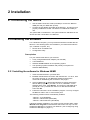
Connect the device: (a) to the ISDN line and (b) to a standard AC
outlet (see "Connecting the Device" on page 8.)
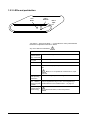
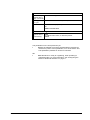
The yellow LED on the BlueTA+ front panel will stay flashing to
indicate that the device has been connected to an ISDN line.
Optionally: Install the software (see "Installing the Software" on
page 8). Start the Bluetooth control program of your Bluetooth
adapter (not included with the BlueTA+). Establish a Bluetooth radio
link to the BlueTA+ (see description at the bottom of this page).
Optionally: Configure the BlueTA+ Bluetooth interface if needed.
Configuration is required especially if you want to enable unrestricted
access to the BlueTA+. See "Configuring the BlueTA+ Bluetooth
interface" on page 11.
Optionally: If you want or need to use BlueTA+ ISDN settings other
than the factory settings, configure the ISDN interface. See
"Configuring the BlueTA+ ISDN interface" on page 16.
6.
If you are using BlueTA+ for the first time: Convert your existing dialup connections or define a new dial-up connection. See "Dial-Up
Networking: New Data Transfer Device" on page Fehler! Textmarke
nicht definiert..
Now you can work with all applications using an ISDN connection.
1.2.2 Establishing a Bluetooth connection to the BlueTA+
Start the Bluetooth control program of your Bluetooth adapter (not
included with the BlueTA+) and then proceed as follows:
1. Issue the Inquiry command to search for any Bluetooth devices.
If the search was successful: The control program will list the names
of the Bluetooth devices found. The BlueTA+ is factory preset with
the name "Stollmann BlueTA+".
2. Highlight this name, and select Dial-Up Networking from among the
services offered for this device.
3. Issue the command to establish a connection with this service using
a virtual COM port.
The green LED on the BlueTA+ front panel will come on to indicate that
the Bluetooth connection with the BlueTA+ has been established.
Note: If your application needs an ISDN connection, you must always
first establish the Bluetooth connection to the BlueTA+. This is also true if
you wish to configure the BlueTA+. To do so, start the control program for
your Bluetooth adapter. Then issue the command for establishing the
connection.
BlueTA+ 1.04/08.2002
Introduction • 5