1
Reference Manual
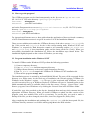
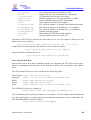
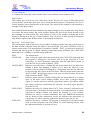
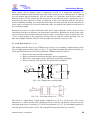
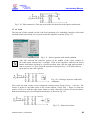
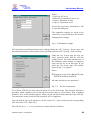
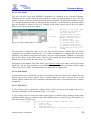
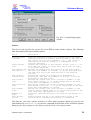
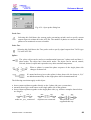
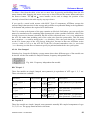
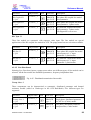
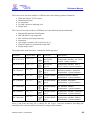
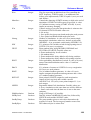
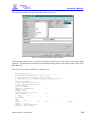
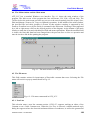
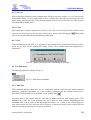
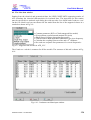
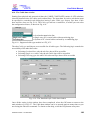
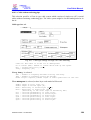
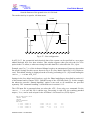
The View Options dialog can be used to control the visibility of the objects in the active circuit
window. By default, all objects except node names are visible. The following description explains
each option in normal checked () state:
Components
Tacs
Models
Connections
Relations
Labels
Node dots
Node names
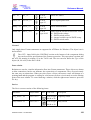
All standard and user specified components are displayed.
All TACS components are displayed.
All MODELS components are displayed.
All connections (short circuits) are displayed.
All relations (information arrows) are displayed.
Component labels are written on the screen.
Node and connection end-points are displayed as filled circles.
Node names are written on screen (overrides the Display attribute of
nodes). This option is useful after a Make Names selection in the ATP
menu.
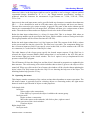
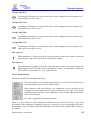
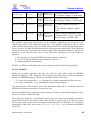
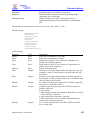
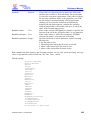
Drag icon
The complete icon is drawn during single component moves (in the
unchecked state, only an inverted rectangular outline is drawn).
No Data warning
Components and node dots are drawn with a red color until the component
or node has not received data. No such checking is done when this
option is unselected.
Show branch output Branch output request is included in the Component dialog box of standard
components such as linear branches, non-linear elements, switches and
transformers. When you select this option, small symbols appear on the
top-left side of the objects’ icon indicating the branch output request.
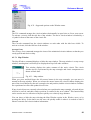
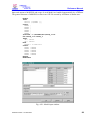
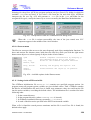
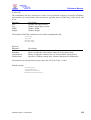
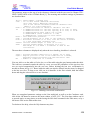
To accept the current view options and return from the View Options dialog, select the OK button.
To set and view the results of the new options without returning, selected the Apply button. If you
want the current settings to be applied to all current and future circuit windows, select the Apply
All button before you exit the dialog box.
4.2.4 ATP
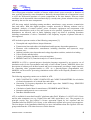
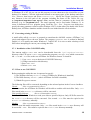
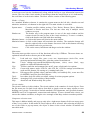
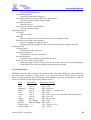
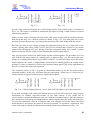
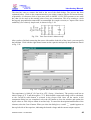
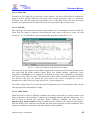
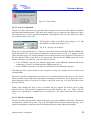
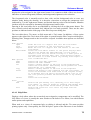
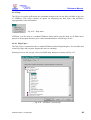
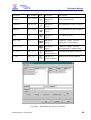
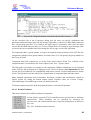
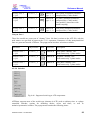
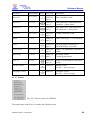
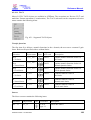
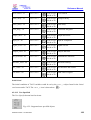
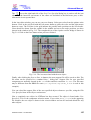
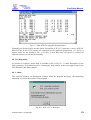
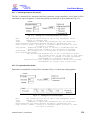
The ATP menu allows you to generate names for unnamed nodes, to generate or edit the ATP file,
and specify ATP settings for the circuit. Version 1.2 of the program also supports editing your
batch jobs here. The jobs you specify, are listed immediately below the Edit batch jobs command.
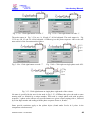
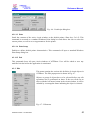
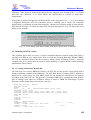
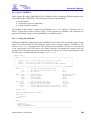
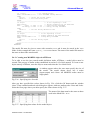
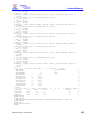
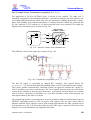
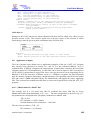
The menu appearing after clicking on the ATP menu field is shown in Fig. 4.12.
Fig. 4.12 - The ATP menu.
ATPDraw version 1 for Windows
64