1
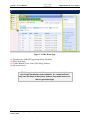
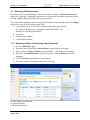
Section 1: User’s Manual Digital Document Access (DDA) 1.15.1 Summary of Steps for Splitting a Document Search for or retrieve a document from the DDA Home page. Select one document with two or more pages to split into separate documents. Select the Split button from the Toolbar (this action launches the Split Document browser window). Create the number of new target documents needed by selecting the New Document button on the Toolbar. (Note: the maximum number of target documents equals the total number of pages in the original document being split.) After creating the needed target documents, every page from the original document being split must be allocated to the new target documents. Type the page numbers (for example, 1, 3, 5, etc.) or page sequence (for example, 1-10, 25-50, etc.) for each target document into the Add Page(s) textbox. To change the order of the pages added to the target documents, use the up and down arrows on the right side of the target document page number display area. Assign an available document type to each target document using the drop down menu located below the target document label and preview button (Doc #1, Doc #2, Doc #3, and so on). To preview the new target document contents prior to saving and committing the changes, select the Preview button for each target document. At any point prior to saving and committing the changes to the system, the Cancel button can be selected which will return the user to the DDA Home page where the user's initial search results will be displayed. When all pages have been allocated to new target documents and assigned a document type, select the Commit button. A system message will display indicating the split operation is in progress. The new documents will be available to retrieve through a search (using case number or other search criteria) on the DDA Home page. The original (single) document will be saved and available to restore if needed in the Trash Documents Storage Location. 1.16 Merging a Document in DDA The Merge feature in the DDA module allows for two or documents from the same case to be merged into one, new, target document. For example, if a case has two documents, one with two pages and the other with three pages, both documents can be merged into a new target document with a total of five pages. Some of the benefits and uses of the Merge function include: Organizing multiple related or linked documents into one single document. Saving a new target document as a different document type (i.e., B0, C0, D0). Users_Manual_DDA_011014_DRAFT_v0.1 January 2014 15