1
Chapter 4: Fitting DataImport to
Your Needs
This chapter identifies specific types of problems in extracting data from
input files and how to use DataImport to solve these problems. It is
recommended that you read the chapters titled “Introduction” and
“Tutorial” first to understand the basic operation of the program.
Input and Output
This section discusses how to get your data into DataImport and out to
your spreadsheet, database or analysis program.
Input Files
DataImport works best with Input Files in ASCII text format. If your
data application allows it, save a copy of your data to an ASCII text file
for best results. If this is not possible, look for a printing option in your
data application that will print to a text file, rather than to the printer.
These types of options are usually called “print to disk” or “print to file.”
Microsoft Windows provides a printer driver called “Generic / Text
Only” print driver that will produce a file you can use with DataImport. If
you are familiar with printer drivers, install this driver and connect the
driver to the “FILE:” port. If you still need help creating an ASCII text
Input File, see Appendix C: Getting Data out of Other Applications.
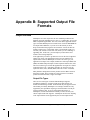
Output Files
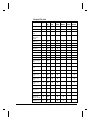
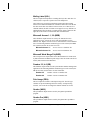
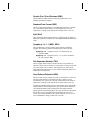
DataImport can create output files for most spreadsheet and database
programs including Excel, Lotus 1-2-3, Quattro Pro, Access, Paradox and
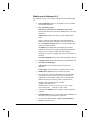
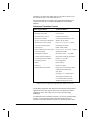
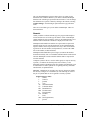
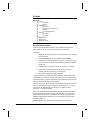
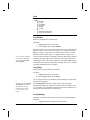
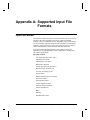
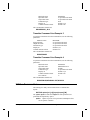
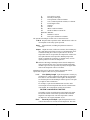
dBase compatible applications. The list below shows the types of formats
DataImport can read and write. If you do not see the format you need,
check the README for last-minute format additions.
NOTE Keep in mind that most programs can read earlier versions of
their file formats. In most cases, a file format with a version number equal
to or less than your software version will work, unless you are combining
or appending files. In this case, you must output your data as the same
version as the existing output file. You can also output it as an earlier
version and append it from within the software.
DataImport
Chapter 4: Fitting DataImport to Your Needs • 40