1
StoryView Users Manual
Timeline Display
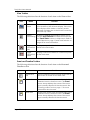
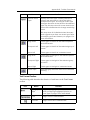
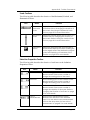
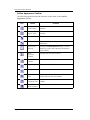
The View menu includes several commands that let you quickly adjust the
magnification of a timeline. These commands allow you to zoom in on a
selected event, range of events, or display all events on-screen.
Displaying a Panorama of the Timeline
The Panoramic command lets you display an entire timeline, up to the
preferred panoramic duration set in the Document Settings dialog, on-screen
with one click of the mouse.
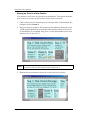
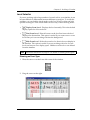
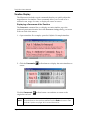
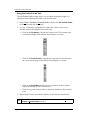
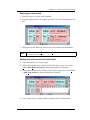
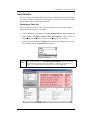
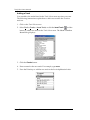
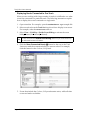
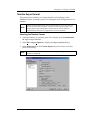
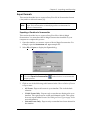
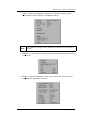
1. Open a timeline. For example, open the Godfather II example timeline.
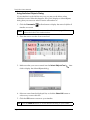
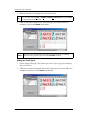
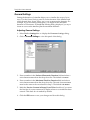
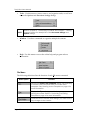
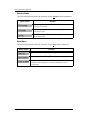
2. Click the Panoramic
screen.
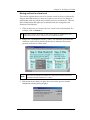
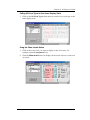
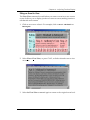
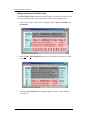
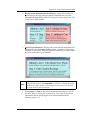
Click the Panoramic
original zoom level.
NOTE
Page 28
toolbar button to display the entire timeline on-
toolbar button a second time to return to the
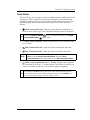
The ability of this command to display all events on-screen may be
limited based on the options selected on the Ruler sub-menu. See
Set Ruler Options on page 42 for more information.