1
Connecting a video device
Composite video connection
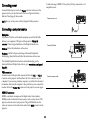
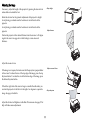
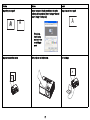
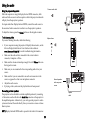
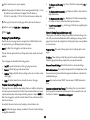
Plug the composite video cable’s yellow connector into the video out
connector on the video device. Plug the other yellow connector into the
yellow Composite connector on the projector.
You can connect video devices such as VCRs, DVD players, camcorders,
digital cameras, video game consoles, HDTV receivers, and TV tuners to the
projector. You can connect the audio directly to the projector to get sound
from the built-in speaker, or you can bypass the projector’s audio system
and connect the audio directly from your source to a stereo or home theater
system.
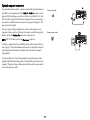
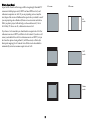
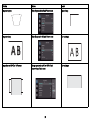
Plug the white connector of a Mini-plug audio Y-cable into the left audio
out connector on the video device and plug the red connector into the right
audio out connector on the video device. Plug the other end of the cable into
the associated audio in connector on the projector.
You can connect the projector to most video devices that can output video.
You cannot directly connect the coaxial cable that enters your house from a
cable or satellite company; the signal must pass through a tuner first.
Examples of tuners are digital cable boxes, VCRs, digital video recorders,
and satellite TV boxes. Basically, any device that can change channels is
considered a tuner.
Keep in mind that video output from composite connections is not as high
quality as S-video.
S-video connection
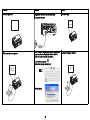
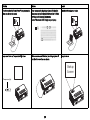
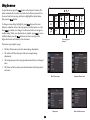
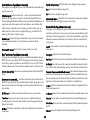
If your video device uses a round, four-prong S-video connector, plug an Svideo cable into the S-video connector on your video device and into the Svideo connector on the projector. Use the audio cable as described above.
Although the aspect ratio is automatically selected by the projector based on
the signal input, you can change the aspect ratio, if desired. The projector’s
Aspect Ratio setting is accessed through the Resize button on the remote or
through the projector’s Basic Picture Menu. See page 27 for more
information.
Keep in mind that video output from S-video connections is not as high
quality as component.
VGA connection
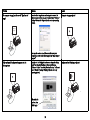
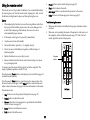
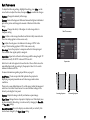
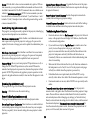
If your video device has a 15-pin VGA output, plug one end of the included
computer cable into the VGA connector on your video source. This
connector may be labeled “To Monitor” on the video source. Plug the
computer cable into the VGA 1 or VGA 2 connector on the projector.
Video device connections
No video cables are provided with the projector. You can order cables from
InFocus or use your own.
Component video connection
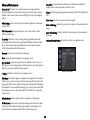
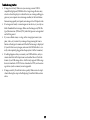
A Component to VGA adapter can be used in conjunction with the VGA
connectors. Plug the component cable into the video device. Plug the other
end of the component cable into the adapter and plug the adapter into the
VGA 1 or VGA 2 connector.
HDMI 1.3 connection
HDMI is a standard, uncompressed, all-digital audio/video interface.
HDMI provides an interface between sources, such as set-top boxes, DVD
players, and receivers and your projector. Plug an HDMI cable into the
video out connector on the video device and into the HDMI connector on the
projector.
Component offers the highest quality analog video output.
To take advantage of HDMI 1.3 Deep Color (30 bit) you must have a 1.3compatible source.
12