1
Oasys D3PLOT
User manual Version 9.3, Rev. 0, September 2008
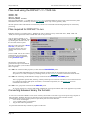
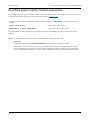
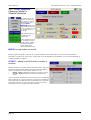
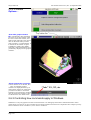
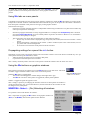
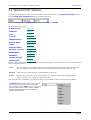
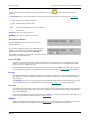
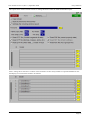
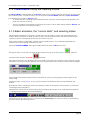
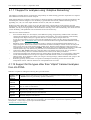
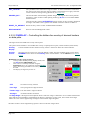
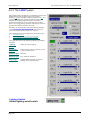
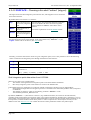
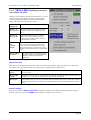
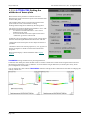
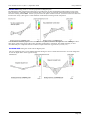
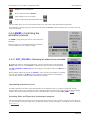
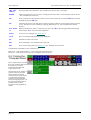
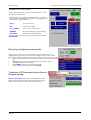
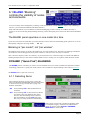
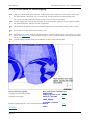
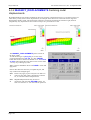
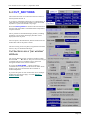
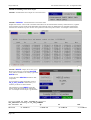
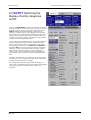
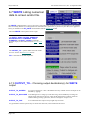
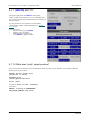
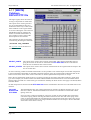
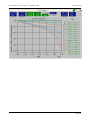
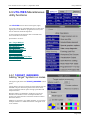
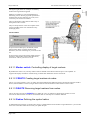
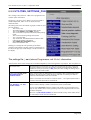
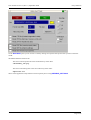
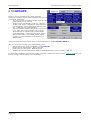
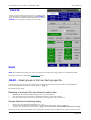
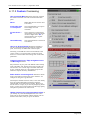
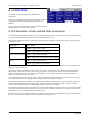
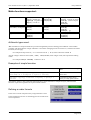
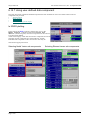
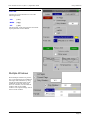
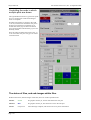
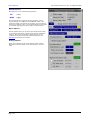
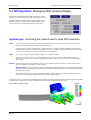
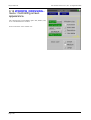
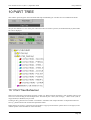
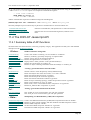
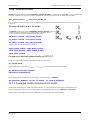
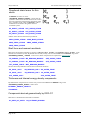
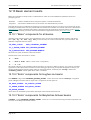
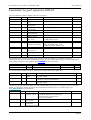
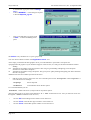
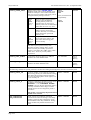
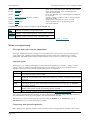
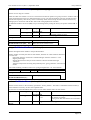
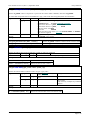
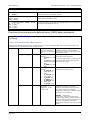
Memory usage bars:
The two usage bars (%age physical memory used by D3PLOT , and total %age virtual memory usage over the whole
machine) are replicated in miniature on the MEM button on the front panel for easy reference. So long as they both stay
in the green you don’t have a problem, and even light orange (60%) is probably OK. More than that and you may need
to take action - see below.
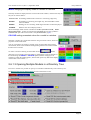
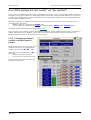
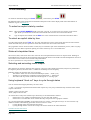
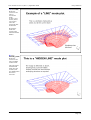
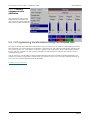
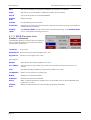
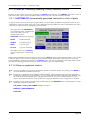
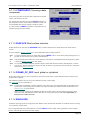
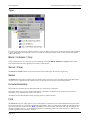
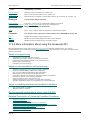
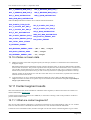
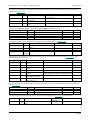
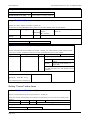
Alarm limits:
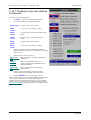
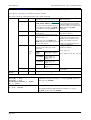
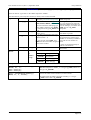
Both physical and virtual limits have alarm values set at 80 and 90% respectively. If an alarm limit is reached D3PLOT
stops what it is doing and maps an alarm panel explaining the problem. You can change alarm values at any time, and
set them to large values (eg 1000%) if you want to ignore them altogether.
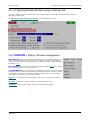
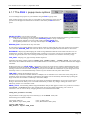
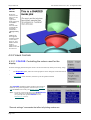
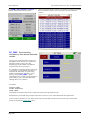
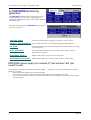
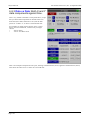
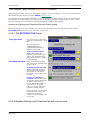
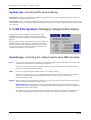
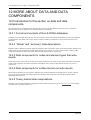
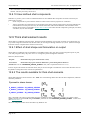
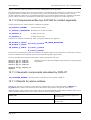
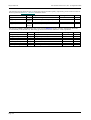
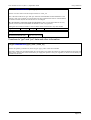
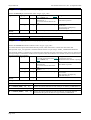
Database Usage:
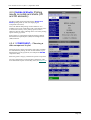
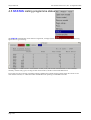
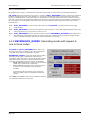
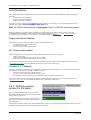
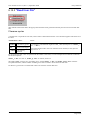
This summarises the settings of the results database, and the VIEW... button takes you to the main database manager.
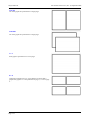
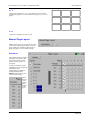
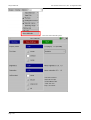
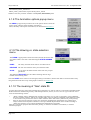
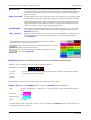
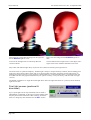
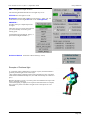
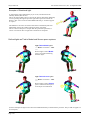
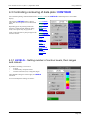
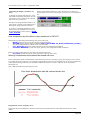
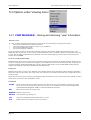
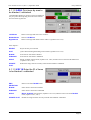
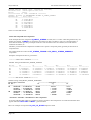
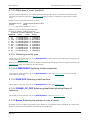
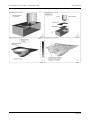
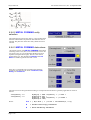
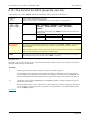
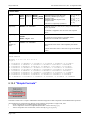
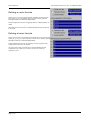
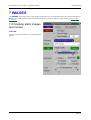
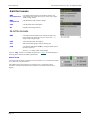
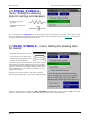
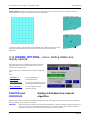
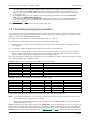
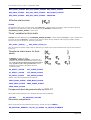
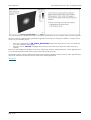
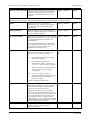
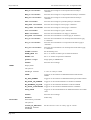
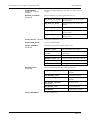
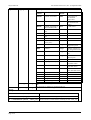
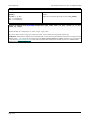
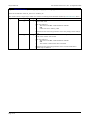
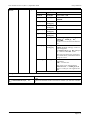
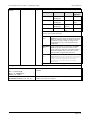
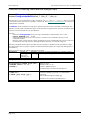
Allows you to select an animation mode as described in Section 4.4.2.2. (The same as ANIM > DISPLAY_MODE).
Some modes use more memory than others.
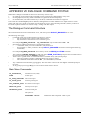
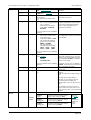
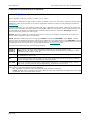
What to do if memory runs short.
•
•
•
•
•
•
•
•
•
•
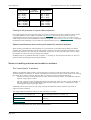
If virtual memory is short see if there is anything else running on the machine that you can shut down
(remember the virtual memory bar is for the whole machine, not just D3PLOT).
This usually happens when building animations. See if you can cut down what is displayed to save memory:
Display alternate states instead of every state;
Use a simpler display mode (eg flat shading, not smooth; SI not CT)
Turn off unneeded display items (node symbols, labels)
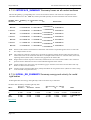
If the results database is very full use its OPTIONS > EMPTY_xxx commands to release some space, and
reduce the soft and hard %ages. (This may not release space back to the operating system, but the space freed
can be re-used internally.)
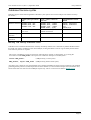
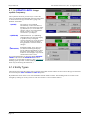
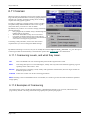
Use a less expensive display mode:
DIRECT uses no display memory, but is slow.
VECTOR is a reasonable compromise (the default)
PIXMAP/OBJECT use a lot of display memory in the server process
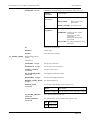
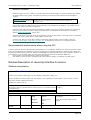
In extreme cases you may find that none of the above free enough memory and you have to exit and start again with
"cheaper" (in terms of memory) settings. If this happens:
•
•
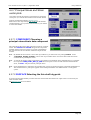
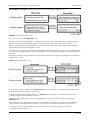
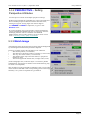
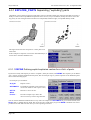
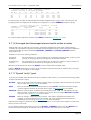
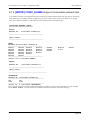
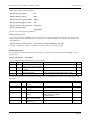
Before reading in a model use the MEMORY button on the filename panel to select the display mode and
database soft/hard %ages.
Then define a filename and read in the model. The new settings will be used ab initio and will result in lower
memory usage.
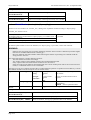
Another problem that can occur following PIXMAP or OBJECT mode animations is that the graphics server process
(owned by the operating system) may grow to a very large size and cause problems. This is because some operating
systems don’t allow memory to be released once it has been allocated.
It will be necessary to shut down and restart this process in the following way:
•
•
•
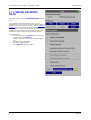
Logout from the display.
At the "login" prompt choose the "no windows" or "console" mode (usually under an "options" menu). This
will shut down the X server completely.
Most "Common Desktop Environment" (CDE) window managers will automatically restart the X server after a
short delay.
Page 14.10