1
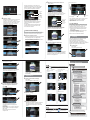
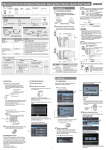
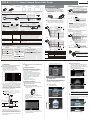
2 Register the measurement reference. Press the parameter to set. Press [Teach]. Place the object that is to be used as the measurement reference in front of the camera. Move the rectangle so that the characteristic part for position compensation is inside it. Drag the rectangle to move it. Select the image that was taken with the best timing. Press [OK]. 4 Place the object that is to be used as the measurement reference in front of the camera. Move the rectangle so that the mark to be meaured is inside it. Drag a corner to size the rectangle. Adjust the image. Adjust the image that is taken by the Sensor to make it easy to measure. Here, the position is corrected by searching to enable measurements even if the position of the measurement object is not consistent. Press [Image adjustment]. Drag a corner to size the rectangle. Check the area, press the [OK] Button, and then press the [TEACH] Button. The characteristic part and reference position for position compensation will be registered. Drag the rectangle to move it. Press [OK]. You can add filter items to adjust the image to make it easier to measure. Refer to the User’s Manual for details. Check the area, press the [OK] Button, and then press the [TEACH] Button. Register the image as the measurement reference. 2-2 Measurement Settings Select items for the desired measurement and register an image as the reference for the measurement. Press an unused number and then press [Add pos. comp.] on the menu. 1 Lower limit Upper limit Press [OK]. The calculation settings can be used to perform calculations using the results of multiple inspection items. Refer to the User's Manual for details. 2-3 I/O Settings The data that is output to external devices and the input signal assignments can be changed. (Changes are not normally required.) For example, the following can be input or output. • Judgements for individual inspection items can be output. • Commands to register models can be input from an external device. • If you want to output data externally Refer to the User's Manual for details. Select the inspection items. 3. Testing Example to Register Search as the Messurement Method Press [Inspect]. Next, touch [Inspection]. Press an unused inspection item number and then press [Add item.] on the menu. Press [Back]. 3 Press [Search position comp.]. Adjust the judgement parameters. Press [Judgement]. Tests are made with some samples to see if correct measurements are possible. When Test Mode is entered, images are measured continuously. A trigger input is not required. Measurement results are only displayed. They are not output to an external device. 1 Press [Search]. Perform tests. Press [Test]. Then press [Continous test]. Press [Teach]. Adjust the judgement parameters while inputting sample images. Press the judgement condition parameter to adjust and set the upper and lower limits for an OK judgement. 3 Press [Graphics+Details]. Menu Structure Power ON Note Initial startup There are e six typ types of displays that can be used, as shown below. Press the e B Button and then press [Select display] to display the following selectio selections. Continuous measurements will be performed. Input images of some samples to see if the judgements are correct. Displaying the Most Recent Measurement Values Press [Back]. The best judgement parameters will be set automatically. Graphics Displaying Measurement Values Over Time Histogram Setup Mode Inspection items are set and adjusted. [Image] Tab Page Adjust images to the best input status. Camera setup 4. Operation 1 Trigger setup Image adjustment Switch to the Run Mode display. Variations in Measurement Values Press [Run]. Then press [Switch to Run mode]. Frequency Graphics + Details 2 Trend Monitor If correct judgements are not made, adjust the judgement parameters. [Inspect] Tab Page Select the inspection items and register the reference image and standard values. Inspection Items Search Color Data Labeling Shape Search II Press [ ]. Press [Adjust judgement]. Measurement values 2 Save the settings. All Results/Region Statistical Data Press [Yes]. Press [ ]. Press [Auto judgement]. Sensitive Search OCR Edge Position Bar code Edge Width 2D-Code Edge Pitch 2D-Code (DPM) Area Teach Judgement FQ2-S4- [In/Out] Tab Page Make settings to output measurement results. Log setting 3 You can use prepared samples to automatically set the best judgement parameters. Input a sample of a good object and press [OK Teach]. Input a sample of a bad object and press [NG Teach]. Repeat these steps for at least two samples each. I/O setting Execute measurements. Measurement values since power was turned ON Measurements will be executed according to the trigger signal input. And the result of measurement will be output to an external device. I/O monitor [Test] Tab Page Test and adjust the set inspections. Continuous test Note Save data • To return to the Setup Display, press the e [Sensor settings]. e • To switch to another Sensor, press the [Switch sensor]. B Button and then press B Button and then press When a Sensor that is already set up is connected Run Mode The inspections that were set on the Setup Mode are used to perform measurements. 4