1
Page: 1
Service Guide OL810e
Chapter 0 About This Manual
OL810e
LED Page Printer
Adobe Acrobat printable reference
copy of the OKIDATA Service Training Manual.
09/17/97
Note: This Adobe Acrobat version of the Okidata Service Training Manual was built with the
pictures rendered at 300 dpi, which is ideal for printing, but does not view on most
displays well.
Copyright 1997, Okidata, Division of OKI America, Inc. All rights reserved. See the OKIDATA Business
Partner Exchange (BPX) for any updates to this material. (http://bpx.okidata.com)
Table of Contents
Page
Service Guide OL810e
0 About This Manual
Front Cover
Manual Copyright
1 Configuration
1.1 System Configuration
1.2 Printer Configuration
1.3 Options available for use with OL810e
1.4 Specification
1.5 Safety Standards - Certification & Warning Labels
....1.5.3 Warning/Caution Marking
2 Operation Description
Operation Description
2.1 Main Control Board
2.2 Power Supply/Sensor Board
2.3 Electrophotographic Process
....2.3.2 Electrophotographic Process
....2.3.3 Process Operation Descriptions
....2.3.4 Revision of LED Head Illumination
2.4 Paper Jam Detection
2.5 Cover Open
2.6 Toner Low Detection
3 Parts Replacement
Parts Replacement
3.1 Precautions for Parts Replacement
3.2 Parts Layout
3.3 How to Change Parts
....3.3.1 Upper Cover Assy
....3.3.2 IC Card Cover
....3.3.3 LED Head
....3.3.4 Operator Panel Assy
....3.3.5 Pulse Motor (Main/Drum)
....3.3.6 Pulse Motor (Registration)
....3.3.7 Face Up Stacker Assy
....3.3.8 Lower Base Unit
....3.3.9 Eject Roller Assy
....3.3.10 Motor Assy
....3.3.11 Hopping Roller Shaft Assy
....3.3.12 Stacker Cover Assy
....3.3.13 Registration Roller
....3.3.14 Transfer Roller
....3.3.15 Fusing Unit
....3.3.16 Back-up Roller
1
2
3
4
5
6
7
8
9
10
11
12
13
14
15
16
17
18
19
20
21
22
23
24
25
26
27
28
29
30
31
32
33
34
35
36
37
38
Table of Contents
....3.3.17 Sensor Plate (Inlet)
....3.3.18 Sensor Plate (Outlet)
....3.3.19 Manual Feed Guide Assy
....3.3.20 Sensor Plate (Paper Supply)
....3.3.21 TQCB-PCB
....3.3.22 Transformer
....3.3.23 Power Supply/Sensor Board and Contact Assy
....3.3.24 Cassette Guide L Assy
....3.3.25 Cassette Guide R Assy
4 Adjustments
Adjustment
....4.1.1 User Maintenance Mode
....4.1.2 System Maintenance Mode
....4.1.3 Engine Maintenance Mode
....4.1.4 EEPROM initialization
4.2 Adjustment When Replacing a Part
....4.2.1 Setting of LED Head Drive Time
5 Periodical Maintenance
5.1 Periodical Replacement Parts
5.2 Cleaning
....5.2.1 Cleaning of LED Lens Array
........Cleaning Page Function
5.3.1 Lubrication
6 Troubleshooting
6. Troubleshooting Procedures
6.1 Troubleshooting Tips
6.2 Points to Check before Correcting Image Problems
6.3 Tips for Correcting Image Problems
6.4 Preparation for Troubleshooting
6.5 Troubleshooting Flow
....6.5.1 LCD status message/problem list
....6.5.2 LCD message troubleshooting
........1 Printer doesn't work normally after the power is turned
on.
........2 - 1 Paper input jam
........2 - 2 Paper feed jam
........2 - 3 Paper exit jam
........3 Paper size error
........4 Fusing unit error (ERROR 71) (ERROR 72) (ERROR
73)
........5 Synchronous serial I/O error (ERROR 74) or I/F timeout
between printer and optional tray (ERROR 81)
........6 Fan error (ERROR 70)
....6.5.3 Image troubleshooting
Page
39
40
41
42
43
44
45
46
47
48
49
50
51
52
53
54
55
56
57
58
59
60
61
62
63
64
65
66
67
68
69
70
71
72
73
74
75
76
Table of Contents
........1 Images are light or blurred entirely.
........2 Dark background density
........3 Blank paper is output.
........4 Black vertical belts or stripes
........5 Cyclical defect
........6 Prints voids
........7 Poor fusing (images are blurred or peels off when the
printed characters and images on the paper are touched by
hand)
........8 White vertical belts or streaks
7 Wiring Diagrams
7.1 Interconnect Signal Diagram
7.2 PCB Layout and Connector Signal List
....FAN Pin Assignment (To fan motor)
....DM Pin Assignment (To main/drum motor)
....RM Pin Assignment (To registration motor)
....HEAD1 Pin Assignment (To LED head)
....HEAD2 Pin Assignment (To LED head)
....PANEL Pin Assignment (To operator panel)
....2ND TRAY Pin Assignment (To option feeder I/F)
....Power Pin Assignment
....CENT Pin Assignment
....SERIAL Pin Assignment (To RS232C)
....CARD Pin Assigment
....OPTION Pin Assignment
....7.3 Resistance Check
7.4 Short Plug Setting
8 Parts List
Lower Base Unit
............Part #25 Face down Stacker Assy : Jim
Homeuser/Okidata; 10/14/96
Upper cover unit
Base Unit 2
A RS-232 Interface
Rs-232C Serial Interface
....Interface Parameter Setting
B Centronics Parallel Interface
Centronics Parallel Interface
....Interface Parameter Setting
C Loop Test (RS-232C Interface)
Loop Test (Rs-232C Interface)
D Diagnostic Tests
1. Maintenance Modes
....1.1 User Maintenance Mode
Page
77
78
79
80
81
82
83
84
85
86
87
88
89
90
91
92
93
94
95
96
97
98
99
100
101
102
103
104
105
106
107
108
109
110
111
Table of Contents
....1.2 System Maintenance Mode
....1.3 Engine Maintenance Mode
....1.4 User Factory Set Operation
E Option: Multi-Purpose Feeder
Multi-Purpose Feeder Paper Specifications
....External View and Component Names
....Mechanism Description
....Parts Layout
....Parts Replacement Methods
........3.3.1 Link
........3.3.2 Separator
........3.3.3 OLEV-11-PCB
........3.3.4 Pulse Motor
........3.3.5 Planet Gear
........3.3.6 Roller-A and B
....Troubleshooting Problems with the Multi-Purpose Feeder
....Multi-Purpose Feeder Connection Diagram
....Multi-Purpose Feeder Parts List
F Option: Second Paper Mech.
Second Paper Mech. Paper Specifications
....External View and Component Names
....Mechanism Description
Parts Replacement
....Parts Layout
....Parts Replacement Methods
........3.3.1 Pulse Motor (Hopping)
........3.3.2 TQSB-PCB
........3.3.3 Hopping Roller Assy and One-way Clutch Gear
Troubleshooting the 2nd Paper Tray Mech.
Second Paper Mech. Connection Diagram
....Second Paper Mech. PCB Layout TQSB-PCB
Second Paper Mech. Parts List
Page
112
113
114
115
116
117
118
119
120
121
122
123
124
125
126
127
128
129
130
131
132
133
134
135
136
137
138
139
140
141
Page: 2
Service Guide OL810e
Chapter 0 About This Manual
OKIDATA is a registered trademark of Oki America, Inc.
OKIDATA est une marque déposée de Oki America, Inc.
Copyright 1997, Okidata, Division of OKI America, Inc. All rights reserved. See the OKIDATA Business
Partner Exchange (BPX) for any updates to this material. (http://bpx.okidata.com)
Page: 3
Service Guide OL810e
Chapter 1 Configuration
1.1 System Configuration
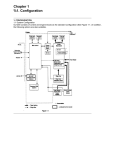
OL810e consists of control and engine blocks in the standard configuration, as shown in Figure 1-1.
In addition, the options marked with asterisk (*) are available.
Figure 1-1
Note: Power Envelope Feeder is compatible with OL400e series printers.
Copyright 1997, Okidata, Division of OKI America, Inc. All rights reserved. See the OKIDATA Business
Partner Exchange (BPX) for any updates to this material. (http://bpx.okidata.com)
Page: 4
Service Guide OL810e
Chapter 1 Configuration
1.2 Printer Configuration
The printer unit consists of the following hardware components:
- Electrophotographic Processor
- Paper Feeder
- Controller
- Operator Panel
- Power Supply Unit
The printer unit configuration is shown in Figure 1-2.
Copyright 1997, Okidata, Division of OKI America, Inc. All rights reserved. See the OKIDATA Business
Partner Exchange (BPX) for any updates to this material. (http://bpx.okidata.com)
Page: 5
Service Guide OL810e
Chapter 1 Configuration
1.3 Optional Configuration
The options shown below are available for use with OL810e. These are available separately from
the printer unit.
(1) Memory Expansion Board (1MB to 32MB)
(2) SIMM Memory SIMM memory is available with memory of 1MB (min.) to 16MB (max.). The
access time of SIMM memories are 60ns, 70ns, 80ns, and 100ns.
(3) IC Card
(4) Universal Paper Cassette
(5) High Capacity Second Paper Feeder
(6) Power Envelope Feeder
Copyright 1997, Okidata, Division of OKI America, Inc. All rights reserved. See the OKIDATA Business
Partner Exchange (BPX) for any updates to this material. (http://bpx.okidata.com)
Page: 6
Service Guide OL810e
Chapter 1 Configuration
1.4 Specification
(1) Type Desktop
(2) External dimensions Height 7.9 (200 mm) (excludes protruding Width 12.8 (370 mm) portion) Depth
14.6 (370 mm)
(3) Weight 10 kg
(4) Developing method Dry electrophotography Exposing method LED stationary head
(5) Paper used
<Type>
- Standard paper Xerox 4200 (20 lbs)
- Application paper (manual face-up feed) Label Envelope OHP paper (transparency)
<Size>
- Standard sizes Letter Legal Executive CON-10 Monarch DL C5 COM-9 Envelope A4 A5 B5
(JIS) A6
- Applicable sizes Width: 3.87 to 8.5 (116 to 216 mm) Length: 5.83 to 14 (148 to 355.6 mm)
<Thickness> Automatic feed: 16 to 36 lbs (60 to 135 g/m 2 ) Manual feed: Label, OHP paper
(transparency) Envelope
(6) Printing speed First print: 25 sec. Continuous print: 8 sheets/min. for letter size paper Warm-up time:
60 sec. [at room temperature 77°F (25°C) and rated voltage (120 VAC)]
(7) Paper feeding method Automatic feed or manual feed
(8) Paper delivery method Face down/face up
(9) Resolution 600 x 600 dots/inch
(10) Power input 120 VAC + 5.5%, -15% 230 VAC + 6%, -14% 230 VAC + 10%, -10%
(11) Power consumption Peak: Approx. 600W Typical operation: Approx. 130W Idle: Approx. 41W
Power save mode: Approx. 13W
(12) Temperature and humidity During operation: 50 to 90°F (10 to 32°C) In storage: -14 to 112°F (-20 to
50°C)
(13) Noise During operation: 48 dB (A) or less Standby: 36 dB (A) or less Quiet mode: 32 dB (A) or less
(14) Consumables Toner cartridge kit 2,000 (5% duty) Image drum cartridge 20,000 (at continuous
printing) 15,000 (3 page/job) 10,000 (1 page/job)
Copyright 1997, Okidata, Division of OKI America, Inc. All rights reserved. See the OKIDATA Business
Partner Exchange (BPX) for any updates to this material. (http://bpx.okidata.com)
Page: 7
Service Guide OL810e
Chapter 1 Configuration
1.5 Safety Standards
1.5.1 Certification Label
The safety certification and serial number labels are affixed to the printer in the positions
described below.
1.5.2 Warning Label
The warning labels are affixed to the sections which may cause bodily injury.
Follow the instructions on warning labels during maintenance.
Copyright 1997, Okidata, Division of OKI America, Inc. All rights reserved. See the OKIDATA Business
Partner Exchange (BPX) for any updates to this material. (http://bpx.okidata.com)
Page: 8
Service Guide OL810e
Chapter 1 Configuration
1.5.3 Warning/Caution Marking
The following warning and caution markings are made on the power supply/sensor board.
ENGLISH Heatsink and transformer core present risk of electric shock. Test before touching.
FRENCH Le dissipateur thermique et le noyau du transformateur présentent des risques de choc
électrique. Testez avant de manipuler.
SPANISH Las disipadores de color el núcel del transformador pueden producir un choque
eléctrico. Compruebe antes de tocar. PORTUGUESE O dissipador de calor e o núcleo do
fransiormador apresentam risco de choque elétrico. Teste antes de focar.
ENGLISH Circuits maybe live after fuses open.
FRENCH Il se peut que les circuits soient sous tension une fois que les fusibles ont éfé rerirés.
SPANISH Las circuitos pueden estar activos una vez que se hayan abierio los fusibles.
PORTUGUESE Os circuitos podem estar energizados após os fusiveis se queimarem.*
Copyright 1997, Okidata, Division of OKI America, Inc. All rights reserved. See the OKIDATA Business
Partner Exchange (BPX) for any updates to this material. (http://bpx.okidata.com)
Page: 9
Service Guide OL810e
Chapter 2 Operation Description
2. OPERATION DESCRIPTION
OL810e consists of a main control board, a power supply/sensor board, an operator panel, an
electrophotographic process mechanism, and revision for illumination of LED head.
The main control board receives data via the host I/F, it then decodes, edits and stores the data in
memory. After completing the editing of a single page of data, it references the font memory and
generates bit image data, which is transferred to the LED head in one dot line units.
Through the electrophotographic process mechanism, the data is printed on the paper.
The operator panel is used for operations and status display.
OL810e block diagram is shown in Figure 2-1.
Copyright 1997, Okidata, Division of OKI America, Inc. All rights reserved. See the OKIDATA Business
Partner Exchange (BPX) for any updates to this material. (http://bpx.okidata.com)
Page: 10
Service Guide OL810e
Chapter 2 Operation Description
2.1 Main Control Board
The main control board consists of a single chip CPU, a program ROM, a font ROM, four DRAMs, an
EEPROM, a host interface circuit, and a mechanism driving circuit.
(1) Single chip CPU
The single chip CPU is a custom CPU (32-bit internal bus, 32-bit external bus, 25.54-MHz clock, with input
frequency from a 12.27-MHz clock) which incorporates the RISC CPU and its peripheral devices, and has
the following functions:
Function
Built-in device
Chip select controller Control of ROM, DRAM and I/O device Bus controller
DRAM controller
DMA controller
Transfer of image data from DRAM to video output port
Parallel interface controller
Control of Centronics parallel interface
Serial interface controller
Control of RS-232C serial interface
Video output port
LED STB output port
Control of LED head
Timer
Generation of various control timing
Monitoring of paper running and paper size
Serial I/O port
Control of operator panel, EEPROM, and options
I/O port
Input and output of sensor and motor signals
(2) Program and Font ROMs
The Program and Font ROMs store the equipment program and various types of fonts. EPROM or Mask
ROM is used as Program and Font ROMs. The mounting locations of these Program and Font ROMs vary
depending on the type of the ROMs (for the mounting location see Section 7.4).
(3) DRAM
The DRAM is a 2MB resident memory which is used as a buffer, that stores edited data, image data, DLL
data and macro data.
(4) EEPROM
1,024-bit Electrically Erasable PROM (EEPROM), is loaded with the following kinds of data:
- Menu data
- Various counter data (page counter, drum counter)
- Adjusting parameters (LED head drive time, print start position, paper feed length)
(5) Parallel Interface
Parallel data is received from a host system via parallel interface which conforms to the Centronics
specification.
(6) RS232C Serial Interface
Serial data is sent to and received from a host system via serial interface which conforms to EIA RS232C.
Following items are selectable:
Flow control: DTR HI/DTR LO/XONXOFF/RBSTXON
Baud rate: 300/600/1200/2400/4800/9600/19200
Data bits: 7 BITS/8 BITS
Parity: NONE/EVEN/0DD
Minimum busy: 200 mSEC/1 SEC
Copyright 1997, Okidata, Division of OKI America, Inc. All rights reserved. See the OKIDATA Business
Partner Exchange (BPX) for any updates to this material. (http://bpx.okidata.com)
Page: 11
Service Guide OL810e
Chapter 2 Operation Description
2.2 Power Supply/Sensor Boar
The power supply/sensor board consists of an AC filter circuit, a low voltage power supply circuit, a high
voltage power supply circuit, heater drive circuit, and photosensors.
(1) Low Voltage Power Supply Circuit
This circuit generates the following voltages.
Output voltage
Use
+5 V
Logic circuit supply voltage
+30 V
Motor and fan drive voltage and source voltage for high-voltage supply
+8 V
RS-232C line voltage
+8 V
RS-232C line voltage and PS board supply voltage
+3.3V
LED head supply voltage
(2) High Voltage Power Supply Circuit
This circuit generates the following voltages required for electrophotographic process from +5 V,
according to the control sequence from the main control board. When cover open state is detected, +5 V
supply is interrupted automatically to stop the supply of all high-voltage outputs.
Output
Voltage
Use
Remarks
CH
-1.35 KV
Voltage applied to charging roller
DB
-300 V/+300 V
Voltage applied to developing roller
SB
-450 V/ 0 V
Voltage applied to toner supply roller
TR
+500 V to +4 KV/-750 V Voltage applied to transfer roller Variable
CB
+400 V
Voltage applied to clearing roller
(3) Photosensor
The photosensor mounted on this power supply/sensor board monitors the status of paper being fed
through the printer during printing.
The sensor layout diagram is shown in Figure 2-2.
Function
Sensing state
Inlet sensor 1
Detects the leading part of
the paper and gives the
monitor timing for switching
from hopping operation to
feeding operation. Monitors
paper feeding situation and
paper size based on the
paper arrival time and
running time.
ON: Paper exists. OFF: No
paper exists.
Intel sensor 2
Detects the paper width.
ON: A4 or larger OFF:
Smaller than A4
Paper sensor
Detects the leading portion of
the paper. Monitors the paper
feeding situation.
ON: Paper exists. OFF: No
paper exists.
Outlet sensor
Monitors the paper feeding
and size according to the
time of arrival to and leaving
past the sensor.
ON: Paper exists. OFF: No
paper exists.
Paper end sensor
Detects the end of the paper.
ON: Paper exists. OFF: No
paper exists.
Toner low sensor
Detects the lack of toner
Sensor
-----
Copyright 1997, Okidata, Division of OKI America, Inc. All rights reserved. See the OKIDATA Business
Partner Exchange (BPX) for any updates to this material. (http://bpx.okidata.com)
Page: 12
Service Guide OL810e
Chapter 2 Operation Description
2.3 Electrophotographic Process
2.3.1 Electrophotographic Process Mechanism
This mechanism actuates the printing of image data supplied by the main control board on the paper by
electrophotographic process.
The layout of the electrophotographic process mechanism is shown in Figure 2-3.
(1) Image Drum Unit
The image drum unit consists of a sensitive drum, a charger, and a developer. The unit forms a toner
image on the sensitive drum, using a electrostatic latent image formed by the LED head.
(2) Registration Motor
The registration motor is a pulse motor of 48 steps/rotation with two-phase excitement by the signal from
the main control board. It drives the hopping and registration rollers via two one-way clutches according to
the direction of rotation.
(3) Main (Drum) Motor
The main or drum motor is a pulse motor of 48 steps/rotation with two-phase excitement by the signal
from the main control board and is the main motor of this mechanism.
(4) LED Head
Image data for each dot line from the main control board is received by the shift register and latch register.
The 4992 LED's are driven to radiate the image data on the image drum.
(5) Fuser
The fuser consists of a heater, a heat roller, a thermistor and a thermostat.
The AC voltage from the power supply/sensor board is applied to the heater controlled by the HEATON
signal from the main control board. This AC voltage heats the heater. The main control board monitors the
heat roller temperature via the thermistor, and regulates the heater roller to keep it at a designated
temperature in the menu, depending on the thickness of the paper (tray 1&2: light=165°C, medium
light=170°C, medium=175°C, medium heavy and heavy=195°C; manual feeding and power envelope
feeder: light=175°C, medium light=180°C, medium=185°C, medium heavy=190°C, heavy=195°C) by
connecting or disconnecting the AC voltage supply to the heater.
When an abnormal rise of the heater roller temperature takes place, the thermostat of the heater voltage
supply circuit becomes active and forcibly cuts the AC voltage supply.
The temperature setting of the fuser can be changed through operator panel setting.
Copyright 1997, Okidata, Division of OKI America, Inc. All rights reserved. See the OKIDATA Business
Partner Exchange (BPX) for any updates to this material. (http://bpx.okidata.com)
Page: 13
Service Guide OL810e
Chapter 2 Operation Description
2.3.2 Electrophotographic Process
The electrophotographic processing is outlined below. The electrophotographic printing process is shown
in Figure 2-4.
1 Charging
The surface of the image drum is charged uniformly with a negative charge by applying the negative
voltage to the charge roller.
2 Exposure
Light emitted from the LED head irradiates the negatively charged surface of the image drum. The surface
potential of the irradiated portion of the image drum surface becomes lower, forming the electrostatic
latent image associated with the print image.
3 Developing and toner recovery
When the negatively charged toner is brought into contact with the image drum, it is attracted to the
electrostatic latent image by static electricity, making the image visible.
At the same time, the residual toner on the image drum is attracted to the developing roller by static
electricity.
4 Transfer
When paper is placed over the image drum surface, the positive charge which is opposite in polarity to
that of the toner, is applied to the reverse side of the paper by the transfer roller. The toner is attracted by
the positive charge and is transferred onto the paper. This results in the transfer of the toner image formed
on the image drum onto the paper.
5 Temporary cleaning
Residual toner which remains on the image drum without being transferred is evened out by the cleaning
roller and is temporarily attracted to the cleaning roller by static electricity.
6 Fusing
The toner image transferred onto the paper is fused to the paper by heat and pressure.
An electrophotographic process timing chart is shown in Figure 2-5.
Copyright 1997, Okidata, Division of OKI America, Inc. All rights reserved. See the OKIDATA Business
Partner Exchange (BPX) for any updates to this material. (http://bpx.okidata.com)
Page: 14
Service Guide OL810e
Chapter 2 Operation Description
2.3.3 Process Operation Descriptions
(1) Hopping and Feeding
Hopping and feeding motions are actuated by a single registration motor in the mechanism as shown
below:
The registration motor turning in direction "a" drives the hopping roller. The registration motor turning in
direction "b" drives the registration roller. The registration and hopping gears have one-way bearing, so
turning any of these gears in the reverse direction will not transmit the motion to the corresponding roller.
(a) Hopping
1 For hopping, the registration motor turns in direction "a" (clockwise direction) and drives the hopping
roller to advance the paper until the inlet sensor turns on (in this case, the registration gear also turns, but
the registration roller is prevented from turning by the one-way bearing).
2 After inlet sensor is turned on by the paper advance, the paper is further advanced to a predetermined
distance until the paper hits the registration roller (the skew of the paper can thus be corrected).
(b) Feeding
1 When hopping is completed, the registration motor turning in direction "b" (counter-clockwise direction)
drives the registration roller to advance the paper (in this case, the hopping gear also turns, but the
hopping roller is prevented from turning by the one-way bearing).
2 The paper is further advanced in synchronization with the print data.
(2) Charging
Charging is actuated by the application of the DC voltage to the charge roller that is in contact with the
image drum surface.
The charge roller is composed of two layers, a conductive layer and a surface protective layer, both
having elasticity to secure good contact with the image drum. When the DC voltage applied by the power
supply exceeds the threshold value, charging begins. The applied voltage is proportional to the charge
potential, with offset of approximately 550V.
(3) Exposure
Light emitted by the LED head irradiates the image drum surface with a negative charge. The surface
potential of the irradiated portion of the image drum drops, forming an electrostatic latent image
associated with the image signal.
The image drum is coated with an underlayer (UL), a carrier generation layer (CGL), and carrier transfer
layer (CTL) on aluminum base. The organic photo conductor layer (OPC), comprising CTL and CGL, is
about 20 µm thick.
The image roller surface is charged to about 750 V by the contact charge of the charge roller.
When the light from the LED head irradiates the image drum surface, the light energy generates positive
and negative carriers in the CGL. The positive carriers are moved to the CTL by an electrical field acting
on the image drum. Likewise, the negative carriers flow into the aluminum layer (ground).
The positive carriers moved to the CTL combine with the negative charges on the image drum surface
accumulated by the contact charge of the charge roller, lowering the potential on the image drum surface.
The resultant drop in the potential of the irradiated portion of the image drum surface forms an
electrostatic latent image on it. The irradiated portion of the image drum surface is kept to about 100 V.
(4) Developing
Toner is attracted to the electrostatic latent image on the image drum surface, converting it into a visible
toner image. Developing takes place through the contact between the image drum and the developing
roller.
1 As the toner supply roller rotates while rubbing on the developing roller, a friction charge is generated
between the developing roller and the toner, allowing the toner to be attracted to the developing roller (the
developing roller surface is charged positive and the toner, negative).
2 The toner attracted to the developing roller is scraped off by the doctor blade, forming a thin coat of
toner on the developing roller surface.
3 Toner is attracted to the exposed portion (low-potential part) of the image drum at the contact of the
image drum and the developing roller, making the electrostatic latent image visible.
Note: The bias voltage required during the developing process is supplied to the toner supply roller and
the developing roller, as shown below. 450 VDC is supplied to the toner supply roller, 300 VDC to the
developing roller.
(5) Transfer
The transfer roller is composed of conductive sponge material, and is designed to get the image drum
surface and the paper in a close contact.
Paper is placed over the image drum surface, and the positive charge, opposite in polarity to that of the
toner, is applied to the paper from the reverse side.
The application of a high positive voltage from the power supply to the transfer roller causes the positive
charge inducement on the transfer roller surface, transferring the charge to the paper as it contacts the
transfer roller. The toner with negative charge is attracted to the image drum surface, and it is transferred
to the upper side of the paper due to the positive charge on the reverse side of the paper.
(6) Fusing
When the transfer is completed, the toner image is fused to the paper by heat and pressure as the paper
with unfused toner image passes between the heater roller and the back-up roller. The heater roller with
Teflon coating incorporates a 400W heater (Halogen lamp), which generates heat.
A thermistor which is in contact with the heater roller regulates the temperature of the heater roller to a
designated temperature in the menu, depending on the thickness of the paper (tray 1&2: light=165°C,
medium light=170°C, medium=175°C, medium heavy and heavy=195°C/ manual feeding and power
envelope feeder: light=175°C, medium light=180°C, medium=185°C, medium heavy=190°C,
heavy=195°C). A safety thermostat cuts voltage supply to the heater off by opening the thermostat in the
event of abnormal temperature rises.
The back-up roller is held under a pressure of 7.52 kg applied by the pressure spring on each side.
(7) Cleaning
When the transfer is completed, the residual toner left on the image drum is attracted to the cleaning roller
temporarily by static electricity, and the image drum surface is cleaned.
(8) Cleaning of rollers
The charge, transfer and cleaning rollers are cleaned for the following cases:
- Warming up when the power is turned on.
- Warming up after the opening and closing of the cover.
- When the number of sheets accumulated reaches 10 or more, and the printout operation ends.
Changes in bias voltage applied to each roller move the attaching toner off the roller to the image drum
and return it to the developer.
Copyright 1997, Okidata, Division of OKI America, Inc. All rights reserved. See the OKIDATA Business
Partner Exchange (BPX) for any updates to this material. (http://bpx.okidata.com)
Page: 15
Service Guide OL810e
Chapter 2 Operation Description
2.3.4 Revision of LED Head Illumination
An LED correcting head, which is capable of correcting the illumination of the LED for each dot, is being
used in this printer. LED illumination correction function of 16 steps is carried out by using an EEPROM
which is installed in the LSI that maintains the LED illumination correction values, and an LED correction
drivers (MSM6731BWAF) together as a pair.
The LED correcting head consists of the correction control LSI (MSM6730WAF), LED drivers
(MSM6731BWAF), and an LED array. The block diagram of the LED correcting head is shown below.
The existing LED head receives the printing data from the CPU directly at its LED drivers. With the LED
correcting head, a correction control LSI (MSM6730WAF) is connected between the CPU and LED
drivers, so the printing data is input to the LED drivers through the correction control LSI. In order to
maintain compatibility with the existing LED head, the printing operation of the LED correcting head is
carried out through identical sequence.
The LED correcting head is a 600 dpi head, with the LED drivers located on both sides of the LED array
with a 300 dpi pitch spacing. The printing and correction data obtained from the CPU through four signal
lines are sent to the LED array.
The printing operation timing chart is shown below.
The printing operation is carried out in normal mode. Under ordinary circumstances such as when the
power is turned on or when LOADI, signal level is low, the normal mode is enabled.
The printing operation is carried out in the following sequence. First, the printing data DATAI3 through
DATAI0 are stored, sequentially shifted, in the shift registers of the LED drivers, by the printing data
synchronous clock, CLOCKI. Then the printing data stored in shift registers are latched by the high level
pulse of LOADI. The latched printing data turns the LEDs on by STRB1I-N through STRB4I-N and
actuates printing.
The mode setting timing chart during illumination correction is shown below.
The mode setting is carried out in the following manner. LOADI is fixed at high level, and DATAI0 which
comes up following this is 4-data latched with the timing of the fall of CLOCKI. The illumination correction
mode is selected based on the latched 4-data combination. Then the mode becomes valid at the fifth fall
of CLOCKI.
The period during which the illumination correction mode is valid is from the fall of the fifth CLOCKI and
while the level of LOADI is high. When the level of LOADI becomes low, the illumination correction mode
is terminated, and the head returns to the normal mode, which is mode with which the printing is normally
carried out.
The LED driver (MSM6731BWAF) corrects the LED illumination by controlling the LED current. The LED
illumination can be set in 16 steps, with 7 steps in the direction of illumination increase in relation to the
standard value, and 8 steps in the direction of decrease. For this reason, the LED correction data is a 4-bit
data for each dot.
The relationship between the LED correction data and LED current correction steps with the LED driver
(MSM6731BWAF) used in an LED head is shown below.
Copyright 1997, Okidata, Division of OKI America, Inc. All rights reserved. See the OKIDATA Business
Partner Exchange (BPX) for any updates to this material. (http://bpx.okidata.com)
Page: 16
Service Guide OL810e
Chapter 2 Operation Description
2.4 Paper Jam Detection
The paper jam detection function monitors the paper condition when the power is turned on and during
printing. When any of the following conditions arises, this function interrupts the printing process. If any of
the following errors is encountered, printing can be recovered by removing the jammed paper (by opening
the upper cover, removing the jammed paper and closing the upper cover).
Error
Cause of error
Paper input jam
- The paper is in contact with the inlet sensor when the
power is turned on.
- After hopping operation is attempted three times, the
leading edge of the paper does not reach the inlet sensor.
Paper feed jam
- The paper is in contact with the paper sensor when the
power is turned on.
- The leading edge of the paper does not reach the paper
sensor within a predetermined feeding distance since the
paper has reached the inlet sensor.
- The trailing edge of the paper does not pass over the
paper sensor within a predetermined feeding distance after
the same has passed over the inlet sensor.
- The leading edge of paper does not reach the outlet
sensor within a predetermined feeding distance after the
paper has reached the paper sensor.
Paper exit jam
- The paper is in contact with the outlet sensor when the
power is turned on.
- The paper does not pass over the outlet sensor within a
predetermined feeding distance after the leading edge of
the paper has reached the outlet sensor.
- The paper size check for manual feeding finds that the
paper size is free size.
Paper size error
Paper size error - The size of the paper is monitored by the
inlet sensor 1. The paper is not detected by the inlet
sensor 1 within predetermined feeding distance.
- The inlet sensor 2 detects that the size of the loaded
paper is A4 or larger, or smaller than A4. The detected
paper size differs from the paper size set by command or
menu.
- The paper size check for manual feeding finds that the
paper size is free size.
Paper Feed Check List
ERROR
Type of error
Monitor
Standard value
Pulse
Minus
Paper feed
error
Hopping start
to
In sensor on
72.0
36.0
_
Paper feed jam
In sensor on
to
Write sensor on
20.0
20.0
_
Paper feed jam
Write sensor on
to
Out sensor on
138.0
69.0
_
Paper size
error
In sensor on
to
Out sensor on
Depends on the paper
length
45.0
45.0
Paper exit jam
Out sensor on
to
Out sensor off
Depends on the paper
length
45.0
45.0
Paper feed jam
In sensor off
to
Write sensor off
22.0
22.0
-
Unit : mm
Note: Hyphen "-" in the table represents "not checked." Paper Length List
Check range
Type
Paper length
Min.
Max.
A4
297.0
252.0
342.0
A5
210.0
165.0
255.0
B5
257.0
212.0
302.0
LETTER
279.4
234.4
324.4
LEGAL 13
330.2
285.2
400.6
LEGAL 14
355.6
285.2
400.6
EXEC
266.7
221.7
311.7
A6
148.0
103.0
193.0
Monarch
190.5
145.5
235.5
COM-9
225.4
180.4
270.4
COM-10
241.3
196.3
286.3
DL
220.0
175.0
265.0
C5
229.0
184.0
274.0
Free
148.0 ~ 355.6
103.0
400.6
Unit : mm
Copyright 1997, Okidata, Division of OKI America, Inc. All rights reserved. See the OKIDATA Business
Partner Exchange (BPX) for any updates to this material. (http://bpx.okidata.com)
Page: 17
Service Guide OL810e
Chapter 2 Operation Description
2.5 Cover Open
When the stacker cover is opened, the cover open microswitch on the power supply/sensor board is
turned off to cut +5V supply to the high voltage power supply circuit. This results in the interruption of all
high-voltage outputs. At the same time, the CVOPN signal is sent to the main control board to notify that
the microswitch is off, and the main control board carries out the cover open process.
Copyright 1997, Okidata, Division of OKI America, Inc. All rights reserved. See the OKIDATA Business
Partner Exchange (BPX) for any updates to this material. (http://bpx.okidata.com)
Page: 18
Service Guide OL810e
Chapter 2 Operation Description
2.6 Toner Low Detection
-
Device The Toner Low Detection device consists of a stirring gear which rotates at a constant rate, a
stirring bar and a magnet on the stirring bar. The stirring bar rotation is driven by the link to the gouged
portion in the stirring gear.
- Operation Toner Low is detected by monitoring the time interval of the encounter of the magnet
the sensor plate and the magnet on the stirring bar.
set on
Operation during Toner Full state
- The stirring bar rotates due to the mechanical transmission of energy originating from the interlocking
with the stirring gear.
- Even when the magnet on the stirring bar reaches the maximum height, the stirring bar is pushed by the
stirring gear, since the other side is being dipped in the toner.
Operation during Toner Low state
- When the stirring bar reaches the maximum height, it falls to the minimum height due to its own weight,
since there is no resistance provided by the toner on the other side. Because of this, the time interval
during which it is in encounter with the magnet of the sensor plate becomes longer. By monitoring this time
interval, Toner Low state can be detected.
TONER FULL state
TONER LOW state
- When the Toner Low state is detected 2 times consecutively, Toner Low is established.
- When the Toner Full state is detected 2 times consecutively, Toner Low is cancelled.
-
When there is no change with the toner sensor for 2 cycles (3.25 sec. x 2) or more, then the Toner
Sensor Alarm is activated.
- The toner sensor is not monitored while the main (drum) motor is in a halt.
Copyright 1997, Okidata, Division of OKI America, Inc. All rights reserved. See the OKIDATA Business
Partner Exchange (BPX) for any updates to this material. (http://bpx.okidata.com)
Page: 19
Service Guide OL810e
Chapter 3 Parts Replacement
PARTS REPLACEMENT
The section explains the procedures for replacement of parts, assemblies, and units in the field. Only the
disassembly procedures are explained here. For reassembly, reverse the disassembly procedure.
Copyright 1997, Okidata, Division of OKI America, Inc. All rights reserved. See the OKIDATA Business
Partner Exchange (BPX) for any updates to this material. (http://bpx.okidata.com)
Page: 20
Service Guide OL810e
Chapter 3 Parts Replacement
3.1 Precautions for Parts Replacement
(1) Before starting to replace parts, remove the AC cord and interface cable.
(a) Remove the AC cord in the following sequence:
i) Turn off ("o") the power switch of the printer
ii) Disconnect the AC inlet plug of the AC cord from the AC receptacle.
iii) Disconnect the AC cord and interface cable from the printer.
(b) Reconnect the printer in the following procedure.
i) Connect the AC cord and interface cable to the printer.
ii) Connect the AC inlet plug to the AC receptacle.
iii) Turn on ("l") the power switch of the printer.
(2) Do not disassemble the printer as long as it is operating normally.
(3) Do not remove parts which do not have to be touched; try to keep the disassembly to a minimum.
(4) Use specified service tools.
(5) When disassembling, follow the laid out sequences. Parts may be damaged if these sequences are
not followed.
(6) Since screws, collars and other small parts are likely to be lost, they should temporarily be attached
to the original positions during disassembly.
(7) When handling ICs such as microprocessors, ROMs and RAMs, or circuit boards, use proper
anti-static procedures.
(8) Do not place printed circuit boards directly on the equipment or floor.
[Service Tools]
The tools required for field replacement of printed circuit boards, assemblies and units are listed in Table
3-1.
Table 3-1 Service Tools
Copyright 1997, Okidata, Division of OKI America, Inc. All rights reserved. See the OKIDATA Business
Partner Exchange (BPX) for any updates to this material. (http://bpx.okidata.com)
Page: 21
Service Guide OL810e
Chapter 3 Parts Replacement
3.2 Parts Layout
This section explains the layout of main components of the equipment.
[Lower base unit]
[Upper cover unit]
[Base unit]
Copyright 1997, Okidata, Division of OKI America, Inc. All rights reserved. See the OKIDATA Business
Partner Exchange (BPX) for any updates to this material. (http://bpx.okidata.com)
Page: 22
Service Guide OL810e
Chapter 3 Parts Replacement
3.3 How to Change Parts
This section explains how to change parts and assemblies listed in the disassembly diagram below.
In the parts replacement procedure, those parts marked with the part number inside l with white letters are
RSPL parts.
Copyright 1997, Okidata, Division of OKI America, Inc. All rights reserved. See the OKIDATA Business
Partner Exchange (BPX) for any updates to this material. (http://bpx.okidata.com)
Page: 23
Service Guide OL810e
Chapter 3 Parts Replacement
3.3.1 Upper Cover Assy
(1) With the power switch turned off, unplug the AC power cord from the outlet.
(2) Disconnect the interface cable 1.
(3) Open the IC card cover 2, and remove the IC card (option) 3.
(4) Press the knobs 4 on left and right sides and open the stacker cover assy 5.
(5) Take out the image drum unit 6.
(6) Remove two screws 7, and open the manual feed guide assy 8. Lift the front side of the upper cover 9
up and unlock the latches at two locations on the back side. Lift and remove the upper cover assy 9.
Notes :
1. When removing or reinstalling the upper cover, be careful not to get the motor cables tangled or caught.
2. When reinstalling the screws 7, be sure to direct the screws into preexisting threads.
Copyright 1997, Okidata, Division of OKI America, Inc. All rights reserved. See the OKIDATA Business
Partner Exchange (BPX) for any updates to this material. (http://bpx.okidata.com)
Page: 24
Service Guide OL810e
Chapter 3 Parts Replacement
3.3.2 IC Card Cover
(1) Open the IC card cover 1, press it from both sides at the hinges in the directions of arrows shown
below and remove it.
Copyright 1997, Okidata, Division of OKI America, Inc. All rights reserved. See the OKIDATA Business
Partner Exchange (BPX) for any updates to this material. (http://bpx.okidata.com)
Page: 25
Service Guide OL810e
Chapter 3 Parts Replacement
3.3.3 LED Head
(1) Press the buttons on the left and right sides of the stacker cover 1 and open assy.
(2) Open the hook section on the left side of the stacker cover and remove the LED head 2.
Note: Be sure not to touch directly or push on the SLA part of the LED head.
(3) Remove the PC Connector 4 from the LED Head. Do not remove the LED cable 3 from the PC
connector.
(4) After mounting the new LED head, re-attach the PC Connector and LED cable.
Note: Set the drive time of the LED head according to the marking on the LED head (see 4.2.1).
Copyright 1997, Okidata, Division of OKI America, Inc. All rights reserved. See the OKIDATA Business
Partner Exchange (BPX) for any updates to this material. (http://bpx.okidata.com)
Page: 26
Service Guide OL810e
Chapter 3 Parts Replacement
3.3.4 Operator Panel Assy
(1) Use a flat blade screwdriver to unlock the two latches on the Operator Panel from the rear. Lift the
operator panel assy 1 from the back and remove it.
NOTE: Use great care as the Operator Panel cable is very short and can be easily damaged.
(2) Remove the Sumi card (operator panel cable) 2 from the connector (CN1) 3.
Note: You can remove the operator panel assy while the upper cover remains installed on the unit.
Copyright 1997, Okidata, Division of OKI America, Inc. All rights reserved. See the OKIDATA Business
Partner Exchange (BPX) for any updates to this material. (http://bpx.okidata.com)
Page: 27
Service Guide OL810e
Chapter 3 Parts Replacement
3.3.5 Pulse Motor (Main/Drum)
(1) Remove the Operator Panel (see 3.3.4)
(2) Remove the upper cover assy (see 3.3.1).
(3) Remove the connector 3 from the connector (DM) 2 of the TQCA-PCB 1.
(4) Remove two screws 4 and remove the pulse motor (main/drum) 6 from the motor bracket 5.
NOTE: To ease access to the bottom screw holding the motor(s) to the bracket, loosen the screws holding
the right side of the base unit.
Copyright 1997, Okidata, Division of OKI America, Inc. All rights reserved. See the OKIDATA Business
Partner Exchange (BPX) for any updates to this material. (http://bpx.okidata.com)
Page: 28
Service Guide OL810e
Chapter 3 Parts Replacement
3.3.6 Pulse Motor (Registration)
(1) Remove the Operator Panel (see 3.3.4)
(2) Remove the upper cover assy (see 3.3.1).
(3) Remove the connector 3 from the connector (RM) 2 of the TQCA-PCB 1.
(4) Remove two screws 4 and remove the pulse motor (registration) 6 from the motor bracket 5.
NOTE: To ease access to the bottom screw holding the motor(s) to the bracket, loosen the screws holding
the right side of the base unit.
Copyright 1997, Okidata, Division of OKI America, Inc. All rights reserved. See the OKIDATA Business
Partner Exchange (BPX) for any updates to this material. (http://bpx.okidata.com)
Page: 29
Service Guide OL810e
Chapter 3 Parts Replacement
3.3.7 Face Up Stacker Assy
(1) Remove the operator panel assy (3.3.4).
(2) Remove the upper cover assy (see 3.3.1).
(3) Remove the screw 1 and remove the Sumi card (operator panel cable) 2 off the latch section of face
up stacker 4. Remove both the shield plate 3 and face up stacker 4 together.
(4) Unlock the latches at two locations, and remove the face up stacker 4.
Copyright 1997, Okidata, Division of OKI America, Inc. All rights reserved. See the OKIDATA Business
Partner Exchange (BPX) for any updates to this material. (http://bpx.okidata.com)
Page: 30
Service Guide OL810e
Chapter 3 Parts Replacement
3.3.8 Lower Base Unit
(1) Remove the operator panel assy (see 3.3.4).
(2) Remove the upper cover assy (see 3.3.1).
(3) Remove the face up stacker assy (see 3.3.7).
(4) Remove the connecting cables 2 and 3 of the pulse motors from the connectors (DM, RM) of the
TQCA-PCB 1. NOTE: Mark the cables with the correct re-installation order and location to ease
re-assembly.
(5) Remove the LED head cables 4 and 5 from the connectors (HEAD1, HEAD2).
(6) Open the manual feed guide assy, remove seven screws 7, then remove the lower base unit
Copyright 1997, Okidata, Division of OKI America, Inc. All rights reserved. See the OKIDATA Business
Partner Exchange (BPX) for any updates to this material. (http://bpx.okidata.com)
Page: 31
Service Guide OL810e
Chapter 3 Parts Replacement
3.3.9 Eject Roller Assy
(1) Remove the operator panel assy (see 3.3.4).
(2) Remove the upper cover assy (see 3.3.1).
(3) Remove the face up stacker assy (see 3.3.7).
(4) Remove the lower base unit (see 3.3.8).
(5) Disengage the eject roller assy 1 from the lower base 2 by pressing the latch section of the eject
roller assy 1 in the direction of the arrow shown below, and remove the eject roller assy 1.
Copyright 1997, Okidata, Division of OKI America, Inc. All rights reserved. See the OKIDATA Business
Partner Exchange (BPX) for any updates to this material. (http://bpx.okidata.com)
Page: 32
Service Guide OL810e
Chapter 3 Parts Replacement
3.3.10 Motor Assy
(1) Remove the operator panel assy (see 3.3.4).
(2) Remove the upper cover assy (see 3.3.1).
(3) Remove the face up stacker assy (see 3.3.7).
(4) Remove the lower base unit (see 3.3.8).
(5) Stand the lower base unit on its side as shown, and unlock two latches, then remove the motor assy
1.
NOTE: Use care as the gears are not permanently mounted onto the mounts/ shafts. Mark and
remove motor cables making careful note of orientation and placement.
Copyright 1997, Okidata, Division of OKI America, Inc. All rights reserved. See the OKIDATA Business
Partner Exchange (BPX) for any updates to this material. (http://bpx.okidata.com)
Page: 33
Service Guide OL810e
Chapter 3 Parts Replacement
3.3.11 Hopping Roller Shaft Assy
(1) Remove the operator panel assy (see 3.3.4).
(2) Remove the upper cover (see 3.3.1).
(3) Remove the face up stacker assy (see 3.3.7).
(4) Remove the lower base unit (see 3.3.8).
(5) Remove the motor assy (see 3.3.10).
(6) With the lower base unit 1 standing on its side, remove the hopping roller gear 2 and the bearing (A)
3.
(7) Remove the hopping roller shaft assy 4 (the bearing (B) 5 comes off, so be careful not to lose it).
Copyright 1997, Okidata, Division of OKI America, Inc. All rights reserved. See the OKIDATA Business
Partner Exchange (BPX) for any updates to this material. (http://bpx.okidata.com)
Page: 34
Service Guide OL810e
Chapter 3 Parts Replacement
3.3.12 Stacker Cover Assy
(1) Remove the operator panel assy (see 3.3.4).
(2) Remove the upper cover assy (see 3.3.1).
(3) Remove the face up stacker assy (see 3.3.7).
(4) Release the stacker cover assembly from the reset Lever R 1 by gently prying the cover from the
reset lever. Remove the reset lever R 1 from the machine.
(5) Release the stacker cover assembly from the reset Lever L. Detach the reset spring 2 from the lower
base unit 3, turn the reset lever L 4 in the direction of arrow until it stops, and remove it in the direction
of arrow .
(6) Remove the LED Cable from the connector on the Main Logic Board. Unlock the two posts of the
lower base unit 3, then remove the stacker cover assy 5.
Note: Use care when removing the Stacker Cover Assembly as the cover close damper is not
permanently attached.
Copyright 1997, Okidata, Division of OKI America, Inc. All rights reserved. See the OKIDATA Business
Partner Exchange (BPX) for any updates to this material. (http://bpx.okidata.com)
Page: 35
Service Guide OL810e
Chapter 3 Parts Replacement
3.3.13 Registration Roller
(1) Remove the operator panel assy (see 3.3.4).
(2) Remove the upper cover (see 3.3.1).
(3) Remove the face up stacker assy (see 3.3.7).
(4) Remove the lower base unit (see 3.3.8).
(5) Remove the motor assy (see 3.3.10).
(6) With the lower base unit standing on its side, remove the Registration Roller gear 1.
(7) Press the registration roller 2 in the direction of arrow and lift up the left side of it, then remove the
registration roller 2 and the bearing (registration) 3.
(8) Pull out the registration roller 2 in the direction of arrow B.
Copyright 1997, Okidata, Division of OKI America, Inc. All rights reserved. See the OKIDATA Business
Partner Exchange (BPX) for any updates to this material. (http://bpx.okidata.com)
Page: 36
Service Guide OL810e
Chapter 3 Parts Replacement
3.3.14 Transfer Roller
Special Note: Handling the Transfer Roller unnecessarily will cause poor print quality. Do not touch the
surface of roller.
(1) With the power switch turned off, unplug the AC cord from the outlet.
(2) Open the stacker cover.
(3) Release the transfer roller gear 1 by unlocking the latch of the main unit (never apply excessive force
when unlocking the latch).
(4) Lift the right side of the transfer roller 2, and shift it to the right side, then pull it out from the main unit
(at this time, the bearings 3 of the left and right sides of the transfer roller 2 will come off also). NOTE:
Use great care. The bearings are not permanently attached.
Copyright 1997, Okidata, Division of OKI America, Inc. All rights reserved. See the OKIDATA Business
Partner Exchange (BPX) for any updates to this material. (http://bpx.okidata.com)
Page: 37
Service Guide OL810e
Chapter 3 Parts Replacement
3.3.15 Fusing Unit
(1) Remove the operator panel assy (see 3.3.4).
(2) Remove the upper cover (see 3.3.1).
(3) Remove the face up stacker assy (see 3.3.7).
(4) Remove the stacker cover assy (see 3.3.12).
(5) Remove four screws 1, lift and remove the fusing unit 2.
Caution: Fusing unit may be hot. Use care when handling.
Notes:
1. When reinstalling or removing the fusing unit, tighten or loosen the screws while holding the fusing
unit assy 2 down with your hand (it is being pushed up by the fuser pressure roller).
2. When reinstalling the screws 1, be sure to direct the screws into preexisting thread and avoid
damaging the threads.
3. Do not apply excessive torque when tightening the screws 1. Stripping these screws will require
replacing the entire lower base unit.
Copyright 1997, Okidata, Division of OKI America, Inc. All rights reserved. See the OKIDATA Business
Partner Exchange (BPX) for any updates to this material. (http://bpx.okidata.com)
Page: 38
Service Guide OL810e
Chapter 3 Parts Replacement
3.3.16 Back-up Roller
(1) Remove the fusing unit assy (see 3.3.15).
(2) Remove the Lower Base Unit Assembly (see 3.3.8)
(3) Remove the Motor Assembly (see 3.3.10)
(4) Remove the Reset Lever R (see 3.3.12)
(5) Lift the left side of the back-up roller 1, and pull it out to the left side (at this time, two bushings
(back-up) 2 and the bias springs (back-up) 3 will also come off).
Copyright 1997, Okidata, Division of OKI America, Inc. All rights reserved. See the OKIDATA Business
Partner Exchange (BPX) for any updates to this material. (http://bpx.okidata.com)
Page: 39
Service Guide OL810e
Chapter 3 Parts Replacement
3.3.17 Sensor Plate (Inlet)
(1) Remove the operator panel assy (see 3.3.4).
(2) Remove the upper cover (see 3.3.1).
(3) Remove the face up stacker assy (see 3.3.7).
(4) Remove the lower base unit (see 3.3.8).
(5) Press the clamps of three sensor plates (inlet and paper) 1, and remove them by pressing them
upward from the bottom.
Copyright 1997, Okidata, Division of OKI America, Inc. All rights reserved. See the OKIDATA Business
Partner Exchange (BPX) for any updates to this material. (http://bpx.okidata.com)
Page: 40
Service Guide OL810e
Chapter 3 Parts Replacement
3.3.18 Sensor Plate (Outlet)
(1) Remove the operator panel assy (see 3.3.4).
(2) Remove the upper cover assy (see 3.3.1).
(3) Remove the eject roller assy (see 3.3.9).
(4) Remove the face up stacker assy (see 3.3.7).
(5) Remove the lower base unit (see 3.3.8).
(6) Remove the fusing unit assy (see 3.3.15).
(7) Press the clamps of the sensor plate (outlet) 1, and remove the sensor plate by pushing it up.
NOTE: This is a two part sensor. Use great care when handling.
Copyright 1997, Okidata, Division of OKI America, Inc. All rights reserved. See the OKIDATA Business
Partner Exchange (BPX) for any updates to this material. (http://bpx.okidata.com)
Page: 41
Service Guide OL810e
Chapter 3 Parts Replacement
3.3.19 Manual Feed Guide Assy
(1) Remove the Operator Panel Assembly (see 3.3.4)
(2) Remove the upper cover assy (see 3.3.1).
(3) Open the manual feed guide assy 1, and release the engagement on both sides with the main unit by
carefully bending the manual feed guide assy 1.
Copyright 1997, Okidata, Division of OKI America, Inc. All rights reserved. See the OKIDATA Business
Partner Exchange (BPX) for any updates to this material. (http://bpx.okidata.com)
Page: 42
Service Guide OL810e
Chapter 3 Parts Replacement
3.3.20 Sensor Plate (Paper Supply)
(1) Remove the operator panel assy (see 3.3.4).
(2) Remove the upper cover assy (see 3.3.1).
(3) Remove the face up stacker assy (see 3.3.7).
(4) Remove the lower base unit (see 3.3.8).
(5) Press the clamps of the sensor plate (paper supply) 1 to unlock the latch, and remove it from
Note: When remounting, verify the proper the engagements as shown in the diagram.
Copyright 1997, Okidata, Division of OKI America, Inc. All rights reserved. See the OKIDATA Business
Partner Exchange (BPX) for any updates to this material. (http://bpx.okidata.com)
Page: 43
Service Guide OL810e
Chapter 3 Parts Replacement
3.3.21 TQCB-PCB
(1) Remove the operator panel assy (see 3.3.4).
(2) Remove the upper cover assy (see 3.3.1).
(3) Remove the face up stacker assy (see 3.3.7), and shield plate.
(4) Remove the connector (PSIZE) (2NDTRAY) 5 and 6, LED Head cables, and motor connectors.
(5) Remove three screws 1.
(6) Move the TQCB-PCB 2 in the direction of arrow to disconnect it from the power supply/sensor board
3.
(7) Remove the TQCB-PCB 2, together with the PCB guide plate (remove the fan motor 4 at the same
time).
(8) Remove the connector CN1, and disconnect the fan motor 4.
(9) Remove three screws 8 and two nuts 9, and remove the PCB guide plate 7 from the TQCB-PCB 2.
Note: When reinstalling the TQCB-PCB 2 onto the base plate 7, be careful not to bend the base plate (it is
desirable to place a block underneath it to prevent bending).
Copyright 1997, Okidata, Division of OKI America, Inc. All rights reserved. See the OKIDATA Business
Partner Exchange (BPX) for any updates to this material. (http://bpx.okidata.com)
Page: 44
Service Guide OL810e
Chapter 3 Parts Replacement
3.3.22 Transformer
(1) Remove the operator panel assy (see 3.3.4).
(2) Remove the upper cover assy (see 3.3.1).
(3) Remove the face up stacker assy (see 3.3.7).
(4) Remove the connectors (CN1 and CN2).
(5) Remove two screws 1, and remove the transformer 2.
Note: When reinstalling the transformer, be sure to lay the AC and transformers primary side cables
under the divider (see view A diagram below)
.
Copyright 1997, Okidata, Division of OKI America, Inc. All rights reserved. See the OKIDATA Business
Partner Exchange (BPX) for any updates to this material. (http://bpx.okidata.com)
Page: 45
Service Guide OL810e
Chapter 3 Parts Replacement
3.3.23 Power Supply/Sensor Board and Contact Assy
(1) Remove the Operator Panel assembly (3.3.4), then remove the upper cover assy (see 3.3.1).
(2) Remove the lower base unit (see 3.3.8).
(3) Remove the TQCA-PCB (See 3.3.21).
(4) Remove the transformer (see 3.3.22).
(5) Remove the AC inlet 1 from the base plate 2.
(6) Remove the screw 4 and remove the grounding (earth) wire 5.
(7) Remove three screws 6, and remove the power supply/sensor board 7 and contact assy 8 together.
(8) Unlock two latches 9, and remove contact assy 8 from the power supply/sensor board 7.
Notes :
1. Be careful about the sensor (paper supply) when reinstalling the lower base.
2. Make sure that no excessive force is applied to the power supply switch.
3. When installing the power supply/sensor onto the base plate, be careful not to bend the base plate (it
is desirable to place a block underneath it to prevent bending).
Copyright 1997, Okidata, Division of OKI America, Inc. All rights reserved. See the OKIDATA Business
Partner Exchange (BPX) for any updates to this material. (http://bpx.okidata.com)
Page: 46
Service Guide OL810e
Chapter 3 Parts Replacement
3.3.24 Cassette Guide L Assy
(1) Remove the paper cassette.
(2) Remove the Operator Panel Assembly (3.3.4), then remove the upper cover assy (see 3.3.1).
(3) Remove the lower base unit (see 3.3.8).
(4) Remove the TQCA-PCB (see 3.3.22).
(5) Remove the transformer (see 3.3.23).
(6) Remove the power supply/sensor board (see 3.3.24).
(7) Remove two screws 1, and remove the guide rails 2.
(8) Remove the screw 3, and remove the cassette guide L 9 by shifting it in the direction of the arrow as
shown below.
(9) Remove cassette lock lever 4 and torsion spring 5.
(10) Remove cassette lock lever spring 8 then remove the sheet link (L) 6 and link pull lock 7.
Special Note: The serial number sticker is attached to the Cassette Guide Right, Assembly. The serial
number sticker must be transfered from the old assembly to the new one.
Copyright 1997, Okidata, Division of OKI America, Inc. All rights reserved. See the OKIDATA Business
Partner Exchange (BPX) for any updates to this material. (http://bpx.okidata.com)
Page: 47
Service Guide OL810e
Chapter 3 Parts Replacement
3.3.25 Cassette Guide R Assy
(1) Remove the paper cassette.
(2) Remove the Operator Panel Assembly (3.3.4), then remove the upper cover assy (see 3.3.1).
(3) Remove the lower base unit (see 3.3.8).
(4) Remove the TQCA-PCB (see 3.3.22).
(5) Remove two screws 1, and remove the guide rails 2.
(6) Remove the screw 3, and remove the cassette guide R 4 by shifting it in the direction of arrow.
(7) Remove the cassette lock lever 5 and torsion spring 6.
(8) Remove the cassette lock lever spring 9, then remove the sheet link (R) 7 and link pull block 8.
(9) Remove two screws 0, and remove the square-shaped connector A.
Copyright 1997, Okidata, Division of OKI America, Inc. All rights reserved. See the OKIDATA Business
Partner Exchange (BPX) for any updates to this material. (http://bpx.okidata.com)
Page: 48
Service Guide OL810e
Chapter 4 Adjustments
ADJUSTMENT
This chapter provides explanations concerning the adjustment necessary when replacing a part. The
adjustment is made by changing the parameter value set in EEPROM on the main control board. The
parameter can be set by the key operation from the operator panel. This printer has three kinds of
maintenance modes, and it is necessary to select one of the modes when replacing any parts.
Copyright 1997, Okidata, Division of OKI America, Inc. All rights reserved. See the OKIDATA Business
Partner Exchange (BPX) for any updates to this material. (http://bpx.okidata.com)
Page: 49
Service Guide OL810e
Chapter 4 Adjustments
4.1.1 User Maintenance Mode
To enter into the user maintenance mode, turn the POWER switch on while holding the MENU key down.
Function
There are five functions as follows:
- Menu reset
- Opepane menu disable
- Hex dump
- X-adjust / Y-adjust
- Drum counter reset
Detailed descriptions of these functions are provided in Appendix D, DIAGNOSTICS TEST.
Copyright 1997, Okidata, Division of OKI America, Inc. All rights reserved. See the OKIDATA Business
Partner Exchange (BPX) for any updates to this material. (http://bpx.okidata.com)
Page: 50
Service Guide OL810e
Chapter 4 Adjustments
4.1.2 System Maintenance Mode
Note: This mode is used only by maintenance personnel and it should not be released to the end-users.
To enter into the system maintenance mode, turn the POWER switch on while holding the Recover key
down.
Function
There are six functions as follows:
- Page count display
- Loop test
- Page count printing enable/disable
- EEPROM reset
- Rolling ASCII continues printing
- Hiper Windows display
Detailed descriptions of these functions are provided in Appendix D, DIAGNOSTICS TEST.
Copyright 1997, Okidata, Division of OKI America, Inc. All rights reserved. See the OKIDATA Business
Partner Exchange (BPX) for any updates to this material. (http://bpx.okidata.com)
Page: 51
Service Guide OL810e
Chapter 4 Adjustments
4.1.3 Engine Maintenance Mode
Note: This mode is used only by maintenance personnel, and it should not be released to the end users.
(1) To enter into the engine maintenance mode, turn the power on while holding ENTER and FORM
FEED keys down.
(2) Functions of this mode are selected by the menu.
(3) The way to exit out of this mode varies depending on the settings.
(4) There are following engine maintenance modes:
a) Head drive time setting Sets the drive time of the LED head.
b) Head width setting Sets the width of the LED head (39 or 40 chips).
c) Printing start position setting Sets the starting position of printing.
d) Drum count total display The total drum rotation count of the printer, as counted by the engine
section, is displayed on the LCD.
e) Drum count display The total image drum rotation count, as counted by the engine section, is
displayed on the LCD.
f) Standard tray paper feeding quantity setting Sets the amount of paper to be fed from the standard
tray.
g) High Capacity Second Paper Feeder paper feeding quantity setting Sets the amount of paper to
be fed from High Capacity Second Paper Feeder.
h) High Capacity Second Paper Feeder downloading table selection Selects the downloading table
of High Capacity Second Paper Feeder.
i) Power Envelope Feeder paper feeding quantity setting Sets the amount of paper to be fed from
Power Envelope Feeder.
j) Power Envelope Feeder downloading table selection Selects the downloading table of Power
Envelope Feeder.
k) Engine Reset All EEPROM areas used by the engine section are reset to factory default values.
The followings, however, are not reset:
- Menu Level-1
- Menu Level-2
- Operator Panel Menu Disable/Enable
- LED HEAD No.
- LED HEAD WID
- Page Print Disable/Enable
After reset, the printer returns to normal operating mode.
Note: "Printing start position setting" is for shipping. Do not change its default value.
Detailed descriptions of these functions are provided in Appendix D, DIAGNOSTICS TEST.
Copyright 1997, Okidata, Division of OKI America, Inc. All rights reserved. See the OKIDATA Business
Partner Exchange (BPX) for any updates to this material. (http://bpx.okidata.com)
Page: 52
Service Guide OL810e
Chapter 4 Adjustments
4.1.4 EEPROM initialization
The corresponding are of the EEPROM is initialized for each event as shown Table 4-1.
Copyright 1997, Okidata, Division of OKI America, Inc. All rights reserved. See the OKIDATA Business
Partner Exchange (BPX) for any updates to this material. (http://bpx.okidata.com)
Page: 53
Service Guide OL810e
Chapter 4 Adjustments
4.2 Adjustment When Replacing a Part
Adjustment is necessary when replacing any of the following parts.
Part Replaced
LED Head
Image Drum Cartridge
Adjustment
Set the LED head drive time.
Reset the image drum counter (refer to User's manual).
Copyright 1997, Okidata, Division of OKI America, Inc. All rights reserved. See the OKIDATA Business
Partner Exchange (BPX) for any updates to this material. (http://bpx.okidata.com)
Page: 54
Service Guide OL810e
Chapter 4 Adjustments
4.2.1 Setting of LED Head Drive Time
Note: When the luminous intensity marking of the replacement LED head (new part) is same as that of the
removed LED head (old part), do not reset the LED head drive time.
Luminous Intensity Marking Label
Setting of LED Head Drive Time
Drive time of the LED head is set by setting the parameter of drive time of EEPROM according to the
luminous intensity marking on the LED head.
a. Corresponding table of luminous intensity marking and drive time parameter
Luminous intensity
marking on LED head
Drive time parameter
027 - 028
28
029 - 030
27
031 - 032
26
033 - 035
25
036 - 037
24
038 - 040
23
041 - 043
22
044 - 046
21
047 - 049
20
050 - 052
19
053 - 057
18
058 - 060
17
061 - 064
16
065 - 069
15
070 - 073
14
074 - 079
13
080 - 084
12
085 - 090
11
091 - 096
10
097 - 103
9
104 - 110
8
111 - 118
7
119 - 126
6
127 - 135
5
136 - 144
4
145 - 154
3
b. Setting
Example: Method for setting the parameter to 19 (for a case where the previous parameter setting was 8).
Copyright 1997, Okidata, Division of OKI America, Inc. All rights reserved. See the OKIDATA Business
Partner Exchange (BPX) for any updates to this material. (http://bpx.okidata.com)
Page: 55
Service Guide OL810e
Chapter 5 Periodical Maintenance
5.1 Periodical Replacement Parts
The parts are to be replaced periodically as specified below:
Part name
Condition for
replacement
Cleaning
Remarks
Toner cartridge
About 2,000 sheets
of paper have been
printed.
LED head
Consumables
Image drum cartridge
About 20,000 sheets
of paper have been
printed.
Consumables
Copyright 1997, Okidata, Division of OKI America, Inc. All rights reserved. See the OKIDATA Business
Partner Exchange (BPX) for any updates to this material. (http://bpx.okidata.com)
Page: 56
Service Guide OL810e
Chapter 5 Periodical Maintenance
5.2 Cleaning
Remove any toner or dust accumulated inside the printer. Clean in and around the printer with a piece of
cloth when necessary. Use the handy cleaner (service tool) to clean inside the printer.
Note: Do not touch the image drum, LED lens array, or LED head connector block. Do not use any
solvents.
Copyright 1997, Okidata, Division of OKI America, Inc. All rights reserved. See the OKIDATA Business
Partner Exchange (BPX) for any updates to this material. (http://bpx.okidata.com)
Page: 57
Service Guide OL810e
Chapter 5 Periodical Maintenance
5.2.1 Cleaning of LED Lens Array
Clean the LED lens array or replace the toner cartridge when white lines or stripes (void, light printing) are
generated vertically down the page, as shown below.
Note: The LED lens array must be cleaned with an LED head cleaner. Led Lens cleaner pads are
included with replacement toner cartridges.
(1) Set the LED head cleaner to the LED lens array as shown in the figure, then slide the cleaner back
and forth several times to clean the head.
Note: Gently press the LED head cleaner onto the LED lens array.
(2) Throw the cleaner pad away.
Copyright 1997, Okidata, Division of OKI America, Inc. All rights reserved. See the OKIDATA Business
Partner Exchange (BPX) for any updates to this material. (http://bpx.okidata.com)
Page: 58
Service Guide OL810e
Chapter 5 Periodical Maintenance
Cleaning Page Function
There is a charge roller cleaning function with this printer, which can be executed by the user.
(1) While the printer is in off-line mode, press both the left and right arrow keys simultaneously for at
least 2 seconds. The printer enters the cleaning mode.
(2) The LCD displays "CLEANING" on the upper line, and on the lower line, "MANUAL LETTER
REQUEST" is displayed, scrolling one character width at a time from right to left "LETTER" on the
lower line may instead be "A4" depending on the printer designation. While the lower line scrolls the
message, the message on the upper line remains fixed in place.
When the above messages appear on the LCD, the user can verify that the printer has entered the
cleaning mode and that it is requesting insertion of a letter (or A4) size paper into the manual
feederslot.
(3) Insert a sheet of paper into the manual feeder slot.
(4) Toner attached to the image drum is transferred onto the inserted sheet, and the sheet is ejected
with the toner residues printed. While this process is going on, the LCD displays "CLEANING PRINT"
message.
(5) The printer returns to off-line mode.
Copyright 1997, Okidata, Division of OKI America, Inc. All rights reserved. See the OKIDATA Business
Partner Exchange (BPX) for any updates to this material. (http://bpx.okidata.com)
Page: 59
Service Guide OL810e
Chapter 5 Periodical Maintenance
Lubrication
5.3.1 General Information Lubrication should performed once a year or as needed.
Use Lithium Grease.
When applying the grease, do not over-lubricate.
Do NOT allow lubrication to contact the surface of any rollers or paper guides.
Lubricate the items listed in the table below.
Copyright 1997, Okidata, Division of OKI America, Inc. All rights reserved. See the OKIDATA Business
Partner Exchange (BPX) for any updates to this material. (http://bpx.okidata.com)
Page: 60
Service Guide OL810e
Chapter 6 Troubleshooting
6. TROUBLESHOOTING PROCEDURES
As always, whenever dealing with static sensitive devices use good anti-static procedures and practices.
Copyright 1997, Okidata, Division of OKI America, Inc. All rights reserved. See the OKIDATA Business
Partner Exchange (BPX) for any updates to this material. (http://bpx.okidata.com)
Page: 61
Service Guide OL810e
Chapter 6 Troubleshooting
6.1 Troubleshooting Tips
(1) Check the Troubleshooting section in the Printer Handbook.
(2) Gather as much information about the situation as possible.
(3) Inspect the equipment under the conditions close to those in which the problem had occurred.
Copyright 1997, Okidata, Division of OKI America, Inc. All rights reserved. See the OKIDATA Business
Partner Exchange (BPX) for any updates to this material. (http://bpx.okidata.com)
Page: 62
Service Guide OL810e
Chapter 6 Troubleshooting
6.2 Points to Check before Correcting Image Problems
(1) Is the printer being run in proper ambient conditions?
(2) Are supplies (toner) and routine replacement part (image drum cartridge) being replaced properly?
(3) Is the printing paper normal (acceptable quality)?
(4) Is the image drum cartridge being loaded properly?
Copyright 1997, Okidata, Division of OKI America, Inc. All rights reserved. See the OKIDATA Business
Partner Exchange (BPX) for any updates to this material. (http://bpx.okidata.com)
Page: 63
Service Guide OL810e
Chapter 6 Troubleshooting
6.3 Tips for Correcting Image Problems
(1) Do not touch, or bring foreign matter into contact with the surface of the image drum.
(2) Do not expose the image drum to direct sunlight.
(3) Use caution when handling the fusing unit as it attains very high temperatures during operation.
(4) Do not expose the image drum to light for longer than 5 minutes at room temperature.
Copyright 1997, Okidata, Division of OKI America, Inc. All rights reserved. See the OKIDATA Business
Partner Exchange (BPX) for any updates to this material. (http://bpx.okidata.com)
Page: 64
Service Guide OL810e
Chapter 6 Troubleshooting
6.4 Preparation for Troubleshooting
(1) Operator panel display
The operating status of the printer is displayed by the liquid crystal display (LCD) of the operator panel.
Take proper corrective action as directed by messages which are being displayed on the LCD.
Copyright 1997, Okidata, Division of OKI America, Inc. All rights reserved. See the OKIDATA Business
Partner Exchange (BPX) for any updates to this material. (http://bpx.okidata.com)
Page: 65
Service Guide OL810e
Chapter 6 Troubleshooting
6.5 Troubleshooting Flow
Should there be a problem with the printer, carry out troubleshooting according to the following procedure
flow:
Copyright 1997, Okidata, Division of OKI America, Inc. All rights reserved. See the OKIDATA Business
Partner Exchange (BPX) for any updates to this material. (http://bpx.okidata.com)
Page: 66
Service Guide OL810e
Chapter 6 Troubleshooting
6.5.1 LCD status message/problem list
The status and problems which may be displayed by messages on the LCD are listed in Table 6-1.
Category
Controller
errors
LCD status message
Problem or status
Remedy
An error occurred in the controller.
n = Exception Code aaaaaaa =
Error Address
Normal operation cannot
be ensured. off, then
back on to restart.
Code(nn)
Error
1~3
Reserved
D~F
Reserved
If normal operation is not
recovered procedure,
replace the main control
board.
4 Address Error Exception (Load
command, command fetch)
5 Address Error Exception (Store
command)
6 Bus Error Exception
(Command fetch)
7 Bus Error Exception (Load
command, store command)
8 System Call Extension
9 Break Point Exception
A Reserved Instruction Exception
B Coprocessor Unusable
Exception
C Arithmetic Overflow Exception
A checksum error occurred when
a card was inserted.
Turn the power off, then
back on
If a card other than
those for OL series is
being inserted, no error is
displayed and the
inserted card is ignored.
An error occurred in the controller.
Turn the power off, then
back on.
If normal operation is not
recovered by this restart
procedure, use the
following actions.
Code(nn)
Remedy (nn)
Error
On A failure occurred in the
controller. n = Exception Code
Replace the main control
board.
10 An error was detected by
program ROM check.
Replace the main control
board.
20 An error was detected by font
ROM check.
Replace the main control
board.
30 An error was detected by
resident RAM check.
Replace the main control
board.
40 An error was detected by
EEPROM check.
Replace the EEPROM or
main control
50 An error was detected by
optional software ROM check.
Check the optional
software ROM board for
proper connection or
replace it.
60 An error was detected by
optional RAM check.
- Check the optional
RAM board for proper
connection.
- Check the mounting
position of short plugs
and additional RAM
chips (see Section 7.4).
- Replace the optional
RAM board.
70 A failure occurred with the
Fan motor.
- Check the fan motor for
proper connection and
for any presence of
foreign matter in the fan.
See Section 6.5. 2-6).
- Replace the fan or the
main control board.
71 A failure occurred with the
fuser (timeout error etc.).
See Section 6.5.2 - 4.
72 A failure occurred with the
fuser (thermistor open error).
See Section 6.5.2 - 4.
73 A failure occurred with the
fuser (thermistor short error).
See Section 6.5.2 - 4.
74 SSIO Error
- Check the connection
between the main control
board and the power
supply/sensor board.
- Replace the main
control board or sensor
board.
80 I/F timeout occurred between
the main control board and the
operator panel.
Check the operator panel
for proper connection.
- Replace the flexible
cable, operator panel or
the main control board.
F6 IPT2 program error
F7 IPT1 program error
- Turn the power off, then
back on again.
- Replace the main
control board.
The paper size may be one of the
followings:
tray: TRAY1, TRAY2, FEEDER
Paper: LETTER, EXECUTIV,
LEGAL 14, LEGAL 13, A4 SIZE,
A5 SIZE, A6 SIZE, B5 SIZE,
COM-9, COM-10, MONARCH, DL
ENV, C5 ENV.
Manual loading of paper indicated
by the first line message is
requested. The paper size one of
the followings:
Load the requested
paper in the manual tray
LETTER, EXECUTIV, LEGAL 14,
LEGAL 13, A4 SIZE, A5 SIZE, A6
SIZE, B5 SIZE, FREE SIZE,
COM-10, MONARCH, DL ENV,
C5 ENV
Optional
card error
While the power was on, card was
inserted or removed.
- Turn the power off,
insert the card, then turn
the power back on to
recover from the error.
- Replace the card.
Buffer
overflow
The receive buffer is overflowing.
- Press the operator
panel RECOVER key on
the operator panel to
release the error display.
- Change the setting of
the host or printer so that
the host can detect the
busy status of the printer.
Resend the data from
the host to the printer.
- Replace the interface
cable or main control
board.
The page buffer is overflowing
because it received too much data
for printing on the page.
Macro buffer is overflowing.
The DLL buffer is overflowing.
- Press the RECOVER
key to release the error
display. - Install
additional optional RAM
board or reduce the print
data.
The printer overrun because the
print data is too complicated to be
printed.
- Press the RECOVER
key on the operator panel
to release the error
display.
- Simplify page data
formatting.
PostScript mode only. The printer
is processing data.
Normal operation.
PostScript mode only. The printer
is in the middle of a job and
waiting for data to be processed.
Normal operation.
The printer is printing a page.
Normal operation.
The printer is processing data in
the
on-line mode.
Normal operation.
Ready ON: The data that is not
printed remains in the buffer.
Ready flashing: The printer is
receiving data.
emulate: HP4, AUT, PS2, WIN,
HEX
All fonts of the printer are being
printed during self-test.
Normal operation.
The current menu setting is being
printed.
Normal operation.
Ready ON: Executed by
command entry.
Ready flashing: Executed by key
operation.
Message displayed when the
power is turned on. When the
power is turned on, the LEDs are
turned on for approximately 1
second, conducting a test to verify
the conditions of the LEDs and
LCD.
Normal operation.
Message displayed to indicate that
the controller is undergoing an
initialization when the power is
turned on. This message is
displayed after the turning on of
the LEDs as described above.
Message displayed to indicate that
in order to reflect the changes in
the menu to the editing
environment, RESET must be
executed.
This message is displayed when
the printer is unable to conduct
automatic reset due to the
existence of temporary attributes
such as DLL/Macro/User
Pattern/User Symbol Set.
Normal operation.
Message displayed to indicate that
the change of emulation is taking
place.
This message is displayed when
the PostScript option board is
installed in the printer and the
following operations are carried
out:
Normal operation.
(1) The emulation of the printer
language is changed in the menu
and then exit from the menu is
carried out.
(2) The emulation is switched by
command while the printer is in
on-line mode.
The demo page is being printed.
Ready LED on: Executed by
command entry.
Ready LED blinking: Executed
by key operation.
When the number of copies being
printed is two or more, the number
of copies being printed is
displayed.
This message is displayed
together with another message on
the first line.
Normal operation.
PostScript mode only.
This message is displayed when
ON LINE key is pressed while the
printer is processing a job, if the
JOB RESET menu is off.
Normal operation.
The printer goes off-line after
completing the job.
This message is displayed when
the printer is performing the
cleaning print.
Normal operation.
Manual loading of paper indicated
by the second line message is
being requested for cleaning. The
paper size (#) may be one of the
followings:
Normal operation.
#: LETTER REQUEST, A4 SIZE
REQUEST
PostScript mode only.
This message is displayed when
ON LINE key is pressed while the
printer is processing a job, if the
JOB RESET menu is on.
- Press ON LINE key
again. The printer goes
back to on-line mode a
process the job.
- Press Reset key. The
job is cancelled.
Even while this message is being
displayed, the printer continues to
process the job normally.
RESET TO FLUSH
(PS Only)
PostScript mode only.
This message is displayed during
cancelling of a job. The message
goes off when the job cancellation
is completed.
Normal operation.
The data which remained
unprinted in the buffer is deleted
and the printer is initialized to user
default settings.
Normal operation.
The temporary DLLs, macros and
user pattern are deleted.
This message is displayed when
the printer cannot reset
automatically to exit from the
menu because there are data and
DLL's and macros having
temporary attributes when the
printer is changed from set mode
to another mode.
Normal operation.
Toner is running out.
This message is displayed
together with another message on
the first line.
Normal operation can be
continued.
Replace the toner
cartridge.
A fault occurred with the toner
sensor.
Replace the power
supply/sensor board.
This message is displayed
together with another message on
the first line.
Normal operation can be
continued.
This message is displayed
together with another message on
the first line.
Normal operation can be
continued.
- Replace the image
drum cartridge.
- After replacing the drum
cartridge, reset the drum
counter (refer to the
Printer Handbook).
Unavailable printer language was
designated by PJL command
(warning).
- To clear, press Recover
key when "CLEARABLE
WARNINGS=ON" is
being selected in the
MENU.
- Check the host
program.
The printer is in the power-saving
mode.
Normal operation.
This message is displayed
together with another message on
the first line.
PostScript mode only.
This message appears when the
interpreter detects an error while a
job is being processed. The
remainder of the job is ignored.
- Check the printer
setting of the host.
- Check the printer job
data to see if there is any
unsupported or illegal
operation in the data.
PostScript mode only.
This message appears when the
toner sensor error is detected,
when the drum counter is under
30.
Replace the power
supply/sensor board.
Copyright 1997, Okidata, Division of OKI America, Inc. All rights reserved. See the OKIDATA Business
Partner Exchange (BPX) for any updates to this material. (http://bpx.okidata.com)
Page: 67
Service Guide OL810e
Chapter 6 Troubleshooting
6.5.2 LCD message troubleshooting
If the problems cannot be corrected by using the LCD status message/problem list, follow the
troubleshooting flowcharts given here to deal with them.
Copyright 1997, Okidata, Division of OKI America, Inc. All rights reserved. See the OKIDATA Business
Partner Exchange (BPX) for any updates to this material. (http://bpx.okidata.com)
Page: 68
Service Guide OL810e
Chapter 6 Troubleshooting
Copyright 1997, Okidata, Division of OKI America, Inc. All rights reserved. See the OKIDATA Business
Partner Exchange (BPX) for any updates to this material. (http://bpx.okidata.com)
Page: 69
Service Guide OL810e
Chapter 6 Troubleshooting
2 - 1 Paper input jam
Copyright 1997, Okidata, Division of OKI America, Inc. All rights reserved. See the OKIDATA Business
Partner Exchange (BPX) for any updates to this material. (http://bpx.okidata.com)
Page: 70
Service Guide OL810e
Chapter 6 Troubleshooting
2 - 2 Paper feed jam
Copyright 1997, Okidata, Division of OKI America, Inc. All rights reserved. See the OKIDATA Business
Partner Exchange (BPX) for any updates to this material. (http://bpx.okidata.com)
Page: 71
Service Guide OL810e
Chapter 6 Troubleshooting
2 - 3 Paper exit jam
Copyright 1997, Okidata, Division of OKI America, Inc. All rights reserved. See the OKIDATA Business
Partner Exchange (BPX) for any updates to this material. (http://bpx.okidata.com)
Page: 72
Service Guide OL810e
Chapter 6 Troubleshooting
3 Paper size error
Copyright 1997, Okidata, Division of OKI America, Inc. All rights reserved. See the OKIDATA Business
Partner Exchange (BPX) for any updates to this material. (http://bpx.okidata.com)
Page: 73
Service Guide OL810e
Chapter 6 Troubleshooting
4 Fusing unit error (ERROR 71) (ERROR 72) (ERROR 73)
Copyright 1997, Okidata, Division of OKI America, Inc. All rights reserved. See the OKIDATA Business
Partner Exchange (BPX) for any updates to this material. (http://bpx.okidata.com)
Page: 74
Service Guide OL810e
Chapter 6 Troubleshooting
5 Synchronous serial I/O error (ERROR 74) or I/F timeout between printer and optional tray
(ERROR 81)
Copyright 1997, Okidata, Division of OKI America, Inc. All rights reserved. See the OKIDATA Business
Partner Exchange (BPX) for any updates to this material. (http://bpx.okidata.com)
Page: 75
Service Guide OL810e
Chapter 6 Troubleshooting
6 Fan error (ERROR 70)
Copyright 1997, Okidata, Division of OKI America, Inc. All rights reserved. See the OKIDATA Business
Partner Exchange (BPX) for any updates to this material. (http://bpx.okidata.com)
Page: 76
Service Guide OL810e
Chapter 6 Troubleshooting
6.5.3 Image troubleshooting
Procedures for troubleshooting for abnormal image printouts are explained below. Figure 6-3 below shows
typical abnormal images.
Copyright 1997, Okidata, Division of OKI America, Inc. All rights reserved. See the OKIDATA Business
Partner Exchange (BPX) for any updates to this material. (http://bpx.okidata.com)
Page: 77
Service Guide OL810e
Chapter 6 Troubleshooting
1 Images are light or blurred entirely.
Copyright 1997, Okidata, Division of OKI America, Inc. All rights reserved. See the OKIDATA Business
Partner Exchange (BPX) for any updates to this material. (http://bpx.okidata.com)
Page: 78
Service Guide OL810e
Chapter 6 Troubleshooting
2 Dark background density
Copyright 1997, Okidata, Division of OKI America, Inc. All rights reserved. See the OKIDATA Business
Partner Exchange (BPX) for any updates to this material. (http://bpx.okidata.com)
Page: 79
Service Guide OL810e
Chapter 6 Troubleshooting
3 Blank paper is output.
Copyright 1997, Okidata, Division of OKI America, Inc. All rights reserved. See the OKIDATA Business
Partner Exchange (BPX) for any updates to this material. (http://bpx.okidata.com)
Page: 80
Service Guide OL810e
Chapter 6 Troubleshooting
4 Black vertical belts or stripes
Copyright 1997, Okidata, Division of OKI America, Inc. All rights reserved. See the OKIDATA Business
Partner Exchange (BPX) for any updates to this material. (http://bpx.okidata.com)
Page: 81
Service Guide OL810e
Chapter 6 Troubleshooting
5 Cyclical defect
Notes: After replacing the image drum cartridge, set the printer to the user maintenance mode by turning
the power on while pressing the MENU key, and reset the drum counter (see Printer Handbook).
Copyright 1997, Okidata, Division of OKI America, Inc. All rights reserved. See the OKIDATA Business
Partner Exchange (BPX) for any updates to this material. (http://bpx.okidata.com)
Page: 82
Service Guide OL810e
Chapter 6 Troubleshooting
6 Prints voids
Copyright 1997, Okidata, Division of OKI America, Inc. All rights reserved. See the OKIDATA Business
Partner Exchange (BPX) for any updates to this material. (http://bpx.okidata.com)
Page: 83
Service Guide OL810e
Chapter 6 Troubleshooting
7 Poor fusing (images are blurred or peels off when the printed characters and images on the
paper are touched by hand)
Copyright 1997, Okidata, Division of OKI America, Inc. All rights reserved. See the OKIDATA Business
Partner Exchange (BPX) for any updates to this material. (http://bpx.okidata.com)
Page: 84
Service Guide OL810e
Chapter 6 Troubleshooting
8 White vertical belts or streaks
Copyright 1997, Okidata, Division of OKI America, Inc. All rights reserved. See the OKIDATA Business
Partner Exchange (BPX) for any updates to this material. (http://bpx.okidata.com)
Page: 85
Service Guide OL810e
Chapter 7 Wiring Diagrams
7.1 Interconnect Signal Diagram
Copyright 1997, Okidata, Division of OKI America, Inc. All rights reserved. See the OKIDATA Business
Partner Exchange (BPX) for any updates to this material. (http://bpx.okidata.com)
Page: 86
Service Guide OL810e
Chapter 7 Wiring Diagrams
7.2 PCB Layout and Connector Signal List
(1) Main Control Board (TQCB-PCB)
Copyright 1997, Okidata, Division of OKI America, Inc. All rights reserved. See the OKIDATA Business
Partner Exchange (BPX) for any updates to this material. (http://bpx.okidata.com)
Page: 87
Service Guide OL810e
Chapter 7 Wiring Diagrams
FAN Pin Assignment (To fan motor)
Copyright 1997, Okidata, Division of OKI America, Inc. All rights reserved. See the OKIDATA Business
Partner Exchange (BPX) for any updates to this material. (http://bpx.okidata.com)
Page: 88
Service Guide OL810e
Chapter 7 Wiring Diagrams
DM Pin Assignment (To main/drum motor)
Excitation sequence
Copyright 1997, Okidata, Division of OKI America, Inc. All rights reserved. See the OKIDATA Business
Partner Exchange (BPX) for any updates to this material. (http://bpx.okidata.com)
Page: 89
Service Guide OL810e
Chapter 7 Wiring Diagrams
RM Pin Assignment (To registration motor)
Excitation sequence
Copyright 1997, Okidata, Division of OKI America, Inc. All rights reserved. See the OKIDATA Business
Partner Exchange (BPX) for any updates to this material. (http://bpx.okidata.com)
Page: 90
Service Guide OL810e
Chapter 7 Wiring Diagrams
HEAD1 Pin Assignment (To LED head)
Copyright 1997, Okidata, Division of OKI America, Inc. All rights reserved. See the OKIDATA Business
Partner Exchange (BPX) for any updates to this material. (http://bpx.okidata.com)
Page: 91
Service Guide OL810e
Chapter 7 Wiring Diagrams
HEAD2 Pin Assignment (To LED head)
Copyright 1997, Okidata, Division of OKI America, Inc. All rights reserved. See the OKIDATA Business
Partner Exchange (BPX) for any updates to this material. (http://bpx.okidata.com)
Page: 92
Service Guide OL810e
Chapter 7 Wiring Diagrams
PANEL Pin Assignment (To operator panel)
Copyright 1997, Okidata, Division of OKI America, Inc. All rights reserved. See the OKIDATA Business
Partner Exchange (BPX) for any updates to this material. (http://bpx.okidata.com)
Page: 93
Service Guide OL810e
Chapter 7 Wiring Diagrams
2ND TRAY Pin Assignment (To option feeder I/F)
Copyright 1997, Okidata, Division of OKI America, Inc. All rights reserved. See the OKIDATA Business
Partner Exchange (BPX) for any updates to this material. (http://bpx.okidata.com)
Page: 94
Service Guide OL810e
Chapter 7 Wiring Diagrams
Power Pin Assignment
Copyright 1997, Okidata, Division of OKI America, Inc. All rights reserved. See the OKIDATA Business
Partner Exchange (BPX) for any updates to this material. (http://bpx.okidata.com)
Page: 95
Service Guide OL810e
Chapter 7 Wiring Diagrams
CENT Pin Assignment
Copyright 1997, Okidata, Division of OKI America, Inc. All rights reserved. See the OKIDATA Business
Partner Exchange (BPX) for any updates to this material. (http://bpx.okidata.com)
Page: 96
Service Guide OL810e
Chapter 7 Wiring Diagrams
SERIAL Pin Assignment (To RS232C)
Note: Cross connection is applied to the host system.
Copyright 1997, Okidata, Division of OKI America, Inc. All rights reserved. See the OKIDATA Business
Partner Exchange (BPX) for any updates to this material. (http://bpx.okidata.com)
Page: 97
Service Guide OL810e
Chapter 7 Wiring Diagrams
CARD Pin Assignment
Copyright 1997, Okidata, Division of OKI America, Inc. All rights reserved. See the OKIDATA Business
Partner Exchange (BPX) for any updates to this material. (http://bpx.okidata.com)
Page: 98
Service Guide OL810e
Chapter 7 Wiring Diagrams
OPTION Pin Assignment
Copyright 1997, Okidata, Division of OKI America, Inc. All rights reserved. See the OKIDATA Business
Partner Exchange (BPX) for any updates to this material. (http://bpx.okidata.com)
Page: 99
Service Guide OL810e
Chapter 7 Wiring Diagrams
7.3 Resistance Check
Copyright 1997, Okidata, Division of OKI America, Inc. All rights reserved. See the OKIDATA Business
Partner Exchange (BPX) for any updates to this material. (http://bpx.okidata.com)
Page: 100
Service Guide OL810e
Chapter 7 Wiring Diagrams
7.4 Short Plug Setting
(1) Main Control Board (TQCB-PCB)
Short plug settings
Short plug
Plug setting
Description
Factory setting
T1
Provided
Debug mode
Not provided
T1
Not provided
Normal
Not provided
T2
A
+5 V is supplied to
Pin 18 of Centronics
parallel I/F
connector.
A side
T2
B
+5 V is not supplied
to Pin 18 Centronics
parallel I/F
connector.
A side
Copyright 1997, Okidata, Division of OKI America, Inc. All rights reserved. See the OKIDATA Business
Partner Exchange (BPX) for any updates to this material. (http://bpx.okidata.com)
Page: 101
Service Guide OL810e
Chapter 8 Parts List
Lower Base Unit
No.
Name/Rating
Part No.
USE
Remarks
ODA Part
No.
1
Hopping roller shaft
assy
3PA4122-1295G00
1
1
*
50219601
2
Bearing
4PP4083-6022P2
5
*
51607402
3
Hopping roller
one-way clutch gear
4PB4083-6024P1
2
*
51228901
4
Registration roller
3PB4083-6030P1
1
*
53342501
5
Bearing (registration)
4PP4083-6031P1
1
*
51607501
6
Transfer roller assy
3YB4083-6246G1
1
7
Transfer roller gear
4YB4083-7640P1
1
53347001
*
8
Back-up roller
3PB4083-6064P2
1
*
53343701
9
Bias spring
4PP4083-7620P1
2
*
50929301
10
Back-up roller
bushing
4PP4083-6052P1
2
*
51607601
11
Reset lever L
3PP4083-6053P1
1
*
50805801
12
Reset lever R
3PP4083-6054P1
1
*
50805901
13
Cover open switch
arm
3PP4083-6058P1
1
*
53068901
14
Stacker cover reset
spring
4PP4083-6057P1
1
*
50924201
15
Fuser roller idle gear
4PP4083-6080P1
1
*
51229101
16
Eject roller idle gear
4PP4083-6081P1
1
*
51229201
17
Sensor plate (inlet)
4PP4083-6083P1
3
*
51010701
18
Sensor plate (outlet)
4PA4083-6025G1
1
19
Toner sensor
(adhesion)
4PP4083-6086G1
1
*
50405501
20
Diselectrification bar
4PB4083-3182P3
1
*
51010903
21
Fusing unit assy
2YX4083-6100G1
1
120V*
50217501
22
Fusing unit assy
2YX4083-6100G6
1
230V*
50217502
23
Eject roller assy
2PA4083-7680G1
1
50409401
24
Manual feed guide
assy
2PA4128-1149G1
1
51017201
25
Face down stacker
cover assy
2PA4128-1134G1
1
53074301
26
LED head assy
4YA4116-1224G1
1
56111901
27
Stacker cover
damper arm
4PP4083-6191G1
1
*
53069101
28
Lower base
2PP4083-6801G1
1
*
50217601
29
Stacker cover
damper
4PB4083-6197P1
1
*
51229401
30
PC Connector
224A1286P0260
1
56730960
31
Pulse motor
(main/drum)
4PB4083-7615P1
1
56512001
51010802
32
Pulse motor
(registration)
4PB4083-7616P1
1
56510701
33
Pulse motor
(main/drum) Idle
Gear
3PP4083-7618P1
1
51235901
34
Pulse motor
(registration) idle
gear
3PP4083-7619P1
1
51236001
35
Flexible cord (12)
238A1071P0013
1
56629113
36
Image drum kit
4YA4083-7300G2
1
Consum
able*
56116801
37
Toner cartridge kit
4YA4083-6400G2
1
Consum
able*
52107201
38
Reduction gear
3PP4083-7617P1
1
39
FG plate (O.P.)
4PP4083-7663P1
1
53347201
* Those parts marked with an asterisk in the remarks column are common parts with OL400e, OL410e
and OL410e (PS).
Copyright 1997, Okidata, Division of OKI America, Inc. All rights reserved. See the OKIDATA Business
Partner Exchange (BPX) for any updates to this material. (http://bpx.okidata.com)
Page: 102
Service Guide OL810e
Chapter 8 Parts List
Copyright 1997, Okidata, Division of OKI America, Inc. All rights reserved. See the OKIDATA Business
Partner Exchange (BPX) for any updates to this material. (http://bpx.okidata.com)
Page: 103
Service Guide OL810e
Chapter 8 Parts List
Upper cover unit
Table 8-2 Upper cover unit
No.
Name/Rating
Part No.
USE
1
Upper cover
1PP4128-1133P1
1
53074501
2
IC card cover
2PP4128-1155P1
1
53074401
Remarks
ODA Part No.
Copyright 1997, Okidata, Division of OKI America, Inc. All rights reserved. See the OKIDATA Business
Partner Exchange (BPX) for any updates to this material. (http://bpx.okidata.com)
Page: 104
Service Guide OL810e
Chapter 8 Parts List
Base Unit 2
No.
Name/Rating
Part No.
USE
Remar
ks
ODA Part
No.
1
Base plate (adhesion)
2PP4083-7672G1
1
51017501
2
Cassette guide (L) assy
3PP4083-7670G1
1
51017301
3
Cassette guide (R) assy
3PP4083-7671G1
1
51017401
4
Sensor plate (paper supply)
4PP4083-6082P1
1
*
51011401
5
Insulator
3PB4083-6144P1
1
*
51709401
6
Main control board
(TQCB-PCB)
4YA4046-1662G1
1
w/o
ROM
55078301
6
Main control board
(TQCC-PCB
4YA4046-1681G1
1
w/o
ROM
55080101
7
Power supply/sensor board
4YA4049-7100G1
1
120V
56414101
7
Power supply/sensor board
4YA4049-7100G2
1
230V
56414102
8
Transformer
4YB4049-7082P1
1
120V
56414201
8
Transformer
4YB4049-7083P1
1
230V
56414001
9
Fan motor
270A2167P001
1
10
Contact assy
3PA4083-6090G1
1
*
56730001
11
AC cord
3YS4011-1315P1
1
120V*
56609701
11
AC cord
3YS4011-1266P1
1
220~2
40V*
56624301
12
Cassette sensor plate
3PP4083-6154P1
1
*
51011501
13
Paper cassette
1PA4083-7700G1
1
Option
70028101
14
Flexible cord (operator
panel)
238A1071P0001
1
15
Earth plate
4PP4083-6137P1
1
16
Face up stacker cover assy
2PA4128-1143G1
1
50110301
17
Operator panel assy
4YA4083-7690G1
1
50110401
18
SUMI card assy
4YX4046-1656G1
1
19
Link pull block
4PP4122-1170P1
2
53345201
20
Cassette lock lever
3PP4083-7653P1
2
50808401
21
Cassette lock lever spring
4PP4083-7655P1
2
50929501
22
Sheet spring
4PP4083-7666P1
2
50929901
23
Beam
3PP4083-7660P1
2
51608801
56512301
56629110
*
51011601
Copyright 1997, Okidata, Division of OKI America, Inc. All rights reserved. See the OKIDATA Business
Partner Exchange (BPX) for any updates to this material. (http://bpx.okidata.com)
Page: 105
Service Guide OL810e
Chapter A RS-232 Interface
RS-232C SERIAL INTERFACE
1) Connector
-
Printer side : 9-pin plug Type DELC-J9PAF-21L9 (made by Nihon Kouku Denshi) or equivalent Cable side : 9-pin receptacle Type DE-9SF-N (made by Nihon Kouku Denshi) Shell Type
DE-C4-J6 (made by Nihon Kouku Denshi) or equivalent
Note: Plug shall be securable with a lock screw.
2) Cable
- Cable length : 6 ft (1.8 m) max. (cable shall be shielded.)
Note: Cable is not supplied with the printer, and is not available from Oki.
3) Interface signal
- Connector Pin Arrangement
4) Signal Level
MARK polarity : -3V to -15V (LOGIC = 1)
SPACE polarity : +3V to +15V (LOGIC = 0)
5) Interface Circuit
a) Receiving Circuit
b) Sending Circuit
Note: The signal levels described above is for the case where 3K W x 15pF is connected to the terminal.
6) Receive Margin
37% min. at all reception rates.
7) Communications Protocol
a) READY/BUSY protocol b) X-ON/X-OFF protocol
Copyright 1997, Okidata, Division of OKI America, Inc. All rights reserved. See the OKIDATA Business
Partner Exchange (BPX) for any updates to this material. (http://bpx.okidata.com)
Page: 106
Service Guide OL810e
Chapter A RS-232 Interface
Interface Parameter Setting
Copyright 1997, Okidata, Division of OKI America, Inc. All rights reserved. See the OKIDATA Business
Partner Exchange (BPX) for any updates to this material. (http://bpx.okidata.com)
Page: 107
Service Guide OL810e
Chapter B Centronics Parallel Interface
CENTRONICS PARALLEL INTERFACE
1) Connector
- Printer side : 36-pin receptacle (single port) Type 57RE-40360-730B-D29A (made by Daiichi
Denshi), CN-AX05841A36AT (made by Ougat) or equivalent - Cable side : 36-pin plug Type
57-30360 (made by Daiichi Denshi) or equivalent Plug-552274-1 (AMP), 552073-1 (AMP) or
equivalent
2) Cable
- Cable length : 6 ft (1.8 m) max. (A Shielded cable composed of twisted pair wires is
recommended for noise prevention.)
Note: Interface Cable is not supplied with the printer.
3) Table of Parallel I/F Signals
- Connector pin arrangement
4) Signal Level
- LOW : 0 V to +0.8 V
- HIGH : +2.4 V to 5.0 V
5) Specifications
6) Timing Charts
Data receiving timing
Copyright 1997, Okidata, Division of OKI America, Inc. All rights reserved. See the OKIDATA Business
Partner Exchange (BPX) for any updates to this material. (http://bpx.okidata.com)
Page: 108
Service Guide OL810e
Chapter B Centronics Parallel Interface
Interface Parameter Setting
Copyright 1997, Okidata, Division of OKI America, Inc. All rights reserved. See the OKIDATA Business
Partner Exchange (BPX) for any updates to this material. (http://bpx.okidata.com)
Page: 109
Service Guide OL810e
Chapter C Loop Test (RS-232C Interface)
Loop Test (RS-232C Interface)
1) Connect the test connector
2) Select "LOOP Test" in the system maintenance mode. The codes transmitted from the TD signals are
comparatively checked with the data received from the RD signals. If any error occurs, the error message
is displayed on the LCD.
Copyright 1997, Okidata, Division of OKI America, Inc. All rights reserved. See the OKIDATA Business
Partner Exchange (BPX) for any updates to this material. (http://bpx.okidata.com)
Page: 110
Service Guide OL810e
Chapter D Diagnostic Tests
1. Maintenance Modes
- The maintenance modes consist of the user maintenance mode which are released to the user, and
the system and engine maintenance modes in the maintenance personnel level not released to the
user.
- Press the MENU key to update each category. The operation returns to the first category after updating
the last category, in a loop.
- Press the Enter key to select the function being displayed.
- To exit from any of these modes during a category display, press the Recover or ON LINE key and the
operation mode will start.
Copyright 1997, Okidata, Division of OKI America, Inc. All rights reserved. See the OKIDATA Business
Partner Exchange (BPX) for any updates to this material. (http://bpx.okidata.com)
Page: 111
Service Guide OL810e
Chapter D Diagnostic Tests
1.1 User Maintenance Mode
- To enter the user maintenance mode, turn the power on while keeping the MENU key pressed
down.
- This mode uses the menu for function selection.
- The user maintenance mode provides the following functions:
(1) Hex Dump
- The data received from the host is printed in hexadecimal notation.
- Printing is activated automatically when the received data exceeds one page. If the received data is
less than one page, printing can be activated manually by pressing the FORM FEED key after
selecting the off-line mode by pressing the ON LINE key. Automatic activation of printing even
when the received data is less than one page is possible by selecting the Auto Eject function on
the menu).
- The only way to exit from this mode is by turning the power off.
(2) Menu Reset
- All settings for Menu level-1 are reset to factory default values. The menus for all executable
emulations, including options, are reset to factory default values.
- The operation mode starts automatically upon completion of resetting.
(3) Drum Counter Reset
- This function resets the drum life data when the user replaces the image drum unit.
- The operation mode starts automatically upon completion of resetting.
(4) X-Adjust / Y-Adjust
- This function sets the first character printing position on the first line.
- The operation mode starts automatically upon completion of resetting.
(5) Operator Panel Menu Disable
- This function is for enabling and disabling the operation panel menu functions (Menu 1, Menu 2,
Tray Select, Copies and Paper Size).
Copyright 1997, Okidata, Division of OKI America, Inc. All rights reserved. See the OKIDATA Business
Partner Exchange (BPX) for any updates to this material. (http://bpx.okidata.com)
Page: 112
Service Guide OL810e
Chapter D Diagnostic Tests
1.2 System Maintenance Mode
- To enter the system maintenance mode, turn the power on while keeping the Recover key pressed
down.
- This mode adopts the menu for function selection.
- The system maintenance mode provides the following functions:
(1) Page Count Display
- The total number of pages counted at the engine block is displayed on the LCD.
(2) Page Count Printing Enable/Disable
- This function allows the selection to include (enable) or exclude (disable) the total number of
printed pages counted at the engine block at the time of menu printing.
(3) Rolling ASCII Continuous Printing
- The rolling ASCII pattern is printed continuously for various engine tests.
- Press the ON LINE key to cancel this mode.
(4) Loop Test
- The loop test is for testing the serial I/F functions without connecting the printer to the host.
- The data is sent and received by loop back in the loop test.
- The loop test is performed even when another interface is being selected in Menu level-2.
- Installation of the loop connector is necessary for the loop test (refer to Appendix C, LOOP TEST
(RS-232C INTERFACE)).
- The realtime loop count is displayed on the LCD.
- When an error occurs in the course of the test, the corresponding error message is displayed on
the LCD.
- Press the ON LINE key to cancel this mode.
(5) EEPROM Reset
- All EEPROM areas, including Menu level-2 are set to the factory default values.
- The following items are excluded:
Head drive time setting
Fine adjustment of printing start position
Standard tray paper feed amount setting
- Transition to the operation mode occurs upon completion of resetting.
- Press the MENU key to update each category. The operation returns to the first category after
updating the last category, in a loop.
(6) HIPER Windows Display
- The "HIPER-WIN" display in the Menu level-1 can be enabled or disabled.
(7) System Maintenance Mode Menu System
Copyright 1997, Okidata, Division of OKI America, Inc. All rights reserved. See the OKIDATA Business
Partner Exchange (BPX) for any updates to this material. (http://bpx.okidata.com)
Page: 113
Service Guide OL810e
Chapter D Diagnostic Tests
1.3 Engine Maintenance Mode
- The engine maintenance mode is activated when the power is turned ON while keeping the FORM
FEED key and ENTER key pressed down.
- This mode adopts the menu for function selection.
- The method for exit from this mode depends on the setting.
- The engine maintenance mode provides the following functions:
(1) Head Drive Time Setting
- Sets the drive time of the LED head.
(2) Head Wide Setting
- Do not change the default setting.
(3) Printing Start Position Setting
- Sets the printing start position.
(4) Drum Count Total Display
- Displays on the LCD the total number of drum revolutions of the unit, counted at the engine block.
(5) Drum Count Display
- Displays on the LCD the total number of EP drum revolutions counted at the engine block.
(6) Factory Adjustment (for High Capacity Second Paper Feeder/Power Envelope Feeder)
- Do not change the factory default settings.
(7) Engine Reset
- All EEPROM areas used by the engine block are reset to factory default values.
- The following items are excluded:
Menu level-1
Menu level-2
Operator panel menu disable/enable
Page print disable/enable
- Transition to the operation mode occurs upon completion of resetting.
- Engine maintenance mode menu system
Copyright 1997, Okidata, Division of OKI America, Inc. All rights reserved. See the OKIDATA Business
Partner Exchange (BPX) for any updates to this material. (http://bpx.okidata.com)
Page: 114
Service Guide OL810e
Chapter D Diagnostic Tests
1.4 User Factory Set Operation
- Switching of ODA, OEL, and Non-Europe users settings is possible through the user factory set
operation.
- The user factory set operation is performed by turning the power on while keeping both the MENU
key and the or key pressed down.
(1) ODA Factory Set Operation:
Turn the power on while keeping the MENU key and key press down.
(2) OEL Factory Set Operation:
Turn the power on while keeping the MENU key and key pressed down.
(3) Non-Europe Factory Set Operation
- For Non-Europe 1 (Australia, etc.), turn the power on while keeping the MENU key and
FORM FEED key pressed down.
- For Non-Europe 2 (Singapore, etc.), turn the power on while keeping the MENU key and PRINT
MENU key pressed down.
- After executing the user factory set operation, set the EEPROM areas which are for other than the
engine block, to the factory default values.
Note: At the time of shipment from the factory, settings corresponding to the destination are mode at
the factory.
Copyright 1997, Okidata, Division of OKI America, Inc. All rights reserved. See the OKIDATA Business
Partner Exchange (BPX) for any updates to this material. (http://bpx.okidata.com)
Page: 115
Service Guide OL810e
Chapter E Option: Multi-Purpose Feeder
1.1 Functions
This Multi-Purpose Feeder is installed on the front section of the printer, and it supplies paper
automatically through the operation of pulse motor, which is driven by signals sent from the printer.
Paper that can be used:
[Paper Types]
- Standard paper: Xerox 4200 (20-lb)
- Special paper: OHP sheets (for PPC), label sheets (PPC sheets) * Not guaranteed for OHP sheets
with attachments on the edge or reverse side.
- Cut sheet size: Letter, Executive, A4, A5, B5, A6 Special size: Width: 87 to 216mm Length: 148 to
297mm
[Weight and Thickness]
- 16-lb to 32-lb (60~128 g/m 2 )
- For labels and OHP Sheets: Label sheets: 0.1 to 0.15mm OHP sheets: 0.08 to 0.11mm
* When using sheets which exceed 24-lb, make sure that the paper exits through the face-up route.
Copyright 1997, Okidata, Division of OKI America, Inc. All rights reserved. See the OKIDATA Business
Partner Exchange (BPX) for any updates to this material. (http://bpx.okidata.com)
Page: 116
Service Guide OL810e
Chapter E Option: Multi-Purpose Feeder
External View and Component Names
Copyright 1997, Okidata, Division of OKI America, Inc. All rights reserved. See the OKIDATA Business
Partner Exchange (BPX) for any updates to this material. (http://bpx.okidata.com)
Page: 117
Service Guide OL810e
Chapter E Option: Multi-Purpose Feeder
2. MECHANISM DESCRIPTION
2.1 General Mechanism
The Multi-Purpose Feeder feeds the envelopes and paper into the printer by receiving the signal from the
printer, which drives the pulse motor inside the Multi-Purpose Feeder, and this motion is transmitted to
rotate roller-A and B. The envelope or paper is delivered from the separator into the printer.
Once delivered into the printer, the envelope or paper is then controlled and fed through by pulse motor
(registration) of the printer.
2.2 Hopper Mechanism
The hopper automatically feeds the printer with the envelope or paper being set, one sheet at a time. After
the envelope or paper is set in the Multi-Purpose Feeder, the pulse motor moves the envelope or paper
and a single envelope or paper caught by the separator is fed into the printer.
Copyright 1997, Okidata, Division of OKI America, Inc. All rights reserved. See the OKIDATA Business
Partner Exchange (BPX) for any updates to this material. (http://bpx.okidata.com)
Page: 118
Service Guide OL810e
Chapter E Option: Multi-Purpose Feeder
Parts Layout
This section describes the layout of the main components.
Copyright 1997, Okidata, Division of OKI America, Inc. All rights reserved. See the OKIDATA Business
Partner Exchange (BPX) for any updates to this material. (http://bpx.okidata.com)
Page: 119
Service Guide OL810e
Chapter E Option: Multi-Purpose Feeder
Parts Replacement Methods
This section describes the parts replacement methods for the components listed in the disassembly order
below.
Multi-Purpose Feeder Link (3.3.1)
Separator (3.3.2)
OLEV-11-PCB (3.3.3)
Pulse motor (3.3.4)
Planet gear (3.3.5)
Roller-A (3.3.6)
Copyright 1997, Okidata, Division of OKI America, Inc. All rights reserved. See the OKIDATA Business
Partner Exchange (BPX) for any updates to this material. (http://bpx.okidata.com)
Page: 120
Service Guide OL810e
Chapter E Option: Multi-Purpose Feeder
3.3.1 Link
(1) Power off the printer, remove the interface and power cables.
(2) Remove the feeder from the printer.
(3) Open paper feed cover 1, and disengage the paper feed cover 1 and link 3, while lifting the paper hold
2.
(4) Remove the paper hold 2 off the arm 4.
(5) Disengage the link 3 from the arm 4, and remove it.
* Be careful not to deform the link and arm.
Copyright 1997, Okidata, Division of OKI America, Inc. All rights reserved. See the OKIDATA Business
Partner Exchange (BPX) for any updates to this material. (http://bpx.okidata.com)
Page: 121
Service Guide OL810e
Chapter E Option: Multi-Purpose Feeder
3.3.2 Separator
(1) Turn the printer power switch off O and remove the connector cable. Remove the feeder from the
printer.
(2) Disengage the link and paper feeder cover (see 3.3.1).
(3) Remove 2 screws 1, disengage the locks at 2 locations on the upper frame 2 with a screwdriver, and
remove the upper frame 2.
(4) Remove 2 screws 3, and take out the separator assembly 4.
(5) Disengage the separator 7 from the separator bracket 6 while lifting the paper hold 5, and take out the
separator (be careful not to lose the spring 8 when you are doing this).
Copyright 1997, Okidata, Division of OKI America, Inc. All rights reserved. See the OKIDATA Business
Partner Exchange (BPX) for any updates to this material. (http://bpx.okidata.com)
Page: 122
Service Guide OL810e
Chapter E Option: Multi-Purpose Feeder
3.3.3 OLEV-11-PCB
(1) Remove the upper frame (see 3.3.2 steps (1) through (3)).
(2) Remove the connector 1.
(3) Remove 2 screws 2, and remove the OLEV-11 PCB 3.
When reinstalling the printed circuit board, be careful to make sure that the sensor plate is being set
correctly.
Copyright 1997, Okidata, Division of OKI America, Inc. All rights reserved. See the OKIDATA Business
Partner Exchange (BPX) for any updates to this material. (http://bpx.okidata.com)
Page: 123
Service Guide OL810e
Chapter E Option: Multi-Purpose Feeder
3.3.4 Pulse Motor
(1) Remove the upper frame (see 3.3.2 steps (1) through (3)).
(2) Remove the OLEV-11-PCB (see 3.3.3).
(3) Remove 2 screws 1, and remove the pulse motor 2.
Copyright 1997, Okidata, Division of OKI America, Inc. All rights reserved. See the OKIDATA Business
Partner Exchange (BPX) for any updates to this material. (http://bpx.okidata.com)
Page: 124
Service Guide OL810e
Chapter E Option: Multi-Purpose Feeder
3.3.5 Planet Gear
(1) Remove the upper frame (see 3.3.2 steps (1) through (3)).
(2) Remove the OLEV-11-PCB (see 3.3.3).
(3) Remove 2 screws 1, and remove the motor bracket assembly 2 and planet gear 3.
Copyright 1997, Okidata, Division of OKI America, Inc. All rights reserved. See the OKIDATA Business
Partner Exchange (BPX) for any updates to this material. (http://bpx.okidata.com)
Page: 125
Service Guide OL810e
Chapter E Option: Multi-Purpose Feeder
3.3.6 Roller-A and B
While only the removal procedure for roller-A is described here, the removal procedure for roller-B is
basically same. When removing roller-B, however, be careful not to deform the sensor plate.
(1) Remove the upper frame (see 3.3.2 steps (1) through (3)).
(2) Remove the separator assembly (see 3.3.2).
(3) Remove the OLEV-11-PCB (see 3.3.3).
(4) Remove the motor bracket (see 3.3.5).
(5) Remove the gear 1.
(6) Shift the roller-A 2 to the right, lift it on its left side and slide it out (the bearing 3 also comes off while
you are doing this, so be careful not to lose it).
Copyright 1997, Okidata, Division of OKI America, Inc. All rights reserved. See the OKIDATA Business
Partner Exchange (BPX) for any updates to this material. (http://bpx.okidata.com)
Page: 126
Service Guide OL810e
Chapter E Option: Multi-Purpose Feeder
TROUBLESHOOTING
4.1 Precautions Prior to the Troubleshooting
(1) Go through the basic Troubleshooting section in the Printer Handbook.
(2) Obtain detailed information concerning the problem from the user.
(3) Go through checking in the conditions similar to that in which the problem occurred.
4.2 Preparations for the Troubleshooting
(1) Check the display on the Operator Panel
4.3 Troubleshooting Method
When a problem occurs, go through the troubleshooting according to the following procedure.
4.3.1 LCD Status Message List
The listing of the status and problems displayed in the form of messages on the LCD is provided in
Table 4-1.
Paper Inlet Jam
- Does paper jam at the inlet when the power is turned on?
- YES Is the paper located above the sensor plate (inlet)?
- YES Remove the paper.
- NO Is the sensor plate (inlet) operating normally?
- NO Replace the sensor plate (inlet).
- YES Replace the power supply/sensor board or inlet sensor.
- NO When the paper is fed in, does the paper inlet jam occur?
- YES Is the paper being fed to above sensor plate (inlet)?
- YES Is the sensor plate (inlet) operating normally?
- NO Replace the sensor plate (inlet).
- YES Clean the inlet sensor on the power supply/sensor board or replace the
power supply/sensor board or inlet sensor.
- NO Replace the roller-A or roller-B.
- NO Are the roller-A and roller-B rotating?
- YES Set the paper properly.
- NO Is the pulse motor turning?
- YES Replace the planet gear.
- NO Is the connector cable being connected properly?
- NO Connect the connector cable properly.
- YES Check the coil resistance (approx. 32W) of the pulse motor. Is it normal?
- NO Replace the pulse motor.
- YES Replace the OLEV-11-PCB.
Copyright 1997, Okidata, Division of OKI America, Inc. All rights reserved. See the OKIDATA Business
Partner Exchange (BPX) for any updates to this material. (http://bpx.okidata.com)
Page: 127
Service Guide OL810e
Chapter E Option: Multi-Purpose Feeder
5. CONNECTION DIAGRAM
5.1 Interconnection Diagram
Copyright 1997, Okidata, Division of OKI America, Inc. All rights reserved. See the OKIDATA Business
Partner Exchange (BPX) for any updates to this material. (http://bpx.okidata.com)
Page: 128
Service Guide OL810e
Chapter E Option: Multi-Purpose Feeder
No.
Description
OKI-J Part No.
ODA Part No.
Qty
1
Roller-A
3PB4083-5514P1
1
2
Roller-B
3PB4083-5524P1
1
3
Planet gear
4PP4083-5520P1
1
4
Link
3PP4083-5540P1
1
5
Separator
4PP4083-5544G1
1
6
Pulse motor
4PB4083-6075P1
1
7
OLEV-11-PCB
4YA4121-1014G11
1
Remark
Same as
printer unit.
8
Connector cable
3YS4011-3141P3
1
9
Separator assy
3PA4083-5549G1
1
Copyright 1997, Okidata, Division of OKI America, Inc. All rights reserved. See the OKIDATA Business
Partner Exchange (BPX) for any updates to this material. (http://bpx.okidata.com)
Page: 129
Service Guide OL810e
Chapter F Option: Second Paper Mech.
Second Paper Mech. Paper Specifications
The printer is mounted on top of this High Capacity Second Paper Feeder. The High Capacity Second
Paper Feeder supplies paper automatically through the operation of pulse motor (hopping), which is driven
by signals sent from the printer. The main functions are the followings:
- Paper that can be used:
[Paper Type]
- Standard paper: Xerox 4200 (20-lb)
- Special paper: OHP sheets (for PPC), Label sheets (PPC sheets); use of envelopes or thick paper is
not possible.
- Cut sheet size: A4, A5, B5, Letter, Executive, Legal13, Legal14
- Special size: Paper width: 87 to 216mm Paper length: 190 to 355.6mm
[Weight]
- 16-lb to 24-lb (60 to 90 g/m 2 )
- Paper setting quantity: 500 sheets of paper weighing 64 g/m 2
Copyright 1997, Okidata, Division of OKI America, Inc. All rights reserved. See the OKIDATA Business
Partner Exchange (BPX) for any updates to this material. (http://bpx.okidata.com)
Page: 130
Service Guide OL810e
Chapter F Option: Second Paper Mech.
External View and Component Names
Copyright 1997, Okidata, Division of OKI America, Inc. All rights reserved. See the OKIDATA Business
Partner Exchange (BPX) for any updates to this material. (http://bpx.okidata.com)
Page: 131
Service Guide OL810e
Chapter F Option: Second Paper Mech.
MECHANISM DESCRIPTION
2.1 General Mechanism
The High Capacity Second Paper Feeder feeds the paper into the printer by receiving the signal from the
printer, which drives the pulse motor inside the High Capacity Second Paper Feeder, and this motion is
transmitted to rotate the one-way clutch of the hopping frame assembly. The paper is delivered from the
hopper into the printer through the turning of the hopping roller and feed roller.
Once delivered into the printer, the paper is then controlled and fed through by pulse motor (registration)
of the printer.
2.2 Hopper Mechanism
The hopper automatically feeds the printer with the paper being set, single sheet at a time. When the
paper is loaded in the paper cassette, it is then transported by the pulse motor, carrying forward only a
single sheet caught by the brake shoe at a time.
Copyright 1997, Okidata, Division of OKI America, Inc. All rights reserved. See the OKIDATA Business
Partner Exchange (BPX) for any updates to this material. (http://bpx.okidata.com)
Page: 132
Service Guide OL810e
Chapter F Option: Second Paper Mech.
PARTS REPLACEMENT
This section covers the procedures for the disassembly, reassembly and installations in the field. This
section describes the disassembly procedures, and for reassembly procedures, basically proceed with the
disassembly procedures in the reverse order.
Copyright 1997, Okidata, Division of OKI America, Inc. All rights reserved. See the OKIDATA Business
Partner Exchange (BPX) for any updates to this material. (http://bpx.okidata.com)
Page: 133
Service Guide OL810e
Chapter F Option: Second Paper Mech.
Parts Layout
This section describes the layout of the main components.
Copyright 1997, Okidata, Division of OKI America, Inc. All rights reserved. See the OKIDATA Business
Partner Exchange (BPX) for any updates to this material. (http://bpx.okidata.com)
Page: 134
Service Guide OL810e
Chapter F Option: Second Paper Mech.
Parts Replacement Methods
This section describes the parts replacement methods for the components listed in the disassembly order
diagram below.
High Capacity Paper Feeder Pulse motor (hopping) (3.3.1)
TQSB-PCB (3.3.2)
Hopping roller assy and One-way clutch gear (3.3.3)
Copyright 1997, Okidata, Division of OKI America, Inc. All rights reserved. See the OKIDATA Business
Partner Exchange (BPX) for any updates to this material. (http://bpx.okidata.com)
Page: 135
Service Guide OL810e
Chapter F Option: Second Paper Mech.
3.3.1 Pulse Motor (Hopping)
(1) Turn the printer power switch off, pull out the AC cord from the outlet. Remove the printer off High
Capacity Second Paper Feeder.
(2) Take the paper cassette assy 1 out of High Capacity Second Paper Feeder.
(3) Remove six screws 2 and remove the upper plate 3. Remove two screws 5 and remove the hopping
frame assy 6.
(4) Remove the front cover assy 4 off the guide boss on the guide L (2nd) assy 7 by bending the guide L
(2nd) assy 7 in the direction of arrow shown in the magnified view below.
(5) Pull the sheet guide assy 8 in the direction of arrow and also push in the direction of arrow to unlock
the notch, and bring the sheet guide assy 8 in the direction of arrow
to remove the sheet guide assy 8.
(6) Remove three screws 9 which are holding the guide R (2nd) assy 0 to the bottom plate A. Remove
the screw B which is keeping the rear cover C and guide R (2nd) assy 0. Remove the guide R (2nd)
assy 0.
(7) Remove the protect (M) D, guide bracket E, planet gears F and planet gear bracket G.
(8) Remove the E-ring H which is keeping the sheet link I on the guide R (2nd) assy 0, and pull out the
hinge stand J.
(9) Remove three remaining screws K which are keeping the motor on the motor bracket L, and remove
the connector off the motor M.
(10) Remove two screws N on the motor M.
Copyright 1997, Okidata, Division of OKI America, Inc. All rights reserved. See the OKIDATA Business
Partner Exchange (BPX) for any updates to this material. (http://bpx.okidata.com)
Page: 136
Service Guide OL810e
Chapter F Option: Second Paper Mech.
3.3.2 TQSB-PCB
(1) Remove the pulse motor (see 3.3.1).
(2) Remove the connector O from the TQSB-PCB P.
(3) Remove the screw Q and remove the TQSB-PCB P.
Note: Refer to Detail A in the previous page.
Copyright 1997, Okidata, Division of OKI America, Inc. All rights reserved. See the OKIDATA Business
Partner Exchange (BPX) for any updates to this material. (http://bpx.okidata.com)
Page: 137
Service Guide OL810e
Chapter F Option: Second Paper Mech.
3.3.3 Hopping Roller Assy and One-way Clutch Gear
(1) Follow up to step (3) of 3.3.1 and remove the hopping frame assy.
(2) Remove the screw 1 and remove the earth plate 2. Remove the gear 3 and remove the hopping roller
4.
(3) Take out the feed roller 7. Remove the E-ring 5 and ADF bearing 6 on the left side of feed roller 7.
(4) Remove the E-ring 8 and remove the one-way clutch gear 9 on the right side of the feed roller 0.
Note: The ADF bearing 0 also comes off. Be careful not to lose it.
Copyright 1997, Okidata, Division of OKI America, Inc. All rights reserved. See the OKIDATA Business
Partner Exchange (BPX) for any updates to this material. (http://bpx.okidata.com)
Page: 138
Service Guide OL810e
Chapter F Option: Second Paper Mech.
4. TROUBLESHOOTING
4.1 Precautions Prior to the Troubleshooting
(1) Go through the basic checking items provided in the Printer Handbook.
(2) Obtain detailed information concerning the problem from the user.
(3) Go through checking in the conditions similar to that in which the problem occurred.
4.2 Preparations for the Troubleshooting
(1) Display on the Operator panel The status of the problem is displayed on the LCD (Liquid Crystal
Display) on the Operator panel. Go through the appropriate troubleshooting procedures according to the
messages displayed on the LCD.
4.3 Troubleshooting Method
When a problem occurs, go through the troubleshooting according to the following procedure.
4.3.1 LCD Status Message List
The listing of the statuses and problems displayed in the form of messages on the LCD is provided in
Table 4-1.
Paper Inlet Jam
Copyright 1997, Okidata, Division of OKI America, Inc. All rights reserved. See the OKIDATA Business
Partner Exchange (BPX) for any updates to this material. (http://bpx.okidata.com)
Page: 139
Service Guide OL810e
Chapter F Option: Second Paper Mech.
5. CONNECTION DIAGRAM
5.1 Interconnection Diagram
Copyright 1997, Okidata, Division of OKI America, Inc. All rights reserved. See the OKIDATA Business
Partner Exchange (BPX) for any updates to this material. (http://bpx.okidata.com)
Page: 140
Service Guide OL810e
Chapter F Option: Second Paper Mech.
Second Paper Mech. PCB Layout TQSB-PCB
Copyright 1997, Okidata, Division of OKI America, Inc. All rights reserved. See the OKIDATA Business
Partner Exchange (BPX) for any updates to this material. (http://bpx.okidata.com)
Page: 141
Service Guide OL810e
Chapter F Option: Second Paper Mech.
Second Paper Mech. Parts List
Copyright 1997, Okidata, Division of OKI America, Inc. All rights reserved. See the OKIDATA Business
Partner Exchange (BPX) for any updates to this material. (http://bpx.okidata.com)