1
importable file types, and add them to the app in a newly created matching folder
structure.
You can also import via drag/drop, for example from Finder. Drag the folder/files
to the note/folder list.
Exporting
Select the folders/notes you want to export. To export all the content of your note
database press CMD+A while inside the folder/note list window.
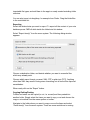
Select “Export item(s)” from the menu system. The following dialog window
appears:
Choose a destination folder, and decide whether you want to overwrite files
which may already exist.
Choose which export format you want, XML, RTF or plain text (TXT). Anything
other than XML may result in losing some formatting, but all text will be exported
nevertheless.
When ready click on the “Export” button.
Copying/Cutting/Pasting
Folders and notes can be copied (or cut, i.e. moved) and then pasted into
another folder. Simply select the items you want to copy or cut and choose the
copy or cut method from the menu system or toolbar.
Navigate to the folder where you want to copy or move the items and select
“Paste item(s)” from the menu system. There are some restrictions to moving