1
Applications and C-Pen Settings
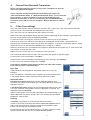
Characters and fonts
Defines the type of characters you want to scan; Text and digits, Digits, or any of the special fonts.
Function button
Defines what should happen in the document when the C-Pen Function button is pressed. For example, if
you select Enter, the cursor will move to a new blank row in the document when you press the Function
button (corresponding to pressing Enter on the keyboard).
Text stroke separator
The Text stroke separator defines what should separate two pasted texts in the document. That is
where the cursor should jump after text is pasted (C-Pen is lifted). For example, if you select Space,
there will be a space between the text pasted and the next pasted text.
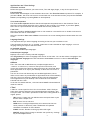
C-Pen Core
Select the checkbox Activate sound to hear a click sound for a successful scan. A double click sound is
heard when the scan is unsuccessful.
Select the checkbox Show scan window to activate the on-screen message that indicates when the scan
occurs.
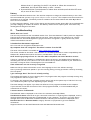
Language Settings
It is important that you select language according to the text you are about to scan.
If the document is written in e.g. Swedish, make sure to select Swedish as input language. A correct
language setting will improve the OCR result.
All available language
A list of all available input languages.
Selected input languages
Displays a list of the currently selected languages.
Use drag and drop to move a language from one list to the other. You can also select a language in the
list All available languages and click the button arrow down to move it to the list Selected input
languages.
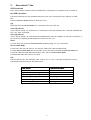
Add-ons
The C-Pen Core Add-on API allows any compliant application to
“connect” to C-Pen Core, create its own specific Scan Profile, and
receive the scanned text directly without having to be concerned about
which application is on top on your desktop or where the text cursor is
positioned.
You can use C-Pen with almost any text enabled application, but to
make it even easier we provide Add-on applications that work seamlessly
with the C-Pen Core software. Without having to be the selected and
active application on your desktop it still receives all text and data
scanned with the C-Pen.
In the list of available add-ons, click the button Install to download and
install the add-on.
C-Pad
C-PAD™ is a control pad for the C-Pen Core software. With C-Pad you
easily enter special characters and commands without releasing C-Pen
from your hand. The C-Pad is provided as a PDF and is easily printed on a
regular printer.
–
URL section: Create your own URL shortcuts and open them in your
browser with a simple click.
–
EDIT section: Use to edit text.
–
USER section: Configure keystroke(s) to be inserted at the text
cursor position or define any other combination of keyboard
commands. See below for more details.
–
SCROLL section: Emulate scrolling up/down/left/right.
–
PROFILE section: Easily change to another scan profile by “clicking”
any of the Profile buttons.
3