1
MCM Config view
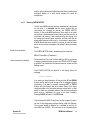
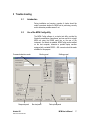
When connecting to a MCM unit, the following steps should be
observed:
•
Select the pc communications settings by pressing the
Communications button at the top of the view, set the
baud rate equal to that of the MCM unit and set the port
being used by the pc.
•
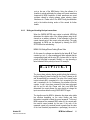
Set the MCM device address.
•
Check system response by sending a Get Status
message. This is done by selecting Get Status from the
Command selection combo box and pressing the Send
Command button. If a response is not seen in the
Response Panel, check the connections, cabling, Baud
rate, pc ports etc.
Waveforms of the last data accrued by MCM during data
acquisition can be uploaded to the pc for inspection as follows:
Artesis AS
MCM 0018-OP-UM-EG-0003
•
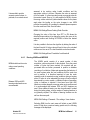
Send the MCM unit to IDLE mode by selecting the Idle
command from the Command Selection combo. Note
that the unit always sends the current data stored in its
memory so after any changes to the input conditions it
will be necessary to refresh the stored data by sending
the unit to CHECK MOTOR mode using the Check
Motor command.
•
Initiate the uploading by pressing the Start Upload
button.
•
The progress bar in the Upload Panel will indicate how
much data has been downloaded. When sufficient data
are available, press the Cancel Upload button to
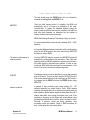
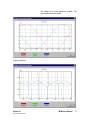
display the voltage and current waveforms. The view
can be zoomed using the mouse to define the desired
region whilst holding down left button. Pressing the right
button restores the view.
•
Voltage and current waveforms corresponding to the
same phase are plotted in the same color. If the
Display calibrated data checkbox is selected, the data
are scaled according to the device calibration.
Deselecting this box is sometimes useful to view both
MCM User’s Manual
38