Transcript
PPP2600
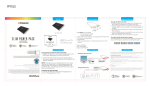
IN THE BOX
LOCATION OF CONTROLS
USING THE POWER PACK
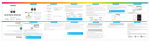
To charge the Power Pack:
1. Connect the small end of the included Micro USB cable to
the Micro USB input charging port on the Power Pack.
1
Power Pack
2. Connect the large end of the included Micro USB cable to
an available USB port on your computer or an AC power
adapter (not included).
2
4
3
POWE R PACK
{ FOR SMAR TPH ON ES }
PPP2600 | USER MAN UA L
Questions?
Need some help?
This manual will help you
enjoy your new product
P O W ER PAC K
Micro USB Charging Cable
{ FOR SMARTPHONES }
PPP2600 | USER MANUAL
Questions?
Questions?
Need
some help?
NeedThis
some
manualhelp?
will help you
If you still have questions,
call our help line:
or visit us at:
1-877-768-8481
Click on “Product Support”
www.southerntelecom.com
This manual
will new
help product
you
enjoy your
enjoy your new product
you still have questions,
If Ifyou
still have questions,
call our help line:
call our help line:
1-877-768-8481
1-877-768-8481
or visit us at:
or visit us at:
www.southerntelecom.com
www.southerntelecom.com
Click on “Product Support”
Click on “Product Support”
User Manual
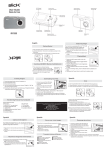
1. Flip-out phone stand
4. The LED indicator light will turn BLUE when the Power
Pack is fully charged (approx. 6-8 hours).
2. LED indicator light
5. When done charging, remove the cable from the ports.
3. Micro USB input charging port - for charging the
Power Pack
4. USB output charging port (1.0A) - for charging devices
such as smartphones
USING THE POWER PACK
LIMITED WARRANTY
Charging the Power Pack
PLR IP Holdings, LLC, its licensees and affiliates, fully support all electronic waste initiatives. As responsible
stewards of the environment, and to avoid violating established laws, you should properly dispose of this product
in compliance with all applicable regulations, directives or other governances in the area where you reside. Please
check with local authorities or the retailer where you purchased this product to determine a location where you can
appropriately dispose of the product.
USB
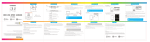
2. Connect the other end of your device’s charging cable
to your device’s charging port (please refer to your
device’s user guide for charging).
Using the phone stand:
Flip out the built-in phone
stand to use as a cradle
for your smartphone.
To check if the Power Pack is charged:
Press the LED indicator light once. If it lights up BLUE, it is
charged. Press again to turn the light off.
USING THE POWER PACK
To charge devices with the Power Pack:
1. Connect the USB end of your device’s charging cable
to the USB output charging port on the Power Pack.
NOTE: If the device you are charging draws too much
power from the Power Pack, it will stop charging and go
into standby mode. If this happens, unplug the device
from the Power Pack, then recharge the Power Pack to
get it back into charging mode.
3. The LED indicator light will light up RED while the Power
Pack is charging.
MICRO USB INPUT
CHARGING PORT
TO OBTAIN WARRANTY SERVICE:
• Call the Customer Support number located below, or go to our website portal to receive an SRO number.
• Provide proof of the date of purchase within the package (Dated bill of sale).
• Prepay all shipping costs to the authorized service center, and remember to insure your return.
• Include a return shipping address (no P.O. Boxes), a telephone contact number, and the defective unit within the
package.
• Describe the defect or reason you are returning the product.
Your product will be repaired or replaced, at our option, for the same or similar model of equal value if examination
by the service center determines this product is defective. Products received damaged as a result of shipping, will
require you to file a claim with the carrier.
The shipping address of the authorized service center is:
PC
Charging Other Devices
This product as supplied and distributed new by AIT, Inc. (“AIT”) to the original consumer purchaser is warranted by
AIT against defects in material and workmanship for a period of one year from your date of purchase (“Warranty”).
In the unlikely event that this product is defective, or does not perform properly, you may within one year from your
original date of purchase return it to the authorized service center for repair or exchange.
USB OUTPUT
CHARGING PORT
AIT, Inc.
ATTN: Customer Service (2nd Floor)
14-C 53rd Street
Brooklyn, NY 11232
IN NO EVENT WILL AIT, ITS MANUFACTURERS, DISTRIBUTORS OR PLR IP HOLDINGS, LLC BE LIABLE FOR ANY
INCIDENTAL, DIRECT, INDIRECT, SPECIAL, PUNITIVE OR CONSEQUENTIAL DAMAGES (SUCH AS, BUT NOT
LIMITED TO, DAMAGES FOR LOSS OF PROFITS, BUSINESS, SAVINGS, DATA OR RECORDS) RELATED TO THIS
PRODUCT. EXCEPT AS STATED HEREIN, NO OTHER WARRANTIES SHALL APPLY.
Questions?
Need some help?
This manual will help you
enjoy your new product
If you still have questions,
call our help line:
or visit us at:
1-877-768-8481
Click on “Product Support”
www.southerntelecom.com
• Consult the dealer or an experienced radio/TV technician for help.
• Connect the equipment into an outlet on a circuit different from that to which the receiver is connected.
• Increase the separation between the equipment and receiver.
• Reorient or relocate the receiving antenna.
Note: This equipment has been tested and found to comply with the limits for a Class B digital device, pursuant to part 15 of the FCC
Rules. These limits are designed to provide reasonable protection against harmful interference in a residential installation. This
equipment generates, uses and can radiate radio frequency energy and, if not installed and used in accordance with the instructions,
may cause harmful interference to radio communications. However, there is no guarantee that interference will not occur in a
particular installation. If this equipment does cause harmful interference to radio or television reception, which can be determined by
turning the equipment off and on, the user is encouraged to try to correct the interference by one or more of the following measures:
Caution: Any changes or modifications not expressly approved could void the user's authority to operate the equipment.