1
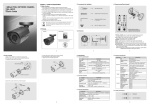
6. Web Viewer
7. Web Manager
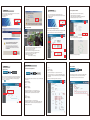
You can connect the web server inside the camera and check the picture.
First enter the address on internet explorer.
1) Enter ID / Password
2) Click Viewer
1)
ID
2)
Password
5)
admin
Install Active-X
Web viewer functions
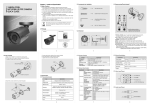
How to update the firmware
You can control all the functions through Web Manager log on.
When you use, you should change ID and Password and don’t open for secure use.
1) Enter ID / Password
2) Click Manager
1)
ID
2)
Password
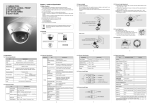
Update is needed to improve the functions and quality.
1) Click the find and choose the update file.
2) Click Update start and wait until Wait Downloading appears.
* Don’t click any buttons when you are waiting.
admin
1)
Check the network setting and change
When it is working fine under LAN condition, but not working under WAN,
and the camera cannot receive the correct time from NTP server,
3)
2)
3)
4)
3) Wait until Update completed
* Don’t click any buttons when it is being updated.
1)
IP Address
2)
3)
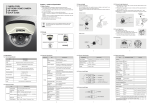
Frame rate / Bit rate adjustment
Suppress rolling
If there is a rolling picture under lighting, you can use this Suppress rolling function.
If you choose “Strong” on Suppress Rolling function, electric shutter will be fixed at
1/15 ~ 1/120 sec. you should be careful when you use it under bright lighting.
Click Help (
) for more details.
192.168.1.30
255.255.255.0
192.168.1.1
4)
DNS
5)
1’st DNS
2’nd DNS
168.126.63.1
6)
4) After Update completed, click Restart
Refer to below bit rate and frame rate example for your easier understanding.
Current Status
Frame Rate : 30[fps]
Bit Rate : 4000[Kbps]
How to set WDR
Case 3
Frame Rate 15[fps]
Bit Rate 2000[Kbps]
The pictures transferred per 1 sec. is decreased from 30 to 15.
The date size transferred per 1 sec. is decreased from 4000[Kbps] to 2000.
Picture quality is same, network load will be decreased from 4000[Kbps] to
2000, by half.
Therefore you should change both frame rate and bit rate.
2)
1)
Shutter Speed
Case 1
Frame Rate 15[fps]
Bit Rate 4000[Kbps]
Auto
2)
Dynamic(DHCP)
Static
9. Web Manager
8. Web Viewer
3)
192.168.1.30
40:04:0C:01:00:AA
IP Address
Subnetmask
Gateway
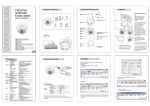
1) Stream : Choosing stream, displaying the status of chosen stream
2) Viewer Size : Choose the size of window
3) Disconnect : Disconnect the camera
4) Save : Record the current moving picture in AVI file format.
5) Capture : Save the current still picture in BMP file format.
6) Path : Choose the directory to Save, Capture
7) Audio On : Turn On/Off Audio
Audio should be On at setting.
4)
Assigned IP
MAC
The pictures transferred per 1 sec. is decreased from 30 to 15.
The date size transferred per 1 sec. is maintained on 4000[Kbps]
Picture quality will be better, and network load will be same.
Suppress Rolling(60Hz)
strong
weak
User
Shutter Speed 1/60
AGC
(-)
(2)
(+)
If you want to watch the more clear image under back light condition,
you can do setting as below, and choose the step and click Save.
* You should check the pictures after click the Save button.
1)
1)
Image Mirror
WDR
Normal
3)
Resolution
Input 1
Input 2
2)
1280x1024
640x480
4)
Stream Setting
3)
Stream
Source
Codec
Case 2
Frame Rate 30[fps]
Bit Rate 2000[Kbps]
Stream 1
Input
H.264
Frame Rate(fps)
Key Frame
Bit Rate(Kbps)
30
30
4000
The pictures transferred per 1 sec. is maintained on 30.
The date size transferred per 1 sec. is decreased from 4000[Kbps] to 2000.
Picture quality will be worse and network load will be decreased from
4000[Kbps] to 2000, by half.
Rate Mode
VBR
Stream 2
None
MJPEG
Frame rate(fps)
Quality
5
50
None
MPEG4
Frame Rate(fps)
15
(1~15)
Key Frame
Bit Rate(Kbps)
Rate Mode
30
4000
VBR
(5~30)[15]
(64~12000)[8000]
4)
Stream 3
show / hide
Enable
Ligth Compensation
Back-light
WDR
Step 1
Step 2
Front-light
Step 3
Step 4
Step 5
5)
Save
(1~15)
(5~30)[15]
(64~12000)[8000]
(1~15)
(5~80)[50]
( ) : Value Range [ ] : Default Value
Save