1
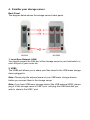
2. Copy button
The Copy button has two functions: (1) copy the content of one external USB
mass storage device to another attached storage device, and (2) reset the
configuration of the storage server to factory default settings.
To Copy USB mass storage device: When you press and hold the Copy button
for 2 seconds, the storage server will beep for 0.5 second to hint that your
command is detected. At this time, you should release the Copy button
immediately if you want to copy the content of one external USB mass storage
device to another attached storage device. During the process of copy, the
LED of corresponding USB port will flash slowly. When the LED of
corresponding USB port stops flashing and is lit steady, the copy job is
finished. If any error occurs during the process of copy, the LED of
corresponding USB port will flash very fast. The default source storage is
USB1, you can change the source storage by USB Copy settings in Web user
interface of storage server.
Restore factory default settings: Please refer to the description of Release
button.
Note: Before you trigger the USB Copy function by pressing the Copy button,
make sure that the destination folder has enough free space to store all data
of the source USB mass storage device.
Note: USB Copy function does not support length of file name longer than 255
bytes. If the source USB mass storage device contains any file with file name
longer than 255 bytes, the copy job will fail.
3. USB1
The USB1 port allows you to share your files stored in the USB mass storage
device plugged in.
Note: Please plug the external power of your USB mass storage devices
before you connect them to the storage server.
Note: If you have USB mass storage device (like USB external HDD), please
plug it to this storage server’s USB 2 port, and plug the USB flash disk you
wish to share to the USB 1 port.
7