1
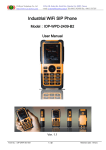
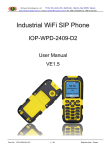
IO-Power Technology Co., Ltd http://www.io-power.com 1F,No.100, Jinzhu Rd., North Dist., Hsinchu City 30055, Taiwan e-mail: [email protected] Tel: +886 35429395 Fax: +886 35357297 Waterproof WiFi SIP Phone User Manual Model:IOP-WPD-2409-A2 Special reminder: WiFi Phone mobile phone antennas, has changed to replace the SMA connector antenna VE 1.1 Form No.:IOP-SPUG-002-002 1 / 20 保存期限:6 年 IO-Power Technology Co., Ltd http://www.io-power.com 1F,No.100, Jinzhu Rd., North Dist., Hsinchu City 30055, Taiwan e-mail: [email protected] Tel: +886 35429395 Fax: +886 35357297 Table of Content START ................................................................................................................................................................................... 5 PACKAGE CONTENTS............................................................................................................................................................. 5 PHONE SPECIFICATION ......................................................................................................................................................... 5 HANDSET DESCRIPTION ........................................................................................................................................................ 6 KEY PAD DEFINE AND TEXT ENTRY ..................................................................................................................................... 8 CHARGE BATTERY ........................................................................................................................................................... 9 POWER ON /OFF ................................................................................................................................................................ 9 WLAN AND VOIP SETTING ............................................................................................................................................. 9 A: SEARCH AVAILABLE WLAN .......................................................................................................................................... 10 B: CONNECT WLAN............................................................................................................................................................ 10 C: SIP SERVER REGISTER ................................................................................................................................................... 11 DIAL/ANSWER CALL ...................................................................................................................................................... 12 CALL HOLD:......................................................................................................................................................................... 12 CALL MUTE: ........................................................................................................................................................................ 12 CALL TRANSFER: ................................................................................................................................................................. 12 NEW CALL: .......................................................................................................................................................................... 13 SOS ALARM ......................................................................................................................................................................... 13 P2P ....................................................................................................................................................................................... 13 MENU FUNCTION ................................................................................................................................................................. 13 CALL ................................................................................................................................................................................... 14 PHONEBOOK ........................................................................................................................................................................ 14 FIND NAME AND NUMBER FROM PHONEBOOK ................................................................................................................... 14 DIAL...................................................................................................................................................................................... 14 RECENT CALLS .................................................................................................................................................................... 14 SPEED DIAL .......................................................................................................................................................................... 14 MESSAGE ........................................................................................................................................................................... 15 Form No.:IOP-SPUG-002-002 2 / 20 保存期限:6 年 IO-Power Technology Co., Ltd http://www.io-power.com 1F,No.100, Jinzhu Rd., North Dist., Hsinchu City 30055, Taiwan e-mail: [email protected] Tel: +886 35429395 Fax: +886 35357297 CREATE ................................................................................................................................................................................ 15 INBOX ................................................................................................................................................................................... 15 OUTBOX................................................................................................................................................................................ 15 DRAFTS ................................................................................................................................................................................. 15 GROUP LIST .......................................................................................................................................................................... 15 PTT....................................................................................................................................................................................... 15 PTT CONTACT ..................................................................................................................................................................... 15 PTT GROUP ......................................................................................................................................................................... 15 PTT SETUP ........................................................................................................................................................................... 16 LOGIN ................................................................................................................................................................................... 16 PTT CALL (SHARED GROUP OR PRE-BUILT GROUP) .......................................................................................................... 16 ONE TO ONE PTT: ............................................................................................................................................................... 16 PTT CALLBACK: ................................................................................................................................................................. 16 UTILITIES .......................................................................................................................................................................... 16 STOP WATCH ......................................................................................................................................................................... 16 CALCULATOR ....................................................................................................................................................................... 16 CALENDAR ........................................................................................................................................................................... 17 SETTING............................................................................................................................................................................. 17 PHONE SETUP ...................................................................................................................................................................... 17 WLAN SETUP AND VOIP SETUP .................................................................................................................................. 17 WLAN SETUP>SECURITY TYPE ......................................................................................................................................... 17 VOIP SETUP> VOIP METHODS > KEEP ALIVE .................................................................................................................. 18 PING TEST ........................................................................................................................................................................... 18 TIME/DATE........................................................................................................................................................................... 18 UPGRADE SERVER ADDRESS ............................................................................................................................................... 18 FIRMWARE UPGRADE .......................................................................................................................................................... 18 ERASE ALL ........................................................................................................................................................................... 18 PASSWORD SETUP ................................................................................................................................................................ 18 STATUS SUMMARY ......................................................................................................................................................... 19 BASIC TROUBLE SHOOTING ....................................................................................................................................... 20 Form No.:IOP-SPUG-002-002 3 / 20 保存期限:6 年 IO-Power Technology Co., Ltd http://www.io-power.com 1F,No.100, Jinzhu Rd., North Dist., Hsinchu City 30055, Taiwan e-mail: [email protected] Tel: +886 35429395 Fax: +886 35357297 For your safety Read these simple guidelines. Not following them may be dangerous or illegal. Read the complete user guide for further information. SWITCH ON SAFELY Do not switch the phone on when wireless phone use is prohibited or when it may cause interference or danger. ROAD SAFETY COMES FIRST Obey all local laws. Always keep your hands free to operate the vehicle while driving. Your first consideration while driving should be road safety. INTERFERENCE All wireless phones may be susceptible to interference, which could affect performance. SWITCH OFF IN RESTRICTED REGIONS Follow any restrictions. Switch the phone off in restricted regions. USE SENSIBLY Use only in the normal position as explained in the product documentation. Do not touch the antenna unnecessarily. QUALIFIED SERVICE Only qualified personnel may install or repair this product. ENHANCEMENTS AND BATTERIES Use only approved enhancements and batteries. Do not connect incompatible products. THE PERFORMANCE OF THREE-PROOF Your phone has a waterproof, explosion-proof, dust-proof and anti-drop performance, but uses it with care. BACK-UP COPIES Remember to make back-up copies or keep a written record of all important information stored in your phone. CONNECTING TO OTHER DEVICES When connecting to any other device, read its user guide for detailed safety instructions. Do not connect incompatible products. Form No.:IOP-SPUG-002-002 4 / 20 保存期限:6 年 IO-Power Technology Co., Ltd http://www.io-power.com 1F,No.100, Jinzhu Rd., North Dist., Hsinchu City 30055, Taiwan e-mail: [email protected] Tel: +886 35429395 Fax: +886 35357297 Start Please read the manual before installing and using this product. Package Contents WiFi Phone x1 Battery x1 (Built-in) Adapter x1 Block-Charger x1 User Manual CD x1 Phone Specification Dimension 150* 70* 30 mm Weight 400g Battery Rechargeable Lithium Cobalt battery, 3.7V, 3000mAh; Rechargeable Lithium Manganese battery, 3.7V, 1900mAh;(optional) Adapter Input AC 100-240V / output DC 5V 0.8A Protocol SIP v2,RFC3261/STUN、RTP LCD Color LCD 1.8”, 128*160 NOTE The standby time depends on the network conditions, phone usage and surrounding area. The phone consumes more battery power under the following conditions: 1. In areas with weak signals, with high or low temperatures, or when used outside the service coverage area. 2. When the phone frequently searches for network signal due to location changes. 3. When users talk on the phone for long periods of time (+ - 3hrs). 4. The Alarm, Backlight or Vibration function is active. 5. Ring or listening volume is set to maximum. Form No.:IOP-SPUG-002-002 5 / 20 保存期限:6 年 IO-Power Technology Co., Ltd http://www.io-power.com 1F,No.100, Jinzhu Rd., North Dist., Hsinchu City 30055, Taiwan e-mail: [email protected] Tel: +886 35429395 Fax: +886 35357297 Handset Description Key Function Left soft key Select/done Right soft key Back/clear/exit Answer key Answer/dial End key Reject/end/back/power on/power off Up Up/increase Down Down/decrease Left Before/decrease Right Next/increase OK Same to the left soft key Number key 1 Number 1 and symbols in common use “ .” “-” “ ?” “@” “1” Number key 2 Number 2 and characters ABC Form No.:IOP-SPUG-002-002 6 / 20 保存期限:6 年 IO-Power Technology Co., Ltd http://www.io-power.com 1F,No.100, Jinzhu Rd., North Dist., Hsinchu City 30055, Taiwan e-mail: [email protected] Number key 3 Number 3 and characters DEF Number key 4 Number 4 and characters GHI Number key 5 Number 5 and characters JKL Number key 6 Number 6 and characters MNO Number key 7 Number 7 and characters PQRS Number key 8 Number 8 and characters TUV Number key 9 Number 9 and characters WXYZ Number key 0 Number 0/+-*% and for blank Symbol * Symbol * / symbols Symbol # Symbol # /shift input PTT key (left side key) PTT call SOS key (top key) One key alarm Form No.:IOP-SPUG-002-002 7 / 20 Tel: +886 35429395 Fax: +886 35357297 保存期限:6 年 IO-Power Technology Co., Ltd http://www.io-power.com 1F,No.100, Jinzhu Rd., North Dist., Hsinchu City 30055, Taiwan e-mail: [email protected] Tel: +886 35429395 Fax: +886 35357297 Key Pad Define and Text Entry Write Text The number keys are not labeled all the letters that they can input. Letters that can be input refer to the language you select. This phone support English and Simple Chinese input. English: Press the number keys 1 to 9 continuously until the right character appear. Press the key that character is labeled, once for the first character, twice for the second, so on and so forth. If the letter you want is at the same key with the before letter, you can press the left or right key, then enter the new letter. Press the key of number 1; you can input some interlunations you frequently use. Select “clear” to delete the character before the cursor. Select “#” to switch the input method. Form No.:IOP-SPUG-002-002 8 / 20 保存期限:6 年 IO-Power Technology Co., Ltd http://www.io-power.com 1F,No.100, Jinzhu Rd., North Dist., Hsinchu City 30055, Taiwan e-mail: [email protected] Tel: +886 35429395 Fax: +886 35357297 Charge Battery 1. WPD-2409-A2 has a built-in non-removable lithium cobalt battery or a built-in non-removable lithium manganese battery. Please check if there is spare capacity in the battery the first time you use the phone. If you can not boot the phone or the phone display low power consumption after booting, please recharge it before using. 2. Connecting the charge base to the power supply, open the charging column protection cover at the bottom of the phone, then insert the charge column to the charge base to start charging. 3. After that, the battery indication will start to roll while charging; when the phone finish charge, the indication will stop rolling, please pull out the adapter to use. Power On /Off Power On Press the End key for 2 seconds, the phone start to respond and power on. You need to setup the phone first, if you have finished setting, the phone will search for the set WLAN automatically. Power Off Press the End key for 2 seconds, the phone will start to respond and power off. Keypad Lock Active: at standby mode, press * key first, and then # key Unlock: press the * key first, and then # key WLAN and VOIP Setting This product support IEEE802.11b/g and SIP protocol, the default setting is without SIP information, you should get the SIP name, password and domain from operator first. For example, the information of the WLAN you’re going to use is: SSID: WIFIAP Security type: WEP-open Password/Text: WIFI (or Hex key: 1016A386E) The information of the SIP server you’re going to use is: SIP server(domain): 31.108.26.51 User name (SIP phone number):123456 SIP phone number: 123456(phone number could be the same to user name or not, that due to the setting of SIP server.) Password: 1234 Form No.:IOP-SPUG-002-002 9 / 20 保存期限:6 年 IO-Power Technology Co., Ltd http://www.io-power.com 1F,No.100, Jinzhu Rd., North Dist., Hsinchu City 30055, Taiwan e-mail: [email protected] Tel: +886 35429395 Fax: +886 35357297 The detailed settings are as follows: A: Search Available WLAN 1. At standby mode, press the left soft key or OK key to enter the main menu. (The default initial password: 000000) 2. Select Settings> WLAN setup, select one from the default 1-8 AP in WLAN setup, these eight factory default configurations are empty, the default display is "Default + list No.". 3. After entering the "Options" menu, first select "WLAN Search". After searching, there will be a list to show you the available AP, with security type and signal strength. Select the one with highest strength (if this AP is permitted to use), press left soft key or OK key to setting. Note: The security type of the selected AP was shown at the searched AP list. We take the type of WEP-OPEN for example here; you can set other types by following the indication. B: Connect WLAN 1. Set the SSID name WIFIAP first (the default name is the one you have just selected, the name is consistent to AP currently), press left soft key or OK key to enter change menu. Enter SSID WIFIAP 2. Select Security Type> WEP-OPEN〉 WEP Key index〉 WEP Key 1, press left soft key or OK key and enter the WEP-OPEN menu again. If the security type is “Open”, go to Step 3 directly. Select Key / Pass〉Pass phrase / Hex Key, press left soft key or OK key enter the Enter key (Hex) mode, key of the SSID is the one of the AP you have just selected., Then press the left soft key or OK key enter change menu again. Enter pass phrase WIFIAP Enter hex key or WIFIAP 3. Select IP setting> use DHCP (If the WLAN you selected support DHCP server), press left soft key or OK key to enter change menu again. You can also select static IP, follow the indications, and enter the IP address, net mask, gateway, DNS address in turn. And back to change menu after setting. 4. The functions of configuration item "Options" menu are as follows: Use - use the configuration item Change - set the configuration item Rename - rename the configuration item Search - search an AP for the configuration item Form No.:IOP-SPUG-002-002 10 / 20 保存期限:6 年 IO-Power Technology Co., Ltd http://www.io-power.com 1F,No.100, Jinzhu Rd., North Dist., Hsinchu City 30055, Taiwan e-mail: [email protected] Tel: +886 35429395 Fax: +886 35357297 WPS - connect the configuration item in WPS Reconnect - reconnect the AP under the configuration item C: SIP Server Register 1. WiFi phone number setting You should get SIP phone number (SIP user name), password and SIP server domain from operator first. Select VOIP Settings, select one from the default 1-8 AP in WLAN setup, then enter the "Options" menu, select "Change" menu to set configuration item. Select VOIP identify> Phone number; input SIP phone number 123456, then press left soft key or OK key to enter the VOIP identify menu again. Enter phone no. 123456 2. SIP domain setting Select VOIP setting> change> VOIP identify> SIP domain, press left soft key or OK key, input SIP server address, press left soft key or OK key and enter the VOIP change menu again. Enter domain 31.108.26.51 3. SIP server authentication Select VOIP authentication> SIP user name/ password, then press left soft key or OK key and enter the VOIP change menu. Enter user name 123456 Enter password and 1234 4. SIP Server Setting Select VOIP server> SIP server address/SIP proxy address, press left soft key or OK key and enter the VOIP change menu. Enter SIP server address 31.108.26.51 5. After VOIP Information is set up, return to VOIP Setup menu, press the left soft key or OK key to enter the configuration item, select "Use", then the configuration item will be taken effect. 6. The functions of configuration item "Options" menu are as follows: Use - use the configuration item Change - set the configuration item Rename - rename the configuration item Form No.:IOP-SPUG-002-002 11 / 20 保存期限:6 年 IO-Power Technology Co., Ltd http://www.io-power.com 1F,No.100, Jinzhu Rd., North Dist., Hsinchu City 30055, Taiwan e-mail: [email protected] Tel: +886 35429395 Fax: +886 35357297 Note: 1. STUN protocol is set in SIP server currently; you needn’t to set in your handset again. If the SIP you registered doesn’t support STUN, you can search for it on internet and set in your handset. 2. The port number of VOIP protocol is default; you needn’t to set in your handset again except your operator provides you another one. To set it, enter the symbol “:” after the SIP sever address, and then input the port number. Enter SIP server address 31.108.26.51: 5060 3. This edition doesn’t support voice mail now. Dial/Answer Call 1. Enter the integrity number, or you can search the number from the phonebook; or simply click dial key to recall the recent phone number. 2. Press the Answer key to call the number; you can press the up/down key or left/right key to set the volume of the speaker and microphone. 3. Press Answer key to answer a call, to reject a call press the End key. Call Hold: Call Hold is that users on a call can temporarily interrupt the original call (after call hold the phone is in silent mode). To restore the original call, the user just needs to release the call hold function, Hold: Call status > left soft key > Call Options >1 Hold Unhold: right soft key can release hold directly (or click the left soft key) > 1 Unhold Call Mute: Call Mute is that the user which selects Call Mute can only receive but not call. Mute: Call status > left soft key > Call Options > 2 Mute Unmute: right soft key can release mute directly (or click the left soft key) > 2 Unmute Call Transfer: Call Transfer is that the users on a call can transfer the current call to the online users on third-party server platform, the transfer user withdraws the current call, and the remaining one establishes a new call with the third party. For example: 8001 and 8002 in the call state, 8002 transfer the current call to the user number 8003. At this time 8001 and 8003 establish a new call, and then 8002 withdraw the current call. Call Transfer: call state > left soft key > Call Options > 3 Transfer > 3 Dial Call (Or call from the phone book) Form No.:IOP-SPUG-002-002 12 / 20 保存期限:6 年 IO-Power Technology Co., Ltd http://www.io-power.com 1F,No.100, Jinzhu Rd., North Dist., Hsinchu City 30055, Taiwan e-mail: [email protected] Tel: +886 35429395 Fax: +886 35357297 New Call: New Call is that the users on a call can make a third-party call; the initial call will be automatically held when the new call begins (the original call is in silent model). When the new call hangs up, after the caller release hold, the original call can be restored. New Call: call state > left soft key > Call Options > 4 New Call (or call from the phone book) Restore the original call > right soft key directly release hold (or click the left soft key) > 1 Unhold For example: 8001 and 8002 in the call, 8002 launch a new call to a third-party user 8003. At this time 8002 and 8003 establish a new call, the call between 8001 and 8002 is on hold, either 8002 or 8003 can hang up the new call, after 8002 release hold, 8001 still can talk with 8002. Note: Hold, Mute, Transfer, New Call function don’t distinguish the calling party and the called, all parties can achieve above functions. SOS Alarm 1. This function must cooperate with the server. Users can alarm to the server, then the server will locate the user and take emergency measures. 2. Once press "SOS" key on the top of the phone in any interface, the phone starts to alarm, during this period users can continue to operate other functions, the SOS alarm status can be displayed in standby interface. 3. Please press the "SOS" key again to cancel alarm. P2P On standby interface, press combination keys " *0000 " into P2P dial interface: * Enter P2P numbers, finished with clicking "OK" * Enter P2P IP address, finished with clicking "OK" Comes to the "start P2P dial" prompt, click "OK", then a P2P call begins Note: 1. For P2P calls, all WiFi phones need to register on an AP, or an AP under the same subnet, and automatically or manually obtain the IP address. 2. To make P2P calls, the VOIP numbers and SIP server address of the caller and the called can not be empty, but can random fill in the information. 3. During P2P calls, you can not answer the VOIP calls. 4. When you choose Static IP, please set the gateway address. Menu Function You can press left soft key to enter the main menu at standby mode, and then choose the function Form No.:IOP-SPUG-002-002 13 / 20 保存期限:6 年 IO-Power Technology Co., Ltd http://www.io-power.com 1F,No.100, Jinzhu Rd., North Dist., Hsinchu City 30055, Taiwan e-mail: [email protected] Tel: +886 35429395 Fax: +886 35357297 you want. Press right key “back” you will back to the higher level menu. Press the End key you will back to the standby mode. (Not all menu functions or option items are described here) Call Phonebook Select Menu>Call>Phonebook, You can save names and phone numbers in the phone memory. The internal contact list can store up to 200 names. You can also use the following options in the Phonebook menu: Phone numbers----- classify the number and store Special ring----- select the special ring for the entry Edit name----- edit name for the entry Delete entry----- delete entry from phonebook Find name and number from phonebook 1. Scroll down in the standby mode, select Menu>Call>Phonebook>Find/Add name. 2. Enter the first letters of the name. Scroll to the name that you want. You can press # to switch the input method. Dial Select Menu>Call >Dial, you can enter the number you want and call it then. Recent Calls Select Menu>Call>Recent calls, The phone logs 10 phone numbers each of missed, received, and dialed calls; the approximate duration of all calls. The phone logs missed and received calls if it is switched on, within the network service area, and the network supports these functions. Speed Dial Select Menu>Call >Speed Dial, you can dial the number key once for a call number. Form No.:IOP-SPUG-002-002 14 / 20 保存期限:6 年 IO-Power Technology Co., Ltd http://www.io-power.com 1F,No.100, Jinzhu Rd., North Dist., Hsinchu City 30055, Taiwan e-mail: [email protected] Tel: +886 35429395 Fax: +886 35357297 Message Create Select Menu>Message>Create, then edit a new message here and sent it out. Inbox Select Menu>Message>Inbox, you can look over the messages you have received here. This box can only store 20 messages at most, when it’s full, please delete some old once in time. Outbox Select Menu>Message>Outbox, you can look over the messages you have sent here. This box can only store 20 messages at most, when it’s full, please delete some old once in time. Drafts Select Menu>Message>Drafts, you can look over the messages you have store here. This box can only store 20 messages at most, when it’s full, please delete some old once in time. Group list Select Menu>SMS>Group list, you can add and edit the group list, or view and change the contacts in this list. You also can send group SMS to the group list users. Group list > 1 View list > 2 Add list > 3 Send message > 4 Rename list > 5 Delete list 1. Can store up to seven group lists, and each group list can store 20 users 2. Can add group list user from the phone book directly. Note: Before you send messages, be sure the SIP server you’ve used support this function. PTT PTT Contact Select PTT> PTT contact, enter PTT friend list. PTT Group Select PTT> PTT group Choose Shared group, you can view the members in the shared contacts and make PTT call to shared group; shared group is the default group created and maintained by the registration server; Choose Pre-built group, you can add, delete, edit groups and members in groups. Form No.:IOP-SPUG-002-002 15 / 20 保存期限:6 年 IO-Power Technology Co., Ltd http://www.io-power.com 1F,No.100, Jinzhu Rd., North Dist., Hsinchu City 30055, Taiwan e-mail: [email protected] Tel: +886 35429395 Fax: +886 35357297 PTT Setup Select PTT> PTT setup, you can set the PTT User Setup, Server Setup, Speaker Setup and Auto Login. The Usage of PTT Login After completing the PTT setup, return to the PTT sub-menu, choose "login" to log in to use this function; there will be a PTT connection icon on the display after successful registration. PTT call (Shared group or Pre-built group) PTT side key is a special intercom key; press PTT key under standby interface, there will be a shared contact group list on the interface, and then press PTT key to make call to all members in this group; release PTT key to end the call. In the contact list or during calling process, press left and right key to adjust the volume; One to One PTT: Support one to one PTT call to any added contacts; select the contact under the PTT main interface, long press PTT key, then you can talk to the PTT contacts; release PTT key to end the call. PTT Callback: Pre-built group make PTT call, the initiator releases PTT key, the pre-built group members will not immediately withdraw from PTT call interface; Then any member of the pre-built group can directly press the PTT key to make the last pre-built group callback without selecting the group. Note: During the answering period, it can not receive PTT calls. Utilities Stop watch Select Menu>Utilities>Stop Watch, press left soft key to active the stop watch and start to time. Calculator Select Menu>Utilities>Calculator, Press keys 0 to 9 to insert digits and # to insert a decimal point. Press * to select algorithm, and left soft key to get result. Form No.:IOP-SPUG-002-002 16 / 20 保存期限:6 年 IO-Power Technology Co., Ltd http://www.io-power.com 1F,No.100, Jinzhu Rd., North Dist., Hsinchu City 30055, Taiwan e-mail: [email protected] Tel: +886 35429395 Fax: +886 35357297 Note: This calculator has limited accuracy and is designed for simple calculations. Calendar Select Menu>Utilities> Calendar, press up/down/right/left key to look over. Setting In this feature, you can change the phone's various settings. In order to prevent other people changing the user's settings, please input your password to enter the settings menu. The initial password is 000000, you can change this password in the "Password Settings" menu. Phone Setup Volume Setting Select Menu>Setting>Phone Setup>Volume Setting, you can set the volume of receiver, speaker, ring, keypad. Prompt Mode Select Menu>Setting>Phone Setup>Prompt Mode, you can select special ring, or set the phone to vibrate mode or ring + vibrate mode when you receive a call Screen/Keys Select Menu>Setting>Phone Setup>Screen/Keys, you can set contrast, backlight, key repeat, key click volume here. Speakerphone Select Menu>Setting>Phone Setup>Speakerphone, you can set it on or off. Language Select Menu>Setting>Phone Setup>Language, to select the menu language you want (including English and Chinese). Edit Greeting Select Menu>Setting>Phone Setup>Edit Greeting, you can edit greeting for your phone. WLAN Setup and VOIP Setup See page 6 for details. WLAN Setup>Security Type Select Setting>WLAN Setup>WLAN/IP Setup>Change>Security Type, this product support security type of Open, WEP, WPA2, WPA-PSK, WPS etc., you can choose the different type for different WLAN. The operation is the same to the WEP-Open type; you can set it following the indication. Form No.:IOP-SPUG-002-002 17 / 20 保存期限:6 年 IO-Power Technology Co., Ltd http://www.io-power.com 1F,No.100, Jinzhu Rd., North Dist., Hsinchu City 30055, Taiwan e-mail: [email protected] Tel: +886 35429395 Fax: +886 35357297 VOIP Setup> VOIP methods > Keep Alive You can choose to keep Alive or not to change the interactive frequency between the WiFi Phone and the server. When you keep alive the phone, the interactive frequency becomes larger; when you don’t keep alive, the frequency becomes smaller; WiFi Phone doesn’t keep alive by default, normally this will not affect your use of the phone. PING Test Select Menu> Settings> PING test, PING test is for testing network delay and for users to view the current network status. Under this function interface, you can manually input any IP address for testing, or can choose the complete gateway, DNS, SIP server, SIP proxy and STUN server for testing. Time/Date Select Menu>Setting>Time/date, you can set the time and date of your phone here. You can also select a mode of the time/date format. Upgrade Server Address Select Menu> Setting> Upgrade Server Address, enter the upgrade server address in window; when you start to upgrade, the system will connect to it automatically. Firmware Upgrade Select Menu>Setting> Firmware Upgrade, the system will check for the new files and upgrade automatically. Erase All Select Menu>Setting> Erase All, this function will erase all of the user settings to reset all settings to their default values. Password Setup Select Menu>Setting> Password Setup, users can change the password here, according to the operation tips. Form No.:IOP-SPUG-002-002 18 / 20 保存期限:6 年 IO-Power Technology Co., Ltd http://www.io-power.com 1F,No.100, Jinzhu Rd., North Dist., Hsinchu City 30055, Taiwan e-mail: [email protected] Tel: +886 35429395 Fax: +886 35357297 Status Summary WiFi Phone provides user shortcut to look over the settings, there will be a detail list after you setup your phone. VOIP Status WLAN Status AP Channel Signal Strength Storage Status Battery Display Phone Number MAC Address Firmware Version Server Information Note: You can only look over the information here, if you want to change your settings, go back to the setting menu. Form No.:IOP-SPUG-002-002 19 / 20 保存期限:6 年 IO-Power Technology Co., Ltd http://www.io-power.com 1F,No.100, Jinzhu Rd., North Dist., Hsinchu City 30055, Taiwan e-mail: [email protected] Tel: +886 35429395 Fax: +886 35357297 Basic Trouble Shooting QUESTION Why can’t I switch on? RECOMMENDED ACTION 1. Check if the battery is inserted correctly. 2. Check if the battery is running out of power. Connect the handset to PC or voltage. Why is there no signal? 1. Check if there is any available AP. 2. Check if AP is setting correctly. Check if AP settings (SSID, WEP key) of WLAN are correctly. Why is nothing displayed on the LCD screen? Why can’t I make a call? 1. Check if battery is running out of power. 1. Make sure you have registered the SIP server correctly. 2. Make sure you have setup the WLAN correctly. 3. Make sure the number you dialed is available. Why isn’t my firmware upgrading? 1. If the version of your handset is the latest, it won’t update again. 2. Check if the upgrading address is correct. Why can’t I roam? 1. Your handset can roam only between the APs with same SSID name and password, if not, you have to set it up again. Form No.:IOP-SPUG-002-002 20 / 20 保存期限:6 年