1
Virtual Transport 1.3
Virtual Transport User Guide : TC Player - Client
NETWORKED SYNCHRONIZATION SYSTEM
TC Player - Client
Overview
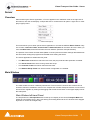
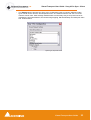
VT TC Player Client Frame
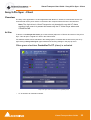
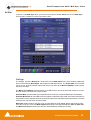
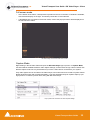
Fig. 1 VT TC Player Client Frame
TC Player is a simple application that can show the current Time Clock and Play Mode received from
the VT Server running on the local machine. Apart from the regular client frame and controls, this application uses a floating panel launched by clicking in the blue magnifying glass of its client window. This
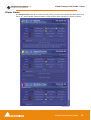
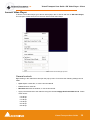
will show the current time code, a transport display, a speed display and the play mode that the user
can choose to display in one of three different time code formats:
•
Frame format shows the time code in hours, minutes, seconds and frame number
•
Sample format shows the time code in hours, minutes, seconds and sample number
•
Milliseconds format shows the time code in milliseconds.
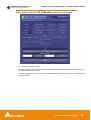
TC Player floating panel, with Transport display
In Use
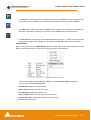
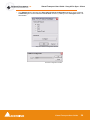
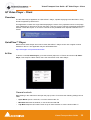
Once launched, the floating panel gives access to several options. Right-clicking on the panel brings up
a popup menu. From there the following settings can be made:
•
The Frame can be set to Opaque or transparent at three different AlphaBlend levels: 75%, 50% or
25%. Numeric keys 1 to 4 are shortcuts for the graphic options.
•
Check Flick Free if flicker becomes objectionable.
•
Timecode format can be set to Frames, Samples, Milliseconds as described above
•
View of the play mode can be toggled between graphics and text. This can also be done with the T
key for graphical representation and the Y key for textual.
•
Speed display in % can be toggled ON and OFF
•
Transport display can be toggled ON and OFF
Virtual Transport User Guide
20