1
Call the business by selecting the phone number link and pressing SEL or
save the entry in your
SoftKey to SAVE.
Address Book/Contacts by pressing the right
Press BACK to continue browsing through the list of search results.
Other search methods:
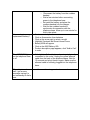
To select from a list of the most frequently searched categories, select
TOP SEARCHES from the main search screen.
To select from a list of all search categories, select ALL DIRECTORY
LISTINGS from the main search screen.
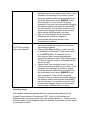
To select from a list of your previously searched keywords or business
names, press the right SoftKey for OPTIONS, then select PREVIOUS
SEARCHES.
.
Setting your location:
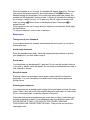
To set the current search location, press the right SoftKey for OPTIONS,
then select LOCATION.
Select CURRENT LOCATION to see the current location. Press BACK
when done.
For best search results, enter your full address. Be sure to press SAVE
after making any changes. All future searches will use this new location as
the default.
Press INFO to return to the Home screen
Visual Voicemail
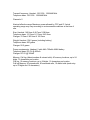
At the Home screen, press the left/right NavKey to highlight the Visual Voicemail
icon, then press SEL to display a list of messages.
Press OPTIONS if desired to select the type of display (show all
messages or only new messages), then SEL to return to the list of
messages.