1
RESORCERER USER MANUAL
THE SAMPLE MENU
Although the Menu Editor shows you
your menu items in a list that closely
resembles what the menu looks like in
your running application, there are times
when it cannot accurately portray exactly
what the menu looks like. The Editor
therefore keeps a copy of the menu you’re
editing installed in the menu bar at all
times while you are editing the original.
If any items in the sample menu have
hierarchical sub-menus, copies of these
sub-menus are also installed so you can
get a better idea of how the whole
collection of related menus operates.
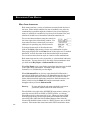
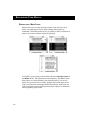
The sample menu is found next to the Editor’s own menu, which has the title
“Menu:” to indicate the special nature of the menu to its right. The sample
menu is only installed at those times that the menu editing dialog is the
frontmost window.
Both the menu and its color table are installed as the sample menu. Since
one of the entries in the menu color table is for setting the color of the menu
bar and the default colors of all menus in the menu bar, other Resorcerer
menus may be temporarily affected by this entry. For more on this, see the
next section, “Setting menu colors”.
The sample menu is constantly updated while you are editing, so that at any
point you can click on its title in the menu bar and get a look at how the
Menu Manager will display your menu.
When you choose an item from the sample menu, the Editor selects that
item in the menu’s item list. All other items are deselected first. When you
choose an item from any hierarchical sub-menu installed with the sample
menu, the Editor opens that sub-menu (or brings its editing dialog to the
front if it is already open) and selects the item you’ve chosen.
Note:
268
Any command key equivalents in the sample menu are ignored,
even if they appear in enabled items.