1
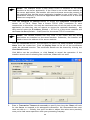
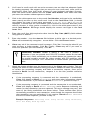
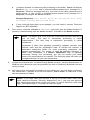
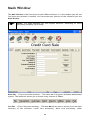
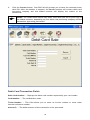
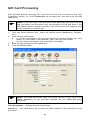
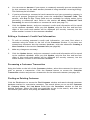
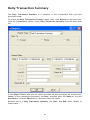
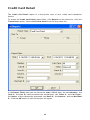
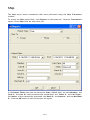
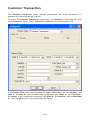
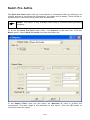
Gift Card Processing From the Main Window (see page 59), click the Gift Card icon to access the Gift Card Transaction window. Or, click Transactions on the menu bar, and then click the Gift Card option. 1. 2. 3. 4. Note: If you are using a PIN pad device with PCCharge, you must click the Gift icon before you can swipe a gift card through your PIN pad (even if the Gift Card window is already onscreen). This will activate the magnetic strip reader and make it ready for use. From the Action Selector Row, select the desired action (Redemption, Register, etc.). Enter the gift card number. In a retail environment, the gift card should be swiped through your card reader. If a card reader is not available, type in the gift card number. In a non-retail environment, type in the gift card number. Enter the dollar amount of the transaction. Click the Process button. Note: The fields shown may differ from what you see in your copy of the Client, depending on the processor selected and the transaction being processed. Gift Card Number: -- Displays the gift card number. Amount $: -- This field allows you to enter the dollar amount of the transaction to be processed. 82