Download User Manual Version 2
Transcript
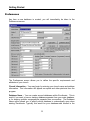
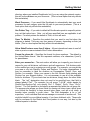
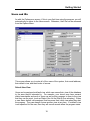
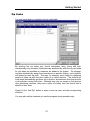
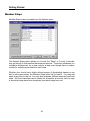
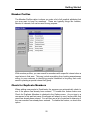
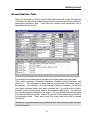
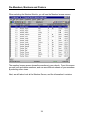
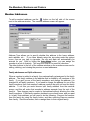
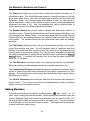
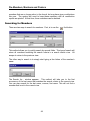
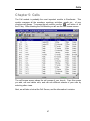
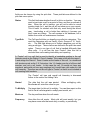
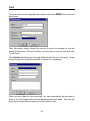
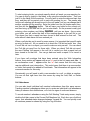
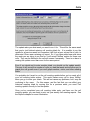
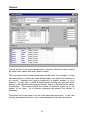
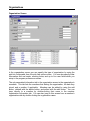
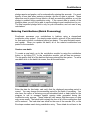
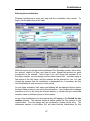
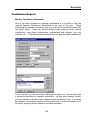
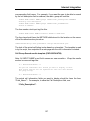
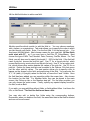
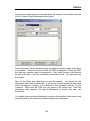
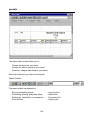
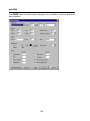
Pre-Members, Members and Pastors Member Addresses To add a member s address, use the button on the left side of the screen next to the address window. The member address screen will appear. Address Type allows you to specify whether this address is the home address, work address, etc If you have already setup the zip-codes under the options menu, then as you type in zip-codes, the city and state will automatically be entered for you. Also by hitting the Auto Assign button, you can assign the member to a set of divisions. This may be a District for most cell churches. The other buttons to the left of the address window on the member screen are for editing, deleting, and viewing the previous or next addresses. Family addresses and Split addresses When a member is added to a family, they automatically get assigned to the family address. The family address is the address that is shared by all members of the family. If you pull up one of the family members, and change the address, it is changed for all family members. If you need to change the address for one of the family members, then that member s address needs to be split out from the family address. To do this you would choose split family address from the member screen, and this will make that member s address separate from the rest of the family s. Then changes can be made to that address without affecting the other family members. If that family member decides to move back home, and you want to un-split their address, you will need to do the following: Remove the member from the family by using the family button, and then selecting Remove member from family. Save the member, then re-assign them to their original family. 38