1
Cells
Cell Screen
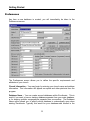
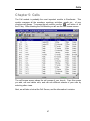
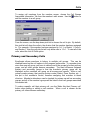
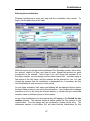
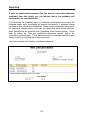
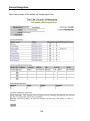
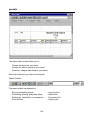
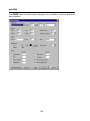
The Cell Information Screen shows all information relating to this cell group. The
top half of the screen shows details on the cell, and the bottom half shows the
associated information tabs.
Division Fields
The top section of the cell screen lists the division codes that this cell belongs in.
Remember a division is the generic term used in Excellerate to describe the
levels within your cell structure, such as District, Zone, Section, etc . Some
churches may include Congregation, or City as one of their divisions.
In this example we are using District, Zone, and Section. We will explain more
about using these fields in the section on Adding Cells. The values for the division
48