1
802.11gb Wireless to Serial Server
Version20060502
Quick Start 1 - READ THIS!
Things You Need to Know That are Not Obvious:
This section explains what the Switch, LEDs, etc. do.
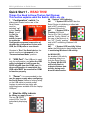
4b “System” LED indicator:
4b1
If System LED is OFF then the
Serial Device is initializing or other task
and is NOT monitoring
Wireless LAN activity.
4b2
If System LED is
Flashing, the Serial
Device is in “Set Up Mode”
and the “Config. Switch” at
the rear of the device is in
the “UP” “Config” position”
and is NOT monitoring Wireless LAN
activity.
4b3
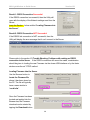
If System LED is solidly Yellow
color, the Serial device has initialized and
is monitoring Wireless LAN activity.
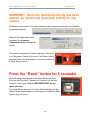
1 “Configuration” switch: The
slide switch located on the rear of the
Serial Server
must be
switched “up”
to the “Config.
Mode” to use
the Set Up
Utility. This
switch is used
to enable the
Configuration process irrespective of
whether the configuration is done with
USB, the COM ports or over-the-air.
Likewise to “Run” the Serial device, the
switch must be set downward to the
“Communications Mode” position.
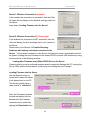
4c WLAN LED:
As wireless LAN activity
is passing either to or
from the Serial Device,
the Green WLAN LED
will briefly flash to
indicate wireless data
activity during each
burst of data transfer.
2 “USB Port”: The USB port is used
only for configuration, and when the USB
cable is plugged in it will borrow the
RS232 signals from the COM1 port. So
when configuration is completed, the
USB cable MUST be removed for COM1
to function properly.
3
“Power” It is recommended to also
use the power supply when configuring
the Serial Device instead of relying solely
on the USB cable to provide power.
Laptops in particular are stingy with
restricting power available from the Laptop
USB port.
4
What the LEDs indicate:
4a. When you apply Power…:
The two Td RS232
output LEDs Turn ON
immediately displaying
Red.
2