1
More Quick Start 2 - READ THIS TOO!
More Things You Need to Know That are Not Obvious:
This section explains the basics of Starting Configuration.
So it is very important when
To configure the Serial Device:
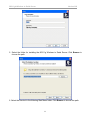
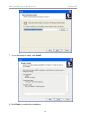
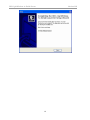
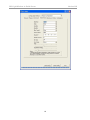
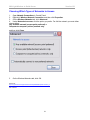
1 Load the Set UP Utility from the CD, It
should auto-install upon inserting CD to a
PC.
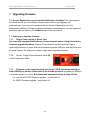
2 Plug in the Power Supply into the
Power Jack. (You may not need the power
supply to configure the Serial Device since there
may be enough power available from the USB port
to power the Serial Device. Laptops may limit the
power available at the USB so a power supply may
be necessary.)
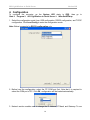
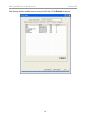
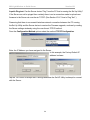
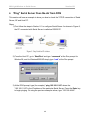
3 Plug in the USB cable into the Serial
Device and PC. The computer should
audibly chime to indicate a USB device has
been plugged in. If it does not automatically
associate the new USB Serial Device with
the Set UP Utility then use the Browse
function to direct the USB Set Up to the CD
drive to locate the Drivers and Set Up
Utility for the Serial Device. (Note: You may
also use the PC Serial Ports to configure or
it can Configure over-the-air with a radio
link.)
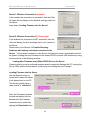
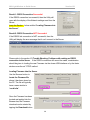
4 Flip the Switch on the rear panel UP to
“Config. Mode.”
IMPORTANT NOTE:
When you are
configuring the
Serial Device,
flipping the
switch to
Config Mode
will take the
RS232 signals away from COM1 port,
since the USB borrows the COM 1
channel temporarily for Configuration.
Configuration is complete to flip this
switch back down to the
“Communications Mode” to run.
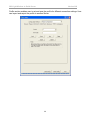
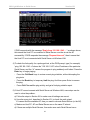
When in Configuration Mode, the Amber
(yellow) color “SYSTEM” LED with flash
to indicate that this is Configuration
mode. You MUST wait until this LED
begins to flash to read or alter the
configuration
settings.
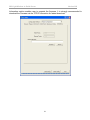
5 When finished
with Configuration,
the flashing
Yellow System LED warns you to flip the
Configuration switch DOWN to the
“Communications (RUN) Mode” and the
System LED will then remain solidly
illuminated.
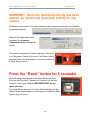
6 Remove the USB cable used to set
up the Serial Server. COM 1 will not
function properly as an RS232 port with
the USB cable also plugged in.
Remember that the USB cable borrows the
COM 1 port for configuration, so the USB
cable must be removed to restore COM1 to
RS232 activity.