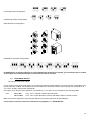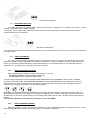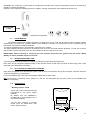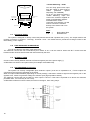
1
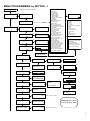
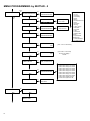
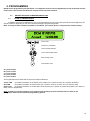
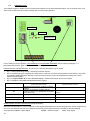
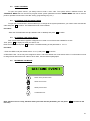
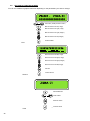
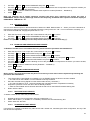
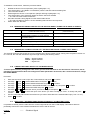
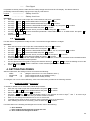
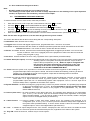
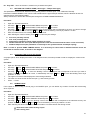
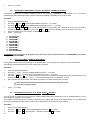
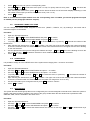
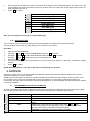
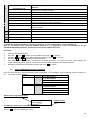
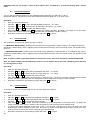
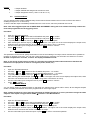
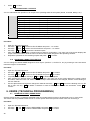
14.5 MEANING OF THE READER LEDS System DISARMED System armed System in alarm During the quit time During the key programming = The green control LED turns on ( if all the zones are idle ) = The yellow and green LEDs turn on = All the LEDs flash = Yellow LED flashes ( Green turn on if all zones are idel ) = All the LEDs quickly turn on in sequence Note: if you arming the system with a key and one or more zones are open, the system arms and after the quit time the system will go into alarm, unless you program the automatic exclusion of the zone(s) or you disable the arming with key when open zones are present (see the relevant paragraphs of Chapter INPUTS MENU). 14.6 ARMING THE SYSTEM WITH AN ON/OFF INPUT Once assigned to the desired input the function 8 (ON / OFF system), you must associate the program you want to insert. Each command pulse applied at the input, will result in the arming and disarming the system. Open the TECHNICIAN Menu. Use keys and to select ZONES MENU and press to confirm. Use keys and to select ARMING BY ZONES and press to confirm. Use keys and to move the blinking cursor to the position that corresponds to the zone you wish to change. Enter a number from 0 to 8 to assign a PROGRAM to the zone. Press to confirm. Note: you can connect this input to any control device (remote control, mechanical key, etc.) and select any operating logic (N.C. or N.O.). 15. MANAGE EVENTS 15.1 READING EVENTS When a new event occurs the panel will report it with the red LED lights on the keyboard ( and on the plugs ). The red " events memory " led will switch off when the system will armed , or if you enter the menu READ EVENTS. The control unit has a memory of dynamic events (that are automatically allocated to the different areas). When the event memory is full, the system displays a message on the keypad display. At this point you have two options: You can save all the events on the PC in several formats. You can allow the new events to be overwritten on the new ones. Here how to read the EVENTS. Procedure: Open the menu (Technician or Users). Use keys and to select MANAGE EVENTS and press to confirm. Use keys and to select READ EVENTS and press to confirm. Press and to browse the list of events. Press to cancel the events reading operation. 15.2 EVENTS OPTIONS You can configure the system so that some notifications are not displayed and not signalled with the red LED on the keypad or plugs. Procedure: Open the menu (Technician or Users). Use keys and to select MANAGE EVENTS and press to confirm. Use keys and to select EVENTS OPTIONS and press to confirm. Use keys and to select the desired notification and press to confirm. Use keys and to move the blinking cursor (R=Red LED, D=Display). 62