1
FEDERAL COMMUNICATIONS COMMISSION
This device complies with Part 15 of the FCC Rules Operation is subject to the following two conditions:
this device may not cause harmful interference, and (2) this device must accept any interference received,
including interference that may cause undesired operation.
GrabBee-HD
This equipment has been tested and found to comply with the limits for a Class B Digital Device, pursuant
to part 15 of the FCC Rules. These limits are designed to provide reasonable protection against harmful
interference in a residential installation. This equipment generates, uses and can radiated radio
frequency energy and, if not installed and used in accordance with the instruction, may cause harmful
interference to radio communication. However, there is no grantee that interference will not occur in a
particular installation. If this equipment does cause harmful interference to radio or television reception,
which can be determined by tuning the equipment off and on, the user is encouraged to try to correct the
interference by one or more of the following measures:
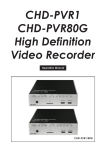
HDMI 1080P USB Grabber
- Reorient or relocate the receiving antenna.
- Increase the separation between the equipment and receiver.
- Connect the equipment into an outlet on a circuit different from that to which the receiver is connected.
- Consult the dealer or an experienced radio/TV technician for help.
Notice: Changes or modifications not expressly approved by the party responsible for compliance could
void the user’s authority to operate the equipment.
CE DECLARATION
This device complies with CE . These limits are designed to provide reasonable protection against
harmful interface in a residential installation.
Printed in TAIWAN R.O.C No. 20131009
All contents are subject to change without notice.
All trademarks are the property of their respective owner.
User's Manual
CHAPTER 1. OVERVIEW |
TABLE OF CONTENTS
1
CHAPTER 1. OVERVIEW..............................................................................................................
1
1.1 Introduction..............................................................................................................................
1.2 Features...................................................................................................................................
1.3 Specifications...........................................................................................................................
1
1
1
2
1.1 Introduction
GrabBee-HD - New Generation USB HDMI 1080p grabber is the best ideal companion for your
portable Full HD video capture application. Now with Real-time Full HD 1080p recording, you have a
powerful video application on your hand. It is the bridge between your computer and Full HD video
source.
2
2
GrabBee-HD is small enough to fit in the palm of your hand and it is ideal for both notebook and
desktop computers.
1.4 System Requirements..............................................................................................................
1.5 Package Contents....................................................................................................................
1.6 Hardware device description…………………………………………………………………………
CHAPTER 2. INSTALLATION........................................................................................................
2.1 Install Device Driver………......................................................................................................
2.2 Install DivX+ Software..............................................................................................................
2.3 Install Application Software……...............................................................................................
2.4 Plug in GrabBee-HD hardware................................................................................................
3
3
4
5
6
CHAPTER 3. OPERATION………………......................................................................................
3.1 Starting.....................................................................................................................................
3.2 Hardware Configuration...........................................................................................................
3.3 Software Configuration.............................................................................................................
3.4 MPEG Encoding Parameters...................................................................................................
3.4.1 Video..............................................................................................................................
3.4.2 File..................................................................................................................................
3.4.3 Audio..............................................................................................................................
3.5 Software Registration...............................................................................................................
3.6 GrabBee-HD.............................................................................................................................
1. Video Screen.......................................................................................................................
2. Toggle Mode........................................................................................................................
3 .Top Most..............................................................................................................................
4. Minimize...............................................................................................................................
5. Power Off.............................................................................................................................
6. Zoom Screen.......................................................................................................................
7. Pause...................................................................................................................................
8. Play......................................................................................................................................
9. Record.................................................................................................................................
10. Save Clipboard..................................................................................................................
11. Snapshot............................................................................................................................
12. Video Information..............................................................................................................
13. Video Setup.......................................................................................................................
3.7 Reselect Hardware Configuration / Software Configuration.....................................................
7
7
7
8
8
8
9
9
9
10
10
10
10
10
10
10
10
10
10
10
11
11
11
11
CHAPTER 4. TROUBLESHOOTING..............................................................................................
12
1.2 Features
• Small physical Wonder-- 86.5 x 48 x 19 mm (excluding cable)
• Audio and video go though USB bus for Audio / Video synchronization and superior performance
• High performance preview/record/playback from HDMI to USB,
• Video input resolution supports 1080p / 1080i / 720p / 576p / 576i / 480p / 480i
• Up to 30 fps motion capture capability at 1080p
• Captured video bit rate and audio tone quality (treble and bass) adjustable support
• Recording time and Disk reserved file size control
• Hardware snapshot push button support
• High compatibility: HDMI 1.4a 3D support
• Plug & Play
• Low power consumption. Ideal for portable computer too
1.3 Specifications
• Video/Audio input : One HDMI female (type A).
• Video system : NTSC and PAL multi system support.
• Performance : Up to 30 fps at 1080p/1080i/720p/576p/576i/480p/480i.
• Motion capture resolution : The same as video source
(e.g. If input is 1080p, captured is 1080p)
• Motion capture format : H.264
• Still image snapshot resolution : The same as video source
(e.g. If input is 1080p, snapshot is 1920x1080)
• Still image snapshot format : bmp or jpg
• Power source : 5VDC, 350mA(max) through USB port.
• Dimension (Lx W x H) : 86.5 x 48 x 19 mm. (Exclude cable)
CHAPTER 1. OVERVIEW |
1.4 System Requirements
• USB 2.0 equipped computer
• Pentium4 or above
• 512MB of RAM
• Windows 8 / 7 / Vista / XP (32-bit or 64-bit)
• Sound card
• CD ROM drive (For software installation)
1.5 Package Contents
• GrabBee-HD Device x 1
• GrabBee-HD Software & Manual CD x1
• Quick Installation Guide x 1
1.6 Hardware device description
2
CHAPTER 2. INSTALLATION |
※
※
Do not connect GrabBee-HD to computer USB port before driver installation
Please follow the steps to install Driver and Software
Steps :
2.1 Install Device Driver
2.2 Install DivX+ Software
2.3 Install Application Software
2.4 Plug in GrabBee-HD hardware
Please insert "Multimedia Installation Kit" CD-ROM into your CD-ROM drive; AutoRun will run.
(if AutoRun didn’t run, please go to “My Computer”, click CD-ROM drive)
Select “GrabBee-HD” product.
2.1 Install Device Driver
2.1.1 Select “Device Driver”
2.1.2 Setup wizard is running.
2.1.3 Follow the instructions to installation Device Driver.
2.1.4 When the Windows Security pop up a dialog “Would you like to install this device software?”
Please check “Always trust software from Sigma Design Inc.” and click “Install”
2.1.5 Complete Setup Wizard, Click "Finish"
3
CHAPTER 2. INSTALLATION |
2.2 Install DivX+
2.2.1 Select “DivX+ Software”
2.2.2 Setup wizard is running.
2.2.3 Select install language and click “Next”
4
CHAPTER 2. INSTALLATION |
2.2.6 Complete install DivX+ software.
Enter your Email address to sign up for the
DivX+ newsletter and get the latest updates.
Click "Finish"
If it is not needed, just click "Finish" to skip.
2.3 Install Application Software
2.2.4 Check accept the terms in the license
agreement and click “Agree”
2.3.1 Select “Application Software”
2.3.2 Follow the instructions to installation Application Software.
2.3.3 Complete Setup Wizard,
Click "Finish" to restart computer now
2.2.5 Click “Next” to install DivX+ software
2.3.4 After restart computer, you will see the GrabBee-HD
icon on desktop.
5
CHAPTER 2. INSTALLATION |
2.4 Plug in GrabBee-HD hardware
* Please follow the steps to plug in GrabBee-HD hardware, or system may not detect the
GrabBee-HD device successfully.
6
CHAPTER 3. OPERATION |
3.1 Starting
Please click the GrabBee-HD
icon on desktop.
When the first time start GrabBee-HD software, system will pop up UAC (Users Account Control)
message, please click “Yes” to continue.
* When the first time exit (3.6_5 Power Off) application,
system will pop up a PCA (Program Compatibility Assistant)
dialog.
Please click “This program works correctly” and the
UAC message will be not pop up next time.
(See 3.6_5 Power Off)
If there are select wrong section,
please see troubleshooting Q5
3.2 Hardware Configuration
2.4.1 Connect computer : Plug in GrabBee-HD into computer’s USB port.
2.4.2 System will now detect the new device and install completely.
2.4.3 Please check the Device Manager, the GrabBee-HD driver was installed successfully
in your computer.
2.4.4 Connect HDMI source : HDMI input from HD video source.
GrabBee-HD Software will pop up Hardware Configuration window, please make sure
the Model Name is GrabBee-HD, then click “OK”
7
CHAPTER 3. OPERATION |
3.3 Software Configuration
GrabBee-HD Software will pop up Software Configuration window, please select your
Video Format / Language / Video from drop down menu., then click “OK”
8
CHAPTER 3. OPERATION |
3.4.2 File
• Disk Reserved: Check and Set the Disk Reserved
• Enable Capture Time Limit: Check and Set the Enable Capture Time Limit
• 264: Click “264” icon to set the location to save recorded video files.
The default location is -> C:\GrabBee-HD
• BMP: Click “BMP” icon to set the location to save snapshot files.
The default location is -> C:\GrabBee-HD
• Save as JEPG: Check and Save snapshot files as JPEG.
* 480P/i is in NTSC video format, 576P/i is in PAL video format
3.4 MPEG Encoding Parameters
GrabBee-HD Software will pop up MPEG Encoding
Parameters window.
Set the video and audio’s parameter depend on your
need, then click “OK”
* Make sure the video source and video format
are selected correctly, or the video may not
display.
3.4.3 Audio: Slide bar to set the Volume / Treble / Bass level
After setting, please click “OK”
3.5 Software Registration
3.4.1 Video
• Source: Select the Video Source from drop down menu.
• Video Format: Select the Video format from drop down menu.
• Video Bitrate: Select the Video Bitrate from drop down menu.
• Audio Format: Select the Audio Format from drop down menu.
The first time starting application software,
Please enter the product license key.
The license key is on the Multimedia
Installation Kit CD envelop.
9
CHAPTER 3. OPERATION |
3.6 GrabBee-HD
10
CHAPTER 3. OPERATION |
11
11. Snapshot: Click this button to capture and save a video screen image as the BMP or JPEG file.
After starting application and setting, you can see video window as below.
Or you can click the Snapshot button on
GrabBee-HD device to save the Snapshot
picture in your computer.
The snapshot image will be saved in the
location where you are specified.
12. Video Information: Show the video file information on panel screen.
13. Video Setup: Click this button will pop up the MPEG Encoding Parameters window,
Set the video and audio’s parameter depend on you need. See 3.4
3.7 Reselect Hardware Configuration / Software Configuration
You can also reselect Hardware Configuration / Software Configuration by Start Menu.
Please exit the GrabBee-HD application before reselect HW / SW Config.
1.
2.
3.
4.
5.
Video Screen: Video preview window
Toggle Mode: Reconnect / Refresh the Video Screen.
Top Most: GrabBee-HD control panel and video screen always on top.
Minimize: Minimize control panel.
Power Off: Exit the application.
When the first time exit application,
system will pop up a PCA
(Program Compatibility Assistant) dialog.
Please click “This program works correctly”
If there are select wrong section,
please see troubleshooting Q5
6. Zoom Screen: Switch full screen and previous screen size.
7. Pause: Freeze the video you are playing.
8. Play: Play the recorded file.
9. Record: Click this button to start recording a video, the video will be saved in the location
where you are specified.
10. Save Clipboard: Click this button to copy a video screen image,
you can paste the image on print / word …etc
- Start Menu -> GrabBee-HD -> GrabBee-HD HW Config -> Go to Hardware Configuration. See 3.2
- Start Menu -> GrabBee-HD -> GrabBee-HD SW Config -> Go to Software Configuration. See 3.3
CHAPTER 4. TROUBLESHOOTING |
12
Q1: Why doesn't the GrabBee-HD properly work?
A1 : If you are having a problem with GrabBee-HD does not working, you should connect GrabBee-HD
to USB 2.0 port of your computer and check Device Manager first.
This will often solve many issues you may be having with the product.
CHAPTER 4. TROUBLESHOOTING |
Q3 : Why can’t my system detect the GrabBee-HD?
A3 : (a) Please make sure the GrabBee-HD hardware plug in steps is correct.
Step 1: Connect computer
Step 2: Connect HDMI source
Go to Device Manager and make sure the GrabBee-HD driver was installed successfully
in your computer
If not
1. Disconnect the GrabBee-HD device from your computer.
2. Please UNINSTALL the driver from system Control Panel -> add/remove programs.
3. After uninstall, and restart your computer.
4. Re-install the GrabBee-HD driver.
5. Then try to connect the GrabBee-HD device again.
See: 2.4
(b) Check to see you’ve enabled USB 2.0 in the motherboard BIOS setup.
(c) Please make sure that your system has the latest USB 2.0 host driver.
For Win XP, please upgrade to Service Pack 2 or above.
If the driver is installed correctly in your computer, the GrabBee-HD device will work properly.
Q2 : Why can’t I see video display?
A2 : (a) Perhaps your video system setup is incorrect; please check your Software Configuration and
choose the correct Video Format, See 3.3 / 3.4
* 480P/i is in NTSC video format, 576P/i is in PAL video format
(b) The DivX+ software is necessary to be installed. See 2.2
(c) Please make sure your system has the latest USB 2.0 host driver.
For Win XP, please upgrade to Service Pack 2 or above.
Q4 : Why does the system show “High Speed device plug into Full speed USB port…”
A4 : (a) Please make sure your system support USB 2.0 hardware port.
(b) Please make sure that you’ve installed USB 2.0 Host driver already.
13
CHAPTER 4. TROUBLESHOOTING |
14
Q5: How can I close UAC (Users Account Control) message when start GrabBee-HD software?
A5 : When the first time start GrabBee-HD software, system will pop up UAC (Users Account Control)
message, please click “Yes” to continue.
- When the first time exit (3.6_5 Power Off) application,
System will pop up a PCA (Program Compatibility Assistant) dialog.
Please click “This program works correctly” and the UAC message will be not pop up next time.
* If there are select wrong section:
Right click on GrabBee-HD icon
on desktop.
Properties -> select Compatibility Tag -> Change setting for all users ->
Check Run this program as an administrator -> Apply -> OK