1
Figures
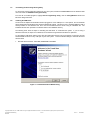
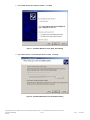
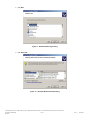
Figure 1 – AvProg Installation Welcome Dialog ......................................................................................................................................... 5 Figure 2 – AvProg Installation Setup Dialog ............................................................................................................................................... 6 Figure 3 – AvProg Installation Group Dialog .............................................................................................................................................. 6 Figure 4 – AvProg Installation Completion Dialog ...................................................................................................................................... 7 Figure 5 – AvProg Default Installation Folder ............................................................................................................................................. 7 Figure 6 – Found New Hardware Wizard Dialog ........................................................................................................................................ 9 Figure 7 – Hardware Wizard for Avnet_Sp3A_Demo Dialog .................................................................................................................... 10 Figure 8 – Hardware Wizard Search and Installation Dialog .................................................................................................................... 10 Figure 9 – Hardware Wizard Type Dialog................................................................................................................................................. 11 Figure 10 – Hardware Wizard Have Disk Dialog ...................................................................................................................................... 11 Figure 11 – Hardware Wizard Install From Disk Dialog ............................................................................................................................ 12 Figure 12 – Hardware Wizard Locate File Dialog ..................................................................................................................................... 12 Figure 13 – Hardware Wizard Install From Disk Dialog ............................................................................................................................ 13 Figure 14 – Hardware Wizard Device Driver Select Dialog ...................................................................................................................... 13 Figure 15 – Hardware Wizard Completion Dialog .................................................................................................................................... 14 Figure 16 – Windows Found New Hardware Message ............................................................................................................................ 14 Figure 17 – AvProg Initial Interface .......................................................................................................................................................... 20 Figure 18 - Communication Properties Dialog.......................................................................................................................................... 21 Figure 19 – Board not connected Warning Dialog.................................................................................................................................... 22 Figure 20 – Bit File Controls ..................................................................................................................................................................... 23 Figure 21 – Bit File ready to Configure ..................................................................................................................................................... 23 Figure 22 – FPGA Device Warning Dialog ............................................................................................................................................... 24 Figure 23 – AvProg SPI Mode.................................................................................................................................................................. 25 Figure 24 – SPI File Controls ................................................................................................................................................................... 26 Figure 25 – SPI File Ready for Programming........................................................................................................................................... 26 Figure 26 – SPI Program Erase Warning Dialog ...................................................................................................................................... 28 Figure 27 – SPI Read Overwrite Warning Dialog ..................................................................................................................................... 28 Figure 28 – SPI Read Byte Count Warning Dialog................................................................................................................................... 29 Figure 29 – AvProg BPI Mode.................................................................................................................................................................. 29 Figure 30 – BPI File Controls ................................................................................................................................................................... 30 Figure 31 – BPI Server ready for Loading ................................................................................................................................................ 31 Figure 32 – BPI Server Banner ................................................................................................................................................................ 32 Figure 33 – BPI Server ID Check ............................................................................................................................................................. 32 Figure 34 – BPI Server Bulk Erase........................................................................................................................................................... 33 Figure 35 – BPI Program Erase Check Dialog ......................................................................................................................................... 33 Figure 36 – BPI Server File Program Confirmation .................................................................................................................................. 33 Figure 37 – BPI Read Overwrite Warning Dialog ..................................................................................................................................... 34 Figure 38 – BPI Byte Count Warning Dialog ............................................................................................................................................ 34 Figure 39 – BPI Server Read ................................................................................................................................................................... 34 Figure 40 – BPI Server Verify................................................................................................................................................................... 35 Copyright © 2006 Avnet, Inc. AVNET and the AV logo are registered trademarks of Avnet, Inc. All other brands are property of their respective owners.
Avnet Electronics Marketing
Released
3 of 42
Rev 1.2
03/21/2009