1
4. Standalone Use
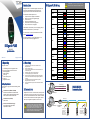
5. Connecting to an ACU
(a) Enrolment
(a) Connections
To enrol a user, press the Menu button.
Data 0
Data 1
0V
LED
If you have registered an Administrator, Manager or Enroller account,
you are prompted to verify your identity (see Step c). After you have
done this, press the Menu button again.
ACU
Press the OK button to select the User Manage menu option. Select
Enrol User and follow the on-screen prompts to:
WG-OUT
+12V
0V
Power
1. Select a user ID.
2. Choose the enrolment method:
fingerprint (FP), password (Pwd) or both (FP & Pwd).
3. Scan a finger three times and/or enter a 5-digit password or PIN.
4. Repeat the procedure to provide the user with a backup fingerprint.
5. Save the template.
TCP/IP
Network
(required for template distribution)
(b) Configure Reader Format
Choose whether you want to use Wiegand format or Magnetic Clock and Data Format.
(b) Setting up Admin Accounts
The first time the DIGIgarde PLUS is powered up, there are no user accounts. Your first step should
be to create one or more protected administrator accounts.
1. Press the Menu button.
2. Use the ▼ to select Options
and press the OK button.
3. Press the ▼ key to select
Data Out Type and then
press the OK button.
4. Use the ▲▼ keys to select
either WG Type (Wiegand) or
MAG Type (Magnetic) mode.
DIGIgarde PLUS recognises three admin levels:
Enroller
Manager
Admin
To set up an Admin, Manager or Enroller account:
1.
2.
3.
4.
Press the Menu button.
Press the OK button to select the User Manage menu option.
In the User Manage menu, use the ▲▼ keys to select the Enrol Admin option.
Use the ▲▼ keys to select the enrolment method: fingerprint (FP), password (PWD) or both (FP
& Pwd). Press the OK button.
5. The Admin Accredit screen is displayed. Use the ▲▼ keys to choose the management role.
6. Follow the on-screen prompts to scan a finger three times and/or enter a password.
(c) Configure Wiegand Mode
If you are using Wiegand mode, you will need to set up the Wiegand data format.
1. Press the Menu button.
2. Press the ▼ key to select
Options and press the OK
button.
3. Press the OK button to
select System Opt.
4. Use the ▼ key to select
Wiegand and press the OK
button.
(c) Verification
The verification process involves one or more of the
following steps:
Keying in your user ID
Scanning the fingerprint recorded during enrolment
Entering your password
Reading of a smart card
5. Use the ▼ key to select
Output Setting and
press the OK button.
6. Select Output Format and
press the OK button.
7. Use the ▲▼ keys to select
the required format, for
example: WG26 without ID.