1
Introduction
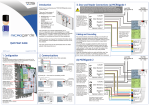
Thank you for purchasing VUgarde 2. This Quick Start
Guide describes the software installation process and
explains how to set up the system.
Please read the user manual for detailed information about
the use of this software and its configuration. The user
manual can also be downloaded from the TDSi website:
http://www.tdsi.co.uk
VUgarde 2 consists of two applications:
VUgarde 2 Server is a behind-the-scene application
that captures, processes and records video and then
serves it to local or remote Client software.
VUgarde 2 Client shows live and recorded video
streams from one or more VUgarde 2 Servers; it also
allows users to configure and control Server(s).
Installation, Activation and Setup
Quick Start Guide
QS018 Issue 1
Copyright © 2012 TDSi
1. Installation
1. Insert the CD into a CD-ROM drive.
2. If the installation does not start within a few seconds,
click on Start, then Run, and type:
d:/setup.exe
If your CD-ROM drive is not labelled d: then
substitute the correct letter into the Open: field and
click OK.
3. Choose the components you want to install.
2. Activation
Note. You can skip the activation process if you would
like to try VUgarde 2 first. The Server can run as a
Windows Service (option in full version only) or as a userdriven Application.
VUgarde 2 Server requires activation with the single-use
Activation Key provided to you when you purchased the
product. VUgarde 2 Client software does NOT require
activation and can be installed on as many computers as
you wish.
3. Adding a Server
5. Configuring Cameras
Note. When you start VUgarde 2 Client for the first time, the
Add Server Wizard will automatically open.
Each camera has to be configured via the Camera Setup
Wizard in order to record video from this camera and to
analyze video stream for motion detection:
The Add Server Wizard will walk you through all steps in
order to help you setup your VUgarde 2 Server. It will help
you with tasks such as: enter unique server name,
administrator login setup, enable access from remote
Clients and TCP/IP port selection, application running
mode.
Server > Selected Server > Task > Camera Setup Wizard
The Camera Setup Wizard will help you assign names for
each camera, adjust the cameras properties (like frame
size, etc), select the compression type (it is recommended
to always select Enable Server Side Compression if
available), setup motion detector and recording settings.
6. Viewing Live Video
To display a video
stream in a particular
window, click on the
camera name in the
Video list of the
Structure pane.
Alternatively, right
click on the window
and then choose one
of the available video streams from the displayed context
menu.
Server IP Address: If you are running the Client on the
same system as the Server enter localhost.
IP Port: if you leave this blank, the default port 60554 will
be used.
User and Password: Enter a username and password.
Later you can add, remove or modify the server connection
information from the Server menu.
Server Title: The name you want to give to your server.
4. Adding Cameras to the Server
There are two ways to add Network (IP) cameras or
Network servers:
Run the VUgarde 2 Automatic Discovery Wizard
(Server > Selected Server > Task > Find Network
Cameras), which will help you to find and add them to a
DVR Server, or
Add them manually from the Camera Setup Wizard.
Screen Layouts
Select any screen arrangement from View > Screen
Arrangement. Several preconfigured arrangements are
also available on the toolbar.
The screen arrangement and video stream selections can
be saved as a layout by selecting View >Save Current
Layout. Later you can activate, delete, and set up start-up
layouts from the View->Manage Layouts menu.
Note. Frame rates and video quality will depend on the
video capturing device, the available network bandwidth
between the client and the server, number of cameras,
selected frame sizes, and the compression quality.
7. Playback
Note. Playback is accessible only if you have something
recorded on the server. See the full manual for details.
To play recorded video, select a stream in the Archive list in
the Structure pane. You can also select from the menu:
Server > Selected Server > Tasks > Open Archive.
Video navigation controls are available from the Navigation
menu in addition to the Playback control buttons and the
Jog Dial style controls at the bottom of the window.