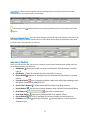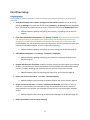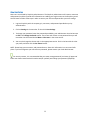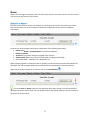
1
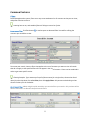
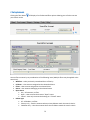
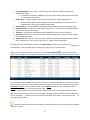
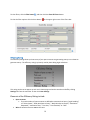
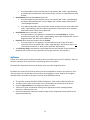
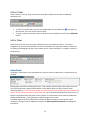
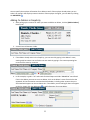
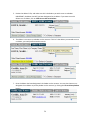
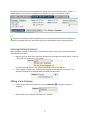
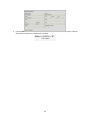
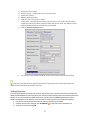
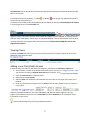
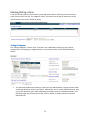
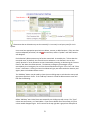
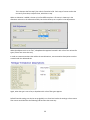
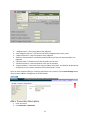
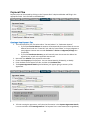
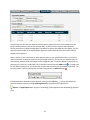
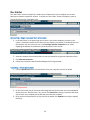
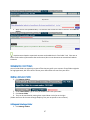
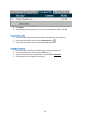
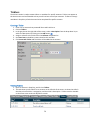
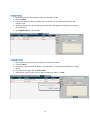
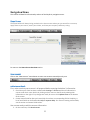
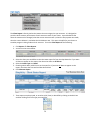
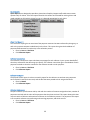
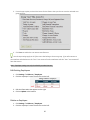
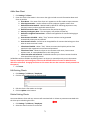
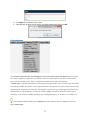
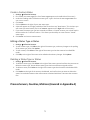
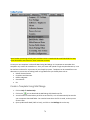
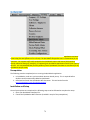
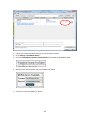
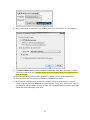
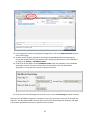
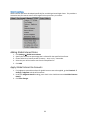
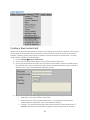
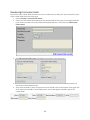
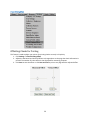
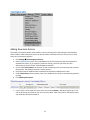
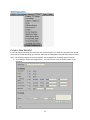
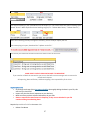
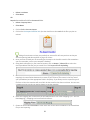
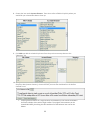
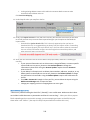
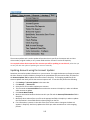
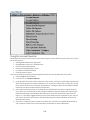
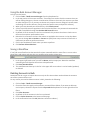
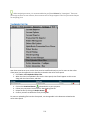
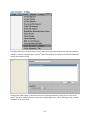
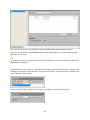
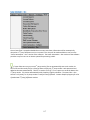
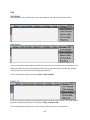
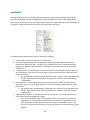
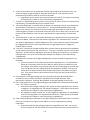
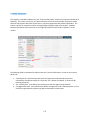
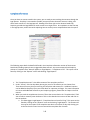
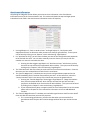
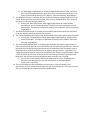
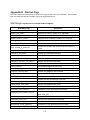
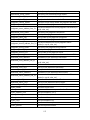
3. From the pop up box, uncheck the boxes for the feature that you do not want the selected user group to have. 4. Click Save to enable the user groups new features. User Group settings apply to all of the users that belong to that user group. If you allow access to one employee who belongs to the "User" user group, all other employees with the "User" user group will have that access. Note: Employee settings can only be edited by an administrator. Edit Existing Employees 1. Click Settings Collectors / Employees 2. Click the employee’s name from the list on the left. 3. Edit the information that appears on the right. 4. Click on Update at the bottom. Delete an Employee 1. Click Settings Collectors / Employees 2. Click the employee’s name from the list on the left. 69