1
42 | USEFUL FUNCTIONS
Save Preset
Organizing your presets
Presets are by default saved into folders corresponding to the type of preset you want to save. For
example, if you want to save the current settings
on the SL 4000 E compressor as a preset, this will
be by default be placed in the folder Compressor/
SSL SL 4000 E-Series Compressor/. But you can
organize presets in any way that suits you—see the
next section for more.
As previously mentioned, presets are automatically
saved in folders corresponding to the type (Channel
Strip, Compressor, EQ, etc) and model (SL 4000
E, Tube-Tech CL 1B, etc). But you can create new
preset folders and organize your presets in any way
that suits you and your workflow.
Perhaps you’d like to create a new folder where you save
all presets used in a particular project. Or you could sort
presets by genre—so you’d have all your rock presets in
one folder and jazz presets in another.
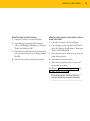
To save your current setting as a preset:
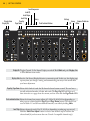
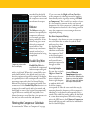
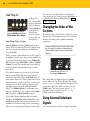
1. • Hold Shift and press Preset/Save Preset.
2. • If you want to save the entire channel strip as
a preset, just press Solo/OK.
3. • If you want to save just one or several sections,
select those with the corresponding on/off buttons. Press Solo/OK when done.
It’s easy to create a, say, EQ + Compressor preset: just
select the EQ and Compressor after pressing Save Preset.
Loading such preset will only overwrite the current EQ
and Compressor, nothing else!
4. You will be prompted to name your new preset
and save it. It will now appear in the list of
available User Presets if you call one up, as
outlined above.
When saving a preset Console 1 will open a separate file
browser window and close the On-Screen Display. Click on
Display On to see the On-Screen Display again.
There are only two restrictions when it comes to
organizing presets:
•
User presets must be placed within the User
Presets root folder.
•
Default presets must be placed in the location
the systems suggests. Read more in “Default
Presets” on page 43.
User Presets “Root” Folders
Here are the paths to where the user presets are
stored:
Mac OS X:
/Users/$USERNAME/Library/Application Support/Softube/Console 1/Presets
Windows: C:\Users\$USERNAME\AppData\
Roaming\Softube\Console 1\Presets
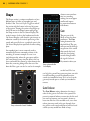
By selecting the Shape, EQ
and Compressor sections
when saving a preset, you’ll
get a preset without the Input
and Output sections. This is
handy if you want to have
a channel preset without
changing the volumes or pan