1
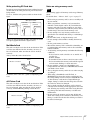
Write-protecting SD Card data
Notes on using memory cards
In order to protect important data from accidental erasure,
an SD Card can be write-protected to prevent data from
being written.
To do so, slide the write-protect switch as shown in the
figure.
Write-protect switch
Not writeprotected
Writeprotected
When it is write-protected, the SD Card cannot be used to
store photographs taken with a digital camera.
MultiMediaCard
Notch
Direction of insertion
For details, refer to the user’s guide accompanying your
card.
xD-Picture Card
The card can only be set in the slot in one direction. If the
card does not slide into the slot smoothly, do not try to
force it in. Instead, make sure that the card is oriented
correctly, with the v mark pointing towards the slot.
v mark
Direction of insertion
The following apply to all memory cards except “Memory
Stick”.
For details about ““Memory Stick” types” on page 55.
• Before using any memory card, be sure to carefully read
its user manual.
• When you purchase a memory card, you must first
initialize it with a digital camera. If you initialize the
memory card with a personal computer or any device
other than a digital camera, this unit may not be able to
read the image data stored on the memory card.
• Do not attempt to use any memory card that is not
specified for use with this unit. Doing so could damage
this unit.
• Do not strike, bend, or drop the memory card.
• Do not attempt to disassemble or modify the memory
card.
• Do not get the memory card wet.
• Because the memory card is vulnerable to humidity, we
recommend that such memory card not be used under
humid conditions.
• Avoid storing or using memory card under the following
conditions:
– In a hot location, such as inside a car or outside on a
very hot day.
– In direct sunlight.
– In a humid location or where corrosion occurs easily.
– In a location where the memory card could be exposed
to electrostatic discharge or electronic noise.
• Do not touch the contacts on a SmartMedia card,
CompactFlash card, SD Card, or MultiMediaCard with
your hands or bare metal.
• Always keep the memory card in its case when carrying
or storing it.
• When using a SmartMedia card, SD Card, or
MultiMediaCard, insert the memory card directly into
the corresponding slot. Do not insert a SmartMedia card
or other memory cards into the CompactFlash type
adapter. Doing so could cause the image data stored in
the card to be deleted or damaged.
• Always make sure that the memory card is oriented
correctly before inserting it in the appropriate slot of the
unit. Inserting any memory card in the wrong direction
may damage the unit and/or memory card and cause
malfunctions.
• Do not remove the memory card or turn off this unit
while data is being read or written to the memory card.
Doing so could cause the data that is being recorded to
be deleted or damaged.
Appendix
The card can only be set in the slot in one direction. If the
card does not slide into the slot smoothly, do not try to
force it in. Instead, make sure that the card is oriented
correctly.
Always orient the card as show below.
Note
For details, refer to the user’s manual accompanying your
card.
Supported Memory Cards and File Formats
57