1
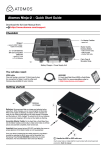
Atomos Ronin ~ QuickStart Guide
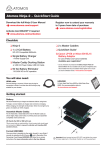
Record
Main Interface:
Record:
Press to start/stop recording
Audio Indicator
The Audio Levels associated with the current Recording
Timecode Display and settings
Play: Enter playback mode
Monitor: Enter monitor mode
Start/stop trigger from moving timecode
Canon 5D MKIII, 1DC & C100 - select HDMI and Canon from the timecode menu (Menu > Timecode)
Sony NEX-FS100 & NEX-FS700 - select HDMI and Sony from the timecode menu (Menu > Timecode)
Menu: Device settings / options
Atomos timecode - Rec run, Auto restart and time of day
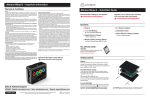
Monitor & Record while monitoring
Monitor & Record: Configurations
Monitor Assist Interface
Record while Monitoring
Press to Record in Monitor Mode
Focus Assist: Peaking
SmartLog: Smart Log Mode
Exposure Assist: Zebra
Back: Takes user back to the
main control screen
False Colour Twin Mode
Monitor assist
Blue Only: Exposure Check
Headphones: Volume adjustment
Monitor Assist: Control
adjustments for individual filters
Playback & Edit: One-touch Review
SmartLog: Tagging Interface
Playback: Play, Loop & Scrub
Play: Press to play clip
Smart Log
Super RWD/Super FFWD
Monitor Assist
Jump to beginning / end
Loop IN Point
Frame by Frame: RWD/FFWD
Loop: Loop Playback
SmartLog:
Clear all SmartLog tags
Loop OUT Point
Tagged Clips: A portion of the video clip can be tagged & highlighted
Timecode Display Indicator: Video clip playback information
Timecode Display
Tag for Favourite: Touch once to set the IN point. Touch again to set OUT point.
Tag for Reject: Touch once to set the IN point. Touch again to set OUT point.
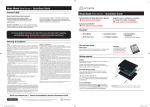
Connect & Edit
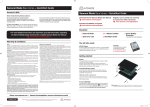
Master Caddy Docking Station
Insert Master Caddy
To access and edit your recorded material:
Connect the Master Caddy Docking Station to a Mac® or Windows®
editing workstation via FireWire®800,USB 2.0 and/or USB 3.0
compatible port/s.
Optional power input
May be required if
using USB 3.0
When using USB, you may also need to connect power to the
Docking Station using the included USB power cable and connecting it
to a USB 2.0 port. Try this if you encounter problems.
Ready to edit:
Next, eject the Master Caddy from the Ronin and insert it into the
Docking Station. After a short wait your recorded video will become
accessible as a standard external disk (Native ExFAT / FAT32 formatted
drive/s also supported).
2 x FireWire 800® ports
1 x USB 2.0 / 3.0 compatible port
For more detailed instructions and important up-to-date information regarding
the Ronin please consult the Ronin User Manual available for download from
www.atomos.com/support