1
SHOGUN BARE BONES
QUICK START GUIDE
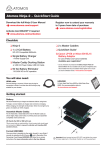
Connect & Edit
Optional Master Caddy II Docking Station
To access and edit your recorded material:
Connect the Master Caddy Docking Station to a Mac® or Windows® editing
workstation via USB 2.0 and/or USB 3.0 compatible port/s.
When using the Master Caddy II from the Shogun, insert it into the Docking Station.
After a short wait your recorded video will become accessible as a standard external
disk (Native ExFAT / FAT32 formatted drive/s also supported).
When using USB 2.0, you may need to connect the second USB power cable on
the dock to a second USB 2.0 port. This will ensure enough power is provided when
using USB 2.0.
For more detailed instructions and important up-to-date information regarding
Shogun please download the complete Shogun User Manual
www.atomos.com/support
Warranty & Conditions
Notice
Copyright © 2014 ATOMOS Global Pty Ltd (‘referred to as ATOMOS’). All rights reserved. All
information in this document is subject to change without notice. No part of the document may
be reproduced or transmitted in any form, or by any means, electronic or mechanical, including
photocopying or recording, without the express written permission of ATOMOS. A reference to
ATOMOS includes its related entities, subsidiaries and parent company.
Trademarks
Shogun / ATOMOS are registered trademarks of ATOMOS Pty Ltd. Apple, the Apple logo,
AppleShare, AppleTalk, FireWire, iPod, iPod Touch, Mac, and Macintosh are registered trademarks
of Apple Inc. Final Cut Pro, QuickTime and the QuickTime Logo are trademarks of Apple Inc. All
other trademarks are the property of their respective holders.
International Hardware Limited Warranty (1 Year Standard/3 Years if registered)
ATOMOS warrants that:
• the main product, not including the IPS screen, or any external accessories, will be free from
defects in materials and workmanship for a period of 1 year from the date of purchase; or 3 years
upon completion of product registration at www.atomos.com
• The TFT/LCD, batteries, battery charger, HDD/SSD docking station, case and master caddies will
be free from defects in materials and workmanship for a period of 1 year from the date of purchase
regardless of registration.
This warranty is exclusively for the benefit of the original purchaser and is not assignable or
transferable.
If during the warranty period the product is shown to be defective ATOMOS may at its option:
a) replace the goods or supply equivalent ones, b) repair the goods, c) pay the cost of replacing
the goods or of acquiring equivalent ones and d)paying the cost of having the goods repaired;
The customer must notify ATOMOS of any defect in the goods in writing prior to the expiry of the
warranty periods set out above. The customer will be solely responsible for returning the goods to
ATOMOS or its authorized distributor. Upon acceptance of a warranty claim by ATOMOS, where
ATOMOS repairs or replaces the goods, it will be responsible for reasonable shipping costs
incurred in sending the goods to the Customer, provided that customer is located in a country in
which ATOMOS has an authorized distributor or repair center or agent.
Warranty Exclusions
This warranty applies only to defects in workmanship and does not cover defects caused by:
• A failure to comply with the then current operating instructions issued by ATOMOS;
•Neglect;
• Improper or negligent acts or omissions;
• Unauthorized repairs or attempted repairs;
• Tampering with or modification of the goods;
• Connection to incompatible equipment or power sources;
• Exposure to water or weather;
• Exposure to magnetic fields or corrosive liquids or substances;
EXCEPT AS STATED IN THIS WARRANTY, ATOMOS, IT’S VENDORS, AGENTS, RESELLERS AND
DISTRIBUTORS DISCLAIM IN THEIR ENTIRETY ALL OTHER WARRANTIES, EXPRESS OR IMPLIED,
INCLUDING WITHOUT LIMITATION ALL WARRANTIES OF MERCHANTABILITY OR FITNESS FOR
A PARTICULAR PURPOSE. THE REMEDIES OUTLINED IN THIS WARRANTY ARE THE EXCLUSIVE
REMEDY A CUSTOMER HAS ARISING FROM DEFECTIVE GOODS WHICH ARE SUBJECT TO THE
WARRANTY.
ATOMOS DOES NOT WARRANT THAT THE GOODS WILL OPERATE IN A MANNER WHICH IS
ERROR FREE, OR UNINTERRUPTED. THE GOODS ARE NOT INTENDED TO BE THE PRIMARY
OR ONLY DATA STORAGE DEVICE FOR DATA – CUSTOMERS ARE SOLELY RESPONSIBLE FOR
BACK UP AND PROTECTION OF DATA.
Software License Agreement
IMPORTANT, PLEASE READ CAREFULLY. THIS IS A LICENSE AGREEMENT.
This ATOMOS software, related documentation, any included sample images and other files (the
“Software”), is protected by copyright laws and international copyright treaties, as well as other
intellectual property laws and treaties. The Software is licensed, not sold.
This End User License Agreement (“EULA”) is a legal agreement between you (either an individual
or a single entity) and ATOMOS with regard to the copyrighted Software provided with this EULA.
Use of the Software provided to you by ATOMOS in whatever form or media, will constitute your
acceptance of these terms, unless separate terms are provided by the software supplier, in which
case certain additional or different terms may apply. If you do not agree with the terms of this EULA,
do not download, install copy or use the Software. By installing, copying or otherwise using the
Software, you agree to be bound to the terms of this EULA. If you do not agree to the terms of this
EULA, ATOMOS is unwilling to license the Software to you.
1.Eligible licensees. This Software is available for license solely to purchasers of the ATOMOS
Shogun, who have purchased a unit manufactured by ATOMOS Shogun and purchased through
an ATOMOS authorized reseller, with no right of duplication or further distribution, licensing or sublicensing.
2.License Grant. ATOMOS grants you a personal, non-transferable and non-exclusive right to use
the copy of the Software provided with this EULA. You agree you will not copy the Software except
as necessary to use it with the ATOMOS Shogun. You agree that you may not copy the written
materials accompanying the Software. Modifying, reverse engineering, translating, renting, copying,
transferring or assigning all or part of the Software or any rights granted hereunder, to any other
persons or reverse engineering the hardware on which the Software runs, is strictly prohibited. The
software is license, not sold. You acknowledge that no title to intellectual property in the Software
is transferable to you. You further acknowledge that title and full ownership rights to the Software
will remain the exclusive property of ATOMOS and/ or its suppliers, and you will not acquire any
rights to the Software, except as expressly set forth above. All copies of the software will contain
the same proprietary notices as contained in or on the Software. All title and copyrights in and to
the Software (including but not limited to any images, animations, video, audio, text incorporated),
the accompanying printed materials, and any copies of the Software are owned by ATOMOS or its
suppliers.
3.Reverse engineering. You agree that you will not attempt, and if you are a corporation, you will
use your best efforts to prevent your employees and contractors from attempting to reverse compile,
derive circuits, modify, translate or disassemble the Software and/or the ATOMOS Shogun in
whole or in part. Any failure to comply with the above or any other terms and conditions contained
herein will result in the automatic termination of this license and the reversion of the rights granted
hereunder by ATOMOS.
ATOMOS reserves the right to terminate this license without prejudice to any additional recourse
ATOMOS may have against you if you violate any of its terms and conditions.
www.atomos.com | Atomos Knowledge Base: atomos.activehosted.com/kb
© ATOMOS Global Pty. Ltd. trading as ATOMOS under license. All trademarks are the property of their respective owners.
Atomos reserves the right to change or alter any product specifications without notice.
Shogun QSG Barebones.indd 2
21/05/2015 5:11 pm
SHOGUN BARE BONES
QUICK START GUIDE
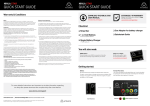
Thank you for purchasing the Atomos Shogun, the world’s most advanced Monitor-Recorder designed to save you time and
money for 4K and HD video production. With so many Recorder, Monitor, Playback & Edit features included, please take the
time to read through this Quick Start Guide and register your product (www.atomos.com/registration) for free updates and
extended warranty. We truly hope this becomes your “4K Creative Weapon” of choice.
DOWNLOAD THE FULL SHOGUN
USER MANUAL
EXTENDED 3 YR WARRANTY
Register now to extend your warranty to 3 years
from date of purchase.
www.atomos.com/support
www.atomos.com/registration
ACTIVATE AVID DNxHD®
IF REQUIRED
www.atomos.com/activation
Checklist
q 1 x Shogun Recorder
q 1 x Soft Carry Case
q 1 x Master Caddy II Caddies
q QuickStart Guide
q 1 x AC/DC Power Supply
110-240V AC to DC operation
You will also need:
HD-SDI / HDMI Cable/s
The Shoguns BNC Connectors support SMPTE standards
of 259M, 292M and 296M. HDMI cables need to support
the HDMI 1.4 High Speed standard. Any make of HD/SD-SDI
& HDMI cable that supports these standards can be used.
SSD
Solid State Drive [SSD]. For
recommendations refer to:
> www.atomos.com/drives
Optional Accessories:
Depending on the application where Shogun will be used you may
require some of the optional accessories available from Atomos.
Sunhood, batteries, hard carry case, break out XLR cable, battery
charger, D-tap adapter, Canon & Nikon battery plates, Master caddy
docking station, additional master caddies & Lanc cables are all available
from authorized Atomos resellers.
Getting started:
Power:
We recommend that you use the provided power supply or charge
new batteries before using them. To begin, connect optional battery to
charger and commence charging. While charging, the red charge light
will illuminate. When the red charge light turns green, the battery is 100%
charged.
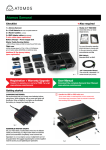
Assemble the Master Caddie II:
Fix the Solid State Drive into the Master Caddy as shown (right).
Align screw holes on all three pieces and assemble completely.
Insert screws last.
Handle the SSD with care
Touch screw holes or metal shell first. Avoid contact with circuit board
and connectors. Refer to manual if unfamiliar with handling ESD sensitive
devices.
Format SSD:
Once your drive is inserted into the caddy, format it in your Shogun
recorder by selecting the BLUE arrow
next to Recording Time
Remaining, Press Format HDD/SSD and follow the on-screen
instructions. For more information refer to the User Manual.
Shogun QSG Barebones.indd 3
Important: Insert screws last and DO NOT over-tighten the screws
or proper alignment of the Master Caddy cannot be guaranteed.
21/05/2015 5:11 pm
SHOGUN BARE BONES
QUICK START GUIDE
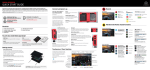
Connect and power-up
Attach optional Battery / Power
Station:
Battery
To utilize Atomos continuous power
functionality connect the optional
Atomos Power Station via the DC power
connection on the Shogun.
Push release button to remove battery
The Shogun utilizes only one battery
source at a time. This way a battery
can be removed, charged and
replaced during operation so long
as one battery with adequate charge
remains connected. Refer to the User
Manual for more information.
4K HD SDI Out: This is for connection to an
external monitor or other device with an HD-SDI
input
Align the connectors, Gently push down on
the battery and slide into the lock position
Attach the optional battery to the Shogun.
4K HD SDI In: The video input connection
used to record to the Shogun’s storage media.
HDD/SSD Master Caddy II
Line up the Master Caddy II to the Shogun disk bay and
firmly slide into place. To remove, gently pull the drive out.
IMPORTANT: Avoid removing the drive whilst recording
as this may cause corruption
On/Off & Screen lock:
Genlock: For connection to a central Genlock
oscillator to maintain clock frequency sync
across multiple devices.
Tally Light
Briefly press the circular button on the side
of the Shogun to power-up the unit. To shut
down, depress button for at least 4 seconds
(until unit turns off)
Red Tally light indicates active recording
Battery Latch
Press the release button to remove the battery
LANC Remote
When in operation, a single press of the
power on/off button will lock the display and
controls. A second press will enable the
display and controls again.
Optionally control the Shogun using LANC
remote control connected here (use a 2.5mm
TRS/ 3-pin plug). Share remote control with
other devices (loop through) by connecting
them to the second LANC connector cable
Breakout XLR Connector:
Connect the optional XLR breakout cable for
Line Level in / Mic Level In functionality with
+48v Phantom Power.
Stereo Line Out
Stereo Line out for monitoring Headphones
HDMI In
DC Power
The video input connection used to record
to the Shogun’s storage media.
Connect DC power from an external source
such as the optional Atomos Power Station,
the Shogun will automatically switch to this
source.
HDMI Out
This is for connection to an external monitor
or other device with an HDMI input
Touchscreen / User Interface
The Shogun is controlled by a simple userfriendly touchscreen interface. Pictured are
the main controls seen when the Shogun is
first powered up and there is a video input
connection.
Pay special attention to any items on screen
which are marked by a small blue arrow.
Touch these items to access or cycle
through the available options.
For example, touching the Video Input
Format will bring up the central input /
output menu.
Video Input Format Recording
File Name Recording Time
and Pulldown Status
Quality Scene/Shot/Take
Remaining
Record Status &
Pulldown Indicator
Source input
for recording
Status indicating
attention is required
Video Input
Resolution
Output Video
Resolution
Monitor Assist
Functions
Record Trigger
Audio Control Panel
- Tap to control
audio input sources,
gains and channel
monitoring/recording.
Please refer to the
manual for more
information.
Time code Settings
-40 -30
-20
-12 -6
0
Headphone
Line Out Volume
Waveform
Monitoring
Rec/Play/Menu
Shogun QSG Barebones.indd 4
Continuous Power/
Battery Indicator
Cut and Tag
Favorite/Reject
Display Options
Monitor
Assist
21/05/2015 5:11 pm
SHOGUN BARE BONES
QUICK START GUIDE
Record
Record: Press to
start/stop recording
Main Interface:
Record Trigger: set by supported
camera/or rolling timecode trigger
OR
04:08:01:23
Play: Enter
playback mode
Waveform
monitoring
Menu: Device
settings/ options
Monitor
assist
Audio Level
1
3
5
7
9
11
A
Audio Metering
Cut and tag
-40 -30
-20
-12 -6
0
Display Options
Waveform & Monitor Assist Functions
Waveform Monitoring Menu:
Touch the Waveform
Monitoring icon to
reveal WFM functions
Luma Parade
RGB Parade
TIP: Touch the X to the top right
of the menu to close, or press
the center of the screen to hide
overlays
-40 -30
-20
-12 -6
-40 -30
-20
-12 -6
Vectorscope
Zoom
Touch the Monitor
Assist icon to reveal the
Monitor Assist functions
Focus Assist
Safe Areas/Grid Lines
Zebra Pattern
Cinema Markers
Toggle On or Off to display
on screen cinema markers
TIP: Each touch of an icon
toggles the controls on/off
0
Return to main page
Vectorscope
0
Monitor Assist Menu:
Waveform Monitoring
Settings: Touch to reveal
Position/Dynamic Range/
Opacity controls
False Colour
Blue Only
Exposure
Monitor Assist Settings: Touch
slider to adjust Focus Assist (Color/
Mono/Outline) and Zebra (%)
Note: Tagging available
while recording and
monitoring
Focus Zoom
Toggle 1:1 to display 1:1 pixel
mapping, the indicator box
shows the location of the
screen you are viewing
Toggle 2:1 to magnify the
display, the indicator box shows
your viewing location, move the
zoomed location by dragging
across the screen or selecting
a portion of the indicator box.
Playback & Edit: One-touch Review
Playback Interface:
-40 -30
-20
-12 -6
0
Play: Press
to play clip
Loop: Loop
playback
Jump to
beginning/end
Set Loop In/
Out point
Frame by frame
RWD/FFWD
Previous/
Next Clip
Super RWD/
Super FFWD
Clear Tagging
Use transport controls or touch
anywhere on the timeline to scrub to
a section for review. Check recorded
shots during playback using WFM and
Monitor Assist tools.
Move frame by frame to select cut and
tag in and Out Points, marking them
as favorite or reject. Once cut and tag
is complete, export an XML project for
instant timeline assembly and editing.
Timeline / scrub bar
Timeline showing tagged footage
Shogun QSG Barebones.indd 5
Tag for Favorite: Touch once to set the
IN point. Touch again to set OUT point.
Tag for Reject: Touch once to set the
IN point. Touch again to set OUT point.
Reset tagging
Playback & Review on large monitor/s:
Recorded footage can also be played from the Shogun’s
4K/HD-SDI & HDMI Out. This is ideal for large screen client
viewing, feedback and editing on location.
TIP: Touch the center of the Shogun screen to remove
all overlays. Touch the screen again to restore previous
screen/overlays and playback controls.
21/05/2015 5:11 pm