1
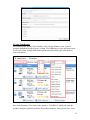
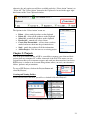
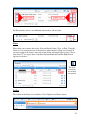
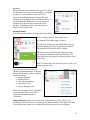
otherwise, the only option you will have available under the “Select Action” button is to
“Select All”. The “Select Action” button for the Clipboard is located in the upper right
hand corner of the View Clipboard window.
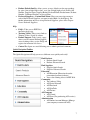
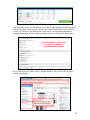
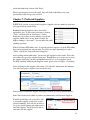
The Options in the “Select Action” menu are:
Delete – delete marked products on the clipboard
Delete All – delete all the products on the clipboard
Select All – mark all the products on the clipboard
Deselect All – unmark any selected items
Create New Presentation – add any items you have
marked and move them into the presentation area
Send – emails the product will all the information
Add to Project – adds the items to an existing project
Chapter 5: Projects
One of the great added benefits of ESP is your ability to manage your client and their
projects from any computer, PC or Mac, connected to the Web. This means you can
respond faster than ever to customer requests and work just about anywhere you desire.
ESP Projects is similar to an electronic filing cabinet where you store your customer’s
folders, products and presentations.
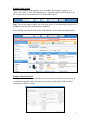
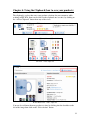
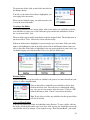
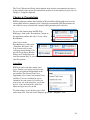
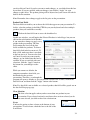
To access ESP Projects, click on the Projects Button and
select My Projects.
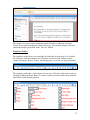
Creating and Naming Folders
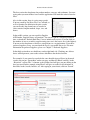
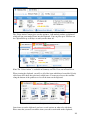
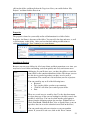
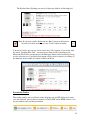
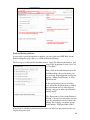
When you first access this area, you will see a default folder titled Project 1.
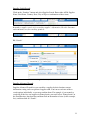
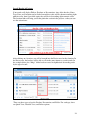
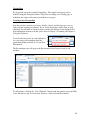
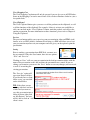
Explanation of Project Icons
21