1
Virginia Geocoin
Adventure
Getting Started Guide
A digital version of this document is available at: http://virginiaview.cnre.vt.edu/education.html
Welcome to your Virginia Geocoin Adventure!
Have you ever wanted to go on a trip with no particular destination in mind, just hopping from place to place, exploring new landscapes and cultures as you go? The Virginia Geocoin Adventure gives you the chance to take this kind of trip without having
to pack! Your Trackable Geocoin will travel the state, the country, and maybe even the
world as it circulates through “Geocaches” - small hidden landmarks located throughout the world—and travels through the hands of Geocachers—people that hunt for
Geocaches.
You will need to ensure that your Virginia geocoin is properly placed into a geocache
and “put into circulation”. You can then watch the coin’s movements as it moves from
cache to cache. This document contains detailed instructions on how to do this. Enjoy
your travels!
Quick Start Guide to using your Geocoin:
1. Be sure to copy the serial number (usually 6 characters) that is stamped on your
geocoin here (or somewhere where you will not lose it!) for future reference:
__________.
2. Create a geocaching account (http: www.Geocaching.com) if you do not have an
account already. Please note that you will need to provide your email address and
will need to verify your account (via email) before it is activated!
3. While the geocoin has been given to you (and you physically have it in your possession) you will need to virtually “grab” the geocoin from its current holder or
owner (see page 5: How to retrieve a geocoin).
4. After you have “grabbed” the geocoin from its current owner, you are ready to navigate to and place the geocoin in the geocache (where it will go next; see Page 10:
How to Drop Off a Trackable Item).
5. After you have placed the geocoin in a geocache, you will need to return to Geocaching.com, and log or associate your geocoin with the geocache using the serial
number above (see page 9: How to Drop Off a Trackable Item).
6. Now you are ready to “watch” where your geocoin travels! To receive email notifications when your geocoin is moved from cache to cache, simply add the geocoin
to your watchlist (see page 11: How to Watch a Trackable Item).
Table of Contents
What is the Virginia Geocoin Adventure? ...................................................4
What is Geocaching? .................................................................................4
How to Retrieve a Geocoin .........................................................................5
How to Geocache .......................................................................................6
How to drop off a Geocoin ........................................................................10
How to watch your Geocoin’s travels........................................................12
Geocoin activity guides are available: http://virginiaview.cnre.vt.edu/education.html
We would like to acknowledge the following individuals for their contributions to
this program:
•
•
•
•
•
•
•
•
Amy Hays, Texas Geospatial Extension Specialist (reviewer)
Kathleen Jamison, VCE, Blacksburg, Virginia (reviewer)
Darla Marks, VCE, Charlotte Co., Virginia (reviewer)
Mark Nelson, PHCC, 4-H Volunteer, VA (reviewer)
Sandy Prisloe, Connecticut Geospatial Extension Specialist (reviewer)
Cathy Sutphin, VCE, Blacksburg, Virginia (financial support)
Ruth Wallace, VCE, Buckingham Co., Virginia (reviewer)
Shannon White, Missouri Geospatial Extension Specialist (reviewer)
What is the Virginia Geocoin Adventure?
The Virginia Geocoin Adventure can be used as a project for a variety of groups, including a K-12 Classroom, a scout troop, or a 4-H Club.
Goal: To increase geospatial and geographical awareness and to encourage youth and
adults to learn more about land use, their communities, and their world. By participating in
this project, your group will get to have fun outdoors, learn how to use a GPS unit, gain understanding in local and regional geography, and explore connections with environmental
science, technology, and different communities and cultures.
About this item:
Trackable Geocoins have been designed and acquired as part of a collaborative extension,
outreach and education effort through the Virginia Geospatial Extension Program (http://
www.gep.frec.vt.edu), Virginia Cooperative Extension 4-H (http://www.4-h.ext.vt.edu) the
National Geospatial Technology Extension Network (NGTEN - http://
www.geospatialextension.org), and AmericaView (http://www.americaview.org).
The VirginiaView coin was developed through the VirginiaView consortium with the support
of AmericaView. The VirginiaView consortium is comprised of community college faculty,
four-year college and university faculty, state agencies, the Virginia Space Grant Consortium and other groups. VirginiaView supports the goals of the AmericaView program by further expanding educational networks, analytical resources, and capabilities for acquiring
and using remotely sensed data.
What is Geocaching?
•
“Geocaching is a real-world, outdoor treasure hunting game using GPS-enabled devices. Participants navigate to a specific set of GPS coordinates and then attempt to
find the geocache (container) hidden at that location.” - http://www.Geocaching.com/
•
Geocaching is enjoyed by people of all ages and provides strong community connection and support for the environment
•
For more information on Geocaching, visit http://www.Geocaching.com
How to Retrieve a Geocoin
Before you can place your Geocoin in a Geocache and watch its travels, you must first virtually “grab” the coin from its owner. See the Quick Start Guide on page 2, step 3. Be sure
you have already created an account on Geocaching.com.
1. Log in to Geocaching.com.
2. On the “Play” drop-down menu, go to the “Find Trackables” link. (Figure 1). The Trackables home page includes more information on Geocoins and how they work. You may
want to check out these links.
3. From the Trackables page, enter the tracking code (located on the coin itself, in a rectangle on one side of the
coin) into “Enter the
Tracking Code of the
Item” (see bottom of
Figure 1) or the enter the
item name into “Search
for a Trackable Item by
Name” (the name is located on the sleeve the
coin came in, i.e.
“VirginiaView Geocoin68” or “Virginia 4H:
Charlotte County”).
Figure 1. Trackables home page on Geocaching.com.
4. You will now see the home page
for your Geocoin (Figure 2).
Claim the geocoin by clicking on
“Found It? Log it!” (right-hand
menu).
Figure 2. Home page for an example VirginiaView Geocoin.
5. Grab it from the current holder by setting the “Type of Log” to “Grab it from current
holder: [name]” (Figure 3). You should also fill in the Tracking Code found on the coin and
any comments . Click “Submit log entry” when you’re done. This will take you to the coin’s
log page.
Figure 3: Submitting a Geocache log to retrieve a Geocoin.
How to Geocache
Now that you have virtually grabbed your coin, you can place it in a geocache for others to
find and start moving it around to new geocaches.
1. Log into Geocaching.com.
2. Navigate to “Hide and Seek a Cache” (“Play” menu).
3. Enter location information (zip code, address, location; choose one, enter your information, and click “Go.” see Figure 1).
4. View list of potential caches.The search results will give you many different details
about each geocache (Figure 4).
Figure 4: Geocache details.
•
The left column will have a compass direction and mileage. This is the direction
and distance to the geocache from the search criteria that you provided in Figure
2.
•
The Icons column gives details about the geocache itself, whether it’s a traditional, virtual or multi-cache geocache. Icons are also associated with trackable
items (geocoins or a travel bugs).
•
The (D/T) column gives information about the geocache physical size, as well as
the difficulty and terrain. The bar graph indicates the size of the cache (left is
small, right is large), the the top number indicates the level of difficulty (1 out of
5, where 1 is the easiest and 5 is the most difficult) and the bottom number indicates the difficulty of the terrain (where 1 is the easiest and 5 is the hardest).
•
The Placed column shows when the geocache was created or placed in its current location.
•
The Description column gives more details about the geocache. You can select
this to discover more details.
•
The Last Found column indicates the most recent discovery of the cache.
•
The last column allows you to download the coordinates of the geocache to your
GPS unit, by clicking on the Send to GPS icon (circled). Multiple caches can be
downloaded at once by checking the box.
NOTE TO LEADERS: The selection of which geocache to place your coin in when you are starting this project
is important. A popular, heavily traveled cache is more likely to result in faster additions to your coin’s log of
travels. Look for a recent “Last Found” date. Additionally, when geocaching with a group, it is often helpful to
locate the cache on your own before taking the group to “find” it. It is also recommended to choose a cache
that is larger in size and lower in difficulty on the D/T scale.
Additionally, be sure to click on the cache name to obtain a valuable hint to help you in finding the cache!
7. Enter the coordinates of the cache onto your receiver using one of two options:
NOTE TO LEADERS: Be sure to consult
the owner’s manual for your GPS unit as
well (for downloading Waypoints or
downloading Geocaches).
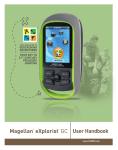
A. If your GPS receiver is NOT geocaching enabled (older models), then you will need to manually enter the coordinates of the cache into the
GPS (use the little keyboard on the GPS receiver
and refer to your user’s manual as needed).
B. If your GPS receiver is Geocaching enabled, you can download Geocaching locations directly to your GPS. Be sure your GPS unit is connected to your computer.
•
Click on the Send to GPS icon (circled in Figure 4) to download waypoint information to your GPS unit (follow any directions that the website prompts, you may
have to install Garmin software).
•
A new internet browser window titled “SendToGPS” will open. Click “Find Devices” (Figure 5) and your GPS unit should be listed. If it is not, be sure the tab
for your brand of GPS is selected. You may need to download a plug-in by following the on screen directions.
Figure 5: Send to GPS window. To find your
device, click the Find Device button. Be sure the
device is turned on and connected to your computer.
•
Click “Write”.
•
You should receive the following message: “Geocache [name].gpx saved successfully” (Figure 6).
Figure 6: After clicking the Write button you
should get this message in the Send to
GPS window if it was successful.
8. On your GPS unit, navigate to the Main Menu page (Figure 7).
Figure 7: Garmin GPS receiver (Venture
HC) Main Menu page.
9. Select “Find” & click Enter.
10. Select “Waypoint” & click Enter.
11. Select the geocache you would like to locate (Figure 8).
Figure 8: Garmin GPS receiver
(Venture HC) geocache list.
Figure 9: Garmin GPS receiver
(Venture HC) waypoint details.
12. Select “Go To” (Figure 9).
13. Follow the onscreen directions to locate your selected geocache. If it’s located near or
off of a trail, hike the trail then follow the onscreen directions.
How to Drop Off a Geocoin
Once you have found a geocoin, you need to place it in the new Geocache and return to Geocaching.com and log its location.
1. Once you have visited the cache and placed the geocoin in the cache, you need to let others
know you’ve put it there. To let others know, locate the cache on Geocaching.com.
2. Once you have found the cache on Geocaching.com and are viewing the cache details, you
can log your visit and drop off the geocoin (Figure 10).
3. On the right side of the page click on “log your visit” (Figure 10).
Figure 10. Sign in to Geocaching.com and find the details page for the geocache.
4. To log your visit, you need to fill in the following information on the “Post a New Log” page
(Figure 11): Type of Log, Date Logged (date you found the cache), and Comments. If you
dropped off your Geocoin at the Geocache, select “Dropped Off” under the Action column
shown at the bottom of the log. If you don’t see your Geocoin listed in the “Dropped off any
Trackables?” area, be sure that you have logged in and that you have “grabbed” the geocoin
as shown on page 5.
Figure 11. Posting a log and dropping off the Geocoin.
How to watch your Geocoin’s travels
You can add a geocoin or other trackable item to your Watchlist. This will help you keep
track of it!
1. Log in to Geocaching.com.
2. Navigate to Play -> Find Trackables from the upper menu.
3. Enter the tracking code into “Enter the Tracking Number of the Item:” or the enter the
item name into “Search for a Trackable Item by Name:” (Figure 12).
Figure 12. Enter the name or code of your Geocoin under the Trackables page to see the travel
log of your coin.
4. Click on the geocoin’s name. From the coin’s page, click on “Watch this Trackable
Item” (Figure 13).
Figure 13. Home page for VirginiaView Geocoin 79. Click on the “Watch this Trackable Item”
link.
5. Your Watchlist will then come up (Figure 14). You can get to your Watchlist in list multiple ways. One way is to log into Geocaching.com and click on the link “My Profile”, then
click the link for Watchlist.
Figure 14. Watchlist for any trackables you have selected to watch. To view the log,
click on the Geocoin name, and scroll to the bottom of the Geocoin’s page to view the
travel log and any associated pictures.
6. You’ll want to visit the Watchlist often and see where your Geocoin goes!
NOTE TO LEADERS: There is so much more you can do with these Geocoins!
Be sure to check out the Geocoin activity guides available at:
http://virginiaview.cnre.vt.edu/education.html