1
EZHD-TRF4/8/16 HD-TVI Real Time DVR Quick Installation Guide
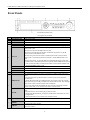
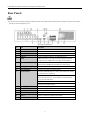
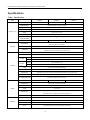
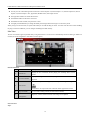
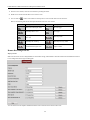
Front Panels
Front Panel of 4ch/8ch/16ch
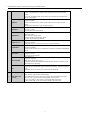
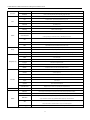
Description of Front Panel
No.
1
2
3
4
5
Name
POWER ON/OFF
USB Interface
IR Receiver
POWER
READY
STATUS
ALARM
HDD
Tx/Rx
Not used
DIRECTION
6
ENTER
SHIFT
7
1/MENU
2ABC/F1
Function Description
Power on/off switch.
Connect to USB mouse or USB flash memory.
Receiver for IR remote control.
Power indicator lights in green when DVR is powered up.
Ready indicator is normally green, indicating that the DVR is functioning properly.
Indicator turns green when DVR is controlled by an IR remote control with the
address from 1~254;
Indicator turns red when the SHIFT button is used;
Indicator does not light when the DVR is controlled by a keyboard or by the IR
remote control with the address of 255;
Indicator turns green when the DVR is controlled by IR remote control (with the
address from 1~254) and keyboard at the same time , and the SHIFT button is not
used;
Indicator turns orange : (a) when the DVR is controlled by IR remote control (with
the address from 1~254) and keyboard at the same time and the SHIFT button is used
as well; (b) when the DVR is controlled by IR remote control (with the address from
1~254) and the SHIFT button is used.
Alarm indicator turns red when a sensor alarm is detected.
HDD indicator blinks in red when data is being read from or written to HDD.
TX/RX indictor blinks in green when network connection is functioning properly.
N/A
The DIRECTION buttons are used to navigate between different fields and items in
menus.
In Playback mode, the Up and Down button is used to speed up and slow down
recorded video.
In All-day Playback mode, the Left/Right button can be used to select the recorded
video for the next/previous day; in Playback by Normal Video Search, the Left/Right
button can be used to select the next/previous recorded file.
In Live View mode, the directional buttons can be used to cycle through channels.
In PTZ control mode, it can control the movement of a PTZ camera.
Confirm selection in any of the menu modes. It can also be used to tick checkbox
fields.
In Playback mode, it can be used to play or pause the video.
In Single-frame Playback mode, pressing the ENTER button will advance the video
by a single frame.
In Auto-switch mode, it can be used to stop /start auto switch.
Switches compound keys between the numeric/letter input and functional control.
Enter numeral “1”;
Access the main menu interface.
Enter numeral “2”;
Enter letters “ABC”;
4