1
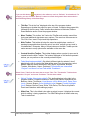
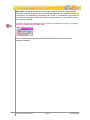
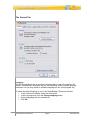
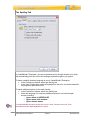
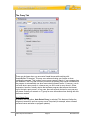
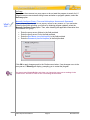
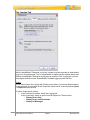
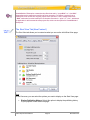
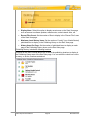
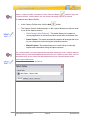
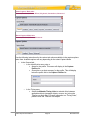
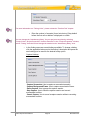
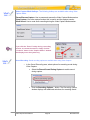
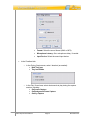
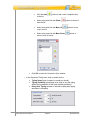
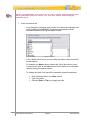
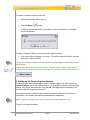
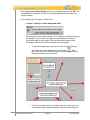
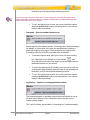
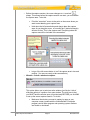
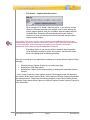
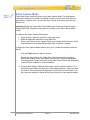
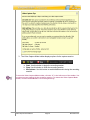
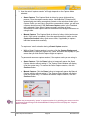
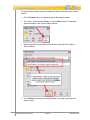
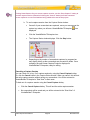
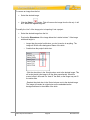
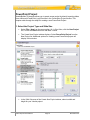
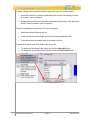
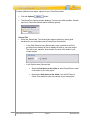
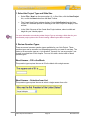
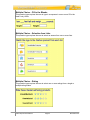
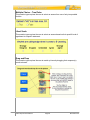
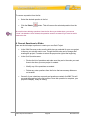
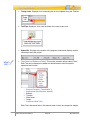
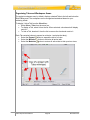
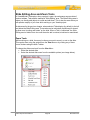
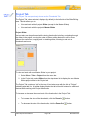
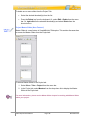
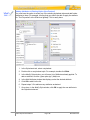
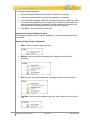
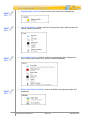
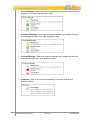
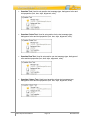
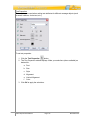
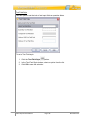
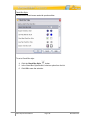
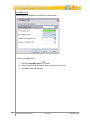
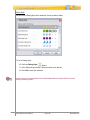
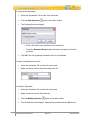
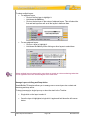
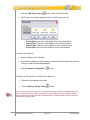
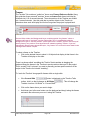
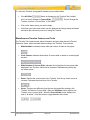
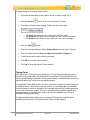
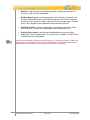
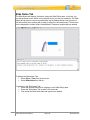
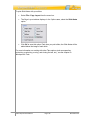
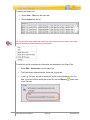
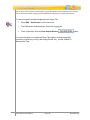
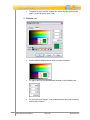
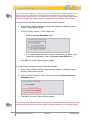
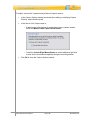
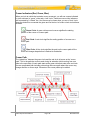
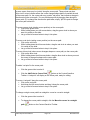
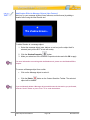
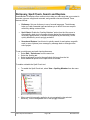
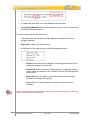
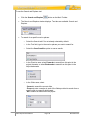
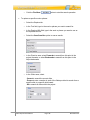
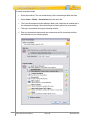
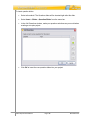
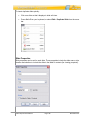
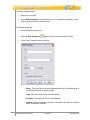
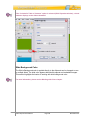
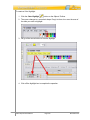
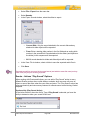
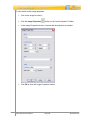
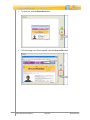
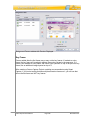
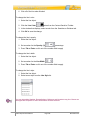
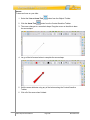
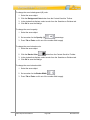
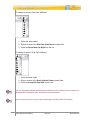
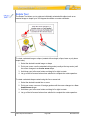
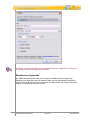
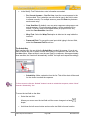
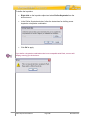
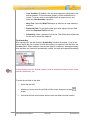
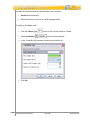
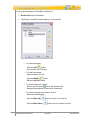
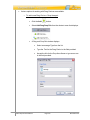
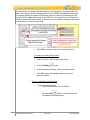
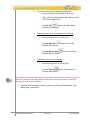
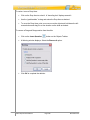
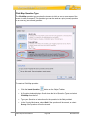
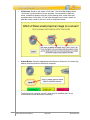
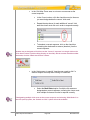
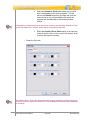
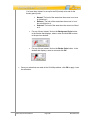
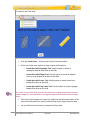
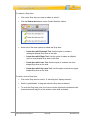
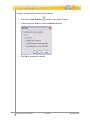
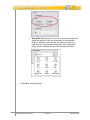
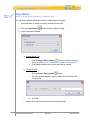
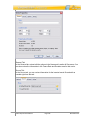
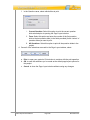
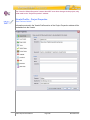
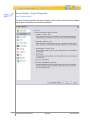
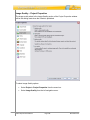
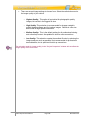
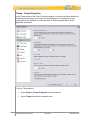
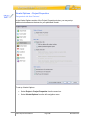
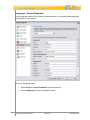
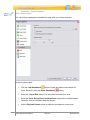
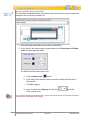
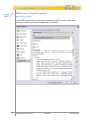
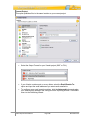
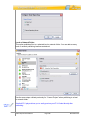
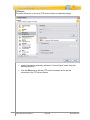
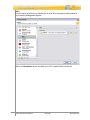
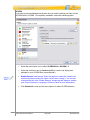
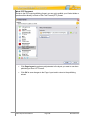
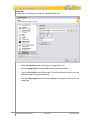
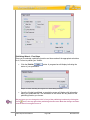
To change an object’s timing using the object’s Properties window: Click the desired object (from either the slide or in the Timeline) to select it. Click the object’s Properties The object’s Properties window displays. In the Timing area, there are options for setting the object’s timing (there’s an additional selection for message objects). These include: o button from the Context Sensitive Toolbar. Reading Speed: Used (by default) for notes, balloons, and text boxes to display the message object from its set Start Time until the automatically calculated reading speed is reached. To set the default “Reading Speed” for ViewletBuilder7 Enterprise, select “Project > Project Properties” from the menu bar. In the “Project Properties” window that displays, select “Timing” from the list (left side of window). In the “Reading Speed” area, enter a number for the “words per minute” or “characters pr minute” reading speed. This value will be used when the program automatically calculates a message object’s reading speed based on the amount of text it contains. o Manual Timing: Used to manually set the Start Time and Duration (in seconds) for the object. VB7 Enterprise User Manual Page 146 November 2011