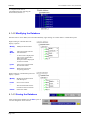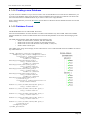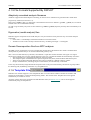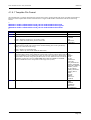
1
D3PLOT
User manual Version 10.0, June 2011
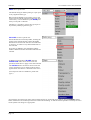
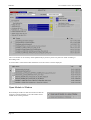
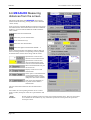
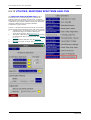
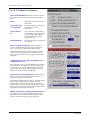
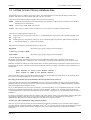
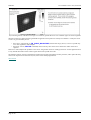
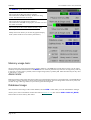
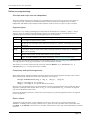
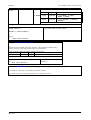
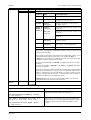
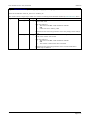
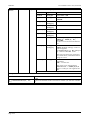
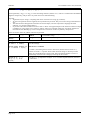
Zoom
factor
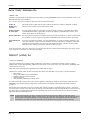
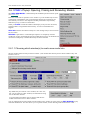
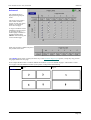
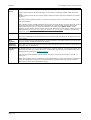
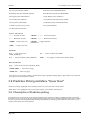
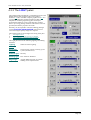
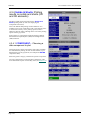
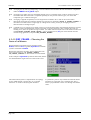
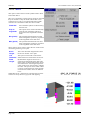
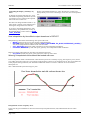
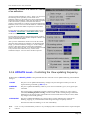
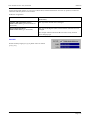
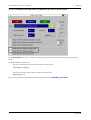
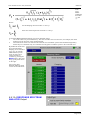
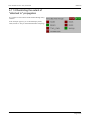
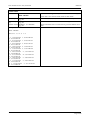
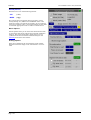
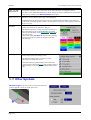
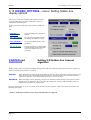
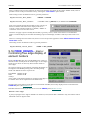
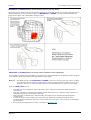
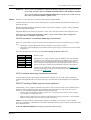
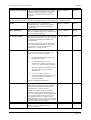
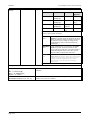
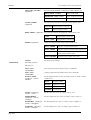
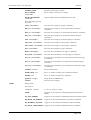
Determines how rapidly the <meta key + mouse key> dynamic zoom operations above work. Again
this is best set by trial and error.
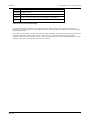
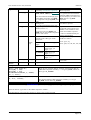
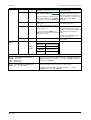
MENU_
AUTO_
CONFIRM
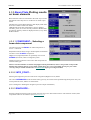
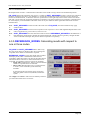
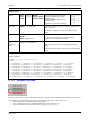
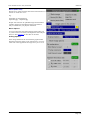
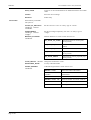
This is a special setting designed mainly for "batch" style usage, and it controls how "popup"
windows that normally wait for acknowledgement from the user should respond.
If it is switched on then these windows will assume that the user has clicked the default action
(usually "OK") and continue operation without waiting. This can be useful when replaying scripts, but
it is not recommended for normal interactive usage.
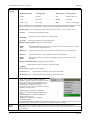
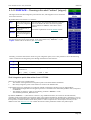
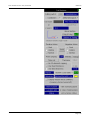
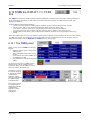
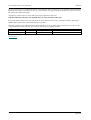
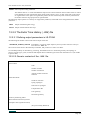
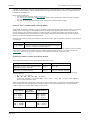
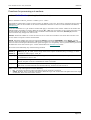
Saving Menu Attributes settings
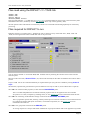
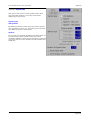
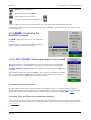
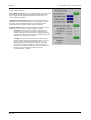
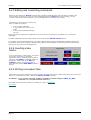
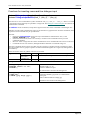
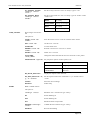
The attributes above may be saved in the "oa_pref" file by using Save_Settings. Subsequent sessions of D3PLOT
will pick these up and re-apply them. The "oa_pref" file is described in more detail in Appendix II.
For backwards compatibility these attributes may also be set using environment variables as described in Appendix
XIII. Where conflicting settings exist those in the "oa_pref" file generated by the panel above (or by hand) will "win".
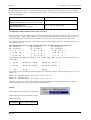
Note: The software potentially reads four "oa_pref" files when an application starts, in the following order:
(1) The OA_ADMIN_nn directory
(2) The OA_INSTALL directory
(3) The OA_HOME directory (default $HOME on Unix/Linux, %USERPROFILE% on Windows - typically
C:\Documents and Settings\user_id)
(4) The current directory (typically "Start in" directory on windows)
Save_Settings in this panel update the file (#2) above in OA_HOME, on the principle that you will have write
permission there and - usually - it will not affect other users. However all "oa_pref" file settings are applied on the
"last found wins" basis, so if you have file in your current directory with different settings these, being the last to be
found, will "win".
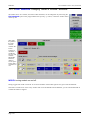
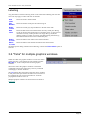
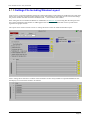
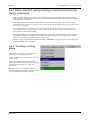
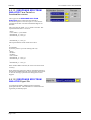
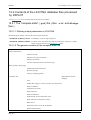
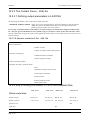
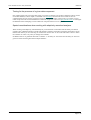
3.7.2 Screen Refresh: Controlling graphics window redraws
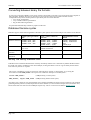
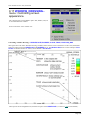
Normally graphics images in D3PLOT redraw at an acceptable speed, and the delay when refreshing "holes" left by
menus popped up in front of the graphics window are not objectionable.
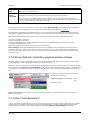
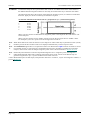
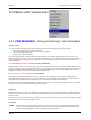
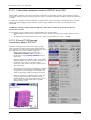
However if you are running a large model on a slow machine this may become a problem, and it is possible to turn off
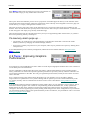
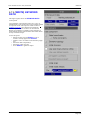
screen refreshes using Options > Screen Refresh. This will leave black holes when menu panels are unmapped, and
you will have to issue an explicit redraw command to get rid of these. You can turn the refresh switch on again at any
time.
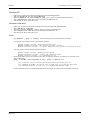
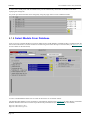
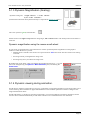
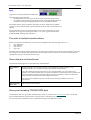
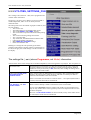
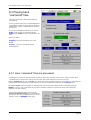
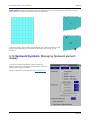
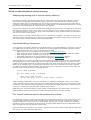
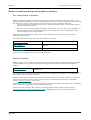
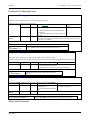
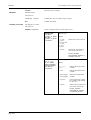
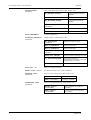
You can save the graphics refresh status in the
"oa_pref" file with the line:
d3plot*graphics_refresh: off |
on
The default is "On".
Note: Unlike PRIMER no "backing store" drawing is used in D3PLOT, so issues such as Bitmaps, Pixmaps and
PBuffers do not arise.
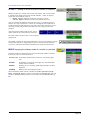
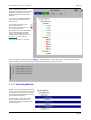
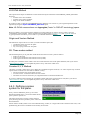
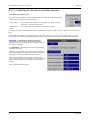
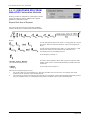
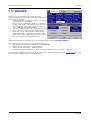
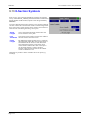
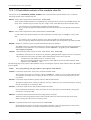
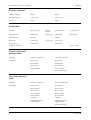
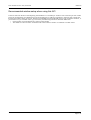
3.7.3 Menu "Auto Expansion"
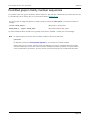
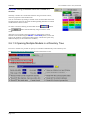
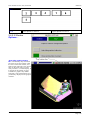
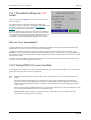
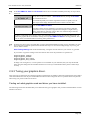
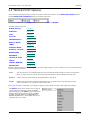
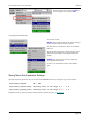
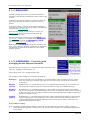
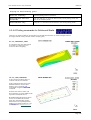
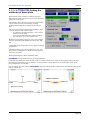
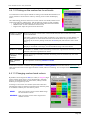
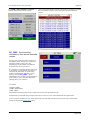
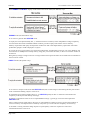
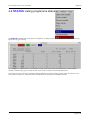
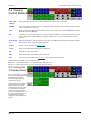
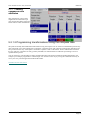
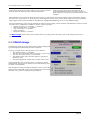
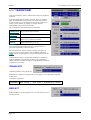
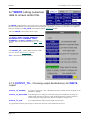
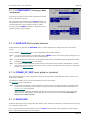
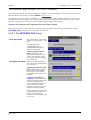
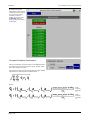
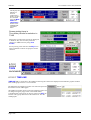
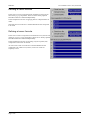
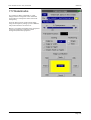
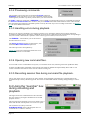
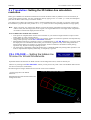
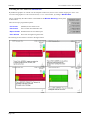
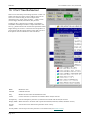
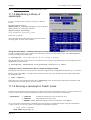
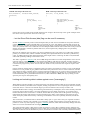
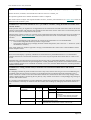
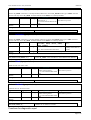
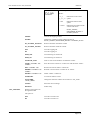
A few of the menus in D3PLOT are too narrow when first mapped to show all the columns of their data, so by default
"auto expansion" is enabled. This causes the menus to widen themselves, typically to 90% of the enclosing width
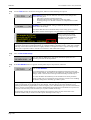
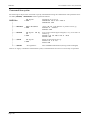
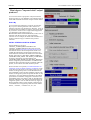
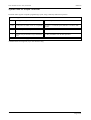
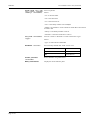
available, after a brief delay. You can control this behaviour using Options > Expand Menus as follows:
Page 3.14