1
Quick Start Reference
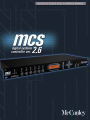
Thank you for purchasing the McCauley MCS2.6 digital
systems controller. This section outlines a few basic procedures to get advanced users up and running quickly.
For complete information on all features and performance
issues, please familiarize yourself with the entire McCauley MCS2.6 user’s manual.
AC Power connection
The McCAULEY MCS2.6 has a universal voltage AC
Power input. Connect the McCAULEY MCS2.6 to AC
Power with the lead supplied. The unit will switch on automatically (there is no separate on/off switch). The display
will show the default screen, with the name and program
number of the current program. (This will be either the last
program recalled before the unit was switched off, or, in
the case of a unit with no stored programs, the default:
1 UNUSED)
Audio connections
Connect the inputs and outputs as desired. All inputs
and outputs are electronically balanced, with Pin 2 hot
signal (+ve). Do not put any audio through the unit at this
time.
Program settings
If your McCAULEY MCS2.6 has been already configured with a program, you only need to use the RECALL
mode to set the parameters to that program:
Press RECALL. Use the Parameter UP/DOWN
keys to select the designated program and press
RECALL again. Programs marked with the letter ‘
M’ are Master ‘OEM’ programs and have been
designed to match specific sound systems. Some
units will be locked to a specific program. In this
case most controls will be disabled and the unit
will be ready for use.
Setting up a system
To configure your McCAULEY MCS2.6, the mode of
the unit should be decided upon before setting up. Once
the Config is set (In the Utilities menu), the crossover
points, individual band delays, EQs, and limiter thresholds
can be set up. To enter the Utilities menu, press the
RIGHT key from the default screen.
McCauley MCS 2.6 User’s Manual
Configuring the McCAULEY MCS2.6
The McCAULEY MCS2.6 can be configured in one
of three modes: 2-way 3-channel, 3-way 2-channel or
Mono 5-way (MONO). To select the mode you wish to
use, enter the Utilities menu, and press the RIGHT key
until you reach the Config screen. Use the UP / DOWN
(PARAMETER) keys to select the option you wish to use.
NOTE: When the configuration is changed, the
unit will prompt for confirmation of the action. If the
ENTER (STORE) key is pressed, then the mode will
change, and DEFAULT VALUES WILL BE RESTORED.
It is advis- able to do a ‘Store’ before changing modes
if you have set up a program.
Setting the Crossover Points
Select the band to be edited by pushing the Access
UP/DOWN keys to cycle through inputs and outputs. Once
the band has been selected, press the LAST / NEXT
keys until the first crossover screen, displaying the lowshape filter slope, appears. Select the type of filter shape
by using the UP / DOWN (PARAMETER) keys to cycle
through the selection. Pushing the RIGHT key from here
will move to the Filter Frequency (Low slope) screen.
Use the UP / DOWN (PARAMETER) keys to select the
frequency. The high slope screen can be accessed after
this screen by pushing the RIGHT key.
Band Delays
Use the LAST / NEXT keys until the delay screen
appears. The delay is adjusted by the UP / DOWN
(PARAMETER) keys. Default settings for display and
adjustment of delay is in meters (m), but can be changed
to milliseconds (ms) or feet/inches (ft) in the Delay Units
screen in the Utilities menu. Bands can also be linked so
multiple outputs can be delayed as one using the Delay
Link utility.
Adding EQ
Use the LAST / NEXT keys to move to the EQ screen.
The EQ shape can be edited first. The shape of the EQ
can be selected from one of the following by pushing the
UP / DOWN (PARAMETER) keys:
• Hi-Shelf with 12dB slope (Hi12)
• Hi-Shelf with 6dB slope (Hi6)
• BELL
• Low-Shelf with 6dB slope (Lo6)
• Low-Shelf with 12dB slope (Lo12).
page 4 of 15