1
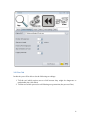
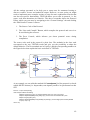
As shown in the picture above, the main screen contains four buttons, which start
TESTAR into its four main modes:
1.
Start in Spy-Mode: This mode does not execute any actions. It will start the
System under Test (SUT) and allows you to inspect the GUI. You can use
different commands in this mode to see more or less information:
o Shift + 1 will show the set of actions that TESTAR recognizes, so you can see
which ones will be executed during test.
o Shift + 2 highlights the widget under cursor. Also, you will be able to see its
role and an array that contains the path you need to follow in order to locate it
inside the widget tree.
o Shift + 3 displays information of the widget under cursor (see Section 4.2 for
further information).
2.
Start in Generation-Mode: This mode will start the SUT and execute a full test
on the SUT. Switching to GenerateManual mode (Shift + Arrow Left) you will be
able to take the control at any time.
3.
Start in Replay-Mode: This mode replays a previously recorded sequence.
TESTAR will ask you for the sequence to replay.
4.
Start in View-Mode: The View-Mode allows you to inspect all steps of a
previously recorded sequence. Contrary to the Replay-Mode, it will not execute
any actions, but only show you the screenshots that were recorded during
sequence generation. This is ideal if a sequence turns out not to be reproducible.
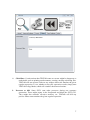
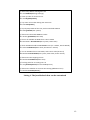
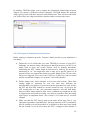
3. Setting up your tests 3.1 General Settings TaB The Screenshot below shows the tab with the general settings for TESTAR
1. Path to the SUT: Pick the executable of the SUT or insert a custom command
line (p.e. java -jar "suts/calc.jar").
For web applications, follow the format
<Path_to_your_Browser.exe> <URL of your SUT>
in the field Path to the SUT. For API related problems, we recommend for
now the use of Internet Explorer in order to get the correct
identification of widgets. For example:
"C:\Program Files\Internet Explorer\iexplore.exe" "http://www.youtube.es/"
4