1
DPC/TRACK Essentials
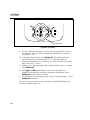
Main Menu Buttons
2
Main Menu Buttons
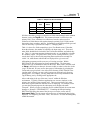
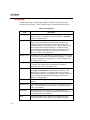
This section provides basic information about the various buttons that appear on
the Main Menu. As appropriate, reference is made to the specific chapters and
examples that address the tasks with which each object is associated.
Schedule
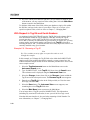
Upon selecting this button, the Scheduler screen appears, from which you
may search for overdue, due, and untested Tag IDs based on a date range.
Chapter 5, “Testing,” discusses the Scheduler screen in detail.
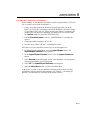
Load/Unload
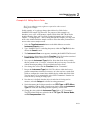
The Calibrator Manager screen may be accessed by clicking on this
button. From here, calibrator communications may be initiated. More
information may be found in Chapter 5, “Testing.” See also Example 2.4.
Additional examples are presented in Appendix B, “Fluke Calibrators.”
Reports
Clicking on the Reports button accesses the Report Selection screen.
The numerous reports that are available through this object are discussed in
Chapter 4, “Graphs & Reports.”
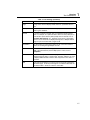
Results
Clicking on the Results button accesses a Quick Search screen where you
may specify search criteria towards finding desired Test Results records
pertaining to your instruments. See Example 3.1.
Tags/Instruments
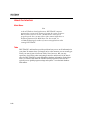
Clicking on this button accesses a Quick Search screen where you may
specify search criteria towards finding desired Tag ID records. See Example
2.1.
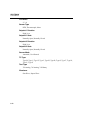
Test Equipment
Clicking on the Test Equipment button accesses a Quick Search screen
where you may specify search criteria towards finding desired Test
Equipment records. See Example 3.3.
System Setup
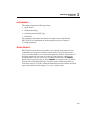
Clicking on this button accesses the System Setup screen, through which
certain administrative tools may be accessed. See Chapter 9, “System
Maintenance.”
2-7