1
On the Course
iGolf
P la y G ol f N ow
The AG50s is preloaded
with GPS data for over
18,000 golf courses,
and is ready to use
immediately on any
mapped golf course.
1. Proceed outside, away from
t a l l buildings an d tree s fo r a
clear view of GPS satellites.
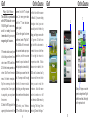
2. With the device powered on,
select iGolf from the main
menu. For better reception,
flip the screen up into the
open position. Once signal
is acquired, you may close
the screen.
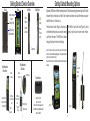
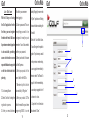
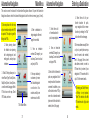
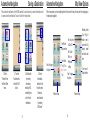
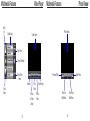
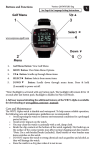
3. Check for GPS signal. In the
upper right-hand corner of the
screen, find the “T” shaped
icon. 2 or more green bars
with the “T” icon indicates
good s ignal.
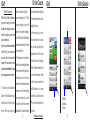
4. Once the signal has been
confirmed, select “Play Golf.”
The AG50s will then search
for courses based upon your
position, and the courses
nearest to your location will
b e d i s p l a y e d a u t o m a t i c a l l y.
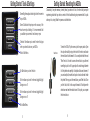
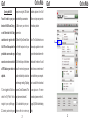
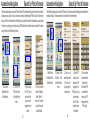
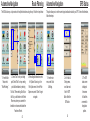
5. Select your course from the
l i s t . Yo u m a y s c r o l l t h r o u g h
the list for more results
by sliding your finger across
the screen from the bottom to
the top.
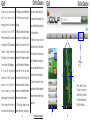
6 . S e l e c t y o u r Te e b o x .
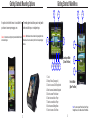
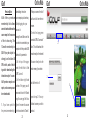
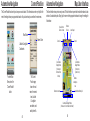
7. The AG50s will show you
9
the first hole of the course
by default. If you are doing
a shotgun start, you can
manually switch holes by
sliding your finger across the
golf green. Slide from
right-to-left to advance to
the next hole, or slide from
left-to-right to return to
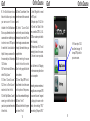
the previous hole. If Auto
Advance is enabled, the
AG50s will automatically
advance to the next hole
when you arrive at the
teeboxes. Auto Advance
can be turned on or off
from the main iGolf menu by
selecting “Settings” then
selecting “Device Settings.”
On the Course
iGolf
7.
3.
2.
4.
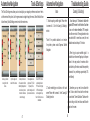
Slide your finger across the
green to change holes. Rightto-left for next hole. Left-to-right
for the previous hole.
10