1
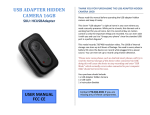
MP3 PLAYER
HIDDEN CAMERA
SKU: HCMP3
THANK YOU FOR PURCHASING THE MP3 PLAYER HIDDEN
CAMERA
Please read this manual before operating the MP3 player hidden
camera and keep it handy.
The size of this gadget is mindboggling considering that it is not only a
hidden camera, but also a fully functional Mp3 player— it is only
slightly larger than a quarter. Keep yourself entertained while you
capture your evidence. Great for personal investigators slightly bored
on the job, but also prevents any suspicions about why you're
wearing the device. Or, use as a sports cam and play music while
biking, running, or walking.
This unit records 150 minutes of 640*480 resolution video in full
color. You also have the option of taking still photographs. All videos
and photographs are stored on MicroSD cards ranging from 2GB–
16GB. The rechargeable battery has a life up 2 hours.
Your purchase should include:
1 x MP3 Player Hidden Camera
1 x USB Cable
1 x Earphones
1 x Instruction Booklet
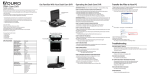
GET FAMILIAR WITH YOUR MP3 PLAYER HIDDEN CAMERA
SD Card
Slot
Indicator
Light
Lens
Figure 2: Side A
Volume Up
/ Video
Next Song /
Fast Forward
USB Jack /
Earphone Jack
Power / Play
Previous Song /
Rewind
Reset Hole
Volume Down
/ Photo
Figure 1: Front
Figure 3: Side B
OPERATING THE MP3 PLAYER HIDDEN CAMERA
IMPORTANT NOTICE: Allow the device to charge 4 – 6 hours before
using.
HOW TO CHARGE THE MP3 PLAYER
1. Plug the USB cable into the USB jack on the MP3 player
2. Plug the USB cable into your PC
• The indicator light will blink yellow while charging
• The indicator light will stay solid when fully charged
HOW TO TURN ON / OFF THE MP3 PLAYER
1. Insert a MicroSD card into the slot
2. Push and hold the Power button
• The yellow indicator light will turn on
• The MP3 player is now in standby mode
3. Push and hold the Power button
• The yellow indicator light will turn off
HOW TO PLAY MUSIC
1. Push the Play button to play your personal music files
• The blue indicator light will blink slowly
2. Push the Play button to pause the music
• The blue indicator light will turn solid
3. Push the Play button to un-pause the music
• The blue indicator light will blink slowly
4. Push and hold the Fast Forward button to fast forward
through a song
5. Push the Next Song button to skip to the next song
6. Push and hold the Rewind button to rewind through a song
7. Push the Previous Song button to skip to the previous song
8. Push and hold the Play button to stop the music
• The indicator light will turn yellow
• The MP3 player is back in standby mode
HOW TO RECORD VIDEO
1. Put the MP3 player into standby mode
2. Push the Video button
• The yellow indicator light will blink while recording
3. Push the Video button
• The yellow indicator light will turn solid and stop
recording
HOW TO TAKE PHOTOGRAPHS
1. Put the MP3 player into standby mode
2. Push the Photo button
a. The yellow indicator light will blink once
HOW TO RESET THE TIME AND DATE STAMP (Windows Only)
1. Connect the device to your PC using the USB Cable
2. Go to http://mgidownloads.com/Software/
3. Click on "MP3_Time_Stamp_Software.zip"
4. Go to Start > Computer > Downloads
5. Right click MP3 Time Stamp Software zip file and select
“Extract all”
6. Open the newly extracted folder
7. Open “MP3 Time Stamp Software
8. Click “updatatime”
9. Click “Run”
RETRIEVE THE FILES TO YOUR PC
1. Plug the device into your PC using the USB cable
2. Locate “Removable Disk” inside the (My) Computer folder
• AutoPlay Removable Disk > Open folder to view files
Or…
•
Go to Start > Computer > Removable Disk
3. Open the Removable Disk drive
Open the MUSIC folder to add or remove your
personal music files from the MP3 player
• Open the IMAGE folder to access the photos taken
with the MP3 player
• Open the VIDEO folder to access the videos taken with
the MP3 player
4. Double click the file you want to view
• VLC Player is recommended for watching videos
•
TROUBLESHOOTING
SPECIFICATIONS
THE DEVICE WON’T TURN ON
• Charge the device for at least 4 hours before the first use.
• Make sure the charging cable is securely inserted into the
device and into the power source.
Video Resolution
Video Format
Frames per Second
Recording Time
Vision Angle
Motion Detection
Photo Resolution
Photo Format
Water Resistant
Battery Life
Type of Memory
Memory Capacity
Recording Capacity
THE DEVICE ISN’T CHARGING
• Replace the charging cable.
• If you are charging via a wall power source, you may need to
charge via your PC. The AC adapter might be bad.
THE DEVICE HAS CRASHED
• You need to reset the device.
MY COMPUTER DOESN’T RECOGNIZE THE DEVICE
• Unplug the device from your PC and reboot the device.
• Unplug the device from your PC and reboot your PC.
• Try using a different USB slot on your PC.
• Replace the USB cable.
THE SOUND OR VIDEO IS UNCLEAR
• The device needs charging.
THE YELLOW INDICATOR LIGHT BLINK WHEN I TRY TURNING
ON THE MP3 PLAYER
• Insert a MicroSD card
THE YELLOW LIGHT IS BLINKING FIVE TIMES AND THEN
SHUTTING DOWN
• The battery is low
OTHER PROBLEMS
• Call our technical support at 770–694–6921
USB Interface
Player Software
Operating Systems
640*480
AVI
30
150 minutes
65°
No
1280*960
JPG
No
2 hours
MicroSD Card
2GB–16GB
2GB ≈ 80 minutes (1.3 hours)
4GB ≈ 160 minutes (2.6 hours)
8GB ≈ 320 minutes (5.3 hours)
16GB ≈ 640 minutes (10.6 hours)
1.0 USB
VLC recommended
Windows 2000
Windows Me
Windows XP
Windows Vista
Windows 7
Mac OSX
Linux