1
VI. Feature Detail: Bookmark
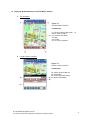
A. Adding a folder
Note: To be able to use the bookmark feature, user has to add a folder under the root
folder first.
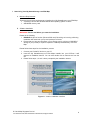
To add a folder to the root folder
1. Choose the root folder.
2. Tap on Add user defined folder button
3. Fill the name of the folder
4. Tap ok. The folder will be automatically created under the root folder.
B. Deleting a folder
Warning: When you delete a folder, you will delete all of the bookmarks inside that folder.
To delete a folder
1. Choose the folder you want to delete
2. Tap on Delete button.
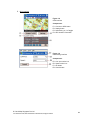
C. Adding a bookmark
Note: Before you add a bookmark, please point the place you want to add on the map.
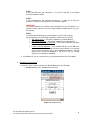
To add a bookmark
1. Choose the user defined folder under which you want to add the bookmark.
2. Tap Add button.
3. Fill the name of the bookmark.
4. Tap on the black box if you want to add an icon.
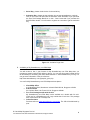
5. Choose from the wide range of icon available. Tap on any of them to preview them
and see the information such as name, width and height. Tap OK on the upper right
hand corner when you’ve selected the desired icon.
6. Tap ok on the upper right hand corner to confirm adding the bookmark.
7. The bookmark will then be added under the folder which you have chosen earlier.
D. Deleting a bookmark
Warning: Deleting a bookmark is irreversible.
To delete a bookmark
1. Choose the bookmark which you want to delete
2. Tap Delete button.
© Virtual Map Singapore Pte Ltd
215 Henderson Road, #03-06 Henderson Industrial Park, Singapore 159554
13