1
3
Getting Started/Record & Capture
DOWNLOAD & CREATE ACCOUNT
1. Download the Looxcie Mobile App for your phone:
http://www.looxcie.com/products/apps
2. Install and launch the app on your smartphone or tablet.
3. Choose a method to sign up for a Looxcie account, either Facebook or
Other Ways to Sign In.
Note: If you choose Other Ways to Sign In you must sign up for a
Looxcie account before you can sign in.
Record & Capture
The Looxcie 3 can record video both as a standalone device (when
not connected to the mobile app) and when connected by WiFi
to your smartphone or tablet. Currently, still photos can only be
taken by pressing the button and cannot be taken from the app. A
microSD card (sold separately) must be installed in the camera to
record video and capture photos.
4. Record and stream live video or watch video from your friends and
the Looxcie community.
RECORD & CAPTURE IN DIRECT MODE
Note: For detailed instructions on using the Looxcie mobile app to view,
record, and stream video, see the Looxcie Mobile App User’s Guide.
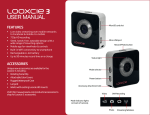
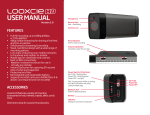
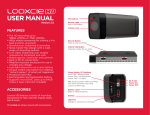
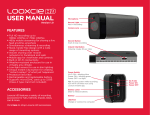
1. Press the Mode button to select Video mode.
Connect
The Looxcie 3 connects via WiFi to your smartphone or tablet to stream
live video. To establish a connection between your camera and mobile
device for the first time:
1. Press the camera’s power button for 5 seconds.
2. Wait until orange flashing WiFi icon on back turns solid, and the status light on front will be solid green.
3. Turn on WiFi on your mobile device and look for LOOXCIE3_####:
• Android: under Settings/Wireless & Networks/WiFi
• iOS: under Settings/WiFi
Record video:
2. Press the Record/Photo button to start and stop recording.
Take a photo:
1. Press the Mode button to select Photo mode.
2. Press the Record/Photo button to take a photo.
Take looping video (DVR Mode)
1. Press the Mode button to select Loop Recording/DVR mode.
2. Press the Record/Photo button to start Recording. The Looxcie
3 will record and overwrite prior Loop recordings.
4. Start the Looxcie mobile app and sign into your account.
3. Use the Looxcie Mobile App or a USB connection to your PC to
view looped video
5. Select the Looxcie 3 from your list of WiFi devices.
Make an instant clip:
6. Enter password and camera will restart. IOS users will need to
reconnect manually.
Instant clip allows you to make a stored recording of an event that
just happened, like a whale breach or a car accident.
7. You can also establish or reestablish a connection with the camera by
selecting Record or Stream from the app’s home screen or when you
change Camera options on a right swipe from preview screen.
1. You must be recording in Loop Recording mode.
You will need a solid 3G/4G connection to stream but not to record.
2. Press and briefly hold the Record/Photo to create a clip of the
last 30 seconds of looping video. It takes a few seconds to
make the clip.